
1. Basic Understanding of Camera AI
1.1 AI Platform Performance
AI performance varies across different chip platforms, and the overall feature richness and AI performance are roughly as follows:
Mini<Q<Panoramic = PTZ<Pro
Note: Differences may exist among different models due to varying hardware functions; for example, sound classification is only supported on models equipped with a built-in mic.
1.2 Overview and Compatibility of AI Features
The AI functions supported by the Milesight Pro series cameras fall into two main categories:
Category | Feature List |
VCA | Intrusion Detection, Region Entrance, Region Exit, Advanced Motion Detection, Line Crossing, Loitering, Object Left, Object Removed |
MSense | Object Counting, Heat Map, Face Detection, PPE, Attribute Extraction, Fall Detection, Violence Detection, Sound Classification (Gunshots/Glass Breaking/Screams) |
1.3 Detection Target Classification
VCA 3.0 supports vehicle-pedestrian classification detection, and vehicles are subdivided into 5 types:
• person
• non-motor vehicle
• Motor vehicles: cars, trucks, buses, electric vehicles, bicycles
1.4 Basic Principles of Detection
• The minimum side length of the target shall be 5% pixels larger than the actual resolution; the recognition effect will be limited if the size is smaller than this threshold
• Only moving targets or targets that have previously moved will trigger the display of the recognition bounding box and alarm, which can filter out false recognitions caused by stationary objects
• NMS (Non-Maximum Suppression): When targets are too close to each other, they will be merged into a single bounding box, which may result in missed detection (e.g. in dense crowds)
2. Installation and Tuning (General Scenarios)
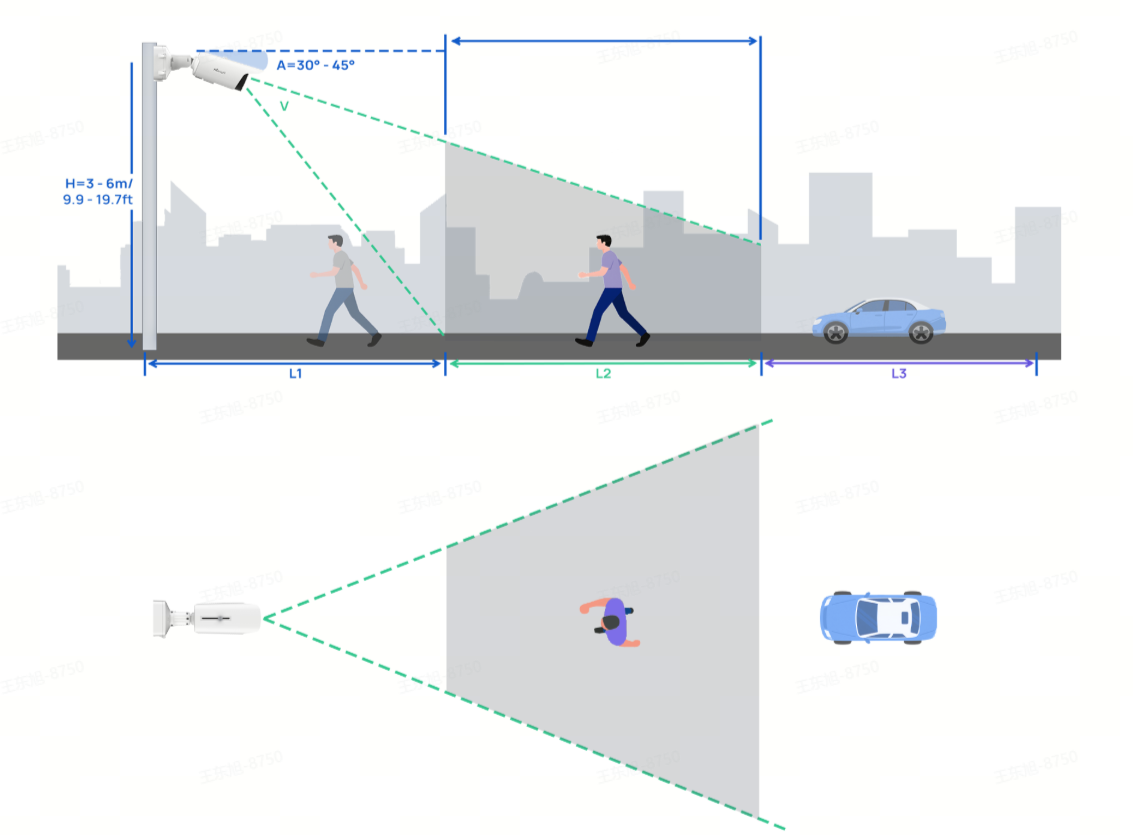
2.1 Installation Height
• Recommended height: 3 ~ 6m
• Excessively low height → narrow field of view, making targets likely to quickly move out of the frame
• Excessive height → The target size in the frame is too small, resulting in missed detection as it falls below the target pixel threshold
2.2 Installation Angle
• Recommended angle: ≤ 30°(depression angle)
• Avoid top-mounted installation (shooting vertically downward, except for fisheye models): from a top-down perspective, the features of people and vehicles are not obvious
• Excessive angle → Target gets compressed, making feature extraction difficult
2.3 Installation Orientation
• It works best when the target's moving direction forms a certain angle with the optical axis of the lens (as side view offers the richest features)
• Install the camera in the normal orientation, and avoid flipping the inverted stream for AI detection
Note: Installation requirements may be fine-tuned to varying degrees depending on the device type, which will not be elaborated in this document. For details, please refer to the following document:
[IPC-Event] Recommended Installation for AI Analysis
3. Image Quality Optimization
3.1 Daytime Image Optimization
• Ensure proper exposure, with the target neither overexposed nor underexposed
• Shutter speed should not be too low (to avoid motion blur)
• Focus is sharp, with crisp edges on the target
• WDR: Enable WDR in strong light environments to prevent targets from being too dark
3.2 Optimization for Night/Low-Light Environments
• Infrared fill light: Ensure the fill light uniformly covers the detection area to avoid overexposure or insufficient fill light
• Low-light Noise Reduction: Apply moderate noise reduction, but avoid excessive processing (as over-noise-reduction will cause loss of target details)
• At night, raindrops, flying insects and light spots are easily misidentified as human or vehicles
3.3 Scene Mode Selection
Selecting the corresponding scenario as needed can simplify the image adjustment configuration.
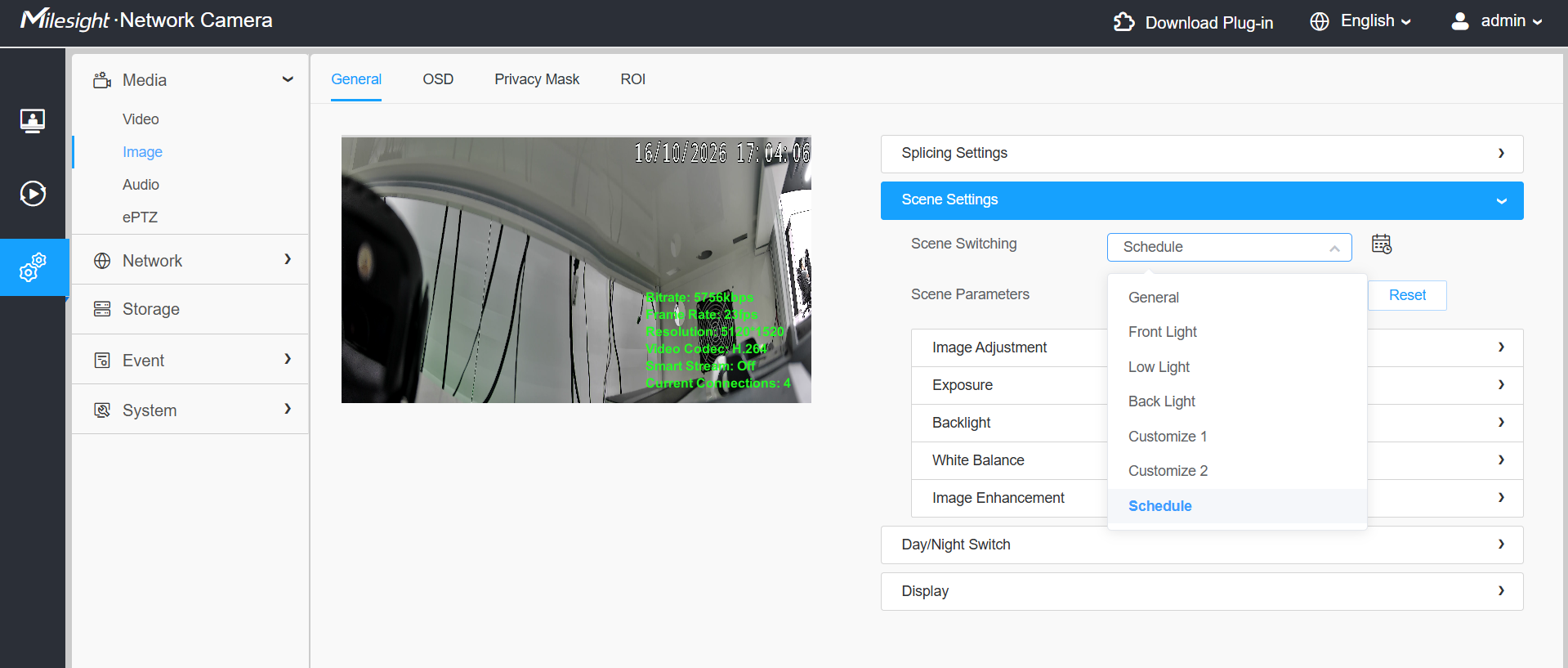
Scene Mode | Applicable Environment |
General | Normal daytime lighting, default scenario |
Front Light | Position the light source in front to avoid overexposure |
Low Light | Optimizes brightness and noise reduction for night or low-light environments |
Back Light | Backlight environment to prevent the subject from being too dark |
Schedule | Automatically switch scenes according to the schedule |
4. Tuning of Core General Parameters
4.1 Sensitivity
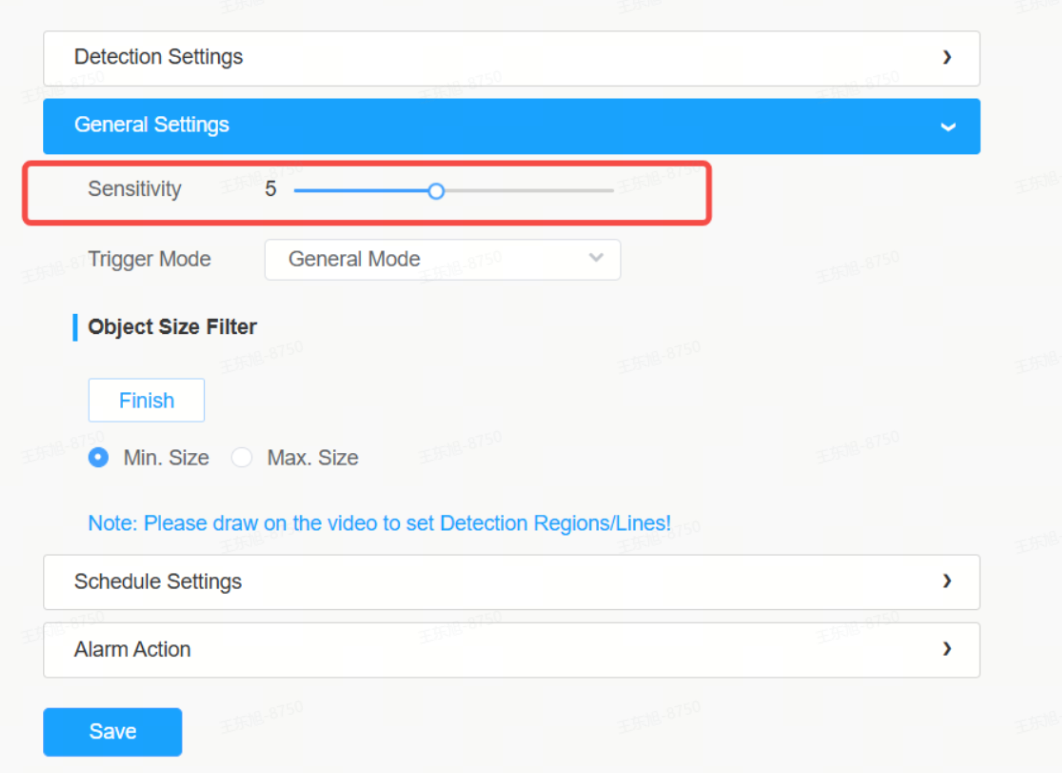
Parameter Item | value range | default value | Description |
Sensitivity | Levels 1 to 10 | 5 | The higher the value, the easier it is to detect the target, but the more false alarms there will be. |
Tuning Strategy:
• Default to level 5, then make gradual fine adjustments based on the actual effect
• High missed detection rate → improve sensitivity
• Excessive false positives → Decrease sensitivity
• The sensitivity should be appropriately reduced in rain, snow and foggy weather (due to increased environmental interference)
Note: Sensitivity is a global parameter that applies to all detection zones/detection lines.
4.2 Object Size Filtering
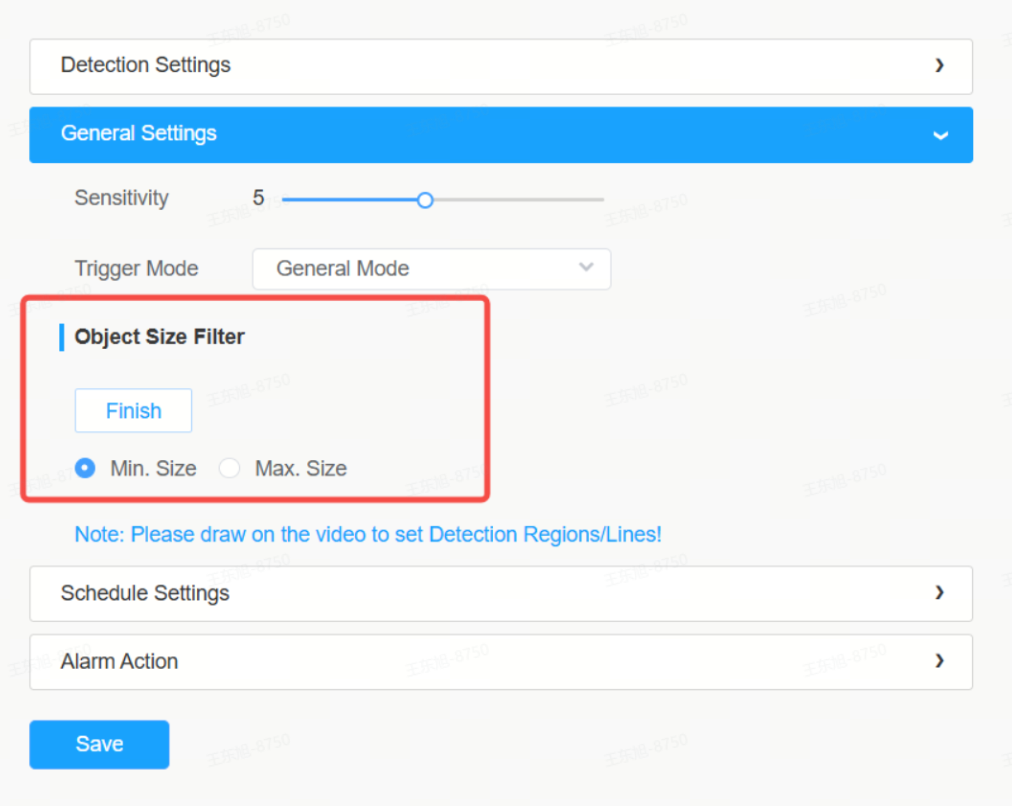
Parameter Item | Description |
Min. Size | Targets smaller than this size will not be triggered (filters out small animals and distant small objects) |
Max. Size | Targets larger than this size will not be triggered (to filter large-area light and shadow changes) |
Tuning Strategy:
1. First, observe the pixel size of the target in the actual scenario (you can enable motion analysis and make auxiliary judgments based on the detection frame)
2. Minimum size: Set it to a value slightly smaller than the smallest object in the scene (approximately 70% to 80% of the smallest object's size)
3. Maximum size: Set it to a size slightly larger than the largest object in the scene
4. The minimum size should not be excessively large, otherwise distant targets may be missed during detection
5. The maximum size should not be too small, otherwise large nearby objects will be filtered out
Quick Calibration Method: Within the detection area, have a person/vehicle walk from the farthest point to the closest point, observe the variation range of the detection frame size, and set the Min/Max Size accordingly.
4.3 Detection Object Selection
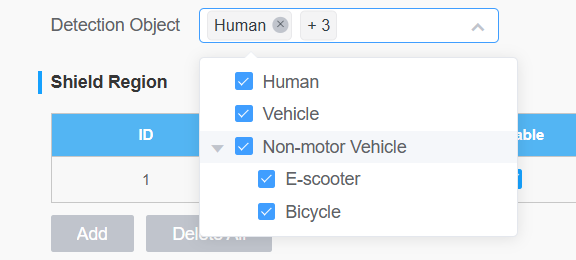
Most VCA events support selecting the type of detection target:
• Human
• Non-motor Vehicle
• Vehicle
Tuning Strategy:
• Only check the types of targets that actually need to be detected to reduce interference from irrelevant targets
• For example: For perimeter protection, only humans need to be detected, so it is recommended to only check the "Human" option, which will prevent false triggers caused by passing vehicles
• When both vehicles and pedestrians need to be detected, note that there is a large difference in their sizes, so the target size filter value should take the union set
4.4 Detection Region and Shielding Region
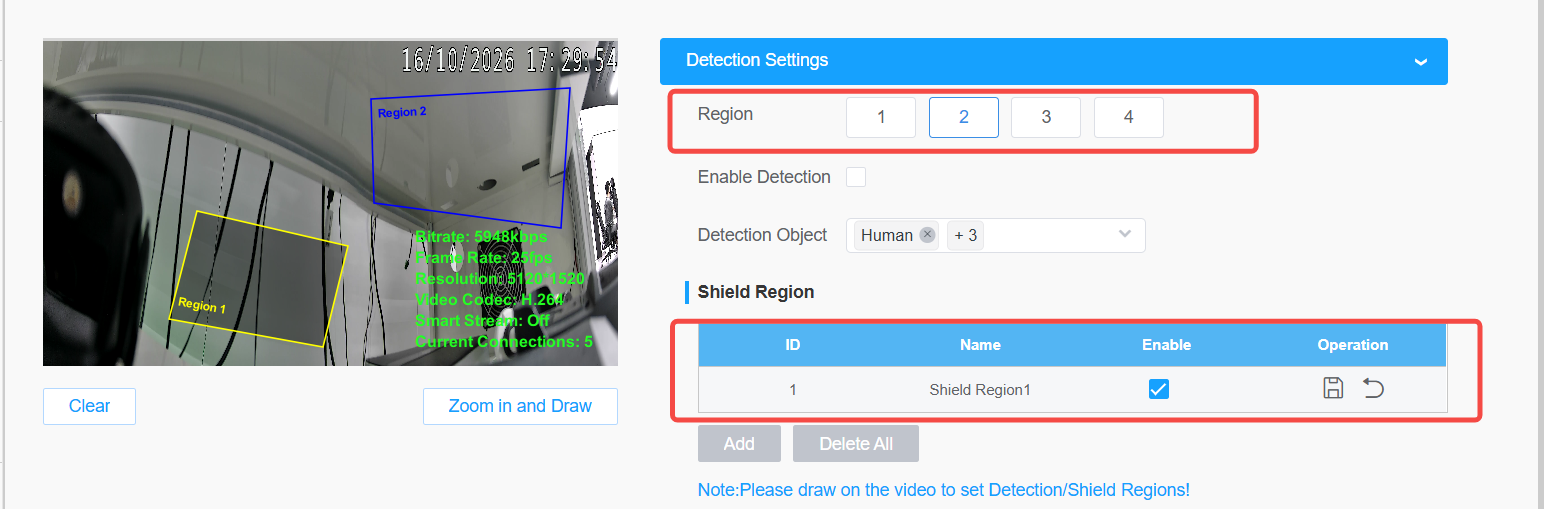
Parameter Item | Description |
Detection Region | Supports up to 4 detection zones |
Shield Region | Up to 4 masking areas are supported, and targets within the areas will be ignored |
Tuning Strategy:
• Precise drawing of detection area: only include the areas that need to be detected, and exclude the sky, the far end of the road, shaking branches, etc
• Make good use of the masking area: when there are fixed interference sources (such as rotating fans, fluttering flags) in the detection area, use the masking area to frame them
• Avoid areas where targets frequently appear at the edge of the region as much as possible (to improve detection stability)
4.5 Trigger Mode
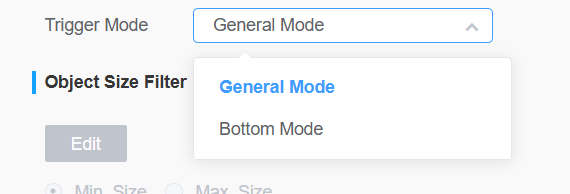
Events such as region intrusion and region entry support two trigger logics:
Mode | Trigger Logic | Applicable Scenarios |
General Mode | Triggering occurs when the target subject roughly enters the detection area | Standard depression angle scenarios deliver relatively high accuracy. |
Bottom Mode | Trigger as soon as the target's bottom (feet) enters the area | Scenarios based on lower-part target detection or requiring more sensitive intrusion detection |
Tuning Strategy:
• Routine detection → Recommended routine mode (fewer false positives)
• Based on lower-part detection under the target → try bottom mode
• The bottom mode features higher sensitivity, yet it is also more prone to false triggers caused by partial entry of the target
4.6 Repeated Alarm
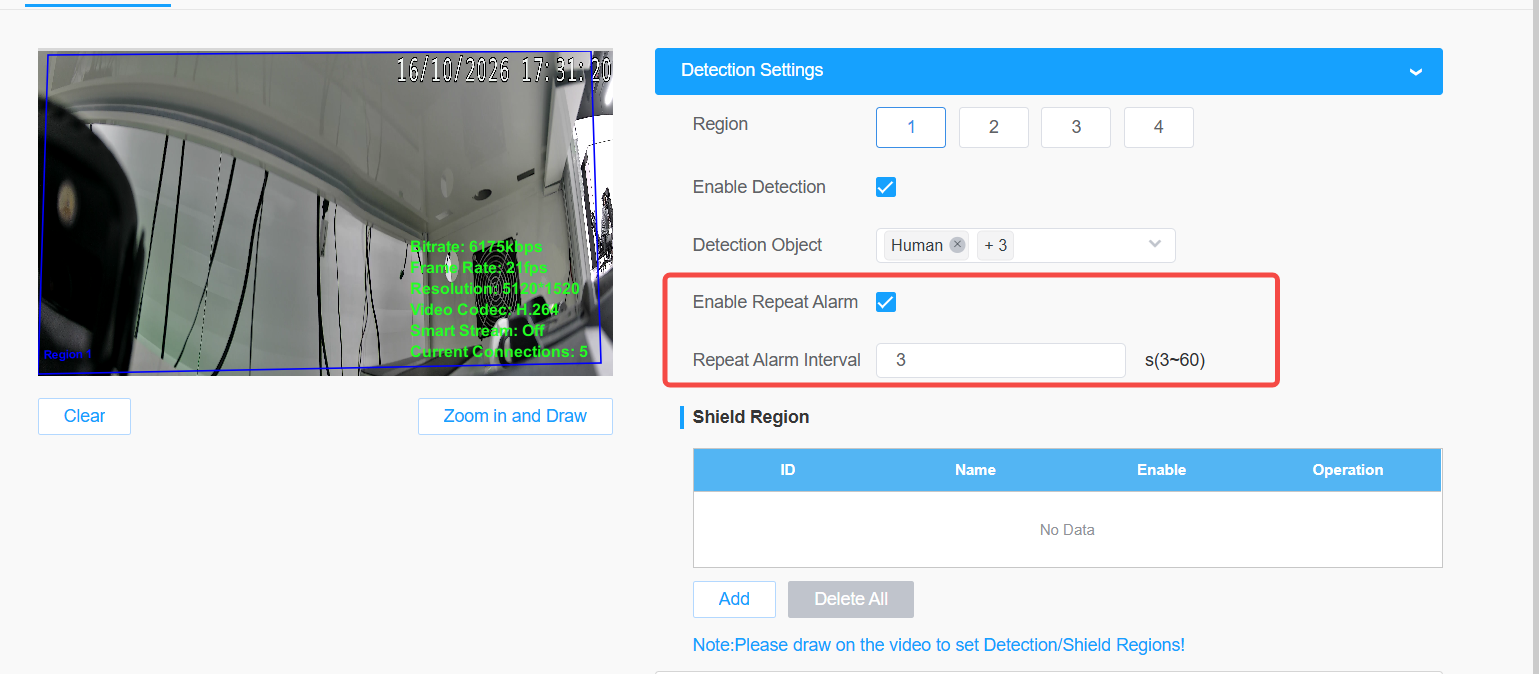
Parameter Item | Value Range | Note |
Enable Repeat Alarm | On/Off | Whether to repeatedly trigger an alarm when the target stays in the area continuously |
Repeat Alarm Interval | 3 to 60 seconds | Minimum interval between repeated alarms |
Tuning Strategy:
Enable as needed. This function controls whether alarms for a single target or within the same time period will be triggered repeatedly, and it affects the Alarm linkage configuration item.
5. VCA
5.1 Intrusion Detection
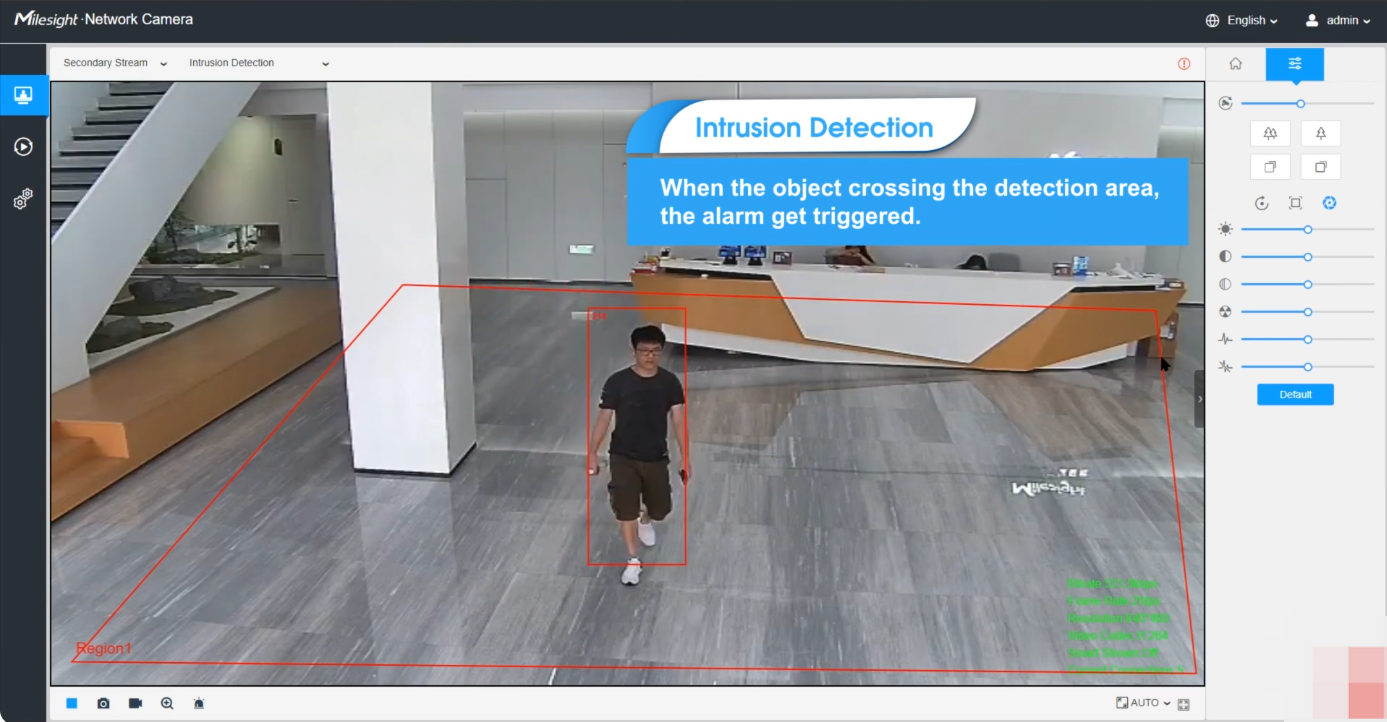
Function Description: Detects the behavior of targets entering or appearing within a defined area, applicable for perimeter prevention, restricted area monitoring, and other such scenarios.
Core Parameters:
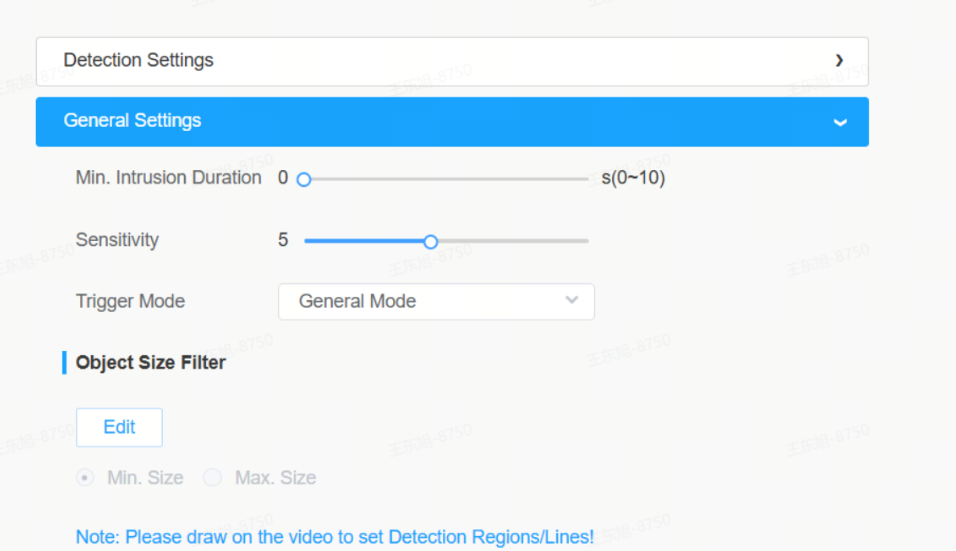
Parameter | Value/Option | Description |
Min. Intrusion Duration | 0~10 seconds | Set 1~3 seconds for false alarm prevention; set 0 for high security level |
5.2 Region Entrance / Region Exiting
Function Description: Detect the behavior of a target entering the area from outside or leaving the area from inside.
Tuning Key Points:
• The boundaries of the area shall be clear, and there shall be no occlusion near the boundaries
• The path along which the target enters or exits shall form a relatively large angle with the boundary of the area
• For scenarios that require detection of the of a target or demand more sensitive intrusion detection, the bottom mode can be used
5.3 Line Crossing
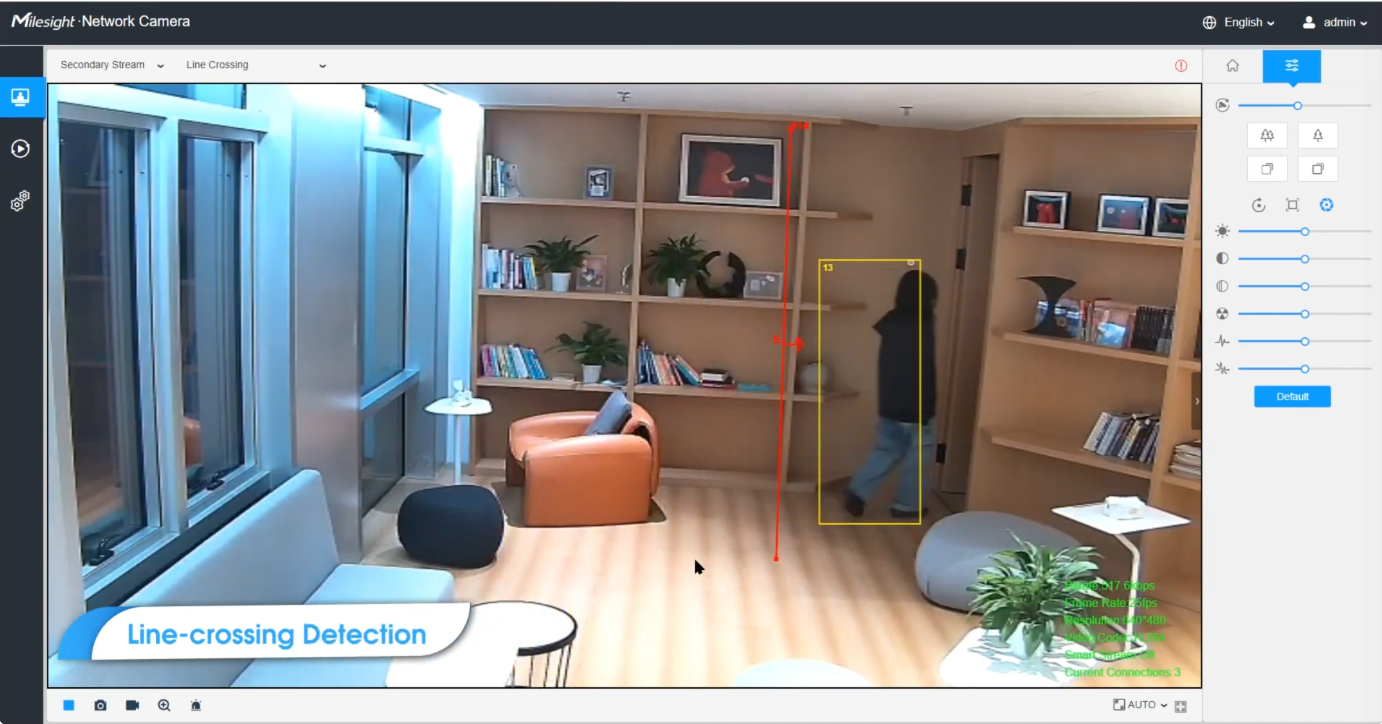
Function Description: Detects the behavior of a target crossing a virtual warning line, which is applicable for access control and boundary monitoring scenarios.
Core Parameters:
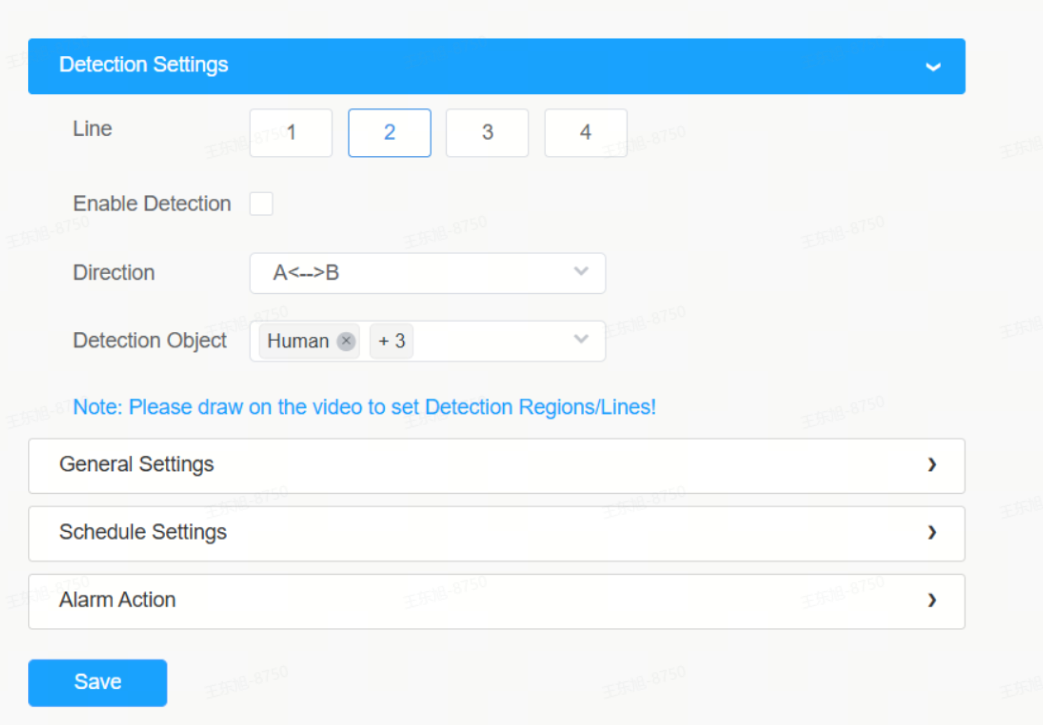
Parameters | Value/Option | Description |
Line | Up to 4 items | Each line has its own independently set direction |
Direction | A→B / B→A / A↔B | Select according to actual needs |
Detection Object | Human/Car/Bus/Truck/Motorcycle/E-scooter/Bicycle/Other | Select only the required types |
Key Tuning Points:
• The direction of the crossing line shall be as perpendicular as possible to the moving direction of the target, or form a relatively large included angle (> 45°) with it
• Avoid the two ends of the line from being too close to each other (a minimum pixel spacing is required)
• Select the line position in an area with clear targets and no obstructions
• Avoid having objects that shake frequently (such as tree branches and flags) near the wires
5.4 Loitering
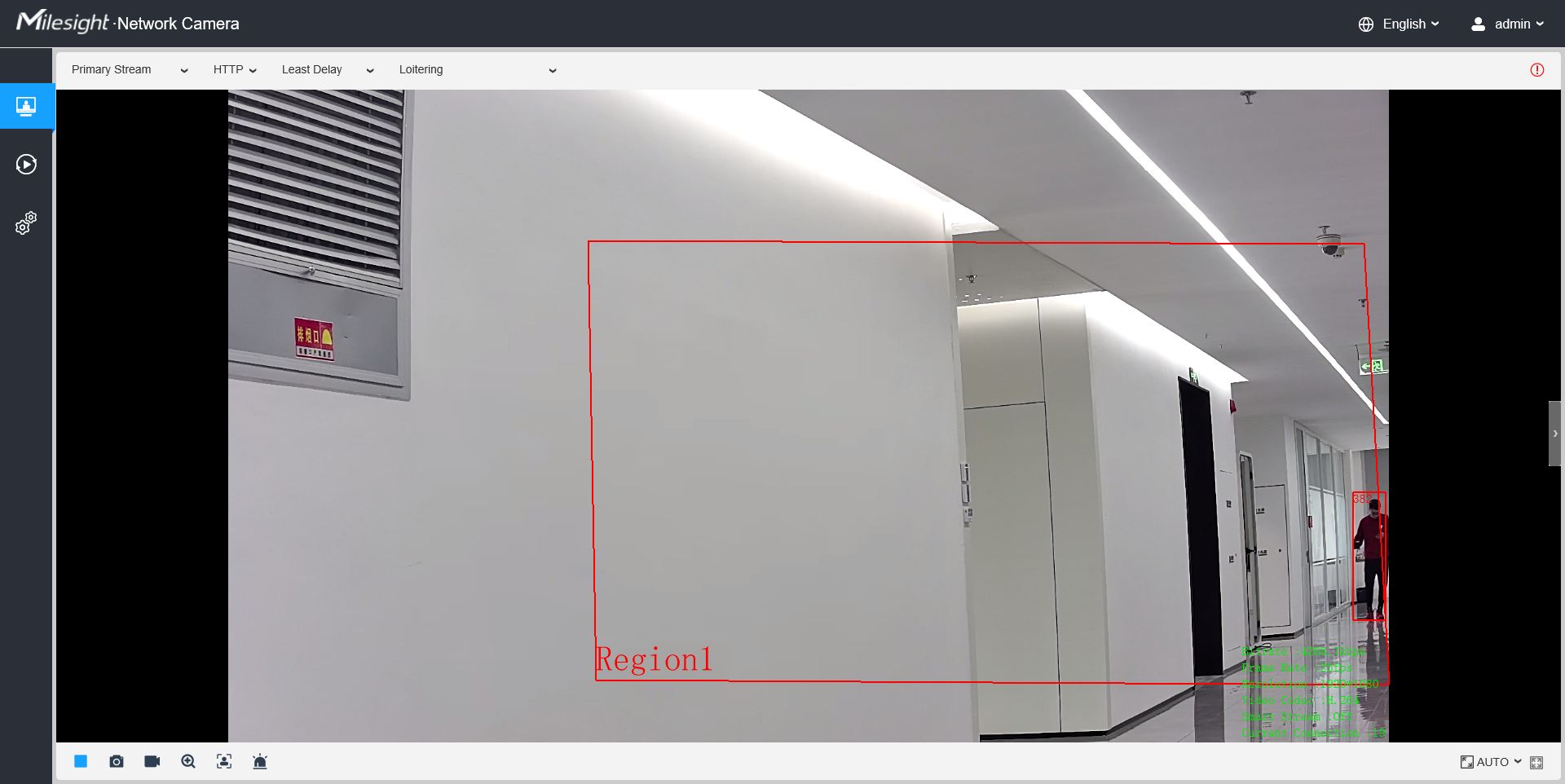
Function Description: Detect the behavior of the target staying within the defined area for longer than the specified duration.
Core Parameters:
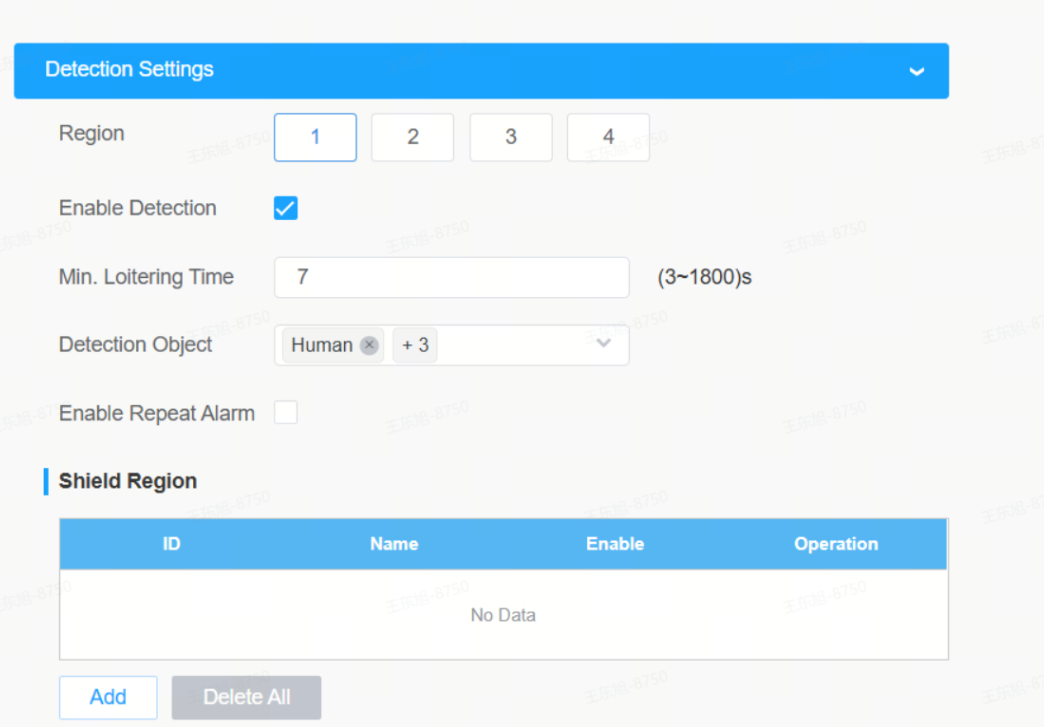
Parameter | Value Range | Note |
Min. Loitering Time | 3 ~ 1800 seconds | Define "lingering" based on the scenario, e. g., 30~60 seconds outside a store |
Object Size Filtering | Min Size | Filter out small targets to reduce false alarms caused by small animals |
Region | Up to 4 | Accurately delineate the hovering attention area |
Key Tuning Points:
• The minimum dwell time should not be too short (e. g., less than 10 seconds) to avoid scenarios where even normal passing may trigger an unintended response
• The detection area should not be excessively large; instead, it should focus on the regions that truly require attention
• Dense crowds are prone to false alarms (when multiple people take turns staying in the detection area), so avoid using the device in such scenarios
5.5 Advanced Motion Detection
Function Description: AI-based motion detection, which can filter out "noise" such as lighting changes and tree sway, and only triggers an alarm when a real target moves.
Core Parameters:
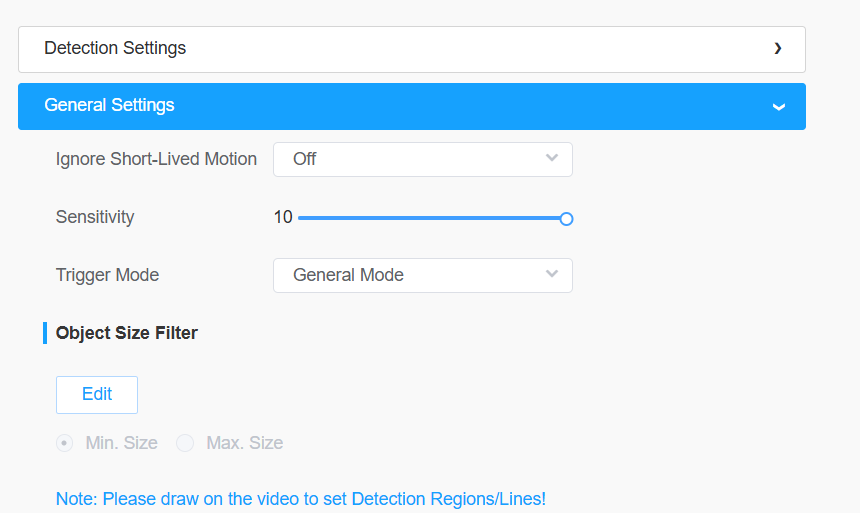
Parameter | Value Range | Note |
Ignore Short-Lived Motion | 1 to 5 seconds | Filter fast-moving fleeting targets |
Tuning Key Points:
• For multi-region scenarios, use the Region mode, and the sensitivity can be set independently for each region
5.6 Object Left / Object Removed
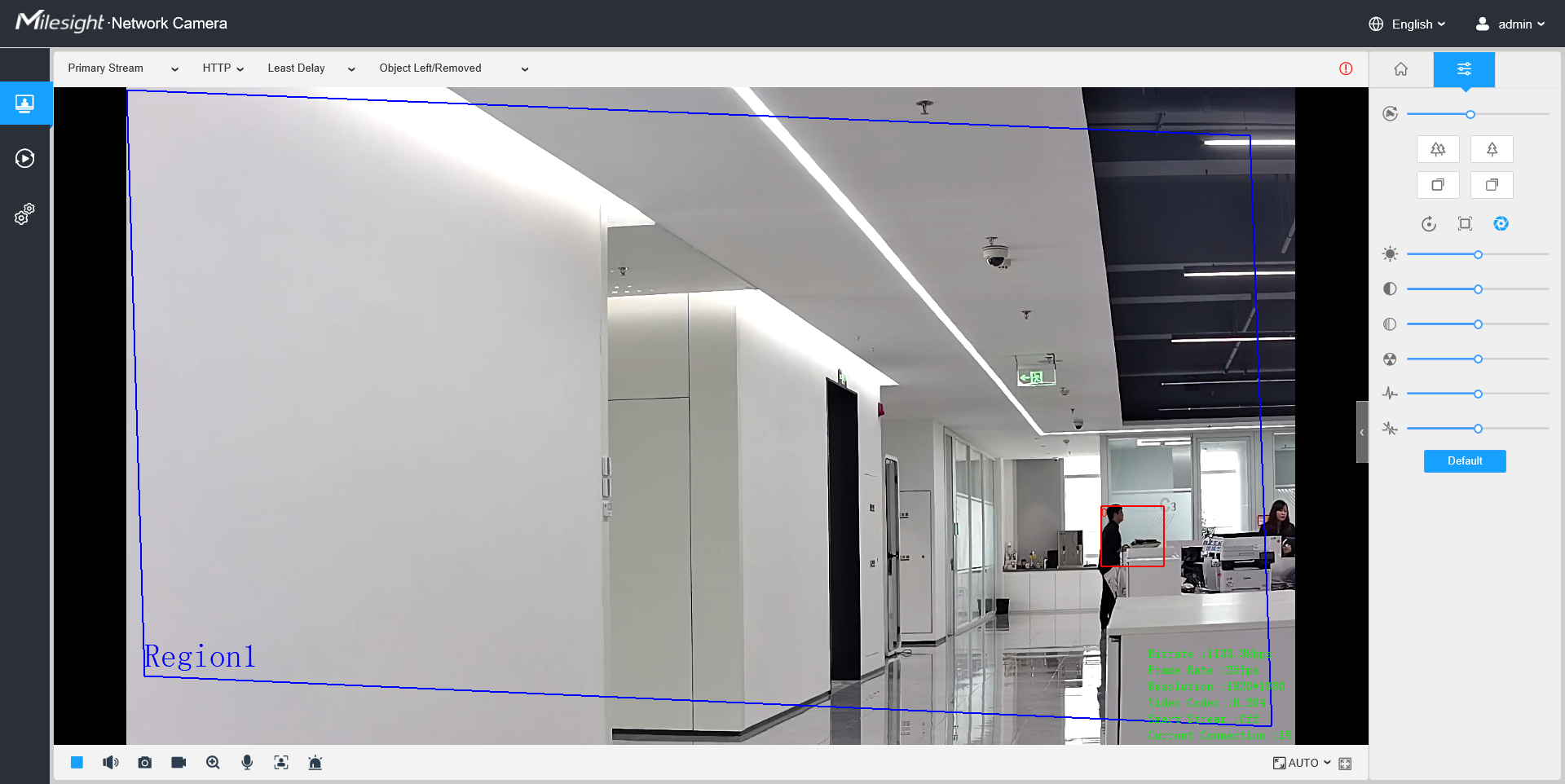
Function Description: Detect whether an item is left behind or removed within the detection area
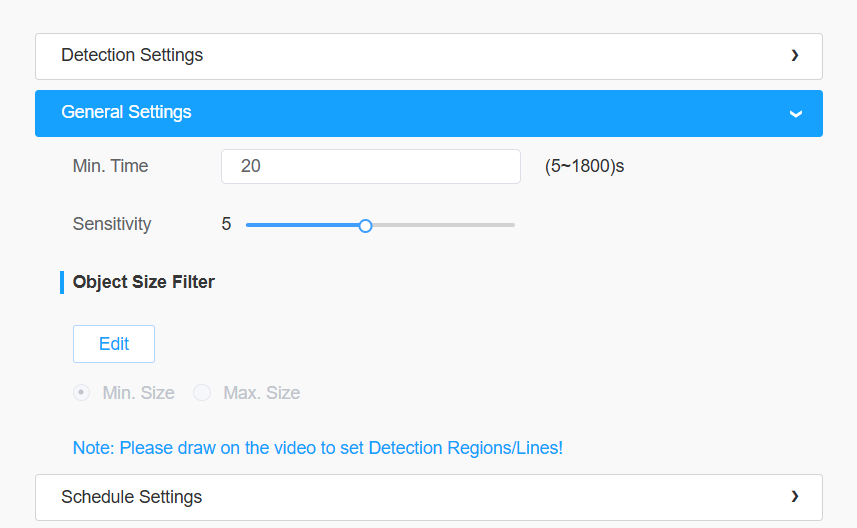
Core Parameters:
Parameter | Value Range | Note |
Min time | 3 ~ 1800 seconds | How long after the item is placed/removed will the trigger activate |
Tuning Key Points:
• Has high requirements for the scene, ensuring clear targets and stable lighting
• Complex scenarios with a large number of frequently changing targets are prone to false alarms, and the sensitivity needs to be adjusted to a lower level accordingly
6. MSense
6.1 Object Counting
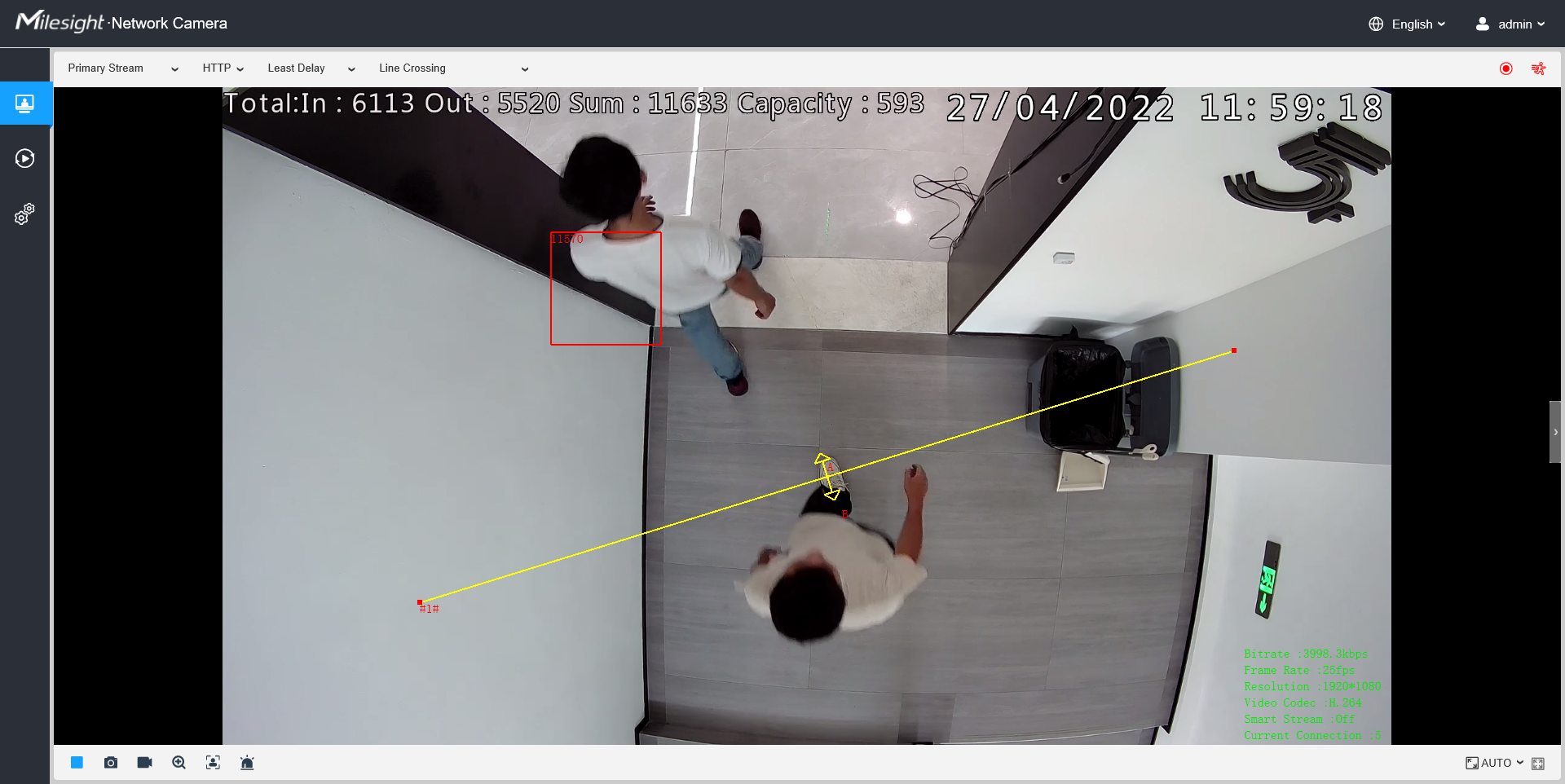
Function Description: Counts the number of people/vehicles crossing the detection line, supports four counting dimensions: In/Out/Sum/Capacity, and also supports statistics of the number of people in a designated area.
Core Parameters:
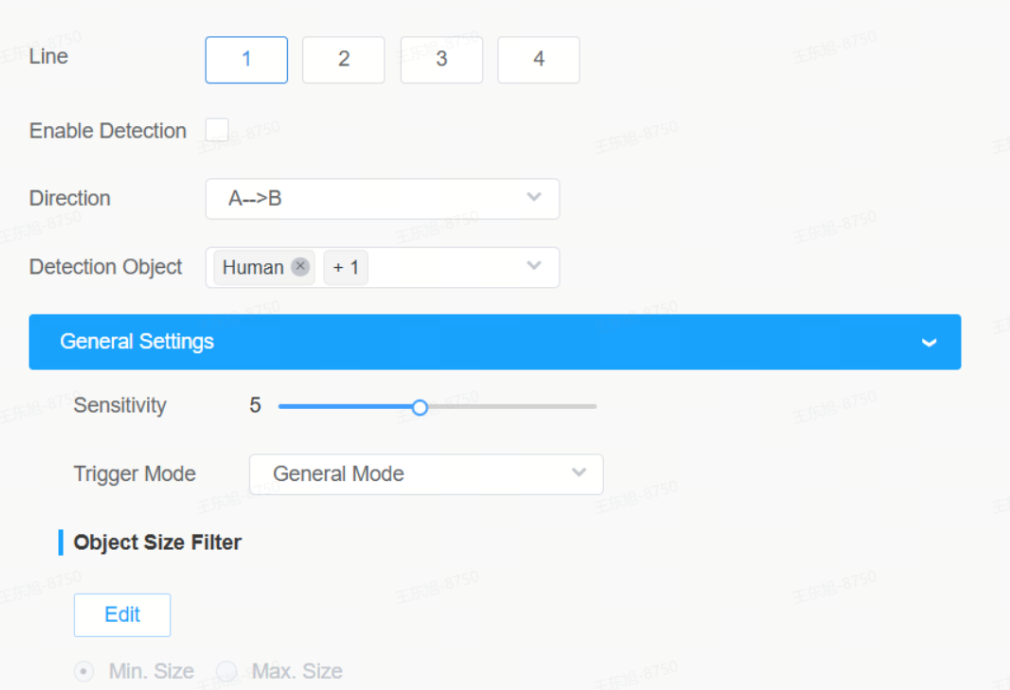
Parameter | Note | Note |
Line | Up to 4 entries, in the direction A→B or B→A | The line is perpendicular to the direction of motion |
Detection Object | Human、Vehicles | Check as required |
Statistical Report | Daily/Weekly/Monthly/Annual Report |
Tuning Key Points:
• The detection line shall be drawn in a position with clear target and no obstruction
• When people gather densely and pass through in overlapping ways, the NMS mechanism may lead to missed counts
• Pay attention to the direction setting of the wire during bidirectional counting
6.2 Heatmap
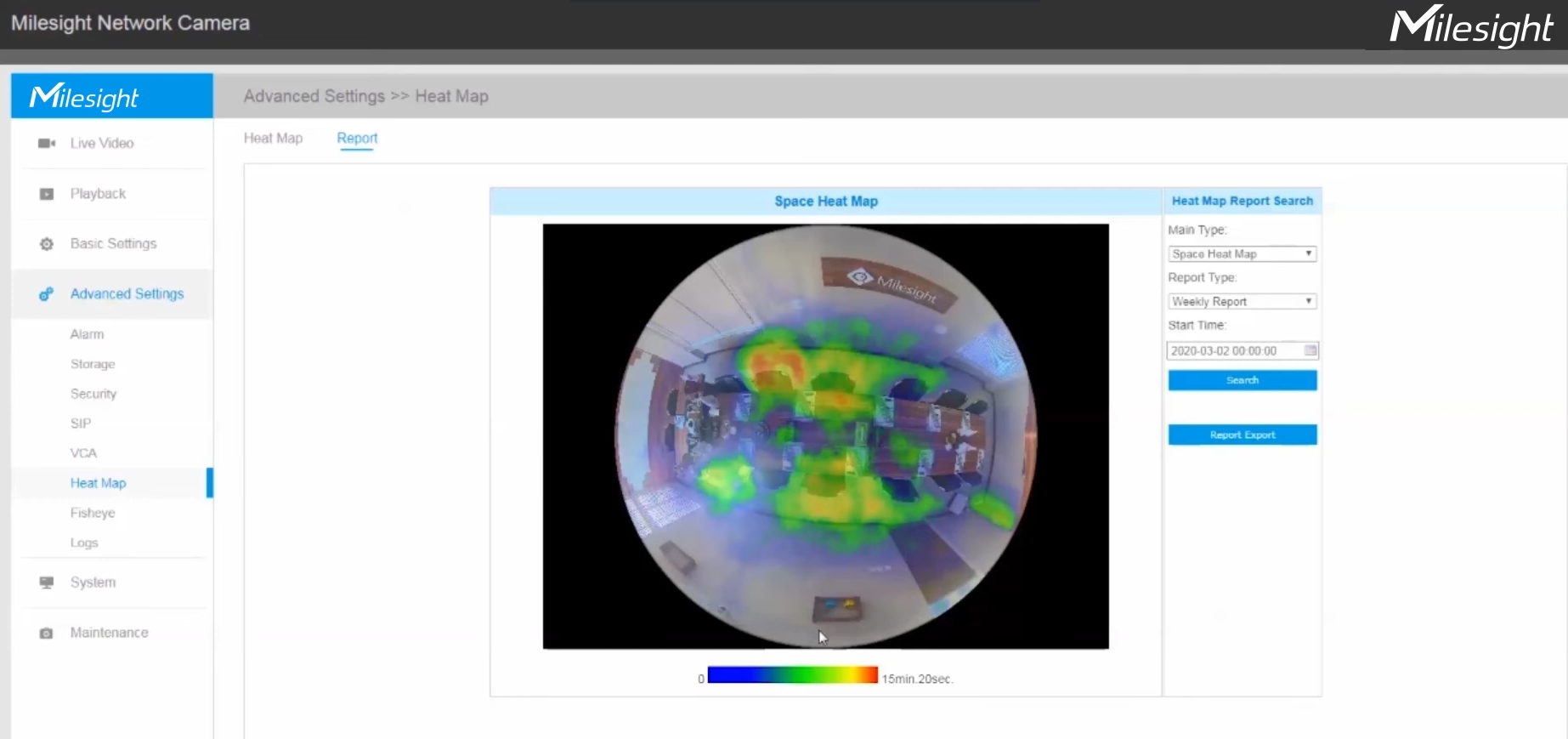
Function Description: It counts the heat of personnel distribution in an area, which is used to evaluate crowded places such as museums, shopping malls, amusement parks, etc.
Core Parameters:
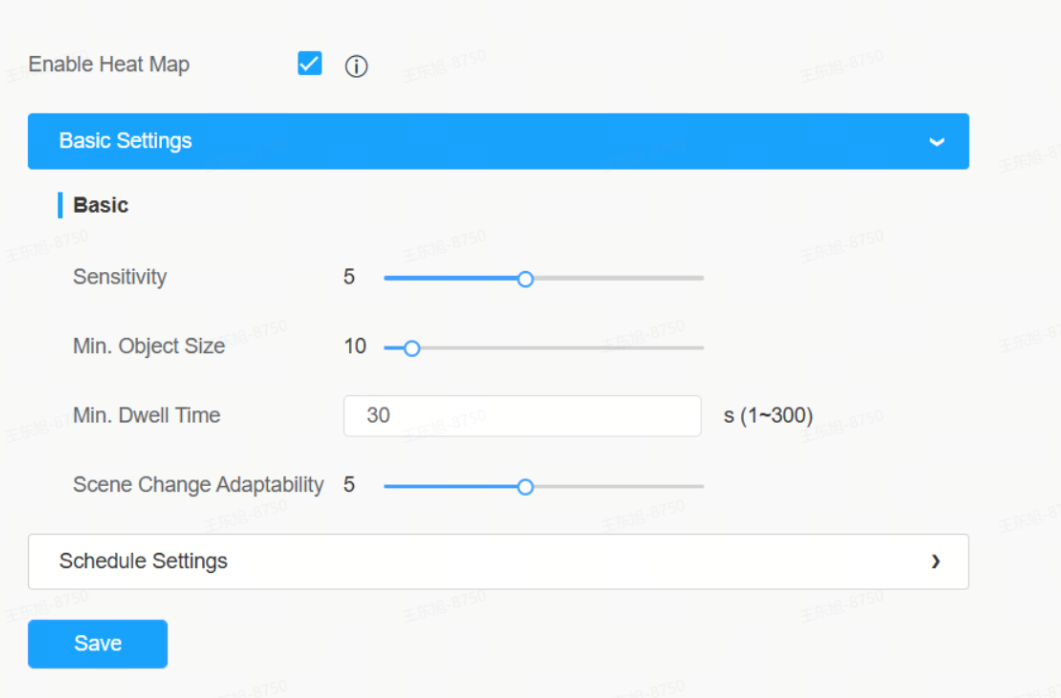
Parameter | Description | Description |
Mini. Dwell time | Only record after this time | Filter fast-moving targets |
Scene Change Adaptability | 1~10 | The higher the value, the better the camera adapts to scenes with rapid changes. |
Tuning Key Points:
• The minimum stay duration is set according to the scenario: set it shorter for quick-pass scenarios and longer for stay scenarios
• Object size filtering ensures that only the sizes of targets of interest are counted
6.3 Face Detection
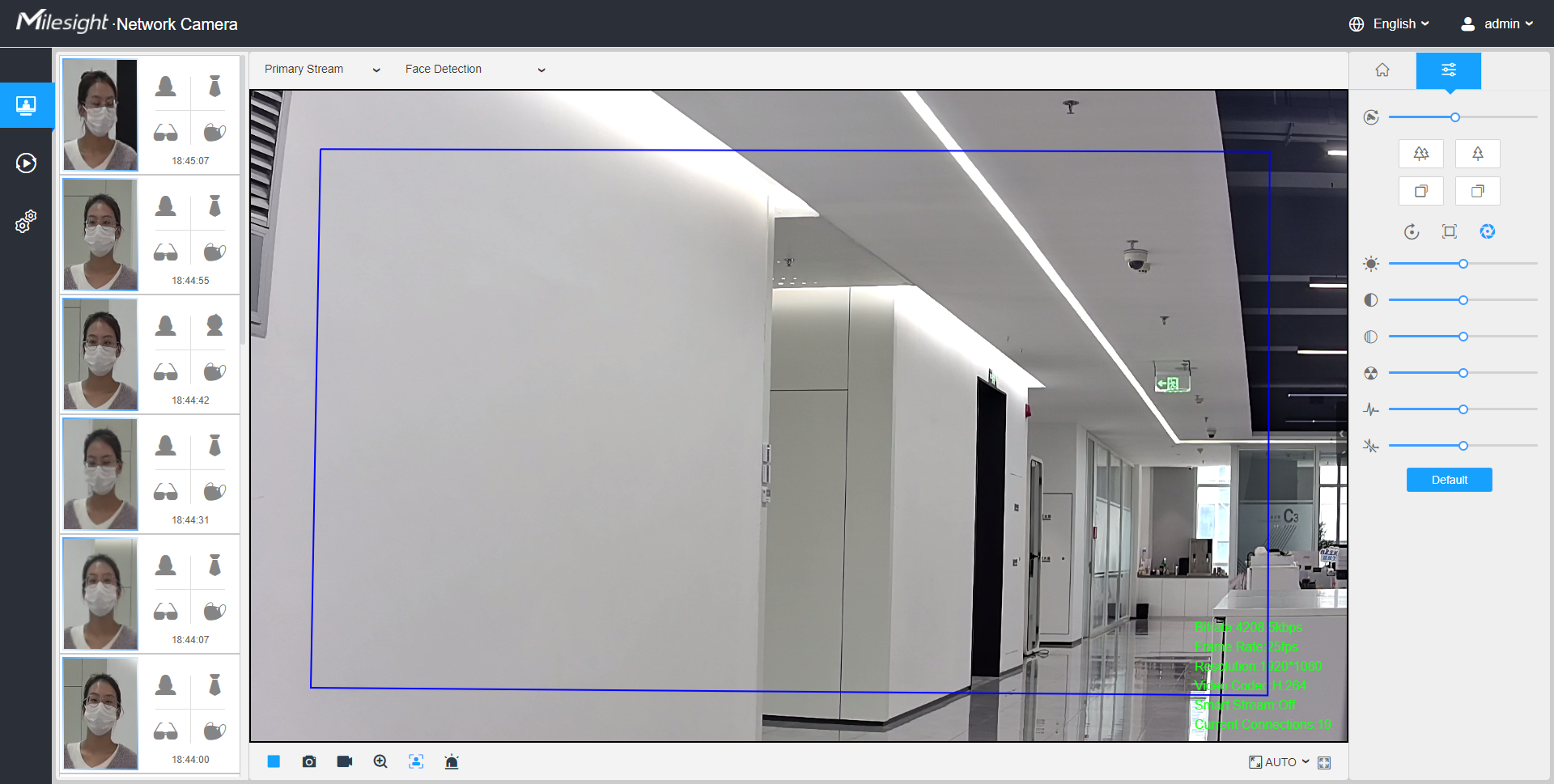
Function Description: Detect faces in the frame and support face attribute recognition.
Core Parameters:
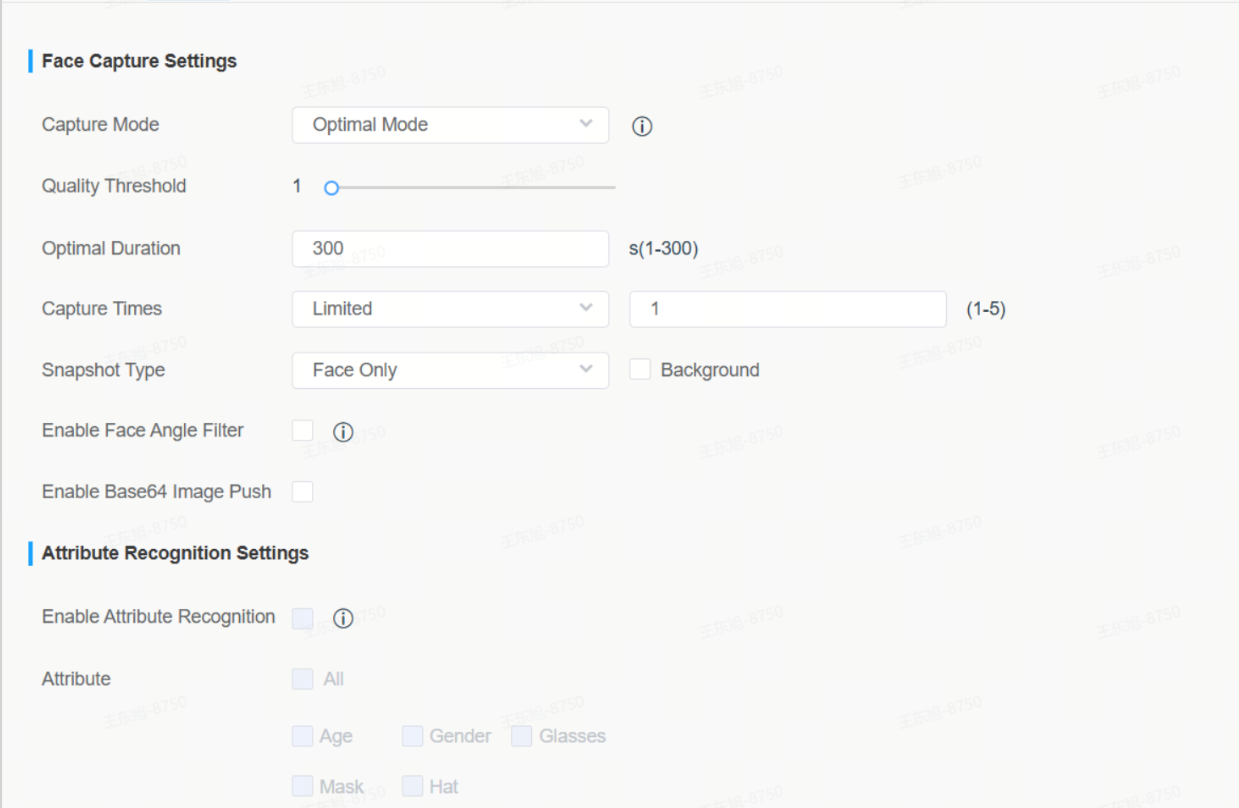
Parameter | Options/Scope | Description |
Capture Mode | Quality Priority / Timeliness Priority / Real-Time Priority | See the instructions below |
Quality Threshold | Default 20 | Capture an image only when the face quality exceeds the threshold |
Snapshot Type | Face Only / Upper Body / Whole Body | Select as needed |
Capture Mode Explained in Detail:
Mode | Workflow Logic | Applicable Scenarios |
Quality Priority | Select the one with the best quality from the time the face appears to the time it disappears | Scenarios such as access control and attendance that require clear facial images |
Timeliness Priority | Push immediately once the quality exceeds the threshold, no need to wait for a better one | Real-time Alarm and Rapid Response Scenarios |
Real-Time Priority (Real-time Priority) | Continuously push faces that exceed the threshold, and update the data when the confidence increases | Real-time tracking and continuous scenario monitoring |
Face Attribute Recognition (Attribute Recognition):
Attribute | Category |
Age | Child(0-17) / Adult(18-59) / Elderly(60+) |
Gender | Male / Female |
Glasses | Yes / No |
Mask | Yes / No |
Hat (Cap) | Yes / No |
Tuning Key Points:
• It is recommended that the size of the face in the frame be no less than 80×80 pixels
• Installation angle: Try to keep it close to the horizontal height of the human face, and avoid an excessively large downward tilt angle
• Quality Threshold: Defaults to 20; may be appropriately lowered in scenarios with poor face quality
• Insufficient lighting will seriously impair the performance of face detection, so it is necessary to ensure that the scene is well-lit
• Avoid situations such as backlighting, contre-jour, blurring, occlusion, or excessive left-right deflection of the human face
6.4 PPE (Personal Protective Equipment)
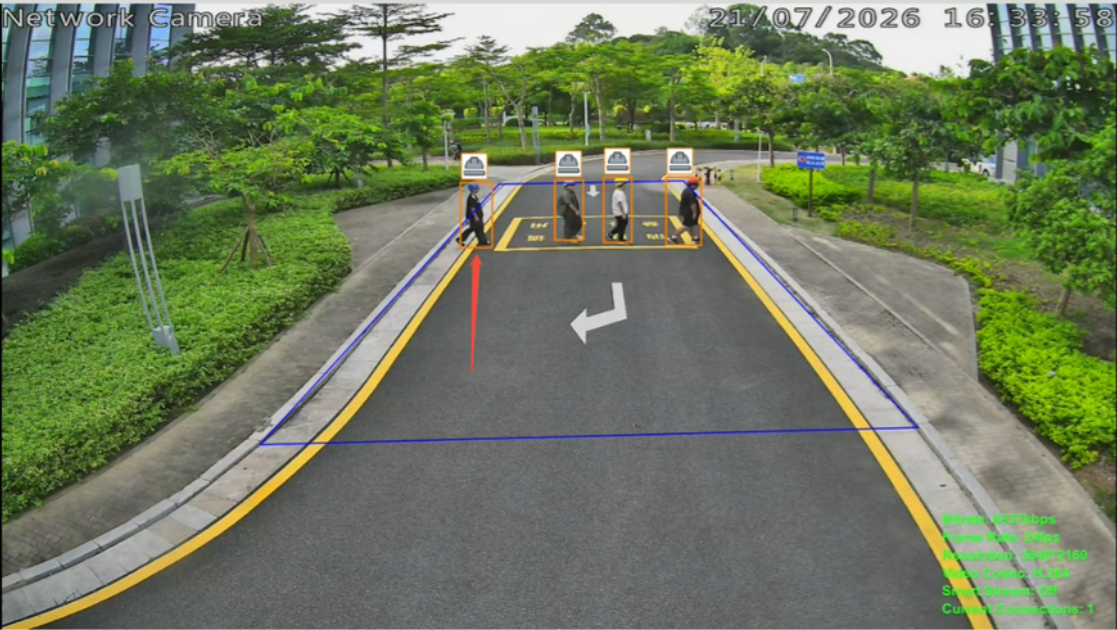
Function Description: This system detects whether workers are wearing safety helmets and safety vests, and triggers an alarm if they are not properly equipped. It is applicable to safety scenarios such as construction sites.
Core Parameters:
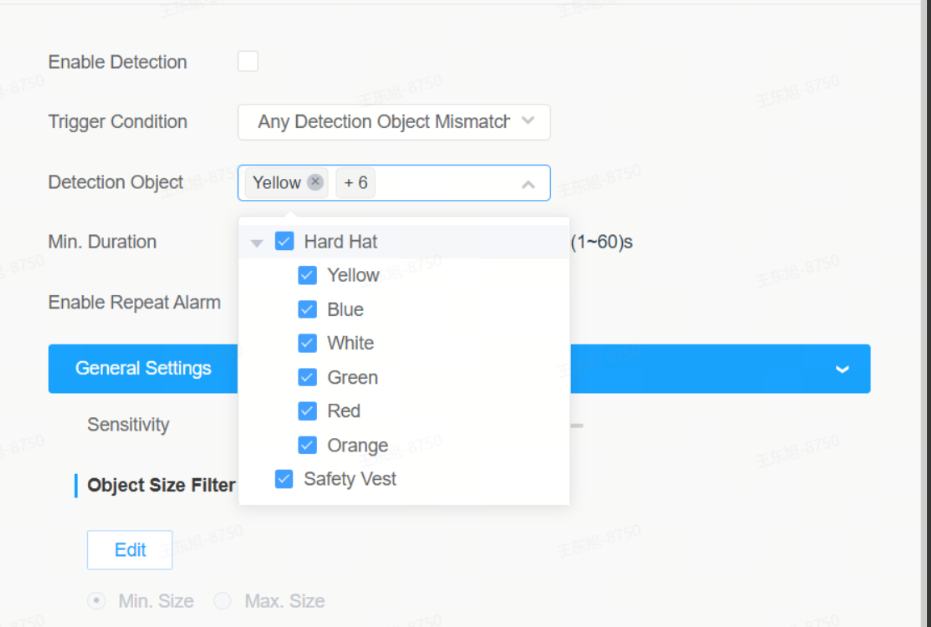
Parameters | value range | Description |
Detection Object | Hard Hat: Yellow, blue, white, green, red, orange Safety Vest | On-demand activation |
Trigger Condition | Any Detection Object Mismatch、Match All Detected Objects | Any Detection Object Mismatch: Detect the behaviors of [not wearing a safety helmet] or [not wearing a reflective vest], and trigger an alarm action, such as voice broadcast "Please wear a safety helmet and protective clothing correctly" Match All Detected Objects: The system detects that a person is wearing both a safety helmet and a reflective vest simultaneously, and triggers an alarm action, such as voice broadcast of "safe" |
Tuning Key Points:
• Ensure that the human body outline in the frame is clearly visible, and avoid severe occlusion
• It is recommended to start with a medium sensitivity level (5). If there are frequent false positives, lower the sensitivity; if there are frequent missed detections, raise the sensitivity
• The real-time compliance status can be displayed in Live Video (for example, a red detection box indicates non-compliance of wearing)
6.5 Attribute Extraction
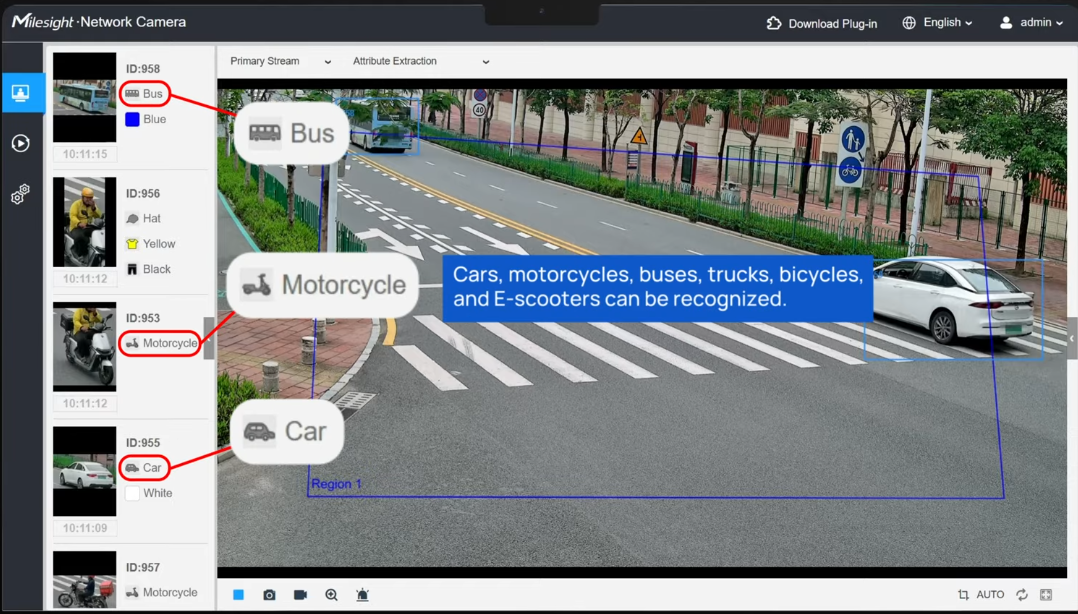
Function Description: It extracts multi-dimensional attributes of people and vehicles in real time for applications such as target retrieval and behavior analysis.
Human attributes : color of upper and lower garments (black/white/gray/red/yellow/green/blue/purple/orange/brown), whether wearing a hat.
Vehicle attributes: vehicle type (bicycle/motorcycle/electric vehicle/car/bus/truck), body color.
Core Parameters:
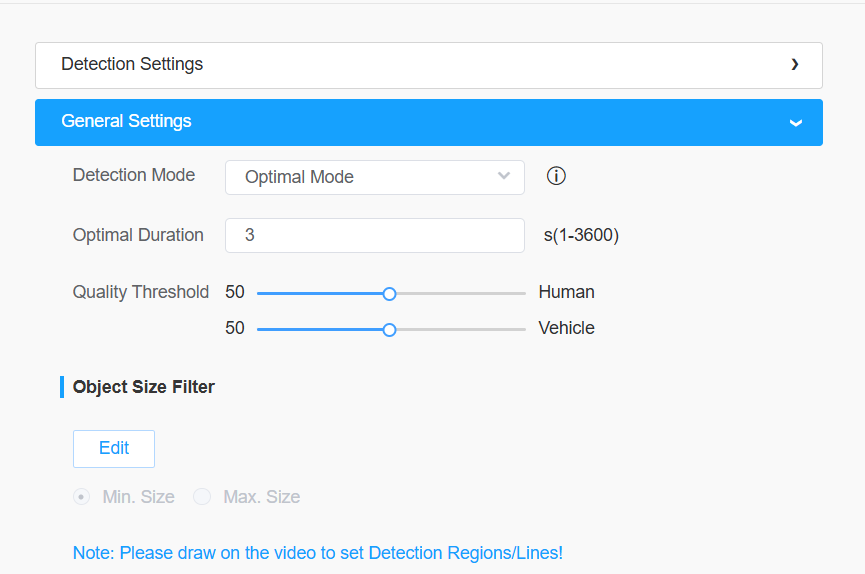
Parameters | Options/Scope | Key Tuning Points |
Detection Mode | Optimal / Quick / Real-Time | See the instructions below |
Optimal Duration | 1~3600 (default: 300) | What is the optimal dwell time before pushing results |
Quality Threshold | 1~100 (default: 50) | Attribute detection will not be performed if the value is below the threshold |
Detailed Explanation of Detection Modes:
Mode | Workflow Logic | Applicable Scenarios |
Optimal Mode | When the target stays longer than the optimal duration or leaves, push the most accurate attribute result | Scenarios where targets stay for a certain period of time (such as entrances and exits) |
Quick Mode | Push the content once its confidence exceeds the quality threshold, and only push once for the same target in the same area | In fast-pass scenarios, only one verification result is required |
Real-Time Mode | Continuously push attribute results, update data when confidence increases, and there may be multiple entries for the same target | Scenarios requiring real-time tracking and continuous attribute updates |
Tuning Key Points:
• The default quality threshold is 50; It can be increased for scenes with clear targets and decreased for scenes with blurry targets
• The optimal dwell duration for the Optimal mode shall be set according to the target traffic speed
• The attribute extraction results are displayed on the left side of Live View and can be pushed to the backend system
6.8 Fall Detection
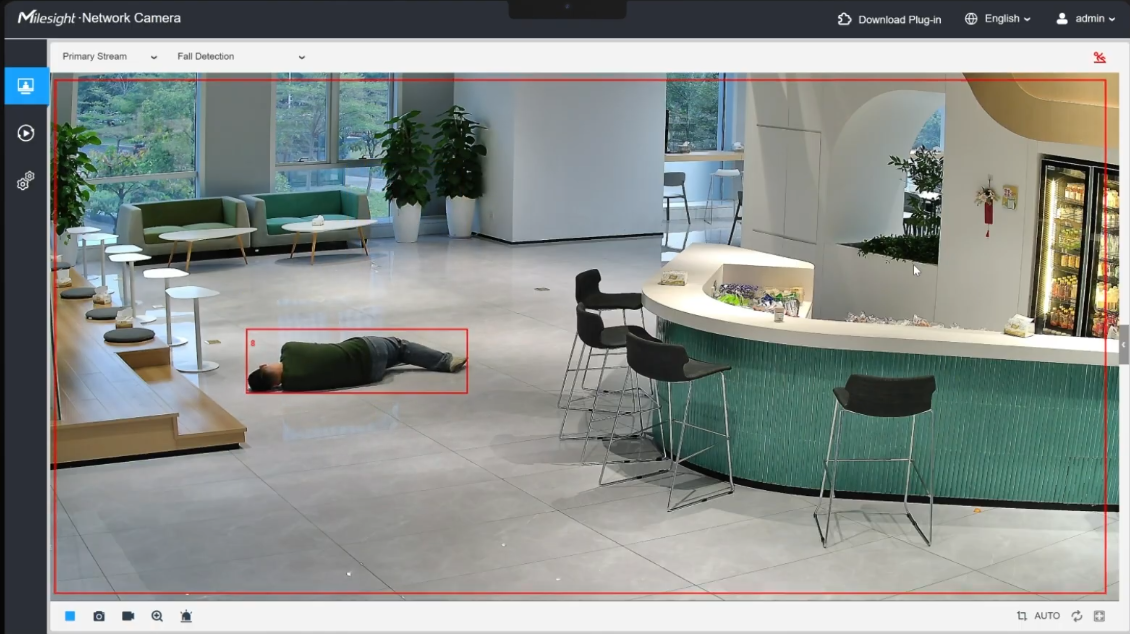
Function Description: Detects human fall incidents and triggers an alarm, applicable to scenarios such as nursing homes and hospitals.
Core Parameters:
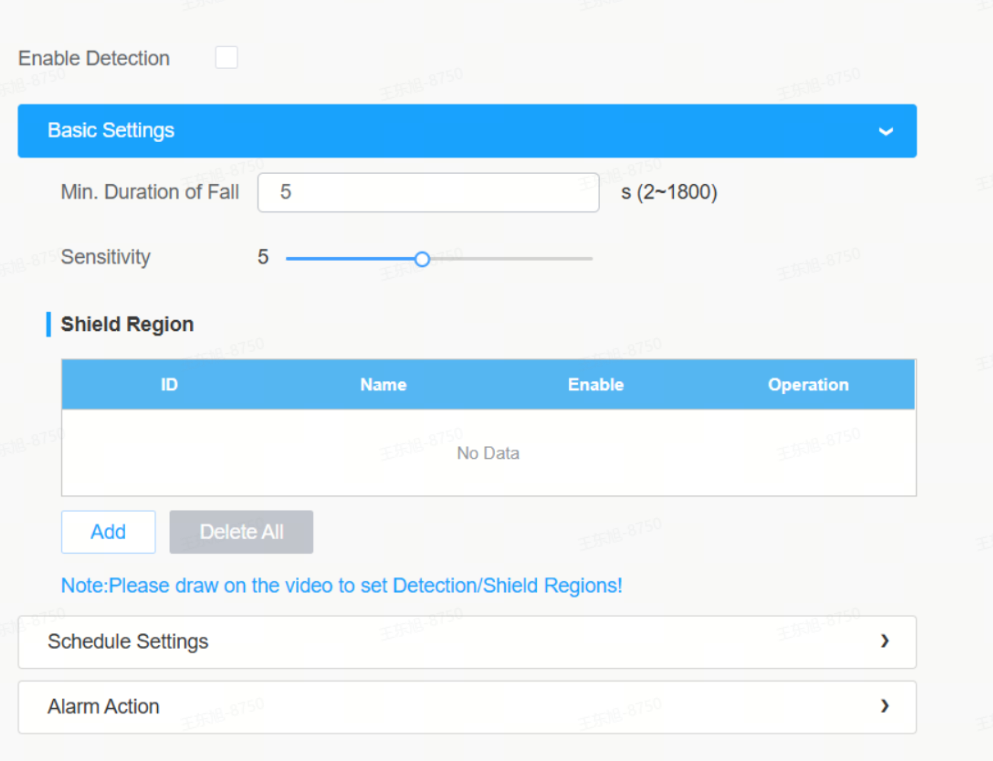
Parameters | value range | default value | Description |
Minimum Fall Duration | 2 to 1800 seconds | 5 seconds | Set how long the target has to remain on the ground without standing up before an alarm is triggered |
Tuning Key Points:
• The recommended default minimum fall duration starts at 5 seconds, which can be fine-tuned according to the specific scenario
• Ensure that the human body posture can be completely seen in the detection area. The stair fall detection performance will degrade when the target's body in the frame is incomplete, occluded, overlapped, excessively curled up, or too small
• The detection works better when there is a sharp contrast between the ground color and the clothing color
Recommended Recognition Scenarios:
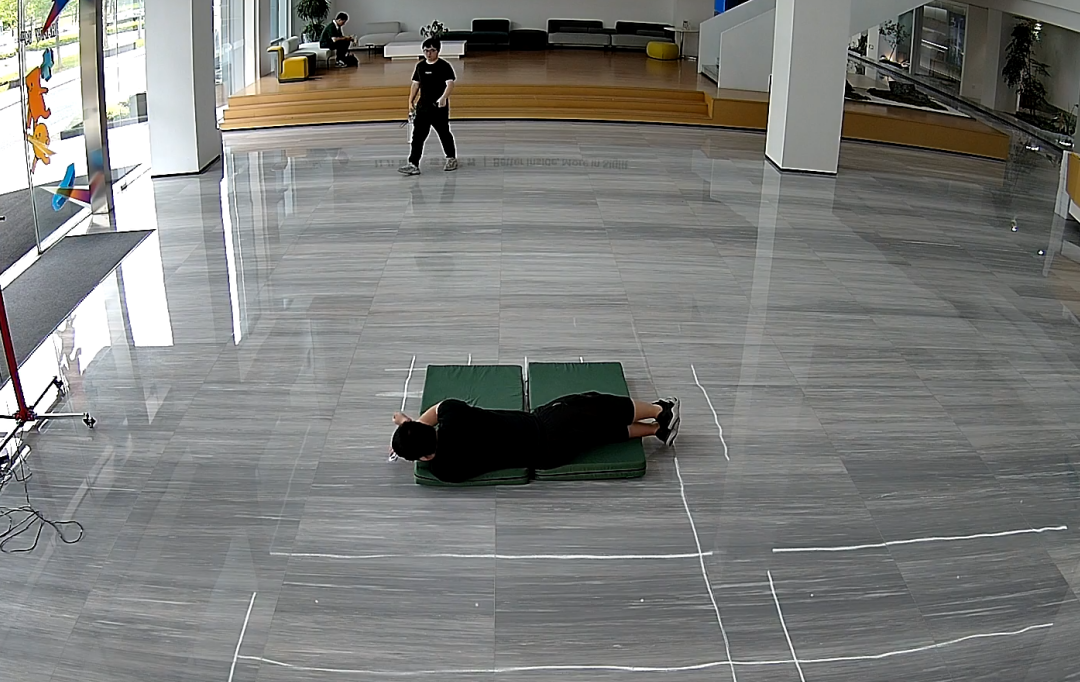
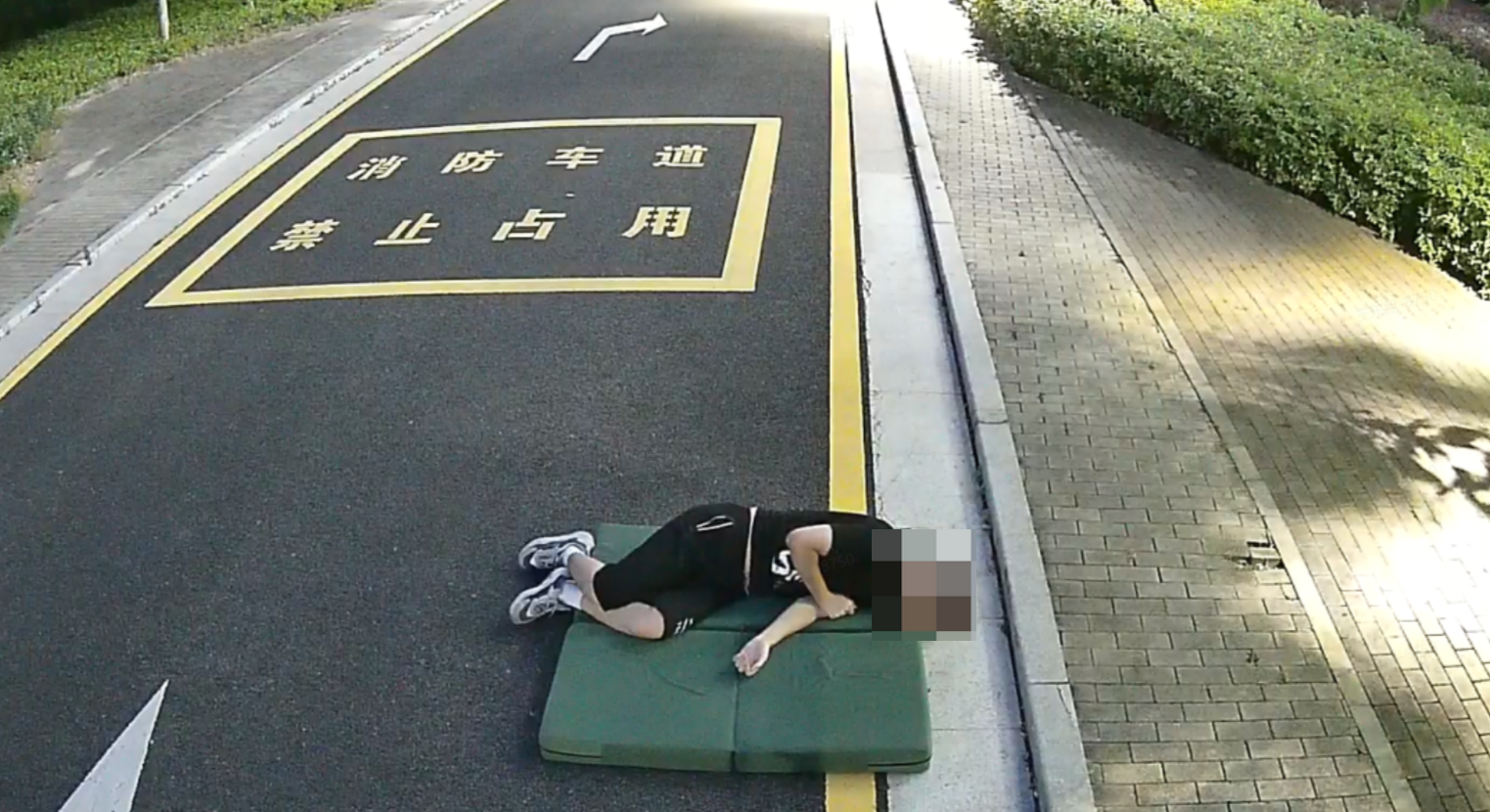
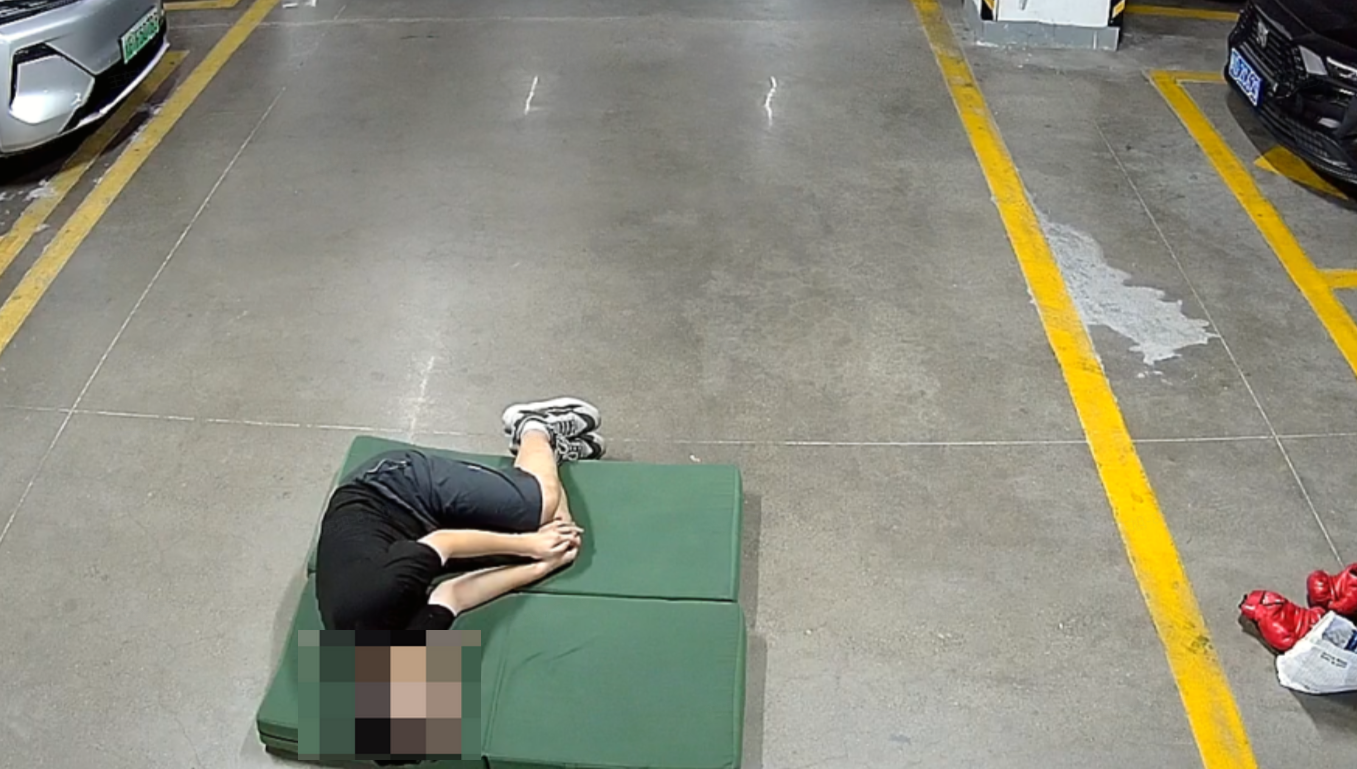
Sideways fall
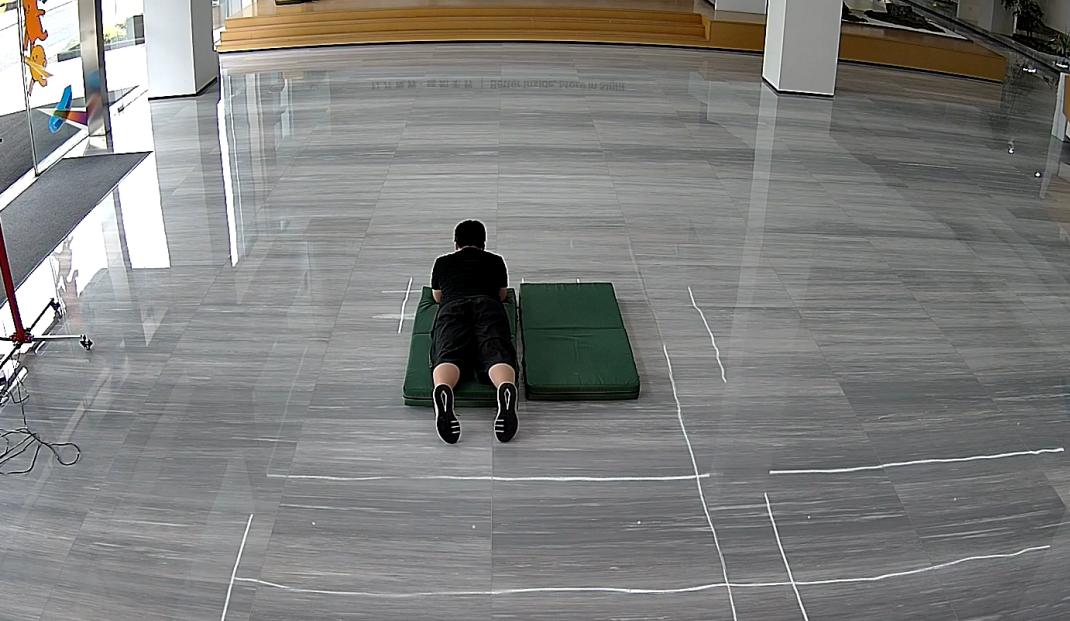
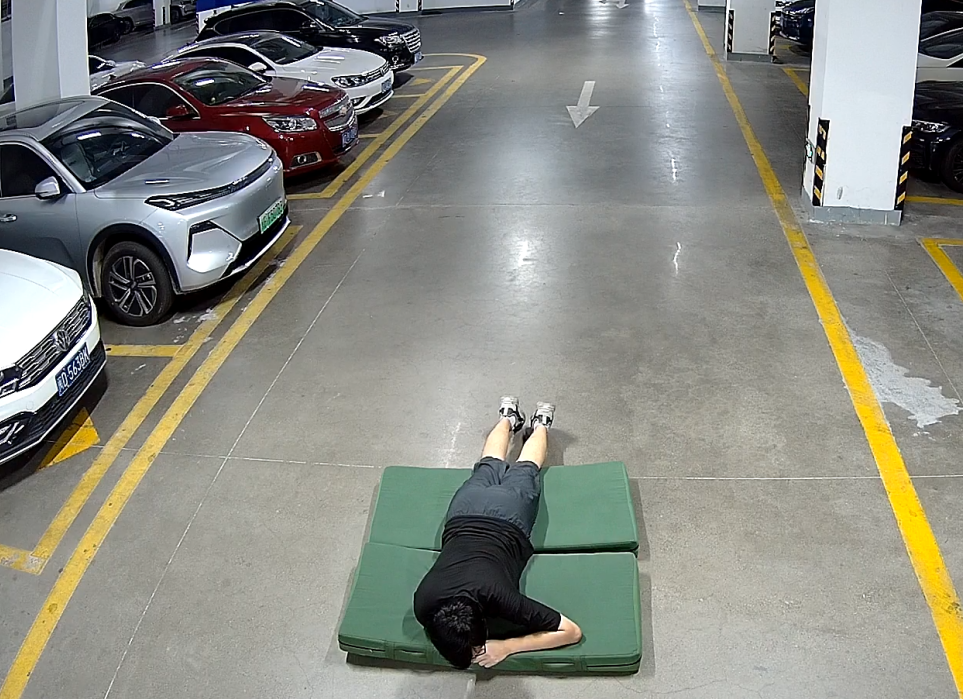
Fall Straight Down
6.9 Violence Detection
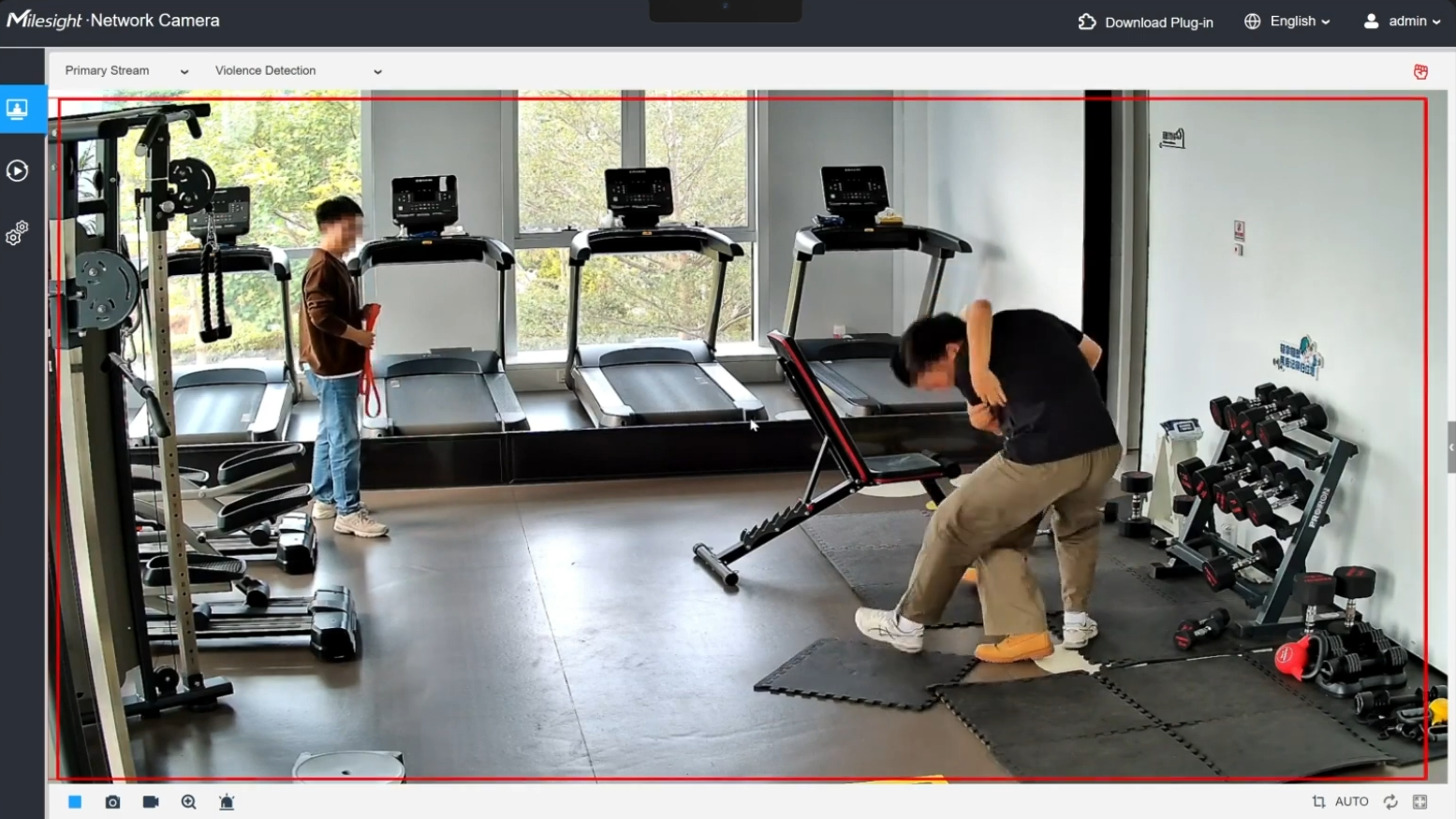
Function Description: Detect violent acts and trigger alarms for early intervention and scenario safety improvement.
Core Parameters:
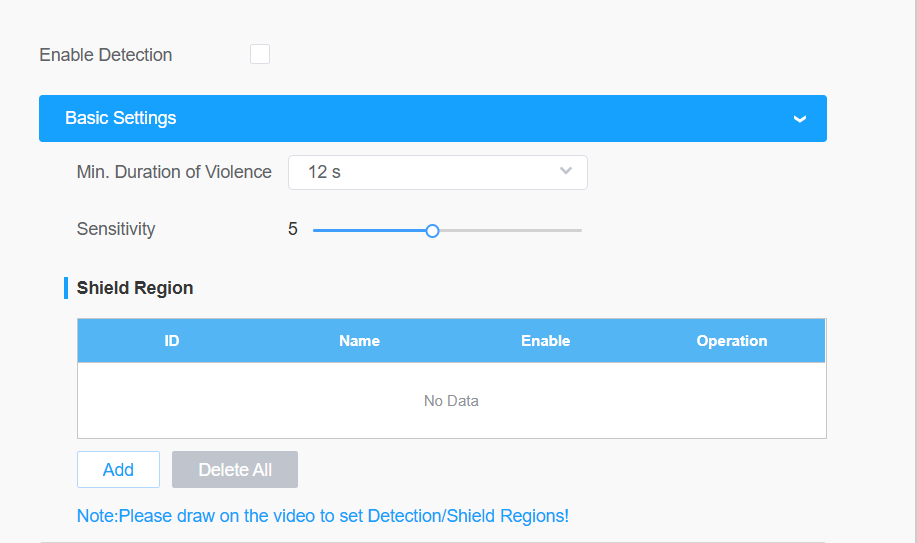
Parameters | Optional values | default value | Description |
Minimum duration of violence | 4s / 8s / 12s / 16s / 32s / 60s / 5min / 10min / 30min | 12s | See the instructions below |
Tuning Key Points:
• Minimum violence duration: Only trigger an alarm when the behavior lasts longer than this threshold. If the value is set too low, normal physical movements may cause false alarms; if set too high, the alarm for actual violence will be delayed
• It is recommended to start with the default 12 seconds and adjust it according to the actual scenario
• The recognition accuracy for scenarios with highly overlapping targets, small movement amplitudes, punching while down, kicking while down, and pushing down is mediocre
Recommended Recognition Scenarios:
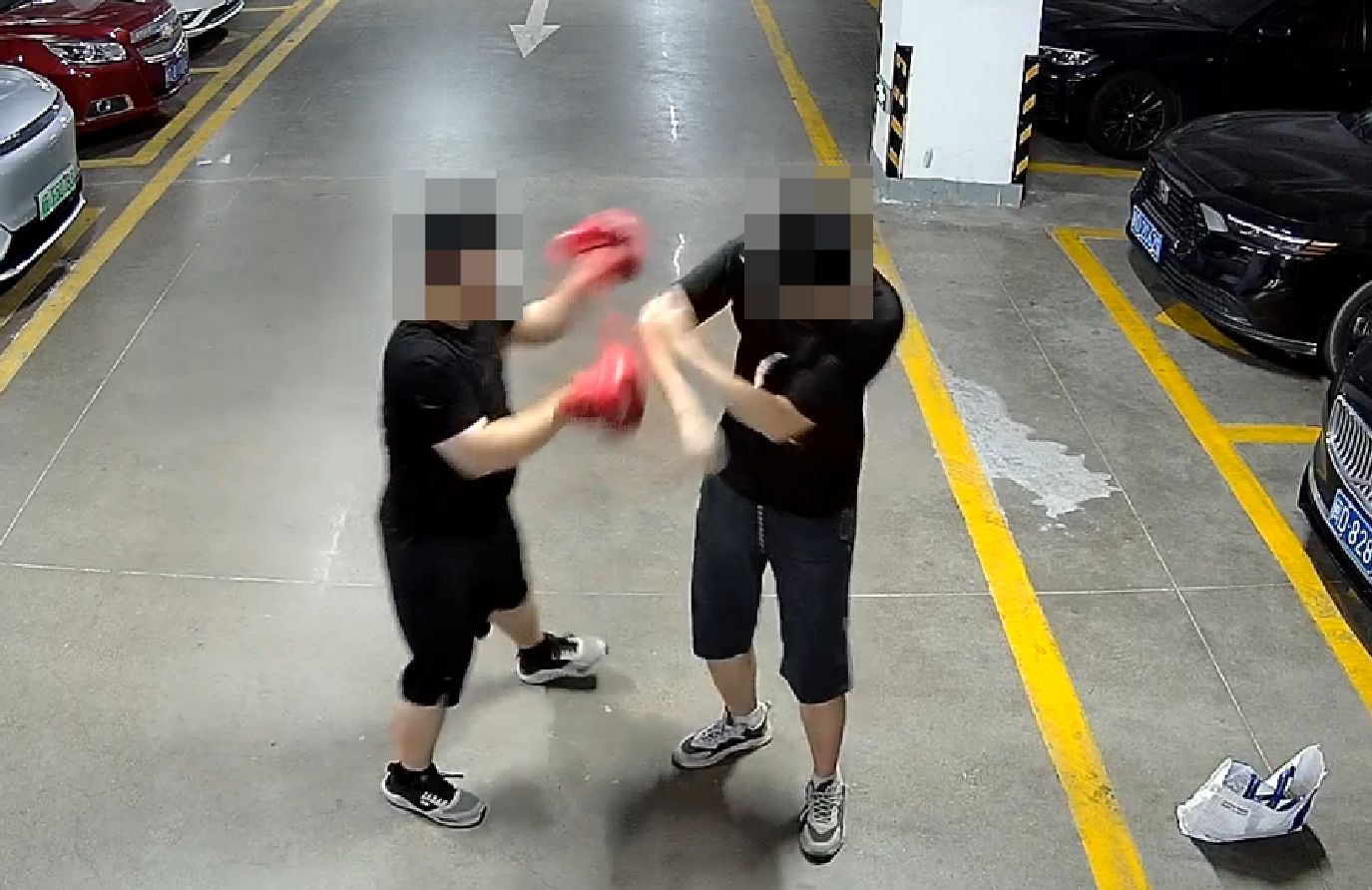
Boxing
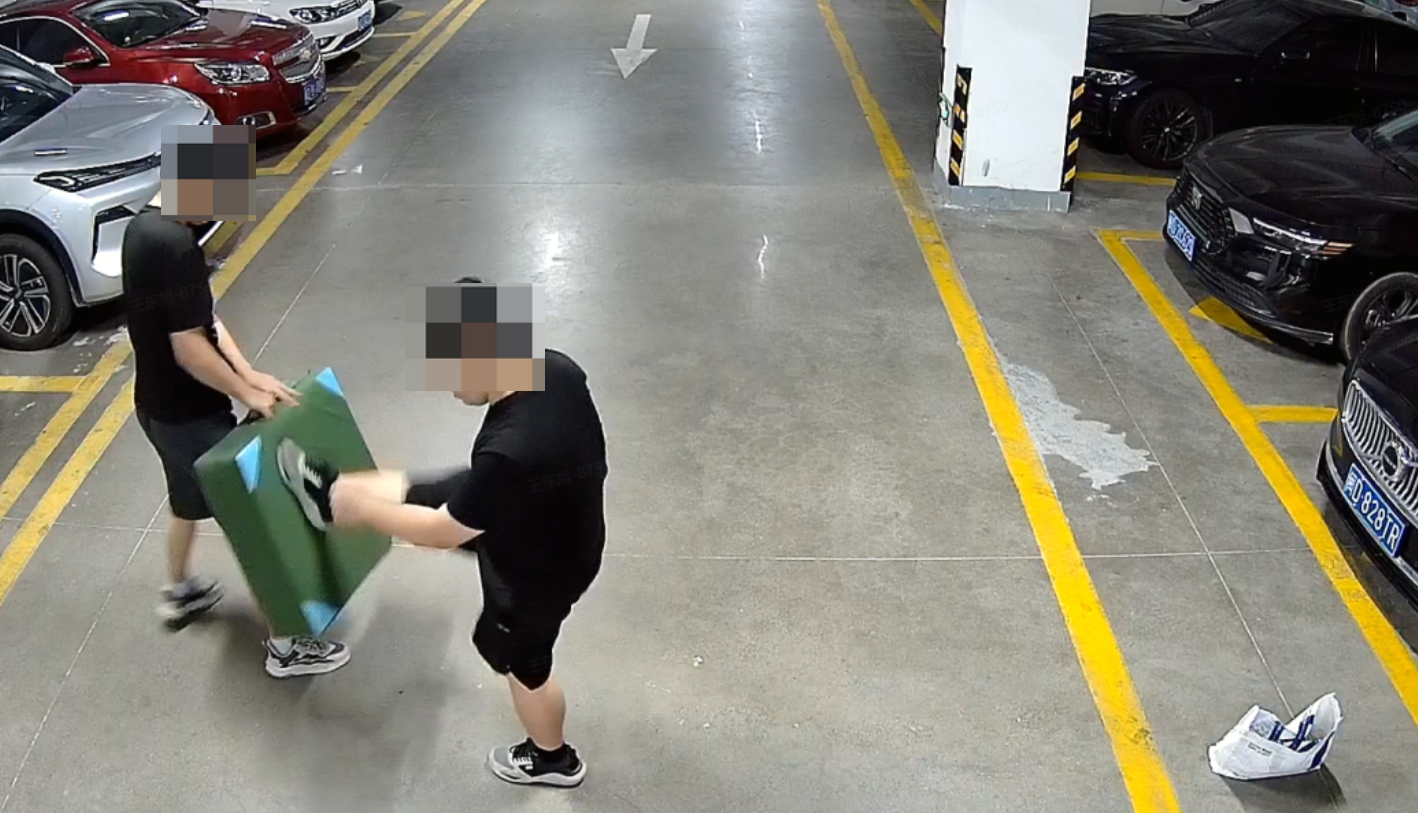
Kicking and Hitting
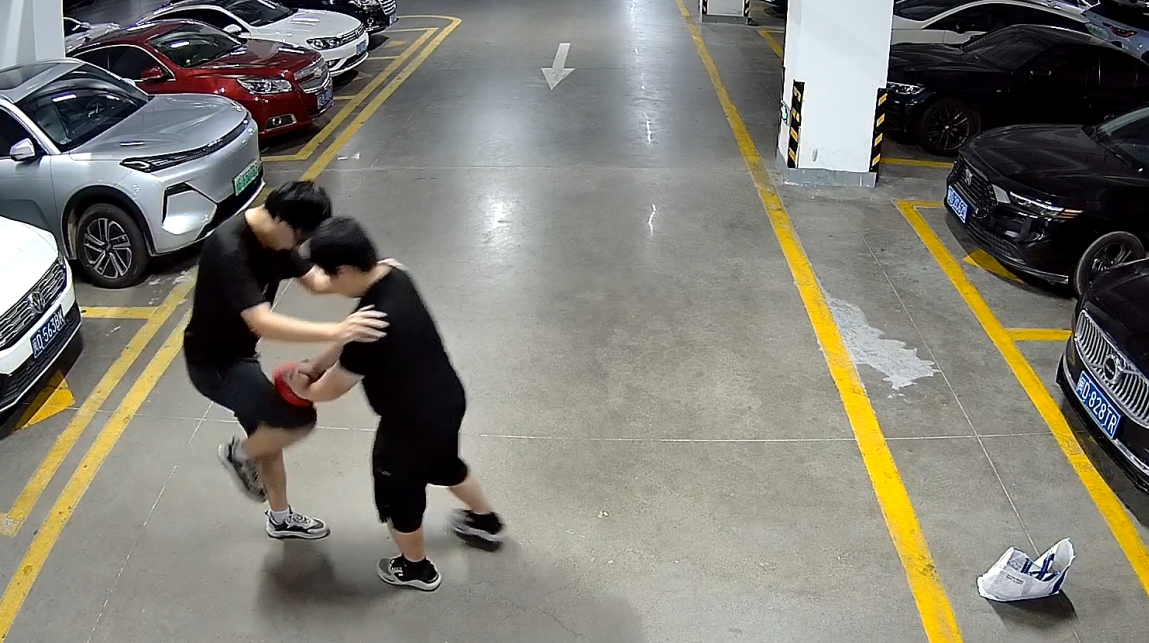
Knee Strike
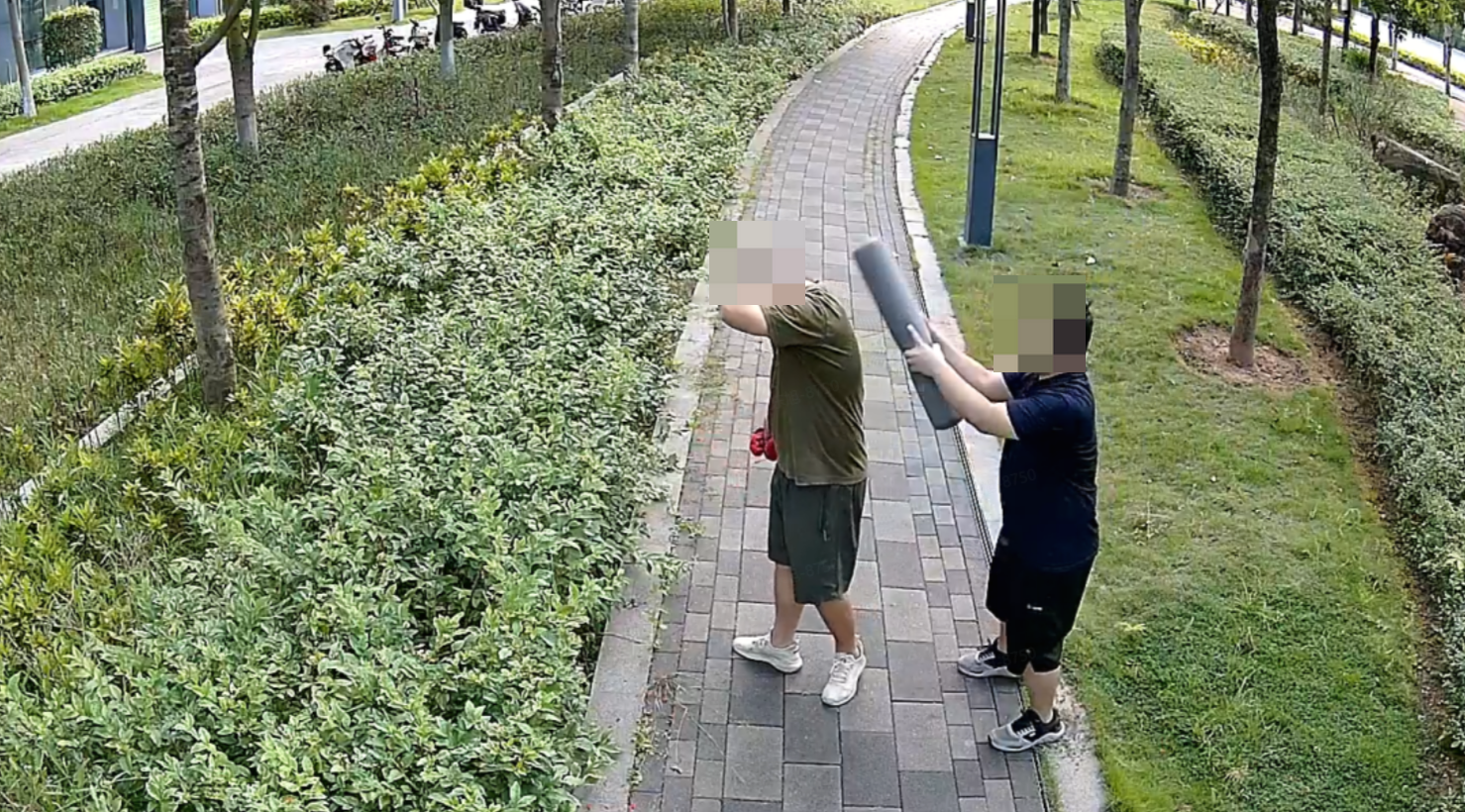
Smashing Strike
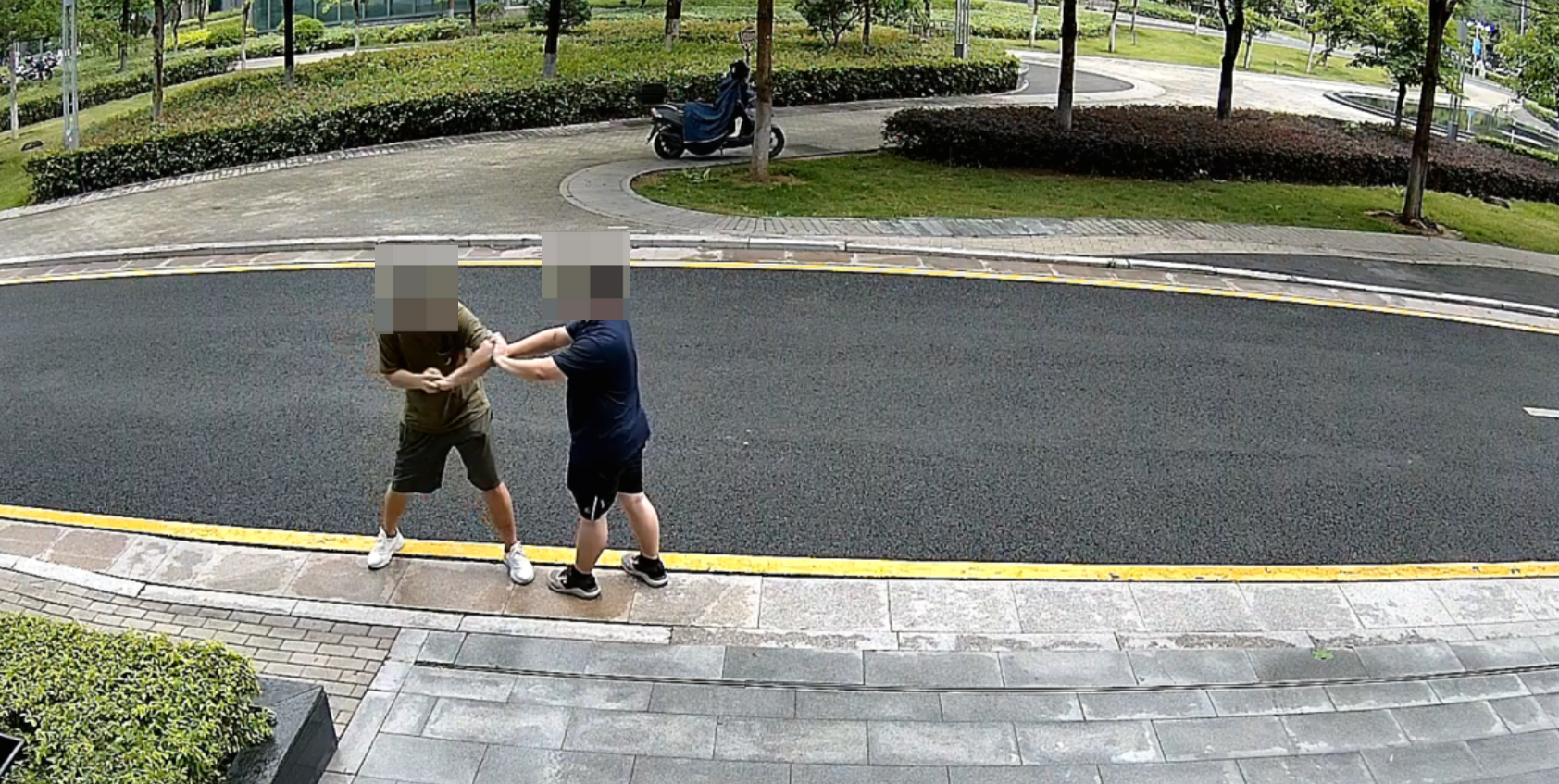
Pushing and Shoving
6.10 Sound Classification
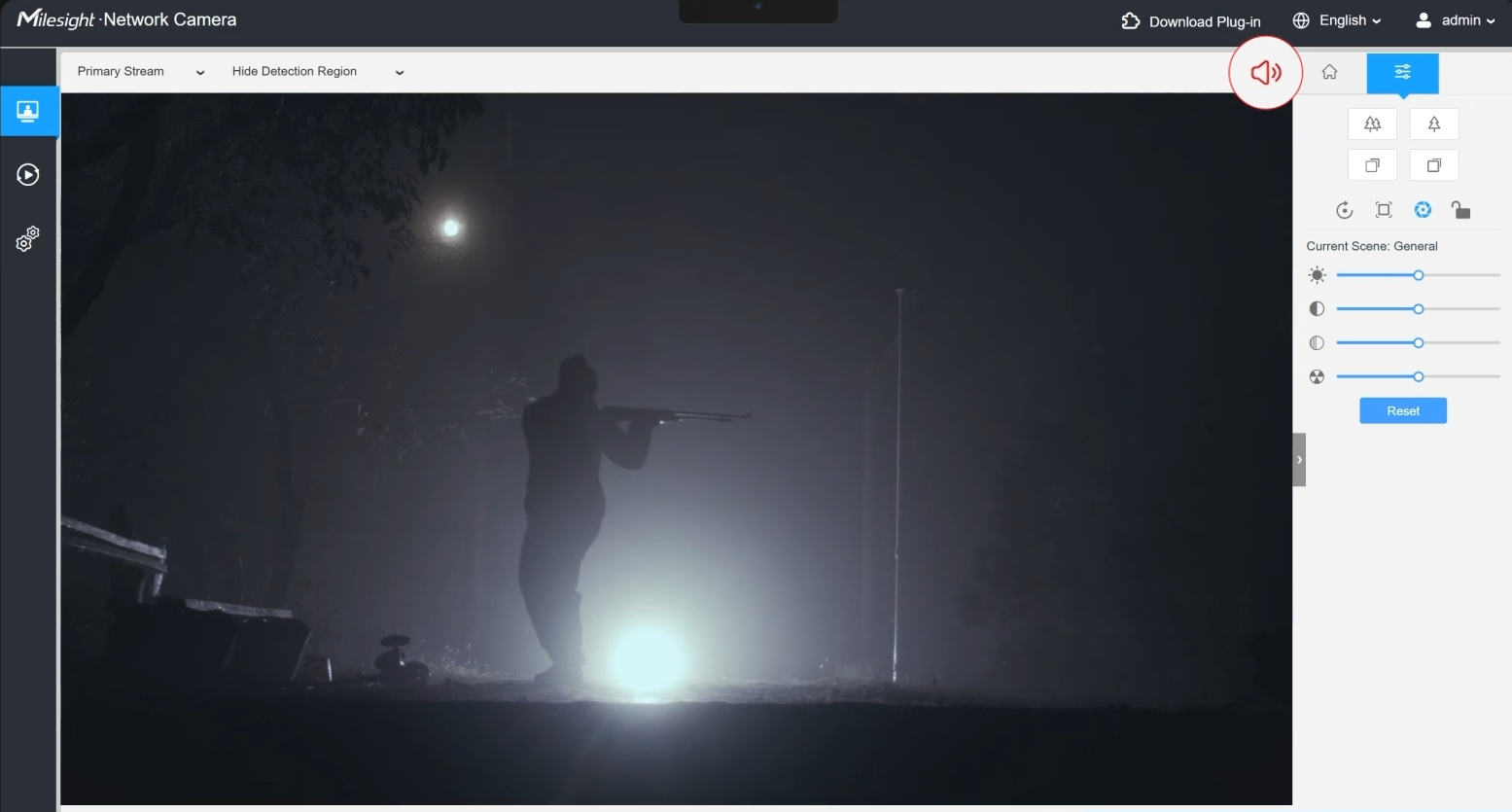
Function Description: Real-time detection of gunshots, glass shattering sounds, and screams.
Core Parameters:
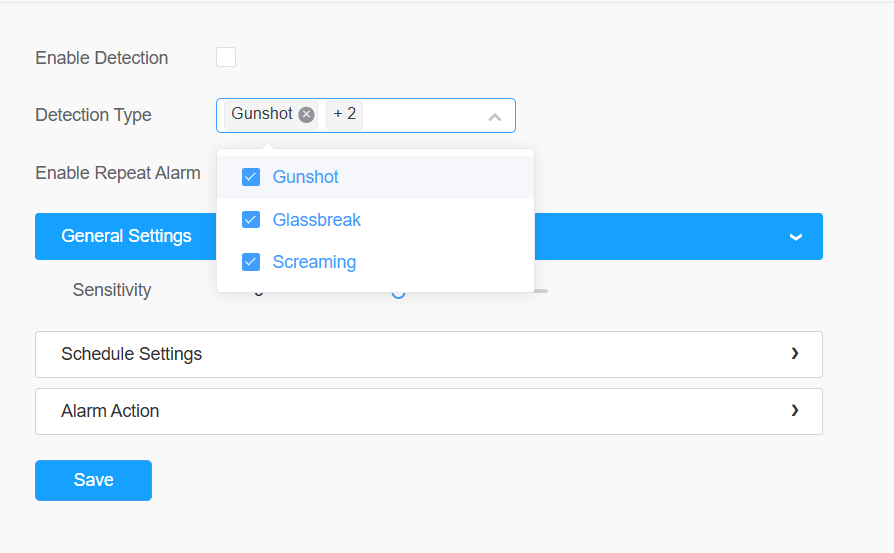
Parameters | Options/Scope | Description |
Detection Type | Gunshot / Glassbreak / Screaming | Multiple choices allowed |
Sensitivity | 1~10 (default: 5) | Reduce volume in noisy environments |
Repeat alarm | 3 to 60 seconds | Avoid frequent and repeated alarms |
Tuning Key Points:
• Turn on the built-in Mic before use
• Appropriately reduce the sensitivity in scenarios with high ambient noise
• Installing closer to the sound source delivers better performance
7. Troubleshooting and Escalation Path
7.1 Troubleshooting Steps
1. Confirm the firmware version and algorithm version: Upgrade to the latest version (the algorithm is being continuously optimized)
2. Check Installation: Verify that the height, angle and orientation meet the recommendations
3. Check image quality: clarity, exposure, and night fill light
4. Check the configuration parameters: sensitivity, target size, detection area, and detection target selection
5. Sample collection: Record the original video and provide it to Milesight
7.2 Quick Reference for Common Issues
Problem Symptom | Priority Investigation Directions | Tuning Methods |
Function cannot be found or fails to trigger | Function Switch/Firmware/Detection Area | Check whether AI Application Options is enabled and whether the detection area is drawn |
High missed detection rate | Target Size / Sensitivity / Mounting Angle | Improve the sensitivity, adjust the installation height, and check whether the target pixels and images meet the minimum requirements |
High false positive rate | Target Filtering / Shortest Time / Area | Increase the minimum target size, extend the minimum duration, narrow the detection zone, expand the masking area, and adjust the scene settings |
Poor night-time performance | Infrared Fill Light / Image Quality | Adjust the fill light angle, optimize the exposure, and upgrade the firmware |
No Crossing the Line | Position/Occlusion/Direction of Lines | Redraw the crossing line and make the target perpendicular to the movement direction as much as possible |
Inaccurate headcount statistics | Scenario Appropriateness / Personnel Overlap | Guide people to open areas and avoid crowded and overlapping spaces |
Inaccurate face detection | Face size/angle/lighting | Adjust the installation height and angle, ensure supplementary lighting, and raise the quality threshold |
7.3 When Milesight's intervention is required
• Both installation and configuration have been optimized, but there are still obvious missed detections/false positives
• Customer projects requiring targeted Model Training
Required information:
• Device Model and Firmware Version
• On-site installation photos (height and angle)
• Screenshot of Detection Configuration
• Original Video