
Update | 2026.8.1 |
1.Introduction
Camcloud replaces complex on-site systems with a streamlined, cloud video surveillance platform that’s easy to deploy, manage, and scale. This means you can save on the costs of deploying traditional servers and no worry about the cost of storage . For more details, please visit the official website at the link below.
Starting in 2026, Milesight cameras will enter into an ecosystem partnership with CamCloud.
For other value-added services,such as specialized event detection enabled by CamCloud’s backend AI analysis of video streams,please visit the camcloud official website link above for detailed information and to subscribe.
2.How to add Milesight cameras to CamCloud
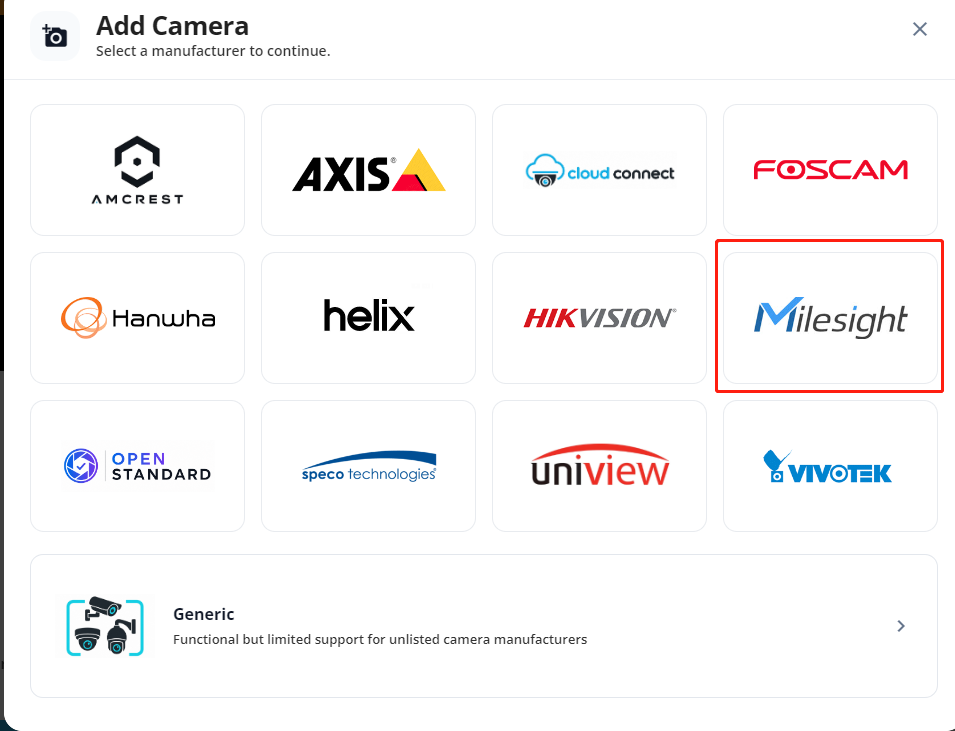
Milesight cameras have established excellent ecosystem compatibility with CamCloud; currently, users can directly select the brand when adding cameras.
After checking the box, you’ll see two ways to add the device.
The first is Secure Tunnel (for models ending in XXPE or XXPG1). We’ve designed a dedicated option for integrating with third-party platforms, so we recommend using Secure Tunnel directly to avoid the costs and complexity of port mapping.
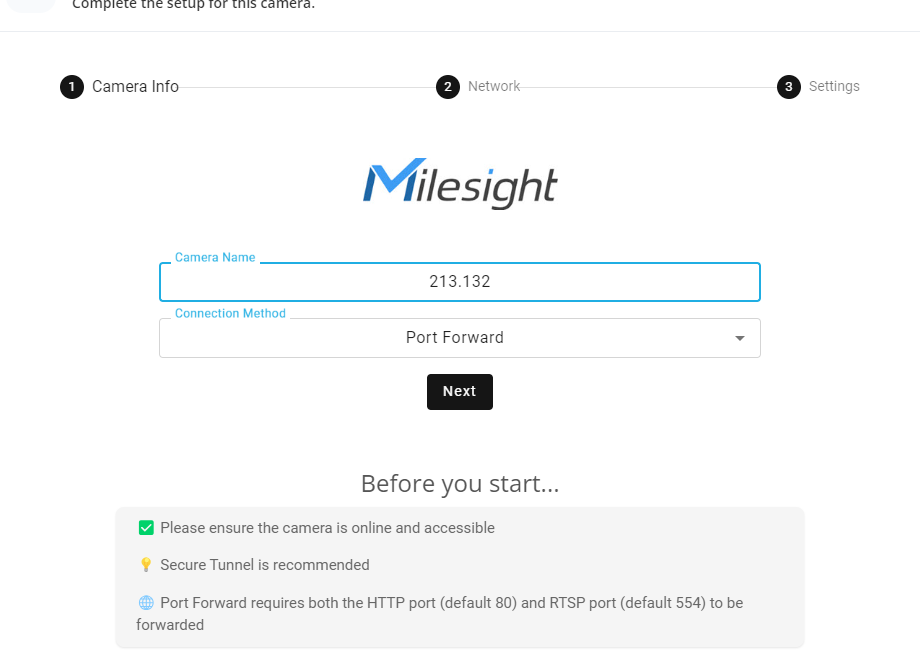
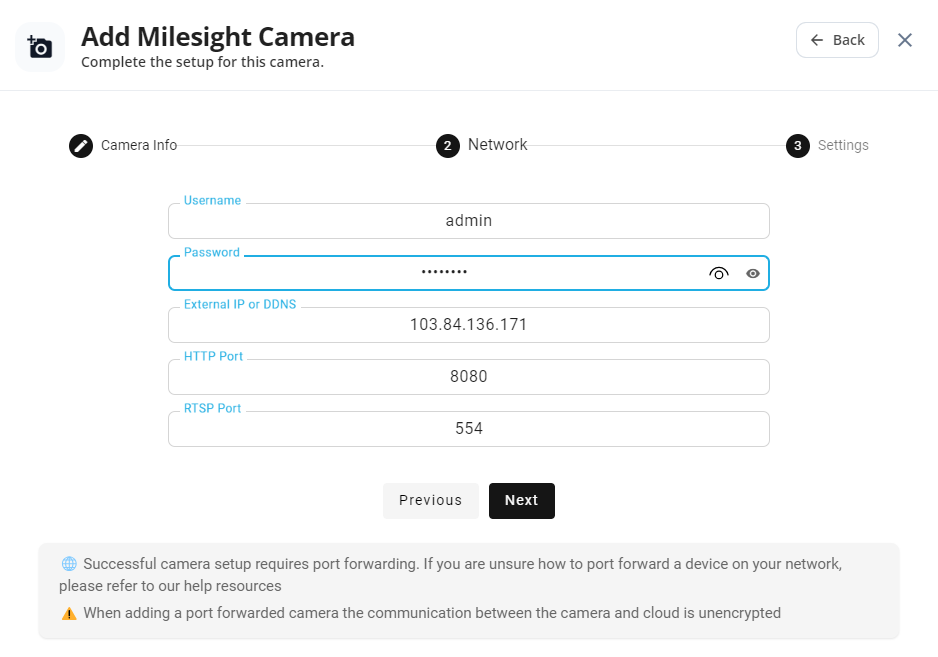
The second method is Port Forward. For some entry-level or older models (with suffixes such as XXPD, XXPA, or XXPC), you can still join CamCloud using port mapping (note the ports that need to be mapped as indicated in the figure).
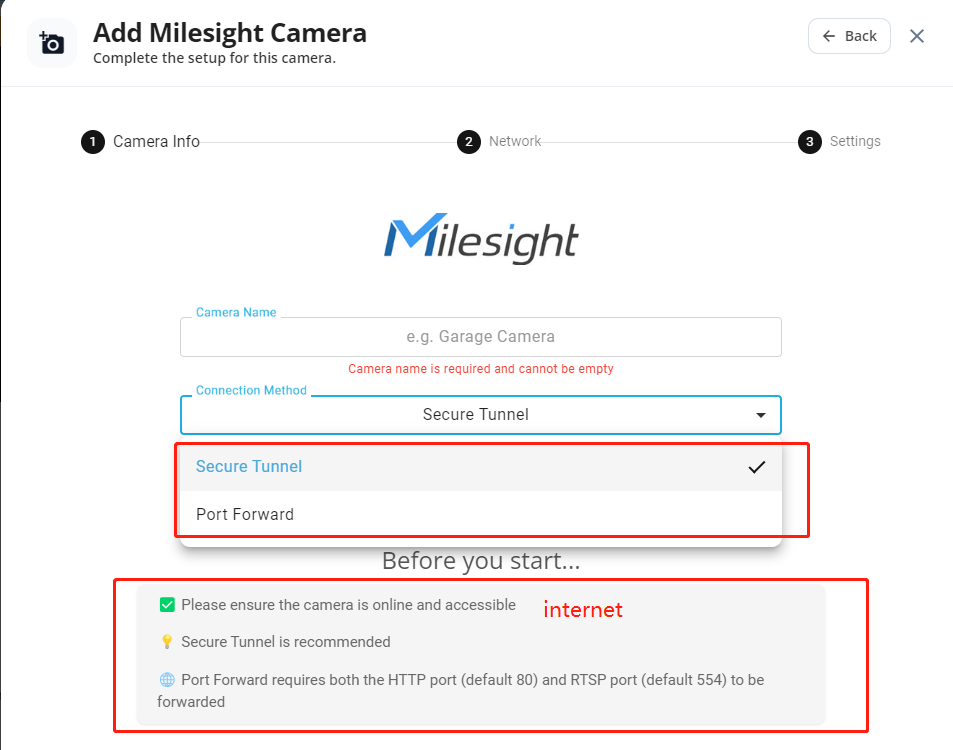
2.1 Secure Tunnel
As mentioned above, Secure Tunnel for models with the suffix XXPE/XXPG1, the firmware version must be 61/63.8.0.5, T_61.8.0.4, or higher for the third-party platform window to appear. If your firmware is older, you can find the latest firmware on the official website below and perform the update.
https://www.milesight.com/support/resources/firmware
There is a specific model, the Solar Powered Camera SP111, with firmware version 52.8.0.x/52.8.0.x-LPR, which requires an upgrade to the special firmware available at the link below.
https://drive.google.com/drive/folders/1BvLxoVwFpJmvgi2_QVpO7YIsex4LSnsO?usp=drive_link
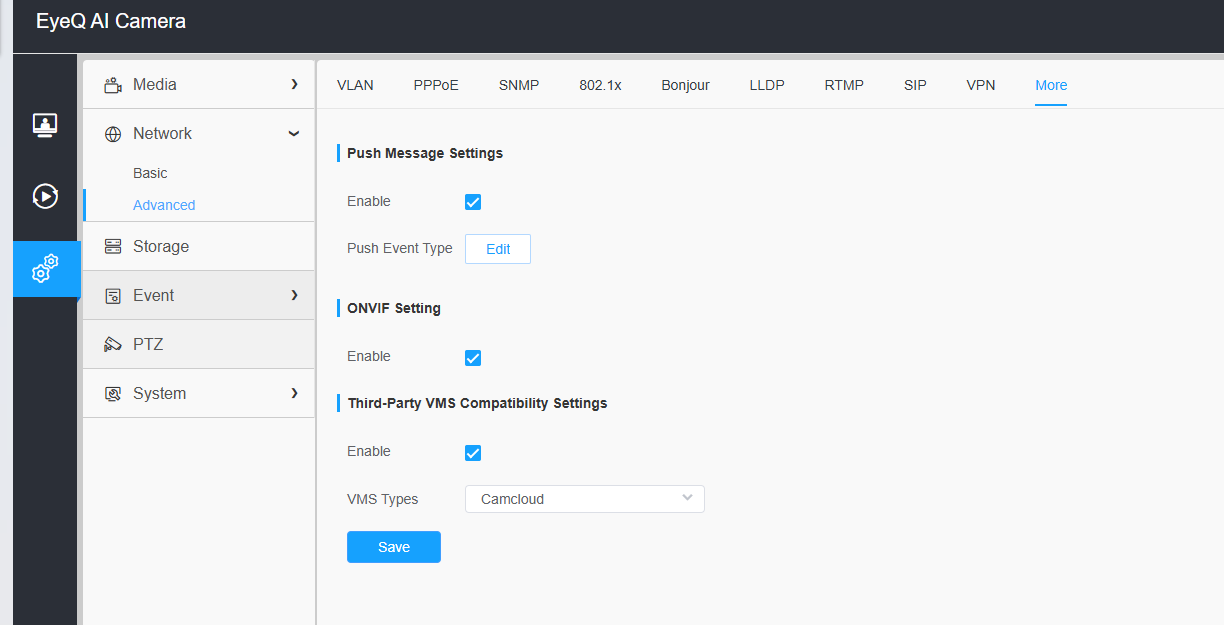
On the camera's web interface, locate the window for the third-party platform mentioned above and select camcloud.(if you find add in camcloud unsuccessfully can try reboot camera).
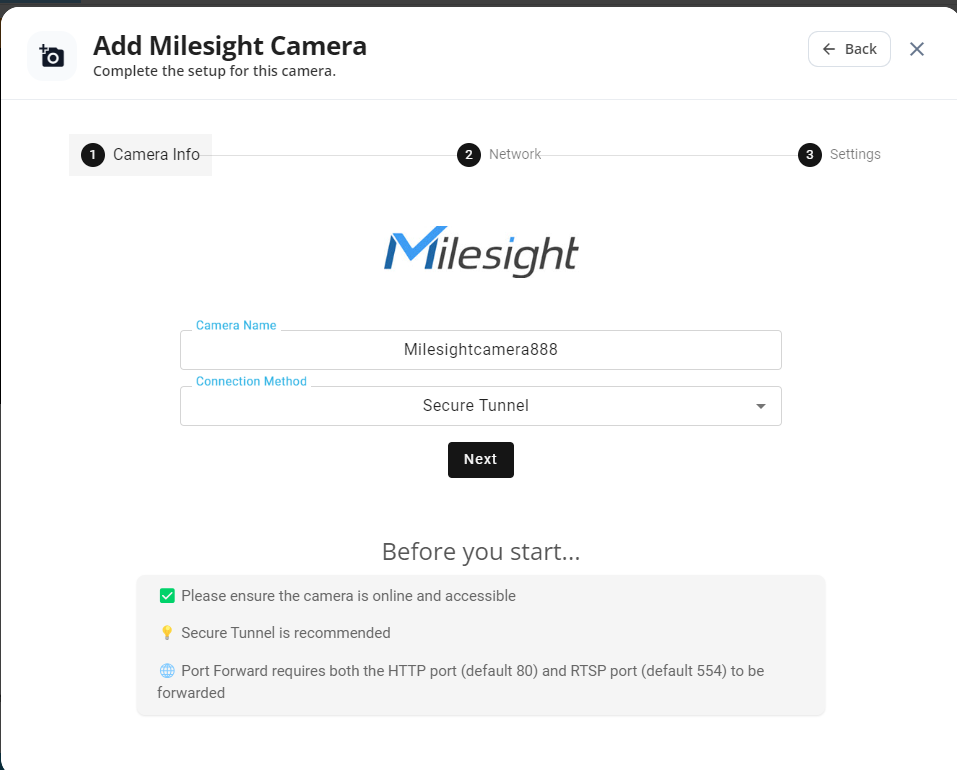
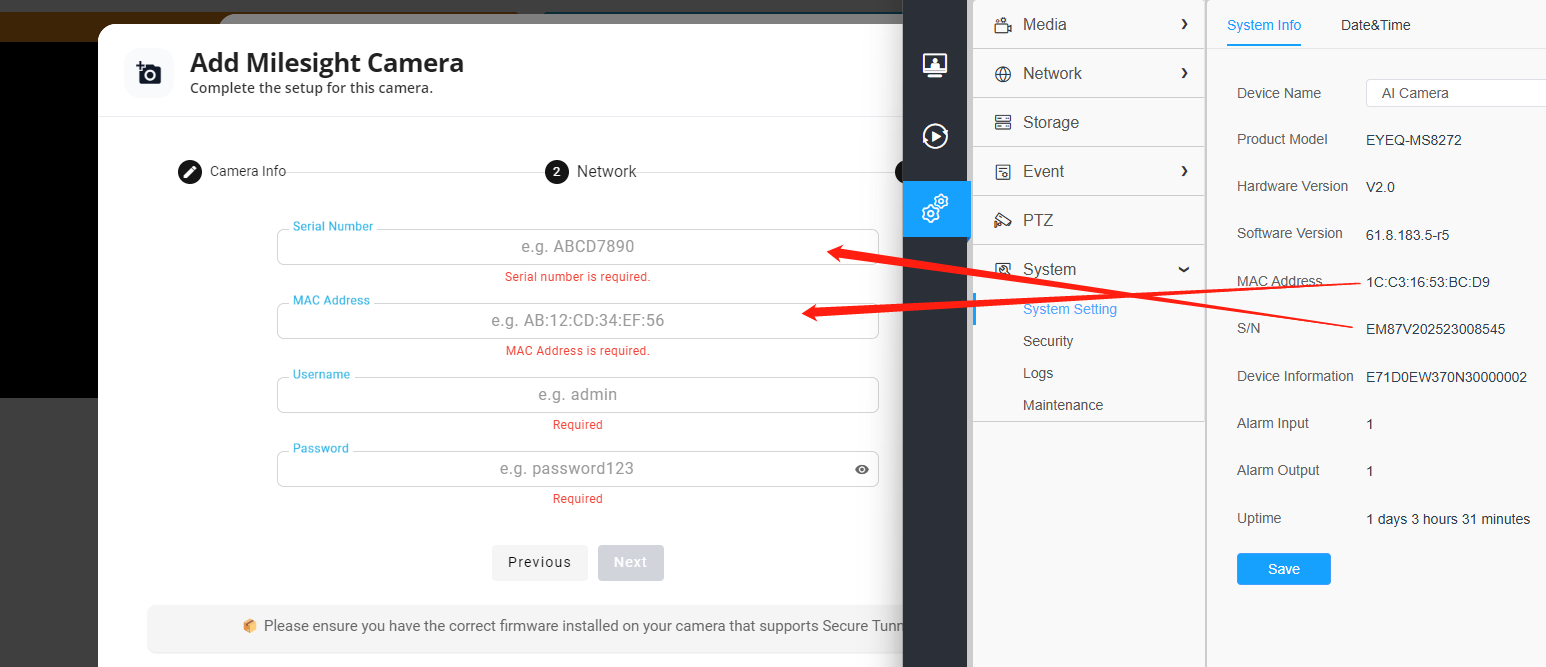
Then return to Camcloud, tap "Secure Tunnel," enter the camera name, the serial number (SN) and MAC address, as well as the camera's username and password.
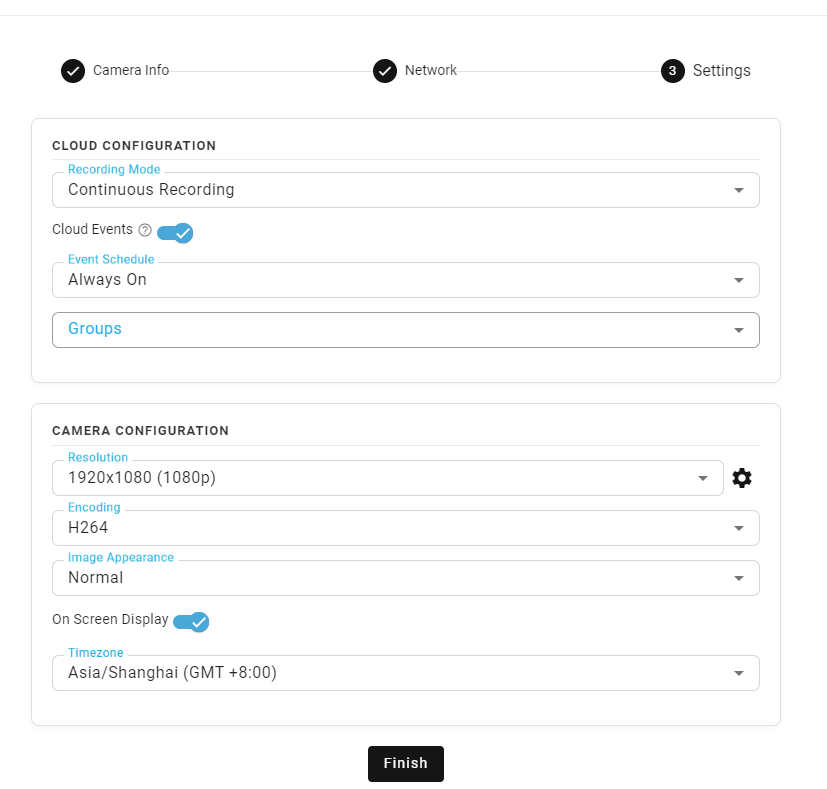
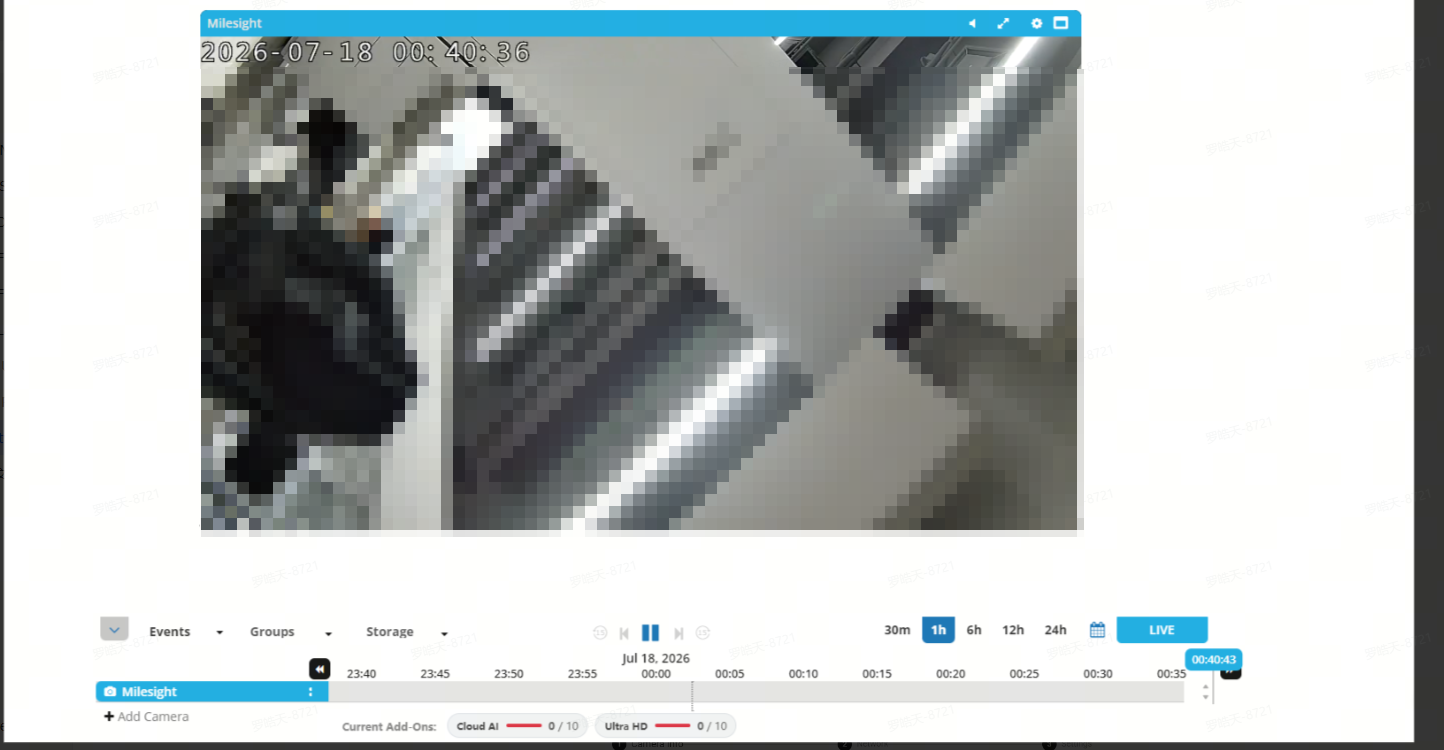
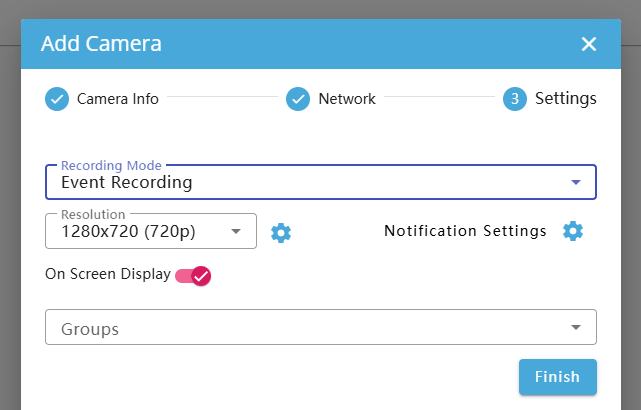
After selecting the configuration you need, click "Finish" .Camera now been added successfully.
2.2 Port Forwarding
After entering the camera name, enter the camera username, password, external IP address, and the HTTP and RTSP ports that have been port-mapped.
3.Web device access
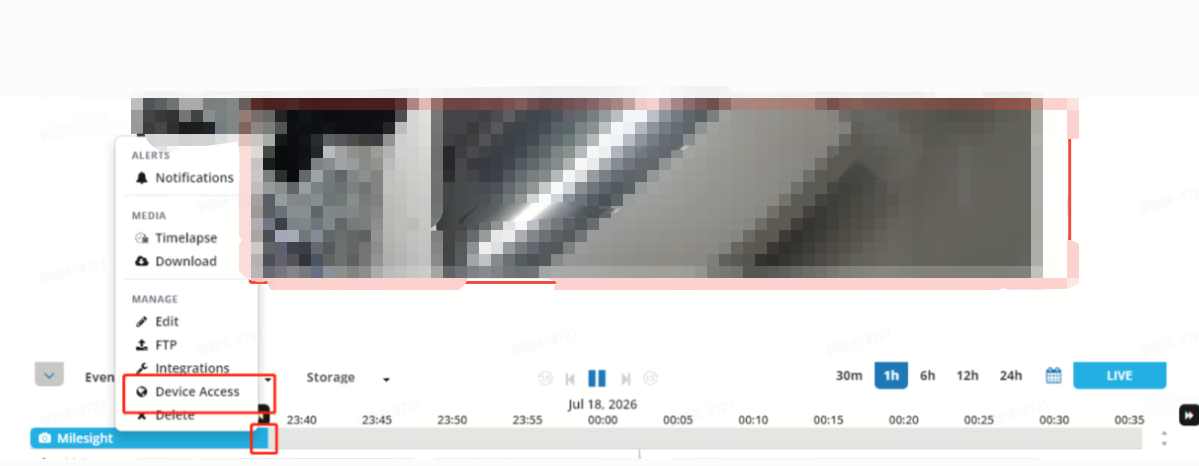
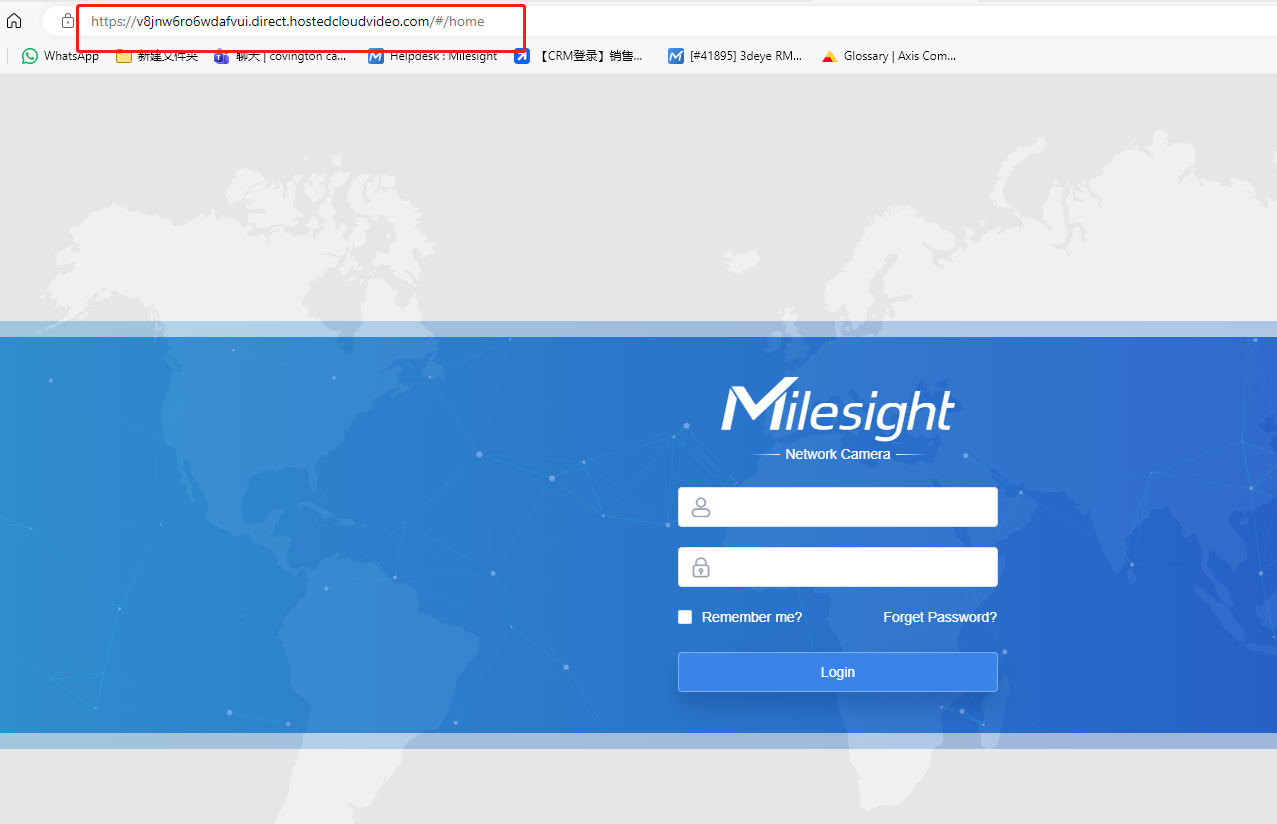
For other detailed camera-side configurations, CamCloud supports a web interface, allowing you to generate a temporary URL to access the camera's web interface directly.
4.PTZ and Zoom operation
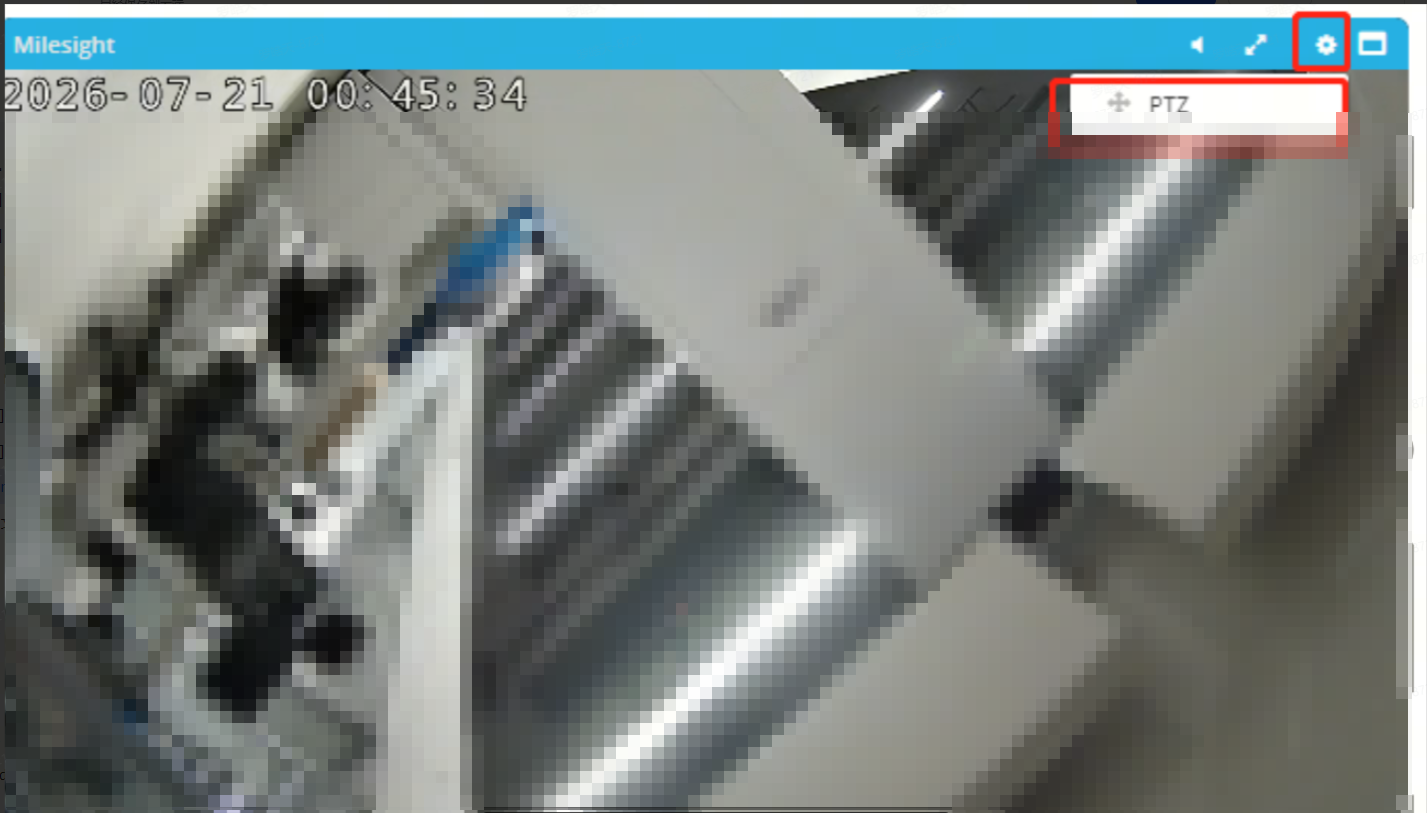
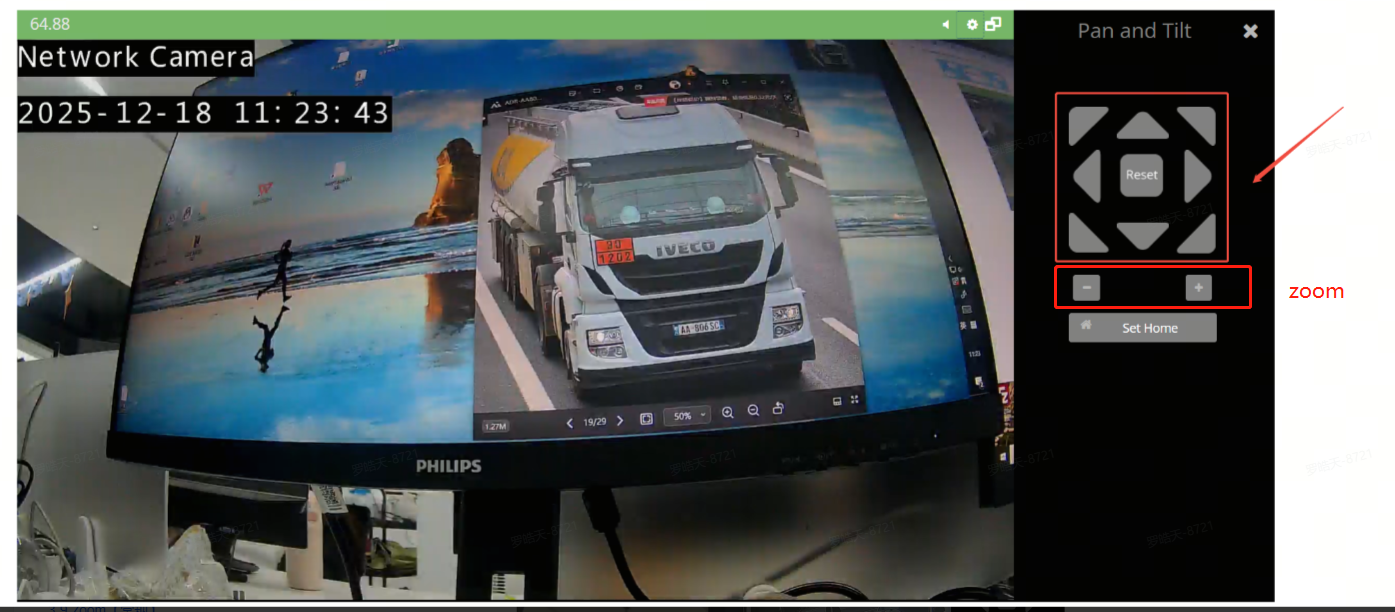
non-PTZ
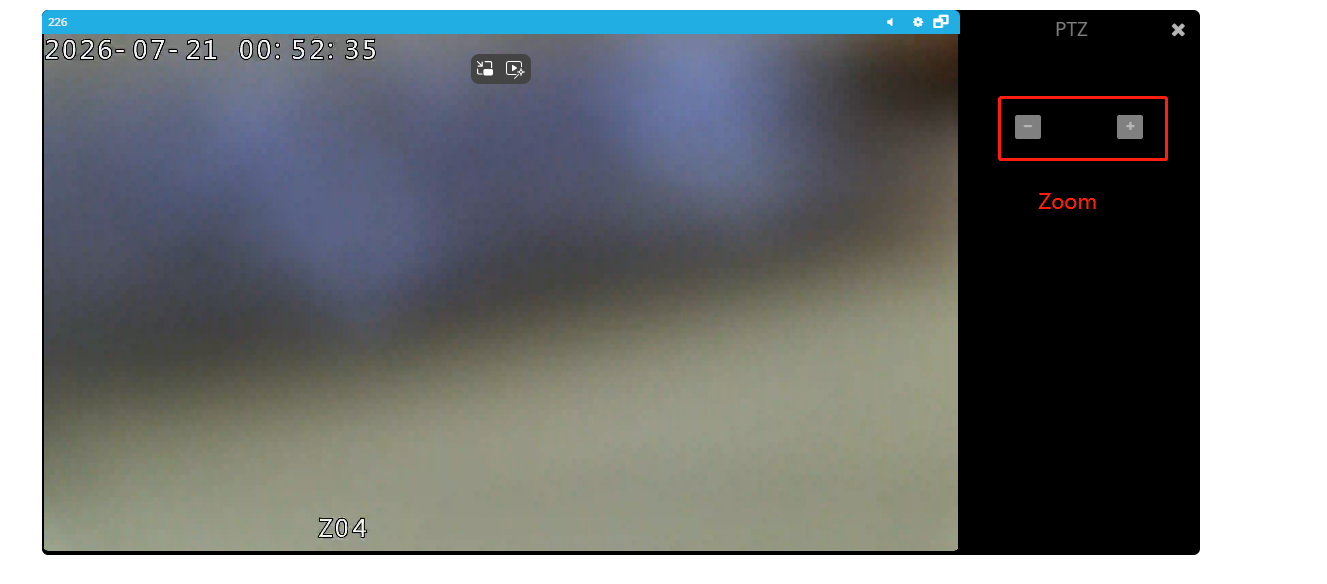
5.How to push events to camcloud
Currently, CamCloud is compatible with front-end events from major camera brands, primarily relying on HTTP and FTP push notifications. These are triggered via custom URLs set up with the cameras and can subsequently be located in CamCloud’s Event Explore. Therefore, there is one prerequisite for HTTP configuration and two prerequisites for FTP configuration.
HTTP
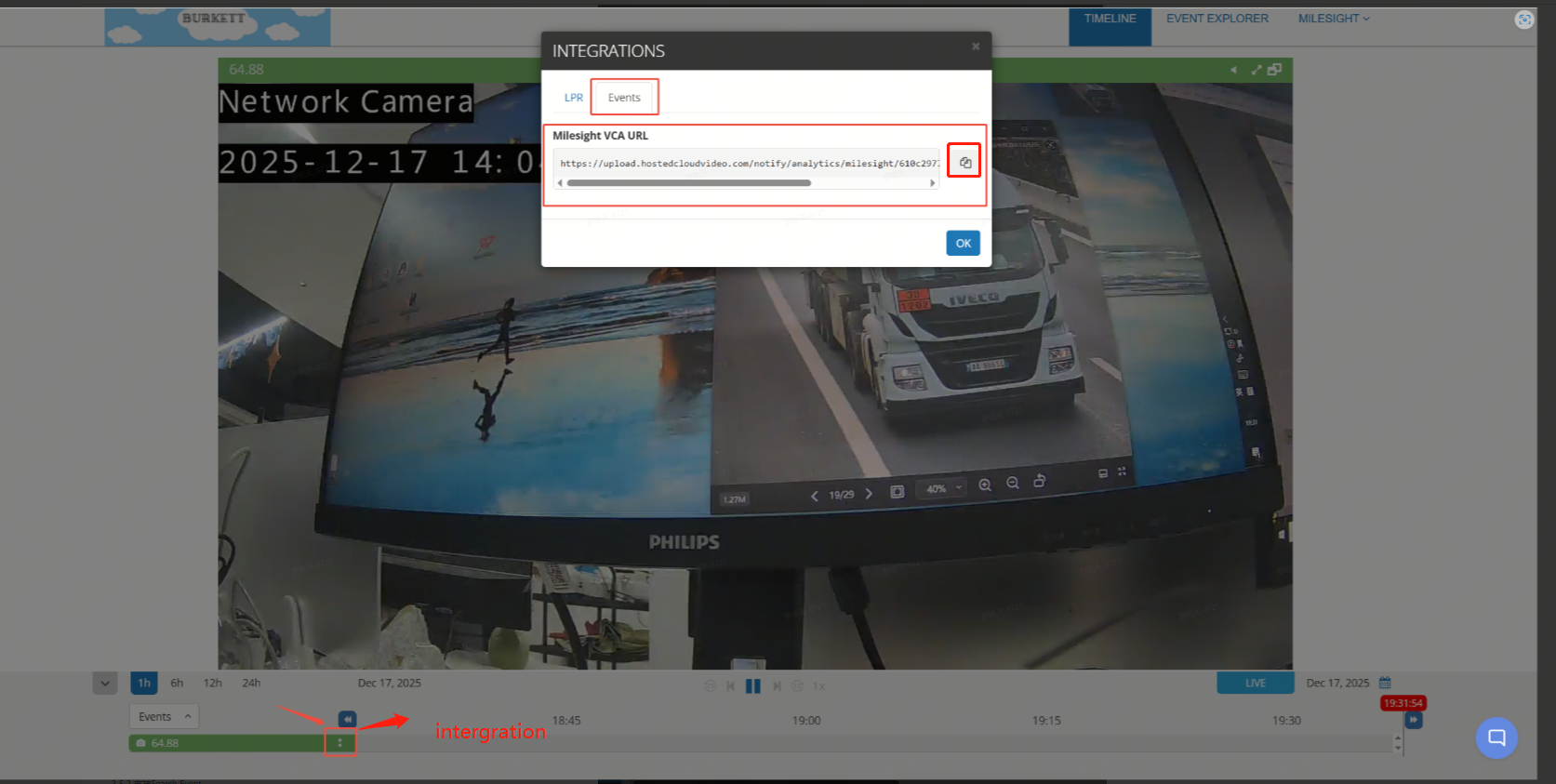
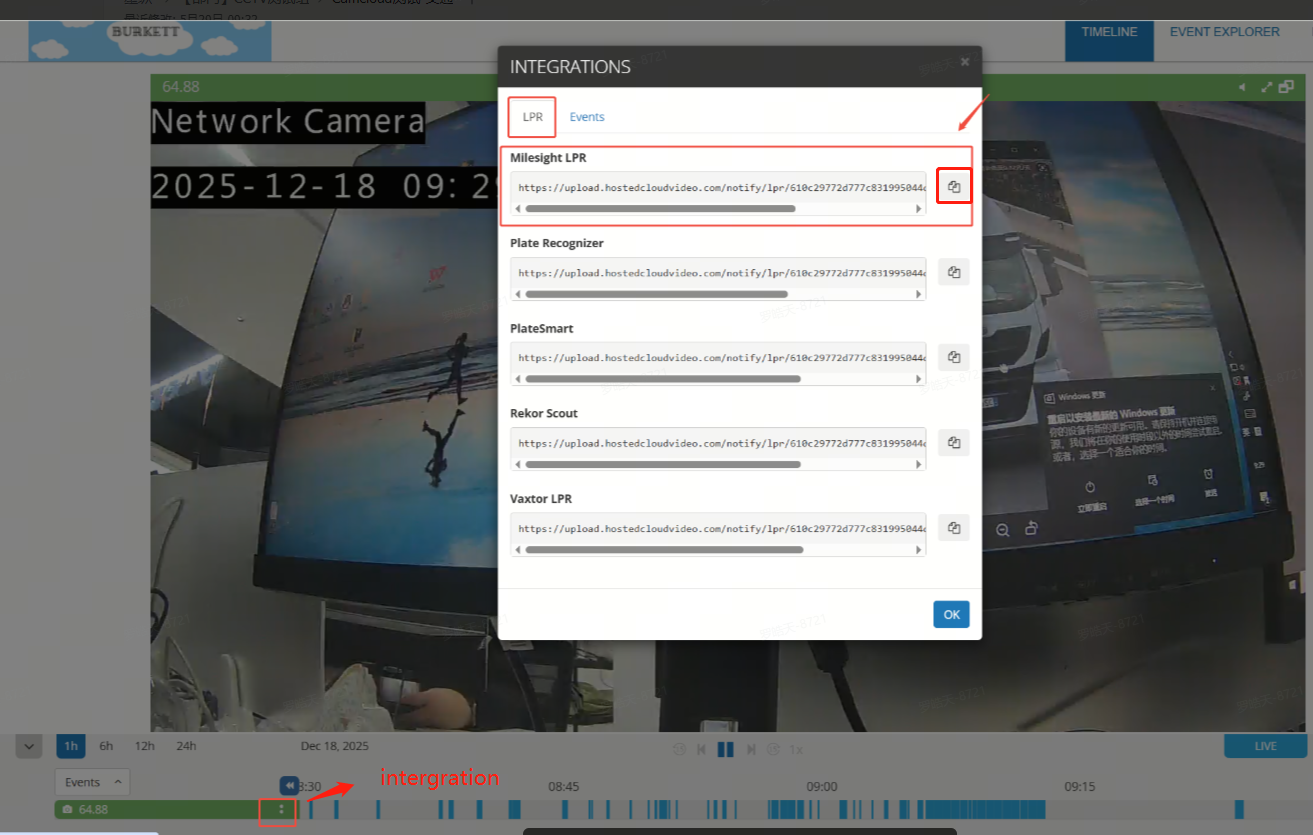
Prerequisite 1: Click the Integrations button to obtain the URL for HTTP Notification push.
FTP
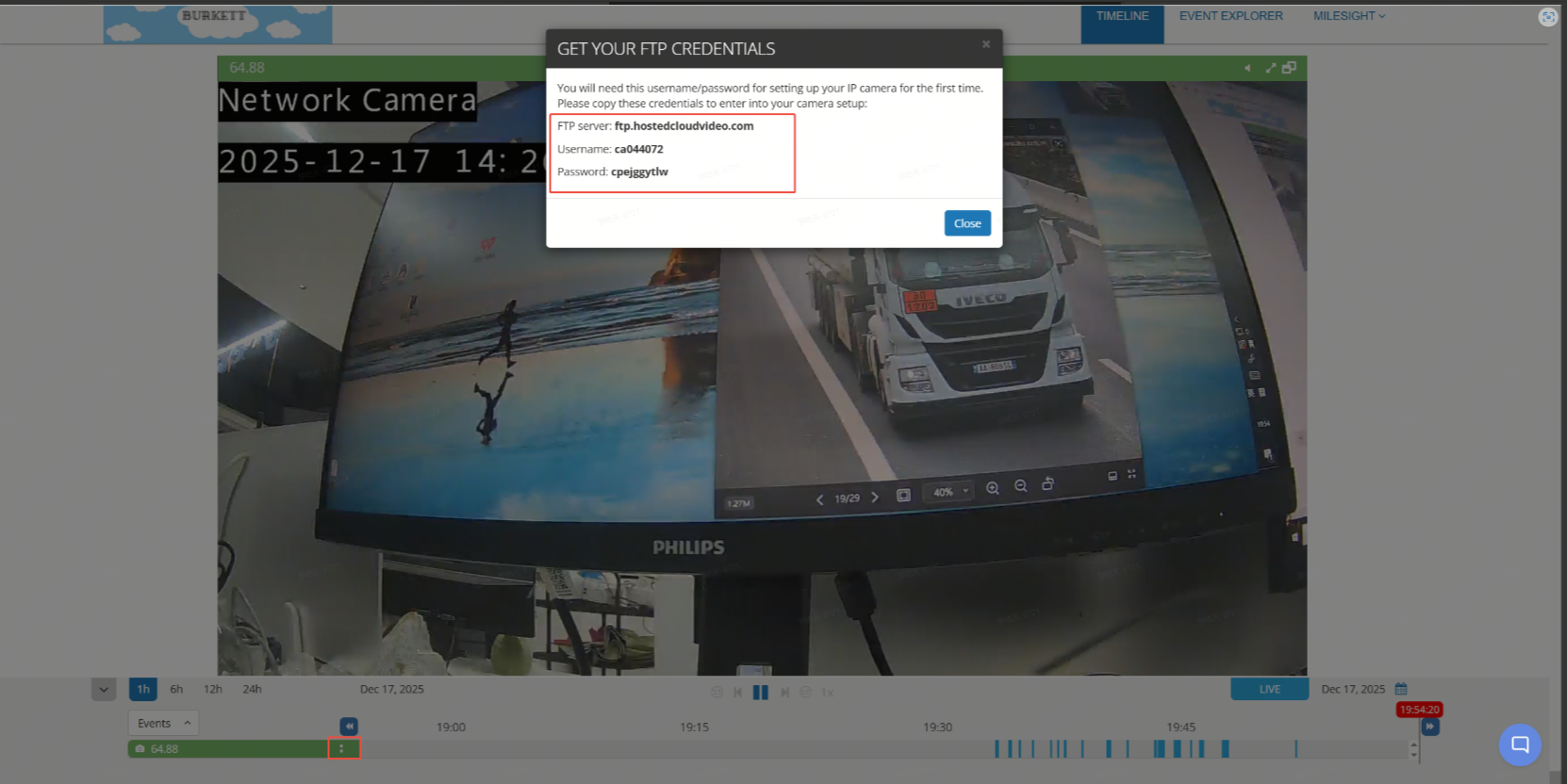
Prerequisite 1: Click the FTP button to obtain the FTP-related information.
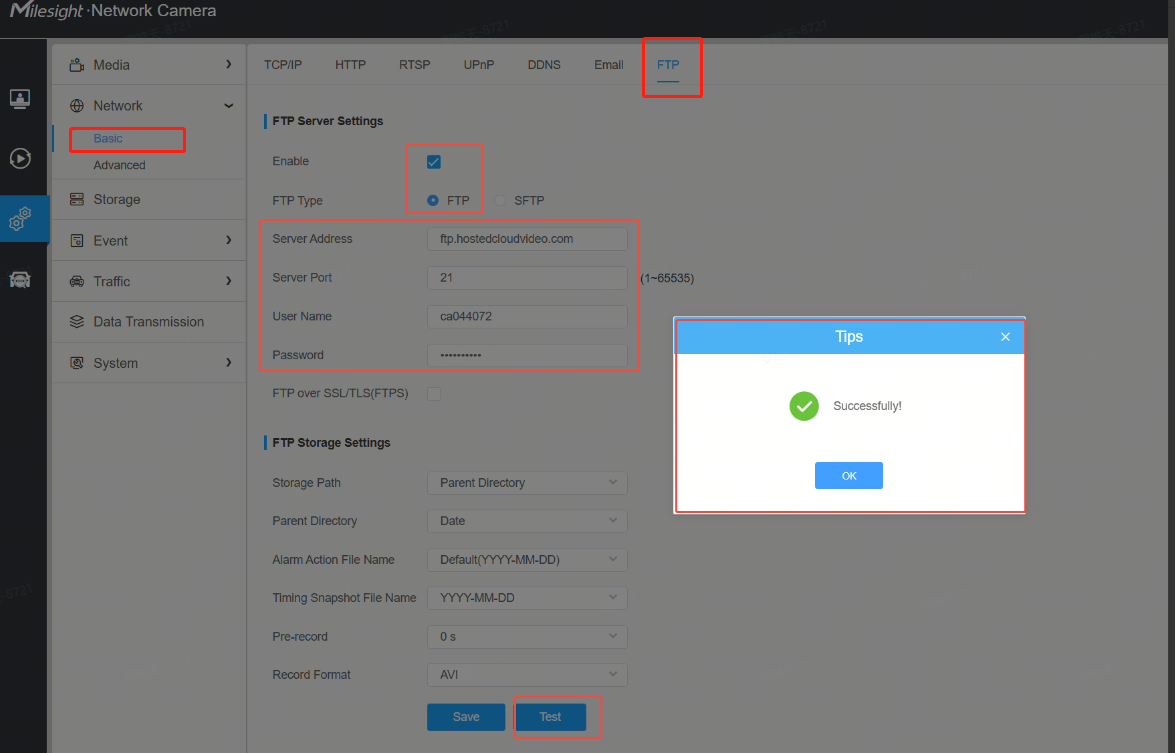
Prerequisite 2 :Fill in the information in the IPC's FTP module, then click Test to check network connectivity. A successful result means the setup is valid.
5.1 Motion event
HTTP
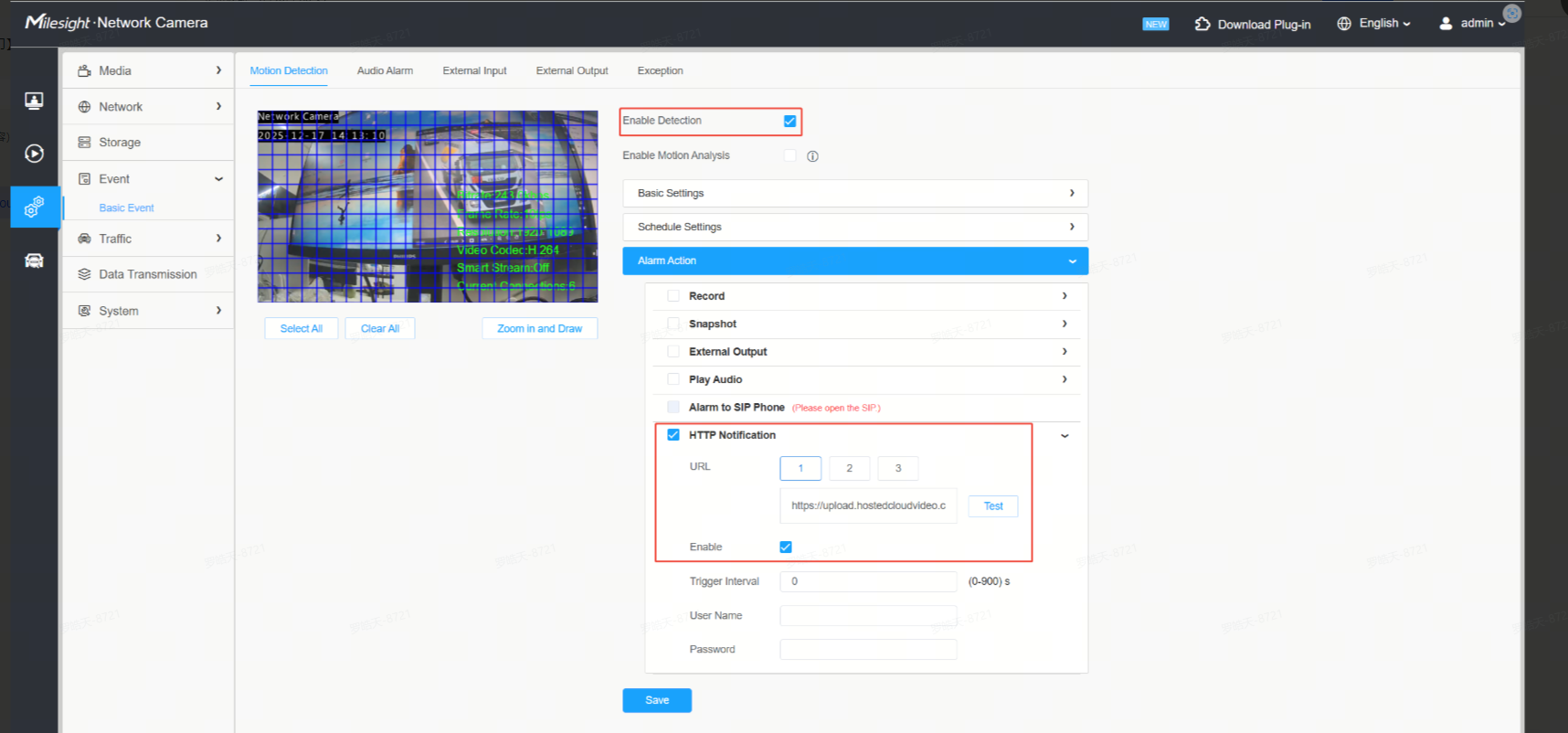
Enable Motion Detection, check HTTP Notification under Alarm Action, enter the Event URL obtained from Prerequisite 1, save the settings, and then trigger motion detection.
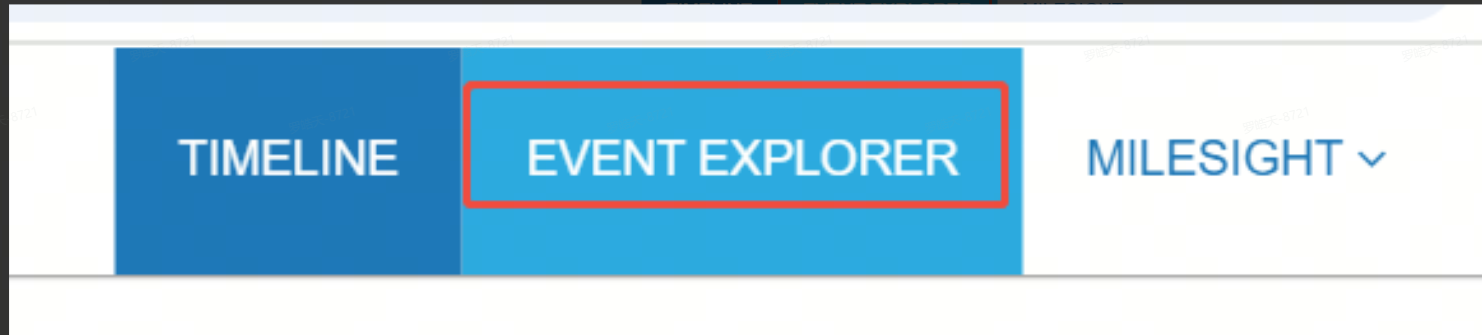
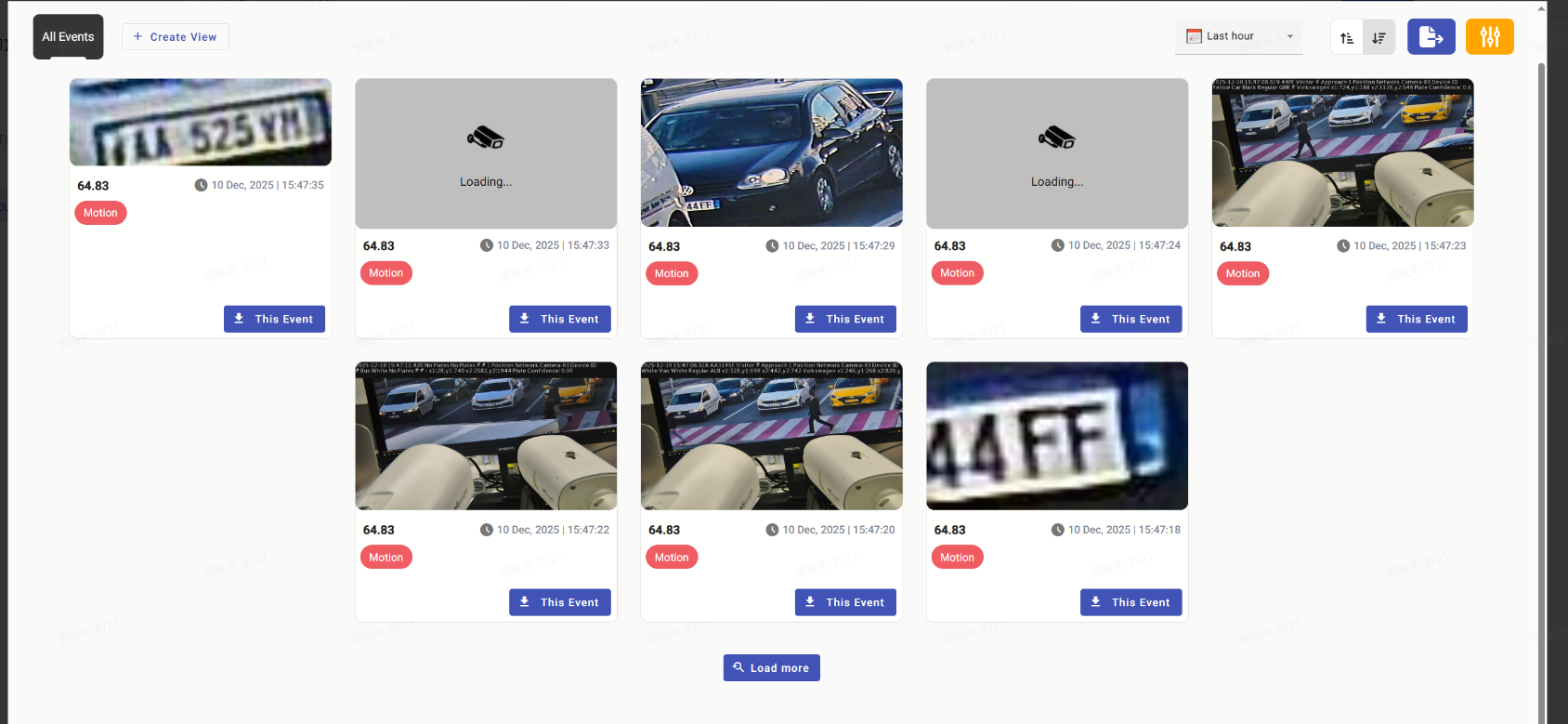
Click EVENT EXPLORER in camcloud to enter the event search page, where you can view the pushed Motion events.
FTP
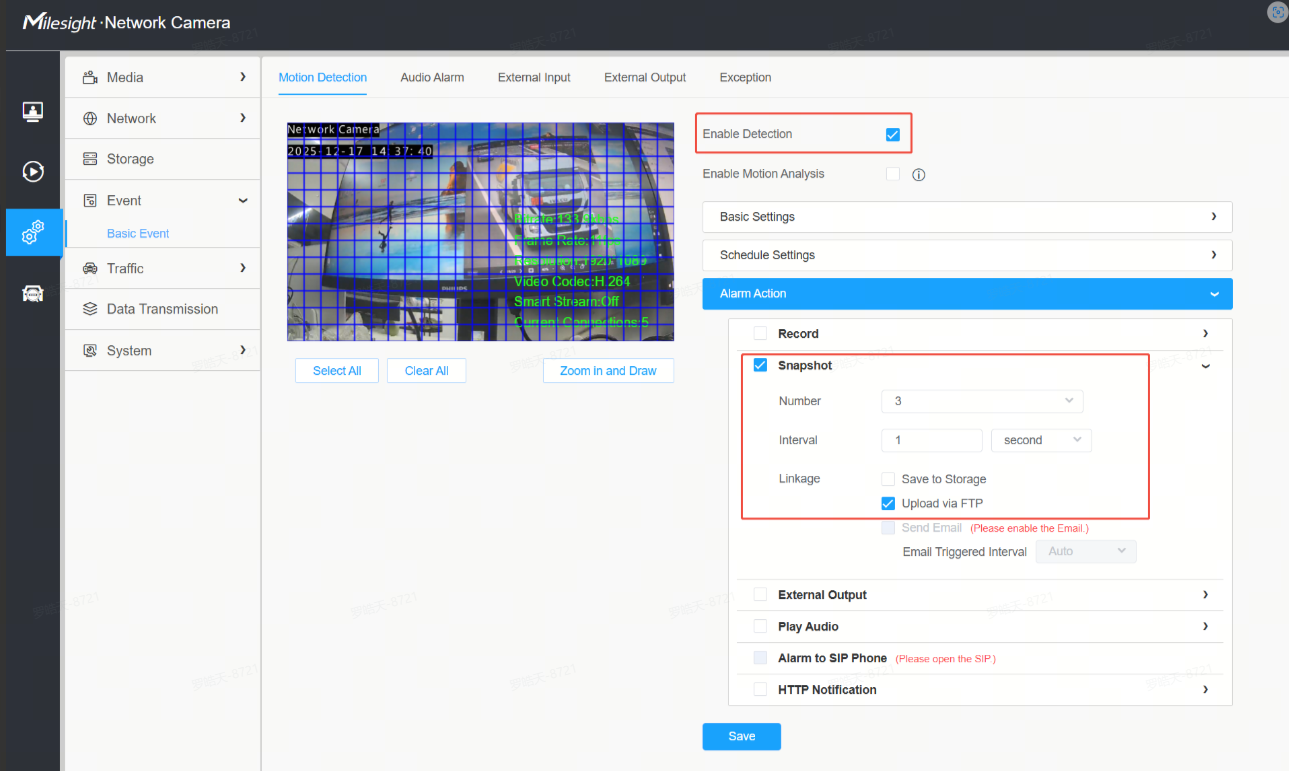
Make sure the FTP information filled in Prerequisite 1 and2 is correct. Enable Motion Detection. Under Alarm Action, check Snapshot-Upload via FTP, save the settings, and then trigger motion detection.
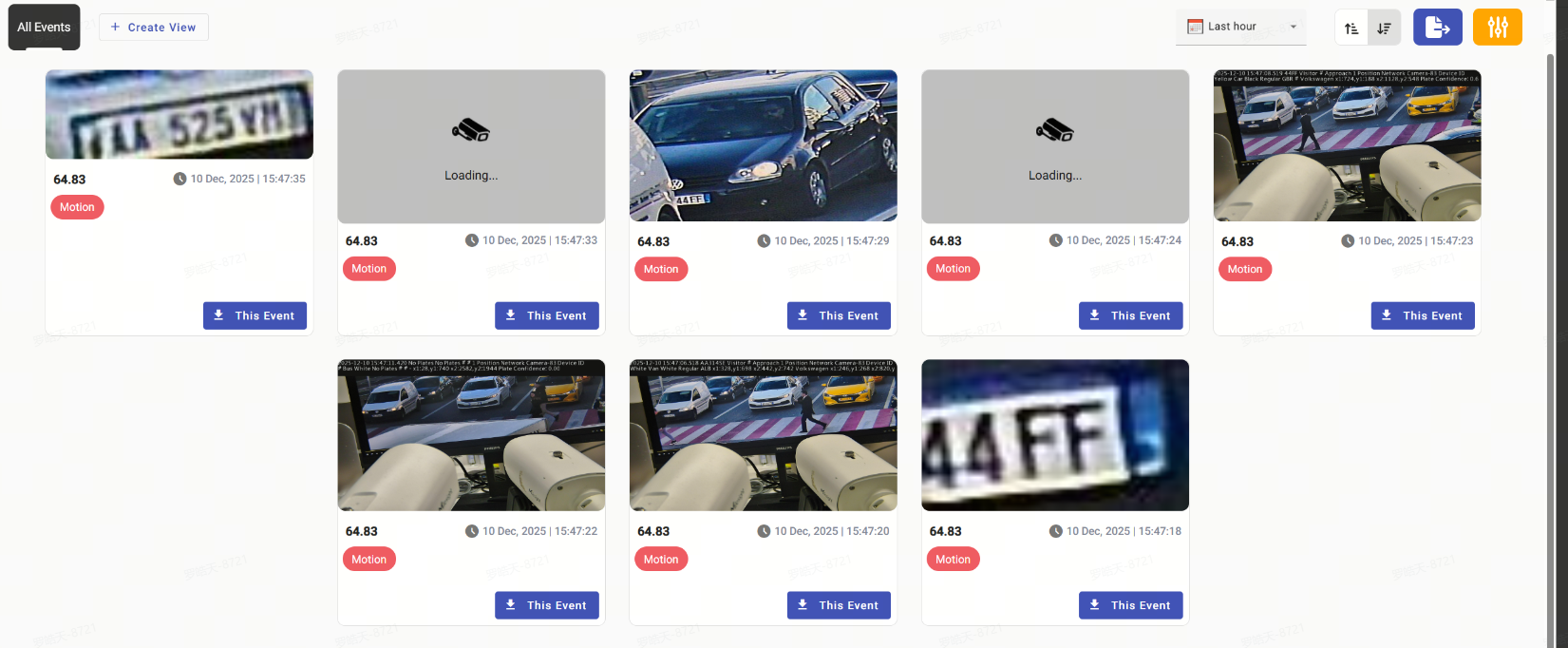
Click EVENT EXPLORER to enter the event search page, where you can view the pushed Motion events.
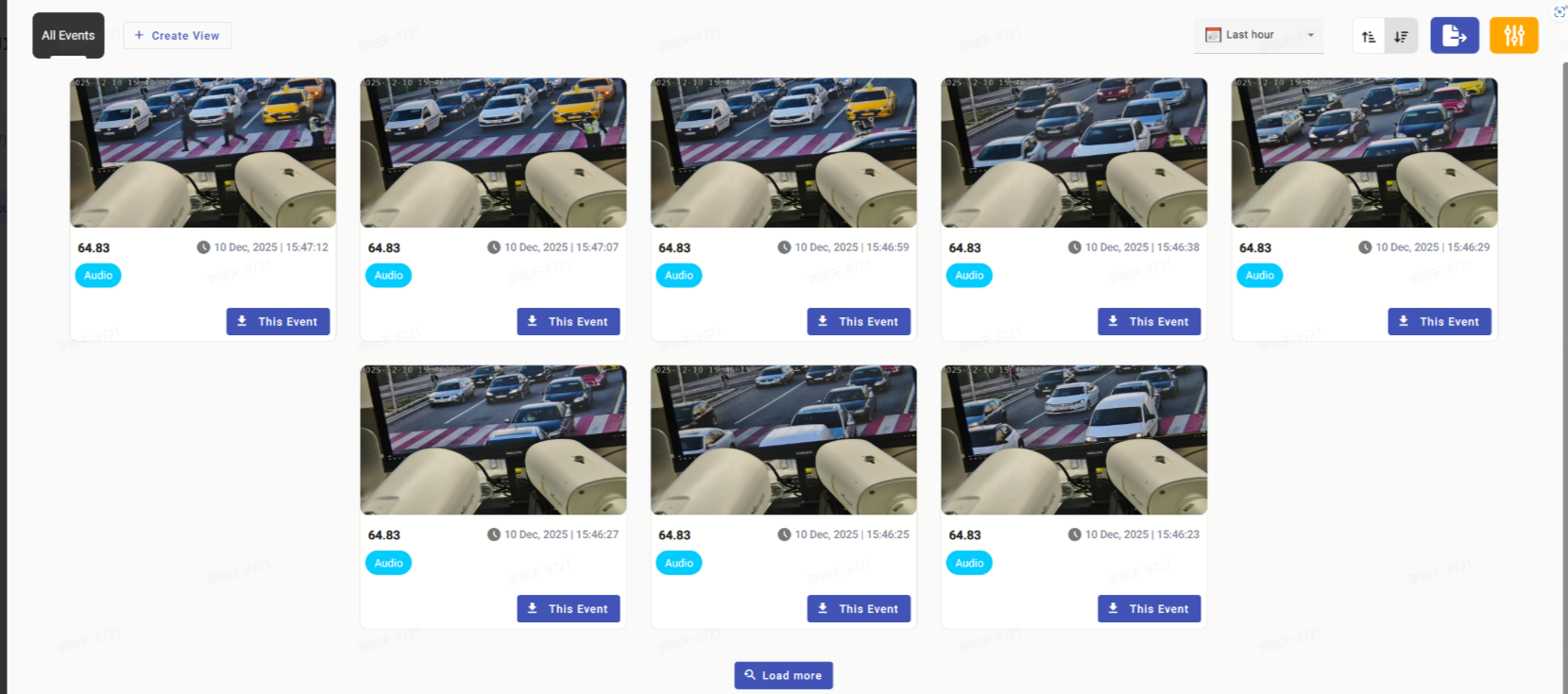
5.2 Audio event
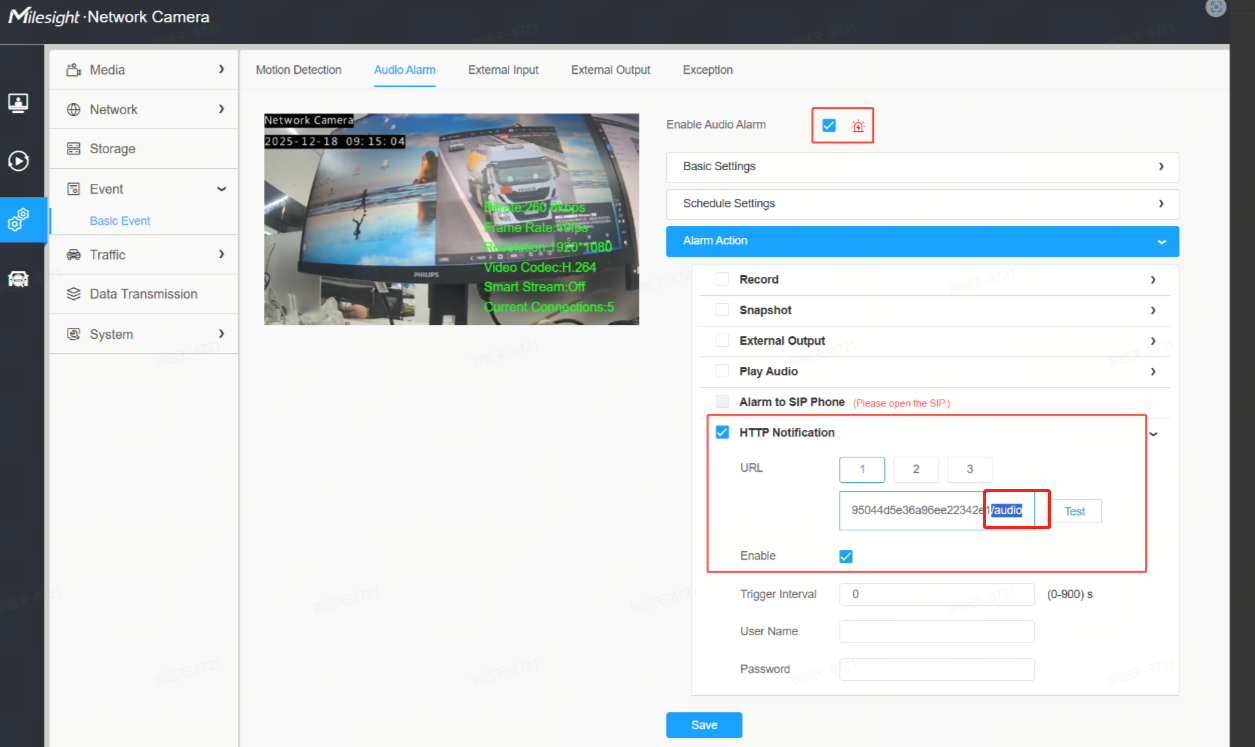
Enable Audio Alarm, check HTTP Notification under Alarm Action, enter the event URL obtained from the previous steps and append /audio to the end of the URL. For example:
https://upload.hostedcloudvideo.com/notify/analytics/milesight/610c29772d777c831995044d5e36a96ee22342e1/audio
Save the settings, then trigger the audio alarm.
Click EVENT EXPLORER to enter the event search page, where you can view the pushed Audio events.
5.3 VCA event
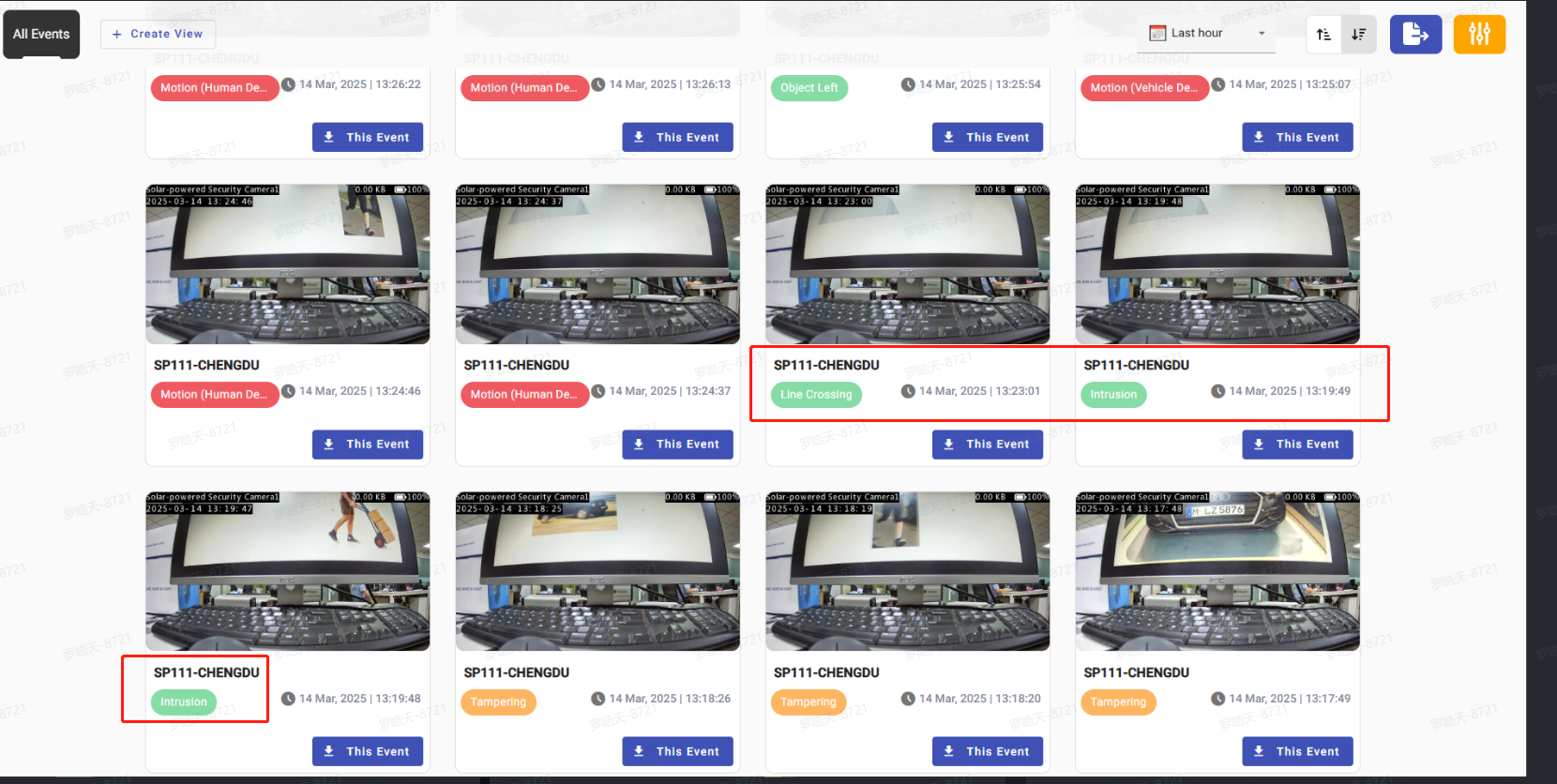
Milesight cameras support a variety of VCA events, which are currently pushed to the CamCloud platform via HTTP and FTP, as described above. Rather than listing them all here, we’ll use intrusion detection as a configuration example; the process is the same for the others.

Check HTTP Notification under Alarm Action, enter the Event URL obtained from Prerequisite 1, save the settings, and then trigger intusion detection.
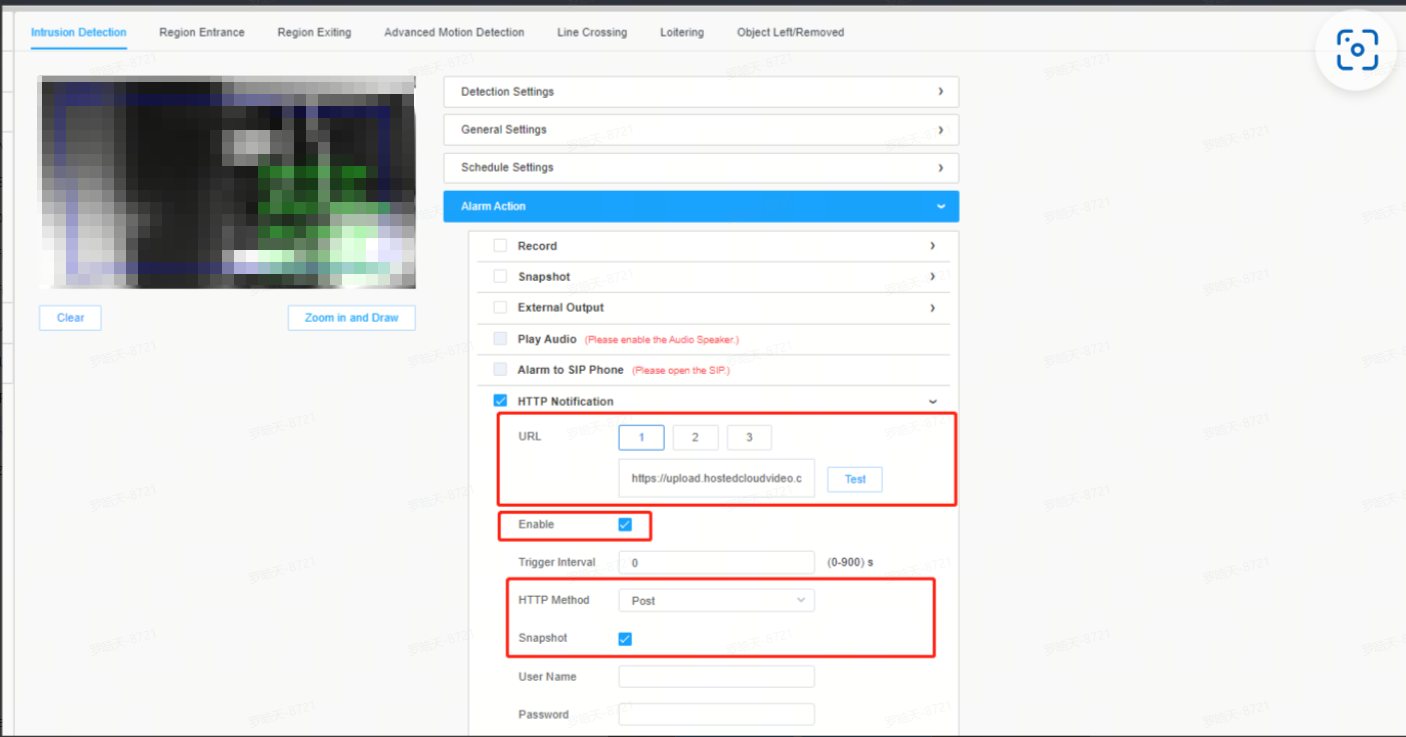
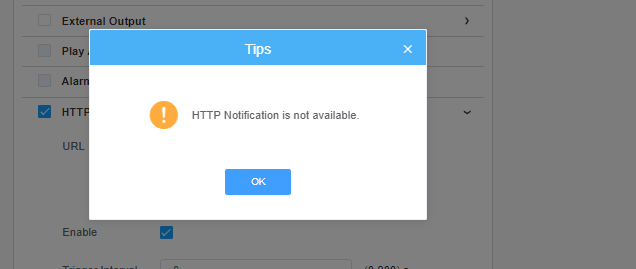
Note:When you click "test," the message "HTTP Notification is not available" will appear. That's okay—once the event is actually triggered, it will be sent to the CamCloud platform.
5.4 LPR event
Prerequisite : Click the Integrations button to obtain the URL in LPR list one for HTTP Post push.
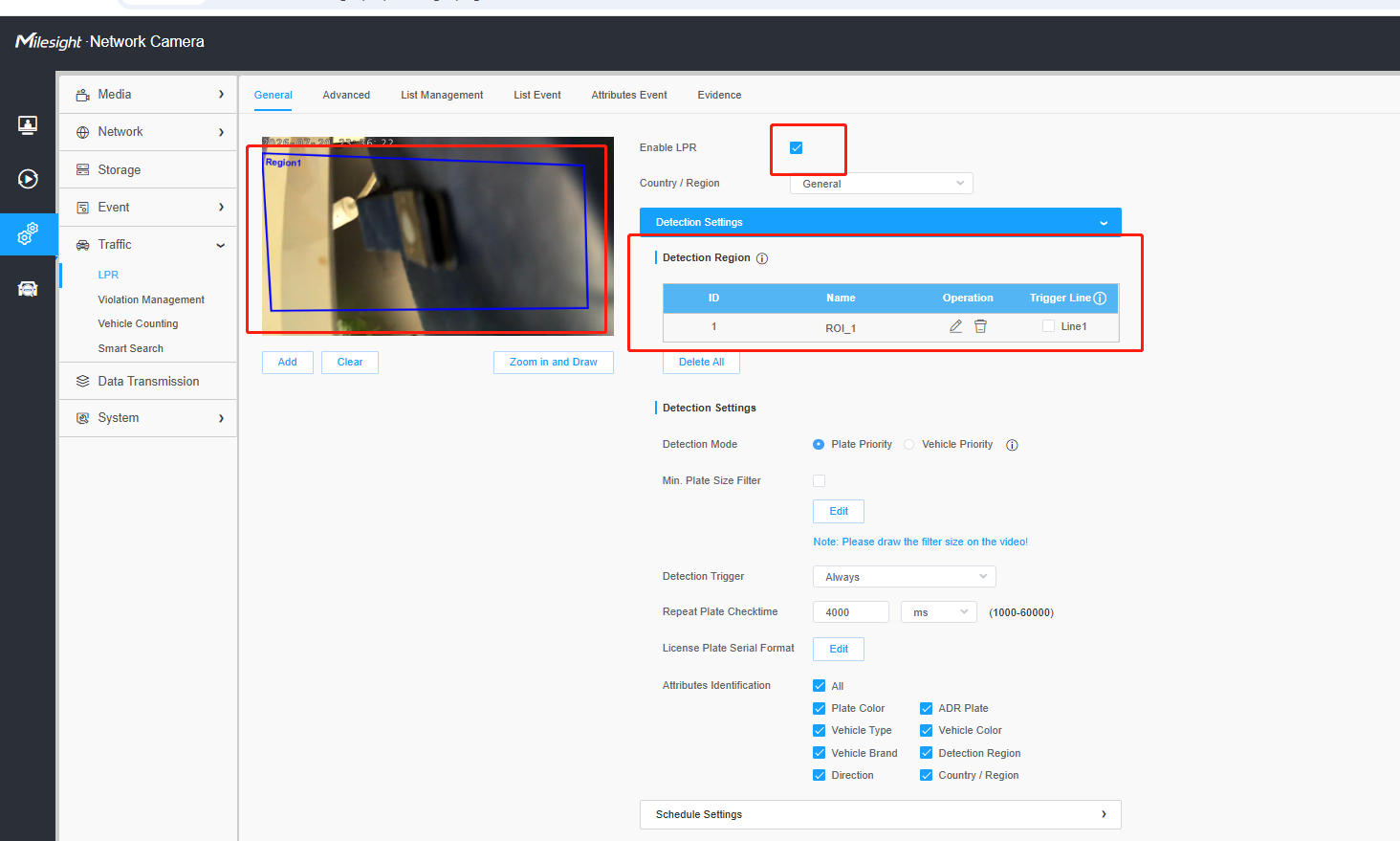
Enable LPR and draw the region and complete the relevant configuration
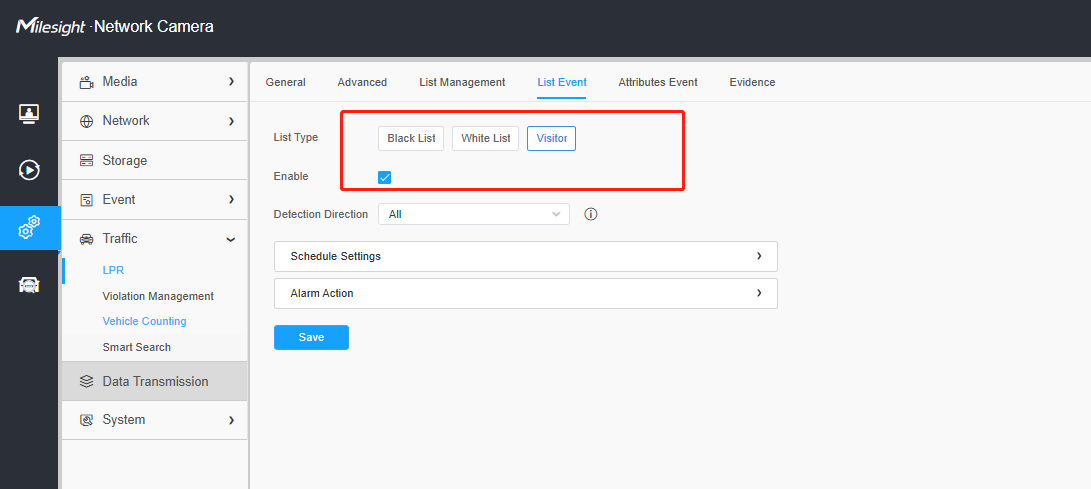
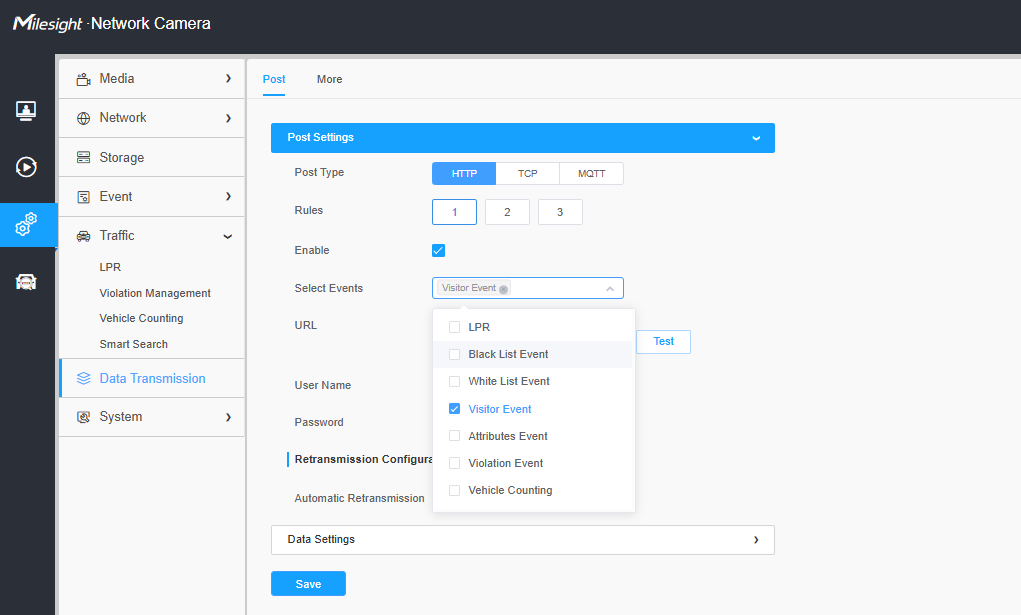
Vistor/Black/white list event
Make sure relevant funtion you want is enable
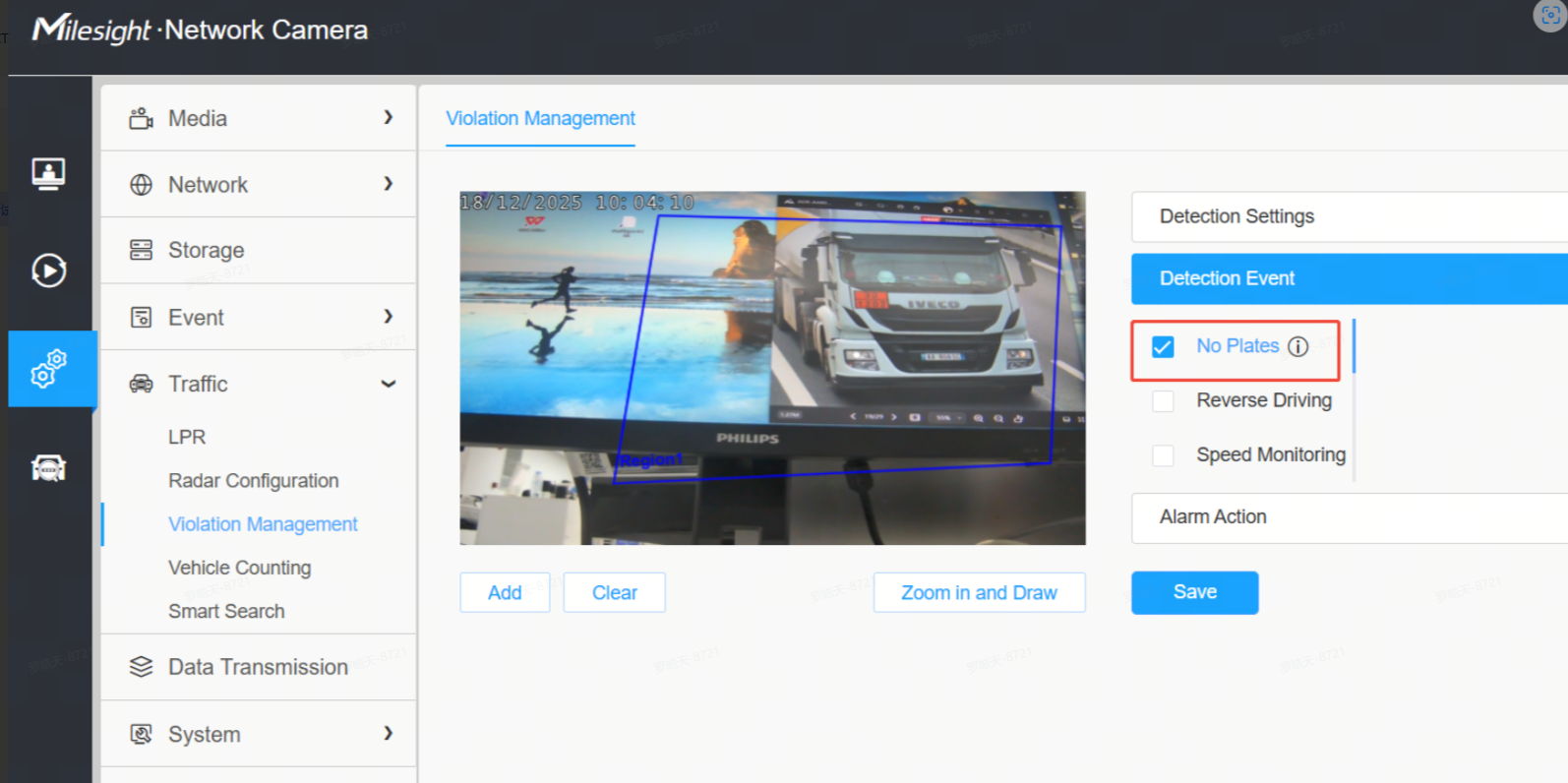
Violation event
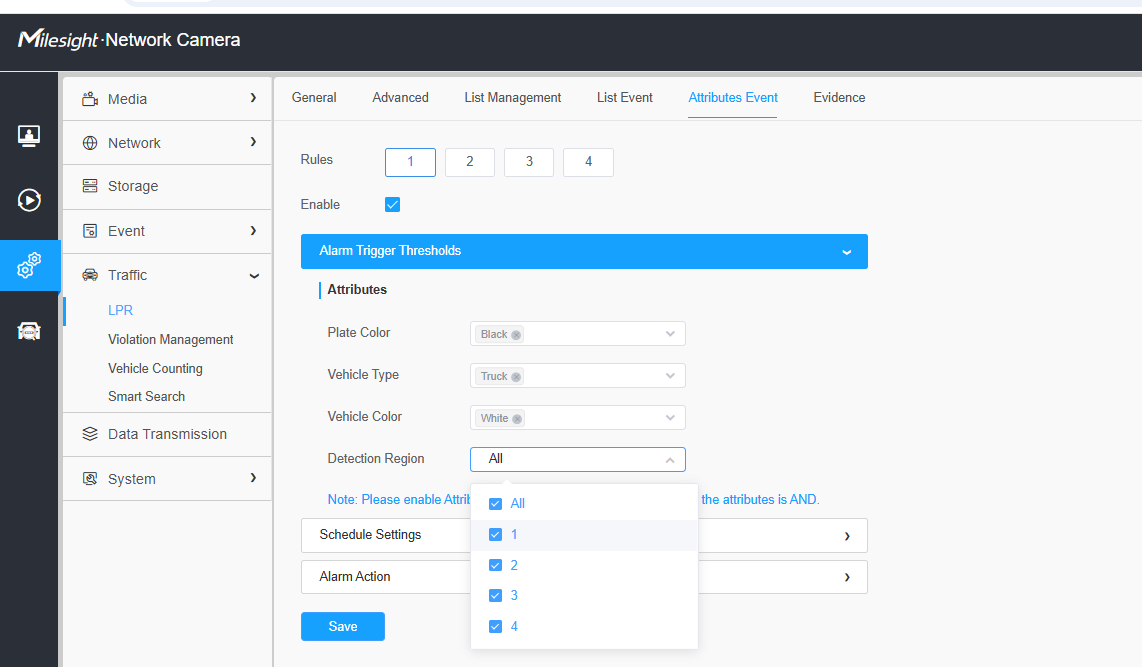
Attribute event
Choose the relevant condition you want ,and then related LPR events will only be pushed to CamCloud if they meet the criteria you selected.
Enter the LPR URL from the CamCloud integration mentioned earlier into "Data Transmission."And choose the relevant event you want
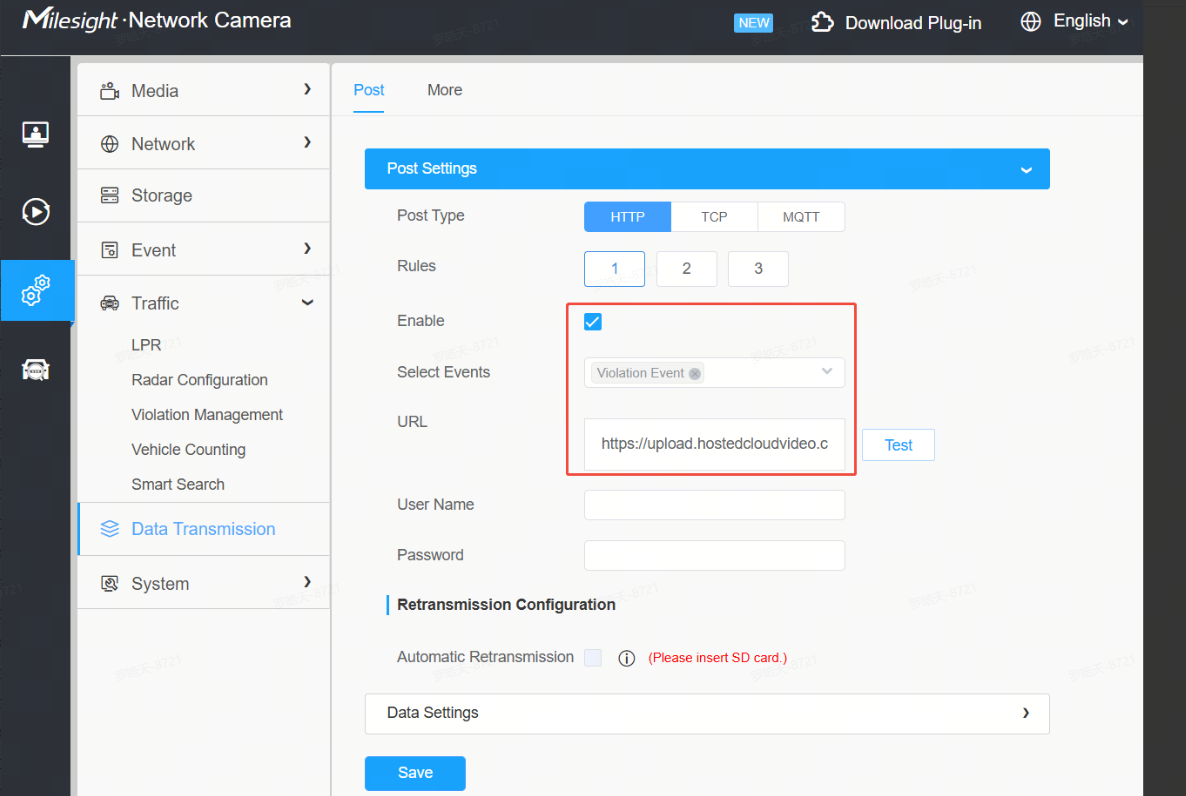
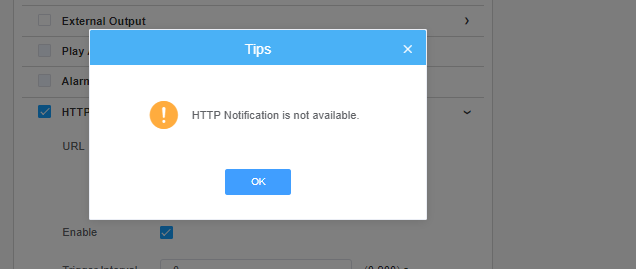
Note:When you click "test," the message "HTTP Notification is not available" will appear. That's okay—once the event is actually triggered, it will be sent to the CamCloud platform.
Please note that it may take a few minutes for the CamCloud platform to process the request before you receive the license plate results.
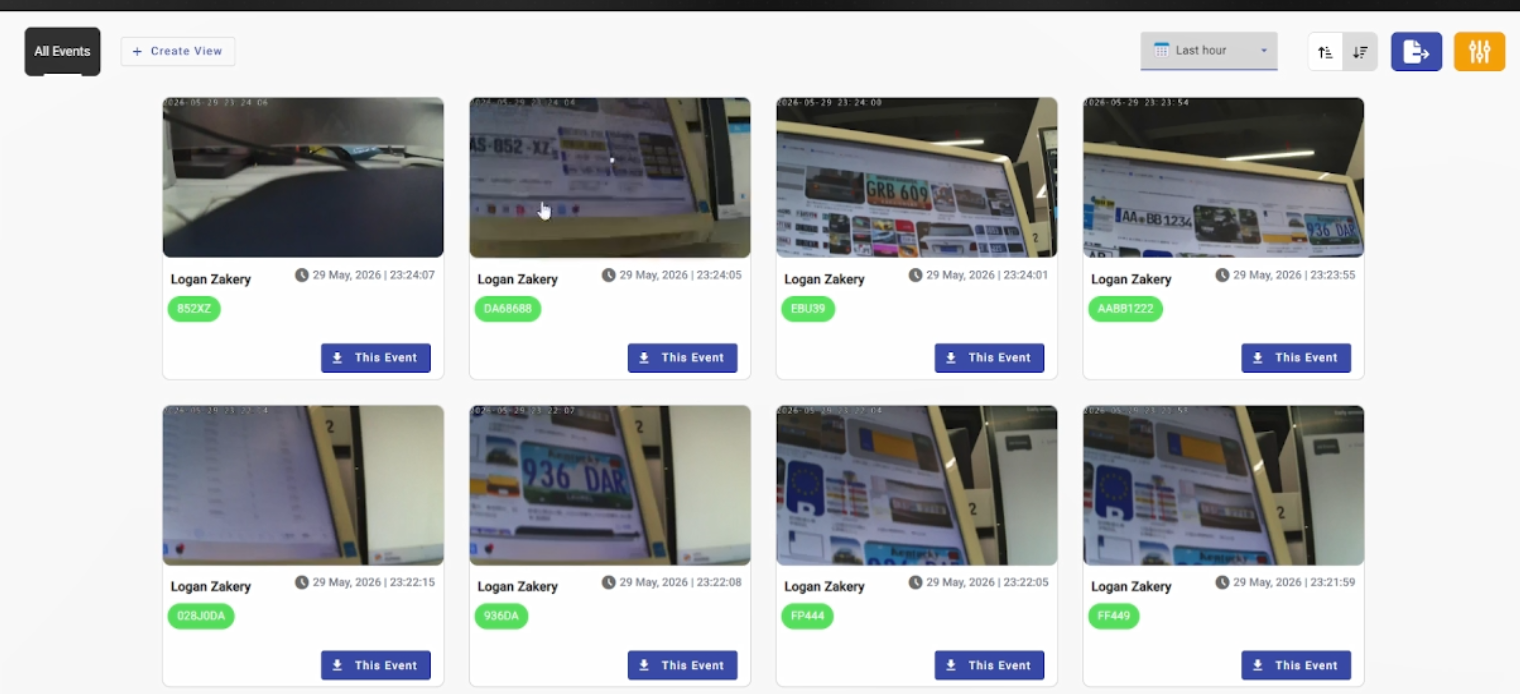
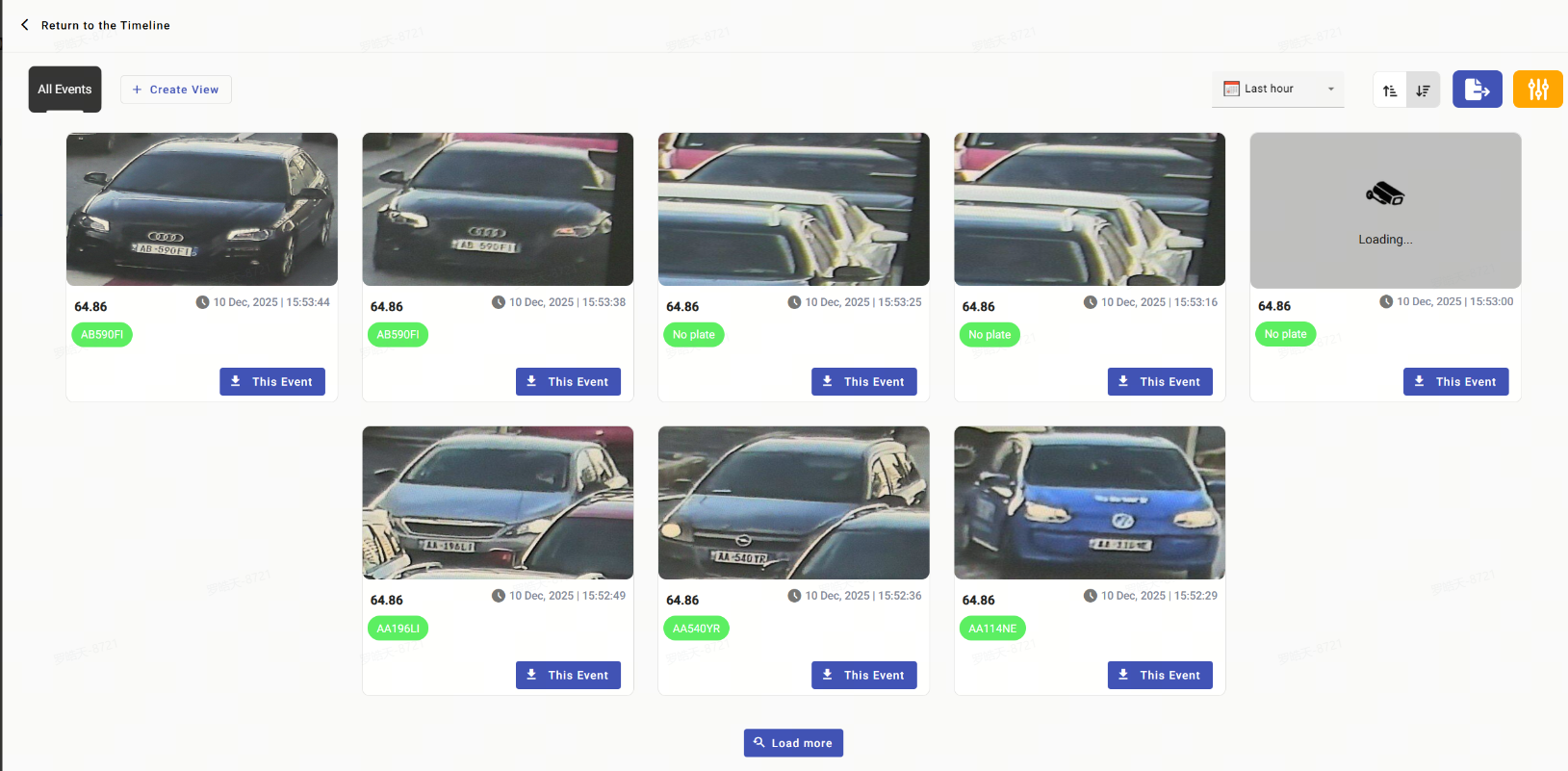
You can also download Camcloud APP and login your account to check all of result

-END-