
Chapter 1: General Information
Q1.1: Which 4G LTE bands does the SP Series support?
A: The SP series is sold in four regional versions, each supporting different LTE bands:
| Regional Version | Supported LTE Bands |
| NA (North America) | LTE-FDD: B2 / B4 / B5 / B12 / B13 / B14 / B66 / B71 |
| EU (Europe) | LTE-FDD: B1 / B3 / B7 / B8 / B20 / B28A; LTE-TDD: B38 / B40 / B41 |
| AU (Australia) | LTE-FDD: B1 / B2 / B3 / B4 / B5 / B7 / B8 / B28; LTE-TDD: B40 |
| JP (Japan) | LTE-FDD: B1 / B3 / B8 / B18 / B19 / B26; LTE-TDD: B41 |
Q1.2: What type of SIM card does the SP Series use?
A: They use a Nano SIM card (4FF standard, 12.3mm × 8.8mm), the same size used in modern smartphones.
Q1.3: Which 4G LTE bands does the SC211 support?
A: According to the SC211 official datasheet, the SC211 is sold in three regional versions, each supporting different LTE bands:
| Regional Version | Supported LTE Bands |
| NA (North America) | B2 / B4 / B5 / B12 / B13 / B25 / B26 |
| EU (Europe) | B1 / B3 / B7 / B8 / B20 / B28 |
| AU (Australia) | B1 / B2 / B3 / B4 / B5 / B7 / B8 / B28 / B66 |
Q1.4:Which 4G LTE bands does the SC411 support?
A: According to the SC411 official datasheet, the SC411 is sold in three regional versions, each supporting different LTE bands:
| Regional Version | Supported LTE Bands |
| EU (Europe) | LTE-FDD: B1 / B3 / B7 / B8 / B20 / B28A; LTE-TDD: B38 / B40 / B41 |
| NA (North America) | LTE-FDD: B2 / B4 / B5 / B12 / B13 / B14 / B66 / B71 |
| AU (Australia) | LTE-FDD: B1 / B2 / B3 / B4 / B5 / B7 / B8 / B28; LTE-TDD: B40 |
Q1.5: During eSIM activation, which part is the SM-DP+ address, and which part is the activation code?
Example:
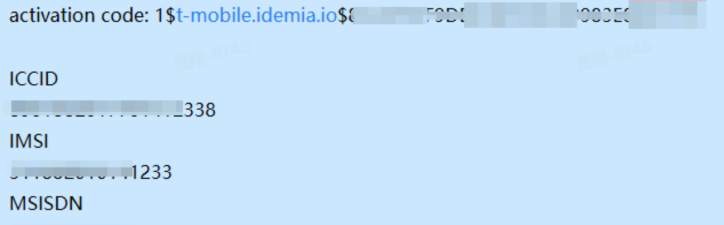
A: According to the GSMA eSIM specification (SGP.22), the activation code follows this format:

Therefore:
• t-mobile.idemia.io is the SM-DP+ address.
• The string after the second $ is the activation code.
• The leading 1 represents the format version.
Q1.6: What are the boot and Wi-Fi status rules for SP111 devices?
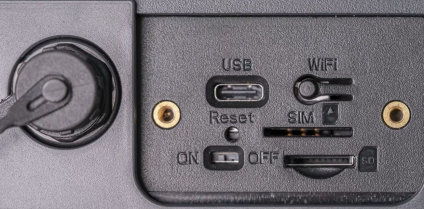
A: After the device is powered on, the indicator light flashes green slowly until it is fully started, then stays solid green. Wi-Fi is automatically enabled when the device is powered on; press the camera's Wi-Fi button to turn on Wi-Fi, and the Wi-Fi name is SP111_xxxxxx (xxxxxx is the last six digits of the MAC address).
Chapter 2:Hardware & Installation
Q2.1 Can customers purchase batteries from third-party suppliers?
A: This is not recommended. Our batteries are custom-designed rather than standard off-the-shelf products, so sourcing and integrating third-party batteries would be difficult.
Q2.2 Does the SD card need to be formatted before first use?
A: Yes. A brand-new SD card generally needs to be formatted before use. If the SD card has already been used in one of our devices, it does not need to be formatted again.
Q2.3 What are the indicator light statuses for SC211 devices?
A: The SC211 uses a bi-color (red & green) indicator light, with the following statuses:
• Power-on process: Flashes green continuously
• Wi-Fi enabled: Green light stays on
• Wi-Fi abnormality: Red light stays on
• Radar triggered: Green light turns on (turns off when no target is detected, lights for at least 0.2s each time)
• Power-off or sleep state: Light is off
• System fault: Red light stays on (indicates issues such as radar failure, power meter failure, charging IC failure, WLAN failure to turn on, etc.)
图 2 |
图 3 |
图 4 |
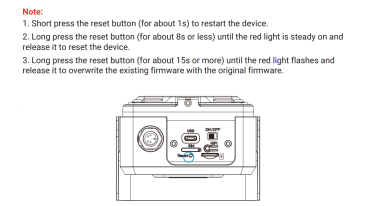
Q2.4 How to perform hardware reset for SP111 devices?
A: Keep the device powered on, press and hold the reset button for 5 seconds, the LED green light flashes quickly 5 times (once every 0.5s) to indicate the operation is effective, you can release the button. Then the LED green light flashes slowly (once every 2s) during the reset process, and when the LED green light stays solid on, the reset is successful.
Q2.5 What is the indicator light status when the SC411 device is starting up?
A: The indicator flashes green slowly (once per second). After the SOC and WiFi are fully started, the indicator stays solid green to enter the configuration state. If there is no interaction on the configuration page for 5 minutes, the AP will automatically shut down and the indicator light will turn off.
Q2.6 What is the indicator light status when resetting the SC411 device?
A: Hold down the reset button for 5 seconds. When the indicator flashes green quickly (once every 0.5 seconds), the reset operation is effective and you can release the button. After releasing the button, the indicator flashes green slowly (once per second) during the reset process, and stays solid green when the reset is completed successfully.
Q2.7 What is the indicator light status when enabling WiFi via the button on the SC411 device?
A: There are two scenarios:
• When the device is in sleep (SOC sleep) state: Press the WiFi button to start the AP, the indicator flashes green slowly (once per second). After the SOC and WiFi are fully started, the indicator stays solid green.
• When the device is not in sleep (SOC awake) state: Press the WiFi button to start the AP, the indicator stays solid green after WiFi is started. If there is an abnormality with WiFi, the green light will turn off after being lit.After the AP is normally enabled, it enters the configuration state. If there is no interaction on the configuration page for 5 minutes, the AP will automatically shut down and the indicator light will turn off. When the AP is enabled, press the WiFi button again to shut down the AP and the indicator light will turn off.
Q2.8 What is the indicator light status when the SC411 device is in normal sleep/operation state?
A: The indicator light is off. This design mainly considers concealment and power consumption optimization.
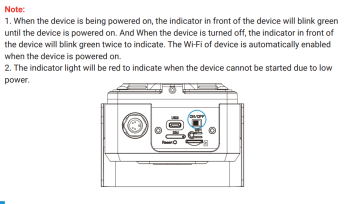
Q2.9 What is the indicator light status when the SC411 device is low on power?
A: When the device power is lower than 5%, turning on the device switch will fail to start the device, and the indicator light will stay solid red.
Q2.10 How to perform reset operation on SP112? What are the corresponding indicator light statuses?
A: Hold down the Reset button for 5 seconds. When the green light flashes quickly (once every 0.5s), the operation is effective and you can release the button. After releasing, the green light flashes slowly (once every 1s) during the reset process, and stays solid green when the reset is completed successfully.
Q2.11 What is the function of the WiFi button on SP112? What are the indicator light statuses in different scenarios?
A: The WiFi button is used to wake up the sleeping device and start/close the WiFi AP (hotspot) function. The indicator light statuses are as follows:
• When the device is in sleep (SOC sleep) state: Press the WiFi button to start the AP, the green light flashes quickly (once every 1s). After the SOC and WiFi are fully started, the green light stays solid to enter the configuration state. If there is no page interaction for 5 minutes, the AP will automatically shut down and the indicator light will turn off.
• When the device is not in sleep (SOC awake) state: Press the WiFi button to directly start the AP, the green light stays solid after WiFi is started. If there is an abnormality with WiFi, the green light will turn off after being lit.
• To close the AP: Press the WiFi button again when the AP is enabled, the AP will be closed and the indicator light will turn off.
Q2.12 What are the indicator light statuses of SP112 in different working states?
A:
• Device startup: The green light flashes slowly (once every 1s). After the SOC and WiFi AP are normally started, the indicator light turns solid green. If there is no page interaction for 5 minutes, the WiFi AP will automatically shut down and the indicator light will turn off.
• Normal sleep/operation: The indicator light is off. This design mainly considers concealment and power consumption optimization.
• Low power alert: When the detected external power is lower than 5%, the battery enters low-power sleep and the camera cannot be started normally, the red light stays solid on (SP112 supports docking with Zemu battery system).
• Network abnormality: When the device has network abnormalities (such as abnormal 4G card status, network connection status not being Valid(Connected)) and WiFi is not connected, the red light flashes (once every 1s).
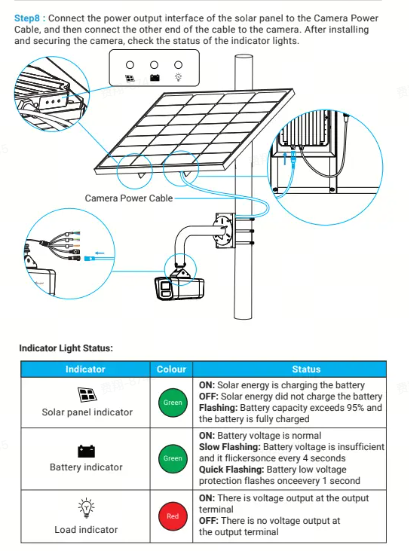
Q2.13 What does the solar panel indicator light's different statuses mean?
A:
• ON: Solar energy is charging the battery
• OFF: Solar energy is not charging the battery
• Flashing: Battery capacity exceeds 95% and the battery is fully charged
Q2.14 What does the battery indicator light's different statuses mean?
A:
• ON: Battery voltage is normal
• Slow Flashing: Battery voltage is insufficient, it flashes once every 4 seconds
• Quick Flashing: Battery low voltage protection is triggered, it flashes once every 1 second
Q2.15 What does the load indicator light's different statuses mean?
A:
• ON: There is voltage output at the output terminal
• OFF: There is no voltage output at the output terminal
Chapter 3:Network & Configuration
Q3.1 Does the product support Wi-Fi?
A: Yes, but Wi-Fi is intended only for accessing the camera’s web interface during installation and configuration.
Q3.2 How does the device capture and store snapshots when the 4G connection is unavailable and the device goes offline?
A: The device will continue capturing snapshots normally and save them to the SD card. Once the network connection is restored, it will resume uploading the images that failed to be transmitted during the network outage to the back-end software.
Chapter 4:Integration & Compatibility
Q4.1 Is the product compatible with CMS platforms?
A: No dedicated compatibility testing has been performed. It can be connected in the usual way through a fixed IP address—for example, by using a SIM card with a fixed public IP—or by configuring a VPN between the camera and the computer running the CMS.
Q4.2 What operators are compatible with eSIM-supported outdoor wireless products (e.g., SP112 series)?
A: All operators that comply with GSMA international standards are compatible. The device can store up to 4 operator profiles for easy switching between different operators.
Q4.3 What operators are compatible with physical Nano SIM cards for outdoor wireless products?
A: Any operator that uses 4G LTE bands supported by the corresponding product SKU (EU/NA/AU/JP etc.) is theoretically compatible. It is recommended to confirm the product SKU's supported bands before purchasing the SIM card.