This document describes how to configure video recording and calculate SD card storage on Milesight network cameras. It covers SD card formatting, SD card encryption, record and snapshot settings, search and export operations, and how to estimate the storage required for recording at a given time and bitrate.
Regarding SD card-compatible brands and models, the following have been internally tested and are provided for your reference:
| No. | Brand | Model |
| 1 | Kingston | 512GB CANVAS Go! Plus A2 U3 |
| 2 | Kingston | 1TB CANVAS Go! Plus A2 U3 |
| 3 | Lexar | 512GB SILVER Plus A2 U3 V30 |
| 4 | Lexar | 1TB SILVER Plus A2 U3 V30 |
| 5 | Samsung | 512GB PRO Plus A2 U3 V30 |
| 6 | Samsung | 1TB PRO Plus A2 U3 V30 |
| 7 | Samsung | 512GB Pro Ultimate A2 U3 V30 |
| 8 | FORESEE | 256GB, FC5ME2256G-I, A2 U3 V30 |
| 9 | FORESEE | 512GB, FC5NE2512G-E, A2 U3 V30 |
| 10 | FORESEE | 1TB, FC5NE2001T-E, A2 U3 V30 |
1.Configuration
1.1 SD Card Formatting
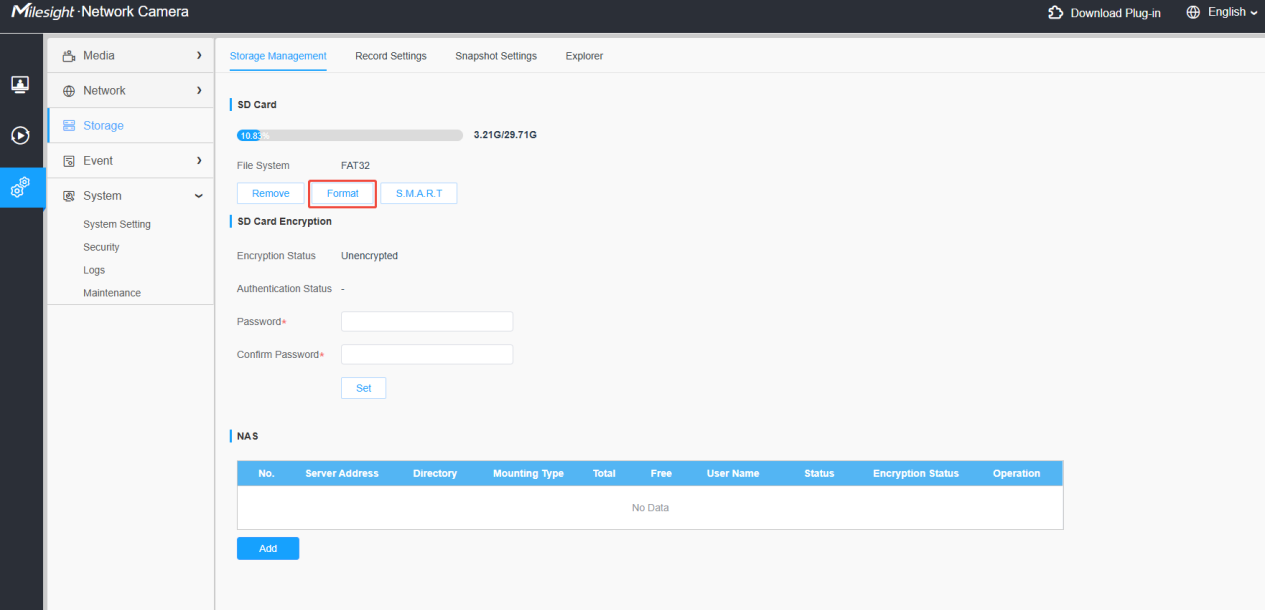
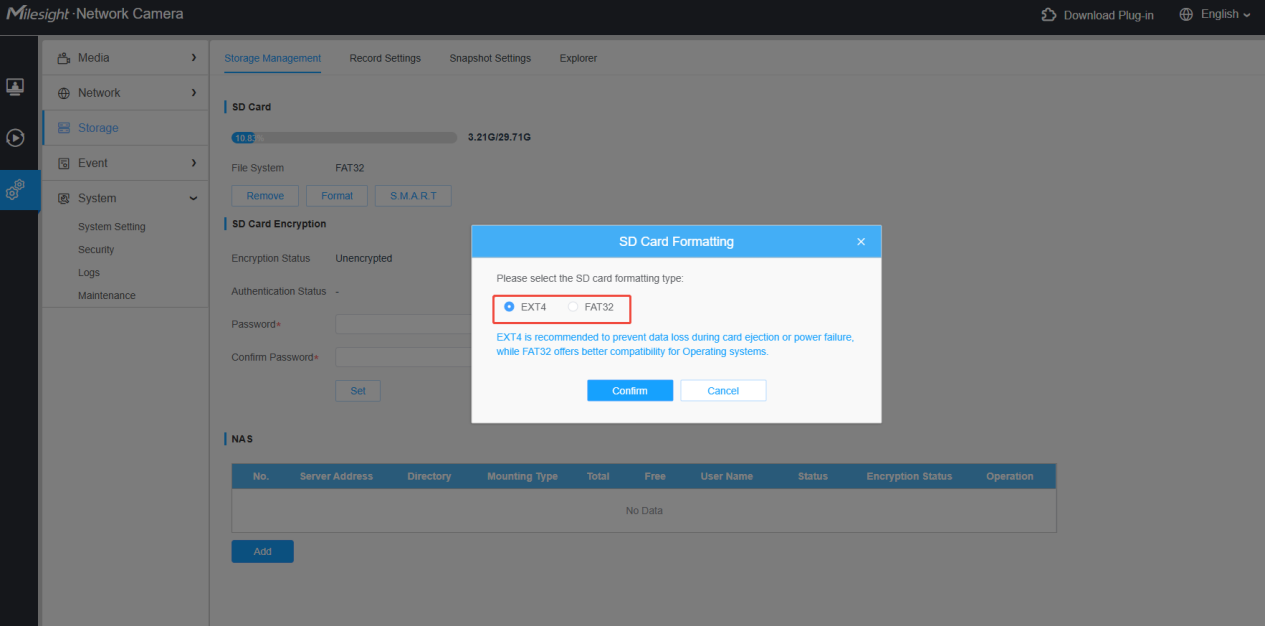
After inserting the SD card, format it before use. Two file systems are available: FAT32 and EXT4.
NOTE:
EXT4 is recommended to prevent data loss during card ejection or power failure, while FAT32 offers better compatibility for Operating systems.
Generally, unless there are specific requirements, we recommend using the EXT4 format.
1.2 SD Card Encryption
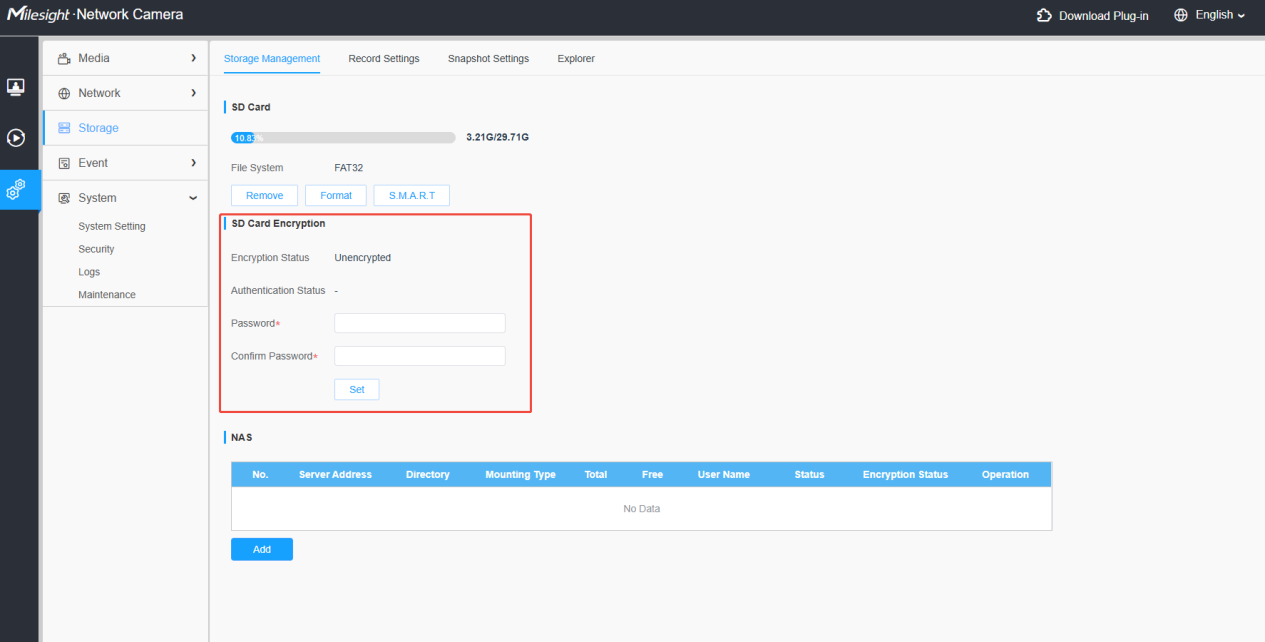
After formatting the SD card, you can do the SD card encryption. Then the video files on the SD card will be password‑protected. Even if the SD card is removed or lost, the video recordings cannot be read when the card is inserted into a computer, which prevents surveillance footage leakage and safeguards the security of stored data.
1.3 Record Settings
Record Settings is used to configure local recording. You can enable Recycle Storage to automatically delete old recording files when SD card free space drops to a certain threshold, select either Primary Stream or Secondary Stream for recording, and set a pre‑record time to capture video footage before an alarm is triggered.
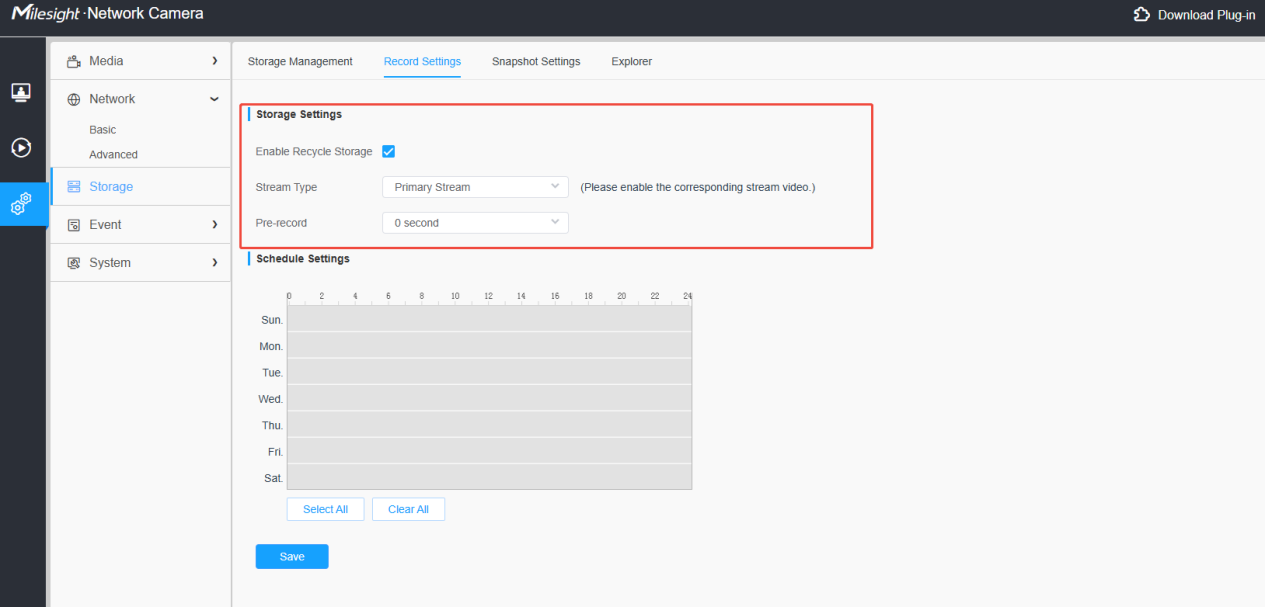
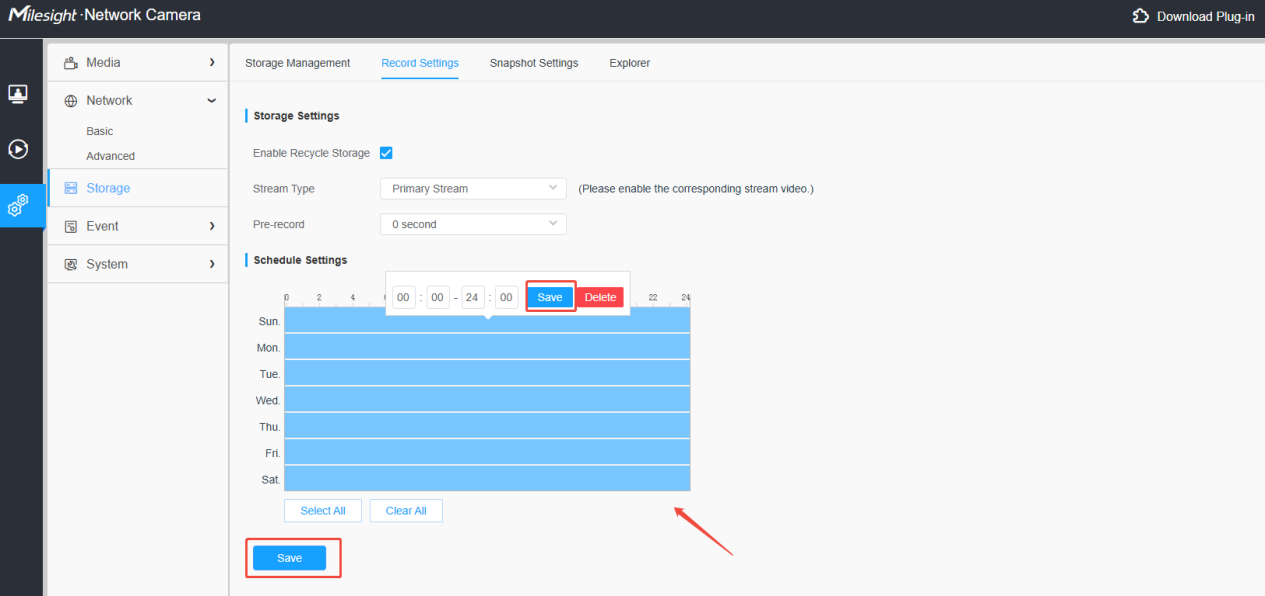
In Schedule Settings, select time bars to define recording schedules. You can select all, clear all, or copy configured time slots to other days. Click Save to apply changes, and recordings can be saved to an SD card or NAS.
1.4 Snapshot
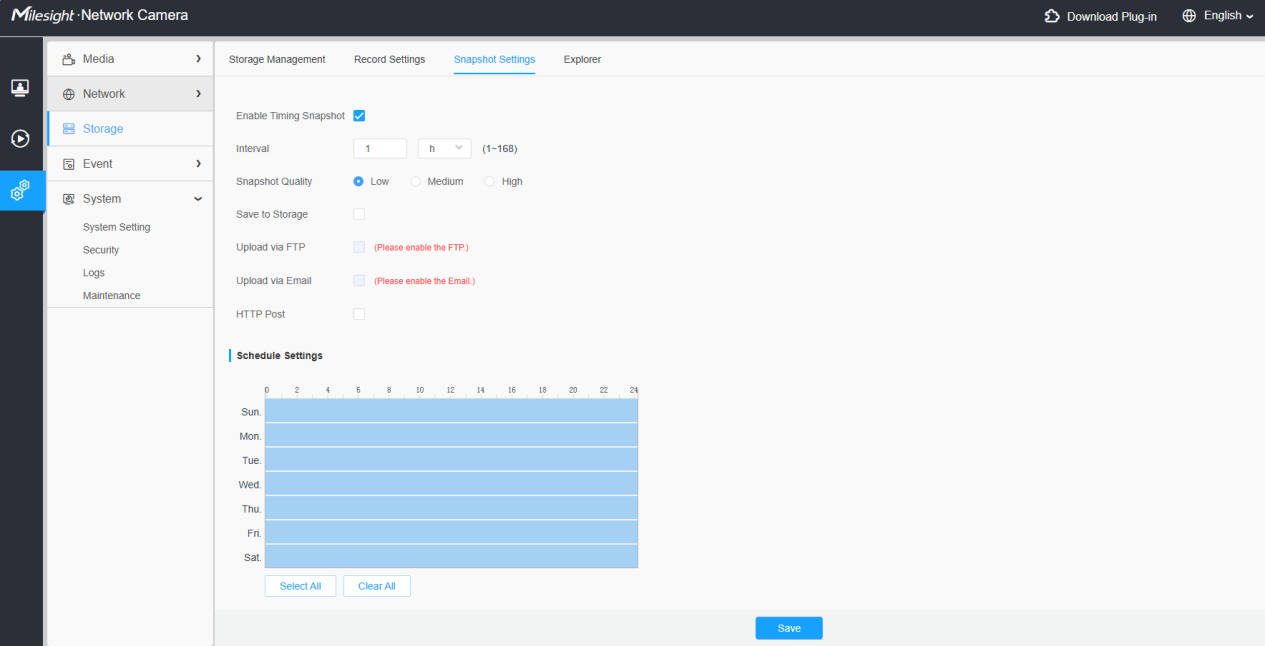
Snapshot Settings configures timed snapshot‑capture functionality. You can enable Timing Snapshot and define the capture interval ranging from 1 to 168 hours. Captured snapshots can be saved locally to mounted storage (SD card or NAS), uploaded via FTP, sent by Email, or pushed through HTTP Post to a target URL. Under Schedule Settings, draw time bars to set valid snapshot periods, with options to select all, clear all, or copy configured schedules across different days.
NOTE:
Regarding snapshot quality, the specific compression details are as follows:
Take a typical snapshot of 1080P (1920×1080) as an example:
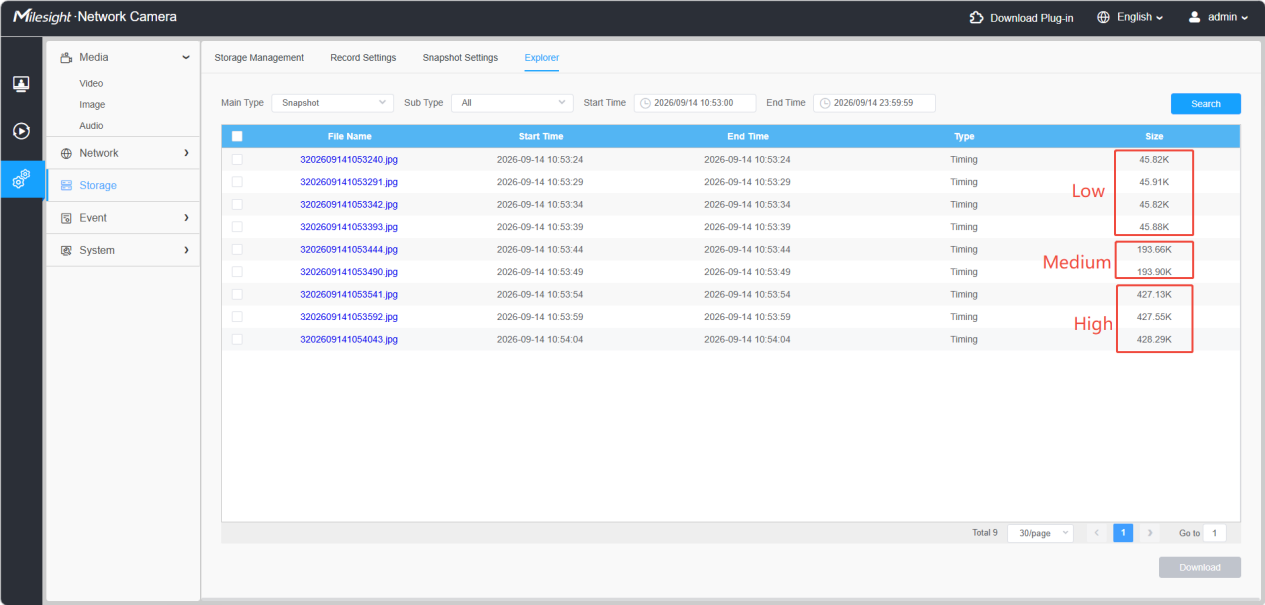
• Low
Compression ratio: equivalent to 1% ~ 1.5% of the original image
• Medium
Compression ratio: equivalent to 3% ~ 5% of the original image
• High
Compression ratio: equivalent to 8% ~ 10% of the original image
1.5 Search and Export
Video and snapshot files will be searched on this page when they are configured to save into SD card or NAS. You can set time schedule every day for recording videos and save video files to your desired location.
NOTE:
1. Don’t insert or pull out SD card when camera is powered on.
2. A red icon will appear under the corresponding date when there is a recording or snapshot exists for that day, allowing you to swiftly discern which dates possess files.
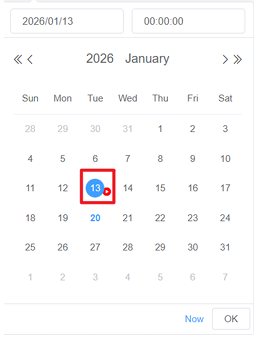
Video files are arranged by date. Set file type and start/end time to search out files.
Each day files will be displayed under the corresponding date, from here you can copy and delete files etc. You can visit the files in SD card by ftp.
You can select files for download or download them in batches:
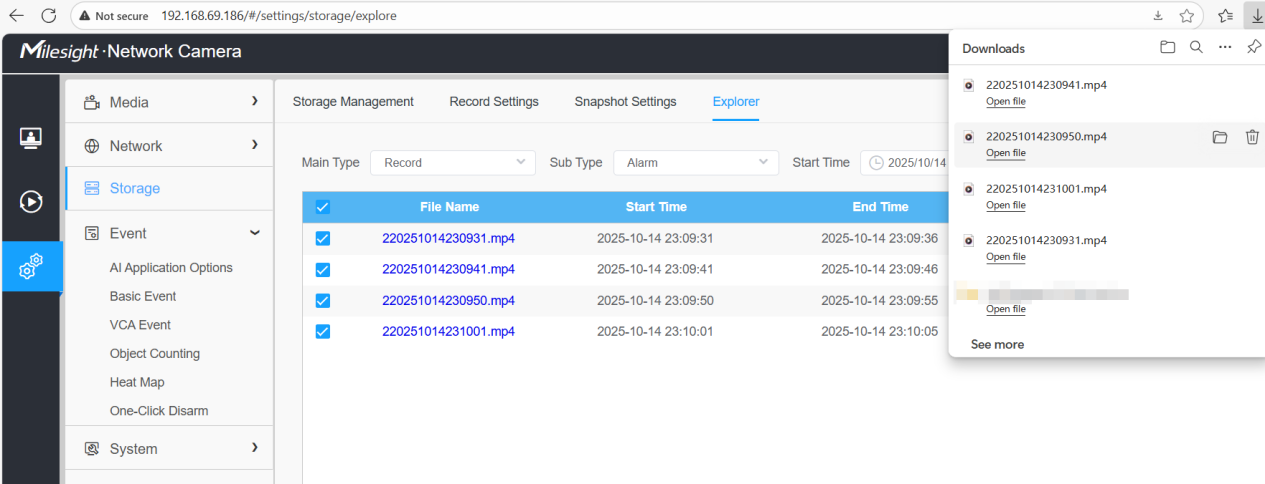
NOTE:
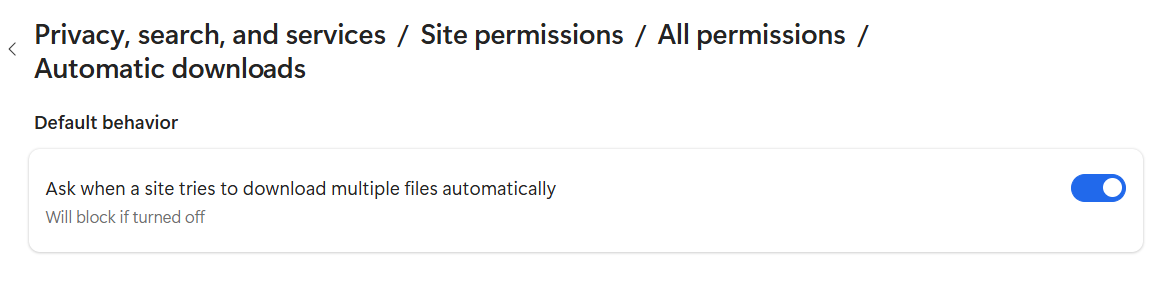
1.Batch downloads require allowing browser pop‑ups.
2. Why are video files stored in segments?
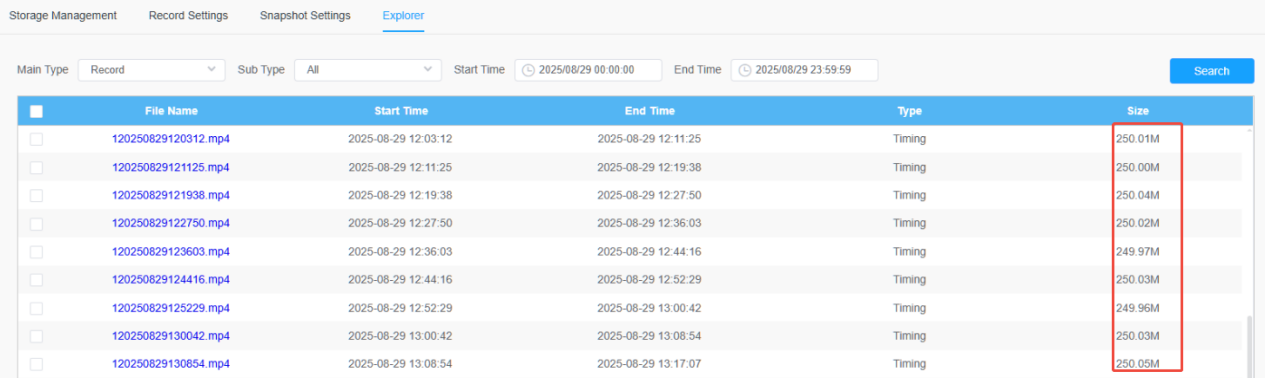
Traditional SD card storage methods suffer from drawbacks such as file fragmentation and low read efficiency; to address these limitations, Milesight’s SD card storage utilizes its proprietary MSFS algorithm.
When you format the SD card, the system pre‑allocates storage space and reserves several hundred megabytes for future features. Each file is fixed at 256 MB, so the system can write data to assigned positions independently.
You might also notice some small, fragmented segments like this:
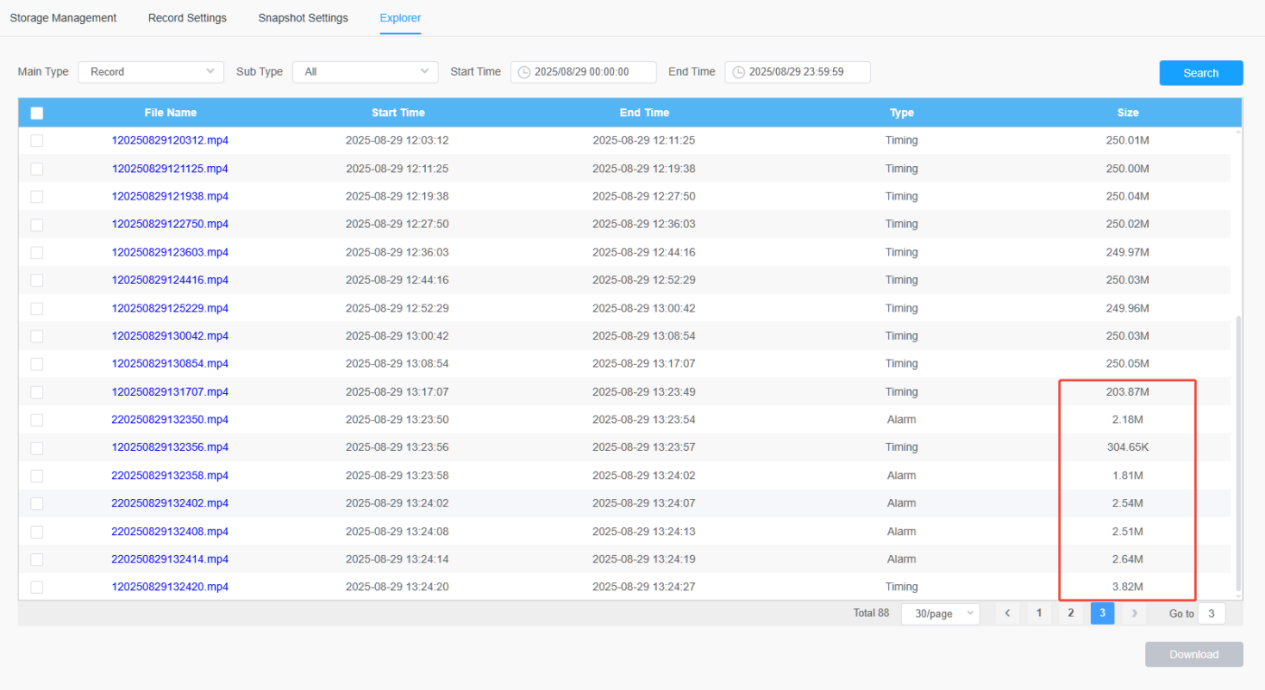
This is because there are two types of recordings: timing and alarm. The alarm duration is not fixed, so the file size differs from that of standard timing recordings.
2. Storage Space Calculation
2.1 Calculation Formula:
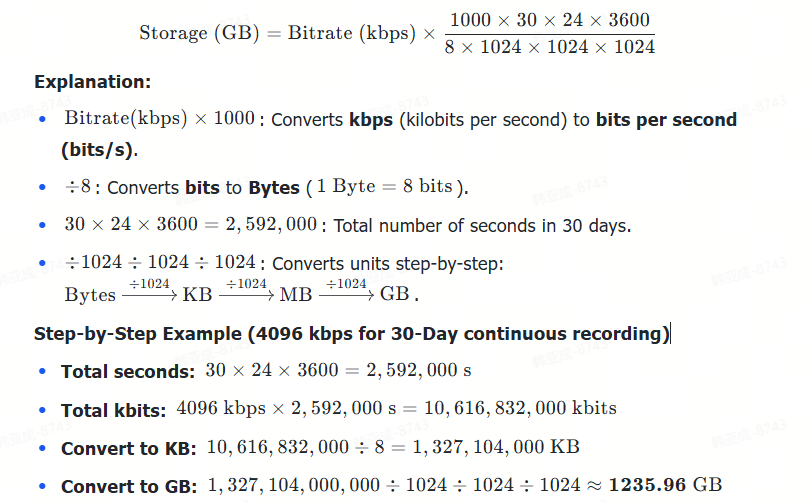
2.2 Storage Requirement for 30‑Day Continuous Recording
Taking Single Camera, CBR, and 24-hour continuous recording as an example:
| Bitrate (kbps) | 30‑day Storage(GB) Single Channel |
| 4096 | 1327GB |
| 6144 | 1991 GB |
| 7168 | 2322 GB |
| 8192 | 2654 GB |
| 10240 | 3318 GB |
| 12288 | 3981 GB |
| 14336 | 4645 GB |
| 16384 | 5308 GB |
2.3 Calculate storage capacity using Smart Tools
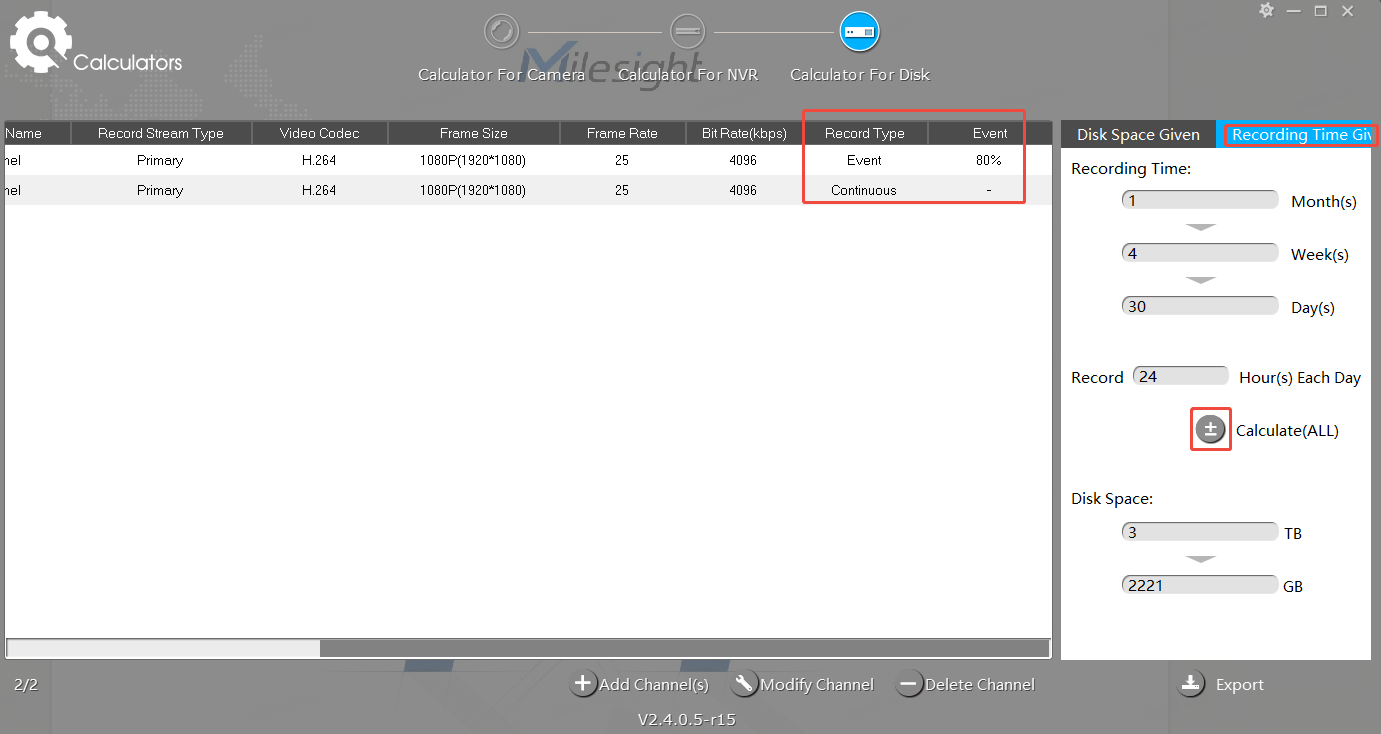
For a given bitrate, the storage duration can be calculated using the calculator function in SmartTools:
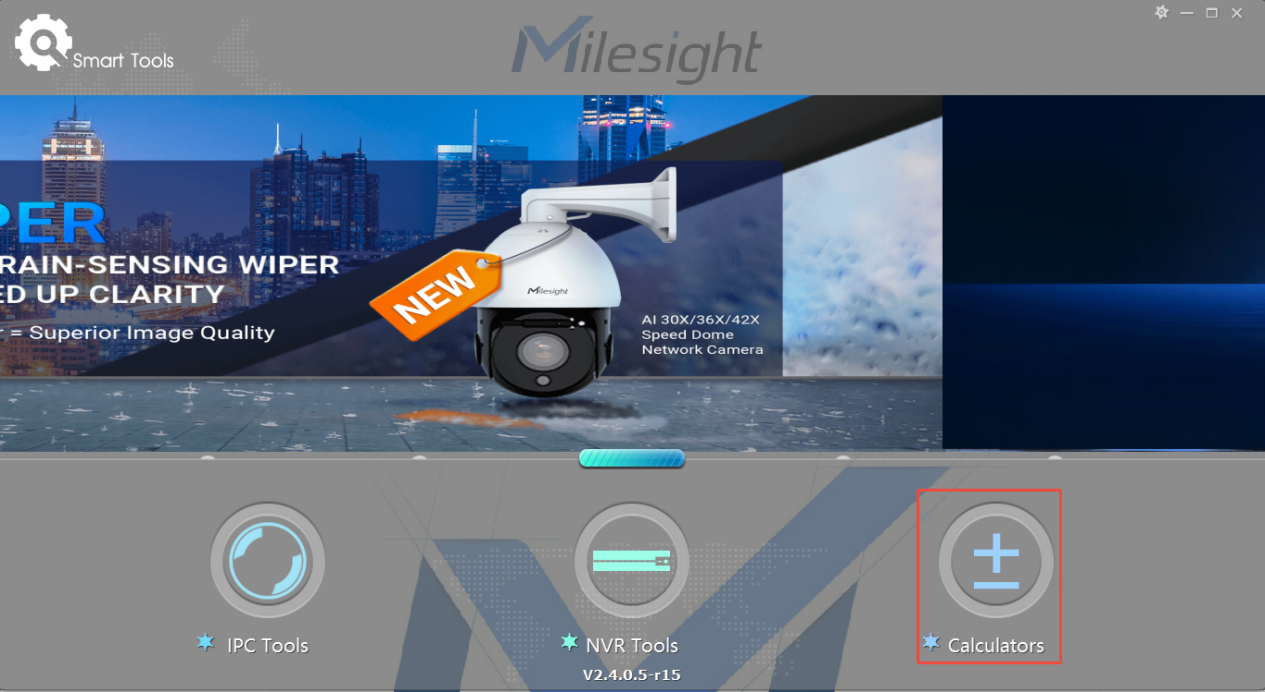
Choose the Calculator For Disk tab, then click Add Channel(s).
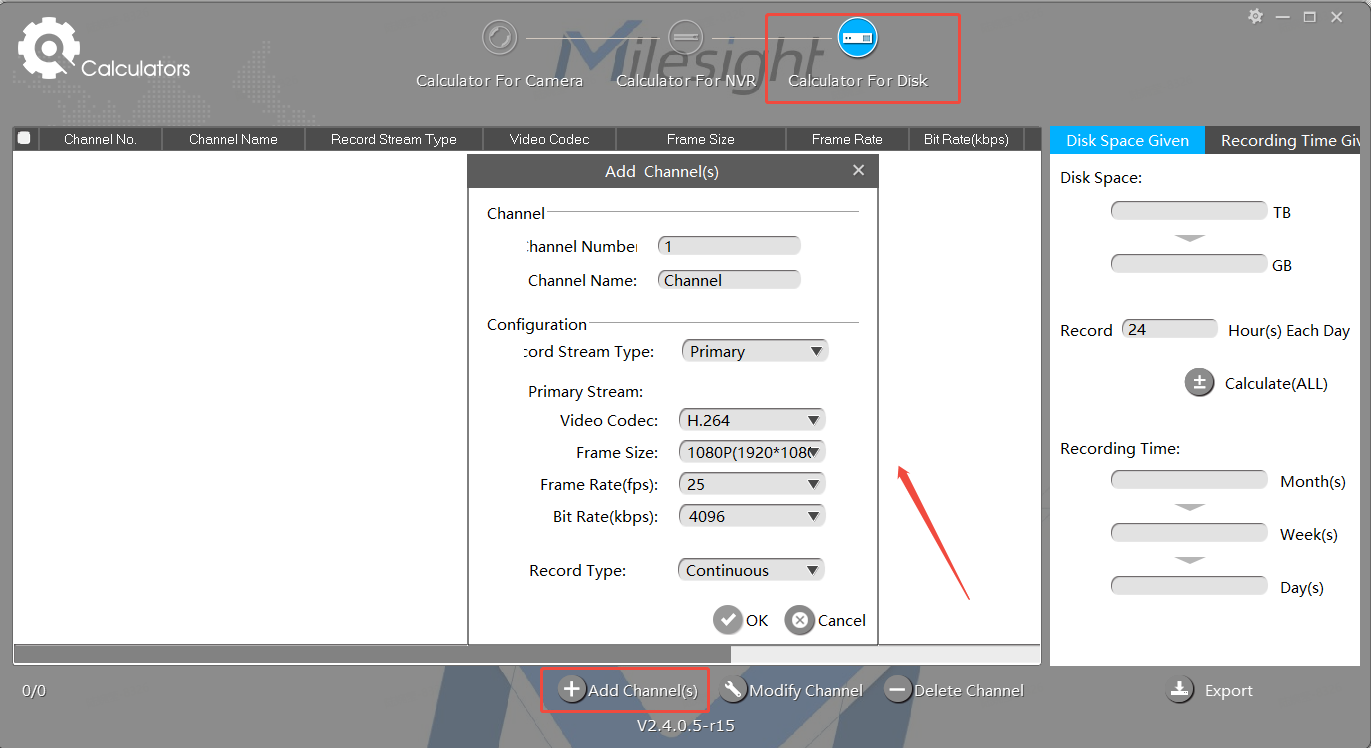
In the pop-up window, enter your camera video parameters including codec, resolution, frame rate and bitrate to calculate storage consumption.
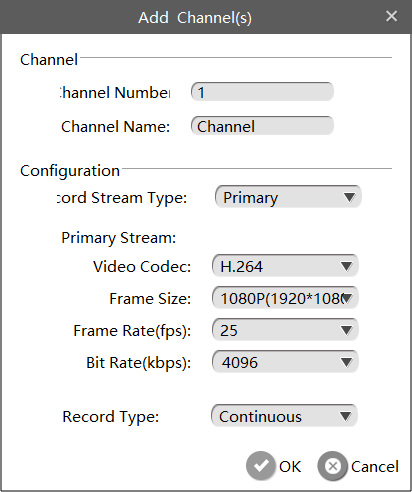
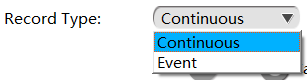
Specifically, under "record type," you can select the recording mode: continuous or event:
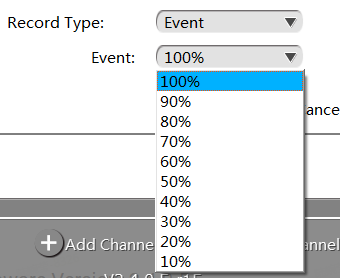
For event recordings: You can select the proportion of the set bitrate allocated to event recordings.
The Event percentage indicates the frequency of event-based recording relative to continuous recording when the recording type is set to "Event." As shown in the image, event types include motion detection, audio alarm, alarm input, VCA, and smart analysis.
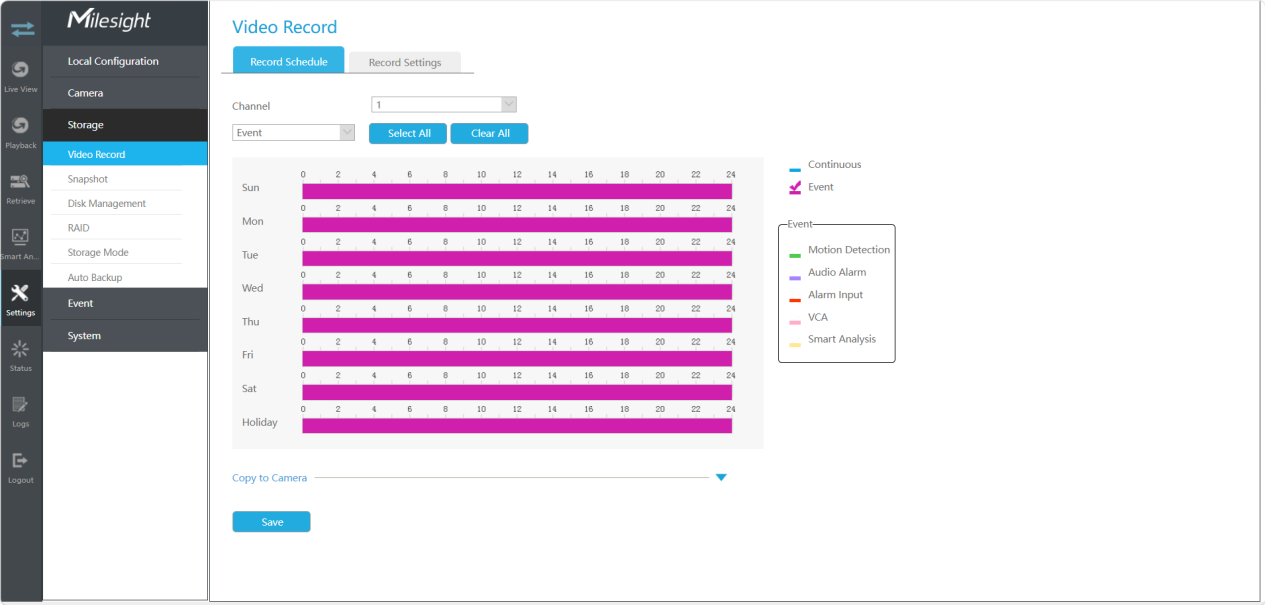
Select the Recording Time Given mode. Set the recording schedule and configure each channel’s record type. Click Calculate(ALL) to work out the required disk capacity.
Taking the example of a bitrate of 4096 kbps with both continuous recording and event recording enabled (with events accounting for 80% of the bitrate) over a period of 30 days, the calculated results are as follows: