
Update | 2021.12.21 |
1.What is Milesight Transcoding?
Waiting for so long, but still can’t see anything in playback?
Or just stuck in few frames, could not see a fluent recorded view?
......
To solve these playback problems, Milesight unveils Transcoding for MS-Nxxxx-UH and MS-Nxxxx-UPH, helping the remote playback quicker and more fluent through M-Sight Pro , NVR web page and CMS client.
Transcoding aims to transcode the recorded stream into a smaller one, reducing network load and providing better playback performance.
Please upgrade your NVR, M-Sight Pro and Milesight CMS to below versions to make transcoding take effect.
Version | Download Link | |
NVR | 71.9.0.3 or above | https://www.milesight.com/support/resources/firmware#network-video-recorder |
iOS M-Sight Pro | 3.1.0.2-r6 or above | APP Store |
Android M-Sight Pro | 3.1.0.2-r7 or above | https://www.milesight.com/support/resources/software-and-platform#m-sight-pro |
Milesight CMS | 2.4.0.4 or above | https://www.milesight.com/support/resources/software-and-platform#cms |
2.How to set Transcoding?
APP M-Sight Pro , NVR web page and CMS client has their own transcoding settings and can be separately set.
2.1Set on APP M-Sight Pro
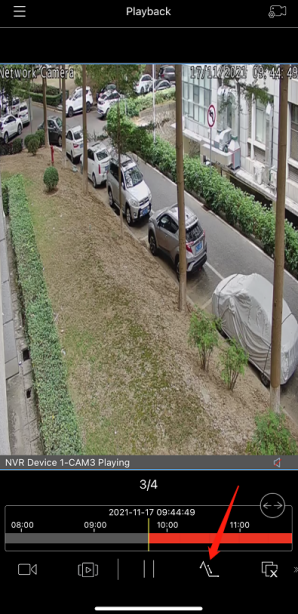
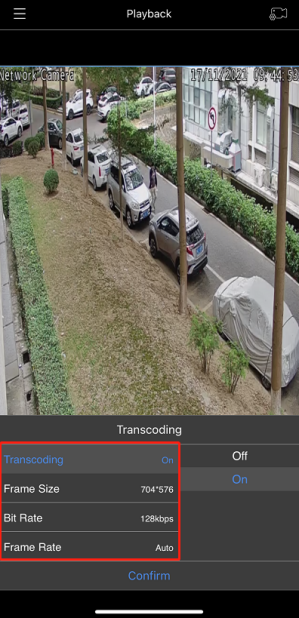
After searching out or playing recorded video in playback interface, click  to expand Transcoding panel. Then turn transcoding on, set desired parameters and click Confirm to make transcoding take effect.
  means Transcoding is working. The default transcoding parameters are:
Frame Size: 704*576
Bit Rate: 128kbps
Frame Rate: Auto
If the video performance is still not satisfying, please try to lower the transcoding parameters.
It is recommended to enable transcoding before playing recorded video if device is in poor network situation.
|
|
2.2Set on NVR web page
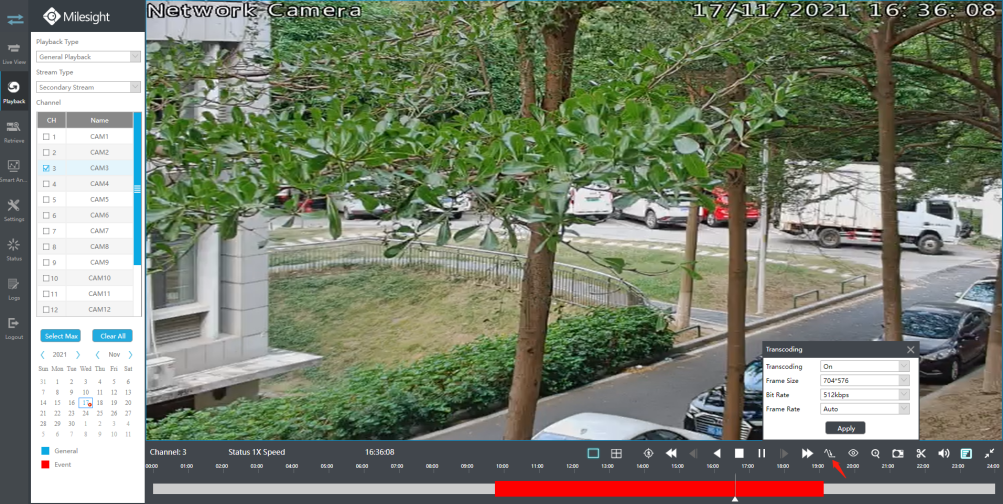
After searching out or playing recorded video, click  to expand Transcoding panel. Then turn transcoding on, set desired parameters and click Apply to make transcoding take effect.
  means transcoding is working.
The default transcoding parameters are:
Frame Size: 704*576
Bit Rate: 512kbps
Frame Rate: Auto
If the video performance is still not satisfying, please try to lower the transcoding parameters.
It is recommended to enable transcoding before playing recorded video if device is in poor network situation.
2.3Set on CMS client
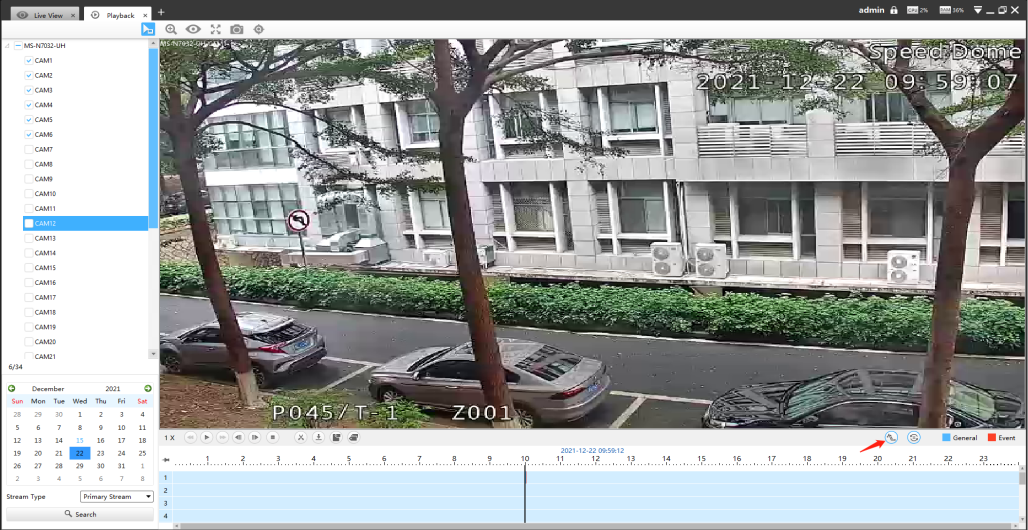
After searching out or playing recorded video in playback interface, click  to expand Transcoding panel. Then set appropriate parameters according to your actual usage scenario. Click Apply to make transcoding take effect.
 means transcoding is working.
The default transcoding parameters are:
Frame Size: 704*576
Bit Rate: 512kbps
Frame Rate: Auto
If the video performance is still not satisfying, please try to lower the transcoding parameters.
It is recommended to enable transcoding before playing recorded video if device is in poor network situation.
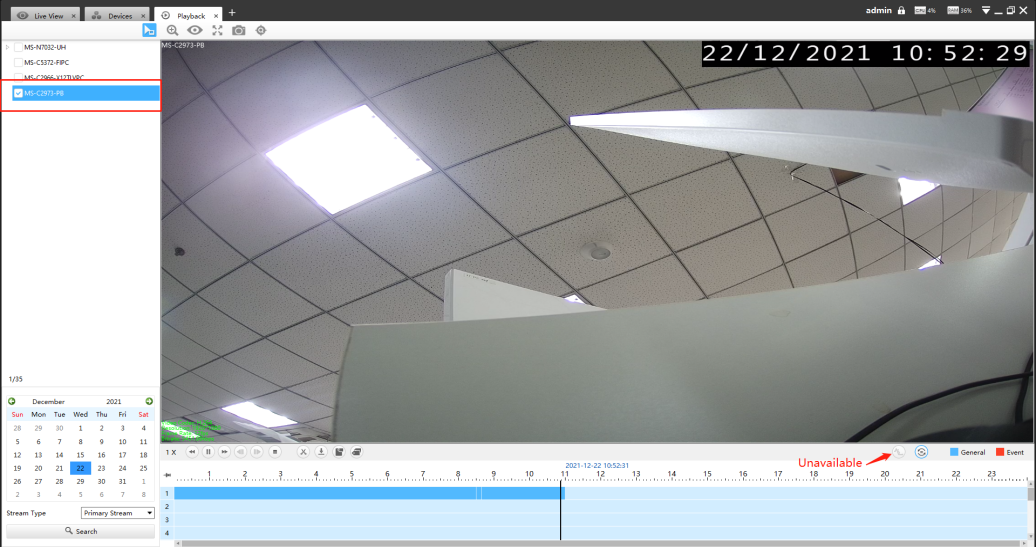
Notion: Transcoding is only available when playing recorded video on NVR. It is not supported to enable trancoding in the case of playback on IP camera.
-END-