
The File Transfer Protocol (FTP) is a standard network protocol used for transfer computer files from one host to another host over a TCP-based network, such as the Internet. FTP is built on a client-server architecture and uses separate control and data connections between the client and the server.
2.How to Use FTP on Milesight Camera
In order to use the FTP on the camera, we need to use the FTP server. (FTP server provides services based on FTP protocol. When it is running, users can connect to the server to download files, also can upload files to the FTP server.)
The following takes Serv-U software for example.
Step1: Download and install the Serv-U software.
Step2: Start the Serv-U software.
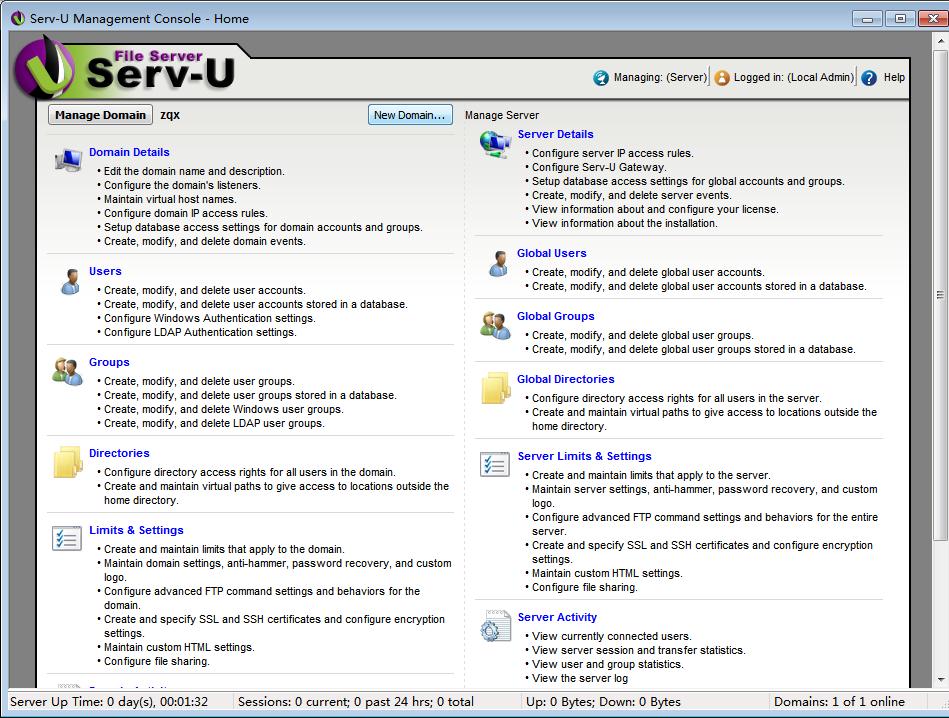
Figure 1
Step3: Click “Domain Details”, input “Name” and “Domain Home Directory”.
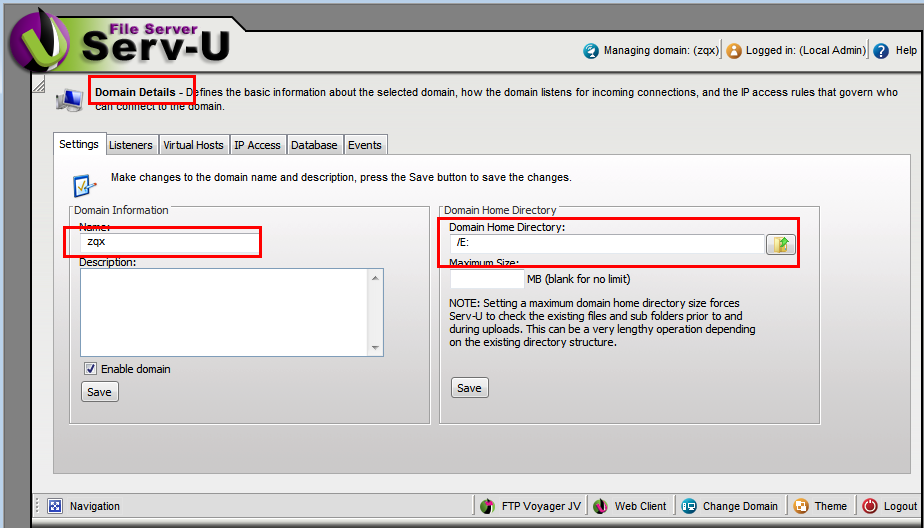
Figure 2
Step4: Back to the home page, click on the “Users” to create the user information.
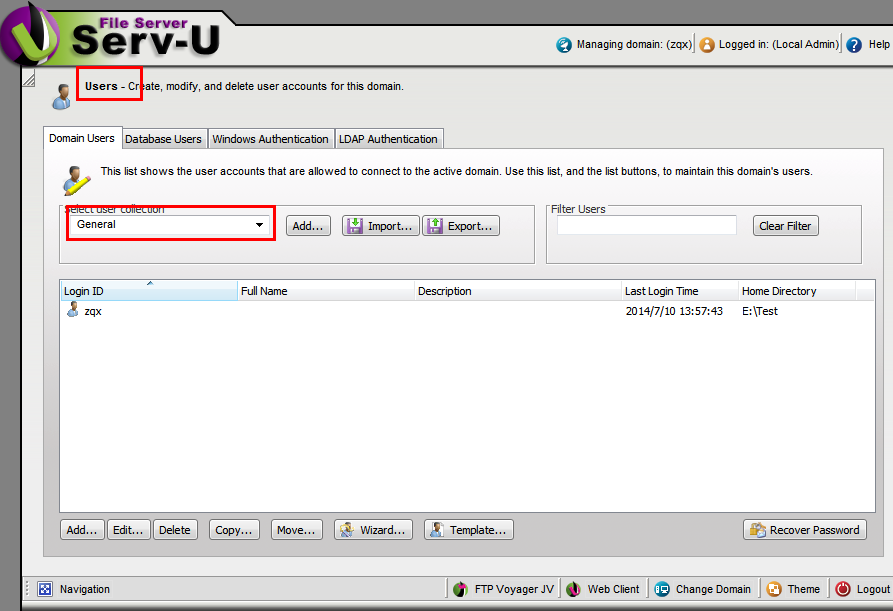
Figure 3
Step5: Click the “Wizard” to create a user, set the user name (figure 4).
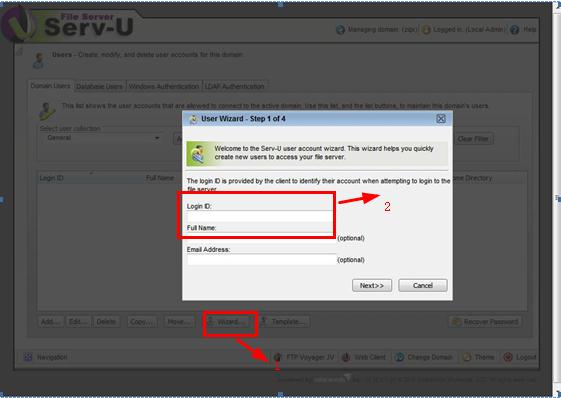
Figure 4
Step6: Set password.
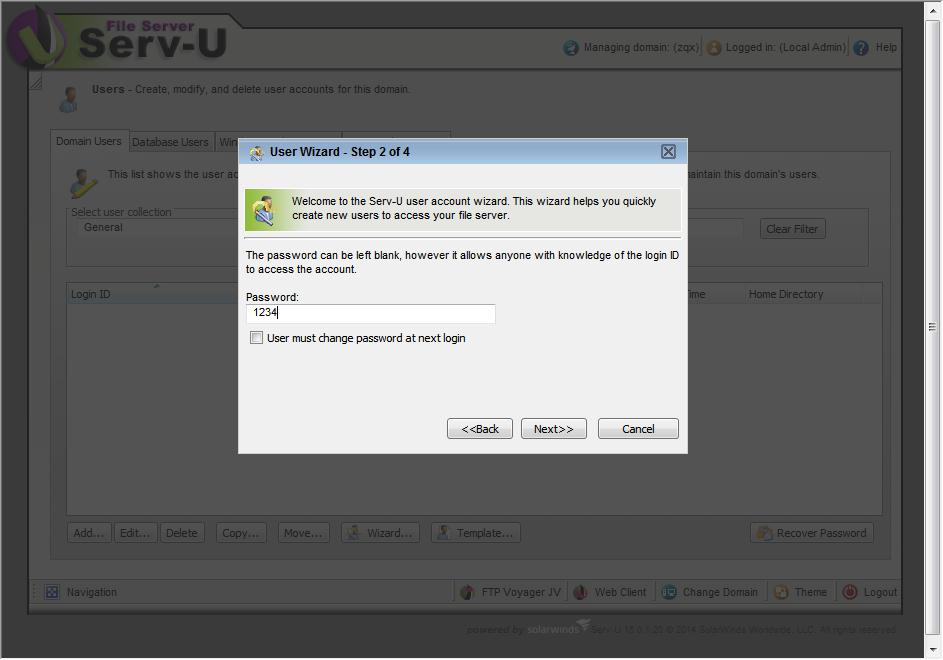
Figure 5
Step7: Select the root directory: E:\Test, click “Lock to the root directory”.
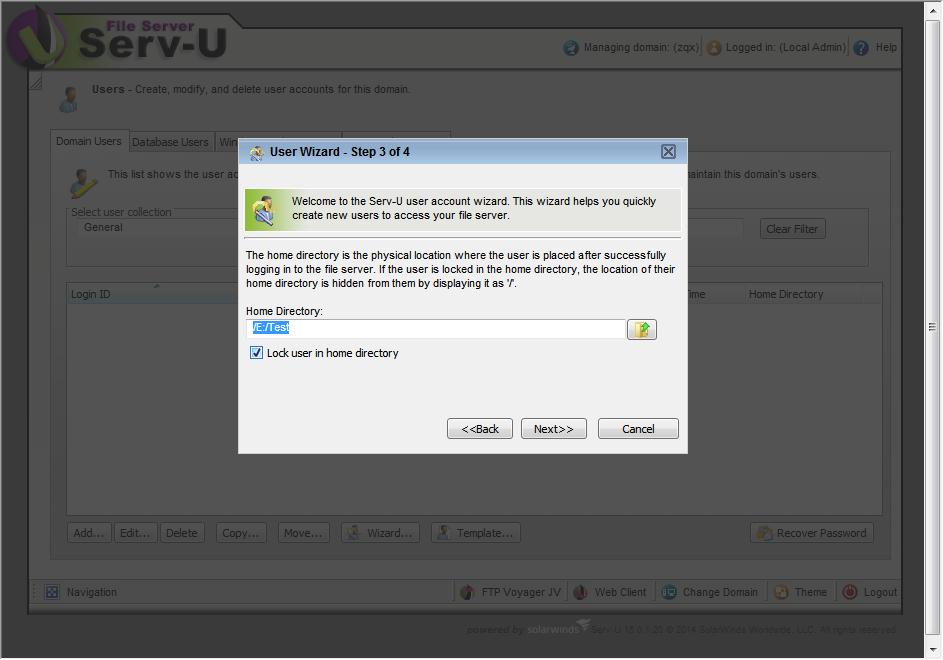
Figure 6
Step8: Click “Next”, choose “Full Access” and click “Finish”.You can follow the same steps to create different users.
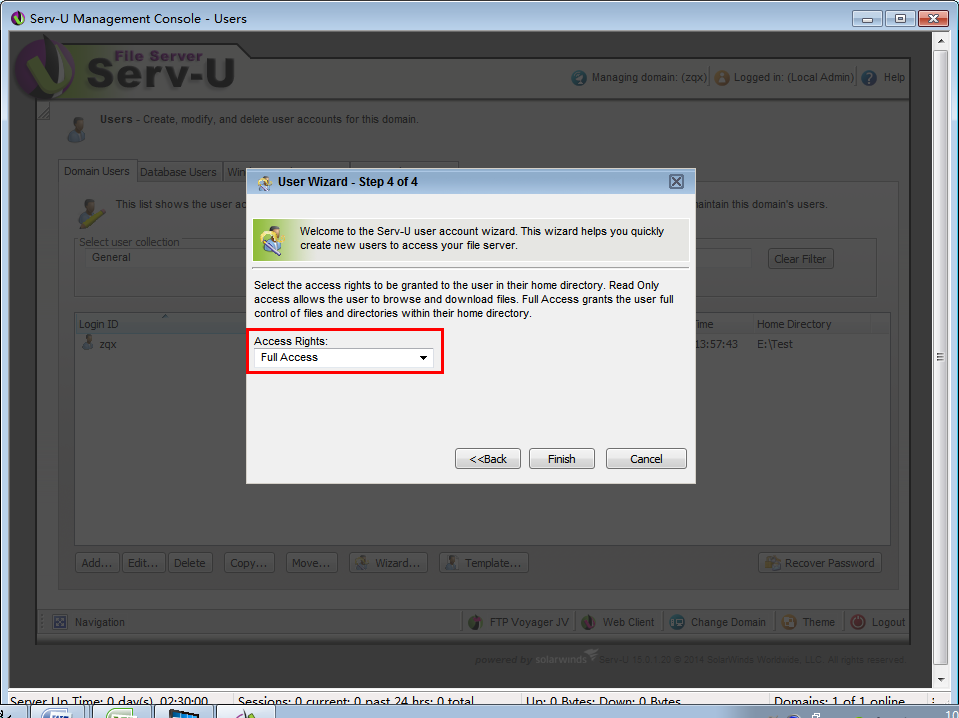
Figure 7
Step9: Back to home page, set “Directory Access Rules”.
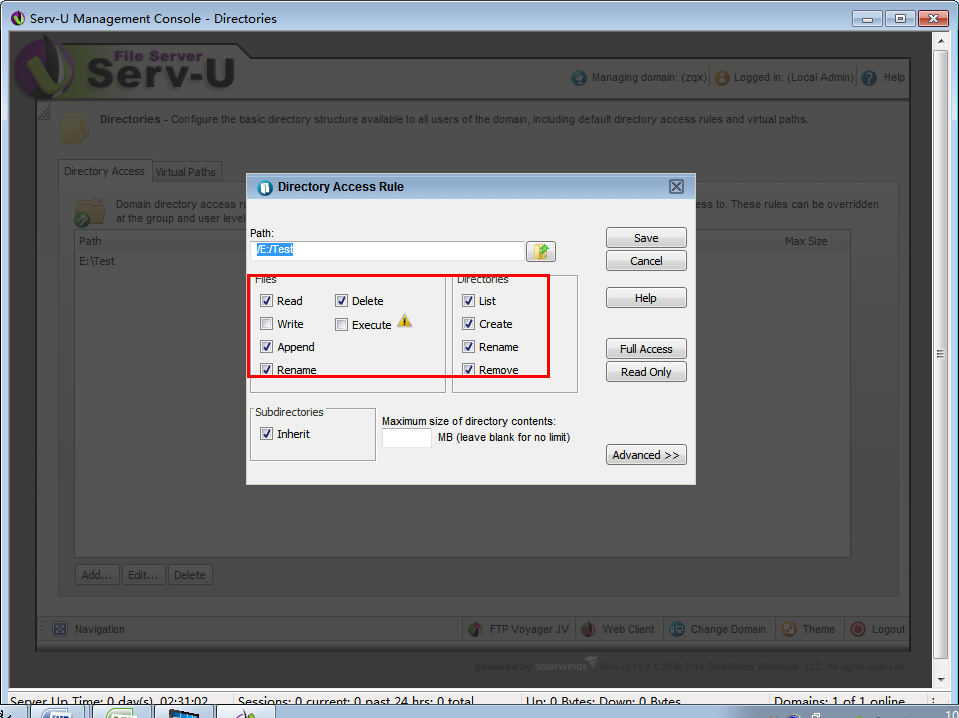
Figure 8
Step10: Log in camera web site, enter the FTP information. (figure 9).
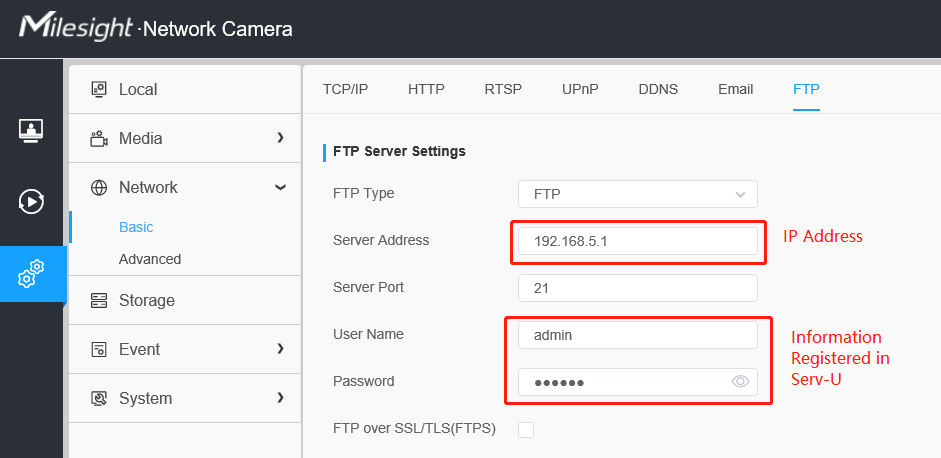
Figure 9
Step11: You can customize Multilevel Folder in FTP Storage Settings interface, as shown in Figure 10.
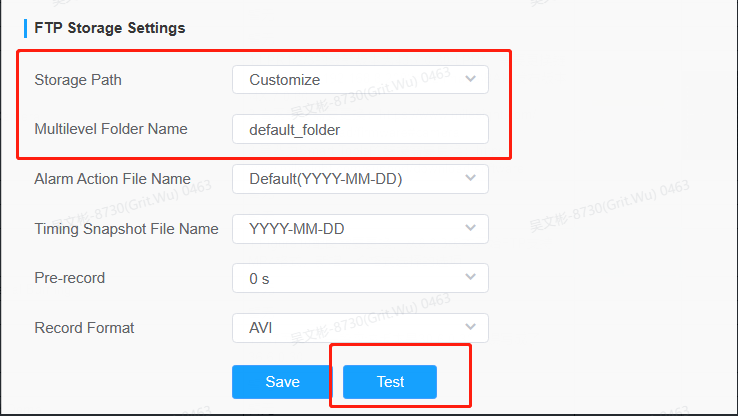
Figure 10
Step12: Click “Test”, you can see the text file in :E:\Test\2018-07-26.
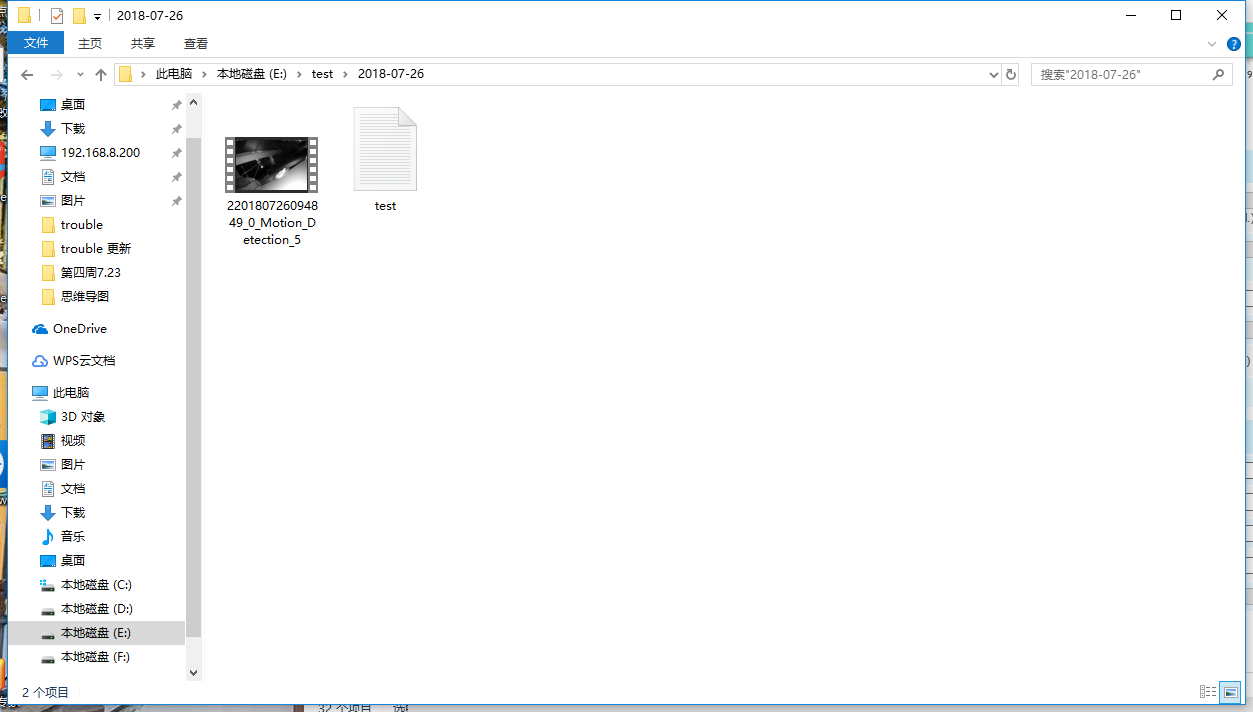
Figure 11
At this point, it means that FTP server has been built successfully.
2.1 FTP Application in Alarm
In order to guarantee that video recording files can be uploaded to the FTP serer when the alarm is triggered, we need to make sure that the FTP server settings are correct.
Step1: Log in web side, for example: “Event”→“Motion Detection”→“Alarm Action”, check “Upload Via FTP”.
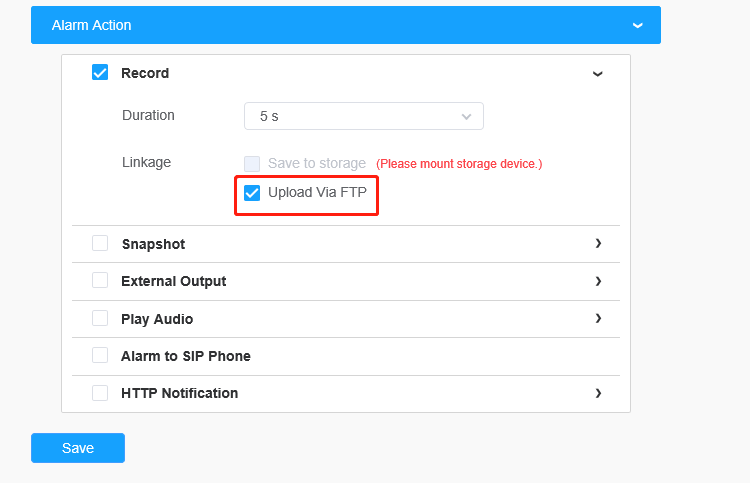
Figure 12
Step2: Set alarm. After the alarm has been triggered, you can see video files in route: E:\Test\2018\07
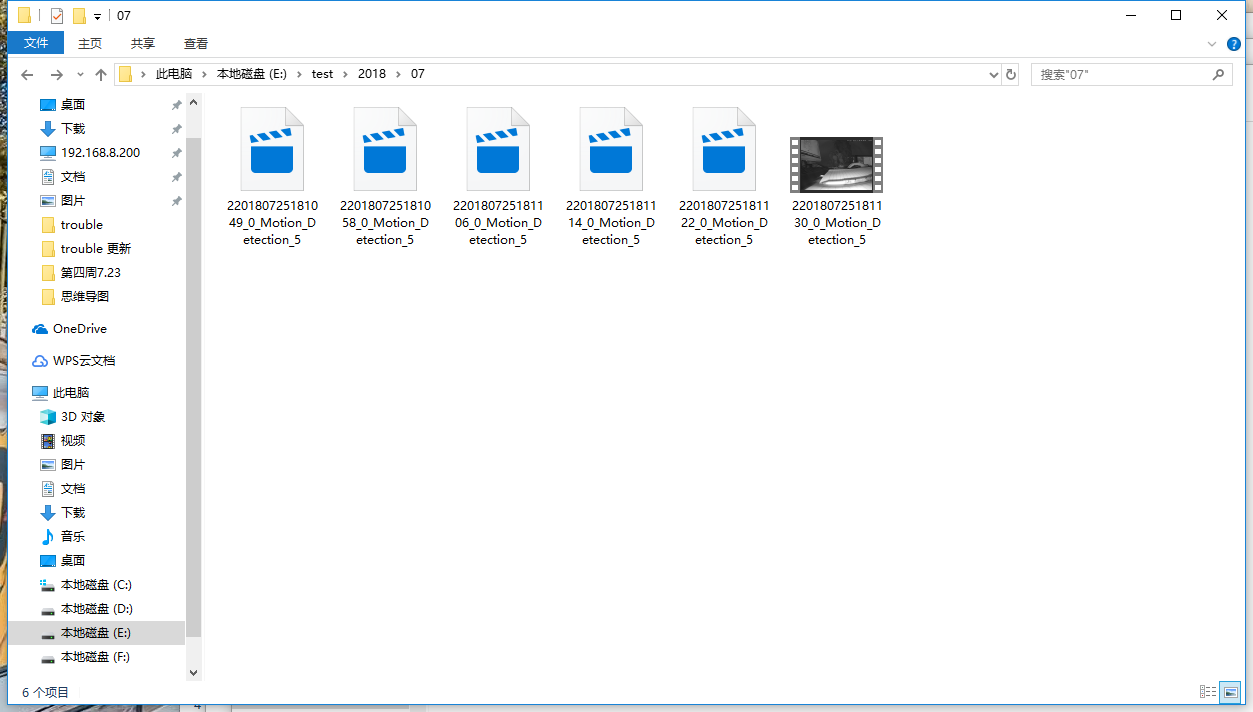
Figure 13
2.2 FTP File Types
Milesight has established a unified naming convention for video and screenshot files, where three types of files can be uploaded to FTP, including scheduled screenshots, alarm, and LPR.
Scheduled screenshots starts with 3.
Alarm screenshots and recordings start with 2.
LPR list event recordings start with 4, while other event recordings start with 2.
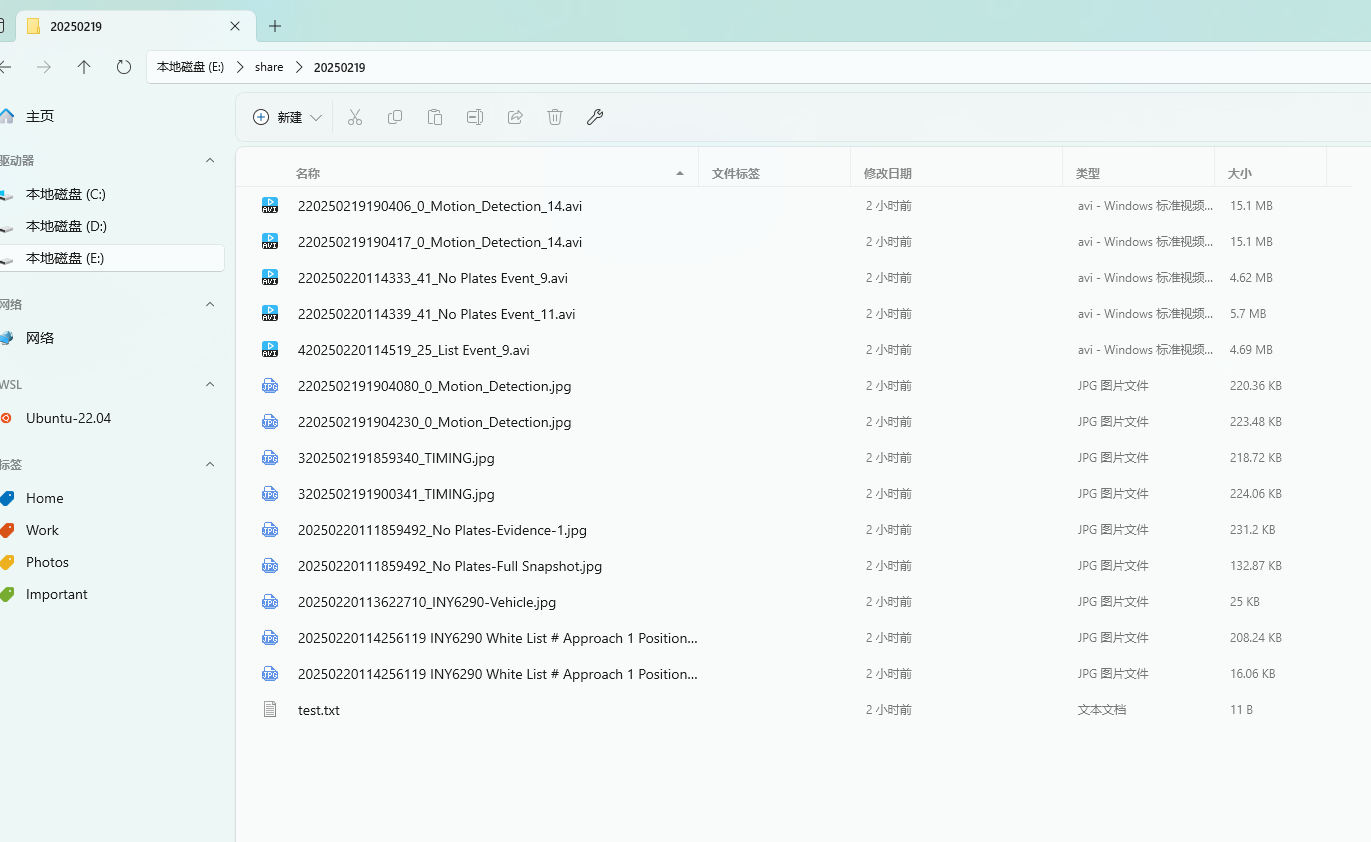
Figure 14
Note:
LPR screenshot file names can be customized and do not need to follow standard file naming conventions.
Scheduled recordings are not stored in FTP, but they still follow the standard file naming conventions, with file names starting with 1.
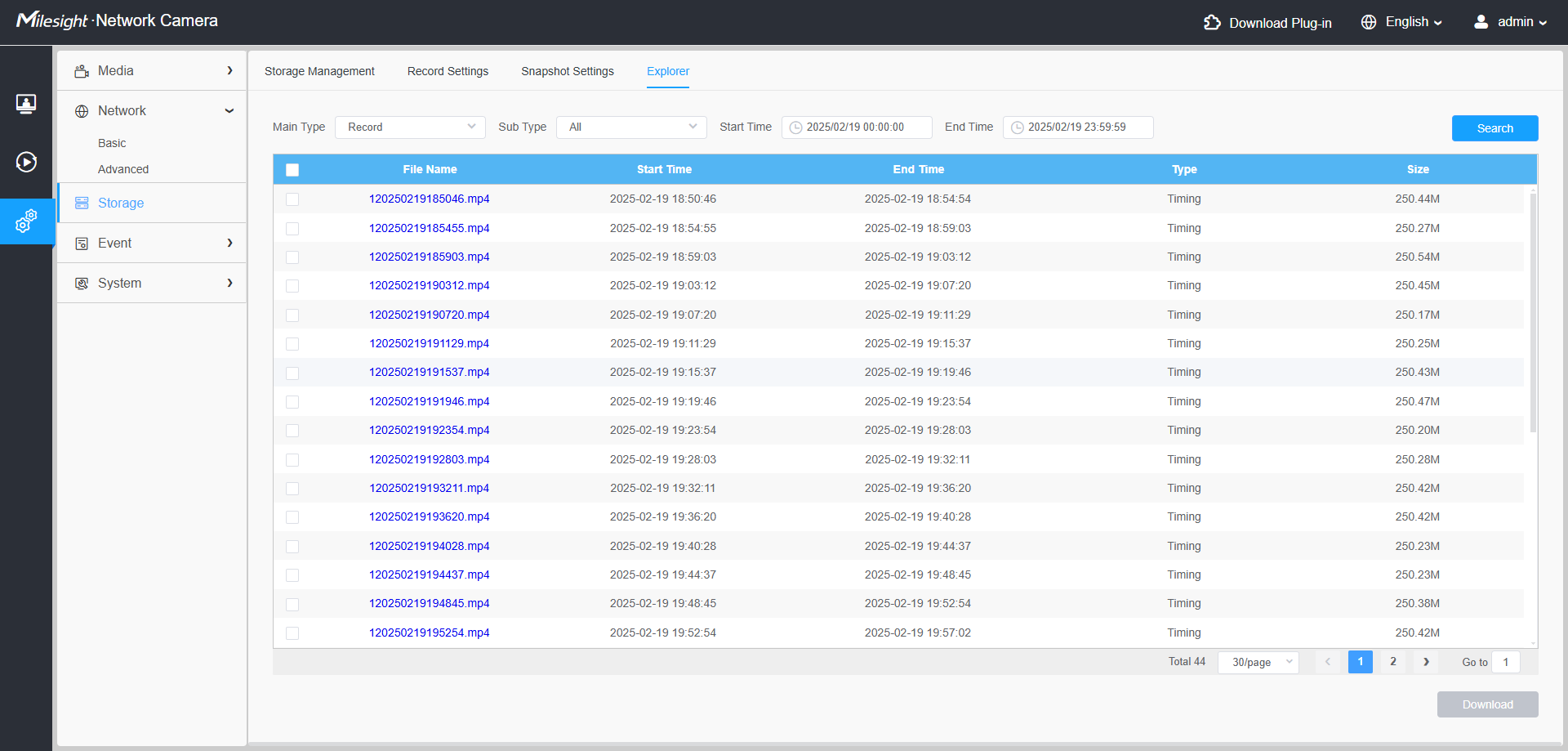
Figure 15
2.3 Access FTP
For example, enter the ftp://192.168.8.175, than fill in the user name and password.
Note: Only MS-Cxxxx-PB camera model supports this method.
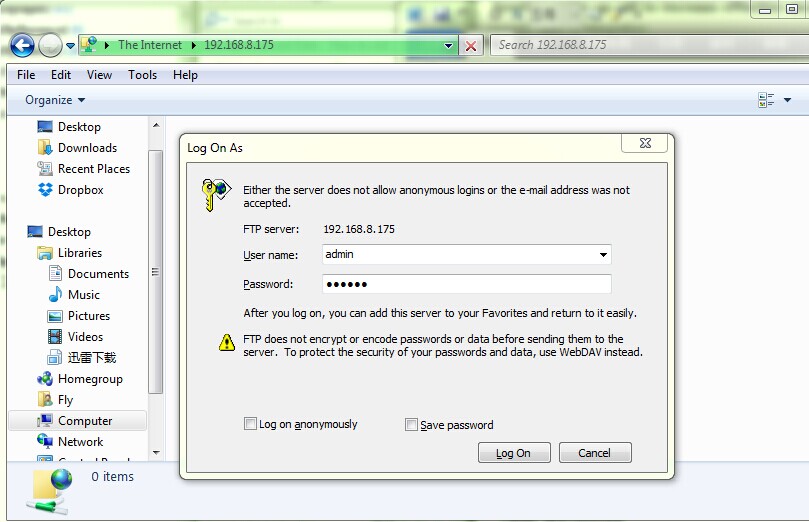
Figure 16 Access via FTP
All the files will be listed according to the different dates when they were recorded:
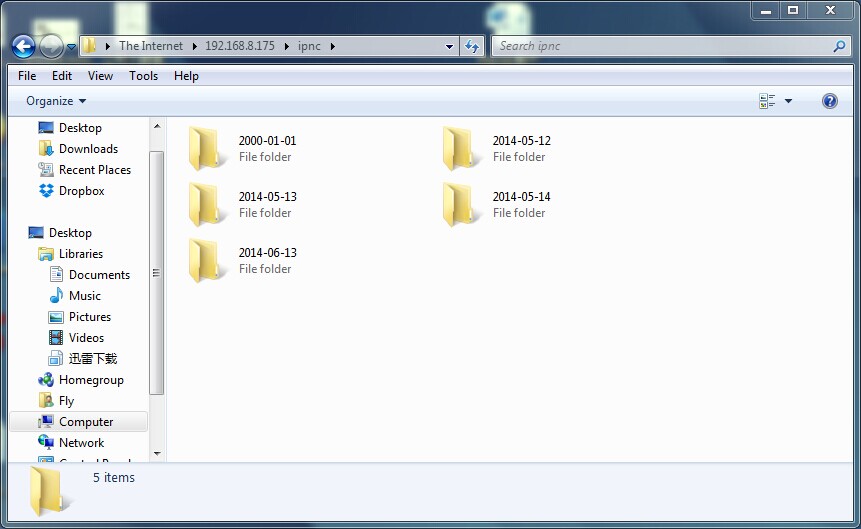
Figure 17 Access via FTP
——— END ———