
MSPlayer Version | V2.4.0.3 (64-bit) | Update | 2021.11.30 |
1. Introduction
In order to protect system security integrate with Milesight products better. Milesight developed a simple player for users to play files.
2. How to use MSPlayer
2.1 Playlist
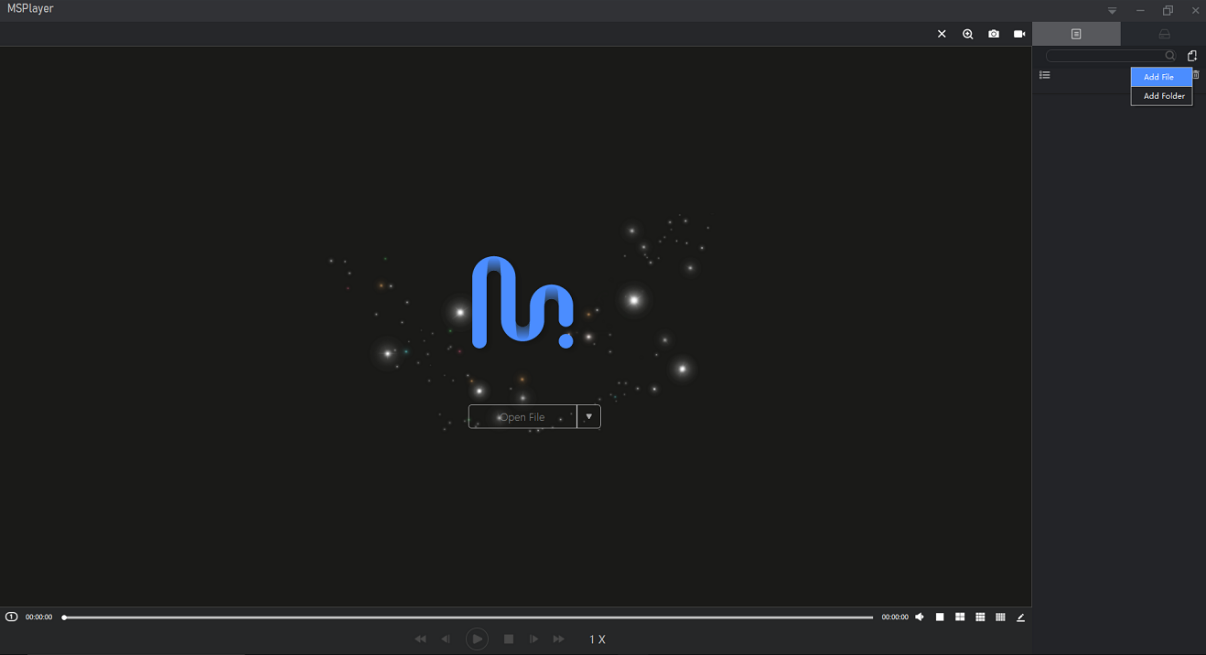
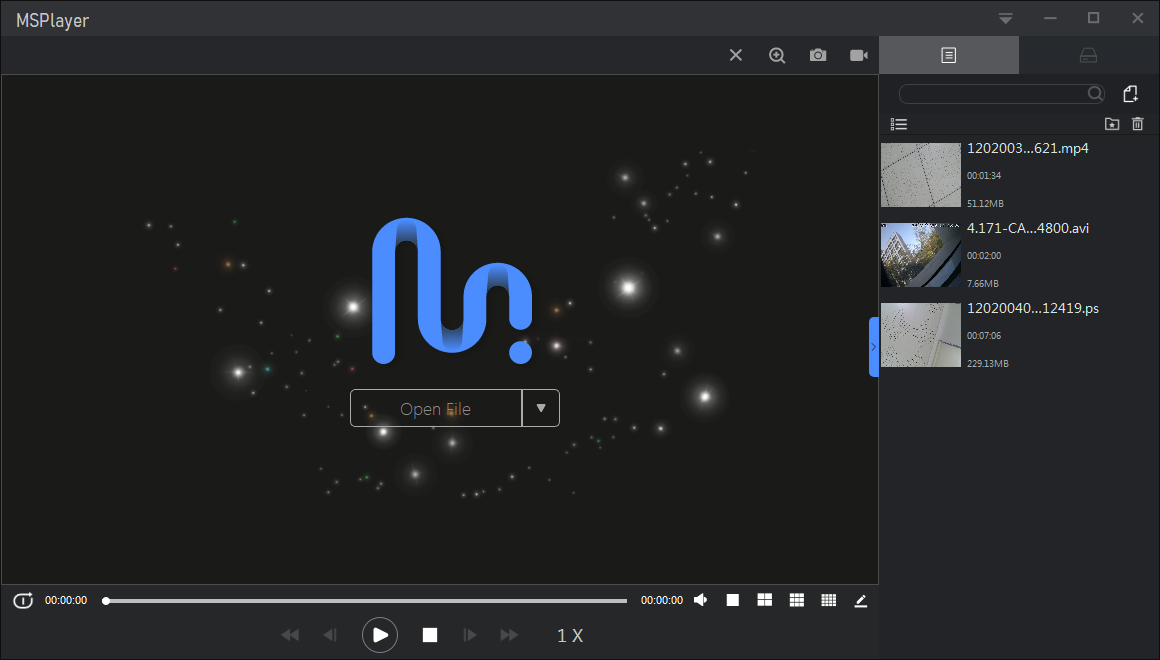
Open the MSPlayer, the default interface is playlist, you can click

to add file or folder.
Note:
MSPlayer only supports files in“avi, mp4 and ps”format.
2.2 Playback
User do not need download the files from Milesight Network Camera or Network Video Recorder, the source file can be played directly in the MSPlayer.
Note: The“mp4”file of the Milesight source file is not real“mp4”file, not compatible with the third-party players.
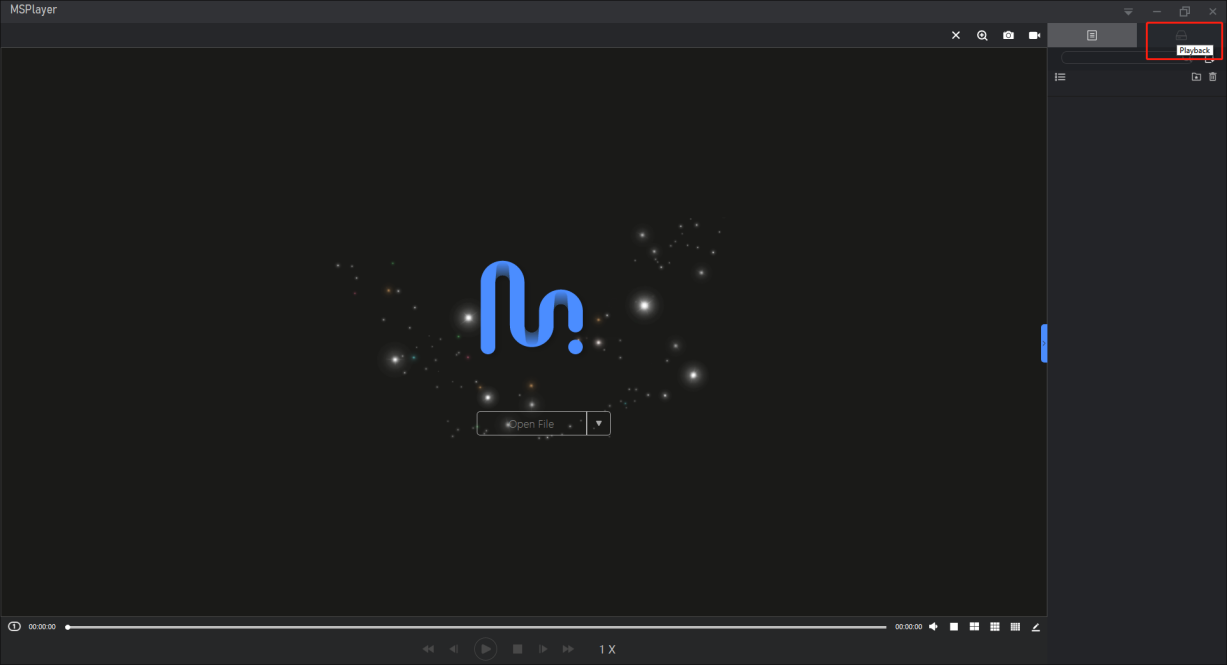
Step 1: Open the MSPlayer, Click the top right |
| button to enter the Playback interface. |

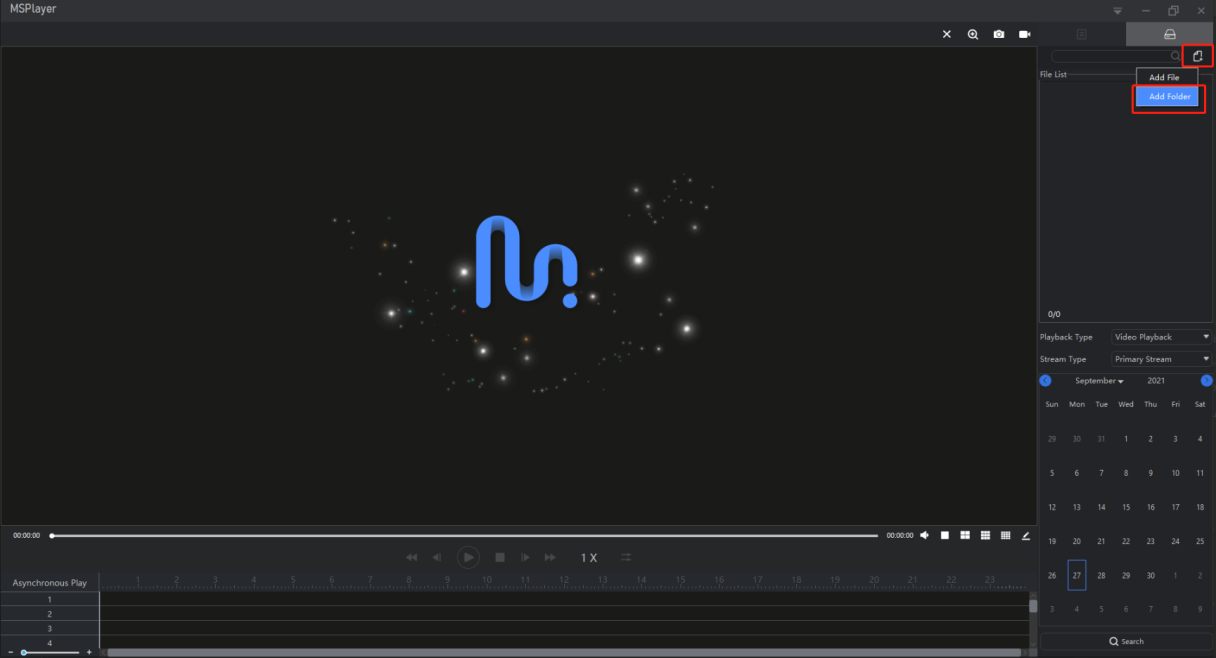
Step 2: Click the
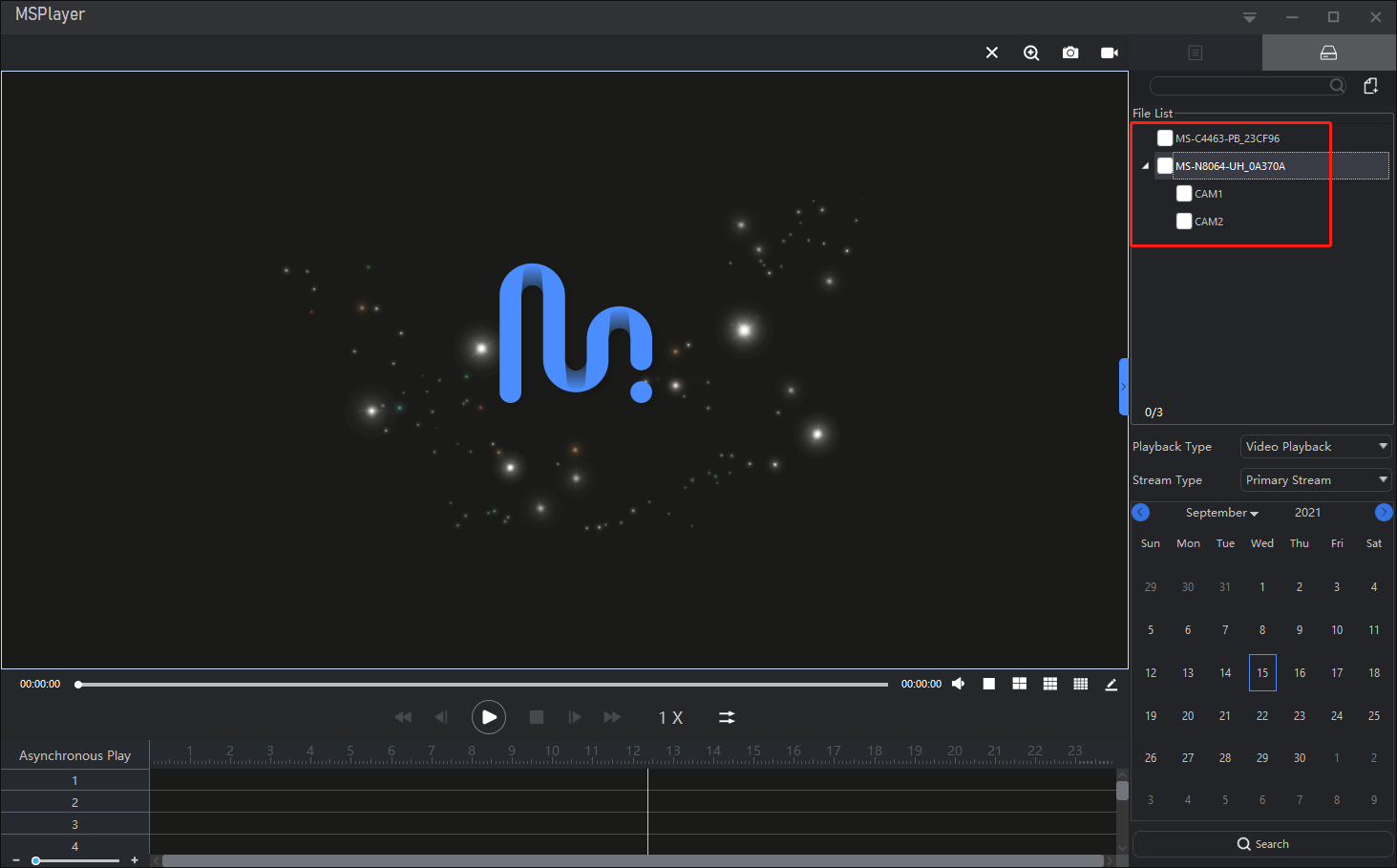
| button to add folder. The name convention for Network camera or Network video recorder folder is“model + the last six digits of MAC address”. |

Note:
1. If you unfold the NVR file section, it will display the channel`s number below.
2. You must add the entire source folder, the contents of the folder must contain key files such as video source files, bin files, separated files are not supported.
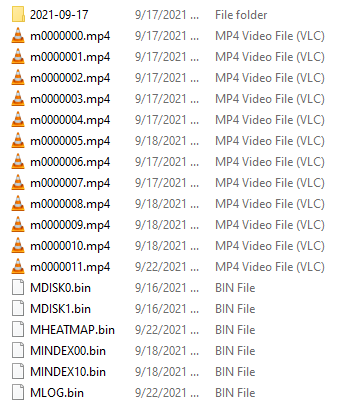
3. The folder that was previously added cannot be re-added.
2.2.1 Video Playback
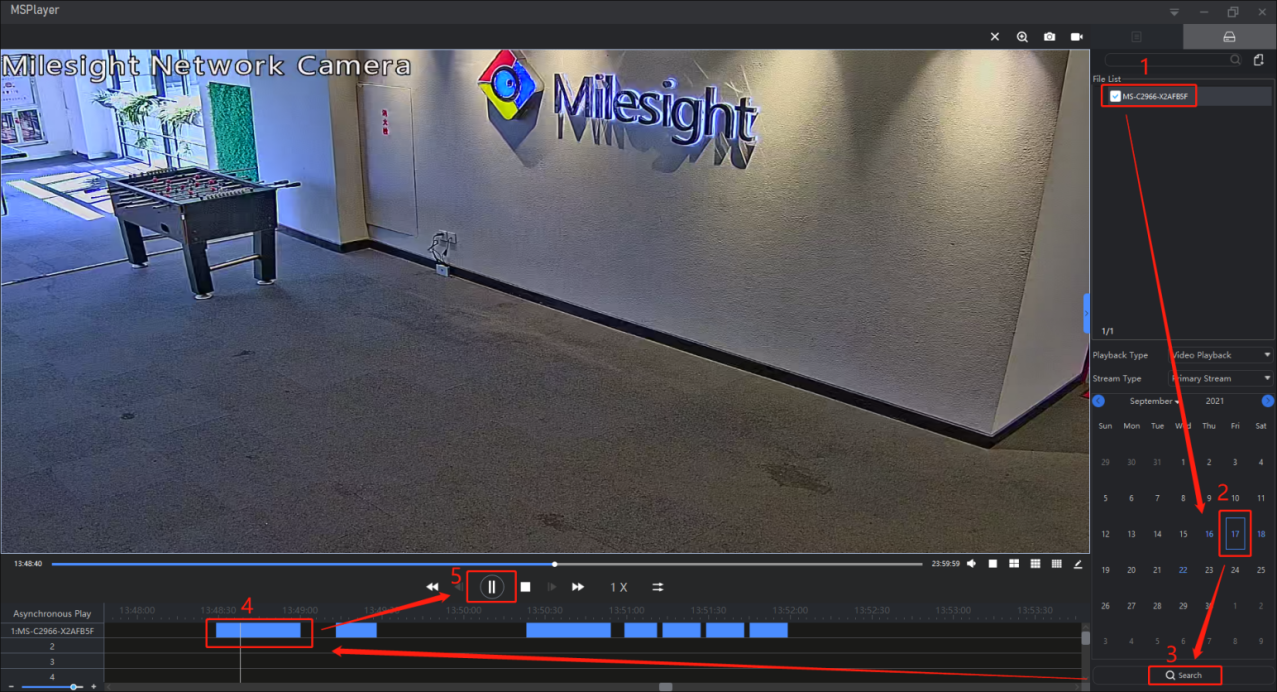
Step 1: Select the“folder”---> Choose the“date of playback”---> Click“search”---> Select the “timeline”---> Click the button |
| to play back video. |

Note:
1. The recording date of the video will display in blue.
2. You can zooming the timeline by adjust the |
| at the bottom left or scroll the mouse on the timeline at the bottom of the playback toolbar. |

2.2.2 Picture Playback
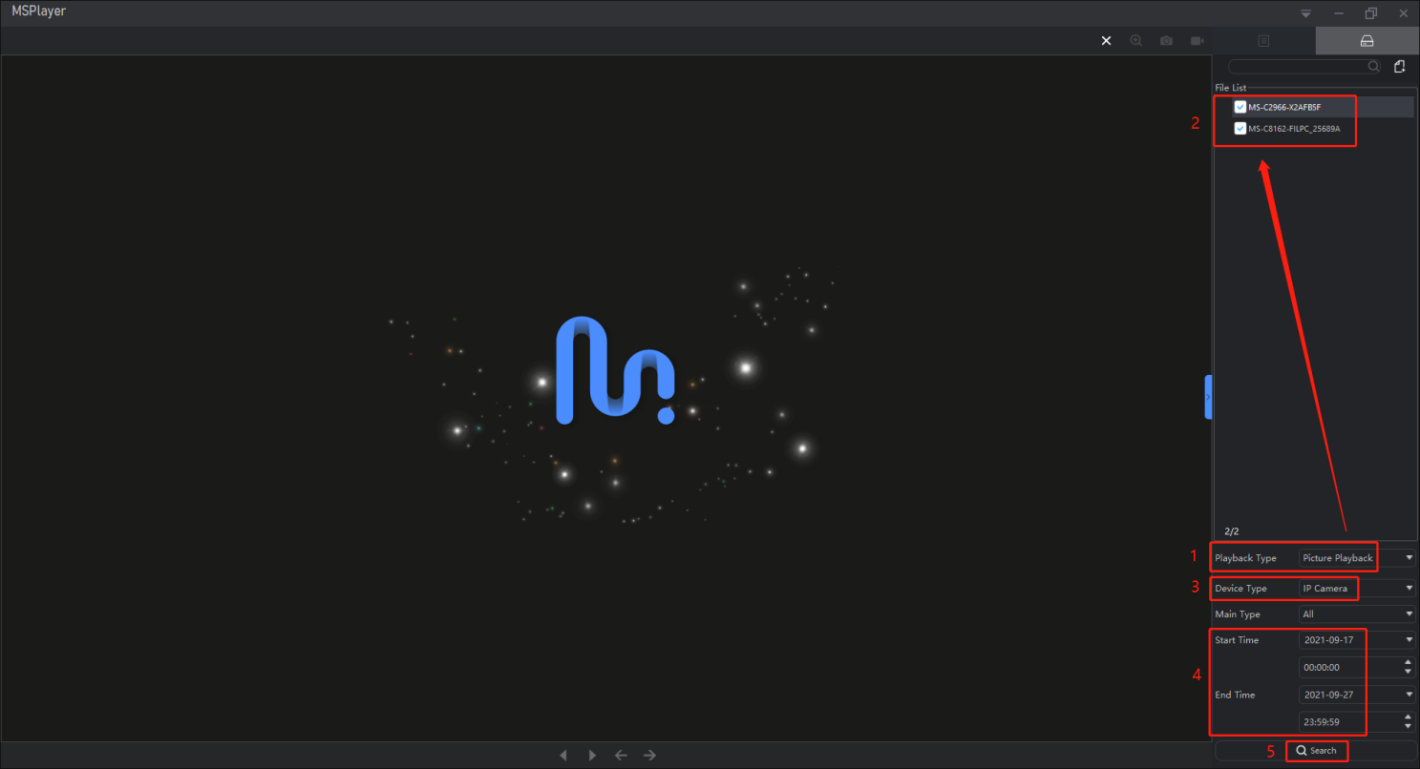
Step 1: Choose the Playback Type as“Picture Playback”---> Select“file”---> Choose the“Device type”
---> Set the“Start time and End Time”---> Click“search”.
Step 2: Click

button to preview the picture, click Export or Export All button to export the files.
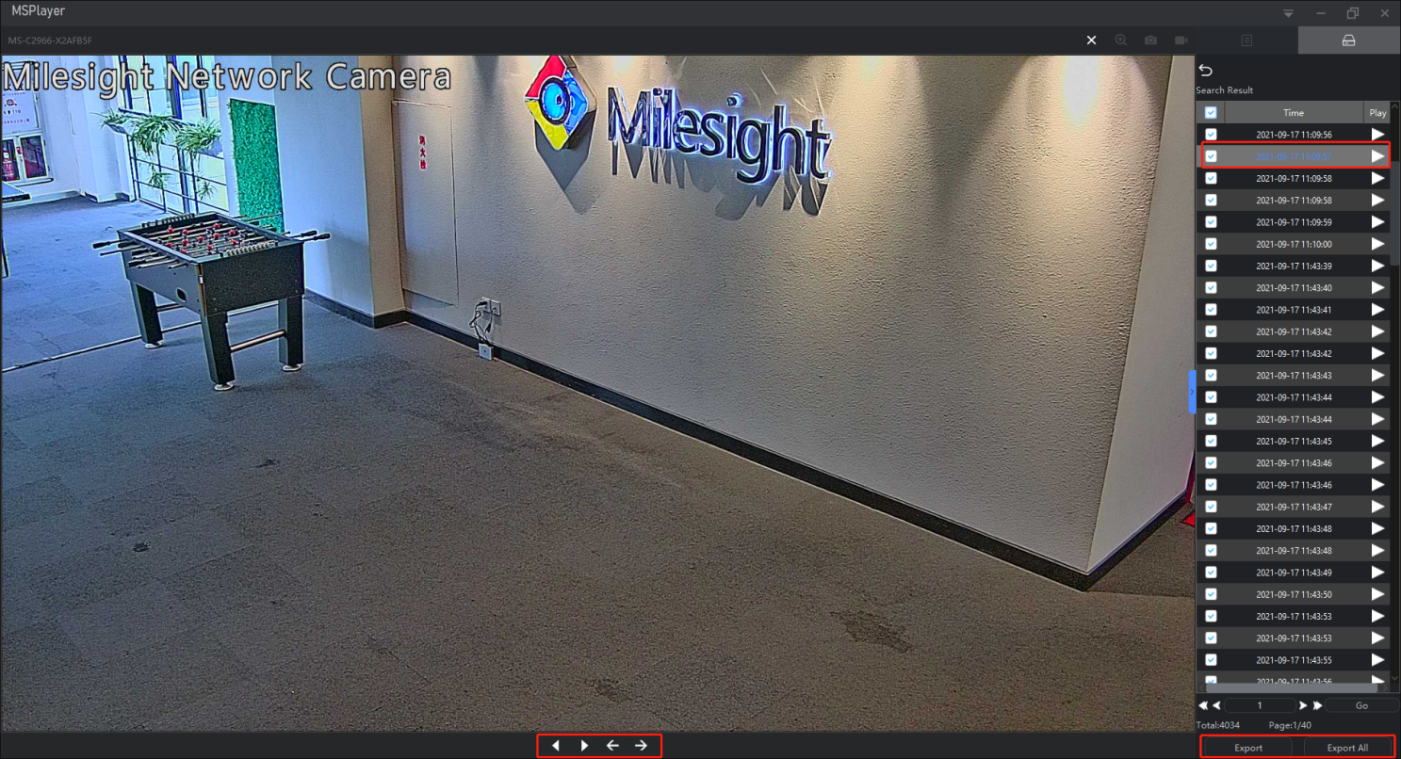
Description of these buttons:
1. Rewind
| MSPlayer will play the screenshots list from bottom to top and become |
button. |


2. Play
| MSPlayer will play the screenshots list from first file and become |
button. |


3. Previous

jump to the previous picture.
4. Next

jump to the next picture.
5. Pause

stop the playing
-END-