
CMS Version | V2.3.0.8-r2 | Update | 2018.8.21 |
1.About Milesight CMS Multi-Monitor
1.1 CMS Multi-Monitor Introduction
The Milesight CMS provides a powerful monitor surveillance tool that enhances security by providing administrators flexibility to monitor the live video from the network camera. It’s a video management system that works with the network cameras to provide video monitoring.
1.2 Environmental Requirement
The multi-monitor function supports up to 4 monitors. This function requires your PC need to support at least 4 display interfaces(HDMI/DVI/VGA).
1.3 Performance Overview
When your PC accesses multiple screens simultaneously, you can choose the appropriate mode as needed. There are four more options for you to choose.
Multi Monitor | Live View Screen | Enable the multi screen function and play Live View in this selected screen. For example, If you have a lot of devices connected. You can accesses four screens and set all to the Live View Screen, then you can see more details in each screen and better realize the carousel function with multiple screens. |
Alarm Screen | After setting the Motion Detection. When alarming, the alarm channel will pop up to this screen. | |
Full Screen | This function regards this screen as an assistant screen to full screen the selected channel. For example, If you want to see more details, you can double click the channel that you have chosen on the Live View or Alarm Screen and it will display the main stream in full screen. | |
None | When you need to use a screen for other purposes, you can temporarily turn it off. |
When your PC accesses four screens simultaneously, it will be shown as below:

2. Operations and Settings
Step 1: Add additional displayers to the PC. Click this icon to enter the configuration shown as below.
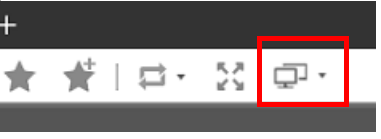
Figure 1
Step 2: Then the window will pop up:
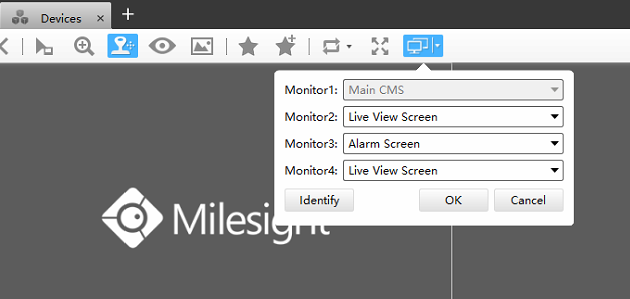
Figure 2
Step 3: There are four more options for you to choose.
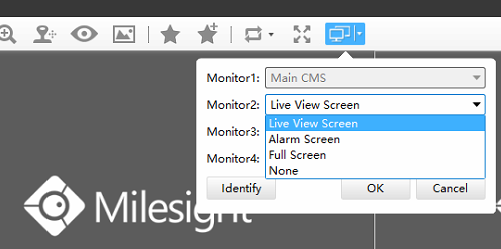
Figure 3
2.1 Live View Screen
If you have a lot of devices connected, you can play the Live View with multiple screens and get a more intuitive visual experience.
If you choose the second screen as the Live View Screen, the second screen will show the display:
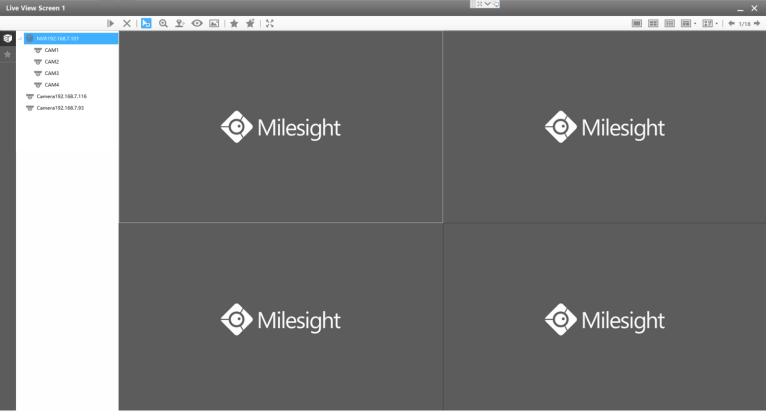
Figure 4
Left click your interested channel, it will quickly display the Live View of this channel.
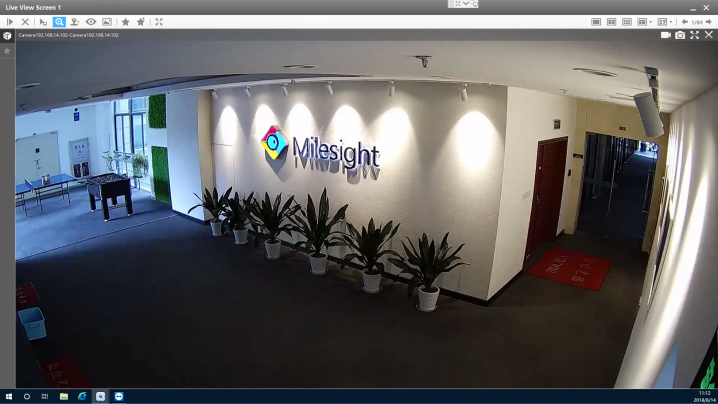
Figure 5
You can select the different Layouts View to see more channels.
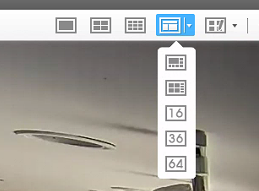
Figure 6
you can also select the customized layouts View which configured in the Main CMS monitor.
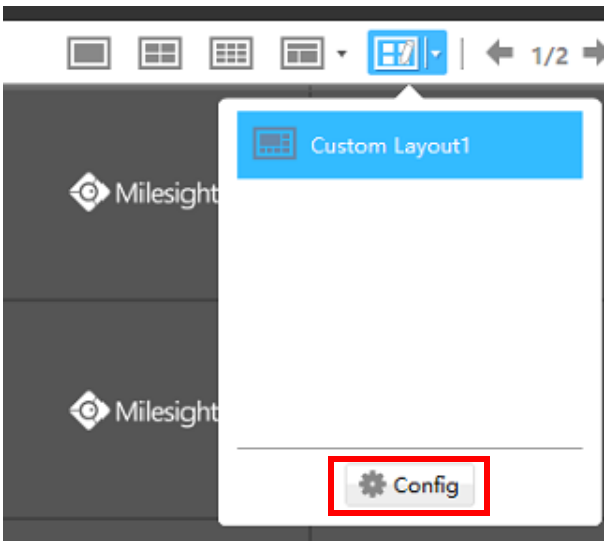
Figure 7
When playing Live View, you can right click the mouse. The list is shown follow:
Description | |
Play/Stop | Play/Stop the Live View |
16:9 / 4:3 /Original | To adjust the aspect ratio for a selected channels |
Resize | To restore the original aspect ratio |
Previous Page | To the previous one Live View interface |
Next Page | To the next one Live View interface |
Full Screen | When multi-screen, this option can Full screen the chosen channel |
The icons on toolbar in the second Live View Screen are as below:

Figure 8
The description of the icons can be referred to the table below:
Item | Function Introduction |
| Play all the channels with Secondary stream |
| Stop all the playing channels |
| Cursor Mode |
| Click the button will enable digital zoom the Live View |
| PTZ Mode |
| Fisheye Mode |
| Image Settings of the playing channels |
| Save View, save the current view to replace the old view |
| New View, create a new view |
| Full Screen |


The toolbar of the Live View window:
Figure 9
| Start/Stop recording |

| Snapshot |

| Full Screen |

| Stop the Live View |

For more details please refer to User Manual of CMS.
2.2 Alarm Screen
If you choose the screen as the Alarm Screen. When alarming, the alarm channel will pop up to this screen, the screen what you have set up will show the display:
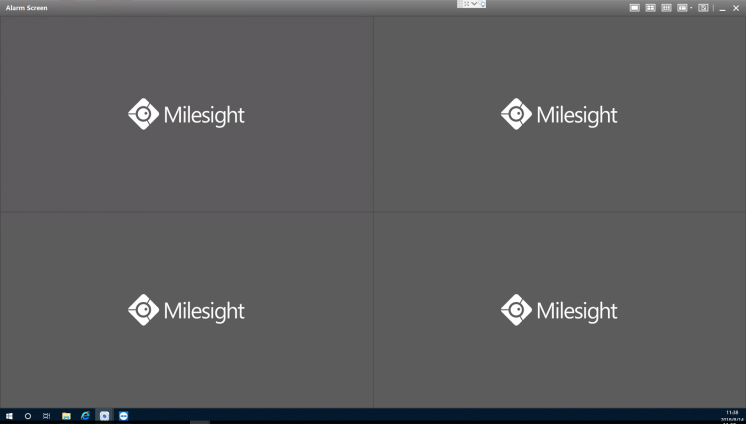
Figure 10
When alarming, the alarm channel will pop up to this screen:
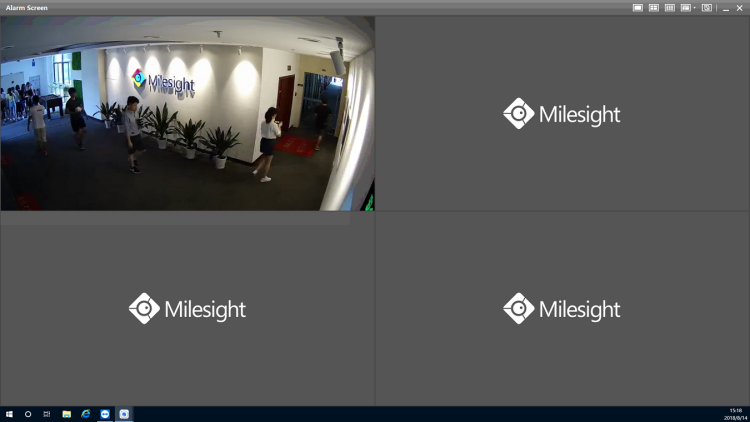
Figure 11
You can select the different Layouts View to see more channels or select the customized layouts View which configured in the Main CMS monitor.
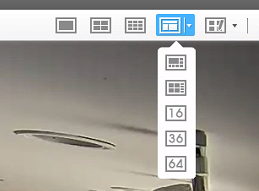
Figure 12
It is worth mentioning that the Alarm Screen features with intelligent adjustment of the number of windows. For example, if you selected the Layout View of four windows and five or more devices trigger the Motion Detection at the same time, the Layout View of the Alarm Screen is automatically converted into nine windows.
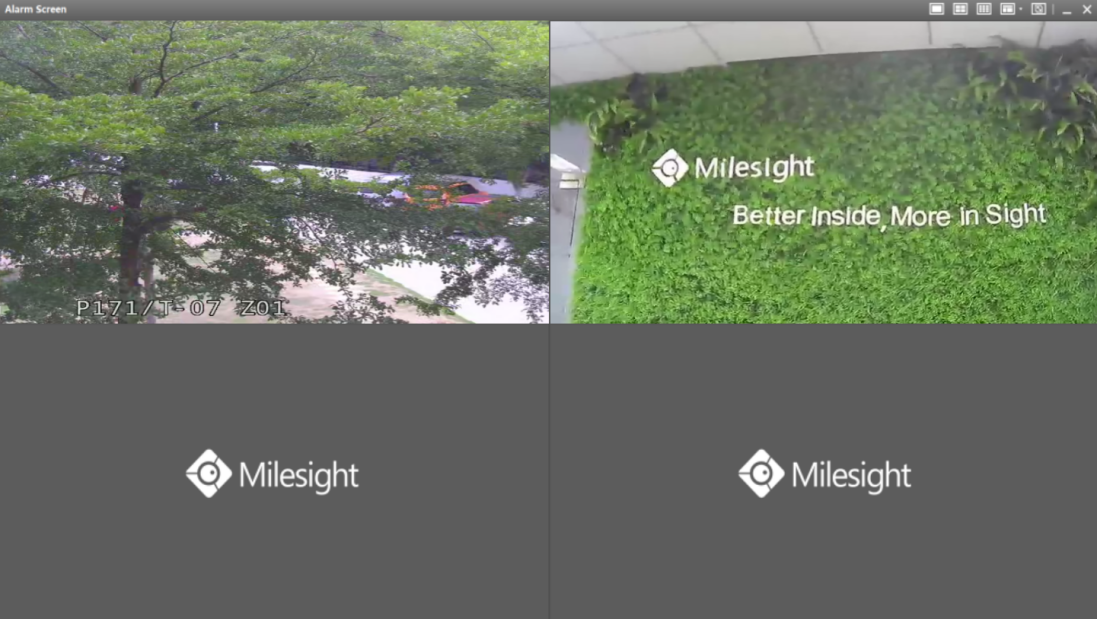
Figure 13
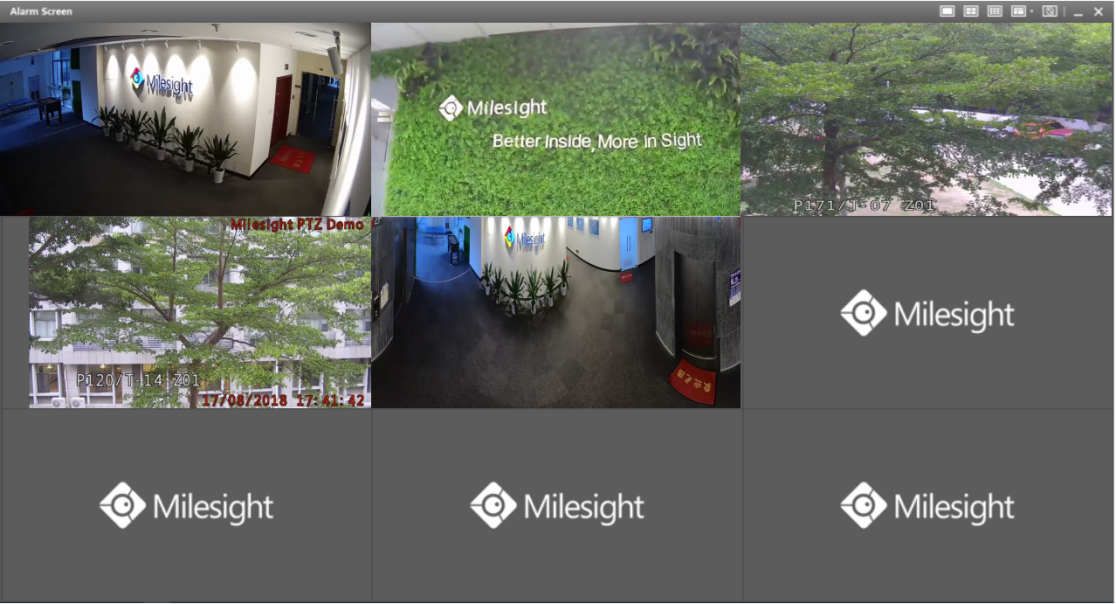
Figure 14
When playing Live View, you can play it in full screen mode by right click the mouse and choose the”Show In Full Screen” .
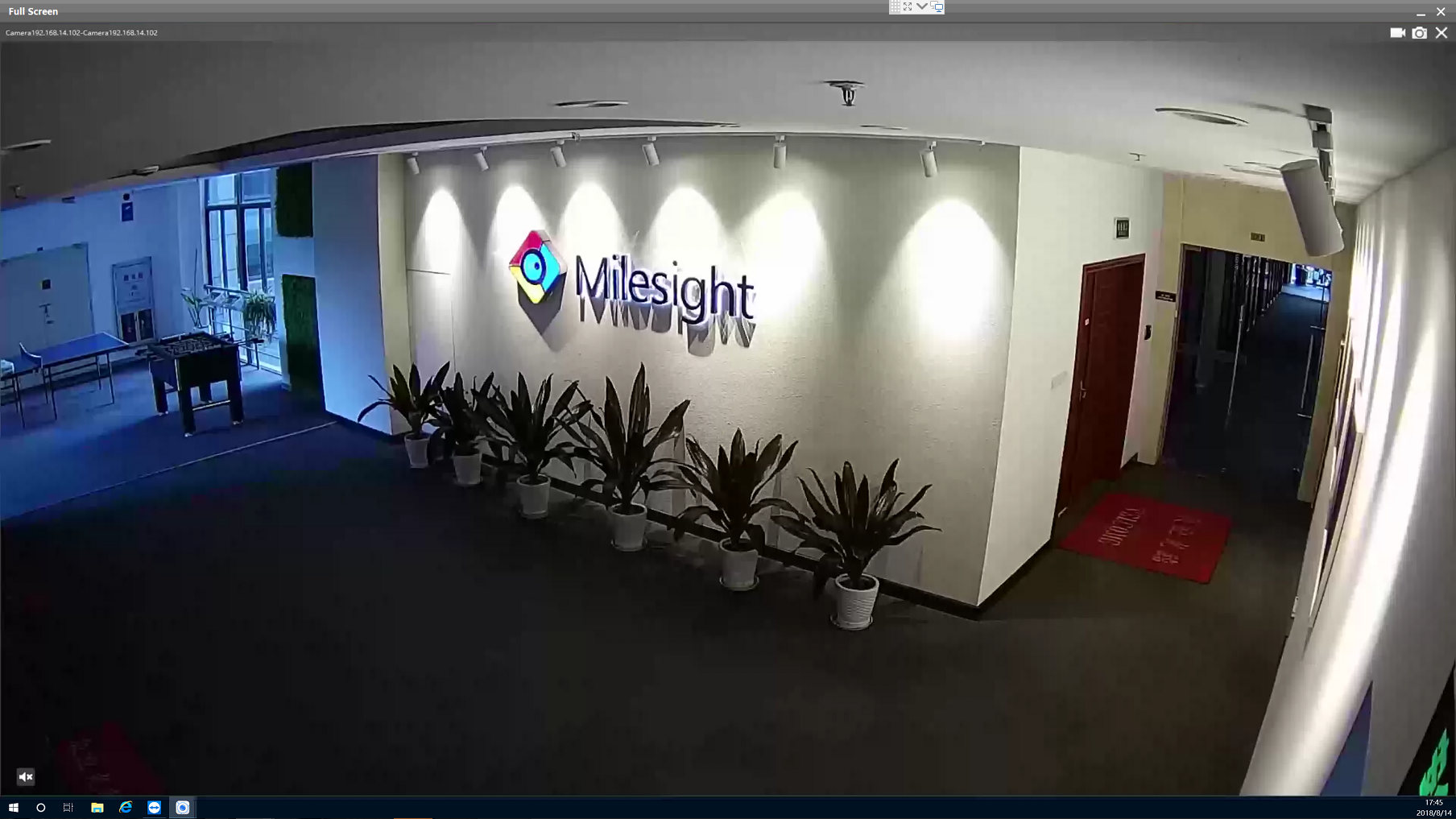
Figure 15
2.3 Full Screen and None
You can also choose the screen as the Full Screen. If you want to see more details, you can double click the channel that you have chosen on the Live View Screen or the Alarm Screen and then it will will display the main stream in full screen.
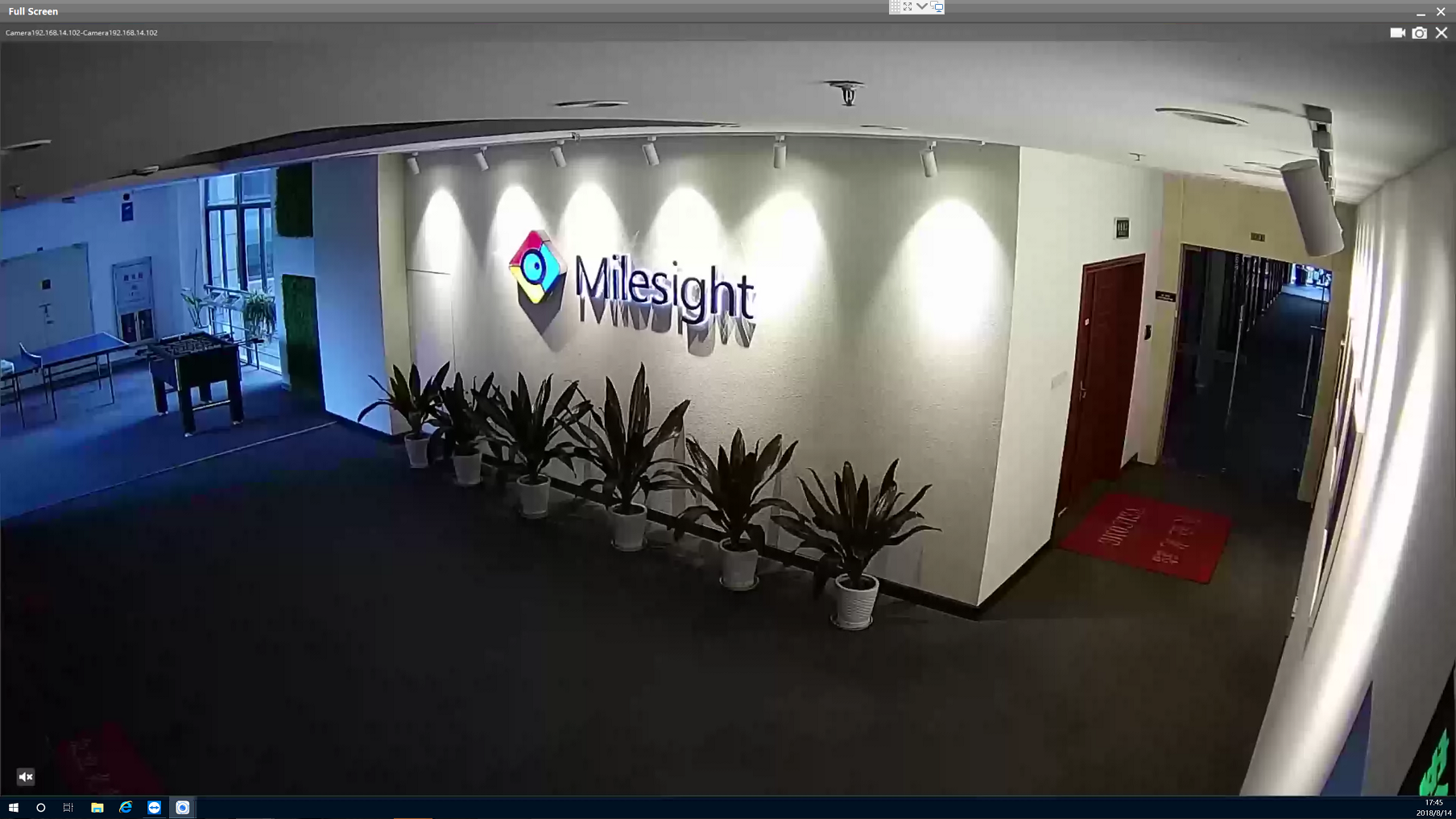
Figure 16
When you need to use a screen for other purposes, you can choose the screen as None and means that the Live View temporarily turn off.
-END-