
M-Sight Pro Version | Update |
V2.3.0.6(iOS)、V3.1.0.1-r4(Android) | 2018.7.30 |
V3.1.0.8-r8(iOS),V3.1.0.8-r7(Android) | 2024.8.6 |
1. P2P
A peer-to-peer (P2P) network is a type of decentralized and distributed network architecture in which individual nodes in the network (called "peers") act as both suppliers and consumers of resources, in contrast to centralized client–server model where client nodes request access to resources provided by central servers. Networks in which all computers have equal status are called peer-to-peer or P2P networks.
In a peer-to-peer network, tasks (such as searching for files or streaming audio/video) are shared amongst multiple interconnected peers which each make a portion of their resources (such as processing power, disk storage or network bandwidth) directly available to other network participants, with no need for centralized coordination by servers.
|
|
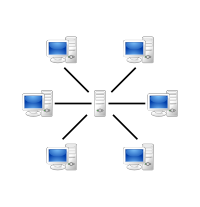
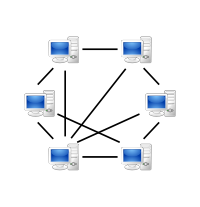
A peer-to-peer (P2P) network A network based on the client-server model
With the P2P enabled on NVR, you can add the NVR and view the live video over WLAN remotely without doing any port forwarding on the router.
2. How to Use P2P on M-Sight Pro
2.1 Enable P2P on NVR
You can use P2P function directly after enabling it on the NVR’s web or monitor.
Way 1: Enable on the monitor
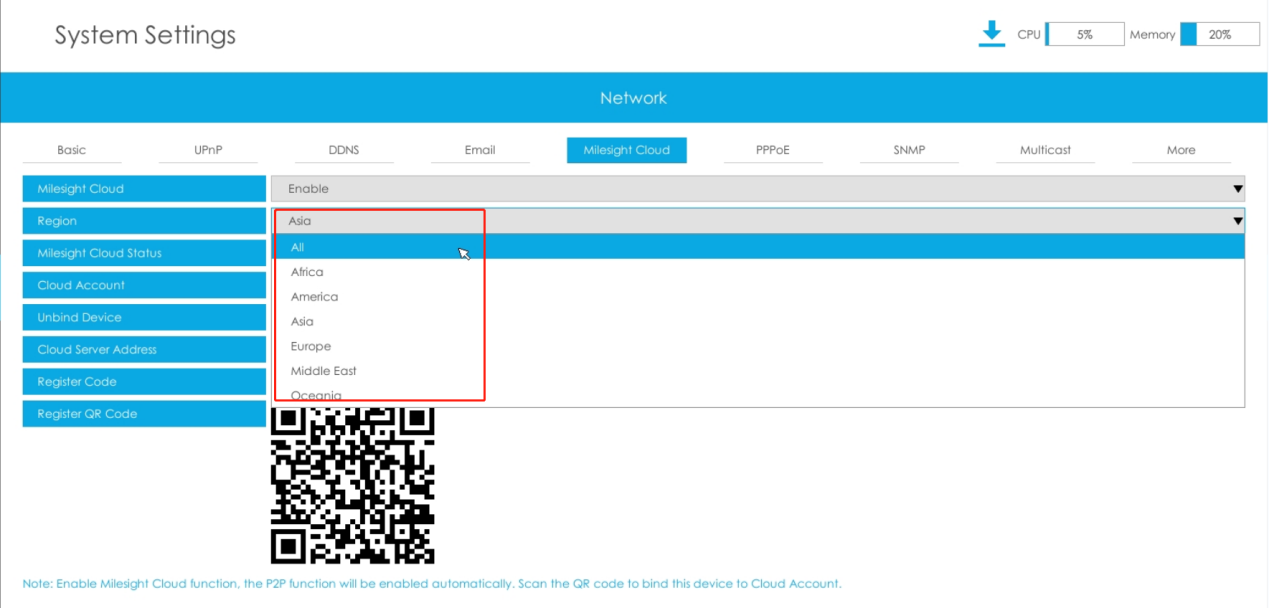
Right click on the live view and choose “Menu”->“System”->“Network”->“Milesight Cloud”, you will see the image as below; Then choose “Enable” on “Milesight Cloud”; Next, choose the region where you from on “Region”;Click the “Apply” to save all the settings.
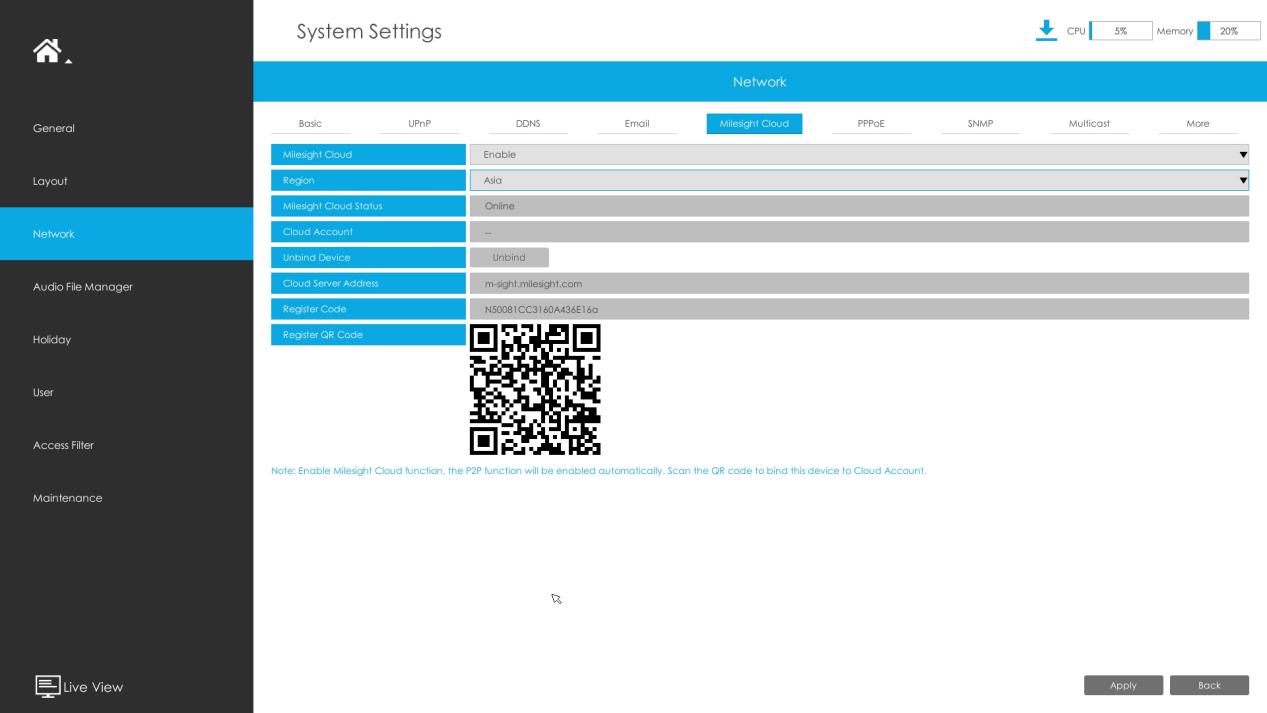
You can see the Milesight Cloud state turns to “Online”, then you can use it freely on “M-Sight Pro”.
If failed to apply this setting, please check these tips:
Marked Words | Description |
Failed to connect with internet. | Please check the network condition. |
Failed to authenticate P2P encryption. | Failed to pass P2P encryption verification. |
Please contact Milesight support. | P2P UUID is full, fail to get UUID. |
Failed to login P2P server. | Failed to login P2P service. |
Failed to initialize P2P. | |
Other error. | Unknown error. |
Way 2: Enable on the web
Enter the web page of NVR ->“Settings”->“System”->“Network”->“Milesight Cloud”. Details are the same as on the monitor.
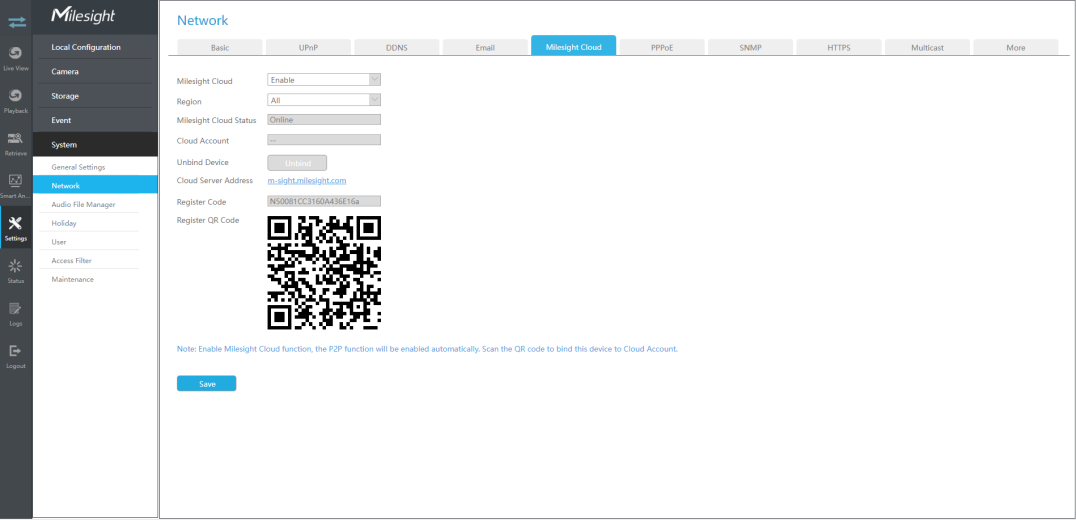
If failed to save, please check these tips:
Marked Words | Description |
Failed to connect with internet. | Please check the network condition. |
Failed to authenticate P2P encryption | Failed to pass P2P encryption verification. |
Please contact Milesight support. | P2P UUID is full, fail to get UUID. |
Failed to login P2P server. | Failed to login P2P service. |
Failed to initialize P2P. | |
Other error. | Unknown error. |
Note:
A. Please make sure that NVR is available for internet before enabling.
B. Please make sure your NVR version is V7X.9.0.12 or above, and the APP version is
V3.1.0.5 or above.
3. If you still can not enable P2P or activate P2P successfully, please contact Milesight Support Team: support@milesight.com
2.2 Settings on M-Sight Pro
Step 1: Open the M-Sight Pro, and click on these icons to add device:

->

->

->

Step 2: Choose “P2P” as “Type”:
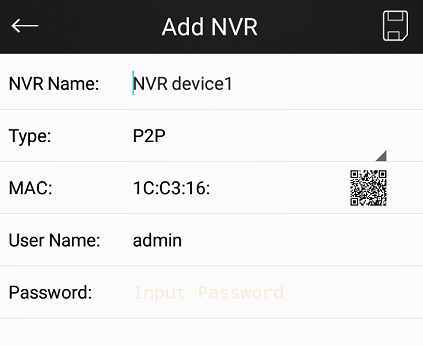
Step 3: Add MAC
There are two ways to add MAC:
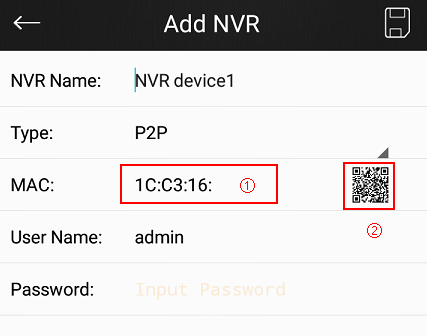
Way 1: Input manually after tapping icon ①;
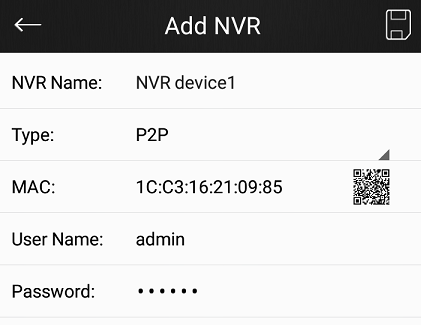
Way 2: Automatically input by scanning bar code/ QR code after tapping icon ②;
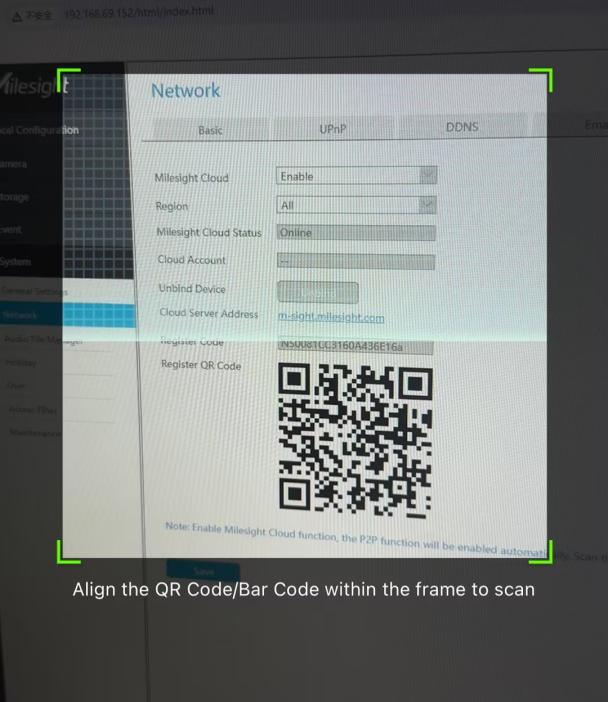
Step 4: Input the NVR name, the user name and the password to finish adding device.
2.3 Device management
After adding the NVR via P2P, you can manage it by tapping ”Device Manager”,and then tap the icon ① ;
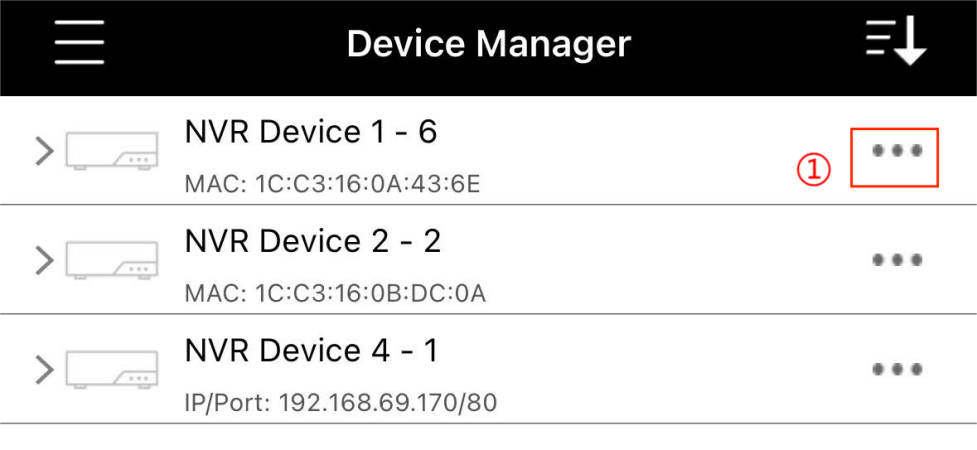
This interface will come up:
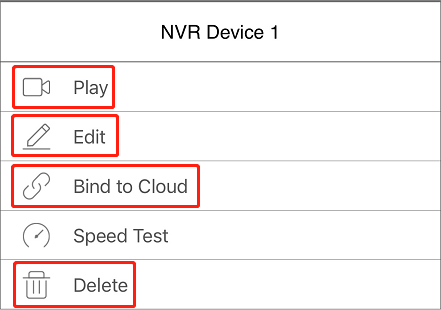
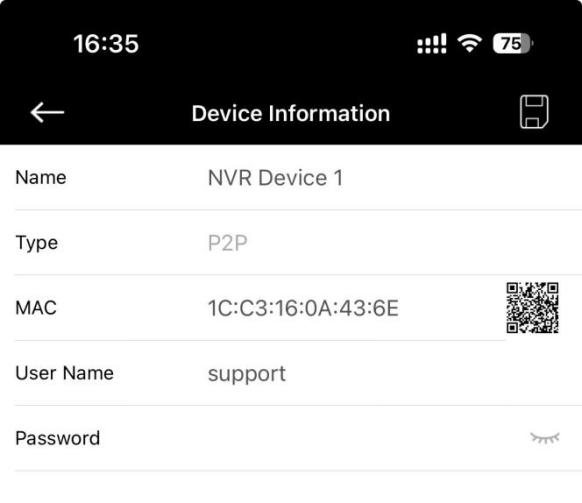
1.If you want to Edit the NVR, tap the “Edit” and you can edit NVR’s info here:
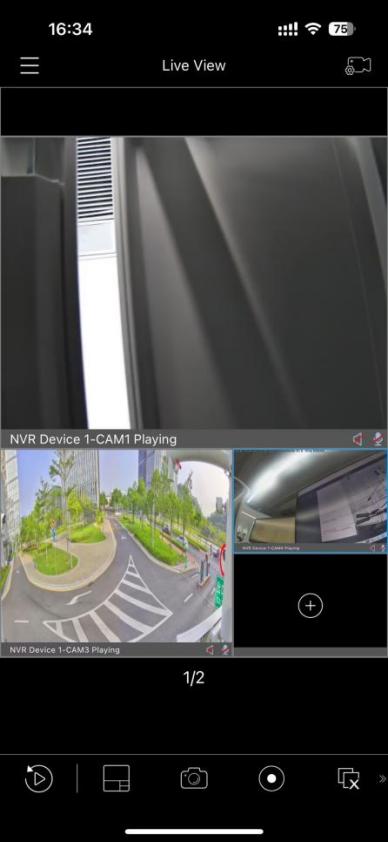
2.If you want to check the Live View of your cameras in NVR, tap the “Play”.You can check the Live View here:
3.If you want to delete the NVR, tap the “Delete”.This NVR will be deleted in Device Manager.
4.If you tap the “Bind to Cloud”, this NVR will be bound to your account.Consequently, when you log in to the M-sight Pro APP with your account on any other phone, this NVR will automatically appear in the APP.
-END-