
Author | Version | Release Note | Date | Audit |
Kiki | V1.1 | [NVR - Maintenance] Online Upgrade Failure | 2023.5.29 | Wynn |
1.Description
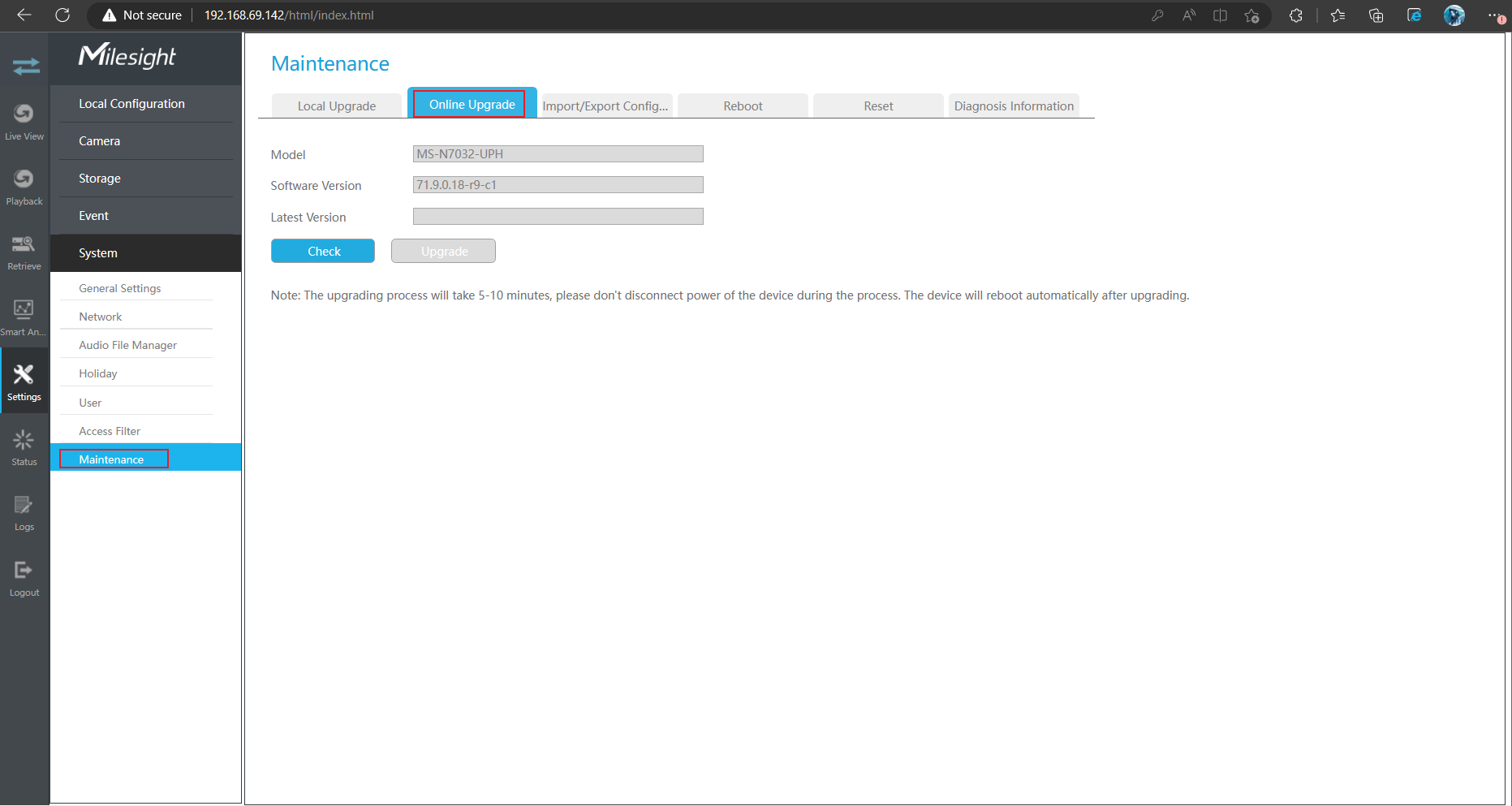
NVR online upgrade failed or the detected firmware version is incorrect.
2.Cause
2.1Network Issue
2.2Firmware Version Span Issue
2.3Other Issue
3.Resolution
3.1Network Issue
You need to make sure your local network is normal before upgrading online. Generally, the success of an online upgrade depends on your current local network status. If the network is normal, you just need to click “Check”, after the latest firmware version is checked, then click “Upgrade”. If the network is abnormal, you need to adjust your network (check your router, etc.) until it works fine.
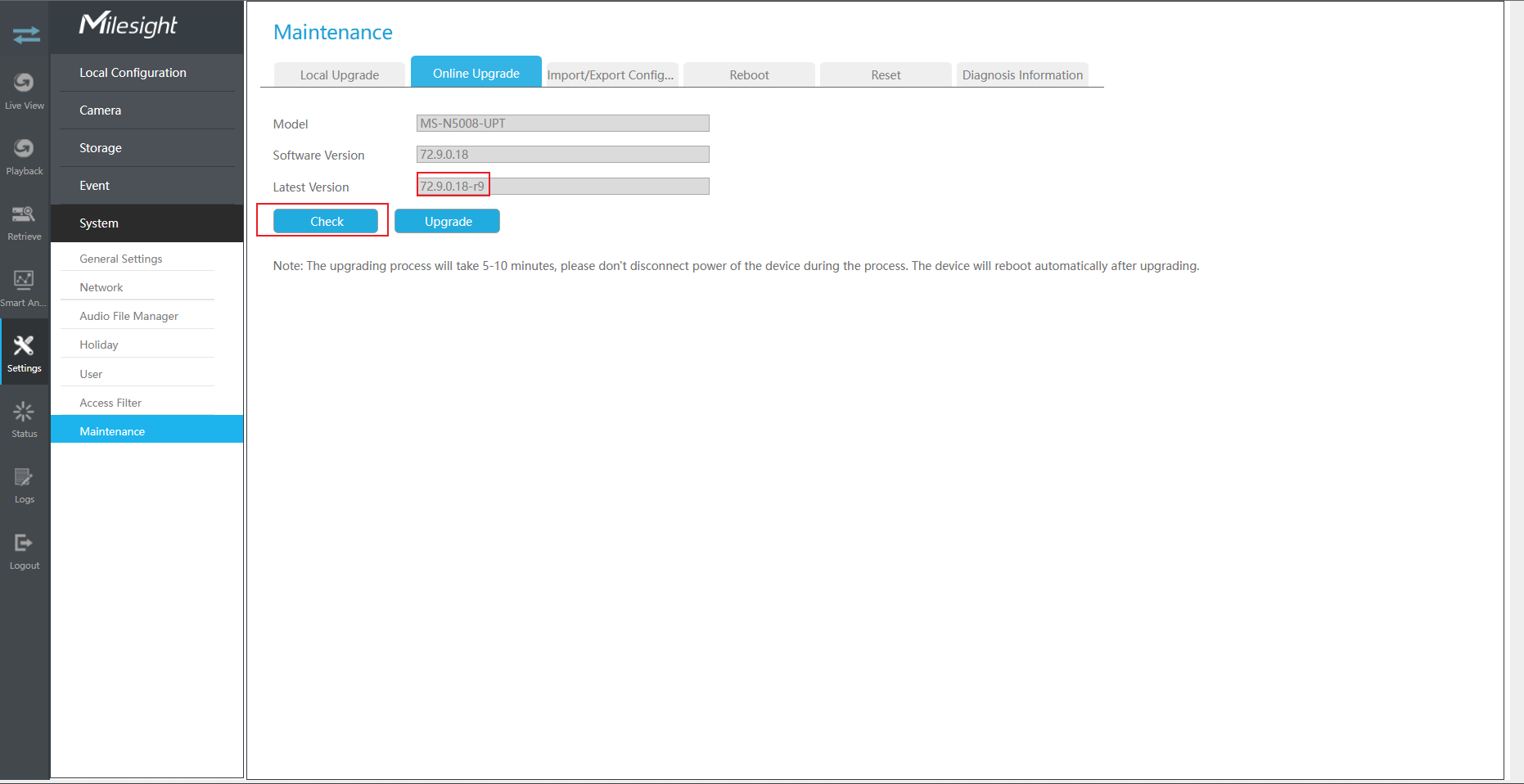
There are two ways to check the current state of the network:
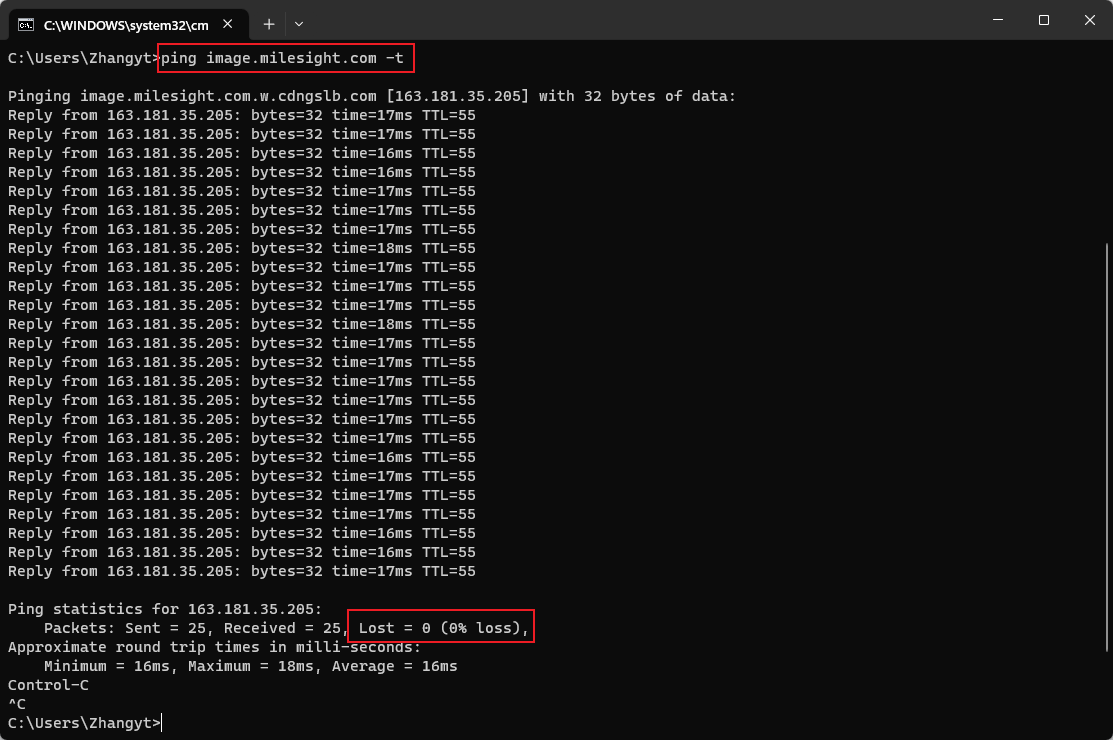
① You can confirm the current network status by ping image.milesight.com on your computer.
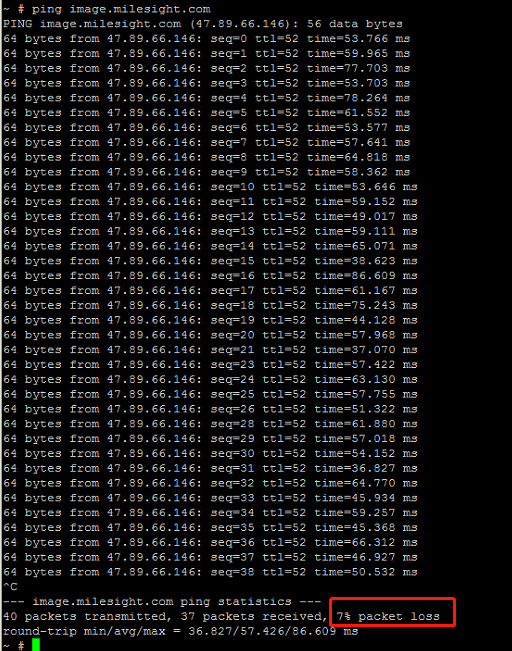
Input “ping image.milesight.com -t” in the CMD command box to check the packet loss and receive rate of the current network. After a period of time use the shortcut “Ctrl+C” to end the ping. The response time (time field) of the ping command ranges from several millimeters to several hundred millimeters. Generally speaking, a shorter response time indicates a faster network speed. If the response time is long and packet loss occurs, the network is unstable.
Network normal:
Network abnormal or unstable:
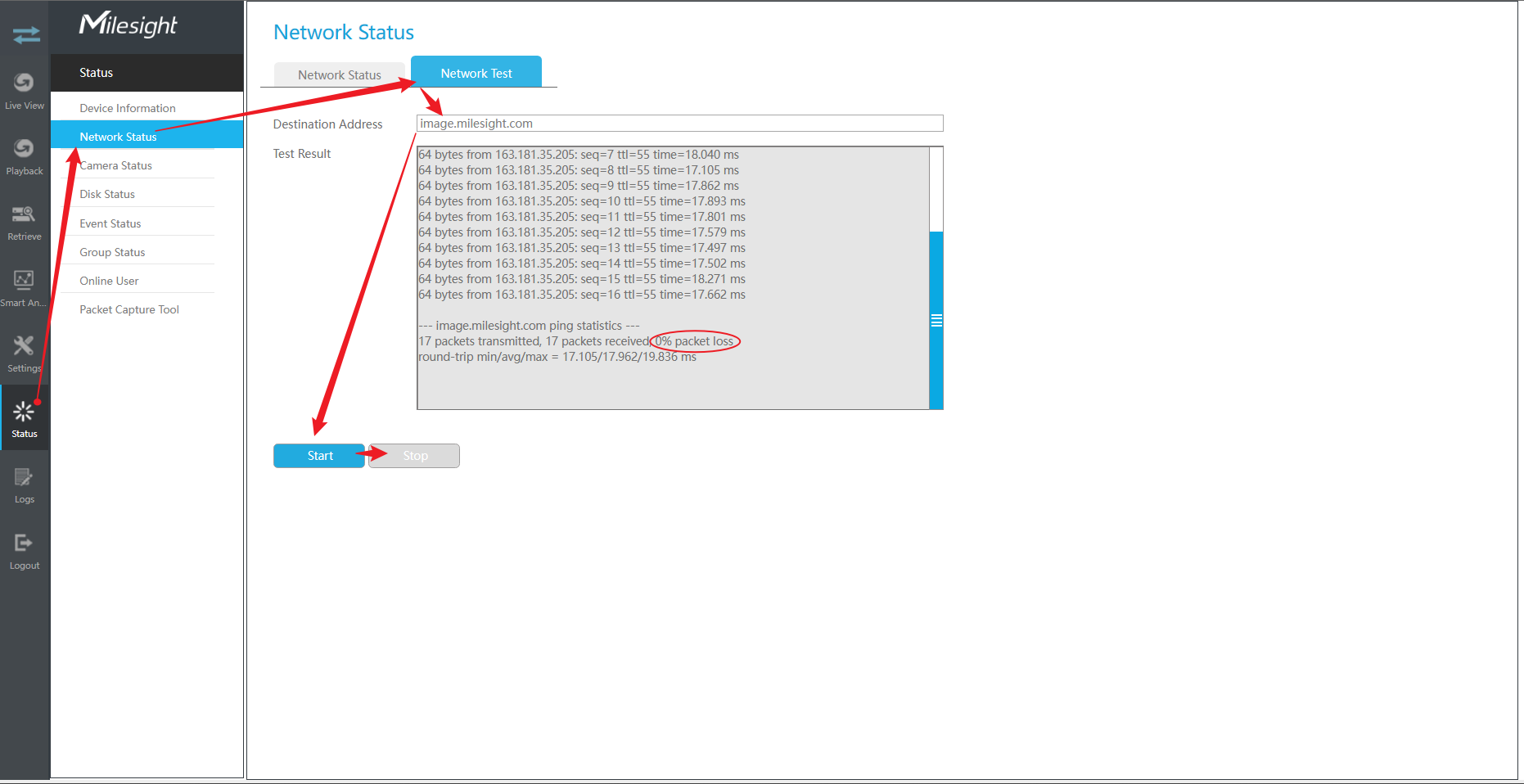
② You can confirm the current network status by ping image.milesight.com on your NVR.
Path:
Status -> Network Status -> Network Test -> Input “image.milesight.com” -> Start
3.2Firmware Version Span Issue
If the network is running properly, the upgrade may fail because there is a large span between the firmware version to be upgraded and the current firmware version.
For example, if your current firmware version is XX.9.0.4 and the latest firmware version is XX.9.0.18, the online upgrade may fail because the upgrade span is too long.
And if your current firmware version is XX.9.0.17 and the latest firmware version detected by the online upgrade is XX.9.0.18, you can generally upgrade directly.
If the upgrade fails because the span is too large, you can solve the problem by gradually upgrading locally.
For example, if your current firmware version is XX.9.0.4 and the latest firmware version is XX.9.0.18, you can try to upgrade to XX.9.0.10 first, and then upgrade to XX.9.0.15, finally to XX.9.0.18.
You can contact us (support@milesight.com) and ask about the upgraded firmware version.
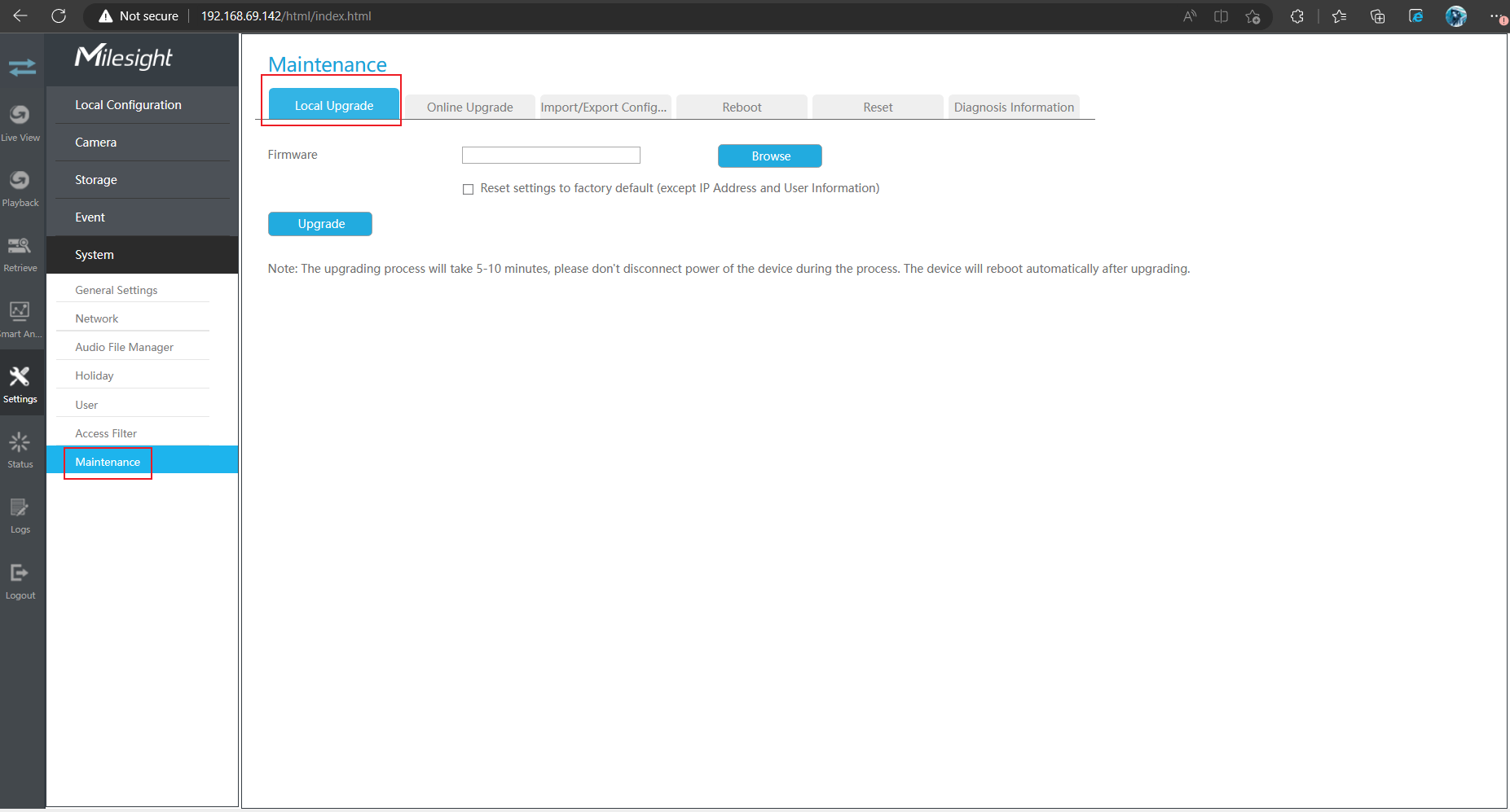
Path:
Settings -> System ->Maintenance ->Local Upgrade
Note:
If your current firmware version is too old, for example, your current firmware version is XX.7.0.XX or XX.8.0.XX, if there is no reason to upgrade, we do not recommend you to upgrade, because they already belong to the old firmware version, we do not continue to maintain at present, if the upgrade failure leads to other problems, it is difficult for us to help you solve.
In addition, we carried out a major product upgrade in November 2018. Due to the instability of the old file system, we fully upgraded to the new file system in November 2018, which has belonged to the new file system since firmware version XX.9.0.1. The stability and retrieval speed of the new file system are greatly improved after the upgrade. The only drawback is that it is incompatible with the old file system. After the old file system firmware version is upgraded to the new file system firmware version, the disk must be formatted before it can be used properly. Therefore, to prevent data loss on your hard disk, we do not recommend you upgrade.
Other Issue
If any of the following situations occur, you can contact Milesight support by sending an email to support@milesight.com. Please be sure to explain your problems and attach screenshots and videos of the problems in the email, so that we can better understand and solve the problems for you quickly.
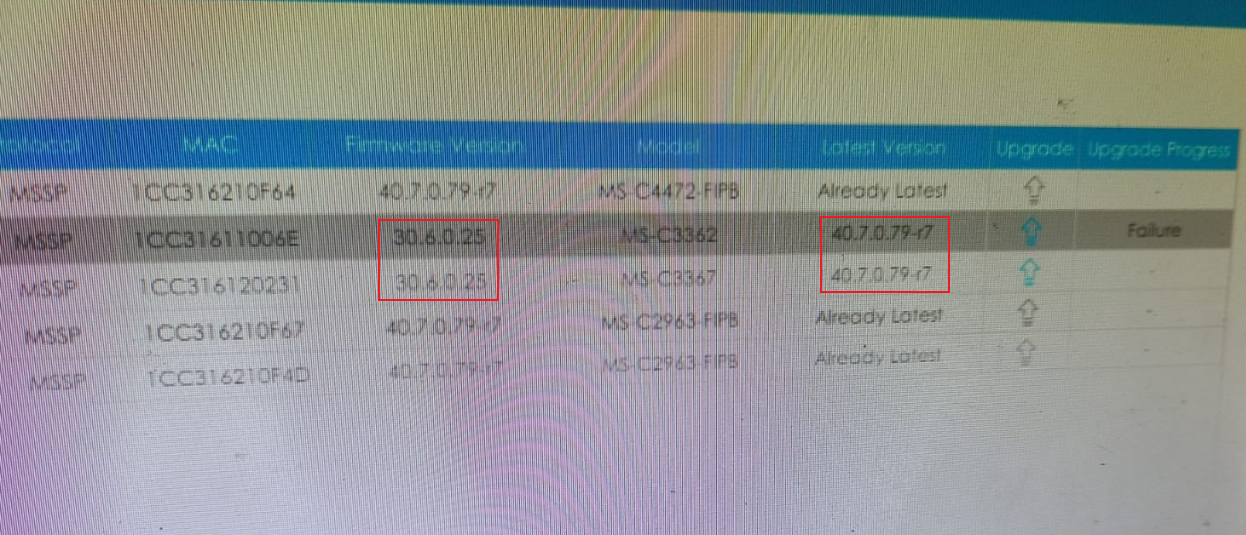
1. Click "Check" on the online upgrade page, and the wrong firmware version appears.
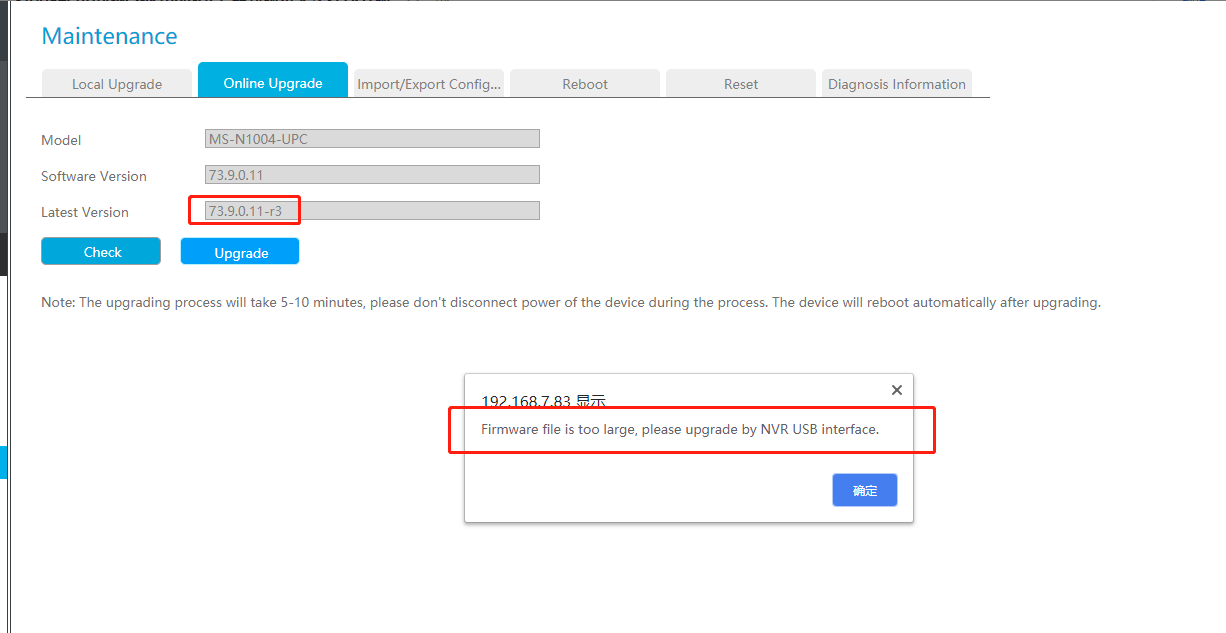
2. During the online upgrade, the following message is displayed: Firmware file is too large.
3. The online upgrade cannot detect the latest firmware version of the official website. Most likely because the official website and the online firmware version are not synchronized yet, you can download the latest firmware version from our official website and do the local upgrade first. If you really need to know when the online upgrade can be synchronized with the latest firmware version of the official website, please contact us.
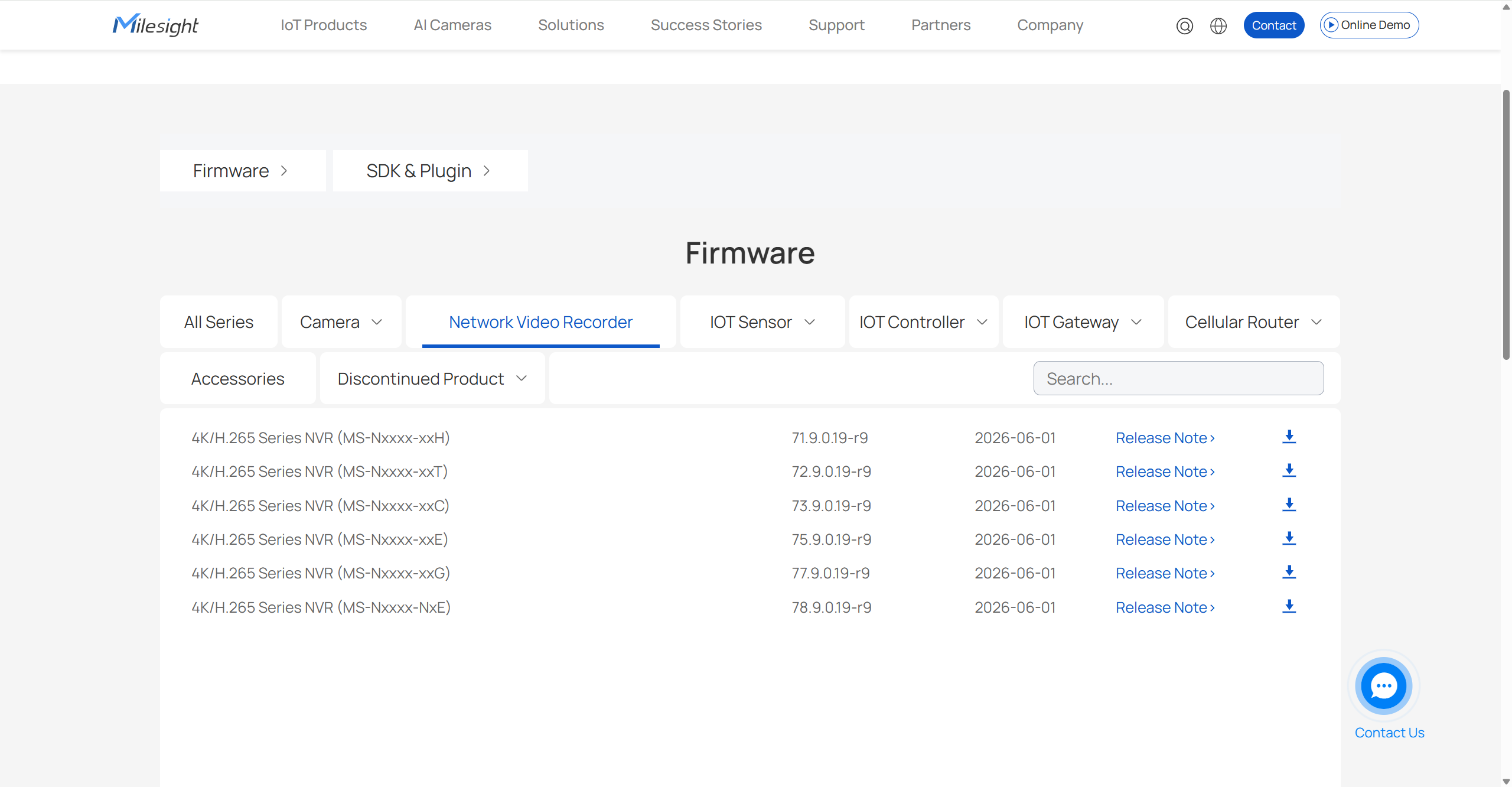
You can download the latest firmware version from our website:
https://www.milesight.com/support/resources/firmware#network-video-recorder
4. Other.