
Author | Version | Release Note | Date | Audit |
Stephen | V1.0 | General Troubleshooting | 2021.10.22 | Lyndon |
[NVR - Web Live View] No Video on NVR Web Page
1.Description
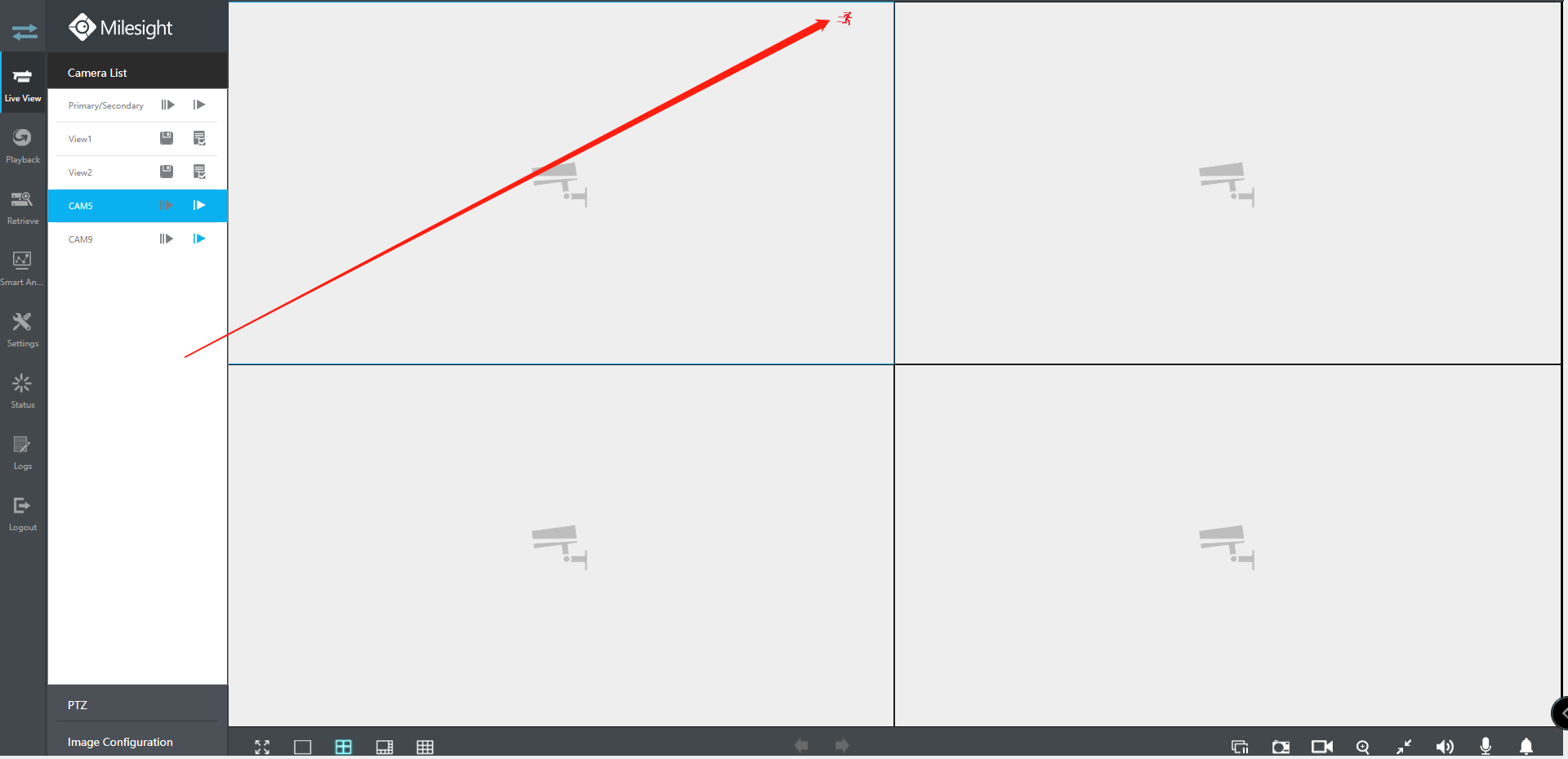
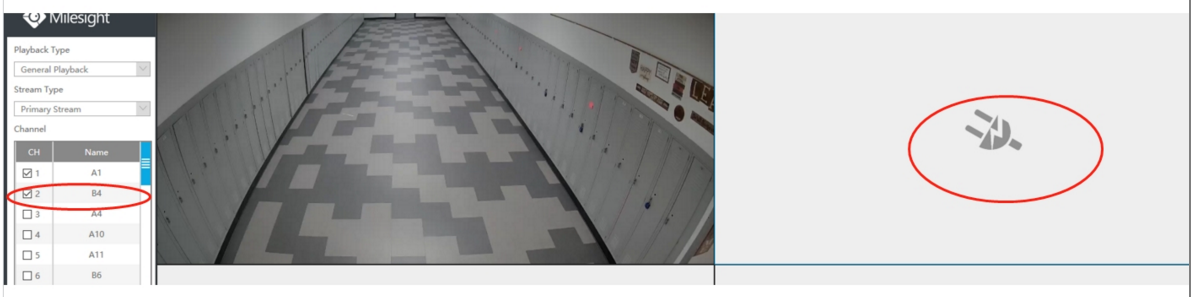
There is no video even the Status is “Connected” on NVR web page.
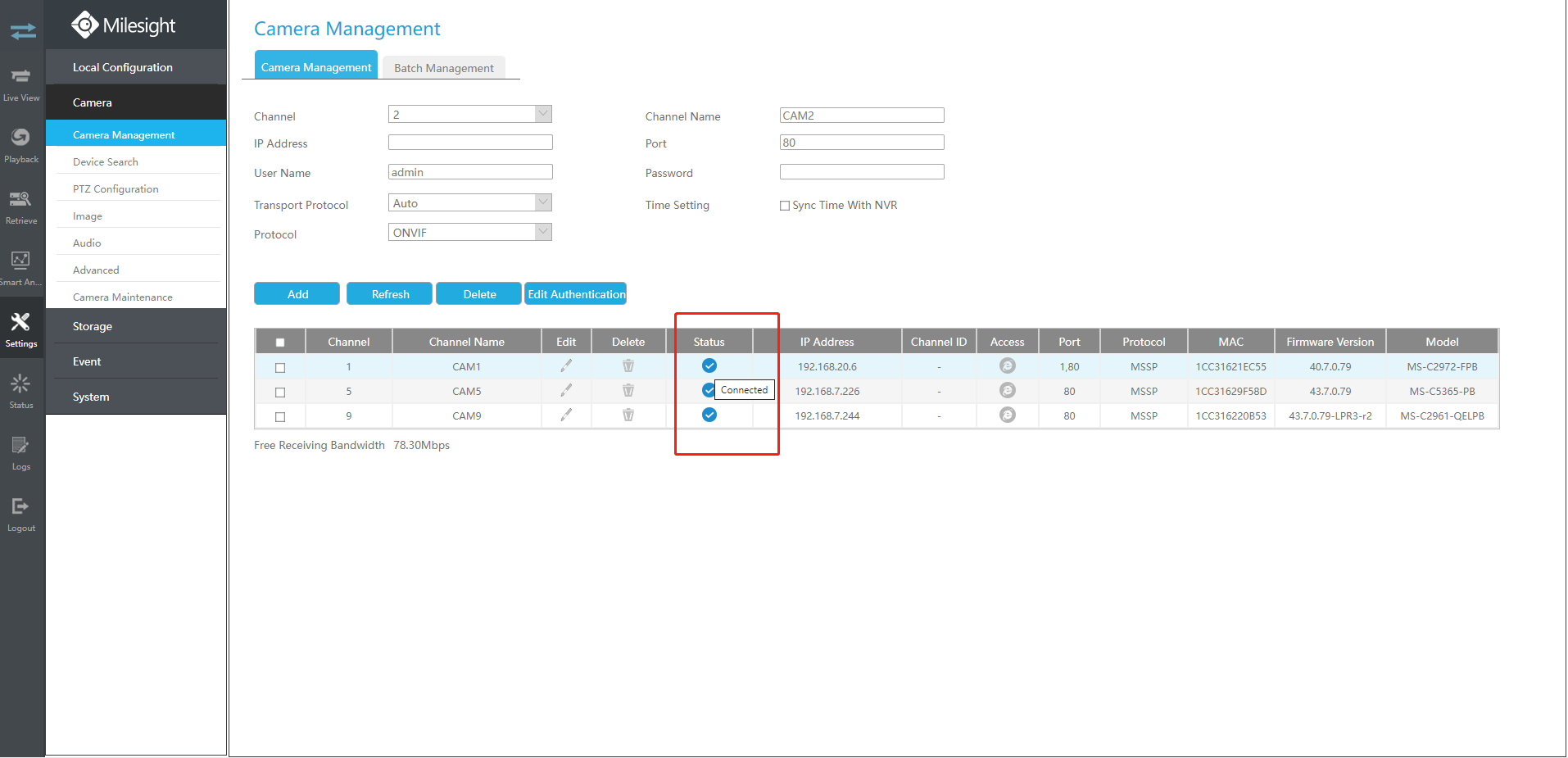
Live View:
Playback:
Live video under Event Settings page:
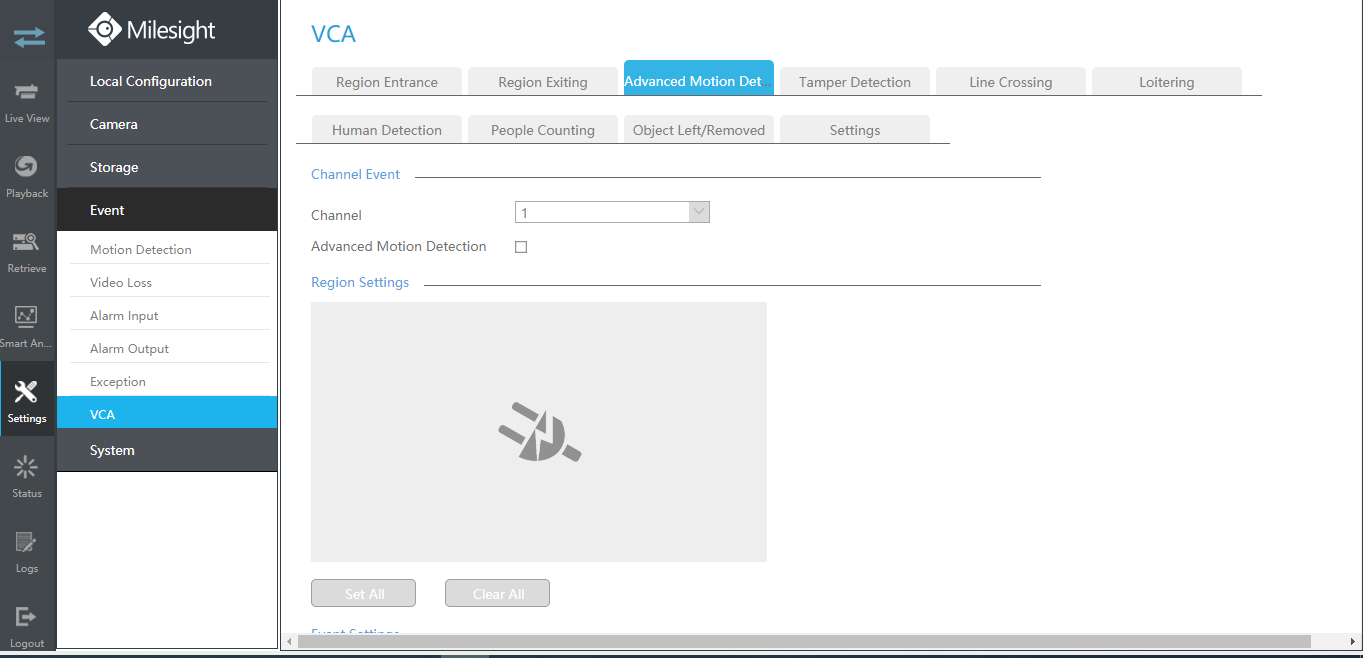
If you encounter above situations, it can be judged that the problem is No Video on NVR Web Page.
2.Cause
2.1Remote Port Mapping Issue
2.2Browser Issues
2.3Settings Issues
2.4Connection Issues
3.Resolution
3.1Remote Port Mapping Issue
7X.9.0.12 (2021/6) or above versions, NVR supports HTTP stream playing. For Plug-in free mode browsers, you only need to port map HTTP stream (Default HTTP port: 80) to watch the live view.
But due to play stream mechanism of IE browser is plug-in mode browser, which is different from plug-in free mode browsers. If you want to play live view on IE browser, you still need to port map the RTSP also.
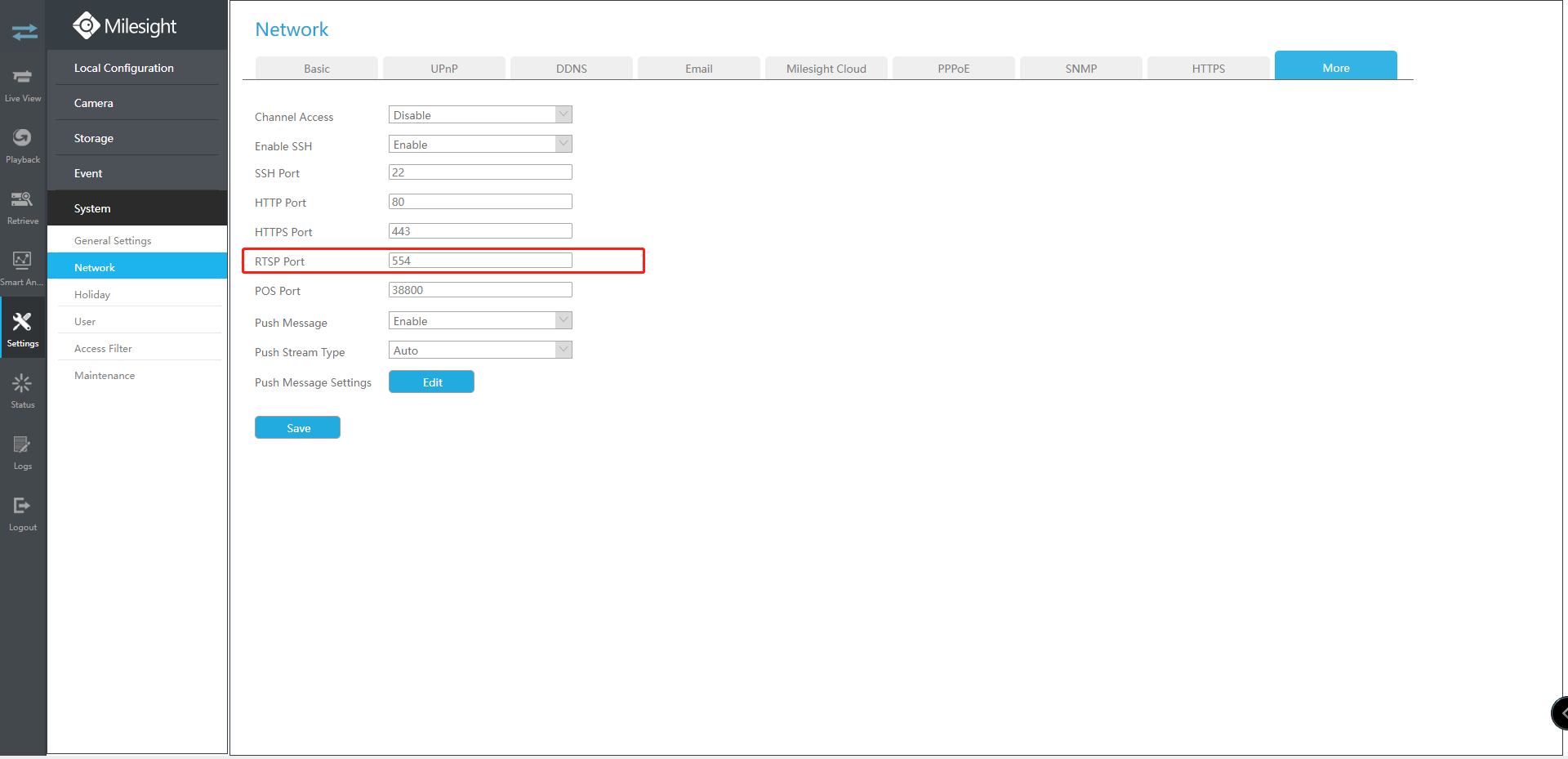
You can check whether the RTSP stream is available on VLC.
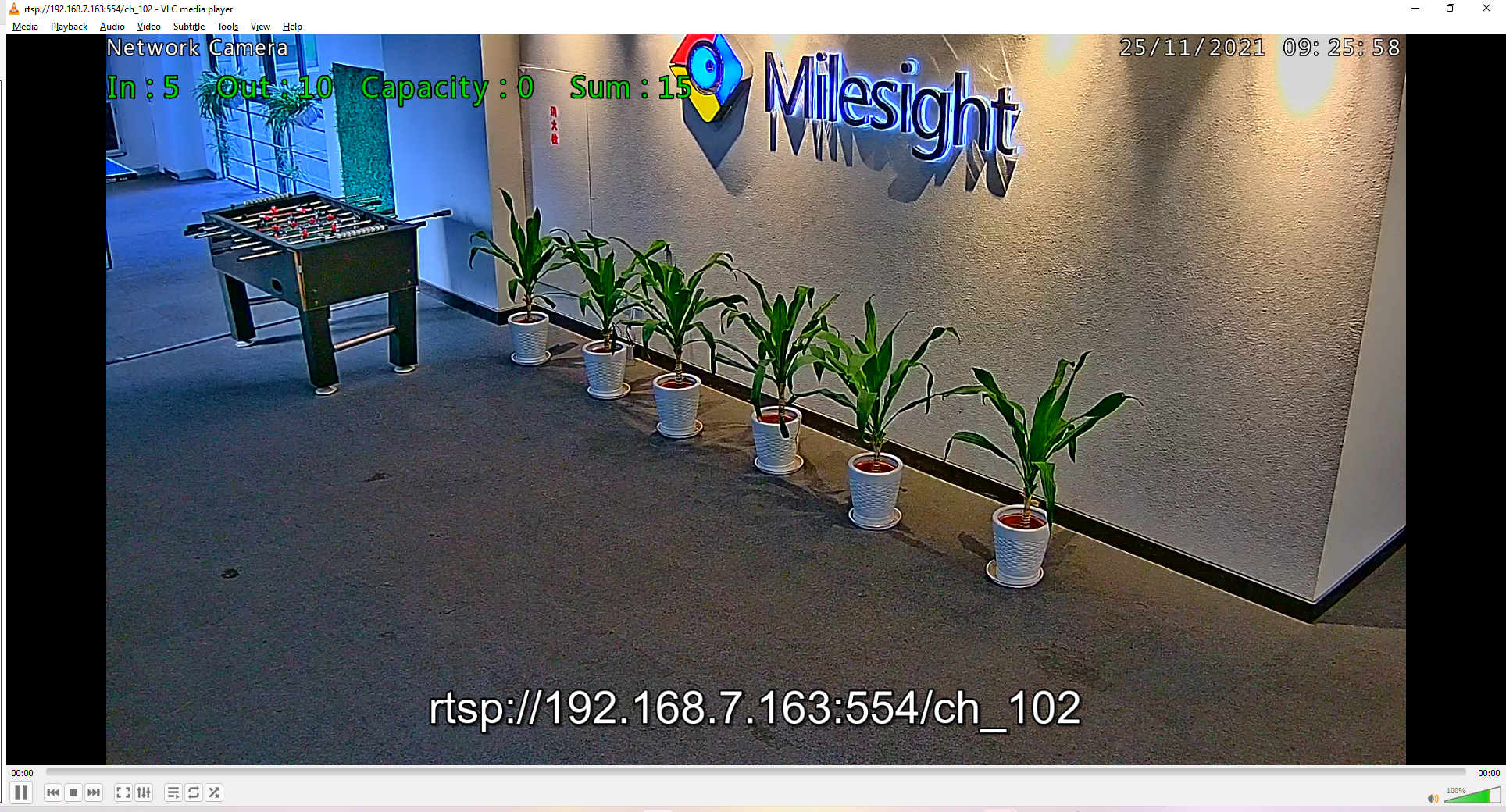
Note:
• Milesight NVR RTSP address:
RTSP formatrtsp://IP:RTSP port/ch_xxx
ch_xxx: The first number of xxx represents stream type, 1 for main stream and 4 for sub stream. The last two represent channel numbers, which start from “00” (“00” means channel 1).
Take “rtsp://192.168.8.179:554/ch_402” as an example: The IP address of NVR is 192.168.8.179.
The RTSP port is 554.
The stream type is sub stream and the channel number is 3.
• Due to RTSP port status cannot be detected by router, generally, the external and internal RTSP port must be the same. For example, if the internal RTSP port is 2554, the external RTSP port need to be 2554, so that the remote view would be normal.
• 7X.9.0.11 (2021/2) or below versions still need to port map HTTP and RTSP port to watch live view on any browsers (Including plug-in mode and plug-in free mode browser.s)
3.2Browser Issues
3.2.1 Plugin-Free mode browser Limitation
7X.9.0.14 (2021/12) has supported Plugin-Free mode browser playing H.265. But 7X.9.0.13 (2021/9) and below versions don’t support.
Plugin-Free mode browser, Such as Chrome, Edge, Firefox, etc.
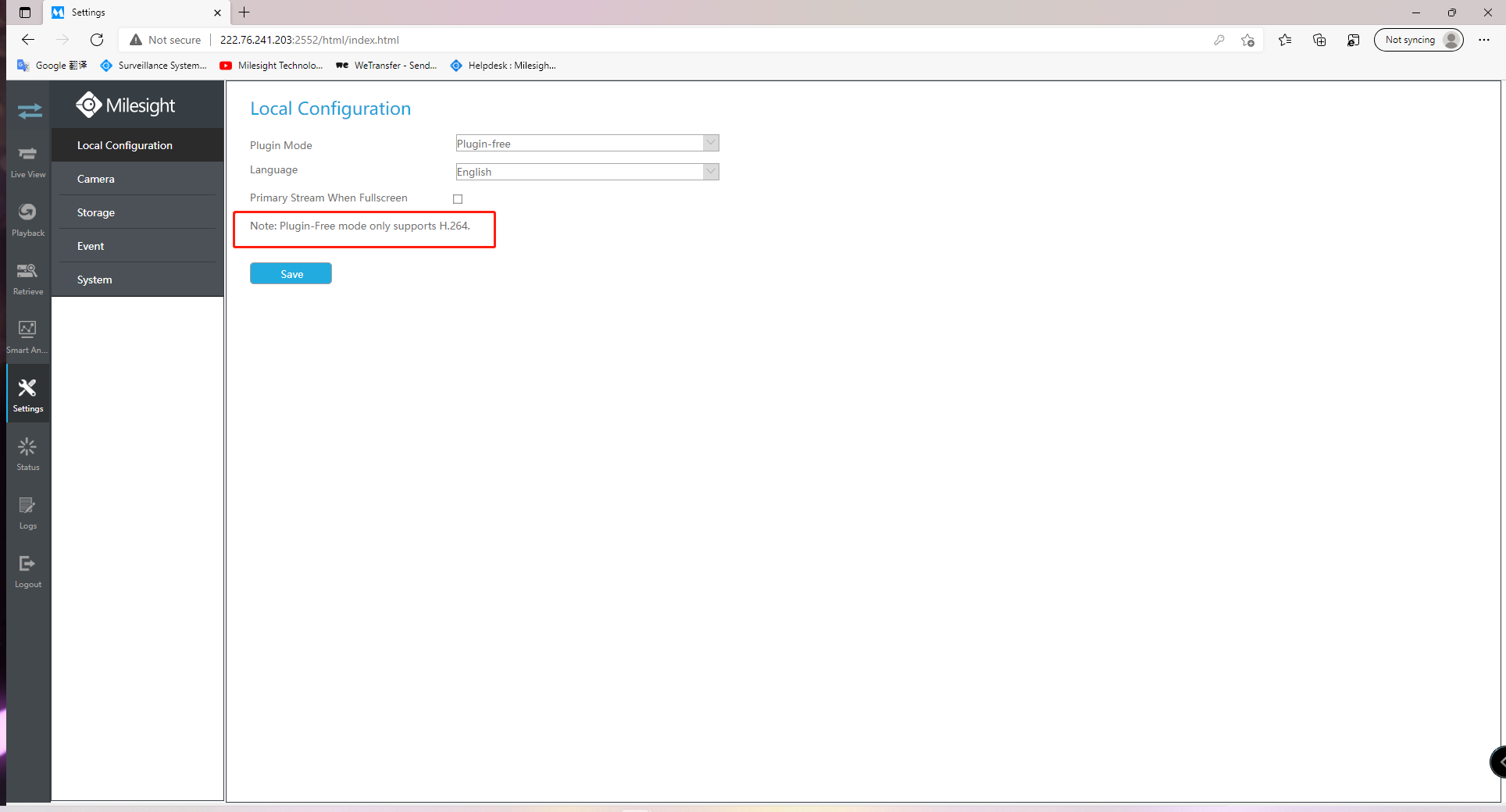
If you play H.265 on NVR live view web page, it will prompt “Plugin-Free mode only supports H.264”.
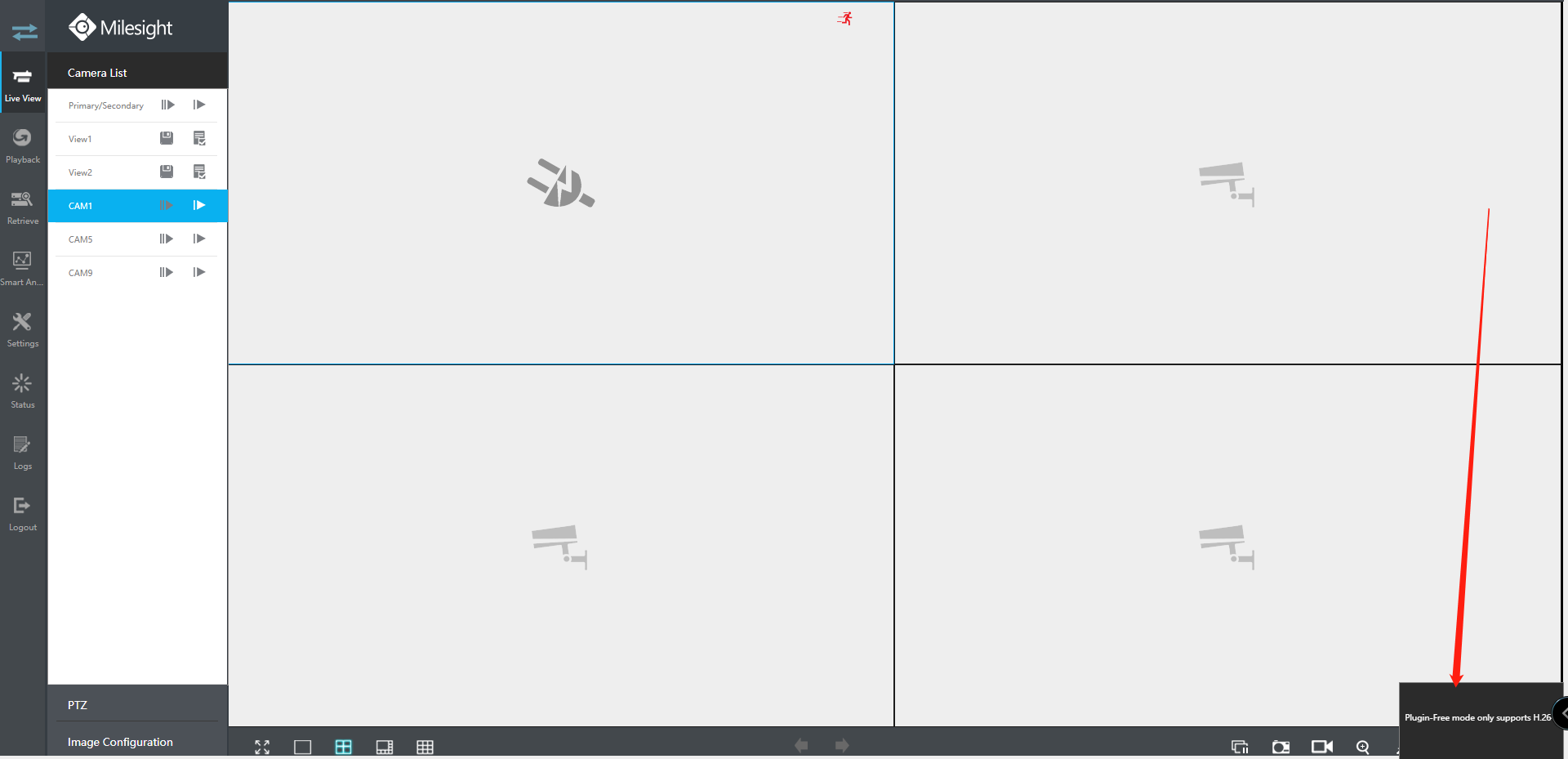
In this case, you can
Solution1: Upgrade the NVR version to 7X.9.0.14 (2021/12) or above versions.
Solution2: Switch to Internet Explorer (Plugin mode browser) to play H.265.
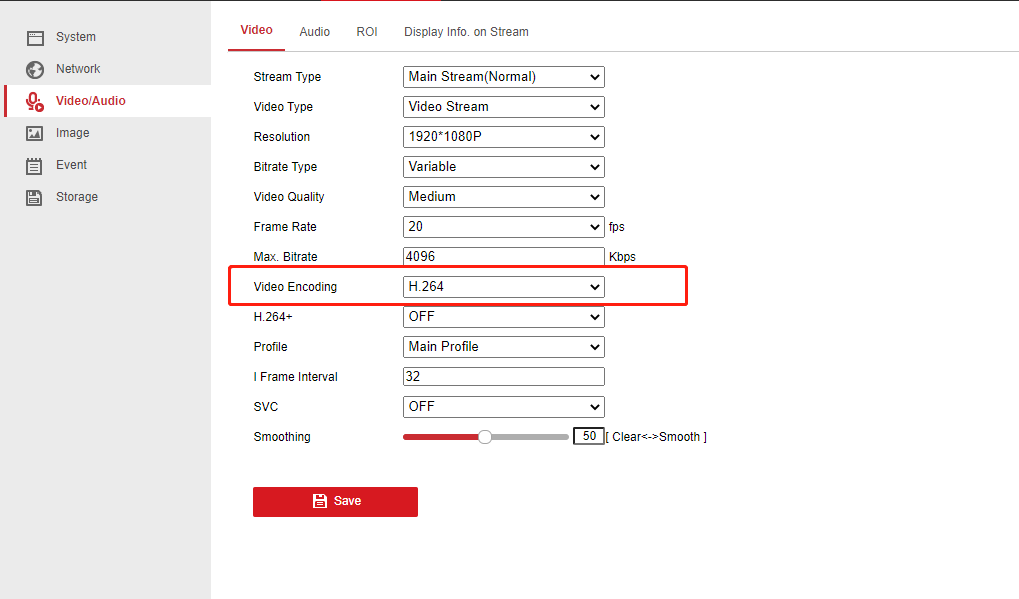
Solution3: Confirm the camera Video Codec is H.264 when you want to play stream on Plugin-Free mode browser.
3.2.2 General Troubleshooting
Sometimes, browser issues also will cause no video problem. You can perform below procedures to solve most of browser issues. Here take Chrome as examples.
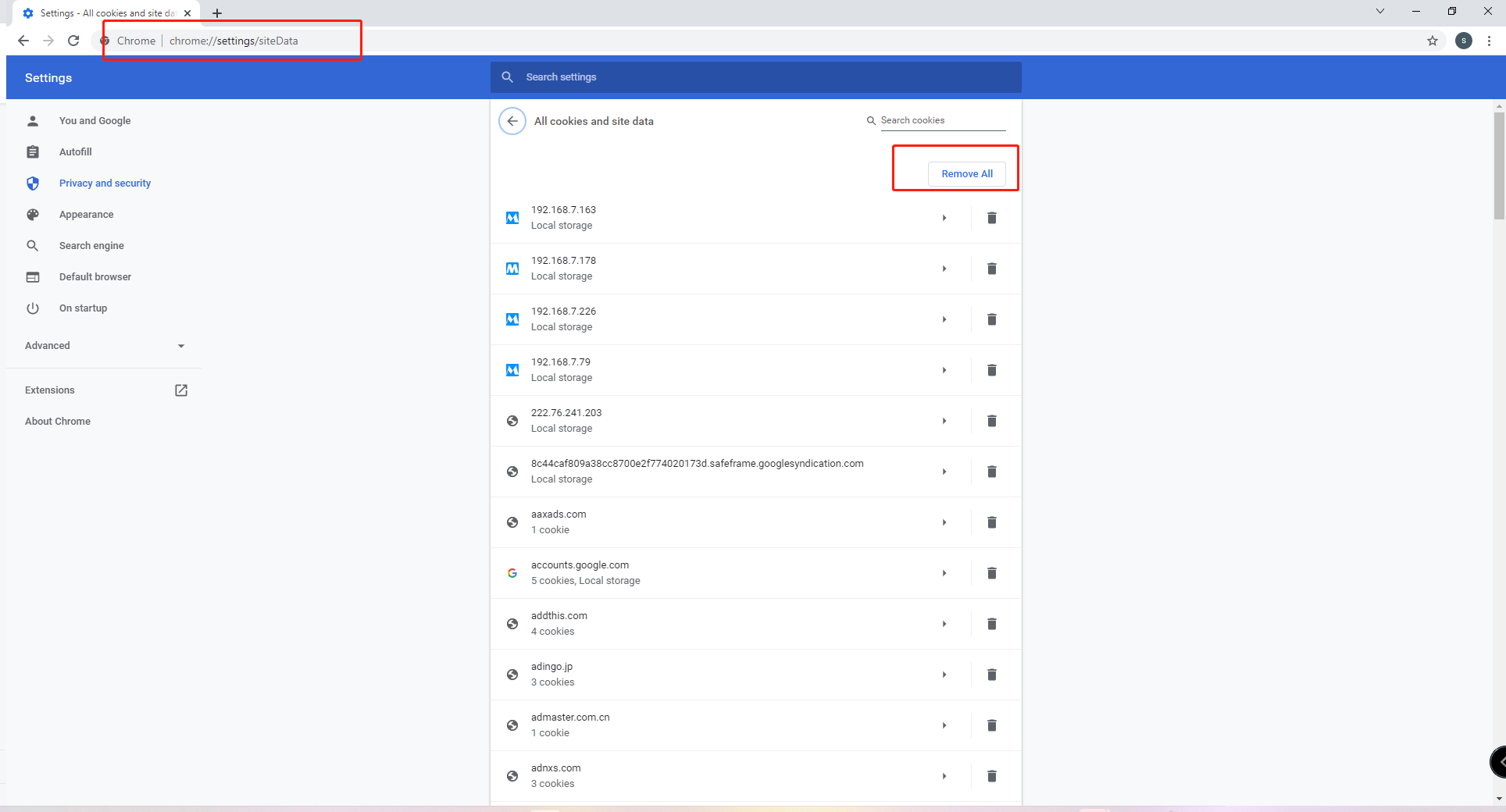
• Clear the browser cache and cookies.
Input “chrome://settings/siteData” in address bar. And then remove all cookies.
• Reset the browser.
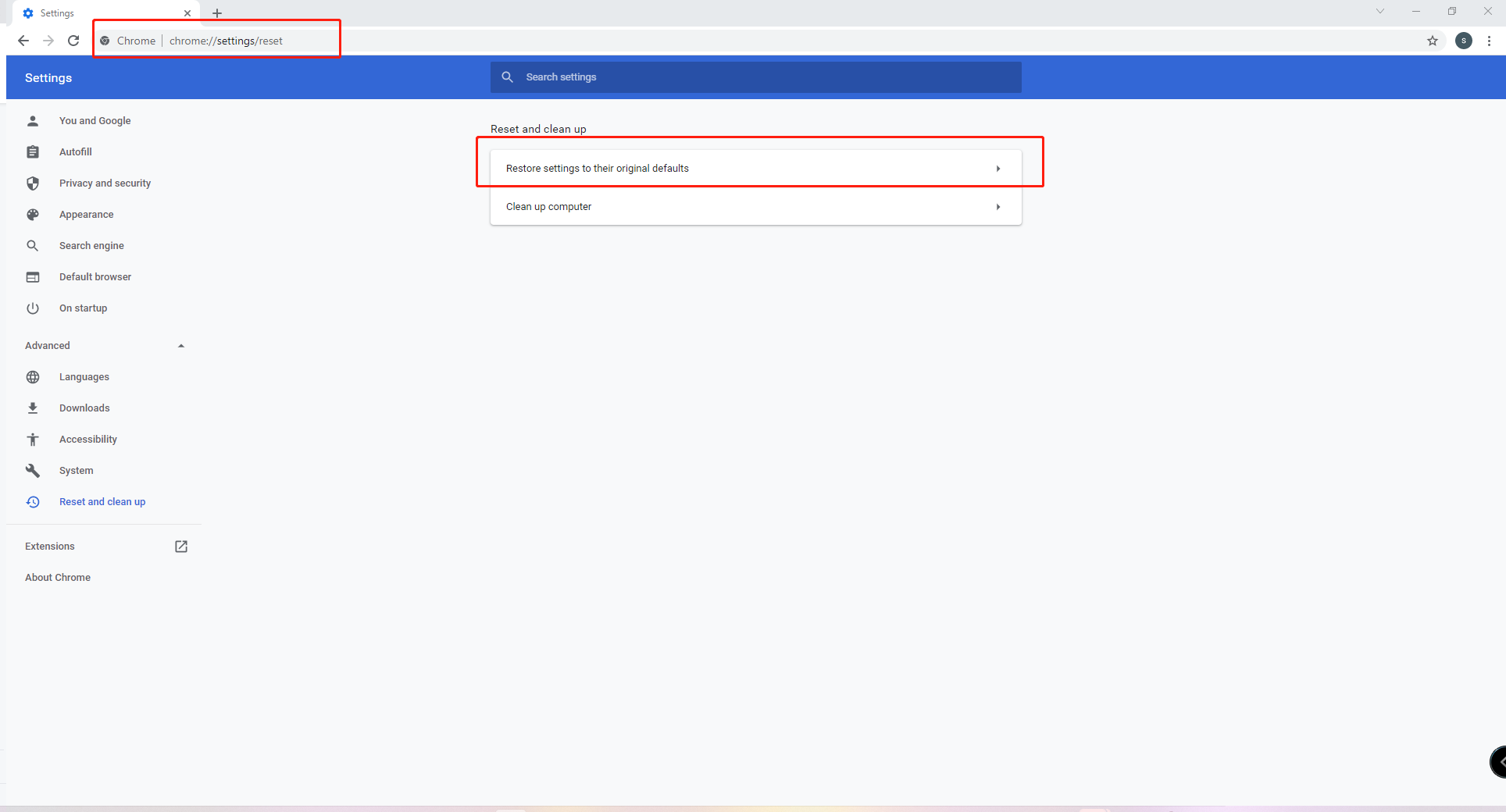
Input “chrome://settings/reset” in address bar. And then restore settings to their original defaults.
• Switch to other browsers. Such as Edge, Firefox, etc.
Note:
Please make sure the plug-in is installed successfully if you use Internet Explorer.
3.3Settings Issue
3.3.1 Third Party Camera Video Codec Type
Generally, we recommend that adding third party camera via H.264. H.264 is always the prime choice to be compatible with ONVIF compliant camera. If the third party camera video Codec type is MJPEG (When adding dual stream, the secondary stream is MJPEG. The secondary stream cannot be played.) , H.265, Smart Stream and so on, it most likely failed to add or play. You can check it on camera web page.
3.4Connection Issue
3.4.1 NVR Forwarding Capability
NVR forwarding limitation also will affect the live view stream playing. You can check whether there are too many Online Users via below path:
Status - Online User
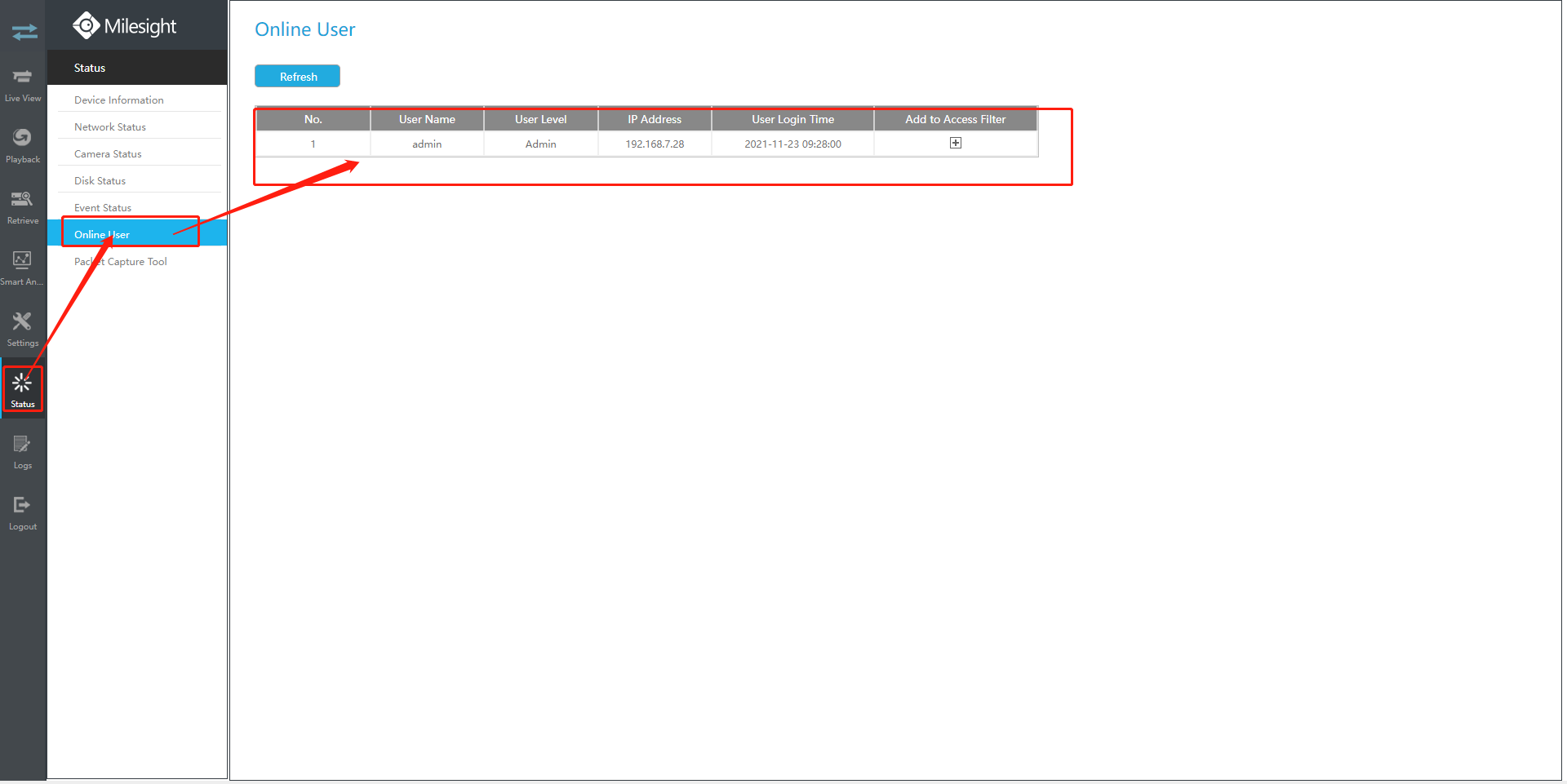
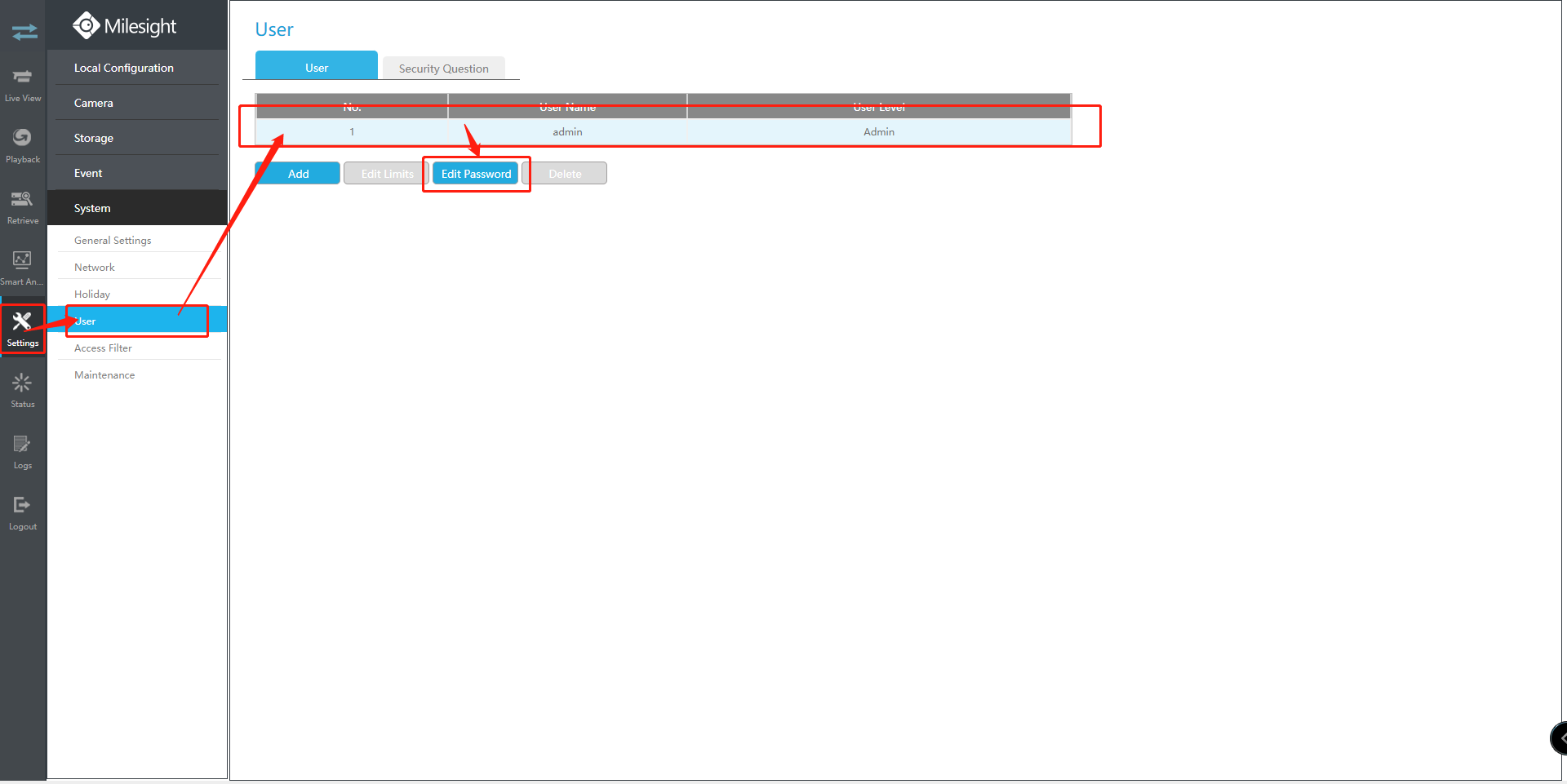
For this kind of problem, you can change the password of the NVR to reduce online users.
Path: Settings - System - User - Select Desired Account - Edit Password
Note:
On NVR side, there are 3 limitations for remote live view:
• Max. Forwarding Single Stream: The Max. Forwarding Single Stream of All series NVR is 16.
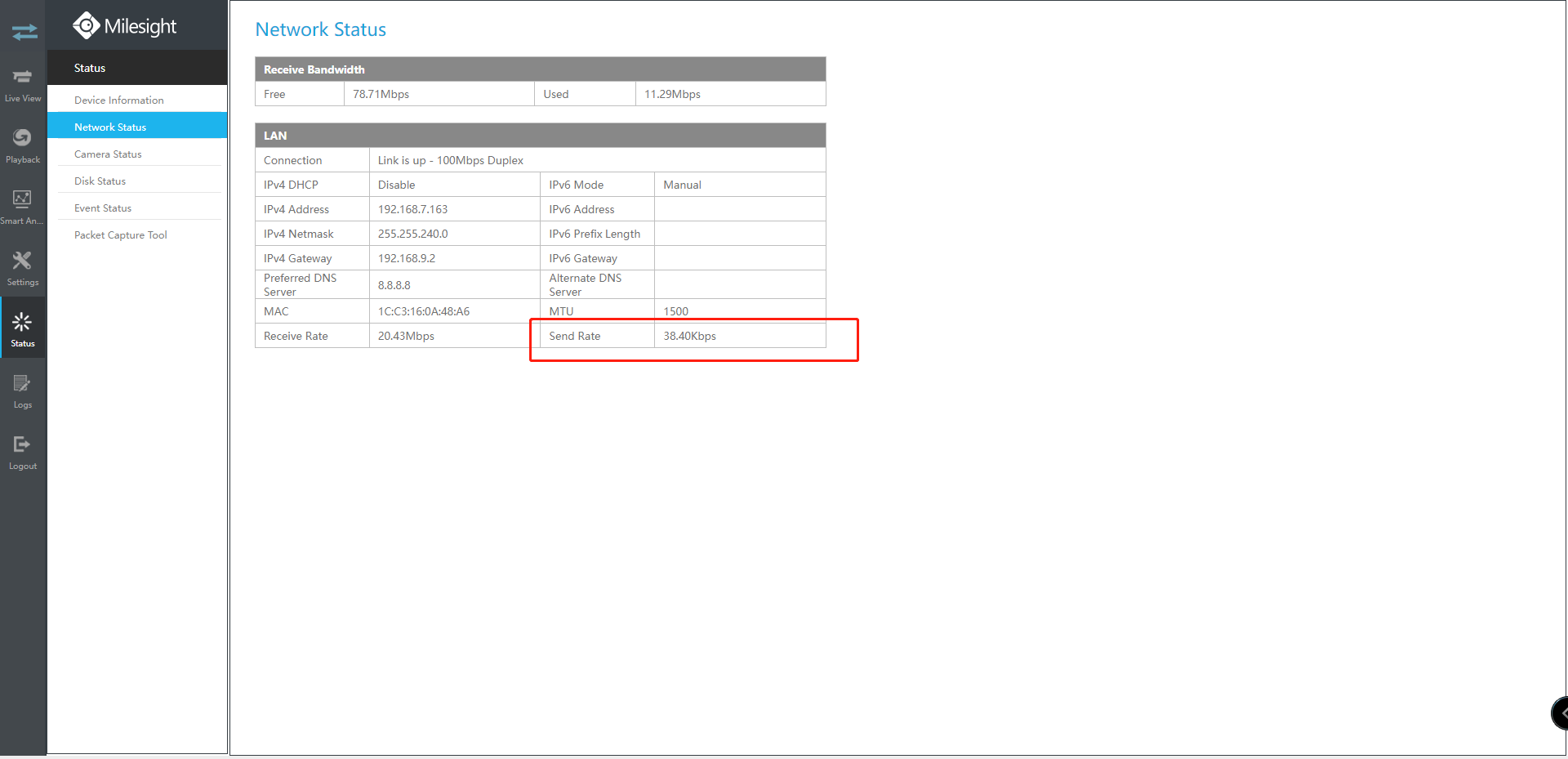
• NVR Outgoing Bandwidth: Different series NVR has different Bandwidth limitations. You can check if send rate is full on the network status page as shown below:
• Max. Forwarding Connection: The Max. Forwarding Connection of All Series NVR is 1024.
For the details, please refer to the following table:
NVR Model | Max. Forwarding Single Stream | Outgoing Bandwidth | Max. Forwarding Connection |
MS-N1004-UPC | 16 | 40Mbps | 1024 |
MS-N1004-UC | |||
MS-N1008-UC | 80Mbps | ||
MS-N1008-UPC | |||
MS-N1009-UPT | 90Mbps | ||
MS-N1009-UT | |||
MS-N1009-UNT | |||
MS-N5008-UPT | 80Mbps | ||
MS-N5008-UT | |||
MS-N5016-UT | 160Mbps | ||
MS-N5016-UPT | |||
MS-N7016-UH | |||
MS-N7016-UPH | |||
MS-N7032-UH | 256Mbps RAID on: 200Mbps | ||
MS-N7032-UPH | |||
MS-N8032-UH | |||
MS-N8064-UH | 256Mbps RAID on: 200Mbps |
Table 4.1 Forwarding Conditions
For more details, you can refer to article <Milesight-Troubleshooting NVR Capabilities>.
3.4.2 Poor Network Status
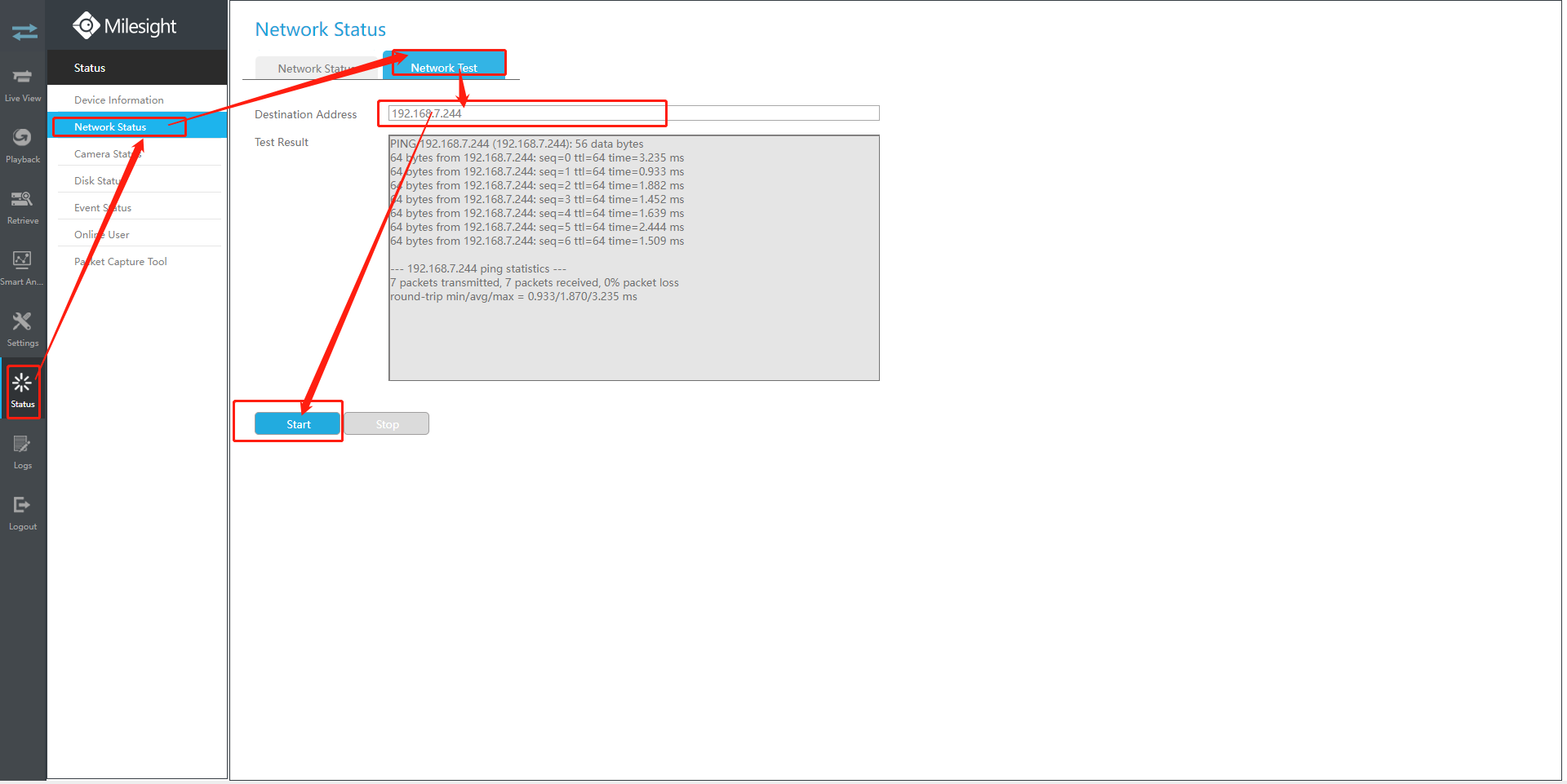
The no video problem also will happen when the network status is poor. You can check it on NVR web page.
Note:
Only 7X.9.0.13 (2021/9) or above versions have such function.
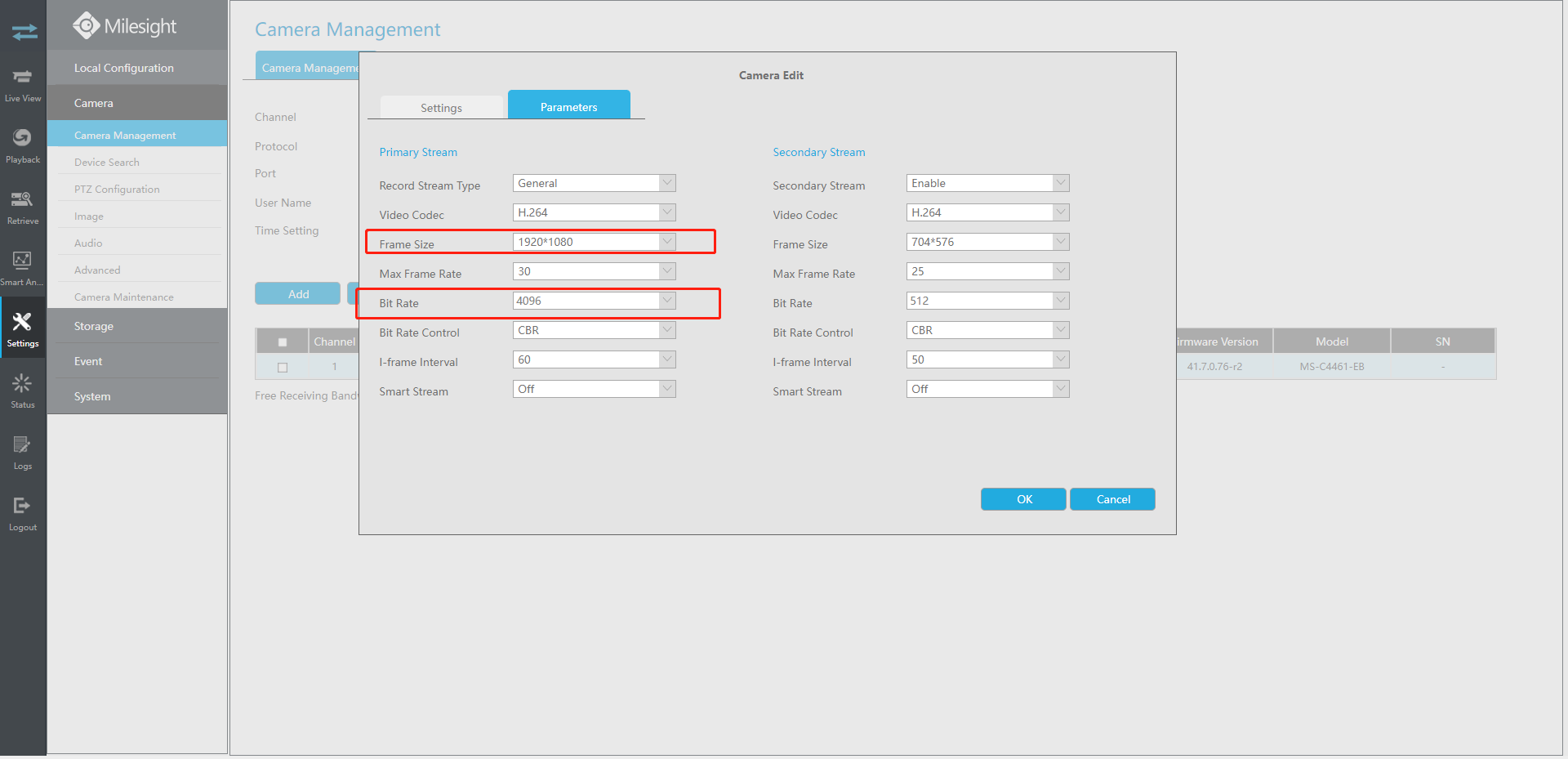
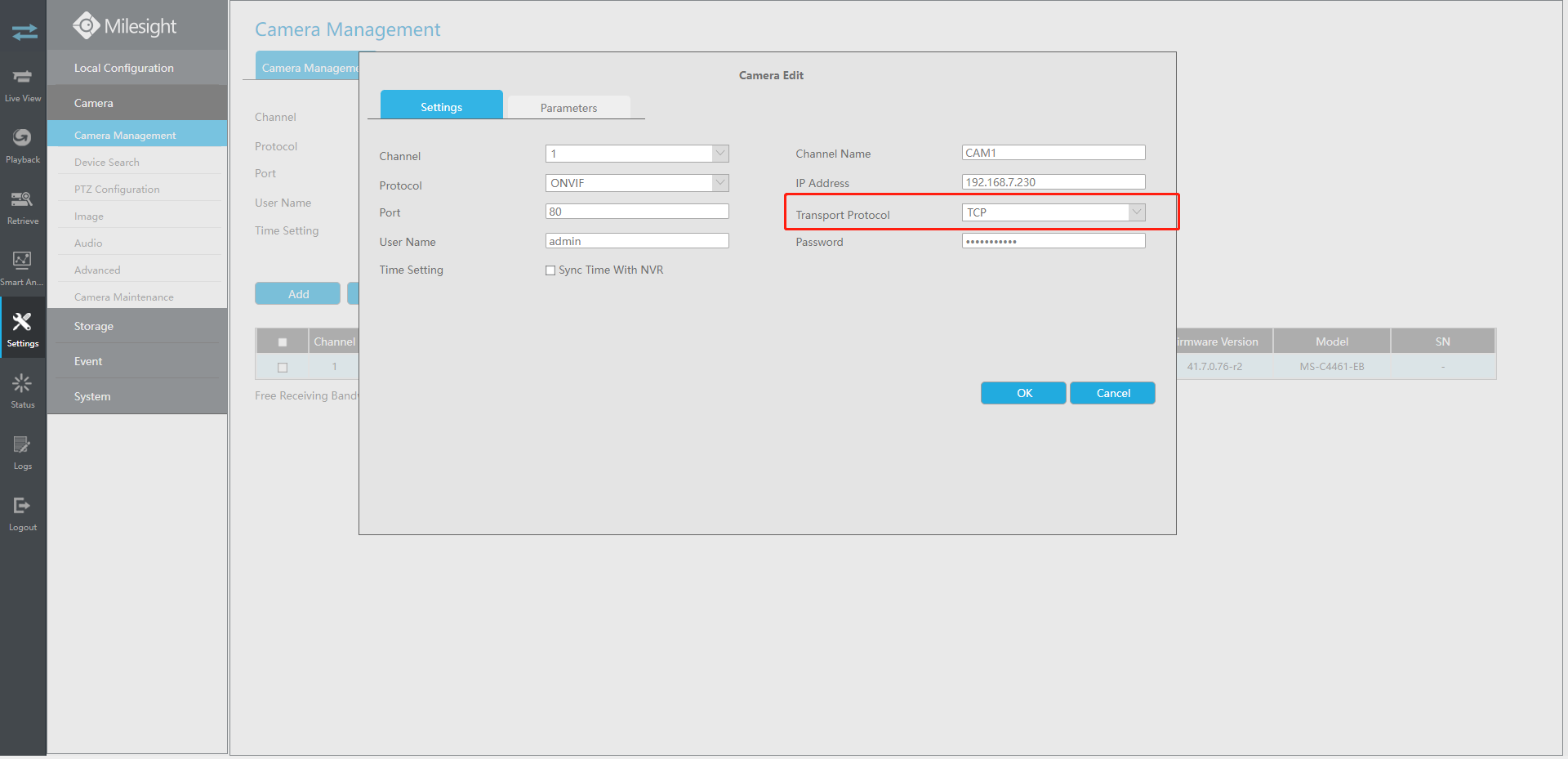
In this case, you can decrease the parameters of camera, such as Bit Rate, Frame Size, and switch the Transport Type to TCP, to check if the live view is normal.
3.4.3 Security/Anti-virus program
If above resolutions do not resolve the problem, you can check if the Security/Anti-virus program is running in background.
Try to close the Security/Anti-virus program, such as Kaspersky, to test if the problem is solved.
4.Others
4.1It always prompt “Click here to download and install the plug in manually”, even I’ve installed the plug-in several times.
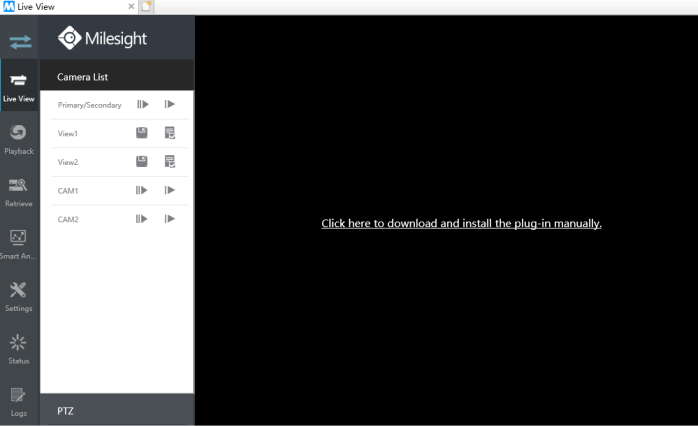
Cause: IE browser version 20H2 has some compatibility issues with Milesight NVR version 7X.9.0.11.
Resolution 1: Upgrade the NVR version to 7X.9.0.12 (2021/6) or above.
Resolution 2: Reset the Browser.
4.2NVR cannot play live view on Google Chrome version 87.0.4280.141 (2021/1).
Cause: Chrome block the 554 port in this version 87.0.4280.141 (2021/1).
Resolution 1: Upgrade to version 7X.9.0.11 (2021/2)
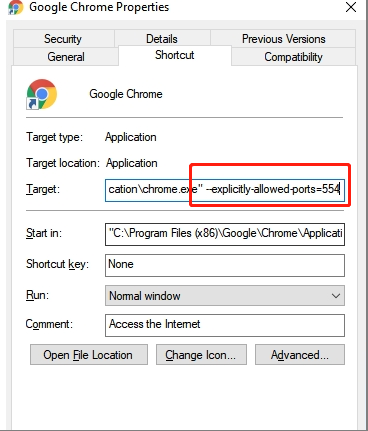
Resolution 2: Add 554 port as trusted port.
Path: Right Click the Chrome icon - Shortcut - Target - Input “--explicitly-allowed-ports=554”
4.3Safari cannot watch Live view even the video Codec is H.264. MAC version 11.3, Safari version 14.1 (2021/5). But other browsers are normal.
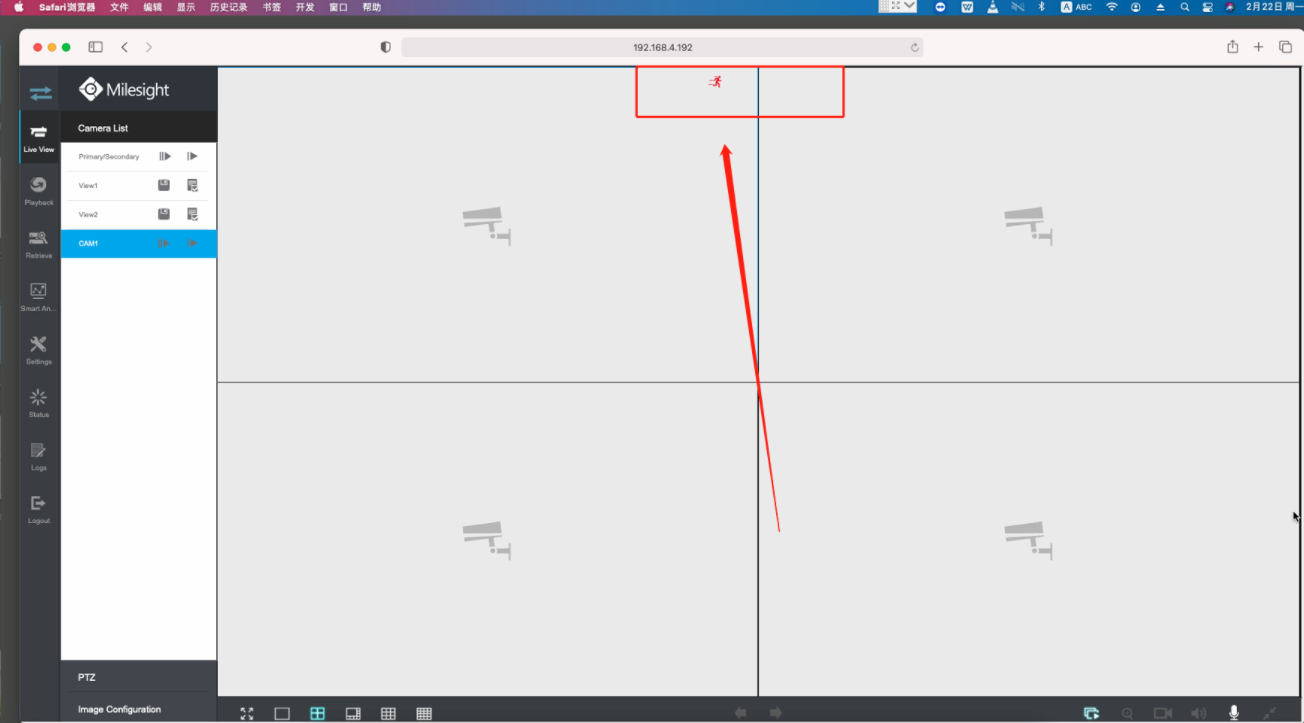
Cause: Safari version compatibility issue.
Resolution: Upgrade to NVR version 7X.9.0.12 (2021/6).
4.4After saving the Local Configuration, it cannot watch live view on Plugin-Free mode browser. NVR version is 7X.9.0.11.
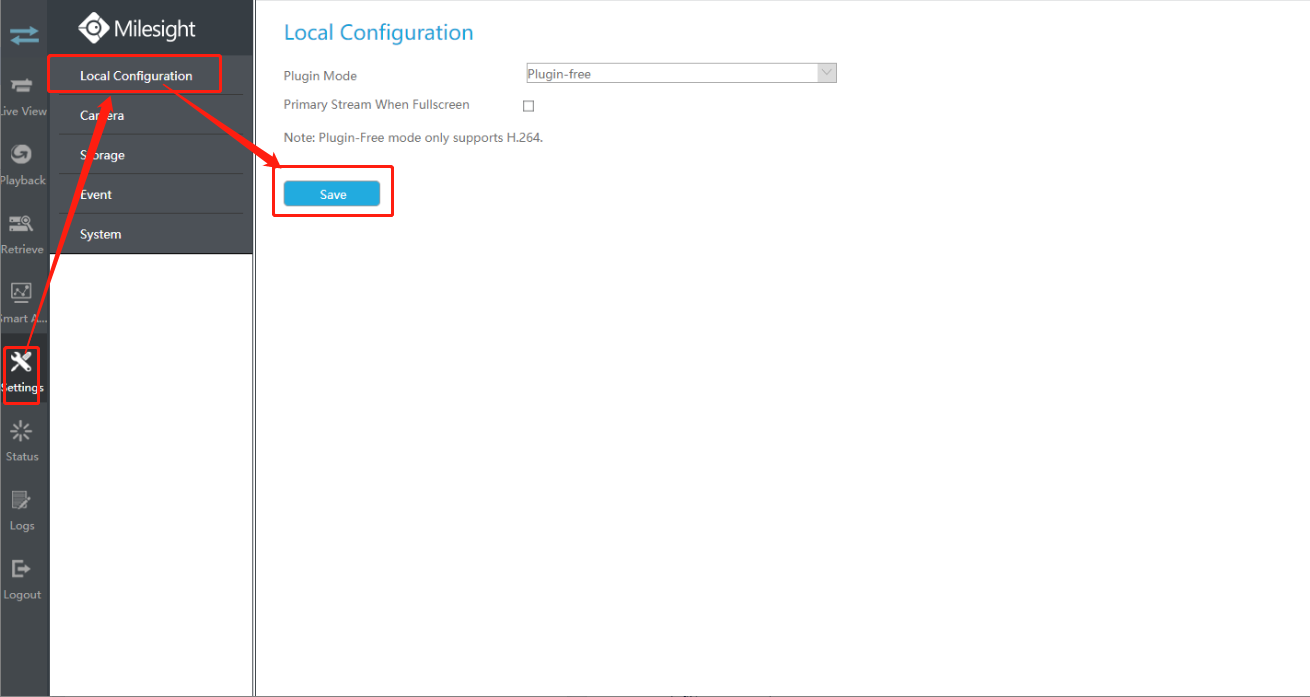
Cause: Plugin-Free mode compatibility issue in 7X.9.0.11.
Resolution 1: Upgrade to version 7X.9.0.12 (2021/6).
Resolution 2: Clear the browser cookies.
4.5Remote view cannot play stream on Plug-in free mode browser. Such as Edge, Chrome, etc. The NVR version is 7X.9.0.13.
Cause: NVR http port of streaming is obtained from UPnP external port.
Resolution 1: Upgrade to version 7X.9.0.14 (2021/12)
Resolution 2: Set the same internal and external ports
Resolution 3: Enable UPnP function.