
NVR Version | XX.9.0.1 | Update | 2018.10.9 |
NVR Version | XX.9.0.19-r3 | Update | 2025.2.19 |
1. What is Email function?
Email function can be configured to send an email notification to all designated receivers if an Event is detected, e.g., Motion Detection, Video Loss, etc.
2. How to set up Email ?
There are three steps to complete the setting.
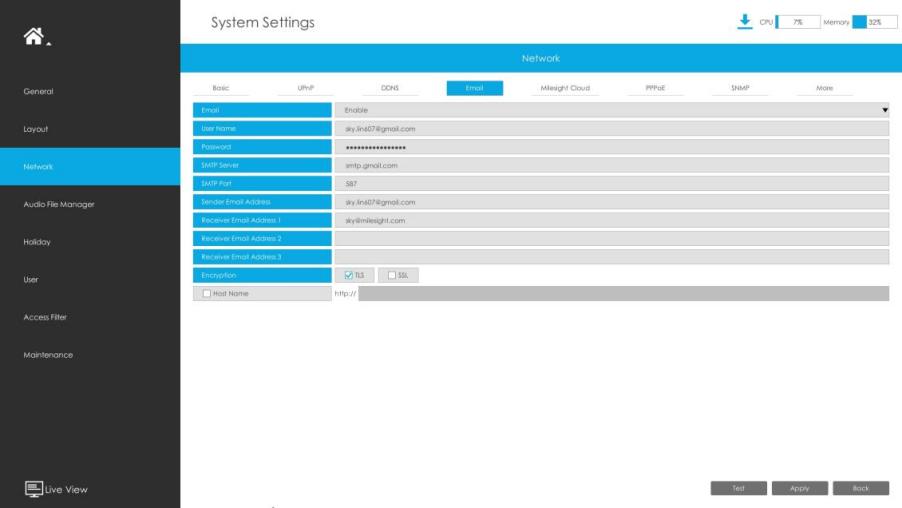
Step1: Go to“Email”,then input some information about Email.
On Monitor:“Settings”→“Network”→“Email”
On Webpage: “Settings”→“System”→“Network”→“Email”
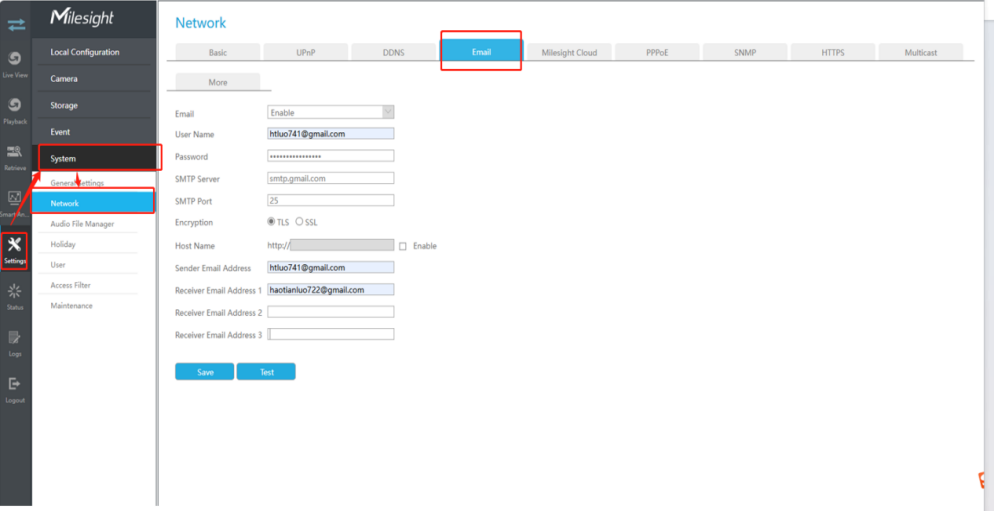
Description of the buttons:
Parameters | Function Introduction |
User Name | The E-mail address you choose to send emails. Please input full email address into it |
Password | The password of the E-mail |
SMTP Server | The SMTP Server of your E-mail |
SMTP Port | The port of SMTP Server, it’s usually 25 |
Sender | Named by yourself for the Sender’s E-mail |
Sender Email Address | It must be same as [User name] |
Select Receiver | You can have 3 receivers at most |
Receiver | Named by yourself for the Receiver’s E-mail |
Receiver Email Address | E-mail Address for the receivers |
Encryption | Security Protocol of email sending, including TLS and SSL |
Host Name | It will be attached in the email |
Note: The SMTP server address, port and other information of common mail:
User name | Server Address | Server Port | SSL | TLS | |
Gmail | ABC (@gmail.com) | smtp.gmail.com | 25/587 | 465 | 25/587 |
Yahoo | ABC (@yahoo.com) | smtp.mail.yahoo.com | 587 | 465 | 587 |
Hotmail | ABC@live.com | smtp.live.com | 25/587 | × | 25/587 |
163 | ABC (@163.com) | smtp.163.com | 25 | 465/587 | 25 |
126 | ABC (@126.com) | smtp.126.com | 25 | 465/587 | 25 |
yeah | ABC (@yeah.com) | smtp.yeah.net | 25 | 465/587 | 25 |
sohu | ABC (@sohu.com) | smtp.sohu.com | 25 | 465 | 25 |
sina | ABC (@sina.com) | smtp.sina.com smtp.sina.com.cn | 25/587 | 465 | 25/587 |
ABC (@qq.com) | smtp.qq.com | 25/587 | 465 | 25/587 |
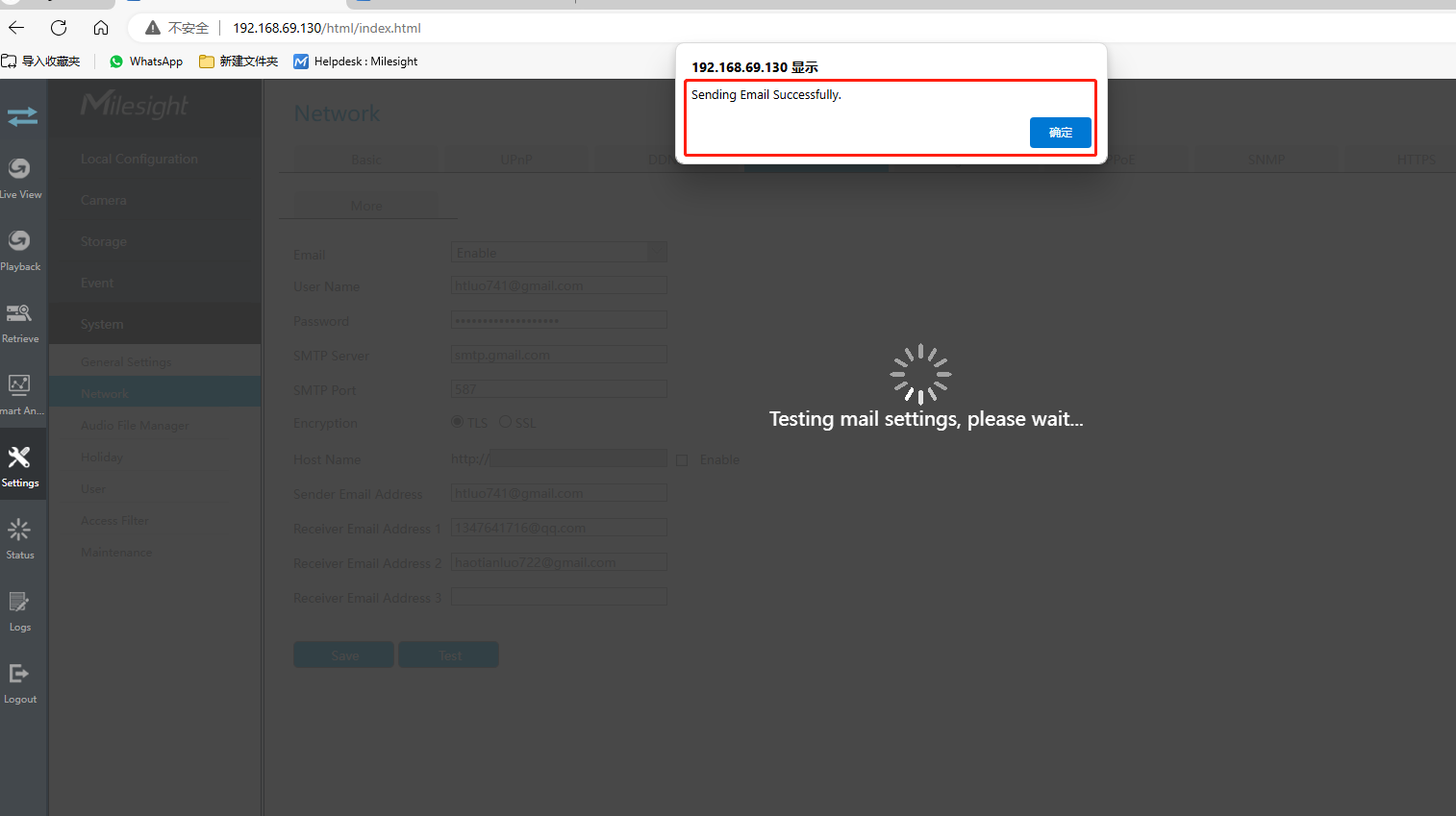
Step2:Click the “TEST”button to test if the Email setting is successful.
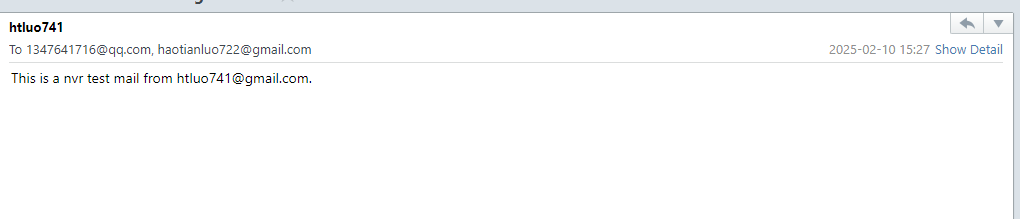
• If there is a “Send Email Successfully” prompt and receiving a TEST Mail, it shows that Email has been set successfully and you can take the next step .
Note:
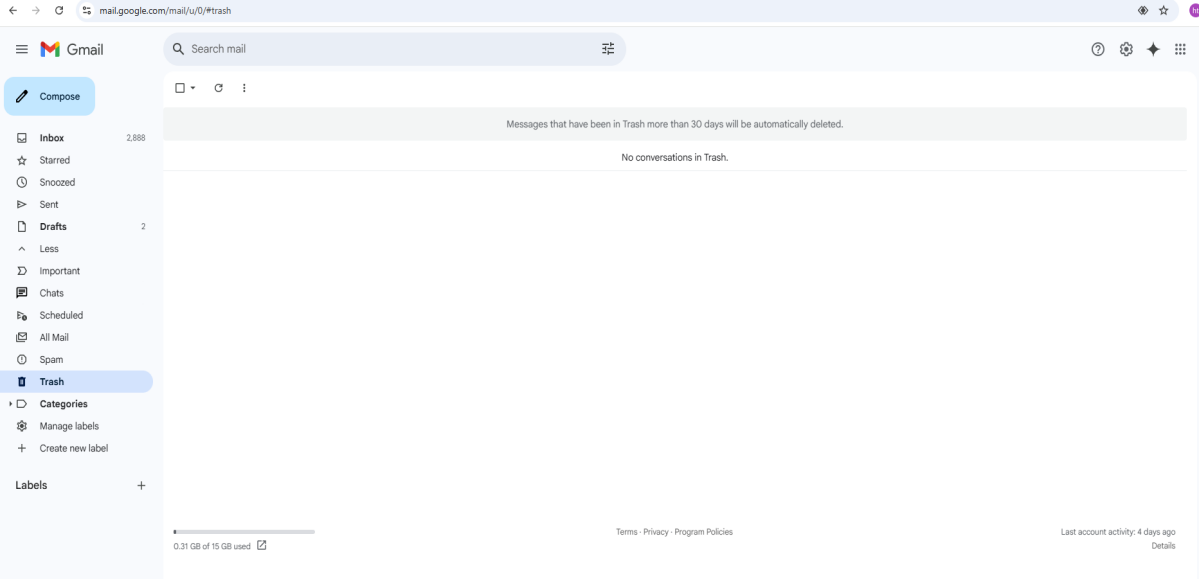
If there is a “Send Email Successfully” prompt but do not receive a TEST Mail, please check the Trash to see if it is recognized as spam mail.
If there is “Fail to send email”or other prompts, you need to do the following steps to troubleshoot.
a. Check if all the information you filled in is correct.
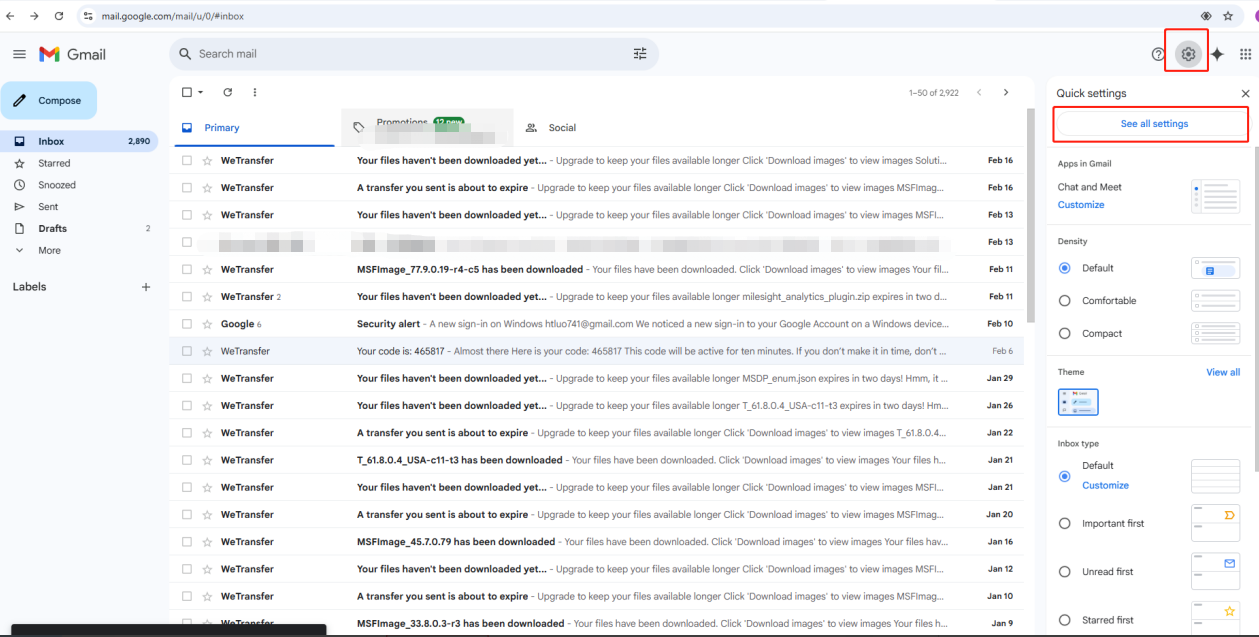
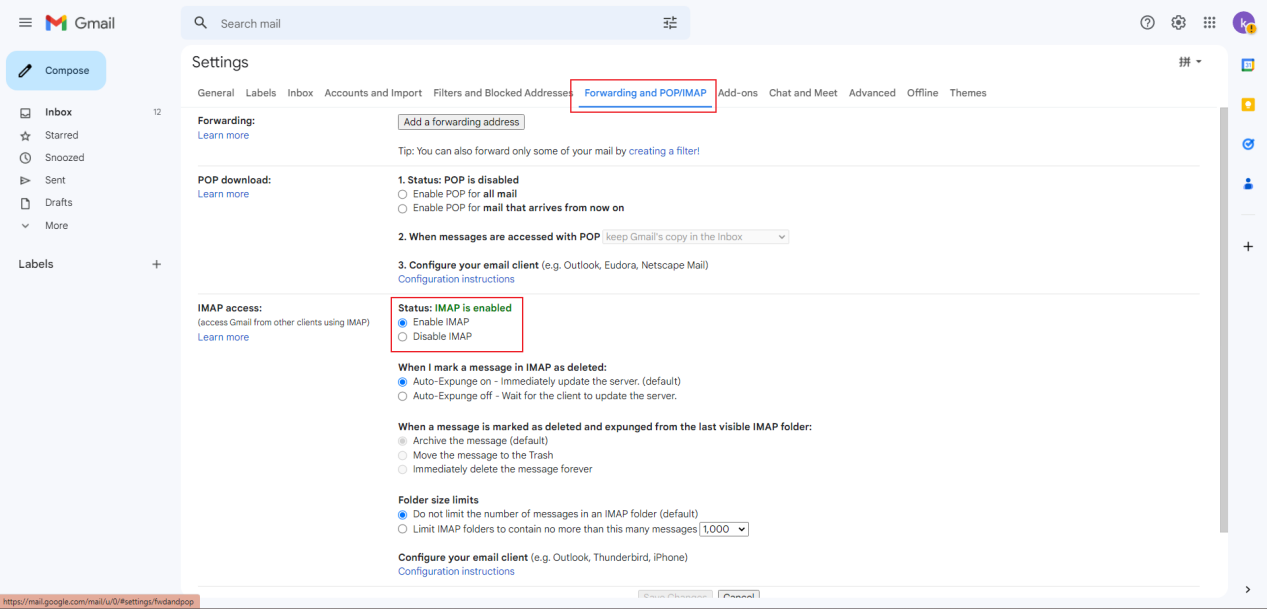
b. Check if the Email enables IMAP.
c. Check if there is a special password you need to use on Email settings.
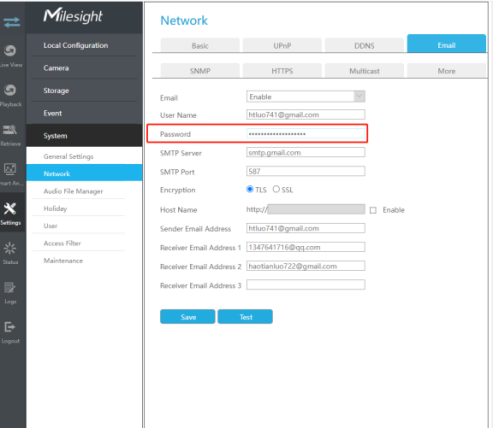
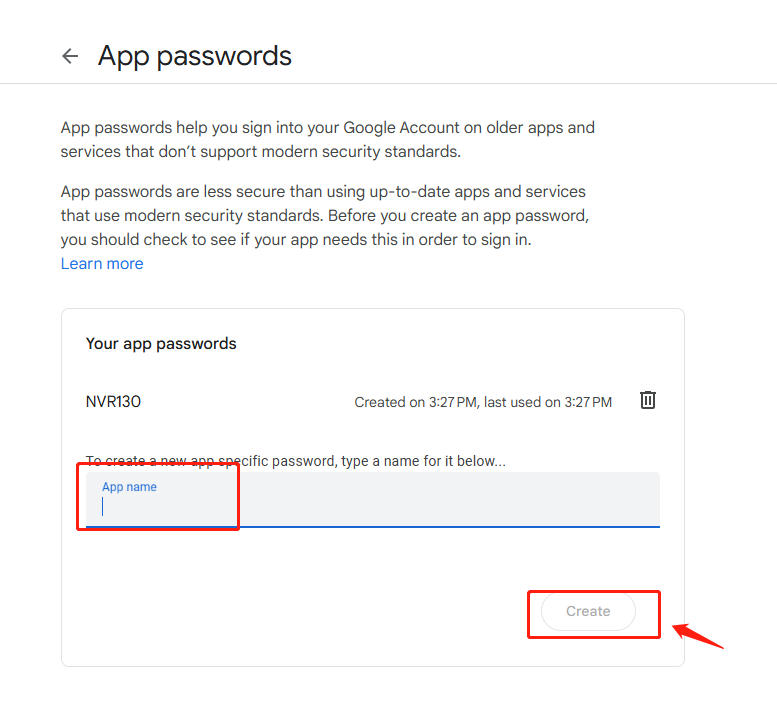
Note: Please note that this password needs to be created as an app-specific password based on the selected email and is not the email login password.
For example, if you are using a Gmail, you have to create a APP password :
a.Please turn on the 【2-Step Verification】via this link:
https://support.google.com/accounts/answer/185839?hl=en&co=GENIE.Platform%3DAndroid
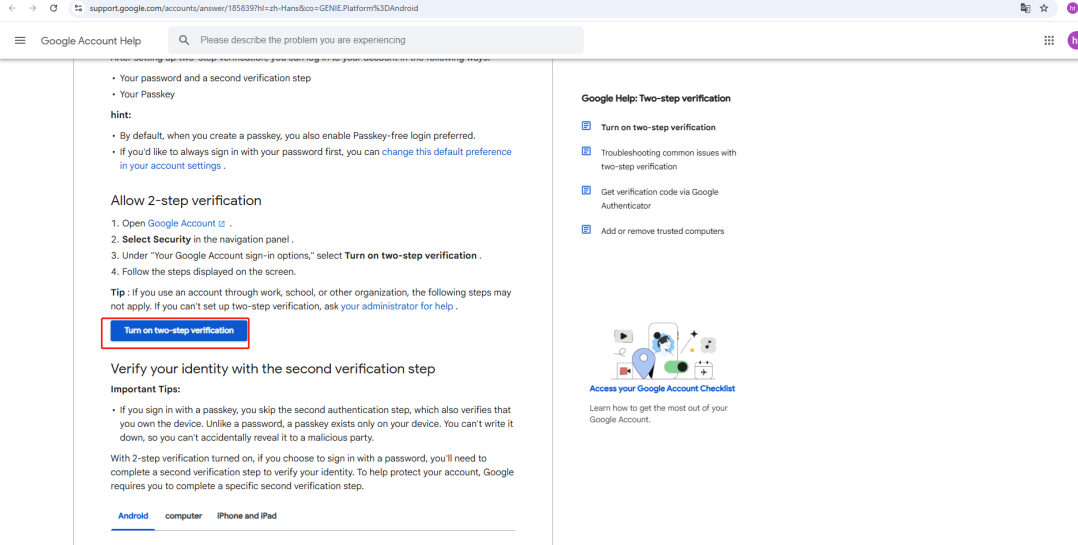
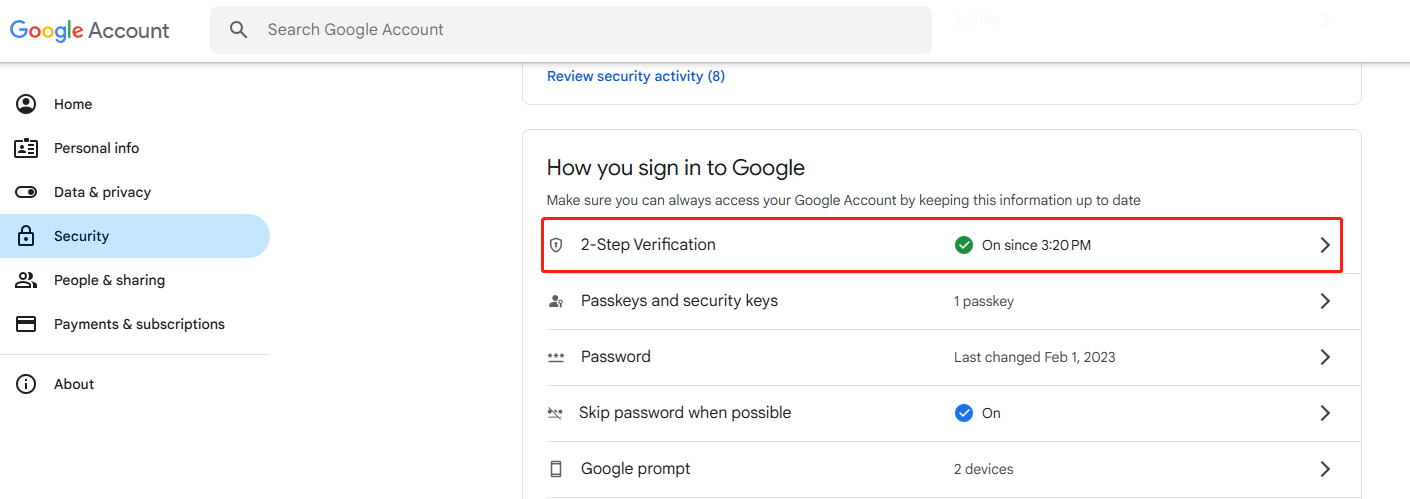
Then,log in your Google account to check whether 2-step verification is enable via this link:
https://myaccount.google.com/security
b.Create an APP password via this link:
https://myaccount.google.com/u/6/apppasswords?gar=1
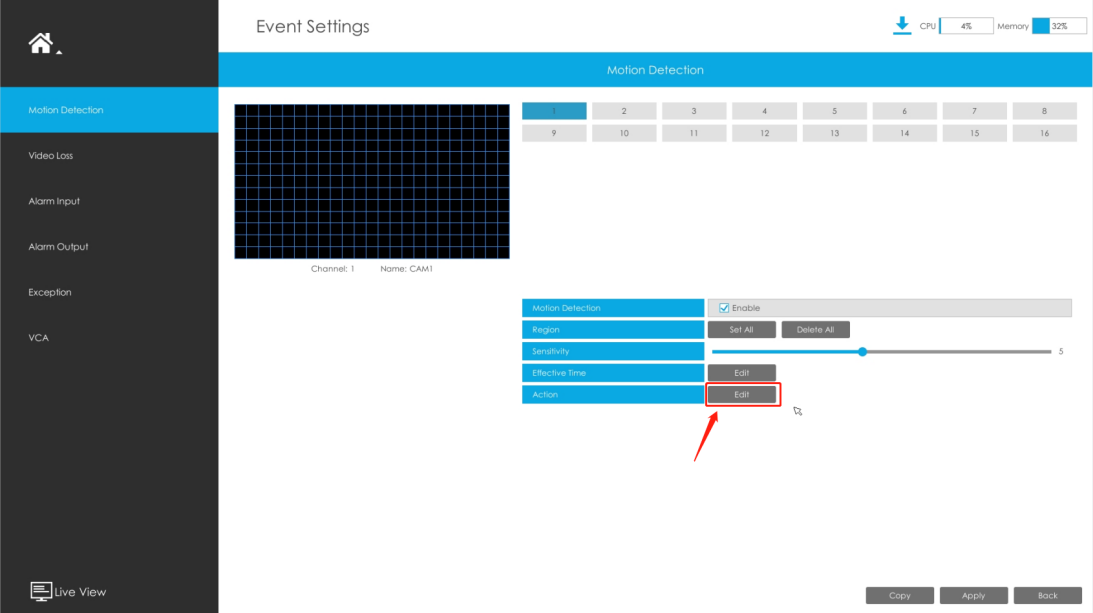
Step3: After Email setting, you can use it in Events. Take Motion Detection as an example.
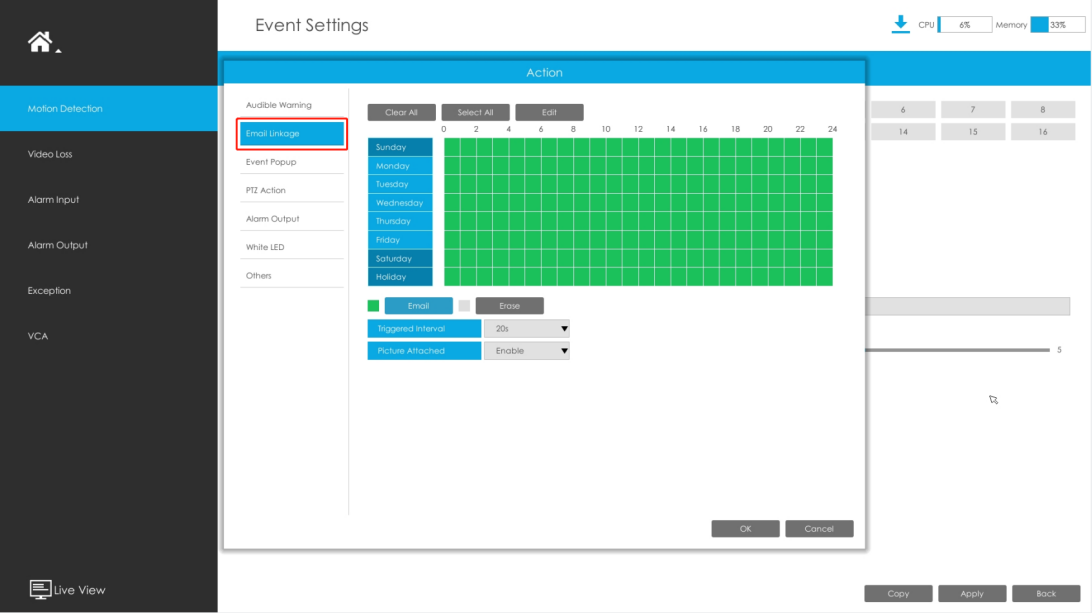
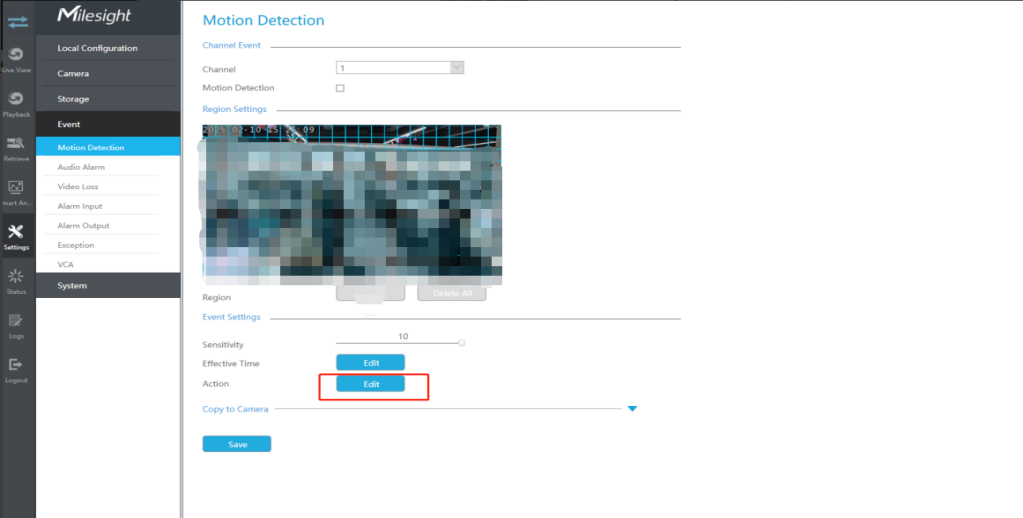
Enables the Motion Detection and set the Motion region and schedule first, then click “Action”to schedule “Email Linkage” and save the setting.
On Monitor:
On Webpage:
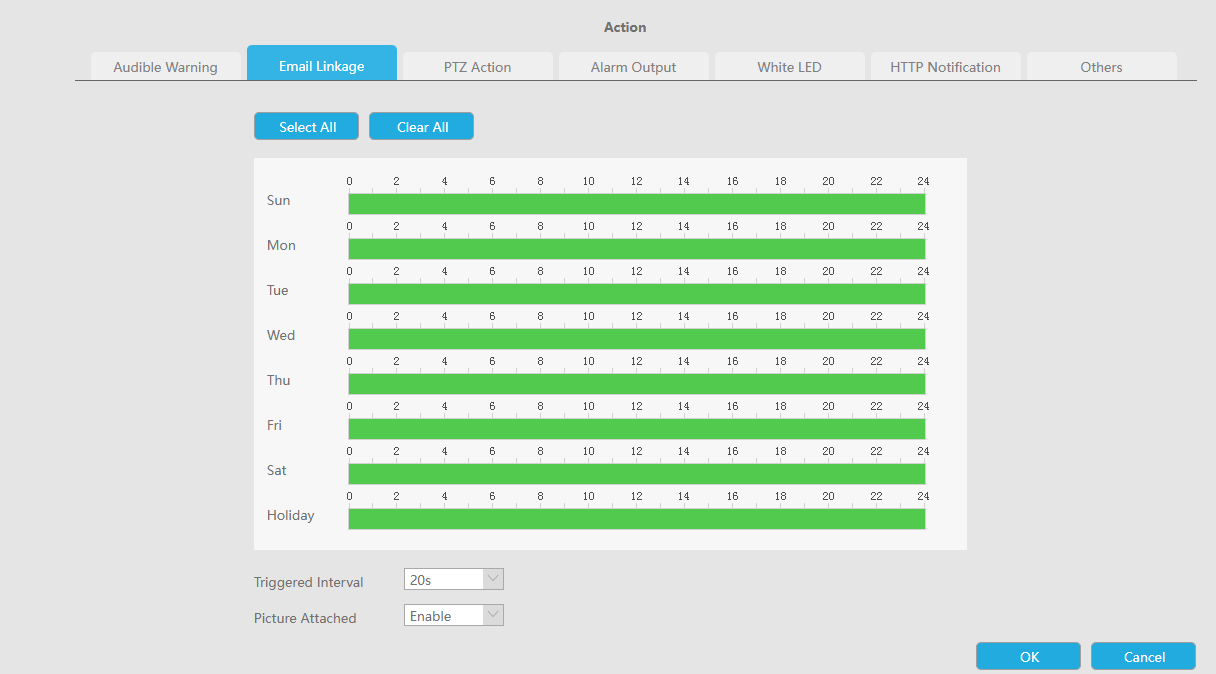
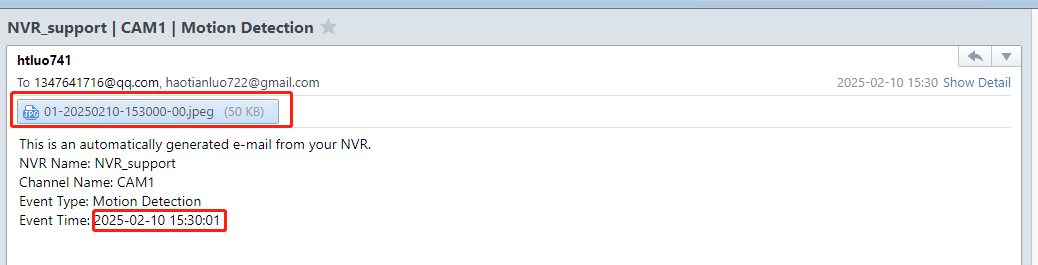
After setting motion detection and alarm action successfully, when the motion detection is triggered, you will receive an Email and the detail as follows.
Note: The Email setting of other Events is the same as above.
If you have any questions or need further clarification about this feature, please feel free to contact us at our support email (support@milesight.com).
-END-