
NVR Version | XX.9.0.10 or above | Update | 2021.3.15 |
1. Introduction
Smart Search function allows to draw a specific region in the playback interface and search out all relevant motion events within the region. So the motion in different time period can be displayed in a high-effective way.
Note: Ensure that your camera’s version is 4X.7.0.76 or above. Only the Milesight camera can use this feature.
2. How to use Smart Search
Totally, NVR has two interfaces to enable this function:
2.1 Local Monitor
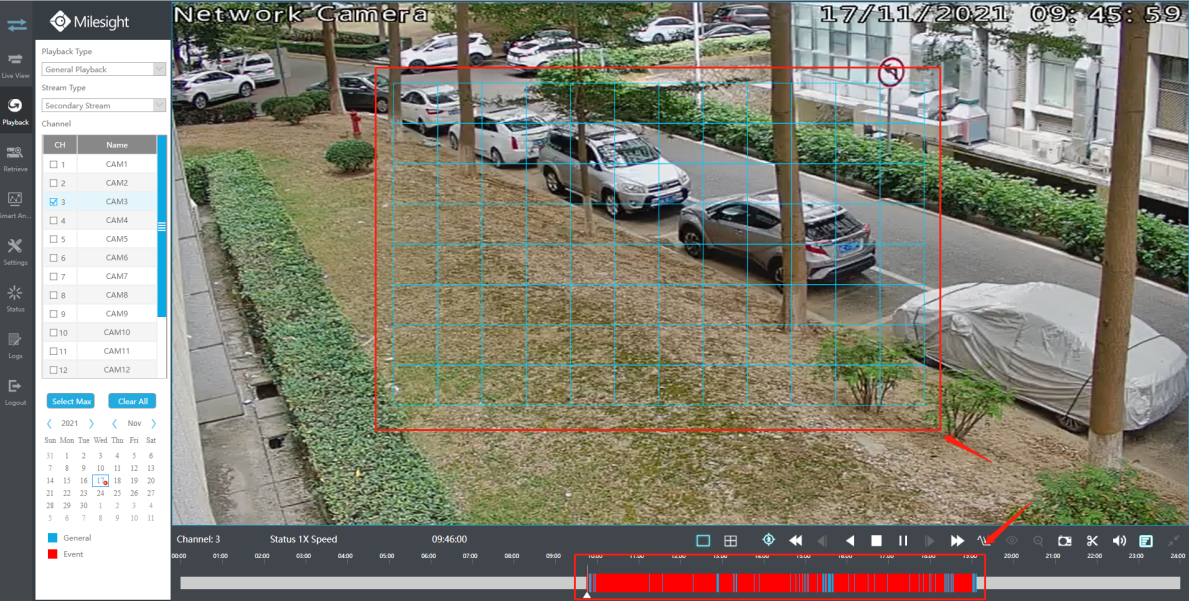
Path: “Playback” -> Select “General Playback” and desired channel -> Click “Smart Search” -> Draw a target area -> Playback will quickly jump to all the relevant motion events within the area.
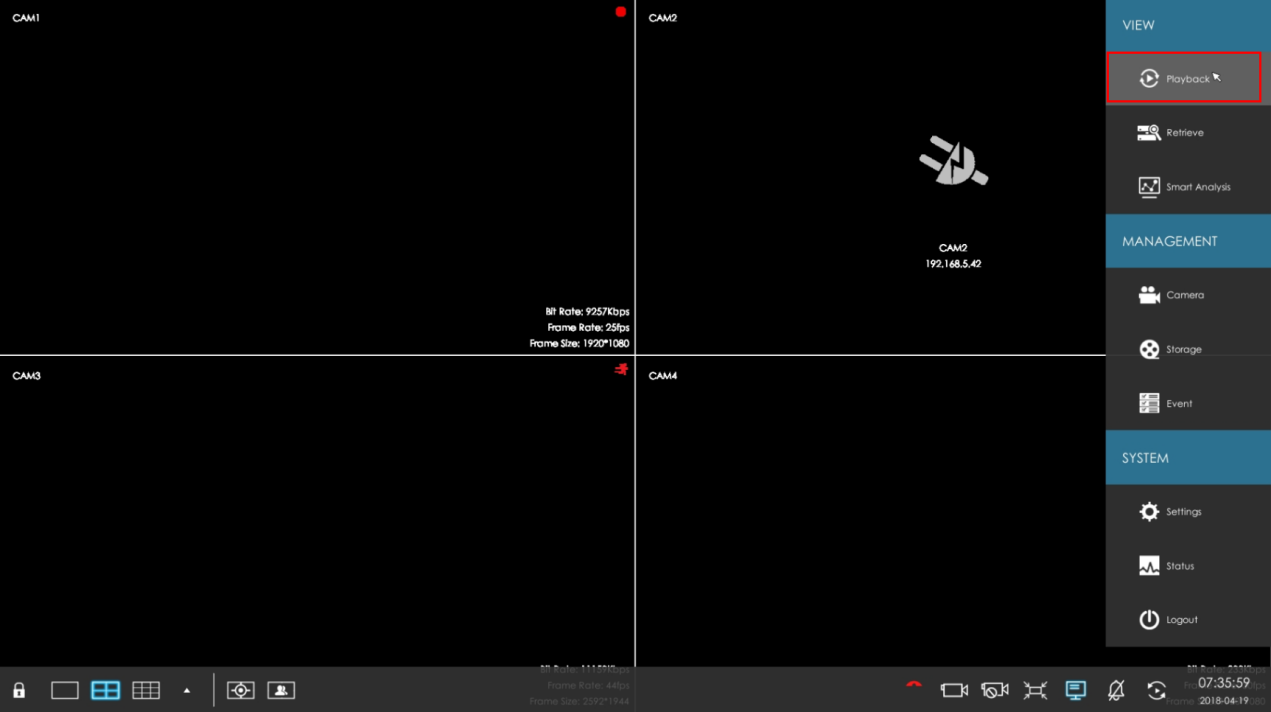
Step 1: Click “Playback” to enter the Playback interface.
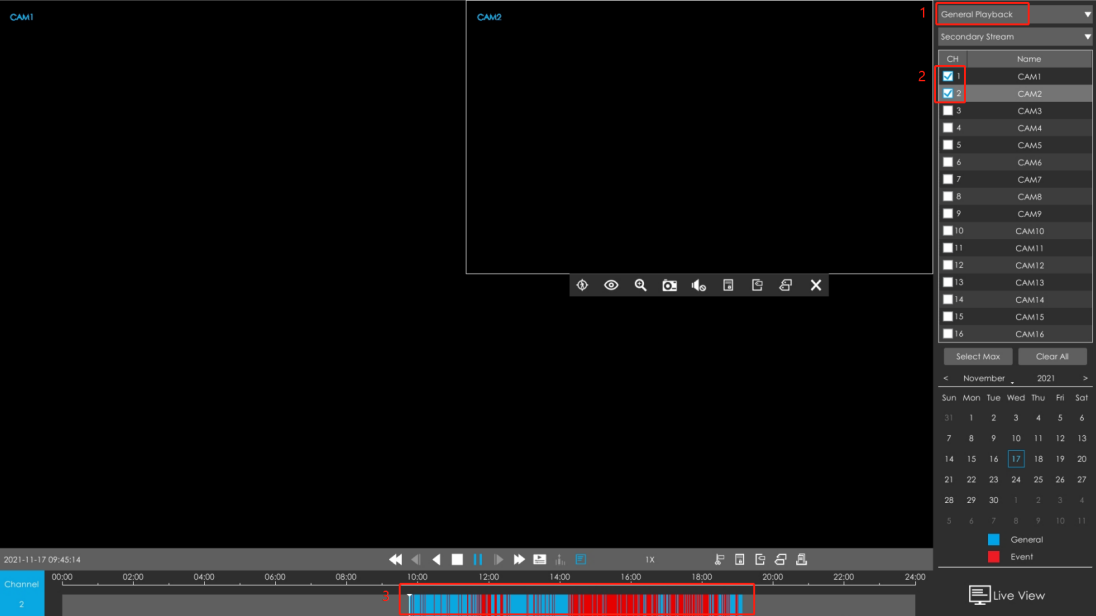
Step 2: Select “General Playback” and desired channel. You will see that the record files contain a number of events.
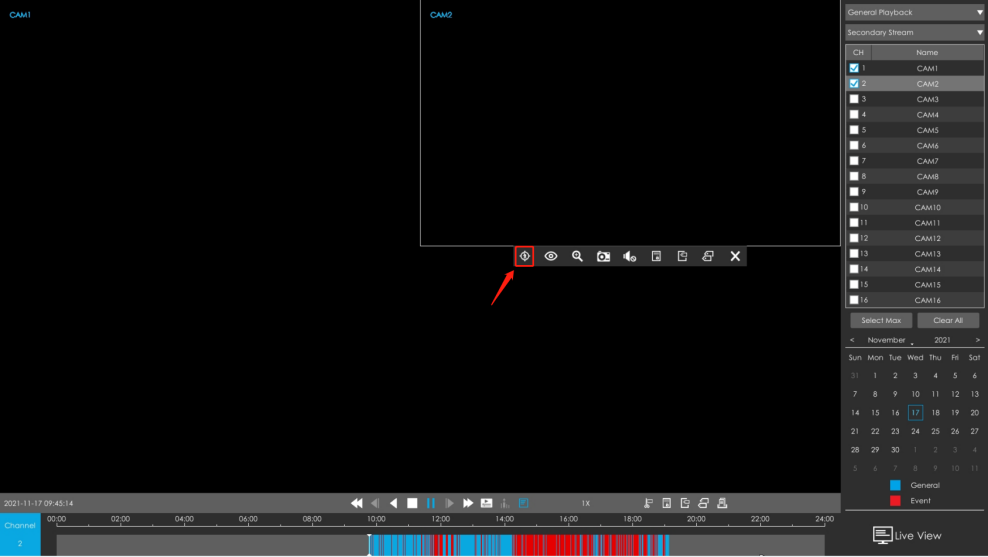
Step 3: Click

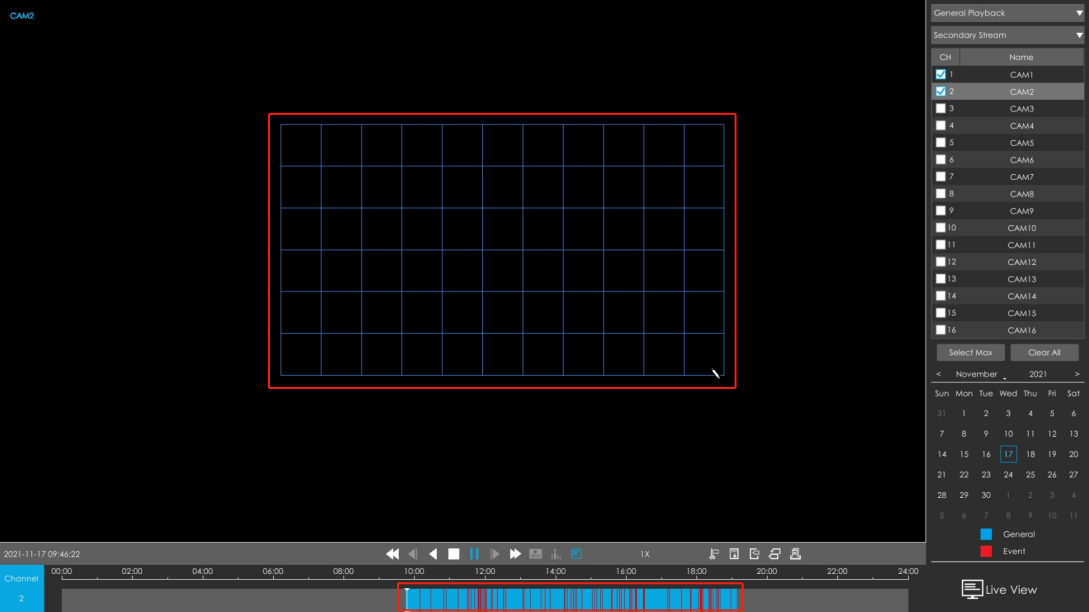
then the cursor will change to the shape of a brush. You will see that the events in the record files have disappeared.
Note: Smart Search can be set separately for each channel by clicking

on their toolbar.
|
|
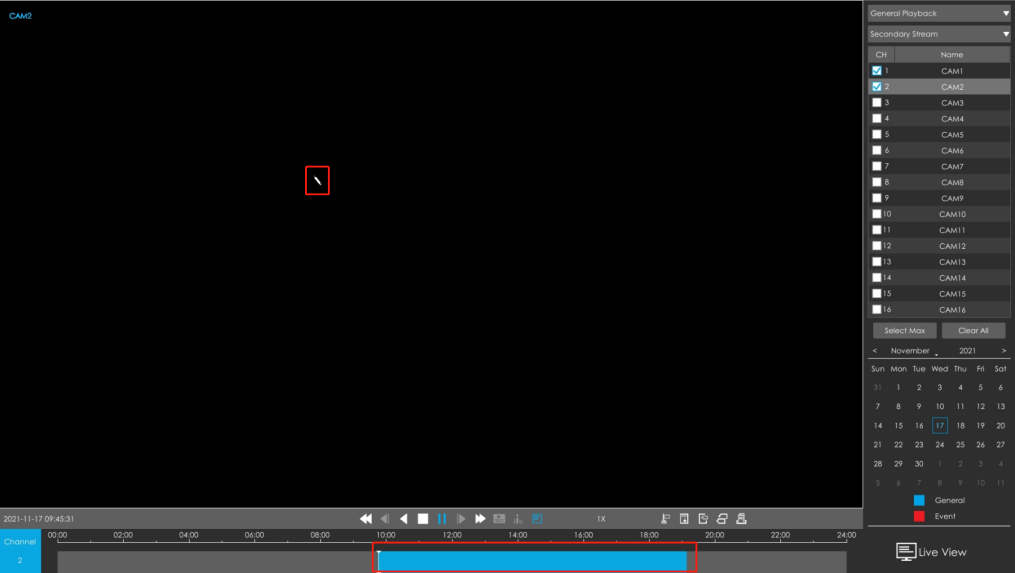
Step 4: Draw a target area. You will see all the relevant motion events within the area. Playback will only play red events under Smart Search.
2.2 Web
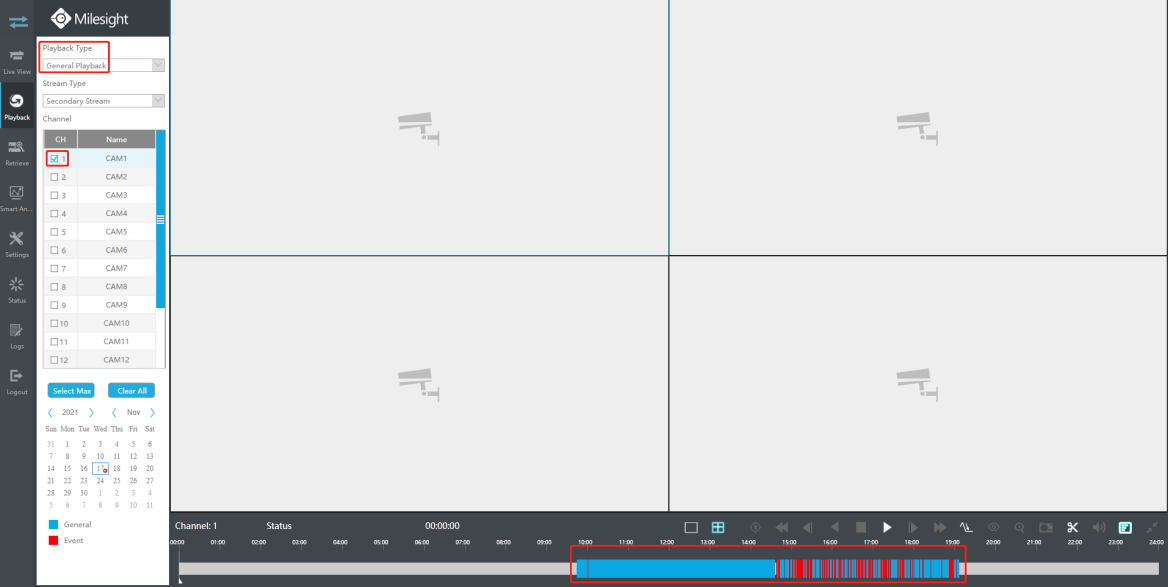
Path: “Playback” -> Select “General Playback” Playback Type and desired channel -> Click “Smart Search” -> Draw a target area -> Playback will quickly jump to all the relevant motion events within the area.
Step 1: Click “Playback” to enter the Playback interface.
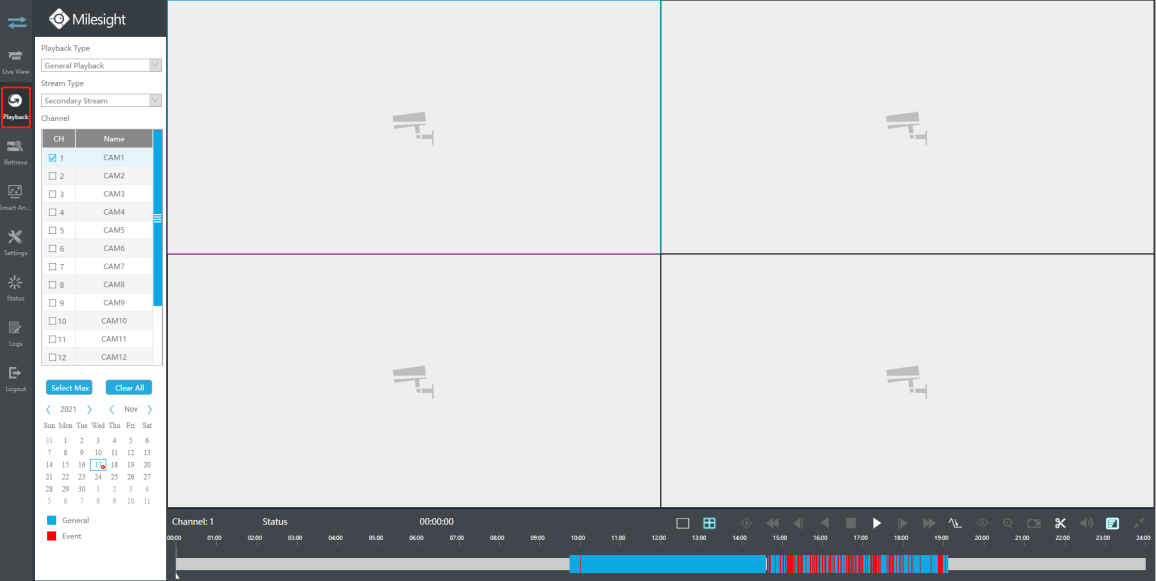
Step 2: Select “General Playback” and desired channel. You will see that the record files contain a number of events.
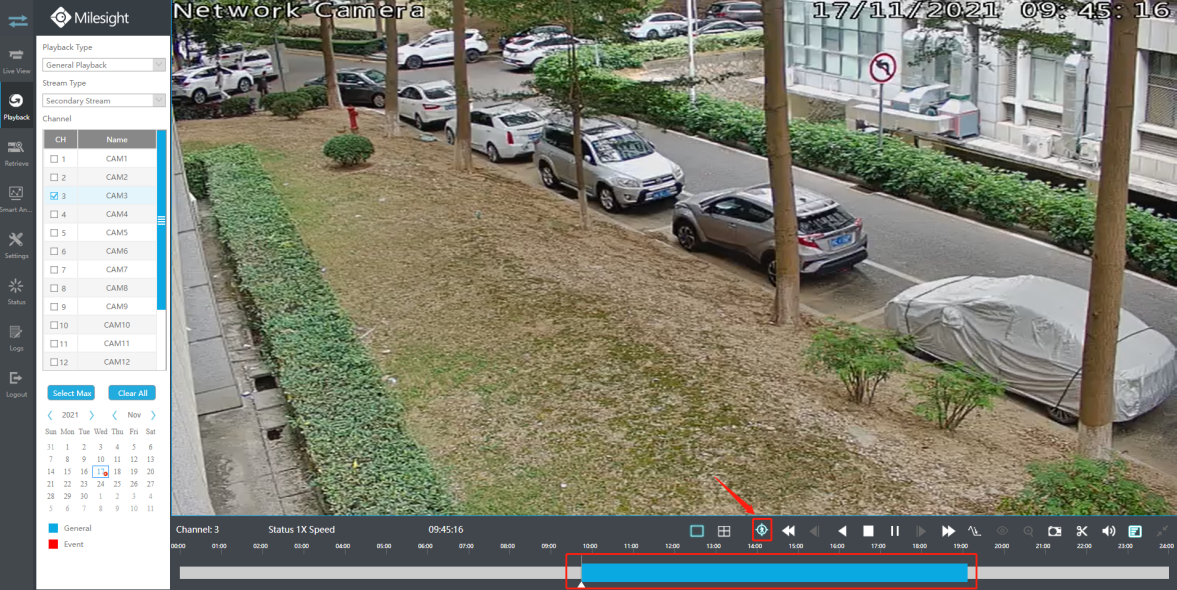
Step 3: Click

and

will be activated, then click

and the cursor will change to the shape of a brush. You will see that the events in the record files have disappeared.
Step 4: Draw a target area. You will see all the relevant motion events within the area. Playback will only play red events under Smart Search.
Note:
• Smart Search can only be used when Motion Detection is enabled.
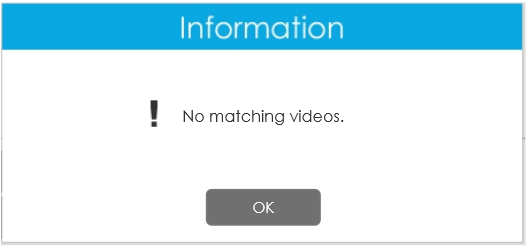
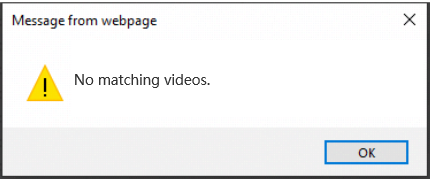
• If no moving objects are detected in the target area, then No Matching Videos will be prompted.
|
|
• Only one channel playback is supported.
-END-