
Version | 1.0 | Update | 2026.09.21 |
1. Introduction
The Data Transmission module of the Milesight Intelligent Traffic Camera is responsible for pushing recognition results and event data to third-party platforms in real time. Typical receiving ends include NVR (Network Video Recorder), VMS (Video Management System), parking management software, and cloud platforms.
This article introduces the functional configuration of the Data Transmission module in the camera web UI (Settings → Data Transmission) and the integration methods with third-party platforms.
2. Module Overview
Open the camera web UI and navigate to Settings → Data Transmission. The module contains two parts:
• Post - Configure which events to push, which protocol to use, and the format of the pushed data.
• More - Configure whether detailed metadata is sent together with the core result data.
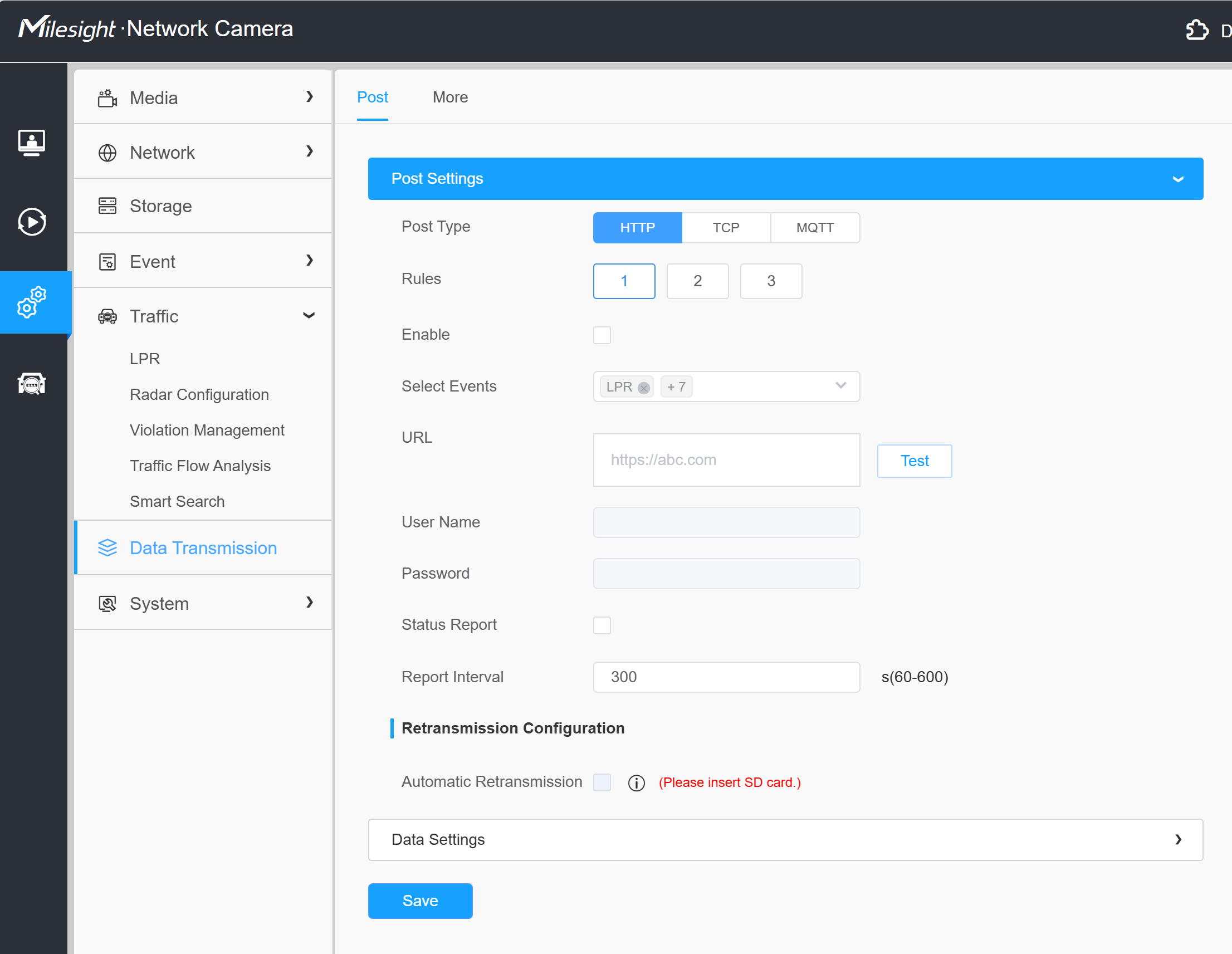
The camera supports the following push protocols in the web UI:
Protocol | Description |
HTTP | Push data to a third-party HTTP (Hypertext Transfer Protocol) server using POST. |
TCP | Push data to a third-party TCP (Transmission Control Protocol) server on a configurable port. |
MQTT | Publish data to an MQTT (Message Queuing Telemetry Transport) broker (topic + host + port). |
For direct NVR/VMS integration, the commonly supported methods are TCP, HTTP, MQTT, and RTSP (Real Time Streaming Protocol) with ONVIF (Open Network Video Interface Forum) metadata, which are described in Section 4.
3. Configuration
3.1 Post Settings
In Post Settings, you can select the events to push and choose the Post Type. When a selected event is triggered, the corresponding information is pushed to the third-party device or software that is compatible with Milesight.
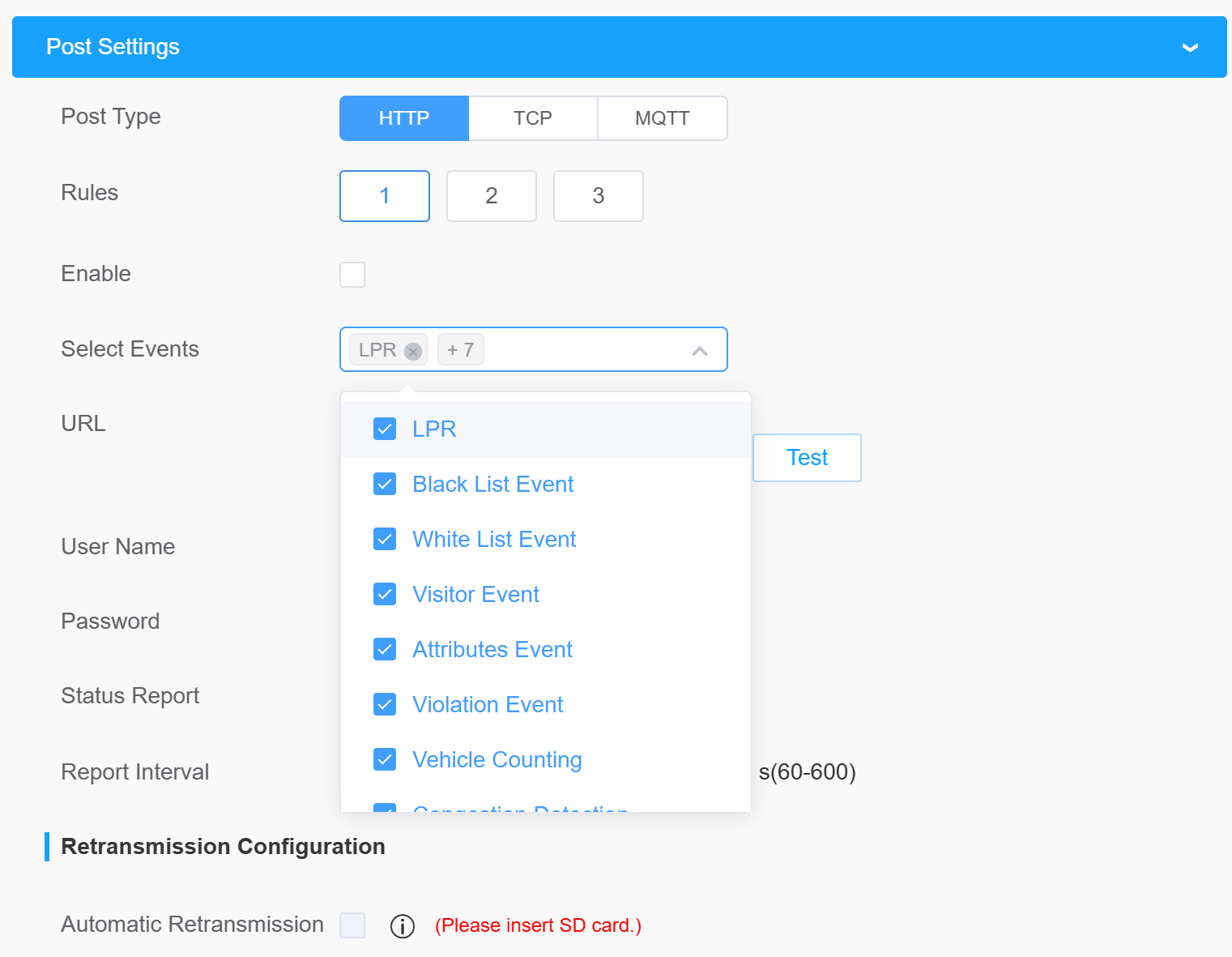
Parameters | Function Introduction |
Select Events | Choose the events to push, including LPR (License Plate Recognition) (also known as ANPR), Black List Event, White List Event, Visitor Event, Attributes Event, and Violation Event. When a selected event is triggered, the information is pushed to the third-party device or software. |
Post Type | Select the push protocol: HTTP, TCP, or MQTT. |
HTTP
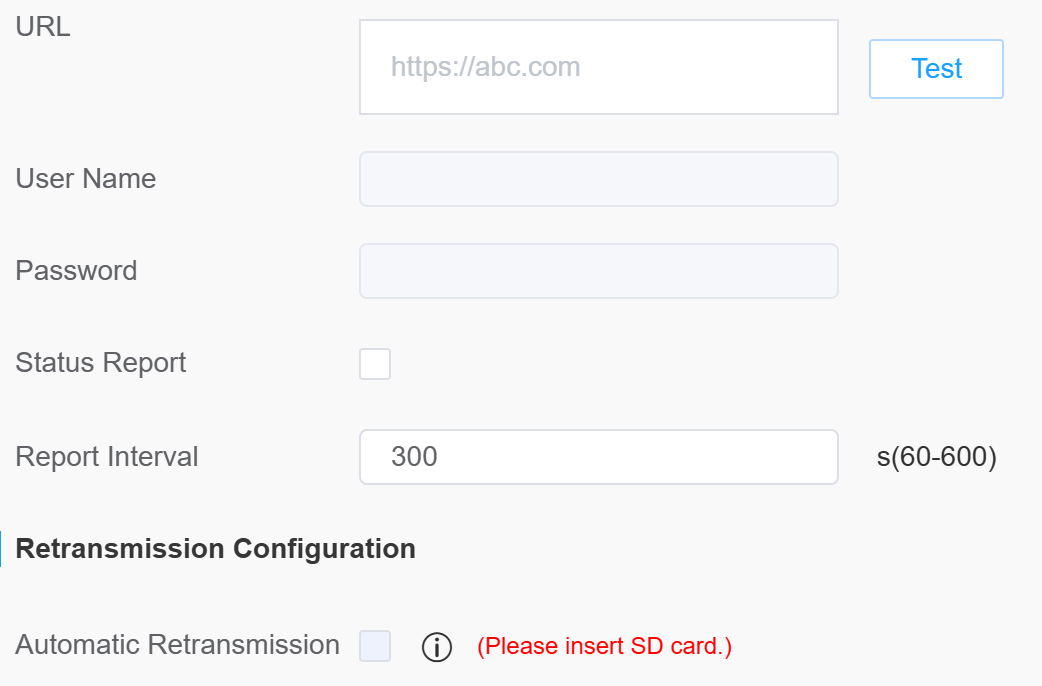
Parameters | Function Introduction |
URL | The receiving HTTP URL. The format can be customized, for example: http://{ip}:{port}/api/httpEvent?xxxxxx |
Enable | Check the checkbox to enable HTTP Post Type. |
User Name | The user name of the receiving server. |
Password | The password of the receiving server. |
Retransmission Configuration | Supports automatic retransmission of failed data when the network reconnects. Notes: 1. Only applicable for the HTTP method; 2. Requires an SD card to be inserted; 3. It is recommended that the configuration for posted data and stored snapshots be consistent. |
TCP
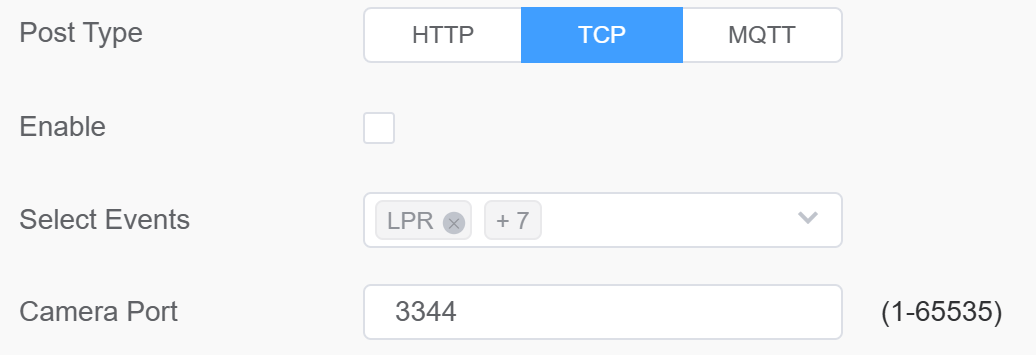
Parameters | Function Introduction |
Enable | Check the checkbox to enable TCP Post Type. |
Camera Port | Enter the camera port, with a range of 1–65535. |
MQTT
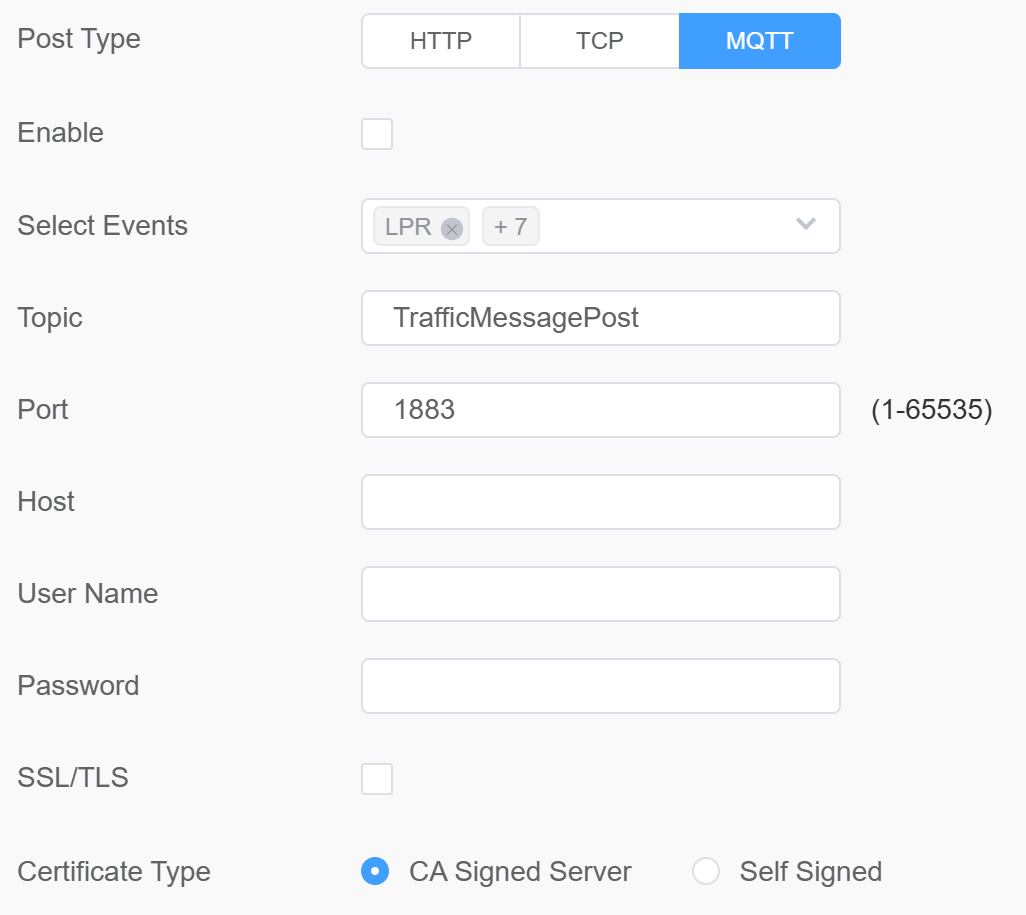
Parameters | Function Introduction |
Enable | Check the checkbox to enable MQTT Post Type. |
Topic | Fill in the topic for subscription and publishing. |
Port | The MQTT broker port that receives the data. |
Host | The MQTT broker address that receives the data. |
User Name | The username used for connecting to the MQTT broker. |
Password | The password used for connecting to the MQTT broker. |
SSL/TLS | Check the checkbox to enable SSL/TLS for the MQTT connection. |
Certificate Type | Choose the certificate type: Self-Signed or CA Signed. When Self-Signed is selected, upload the CA File, Client Certificate File, and Client Key File. See Section 4.4 for details. |
3.2 Data Settings
Data Settings controls the format and content of the result data file.
Parameters | Function Introduction |
Mode - Original | Uses the system default built-in template to generate the result data file. The output format and fields are fixed and predefined by the system, without customization options. |
Mode - Import File | Allows uploading a custom template file to define the format and content of the result data. Both JSON and XML data formats are supported. |
Import File | By importing a template, you can customize which database fields to include in the output and add fixed or dynamic content as needed. After importing the template file, the system generates result data strictly following the user-defined template. This provides great flexibility for integrating with various downstream applications or meeting specific client requirements without changing system code. |
Configuration Template File | The content of the result data file is customizable using templates. You can edit, change, and save content in the editor. The template file takes effect after saving. |
Data Editor | Provides a user-friendly interface to directly edit the template content within the system. Users can: edit the template text manually, download the current template file for backup or offline editing, upload a previously saved template file to replace or restore the template content, and reset the template to the original default format. |
Preset Templates
For the Import File mode, four preset templates are built in so different scenarios can be configured quickly:
• General - Standard template for general LPR events.
• Vehicle Counting - Instant - Template for instant vehicle counting reports.
• Vehicle Counting - Customize - Template for customized vehicle counting reports.
• Congestion Detection - Template for congestion detection events.
Template File Example
The following examples show how a result data file can be configured in JSON or XML format:
json { "event_type": "$event_type$", "device_name": "$device_name$", "license_plate": "$license_plate$", "license_plate_snapshot": "$license_plate_snapshot$" } |
This template may evaluate to something like:
json { "event_type": "LPR", "device_name": "Network Camera", "license_plate": "KK12345", "license_plate_snapshot": "/9j/4AAQSkZJRgABAQAAAQABA[... base64 encoded image ...]" } |
An XML template for the same result can be configured as follows:
xml <event> <event_type>$event_type$</event_type> <device_name>$device_name$</device_name> <mac_address>$mac_address$</mac_address> <sn>$sn$</sn> <license_plate_snapshot>$license_plate_snapshot$</license_plate_snapshot> </event> |
It may evaluate to:
xml <event> <event_type>LPR</event_type> <device_name>Network Camera</device_name> <mac_address>00:16:38:AA:BB:CC</mac_address> <sn>SN123456789</sn> <license_plate_snapshot>/9j/4AAQSkZJRgABAQAAAQABA[... base64 encoded image ...]</license_plate_snapshot> </event> |
Database Fields and Custom Fields
• Database fields - The contents of the database can be injected using the following syntax:
• $[database field id]$ represents the data result in string format.
• #[database field id]# represents the data result in numeric format.
• Custom fields - When a fixed data result is required, simply enter the content directly (without the character $).
3.3 More
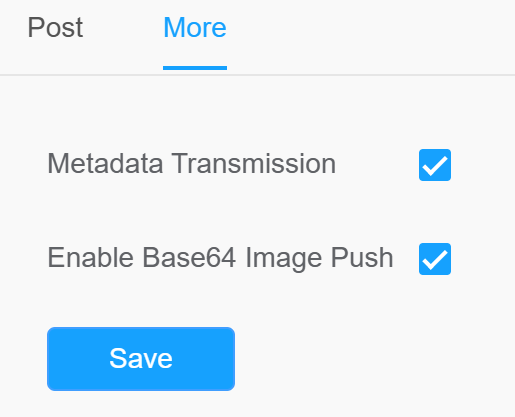
Parameters | Function Introduction |
Metadata Transmission | Controls whether metadata is included in the data output. When enabled, the system transmits detailed metadata along with the main result data, which can provide additional context and information useful for advanced data processing or integration. When disabled, metadata transmission is turned off and only core result data is sent. |
Enable Base64 Image Push | Determines whether the images contained in the results should be pushed as an inline Base64 string. |
4. Integration Methods
This section describes how to integrate the Milesight Intelligent Traffic Camera with an NVR or VMS (including Milesight brand and third-party brands). The supported integration methods are TCP, HTTP, MQTT, and RTSP.
4.1 Integration Overview and Compatibility
Before integration, confirm that the camera model and firmware version support the required functions. Key version requirements include:
• Evidence function - TSxxxx-xxC / MS-Cxxxx-xLC requires firmware 45.8.0.3-LPR_XX-r1 or above; MS-Cxxxx-xLxE / TSxxxx-xxxE requires T_61.8.0.3_XX-r7 or above.
• Parking Detection - TSxxxx-FPC/P requires 45.8.0.3-LPR_XX-r3 or above; TSxxxx-FPE/P requires T_61.8.0.3_XX-r7 or above.
• Vehicle Counting - TSxxxx-xxC (except TSxxxx-FPC/P) requires 45.8.0.3-LPR_XX-r3 or above; TSxxxx-xxE (except TSxxxx-FPE/P) requires T_61.8.0.3_XX-r7 or above.
• List Event (HTTP Post) - MS-Cxxxx-xLxC / TSxxxx-xxxC requires 45.8.0.3-LPR_XX-r8 or above; MS-Cxxxx-xLxE / TSxxxx-xxxE requires T_61.8.0.3_XX-r7 or above.
• Attributes Event - TSxxxx-xxxC (except TSxxxx-FPC/P) requires T_61.8.0.3_XX-r1 or above.
• Violation Management - MS-Cxxxx-xLxC / TSxxxx-xxxC requires 45.8.0.3-LPR_XX-r6 or above; MS-Cxxxx-xLxE / TSxxxx-xxxE requires T_61.8.0.3_XX-r7 or above.
Due to code conflicts between different platforms, it is recommended to upgrade before integration:
• MS-Cxxxx-xxxE / TSxxxx-xxxE → T_61.8.0.3_XX-r13 or above.
• MS-Cxxxx-xxxC / TSxxxx-xxxC → T_45.8.0.3_XX-r9 or above.
4.2 TCP Integration
System Structure
Enter the LPR IP address and LPR port on the NVR/VMS to register the Intelligent Traffic Camera. Then the Intelligent Traffic Camera transmits the recognition result to the NVR/VMS when a license plate is recognized. The data includes the recognized time, the license plate, the license plate snapshot, and the full-screen snapshot.
List of Messages
Command | Name | Explanation |
0x0001 | COMM_LOGIN_REQ | Request login to the Intelligent Traffic Camera. |
0x8001 | COMM_LOGIN_REPLY | Response to COMM_LOGIN_REQ. |
0x0002 | COMM_REGISTE_REQ | Request to register features that need to be pushed. |
0x8002 | COMM_REGISTE_REPLY | Response to the registration status. |
0x8801 | COMM_RECOG_POST | The metadata and image of the recognition result. |
0x8802 | COMM_PARKING_POST | Parking Detection data (registration required). |
0x8803 | COMM_COUNTING_POST | Vehicle Counting data (registration required). |
0x8804 | COMM_LIST_EVENT_POST | List Event data (registration required). |
0x8805 | COMM_ATTRIBUTES_POST | Attribute data (registration required). |
0x8806 | COMM_VIOLATION_POST | Violation data (registration required). |
Basic Packet Composition
Field | Length | Value / Description |
SIG | 2 bytes | CC FF - Packet Start |
COMMAND | 2 bytes | Command ID |
DATA_SIZE | 4 bytes | DATA length + 2 bytes (SIG END) |
DATA | Variable | Payload |
SIG END | 2 bytes | FF DD - Packet End |
Note: DATA_SIZE = DATA length + 2 bytes (SIG END). The packet uses little-endian byte order. |
Login and Registration
COMM_LOGIN_REQ (0x0001) - Data Type: JSON, charset=utf-8. Data Content: ID and Password.
json { "id": "admin", "password": "1234" } |
COMM_LOGIN_REPLY (0x8001) - Data Type: JSON, charset=utf-8. Data Content: result (HTTP status code, for example 200 = OK, 401 = No Privileges).
json { "result": "200" } |
COMM_REGISTER_REQ (0x0002) - Register the features that need to be pushed. Available items: registerAll, lprparking, vehiclecount, Attributes Event, List Event, Violation Event, and General.
Register all features (currently includes Parking Detection and Vehicle Counting):
json { "registerAll": 1 } |
Register only one feature:
json { "registerAll": 0, "vehiclecount": 1 } |
or
json { "registerAll": 0, "lprparking": 1 } |
COMM_REGISTER_REPLY (0x8002) - Returns the registration result, for example:
json { "result": "200", "registerAll": 1 } |
Recognition Result (COMM_RECOG_POST, 0x8801)
The Intelligent Traffic Camera sends recognition results automatically without requiring a request from the NVR/VMS.
Data Type: Binary. The metadata fields include:
Field | Size / Format | Description |
Device ID | 16 bytes | GUID byte array, for example 04 f9 12 bb ce 94 65 40 89 af e8 3c d8 8f 70 be |
Recognition Time | 8 bytes | POSIX time, for example 1525867890000 |
License Plate | 16 bytes | UTF-8 string (NULL excluded, fixed size) |
Color of the Car | 1 byte | Refer to the color table |
Color of the License Plate | 1 byte | Refer to the color table |
Speed | 2 bytes | Unsigned short integer, km/h (mph needs conversion by the receiver) |
Image Count | 1 byte | Image count |
Direction | 1 byte | 0 = Unknown, 1 = In, 2 = Out |
Region | 32 bytes | Detection region |
ROI ID | 1 byte | 1–4; 0 = unknown |
Plate Length | 1 byte | License plate string length |
License Plate String | Variable | License plate string |
Vehicle Type | 1 byte | Refer to the vehicle type table |
Confidence | 4 bytes | Float value |
Plate Type | 1 byte | 1 = black, 2 = white, 3 = visitor |
Distance | 4 bytes | Integer; needs radar enabled |
Azimuth | 4 bytes | Float; needs radar enabled |
Vehicle Count | 4 bytes | Needs radar enabled |
Width | 2 bytes | Resolution width |
Height | 2 bytes | Resolution height |
coordinate_x1 / y1 | 2 bytes each | Top-left coordinates of the license plate |
coordinate_x2 / y2 | 2 bytes each | Bottom-right coordinates of the license plate |
Vehicle Brand | 2 bytes | Refer to the brand table |
The binary data consists of one metadata chunk followed by one or more image chunks.
Chunk | Chunk ID (4 bytes) | Chunk Size (4 bytes) | Data |
Metadata Chunk | 11 FF 00 00 | 112 + License Plate length | GUID + Time + License Plate + ... |
Image Chunk | 22 FF 00 00 | Variable | JPEG image data (FF D8 FF E0 ...) |
Image chunks include:
• plate_image - The license plate snapshot.
• full_image - The full-screen snapshot.
• evidence_image0 - Snapshot from evidence camera 1 (when a linkage evidence camera is added).
• evidence_image1 - Snapshot from evidence camera 2 (when two linkage evidence cameras are added).
Note: If the Evidence function is enabled: • No Plates: Full Image + Evidence Image (if available). • With Plates: Plate Image + Full Image + Evidence Image (if available). |
Parking Detection (COMM_PARKING_POST, 0x8802)
Parking Detection supports two post modes: Trigger Mode and Period Mode.
Trigger Mode example:
json { "event": "Parking Detection", "device": "Network Camera", "time": "2023-01-02 23:46:24", "report_type": "trigger", "region": 1, "region name": "ROI1", "state": 0, "Length of Parking": "00:00:31", "License Plate": "BD925RA", "Plate Color": "Blue", "Vehicle Type": "Car", "Vehicle Color": "Blue", "Vehicle Brand": "Buick", "Object tracking box_x1": 732, "Object tracking box_y1": 885, "Object tracking box_x2": 1193, "Object tracking box_y2": 1558, "plateSnap": "....(Base64)", "bkgSnap": "....(Base64)" } |
Period Mode example:
json { "event": "Parking Detection", "device": "Network Camera", "time": "2023-01-02 23:54:54", "report_type": "interval", "total_occupied": 1, "total_available": 3, "region": [1, 2, 3, 4], "region name": ["ROI_1", "ROI_2", "ROI_3", "ROI_4"], "state": [1, 0, 0, 0], "data list": [ { "region": 1, "region name": "ROI_1", "state": 1, "Length of Parking": "00:00:17", "License Plate": "DD925RA", "Plate Color": "Blue", "Vehicle Type": "SUV", "Vehicle Color": "Blue", "Vehicle Brand": "Buick", "Object tracking box_x1": 1092, "Object tracking box_y1": 870, "Object tracking box_x2": 1509, "Object tracking box_y2": 1541, "plateSnap": "....(Base64)" } ], "bkgSnap": "....(Base64)" } |
Vehicle Counting (COMM_COUNTING_POST, 0x8803)
Vehicle Counting supports two post modes: Instant Mode and Customize Mode.
Instant Mode example:
json { "event": "Vehicle Counting", "device": "Network Camera", "time": "2023-01-03 00:28:07", "region": 1, "region name": "ROI_1", "All-Car": 1, "All-Motorcycle": 0, "All-Non-motor": 0, "Car": 1, "Motorbike": 0, "Bus": 0, "Truck": 0, "Van": 0, "SUV": 0, "Fire engine": 0, "Ambulance": 0, "Bicycle": 0, "Other": 0, "snapshot": "....(Base64)" } |
Customize Mode example:
json { "event": "Vehicle Counting", "device": "Network Camera", "time": "2023-01-03 01:00:00", "regionList": [ { "region": 1, "region name": "ROI_1", "All-Car": 23, "Car": 19, "Truck": 1, "SUV": 3 }, { "region name": "Total", "All-Car": 63, "Car": 54, "Truck": 3, "SUV": 4 } ], "snapshot": "....(Base64)" } |
Note: The counting parameters are related to the Count Type configured on the page. For example: • "Small Vehicle / Medium Vehicle / Large Vehicle" → "Small Vehicle": 0, "Medium Vehicle": 0, "Large Vehicle": 0. • "Car / Motorcycle / Non-motor" → "All-Car": 23, "All-Motorcycle": 0, "All-Non-motor": 0. |
4.3 HTTP Integration
Fill in the specified URL in the camera web UI (if the VMS requires authentication, also fill in the user name and password). The camera posts the LPR information in JSON format to the VMS or NVR in real time when it is recognized.
The content that is sent includes the following fields:
Key | Sample of Value | Description |
device | demo | The Device Name configured in the System Info page. The default is Network Camera. |
time | 2023-09-15 06:19:57.267 | The time when the license plate is recognized. |
time_msec | 2023-09-15 06:19:57.267 | The recognition time accurate to the millisecond level. |
plate | NSC5870 | The recognized license plate number. |
type | Visitor | The plate list type: Black, White, or Visitor. |
speed | - | The running speed of the detected vehicle. |
direction | - | The driving direction: Approach or Away. |
detection_region | 2 | The ID of the detection region where the vehicle is detected (1–4). |
region | NLD | The registration country/region of the recognized license plate. |
resolution_width | 1920 | The width of the LPR processing resolution. |
resolution_height | 1080 | The height of the LPR processing resolution. |
coordinate_x1, coordinate_y1 | 539, 736 | The top-left coordinates of the license plate. |
coordinate_x2, coordinate_y2 | 699, 874 | The bottom-right coordinates of the license plate. |
confidence | - | The confidence value of the recognized license plate. |
plate_color | White | The color of the recognized license plate. |
vehicle_type | Car | The type of the recognized vehicle. |
vehicle_color | Red | The color of the recognized vehicle. |
Vehicle Brand | Volkswagen | The brand of the recognized vehicle. |
plate_image | - | The license plate snapshot; sent when "License Plate" or "All" is selected. |
full_image | - | The full-screen snapshot; sent when "Full Snapshot" or "All" is selected. |
evidence_image0 | - | Snapshot from evidence camera 1 (when a linkage evidence camera is added). |
evidence_image1 | - | Snapshot from evidence camera 2 (when two linkage evidence cameras are added). |
Notes: • Functions prior to version 45.8.0.3-LPR_XX-r1 use field names in abc_def format (for example plate_color, vehicle_type). Functions in 45.8.0.3-LPR_XX-r1 and above use Abc Def format (for example Vehicle Brand, Vehicle Type). • It is recommended to capture the packet to confirm the field names of the current camera version and functions before compatibility development. • For coordinate_x1, coordinate_y1, coordinate_x2, coordinate_y2: if the vehicle is detected but the license plate is not recognized, these parameters will not be sent. |
4.4 MQTT Integration
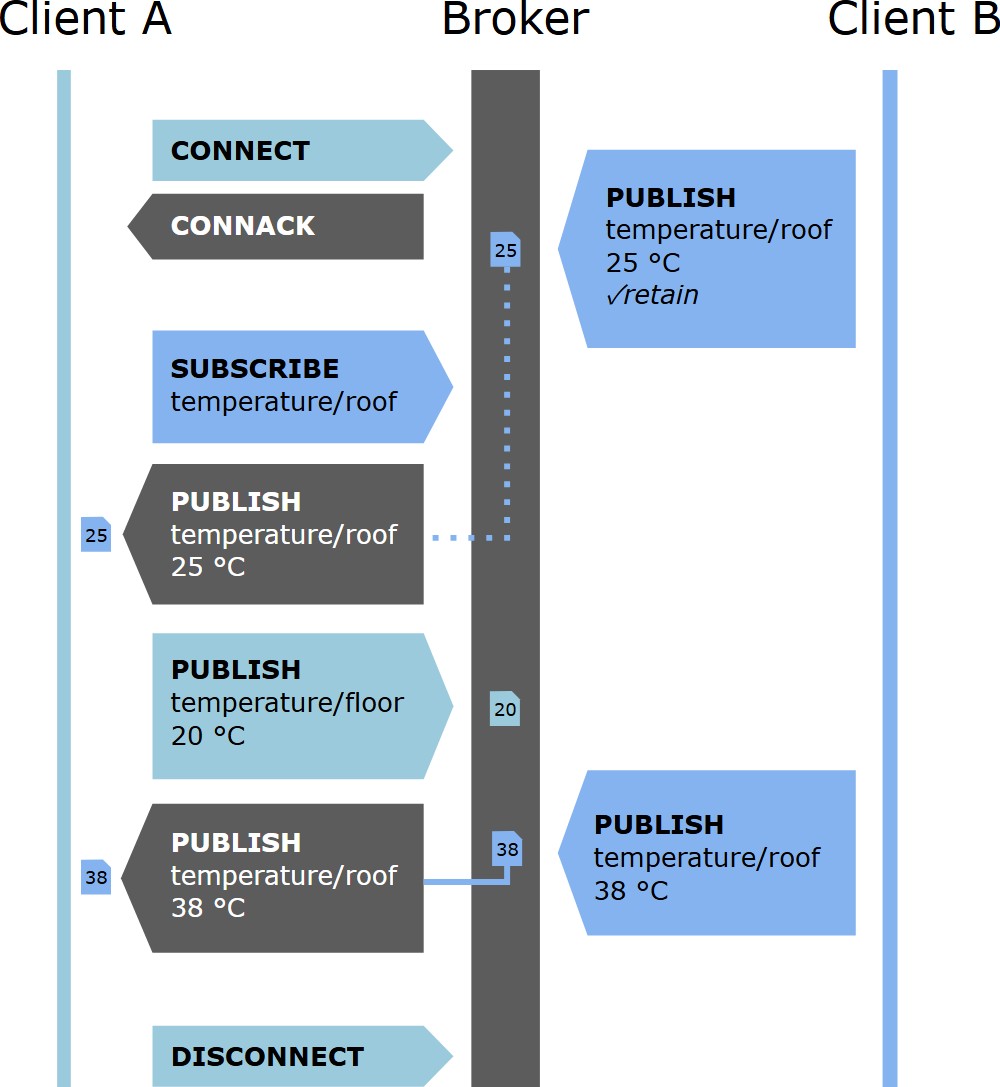
MQTT uses a publish/subscribe model. The camera publishes the result data to an MQTT broker, and any client that subscribes to the configured topic receives the data. It is suitable for cloud platforms, IoT platforms, and third-party systems that support MQTT.
Connection parameters are configured in Settings → Data Transmission → Post Settings → MQTT (see Section 3.1):
• Topic - The topic used for subscription and publishing.
• Host - The MQTT broker address that receives the data.
• Port - The MQTT broker port that receives the data.
• User Name - The username used to connect to the MQTT broker.
• Password - The password used to connect to the MQTT broker.
• SSL/TLS - Enable or disable SSL/TLS encryption for the MQTT connection.
• Certificate Type - Select the certificate type used for the encrypted connection: Self-Signed or CA Signed. When Self-Signed is selected, upload the CA File, Client Certificate File, and Client Key File.
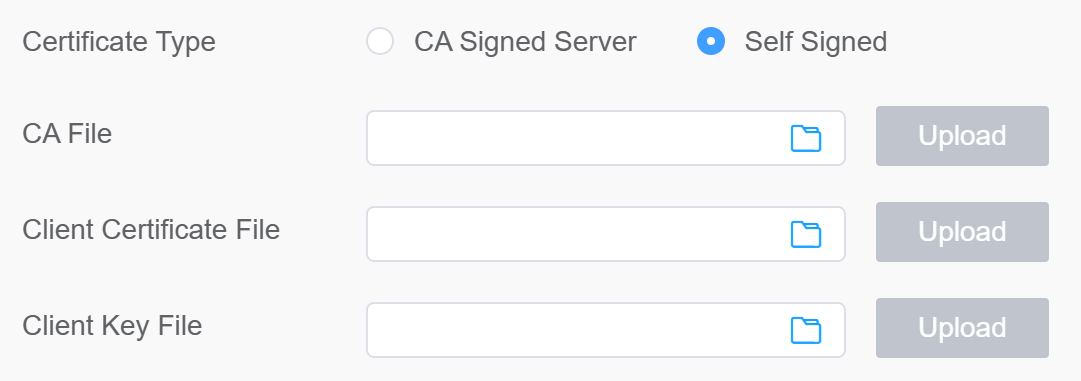
When a selected event is triggered or a reporting interval is reached, the camera publishes the result data to the configured topic. The published payload is exactly the data file generated by Data Settings: in Original mode the built-in template is used; in Import File mode the JSON or XML template edited in the Data Editor is used (see Section 3.2).
4.5 RTSP Integration
Prerequisites
This method uses ONVIF metadata. There are three streams in RTSP: video stream, audio stream, and alarm stream. Metadata alarm is performed through the ONVIF alarm stream in the RTSP. If the VMS or NVR supports and can receive the ONVIF alarm stream, it can work with RTSP.
Integration Method
Milesight has defined the XML format. Knowing the XML format, the VMS or NVR can be developed to be integrated, and the LPR information can be displayed in the VMS or NVR. The XML content includes the date, time, license plate, and license plate snapshot path, for example:
xml <tt:MetaDataStream> <tt:Event> <wsnt:NotificationMessage> <wsnt:Topic Dialect="http://www.onvif.org/ver10/tev/topicExpression/ConcreteSet">tns1:RuleEngine/LicensePlateDetector/LicensePlate</wsnt:Topic> <wsnt:Message> <tt:Message UtcTime="2018-05-15T06:19:34Z" PropertyOperation="Changed"> <tt:Source> <tt:SimpleItem Name="VideoSourceConfigurationToken" Value="VideoSourceToken"/> <tt:SimpleItem Name="VideoAnalyticsConfigurationToken" Value="VideoAnalyticsToken"/> <tt:SimpleItem Name="Rule" Value="MyLicensePlateDetectorRule"/> </tt:Source> <tt:Key> <tt:SimpleItem Name="LicensePlateResult" Value="43거6510"/> </tt:Key> <tt:Data> <tt:SimpleItem Name="LicensePlatePicturePath" Value="/LPR/2018051506193401.jpg"/> <tt:SimpleItem Name="LicenseCarSpeed" Value="25km/h"/> <tt:SimpleItem Name="LicenseCarDirection" Value="1"/> </tt:Data> </tt:Message> </wsnt:Message> </wsnt:NotificationMessage> </tt:Event> </tt:MetaDataStream> |
You can receive the recognized license plate image through the snapshot path with an HTTP GET request, for example:
http://IP:PORT/LPR/2018051506193401.jpg |
Only the 10 latest images are available for download. If you cannot see the image in the NVR or VMS, type the URL in a web browser to check whether the image is visible.
When the integration is complete, the Intelligent Traffic Camera sends an XML containing the LPR information to the VMS or NVR in real time when a license plate is recognized.
5. Appendix: Reference Tables
5.1 Color Table
c enum LprColor{ LPR_COLOR_UNKNOWN = 0, LPR_COLOR_BLACK, // "Black" LPR_COLOR_BLUE, // "Blue" LPR_COLOR_CYAN, // "Cyan" LPR_COLOR_GRAY, // "Gray" LPR_COLOR_GREEN, // "Green" LPR_COLOR_RED, // "Red" LPR_COLOR_WHITE, // "White" LPR_COLOR_YELLOW, // "Yellow" LPR_COLOR_VIOLET, // "Violet" LPR_COLOR_ORANGE // "Orange" }; |
5.2 Vehicle Type Table
c typedef enum traVehicleType{ TRA_VEHICLE_NONE = 0, // "none" TRA_VEHICLE_CAR, // "car" TRA_VEHICLE_MOTOR, // "motor" TRA_VEHICLE_BUS, // "bus" TRA_VEHICLE_TRUCK, // "truck" TRA_VEHICLE_VAN, // "van" TRA_VEHICLE_SUV, // "suv" TRA_VEHICLE_FORKLIFT, // "forklift" TRA_VEHICLE_EXCAVATOR, // "excavator" TRA_VEHICLE_TOWTRUCK, // "towtruck" TRA_VEHICLE_POLICECAR, // "police-car" TRA_VEHICLE_FIREENGINE, // "fireengine" TRA_VEHICLE_AMBULANCE, // "ambulance" TRA_VEHICLE_BICYCLE, // "bicycle" TRA_VEHICLE_EBIKE, // "e-bike" TRA_VEHICLE_OTHER, // "other" TRA_VEHICLE_MAX } TRA_VEHICLE_ENUM; |
5.3 Brand Table
Values follow the enum order starting from 0 (Unknown). The corresponding display names are shown as comments.
c typedef enum traBrandType{ TRA_BRAND_UNKNOW = 0, // "Unknown" TRA_BRAND_AUDI, // "Audi" TRA_BRAND_ASTONMARTIN, // "Aston Martin" TRA_BRAND_ALFAROMEO, // "Alfa Romeo" TRA_BRAND_BUICK, // "Buick" TRA_BRAND_MERCEDESBENZ, // "Mercedes-Benz" TRA_BRAND_BMW, // "BMW" TRA_BRAND_HONDA, // "Honda" TRA_BRAND_PEUGEOT, // "Peugeot" TRA_BRAND_PORSCHE, // "Porsche" TRA_BRAND_BENTLEY, // "Bentley" TRA_BRAND_BUGATTI, // "Bugatti" TRA_BRAND_VOLKSWAGEN, // "Volkswagen" TRA_BRAND_DODGE, // "Dodge" TRA_BRAND_DAEWOO, // "Daewoo" TRA_BRAND_DAIHATSU, // "Daihatsu" TRA_BRAND_TOYOTA, // "Toyota" TRA_BRAND_FORD, // "Ford" TRA_BRAND_FERRARI, // "Ferrari" TRA_BRAND_FIAT, // "Fiat" TRA_BRAND_GMC, // "GMC" TRA_BRAND_MITSUOKA, // "MITSUOKA" TRA_BRAND_HAVAL, // "Haval" TRA_BRAND_GEELY, // "Geely" TRA_BRAND_JEEP, // "Jeep" TRA_BRAND_JAGUAR, // "Jaguar" TRA_BRAND_CADILLAC, // "Cadillac" TRA_BRAND_CHRYSLER, // "Chrysler" TRA_BRAND_LEXUS, // "Lexus" TRA_BRAND_LANDROVER, // "Land Rover" TRA_BRAND_LINCOLN, // "Lincoln" TRA_BRAND_SUZUKI, // "Suzuki" TRA_BRAND_ROLLSROYCE, // "Rolls-Royce" TRA_BRAND_LAMBORGHINI, // "Lamborghini" TRA_BRAND_RENAULT, // "Renault" TRA_BRAND_MAZDA, // "Mazda" TRA_BRAND_MINI, // "MINI" TRA_BRAND_MASERATI, // "Maserati" TRA_BRAND_MAYBACH, // "Maybach" TRA_BRAND_ACURA, // "Acura" TRA_BRAND_OPEL, // "Opel" TRA_BRAND_CHERY, // "Chery" TRA_BRAND_KIA, // "Kia" TRA_BRAND_NISSAN, // "Nissan" TRA_BRAND_SKODA, // "Skoda" TRA_BRAND_MITSUBISHI, // "Mitsubishi" TRA_BRAND_SUBARU, // "Subaru" TRA_BRAND_SMART, // "Smart" TRA_BRAND_SSANGYONG, // "Ssangyong" TRA_BRAND_TESLA, // "Tesla" TRA_BRAND_ISUZU, // "Isuzu" TRA_BRAND_CHEVROLET, // "Chevrolet" TRA_BRAND_CITROEN, // "Citroen" TRA_BRAND_HYUNDAI, // "Hyundai" TRA_BRAND_INFINITY, // "Infinity" TRA_BRAND_MERCURY, // "Mercury" TRA_BRAND_SATURN, // "Saturn" TRA_BRAND_SAAB, // "SAAB" TRA_BRAND_LYNKCO, // "LYNK&CO" TRA_BRAND_MORRISGARAGES, // "MorrisGarages" TRA_BRAND_PAGANI, // "Pagani" TRA_BRAND_SPYKER, // "Spyker" TRA_BRAND_BYD, // "BYD" TRA_BRAND_MCLAREN, // "McLaren" TRA_BRAND_KOENIGSEGG, // "Koenigsegg" TRA_BRAND_VOLVO, // "Volvo" TRA_BRAND_LANCIA, // "Lancia" TRA_BRAND_SHELBY, // "Shelby" TRA_BRAND_SEAT, // "Seat" TRA_BRAND_CUPRA, // "CUPRA" TRA_BRAND_DACIA, // "Dacia" TRA_BRAND_DS, // "DS" TRA_BRAND_MAX } TRA_BRAND_ENUM; |
6. Support
If you still have any issue with the Data Transmission module, please email support@milesight.com with the MAC address of the camera, or create a ticket at:
https://support.milesight.com/support/tickets
—— END ——