
Version | 1.0 | Update | 2026.09.10 |
1. Introduction
Milesight Indoor Parking Guidance Camera, a state-of-the-art device designed to optimize parking management. It features advanced occupancy detection and indicator light guidance systems. With precise occupancy monitoring, it accurately identifies available parking spaces in real time.Besides, excellent scene adaptability realizes 24/7 parking management surveillance to help guide parking for more efficient and intelligent parking management. Make parking easy and smart.
This document is mainly intended to help you quickly configure indoor parking management, including the related region drawing and report transmission.
2. Parking Management Configuration
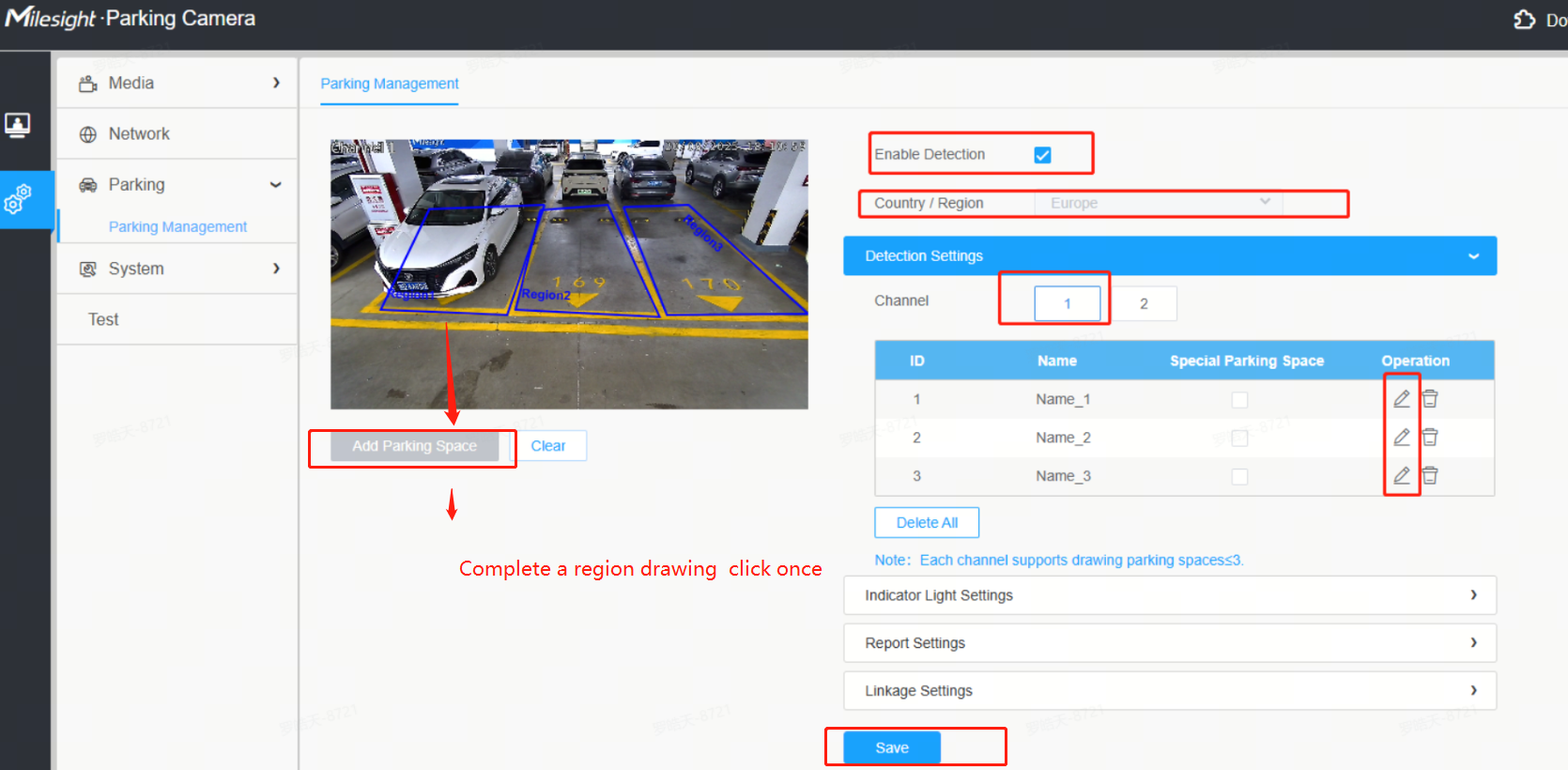
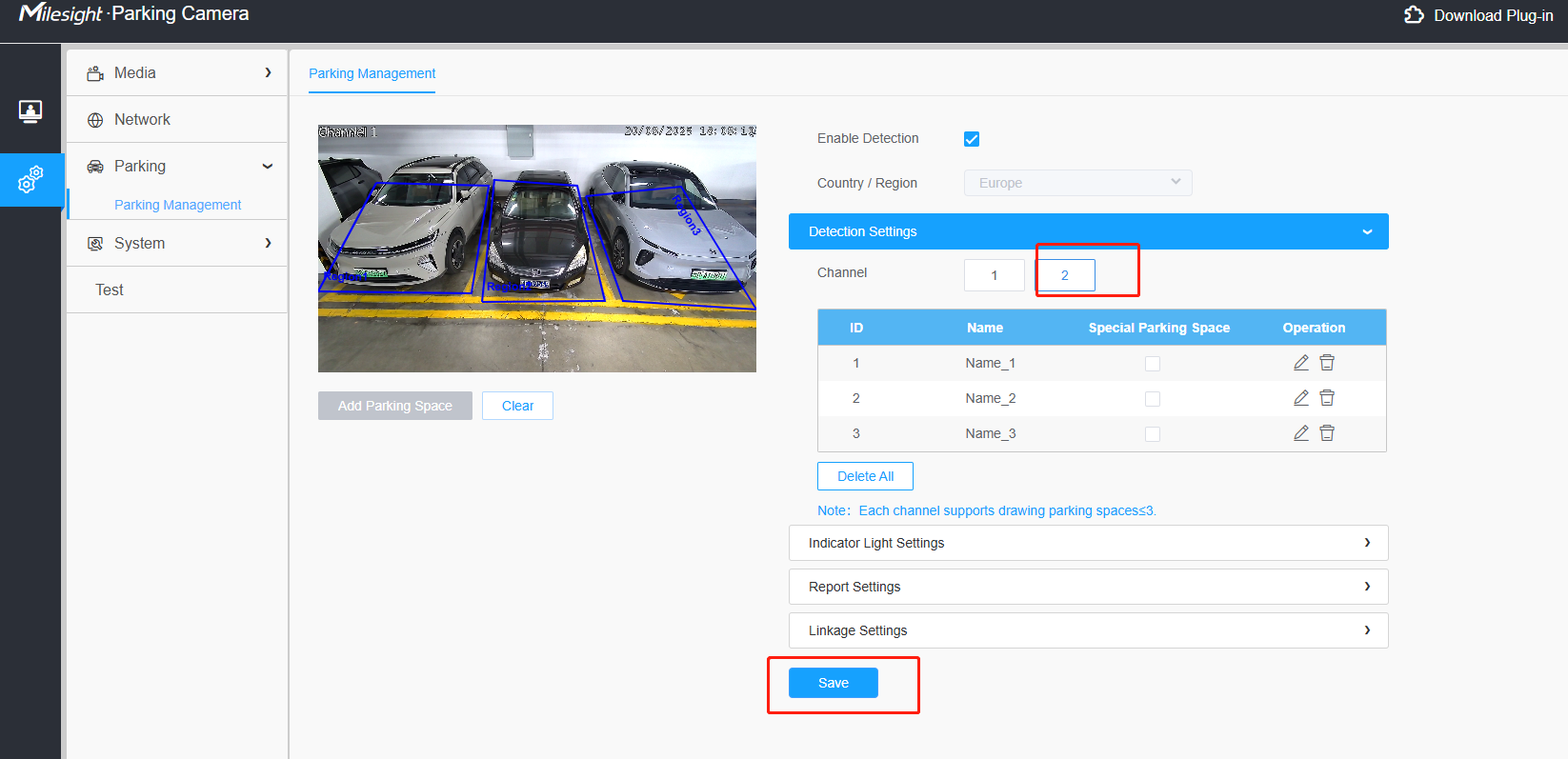
Enable Detection, select your country, and then draw the detection regions for Channel 1 and Channel 2 separately. Each space draw one region accordingly.
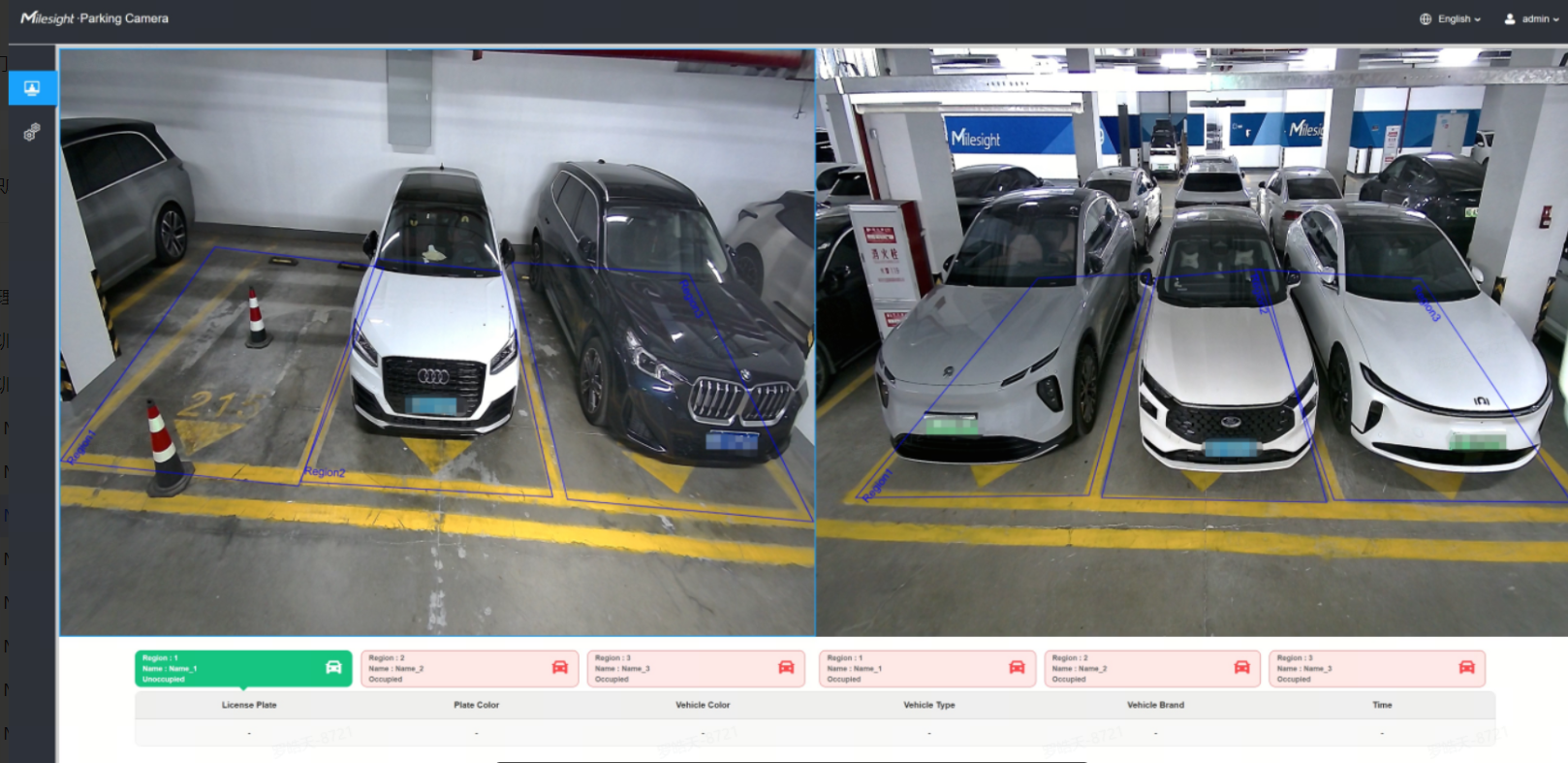
Note: Three vehicles can be detected on each channel (side), for a total of 6 vehicles.
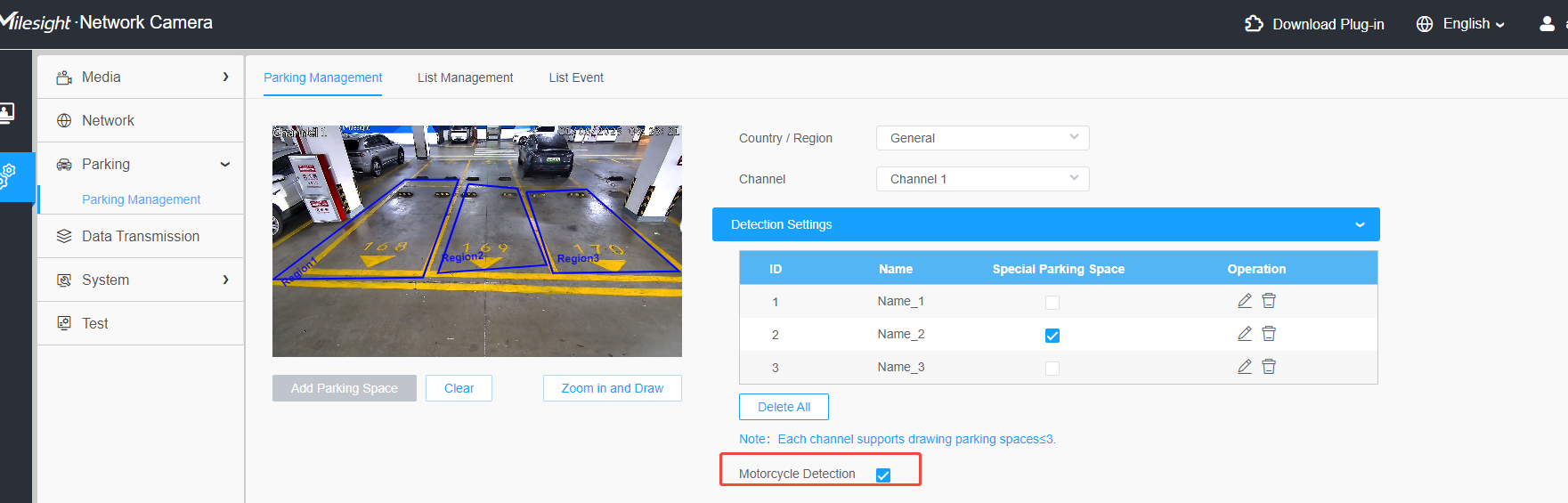
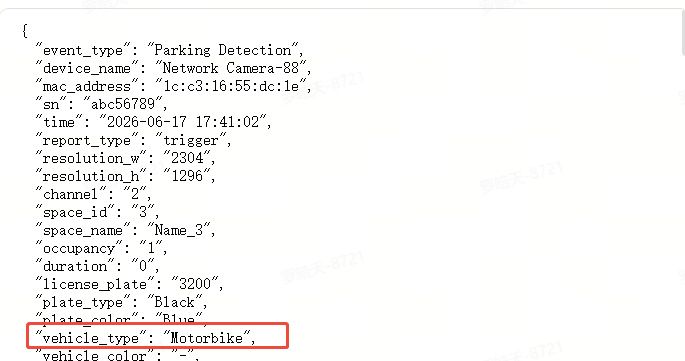
Note:Motorcycle Detection (new PM3322-E PI_61.8.0.5 above)
Scenes where motorcycles and motor vehicles are parked together. You can enable “motorcycle detection”; once detected, the vehicle_type will be reported as “Motorbike.”
3.Highlighted Features
3.1Indicator lighting settings
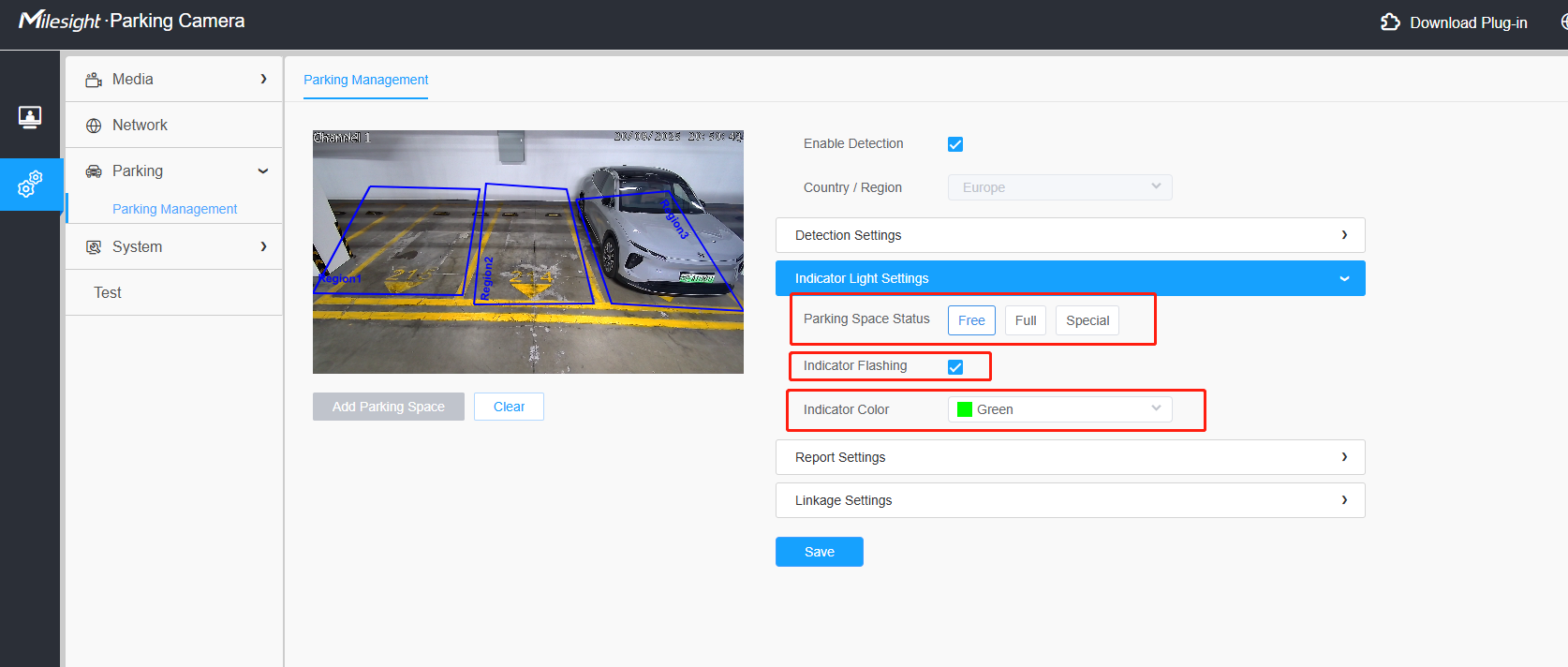
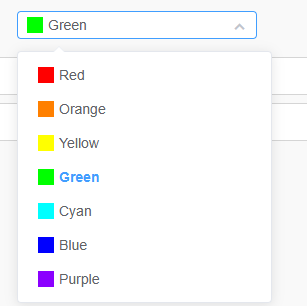
There are three parking space statuses: Free, Full, and Special. You can also choose different colors to represent each status.
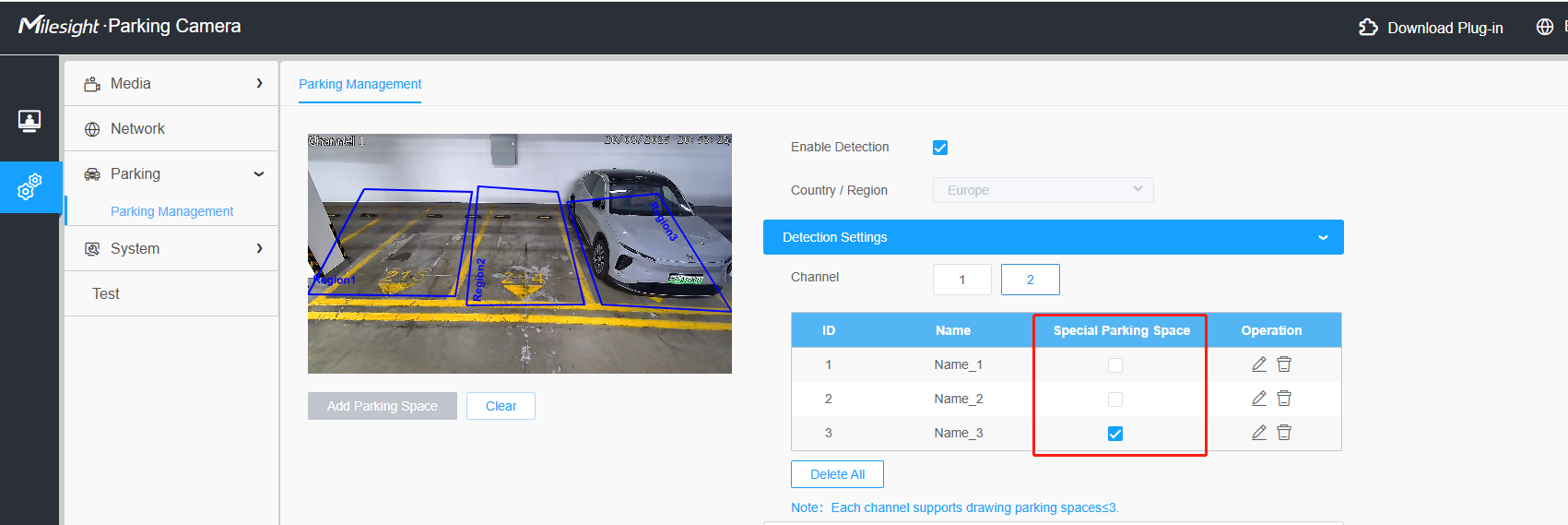
The "Special" status is user‑defined. Simply check the box for a parking space to mark it as "Special",then the indicator color will accordingly match the space.
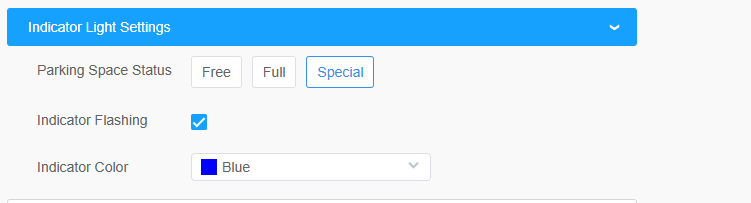
The light behavior for this product is as follows:
Example: Free --> Green; Full --> Red; Special --> Blue
① All 6 parking spaces are occupied, display Red
② Only 1–6 regular parking spaces are available, no special parking spaces available, display Green
③ Only 1–6 special parking spaces are available, no regular parking spaces available, display Blue
④ Both regular and special parking spaces are available, display Green
3.2 Linkage audio setting
You can enable audio and add audio file.
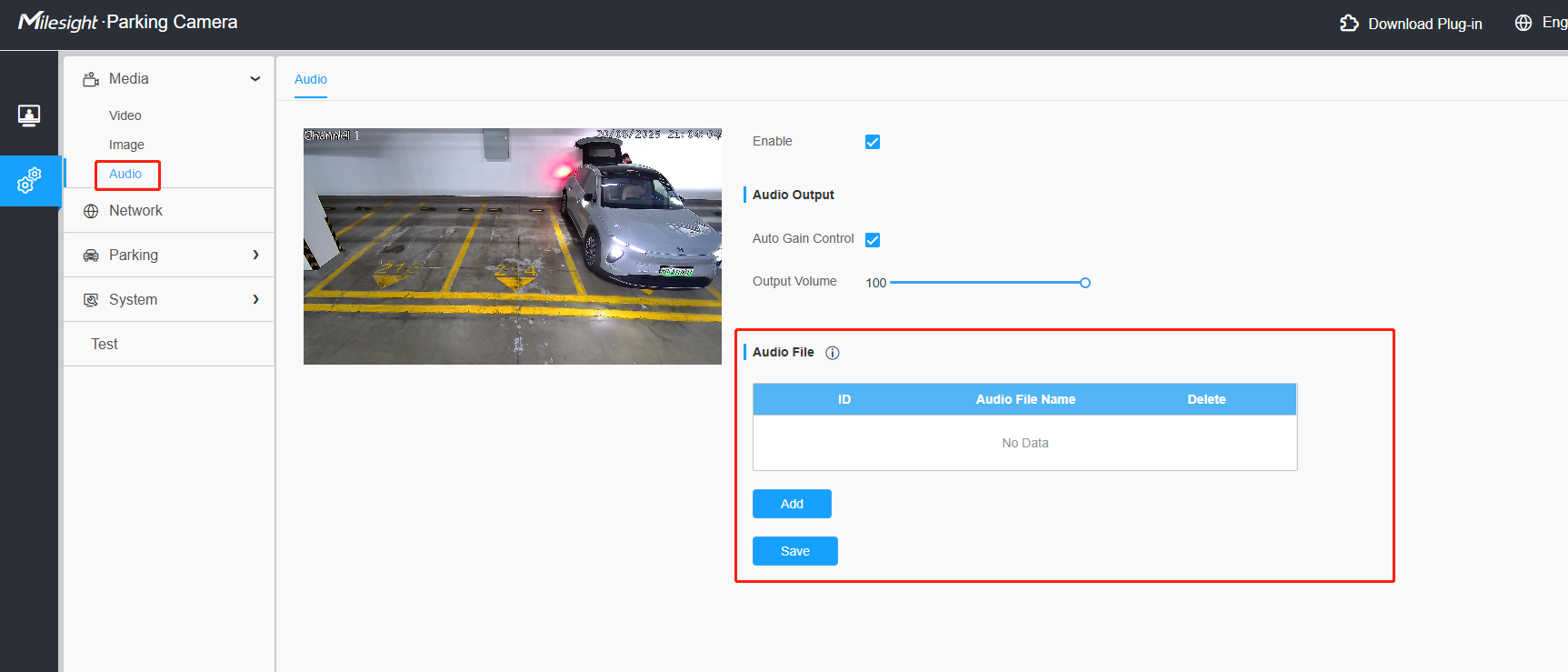
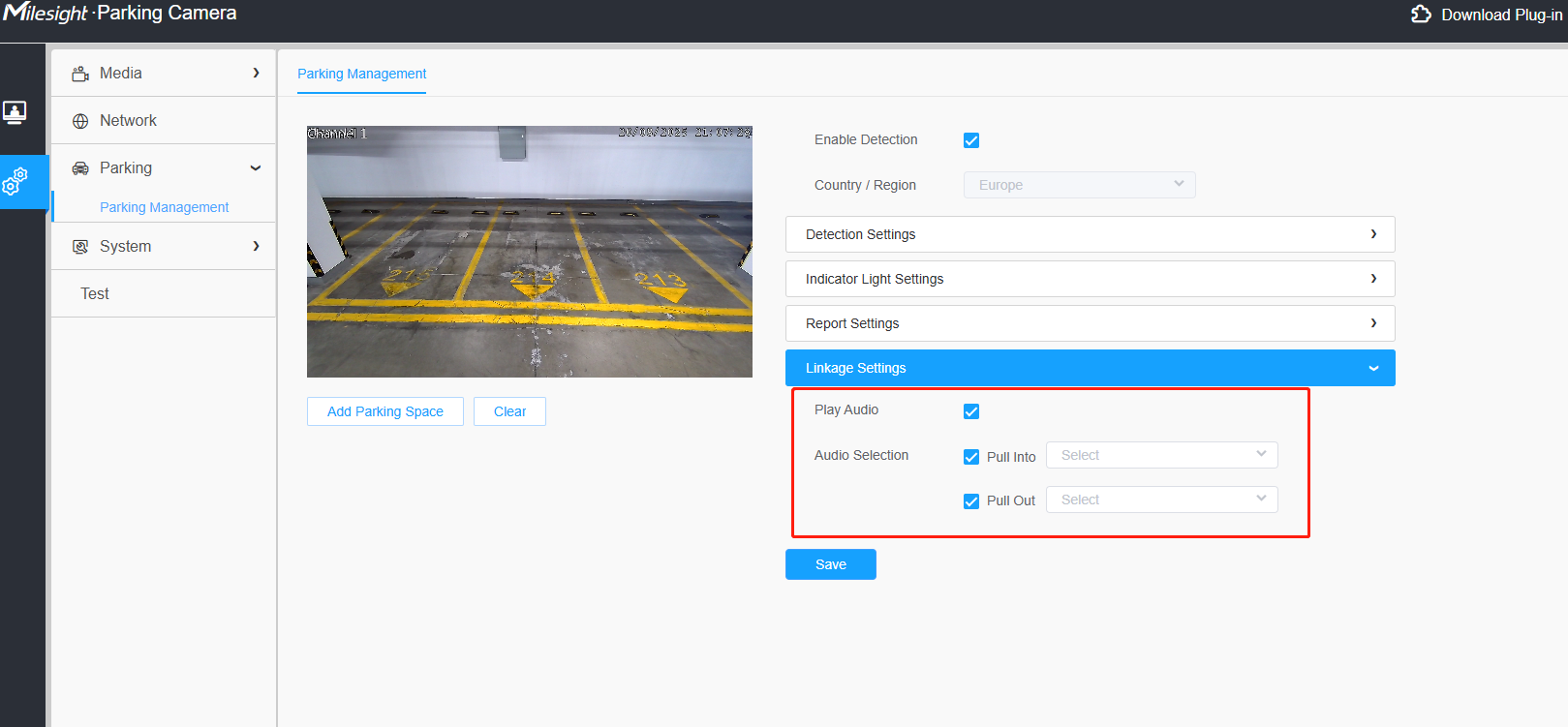
Then when a car pulls into/out , if you want, you can choose to play audio.
3.3 Detection Event (new PM3322-E PI_61.8.0.5 above)
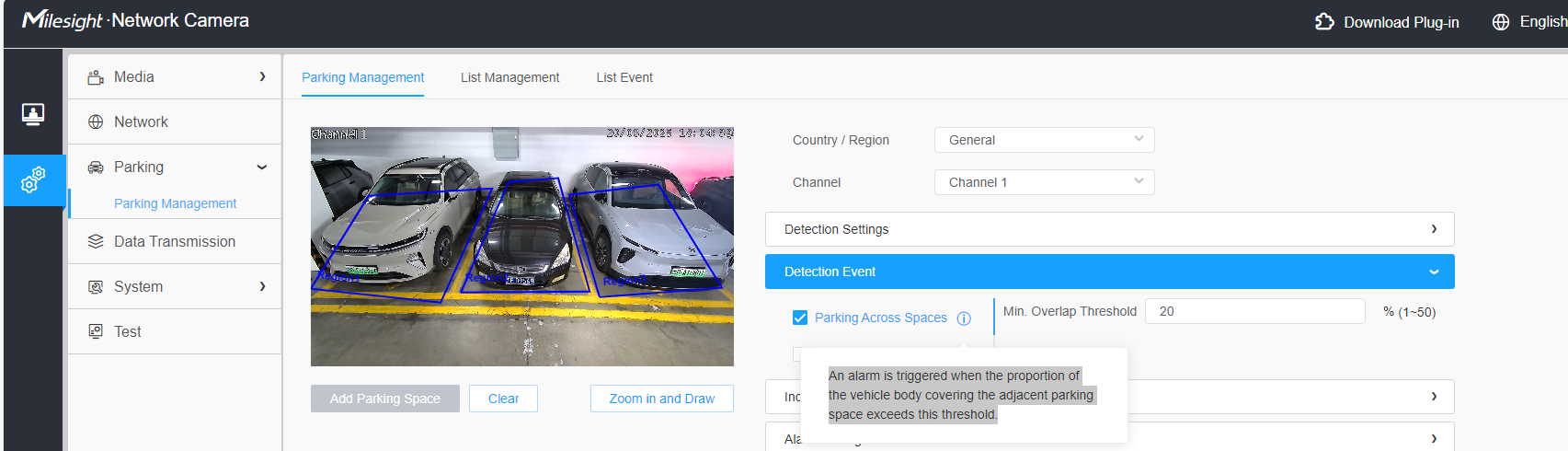
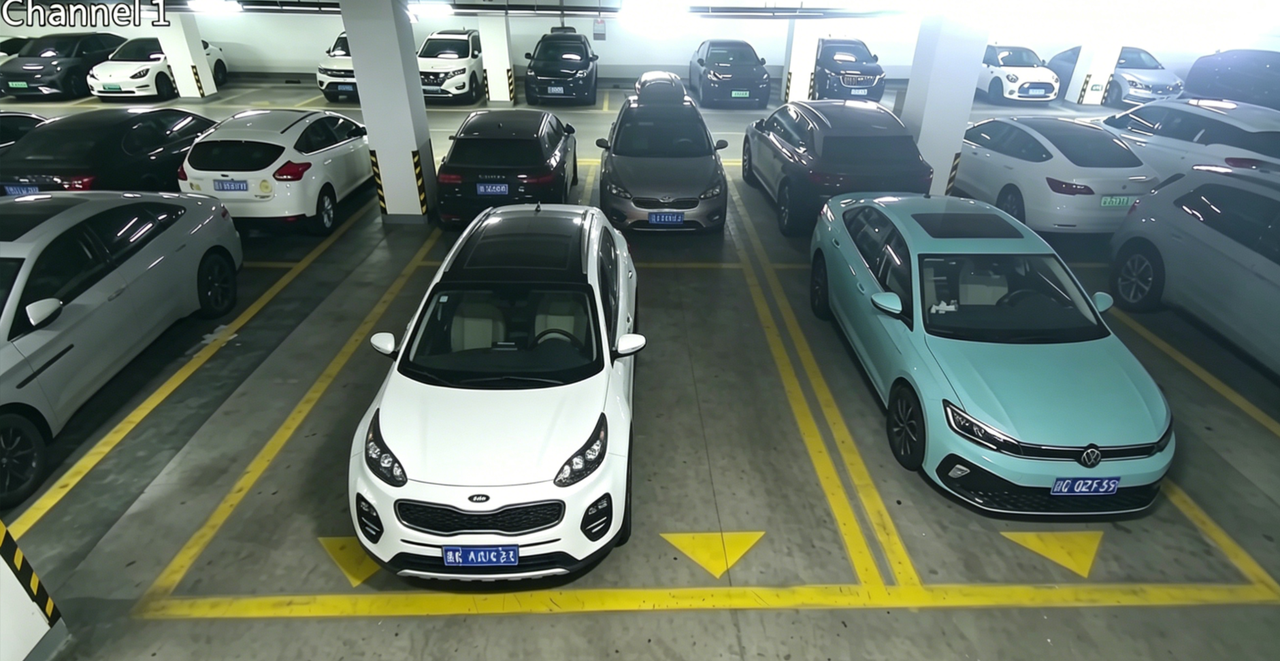
1.Parking Across Spaces
An alarm is triggered when the proportion of the vehicle body covering the adjacent parking space exceeds this threshold.
2.Abnormal parking space occupancy
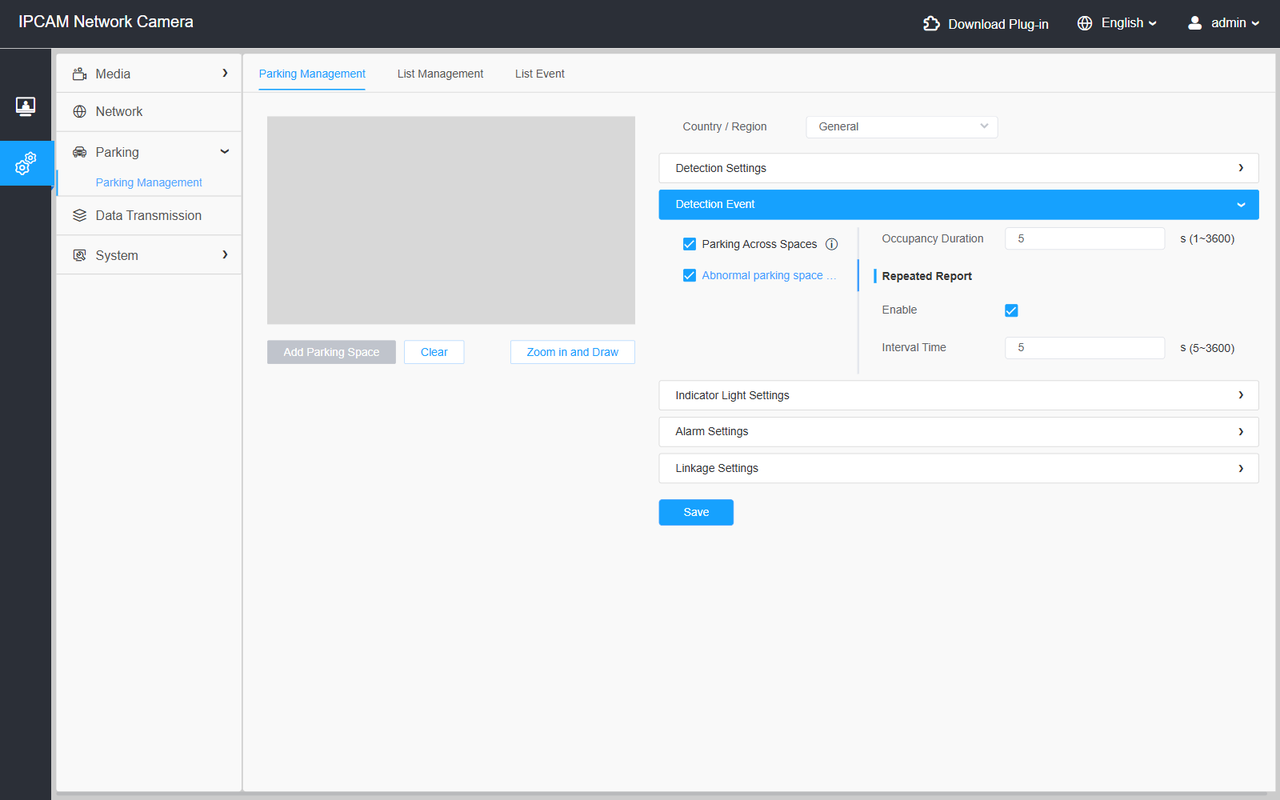
When a foreign object is detected occupying a parking space, an event is reported to facilitate precise cleanup by operations and maintenance personnel. Prerequisite: Foreign object detection is performed only when the parking space is determined to be “vacant”; if both a vehicle and a foreign object are present, the system prioritizes the vehicle as occupying the space (to conserve performance and prevent false positives).
4.List Management / Event
This function only support in new PM3322-E PI_61.8.0.5 above
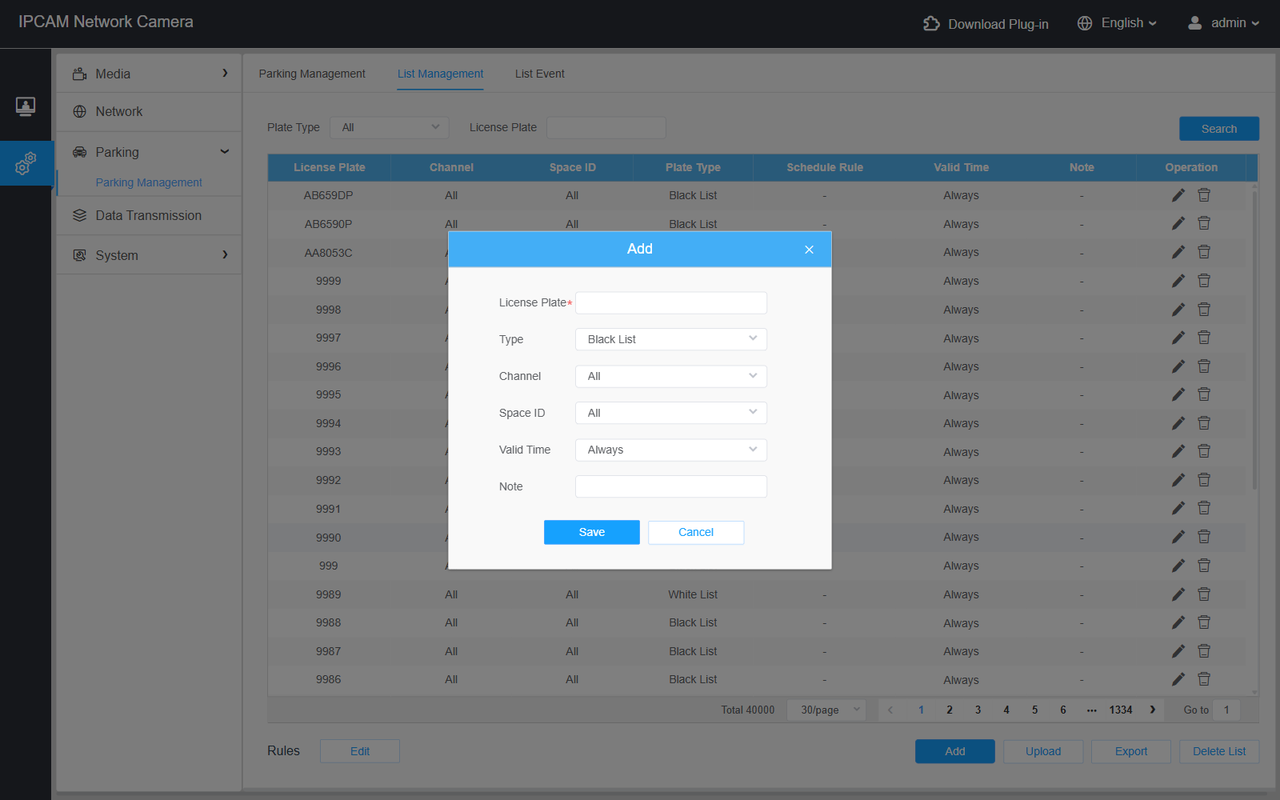
• List Management → Click Add;
• Select Type: Black List or Non-White List;
• Enter the License Plate, select Channel (Stereo 1/2/All) and Space ID (1/2/3/All);
• (Optional) Upload to import in bulk (the template includes columns for Channel and Space ID);
Channel and Space ID:PM3322-E support two channel and each channel support drawn 3 region
• List Event → Configure Alarm Action: Play Audio (optional Audio Selection) / HTTP Notification;
• Click Save.
In the “List Events” section, check the box for “Blacklist Alerts” or “Non-Whitelist Alerts”
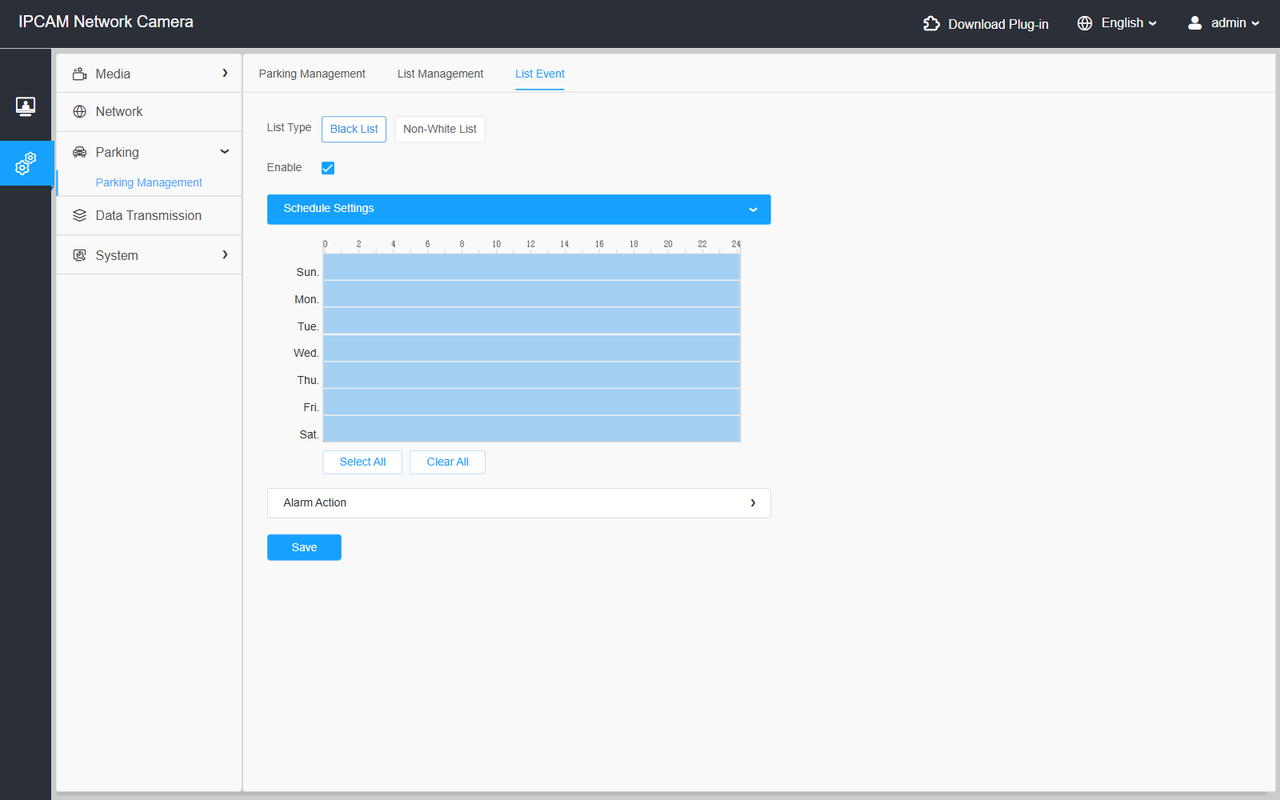
Note:An alarm will trigger when a vehicle on the blacklist enters the corresponding parking space, and an alarm will trigger when any vehicle not on the whitelist enters.
5.Data transmission
5.1 Report Settings
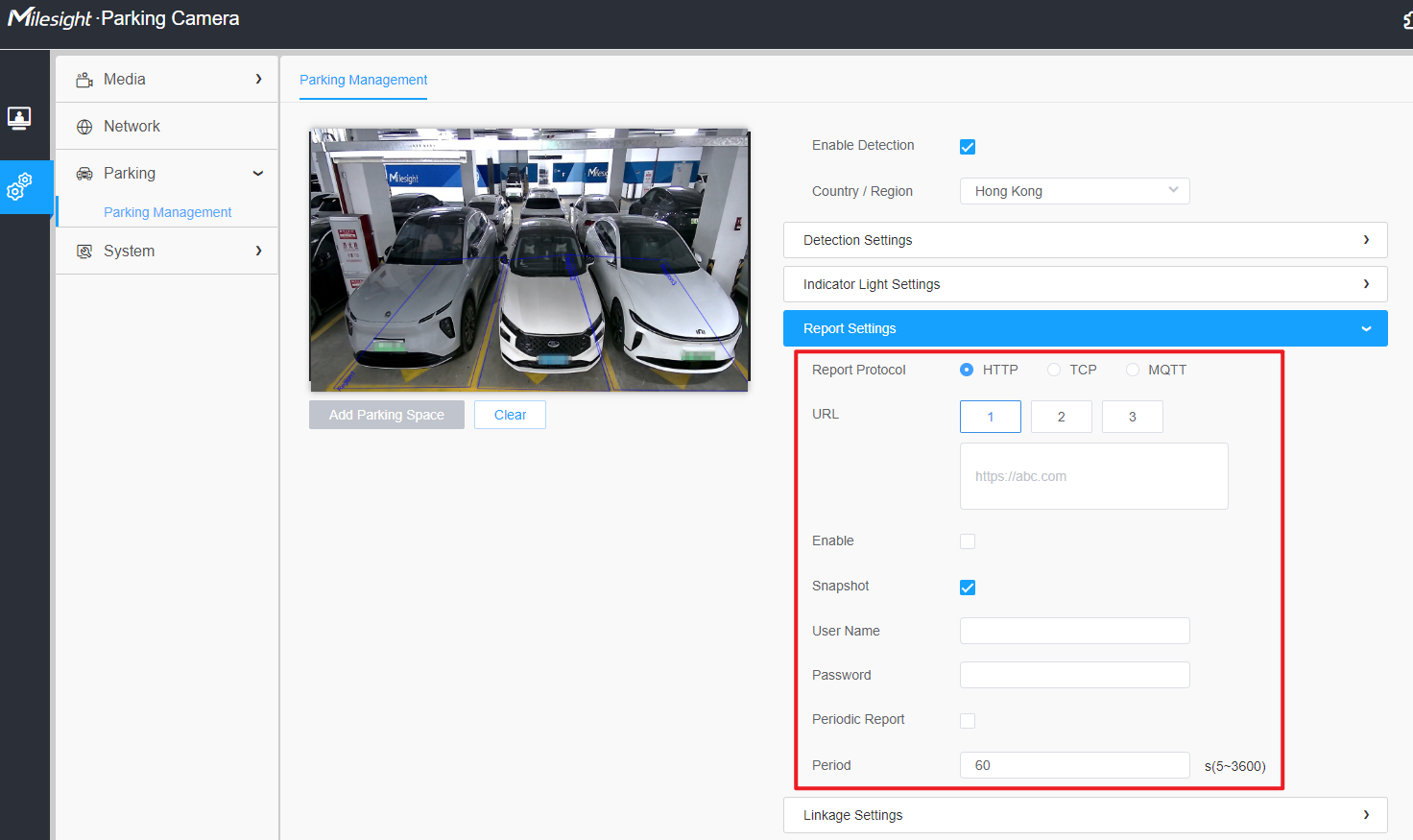
For old PM3322-E(firmware below PI_61.8.0.5),only support report setting like below
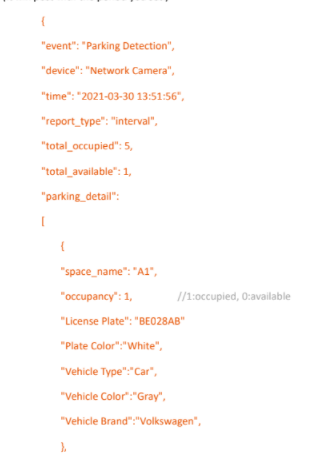
The camera can be connected to the backend platform via TCP, HTTP, or MQTT. The indoor parking space camera first reports its account and password to the server. Whenever a parking space is occupied or released, it immediately pushes the update; periodic batch reporting is also supported. The report is in JSON format and includes time, parking space number, occupancy status, license plate, vehicle type, color, brand, and vehicle position.
Support trigger reporting and periodic reporting. You can find the detailed report content here.
5.2 Data transmission
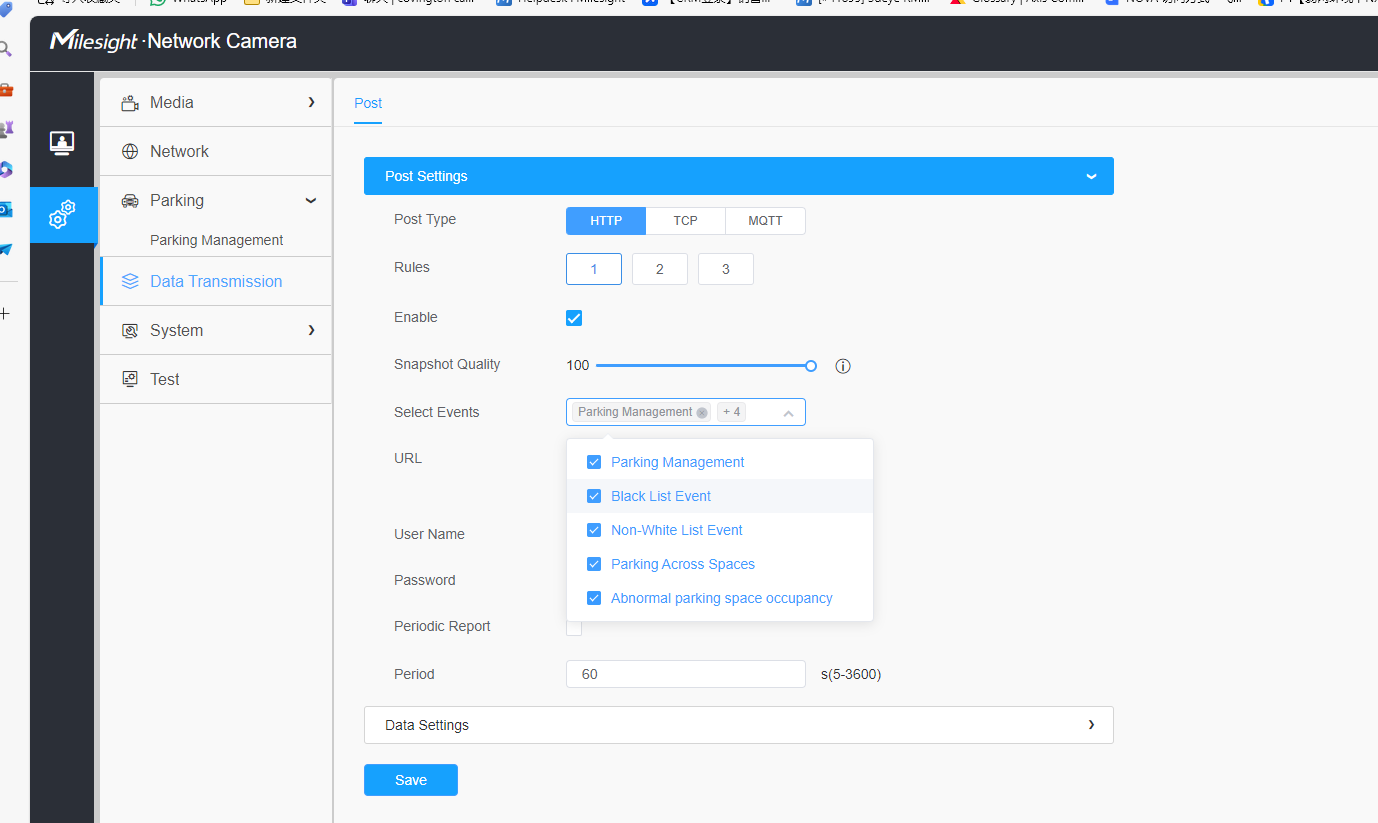
For the new PGC models (firmware PI_61.8.0.5 or later),a dedicated section titled “Data Transmission”
Regarding data transmission, we support three methods: HTTP, TCP, and MQTT.
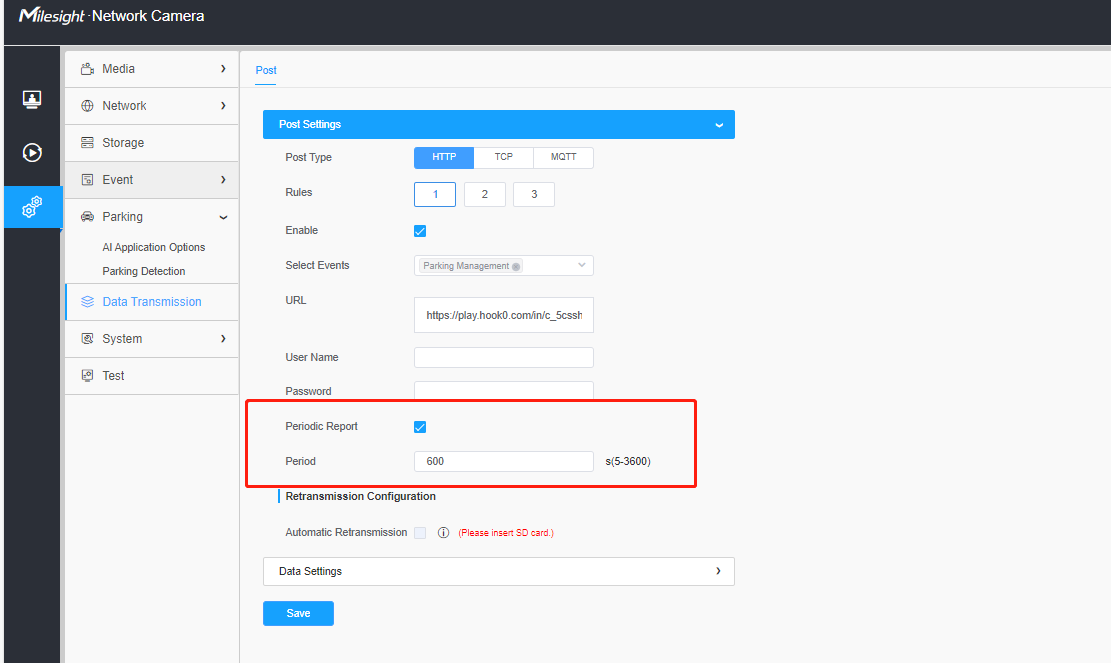
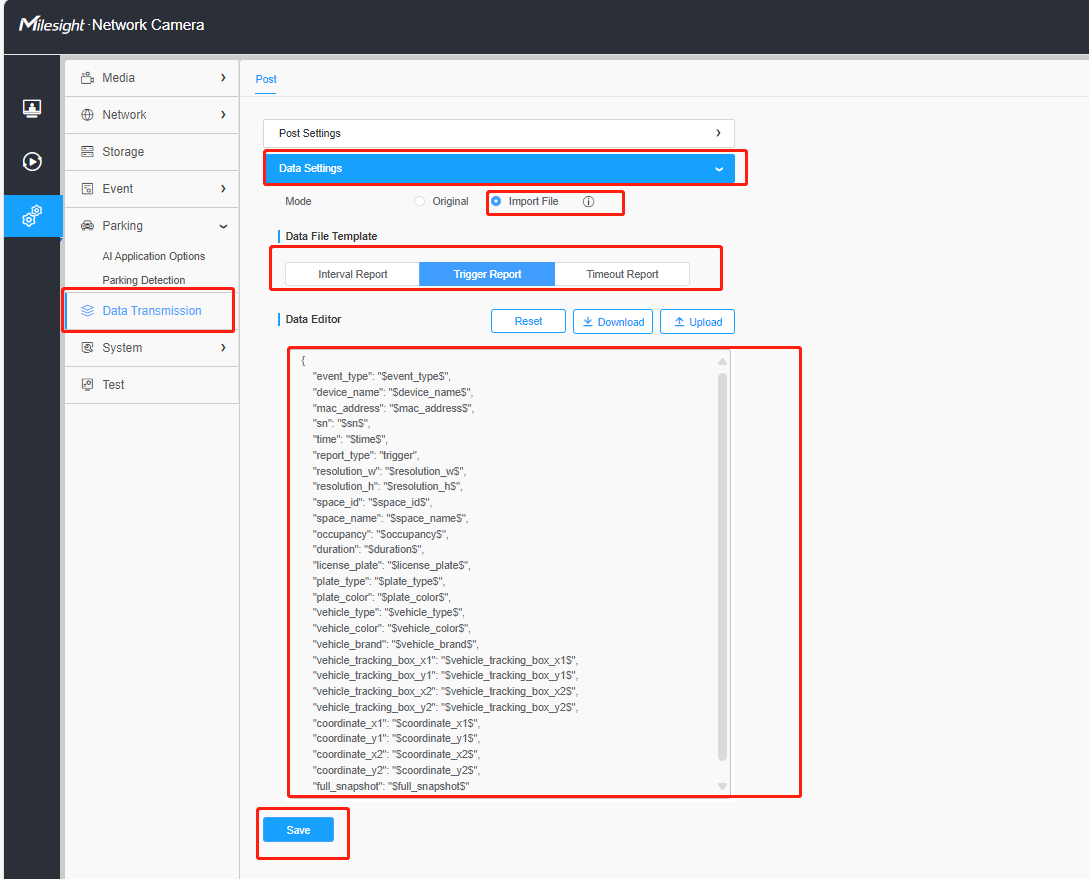
There are three types of reports: Trigger Report, Periodic (Interval) Report, and Timeout Report.
1.If you want to receive real‑time push notifications, once you check the "Enable" box, it will trigger a Trigger Report and push the data to the HTTP, TCP, or MQTT address you have configured.
2.If you want to receive notifications at scheduled intervals, you can enable the Periodic Report and set the desired time interval.
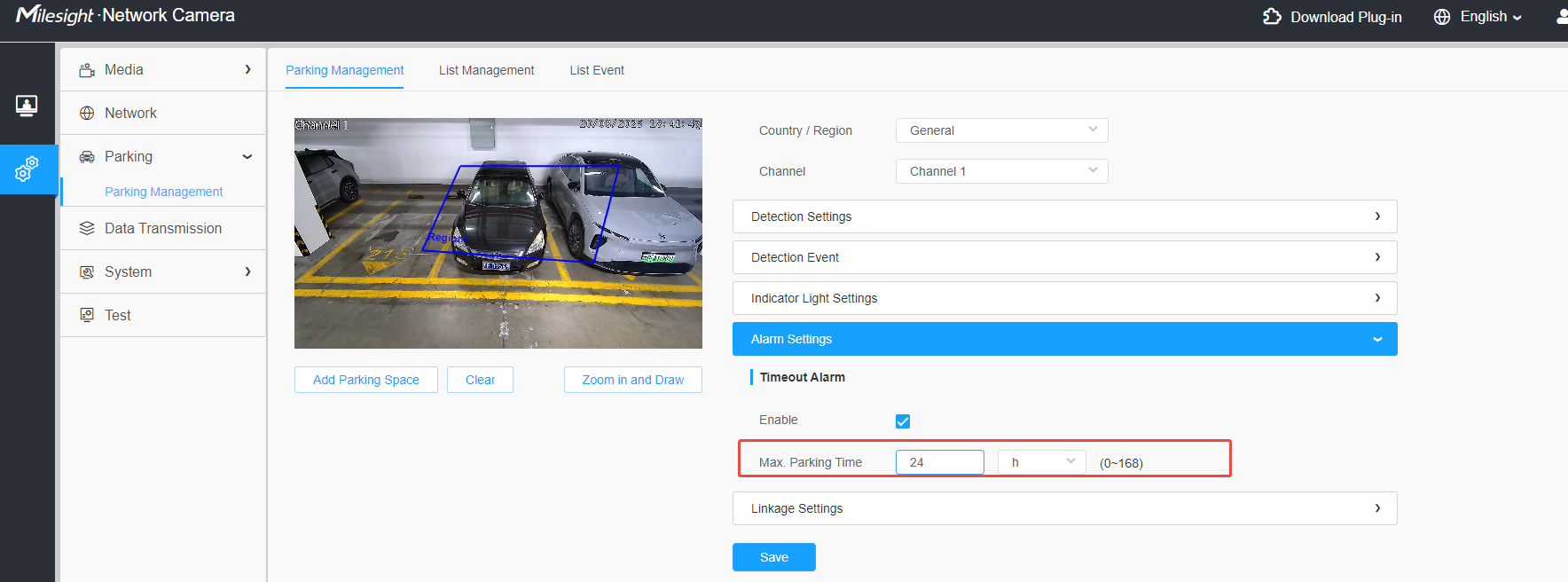
3.If you want to receive reports when the vehicle stop exceeds a certain duration, you can enable the Timeout Report here and set the desired time period.
Note:You can check the "Import File" option in the Data Settings to configure the format and data items for each report type.
If you still have any issue about Indoor Parking Guidance Camera, please email support@milesight.com with the MAC address of the camera, or you could create a ticket to get help from the Milesight Support Team: https://support.milesight.com/support/tickets