
Introduction
To further optimize LPR (License Plate Recognition) performance, our cameras provide several auxiliary features for fine-tuning: Trigger Line, Min. Plate Size Filter, License Plate Serial Format, and Repeat Plate Checktime, Optimal Push Mechanism. This article describes the applicable scenarios, working principles, and configuration steps for each feature.
1. Trigger Line
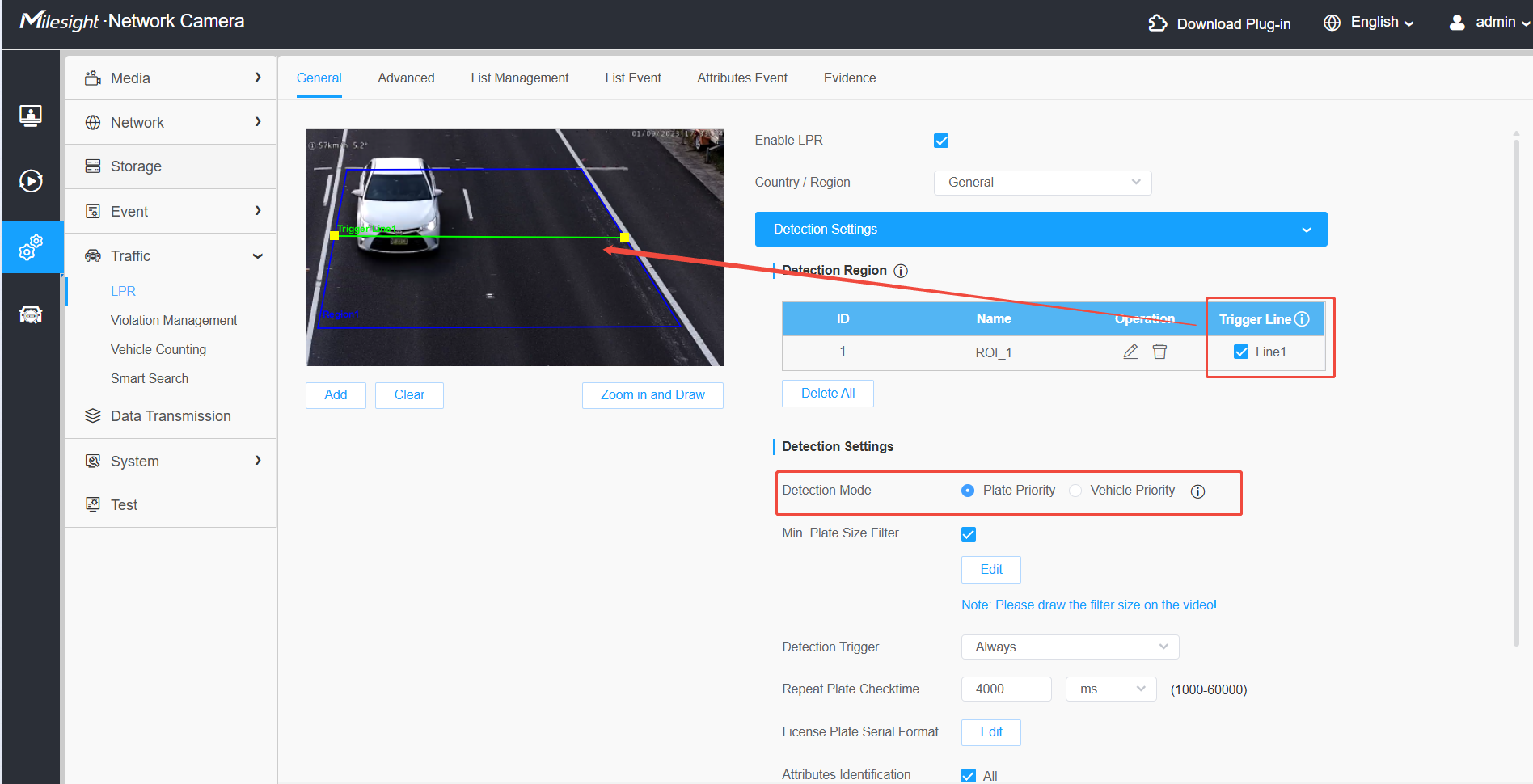
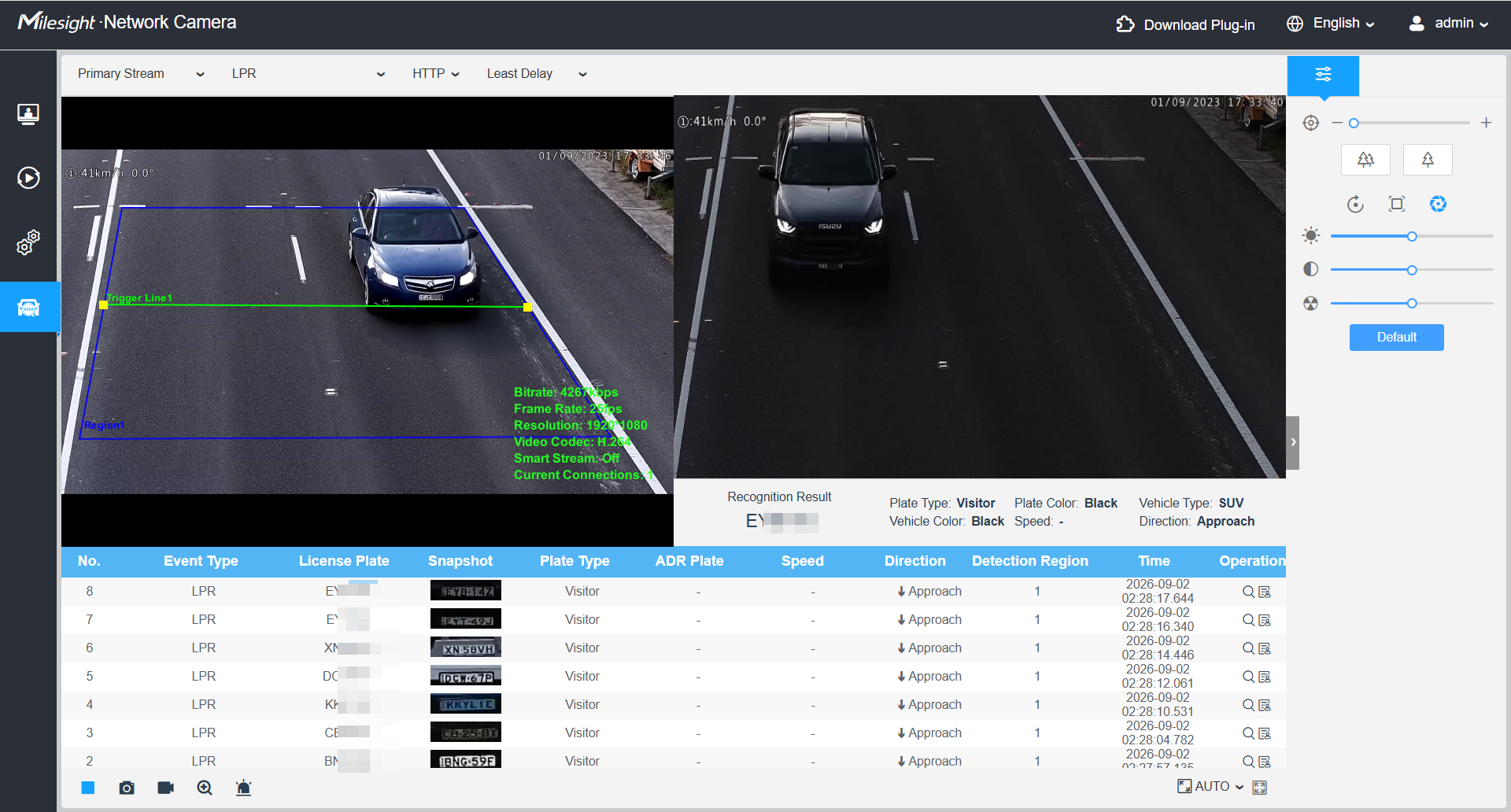
• Applicable Scenario: Primarily for road and entrance/exit scenarios. Reduces static false detections within the detection region — that is, the camera misidentifying non-license-plate text or patterns inside the detection region as license plates. It also prevents false detections of stationary license plates belonging to vehicles parked within the detection region.
• Principle: A push notification is triggered only when a license plate or vehicle crosses the trigger line, which improves the accuracy and reliability of license plate recognition.
Note: In Plate Priority mode, a license plate crossing the line triggers a push; in Vehicle Priority mode, a vehicle crossing the line triggers a push.
• Configuration: Go to Settings → Traffic → LPR → General → Detection Settings → Detection Region to first draw the detection region, and then draw the trigger line within that region. Ensure that the trigger line is drawn in an area with sharp focus.
2. Min.Plate Size Filter
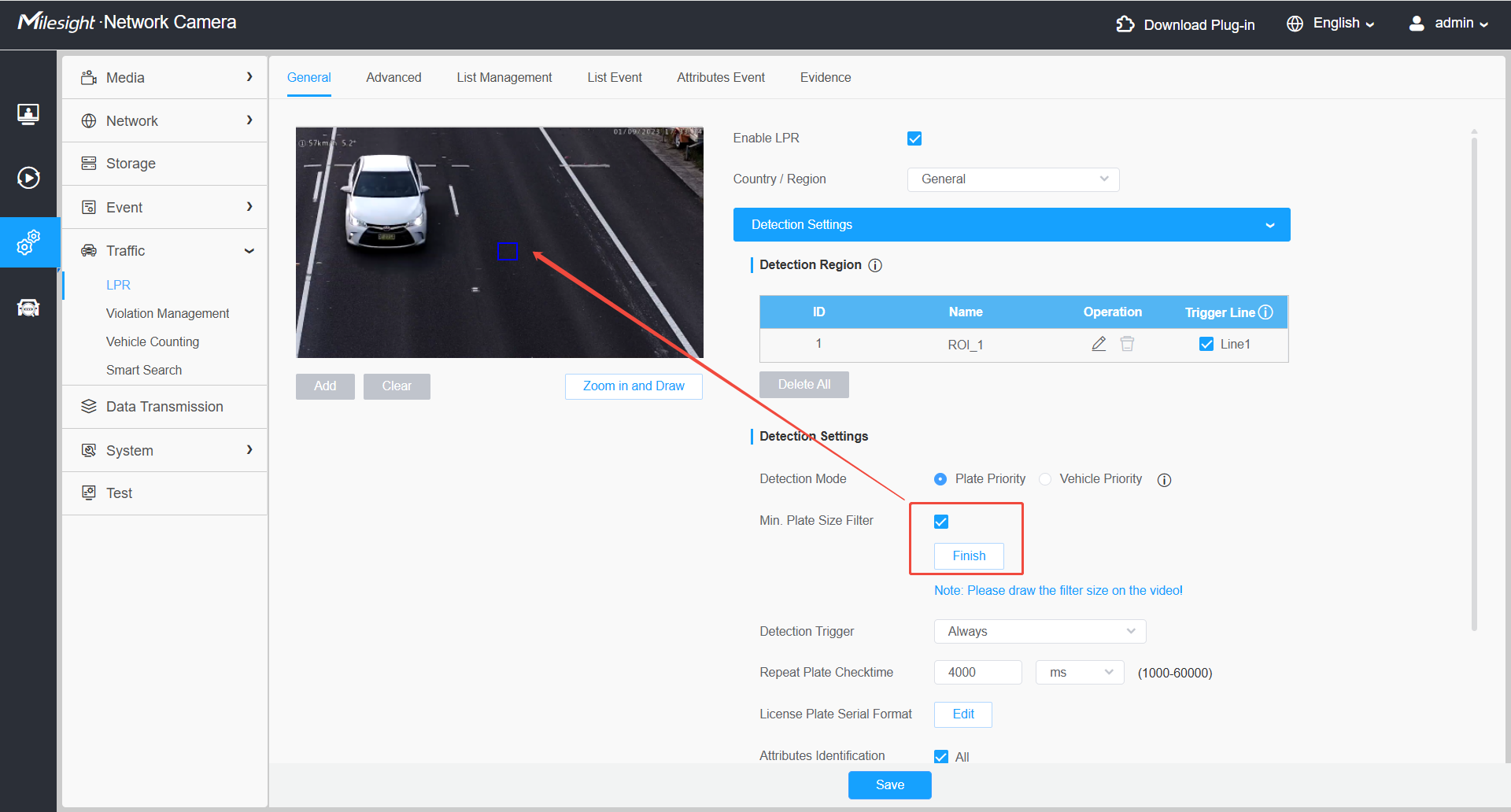
• Applicable Scenario: Commonly used in entrance/exit scenarios to prevent queued vehicles in the background or unrelated vehicles in the scene from being falsely recognized.
• Principle: Configures a minimum license plate size, license plates smaller than this threshold will not be pushed.
• Configuration: Go to Settings → Traffic → LPR → General → Detection Settings → Detection Mode to first enable Plate Priority mode, and then go to Min. Plate Size Filter to draw the minimum license plate size.
3. License Plate Serial Format
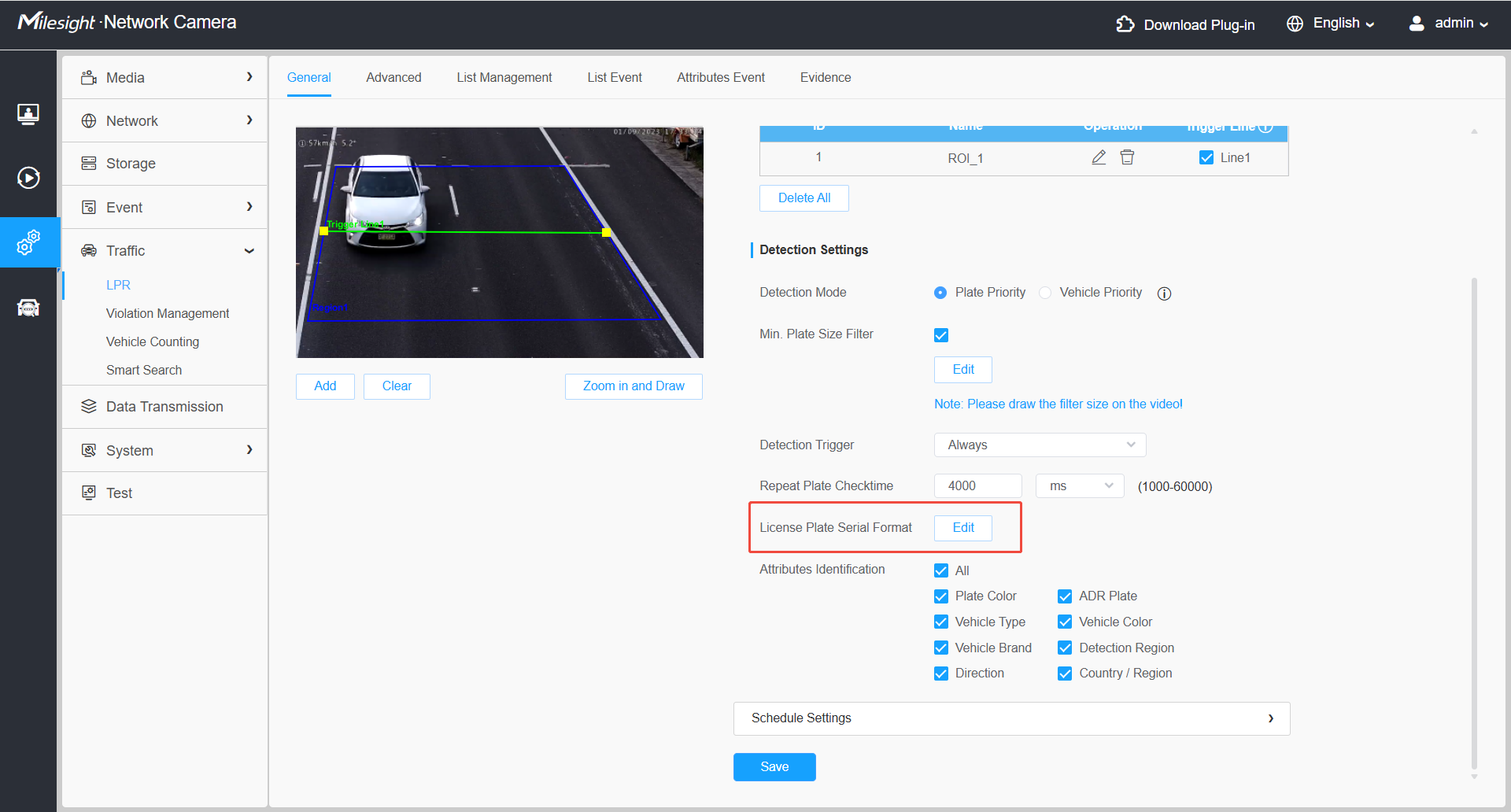
• Applicable Scenario: Commonly used in scenarios where background objects (such as road signs) frequently trigger false detections.
• Principle: Defines the license plate format; only license plates matching the configured rules will be pushed.
• Configuration: Go to Settings → Traffic → LPR → General → Detection Settings → License Plate Serial Format.
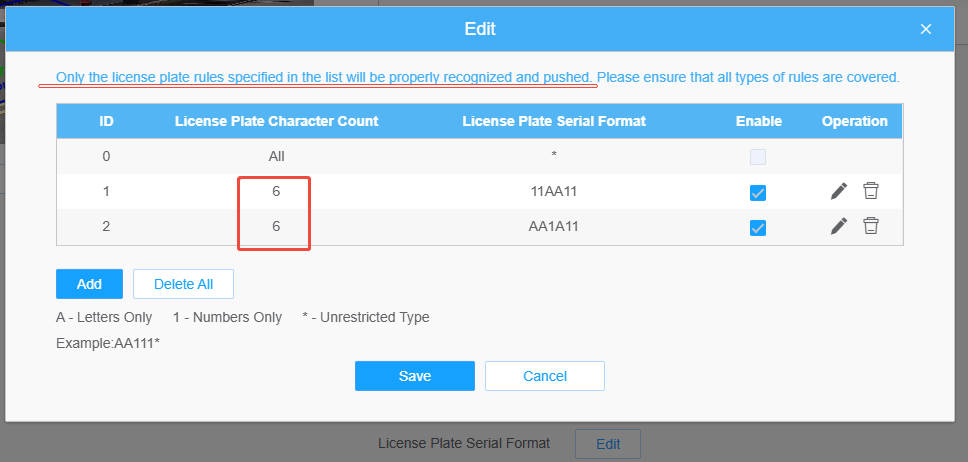
Note:
1. Supports 10 digits and multiple rules can be configured for the same number of characters.
2. A maximum of 30 rules can be configured.
4. Repeat Plate Checktime
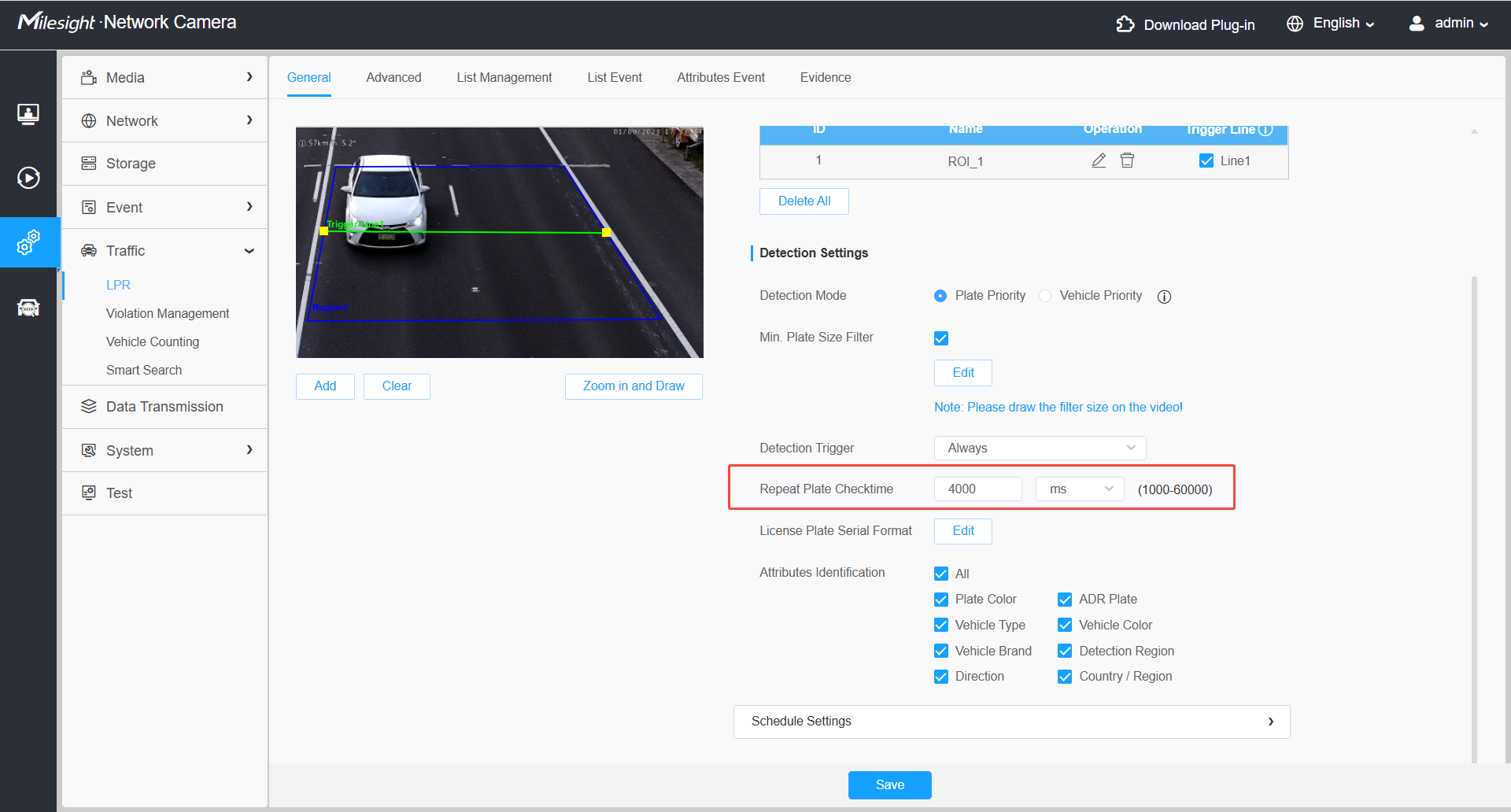
• Applicable Scenario: Commonly used in entrance/exit and traffic intersection scenarios where vehicles may remain stationary, preventing excessive push notifications while a vehicle is stationary.
• Principle: Sets the time interval for re-detecting the same license plate while vehicle tracking remains uninterrupted.
• Configuration: Go to Settings → Traffic → LPR → General → Detection Settings → Repeat Plate Checktime.
5. Optimal Push Mechanism
• Applicable Scenario: Ideal for scenarios that demand high snapshot quality, complete vehicle body capture, and high LPR recognition accuracy. This feature resolves the issue of incomplete vehicle bodies in snapshots.
• Principle: Camera temporarily stores several frames and scores them based on vehicle position and license plate visibility. Only the best-scoring frame will be selected and pushed as a snapshot, ensuring you always receive the clearest and most complete image.
• Configuration: Go to Settings → Traffic → LPR → General → Detection Settings → Detection Mode to first enable Vehicle Priority mode, then enable Optimal Push Mechanism.
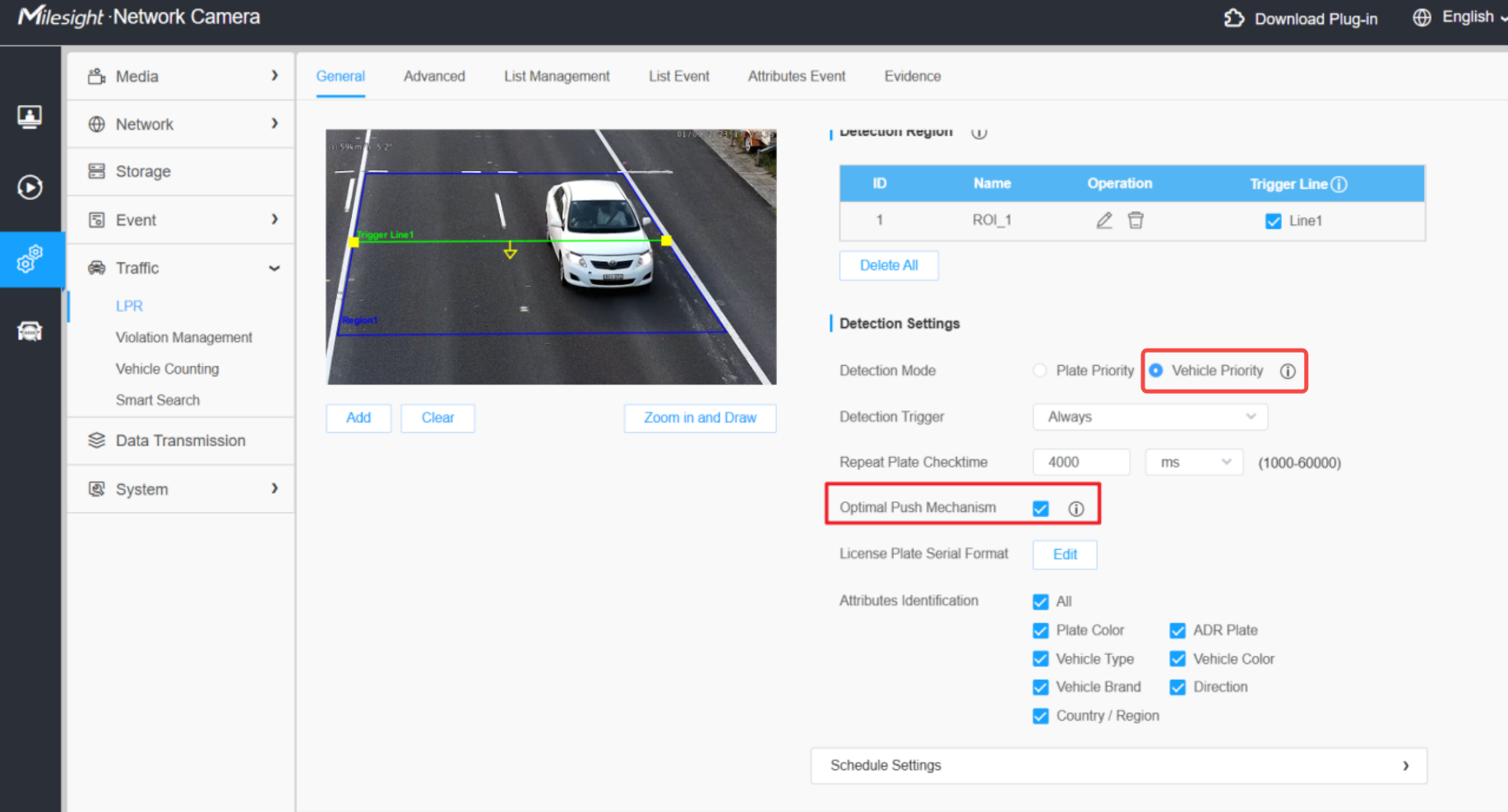
Note: Enabling this feature may result in push notification delays and instances where no vehicle is shown on‑screen when the radar OSD appears. If these issues are a concern, please enable this feature at your discretion.
If you have any further questions , please feel free to contact our support team(support@milesight.com).