Model | SE0208-K/NX/1 SE0216-K/NX/A05 | Update | 2026.8.5 |
1.Hardware Installation
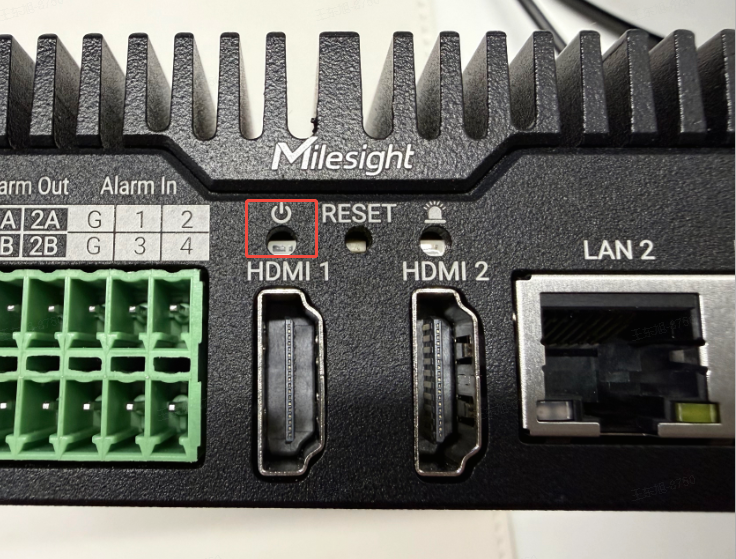
1. Be sure to turn off all power before replacing the hard drive and ensure the power light is off.
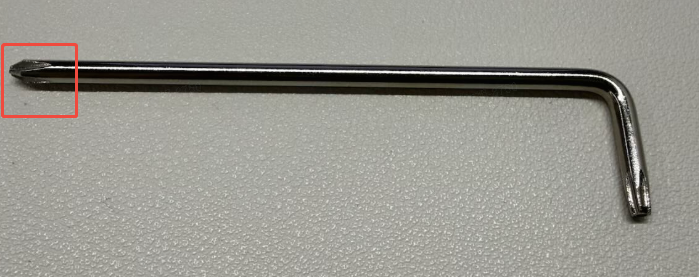
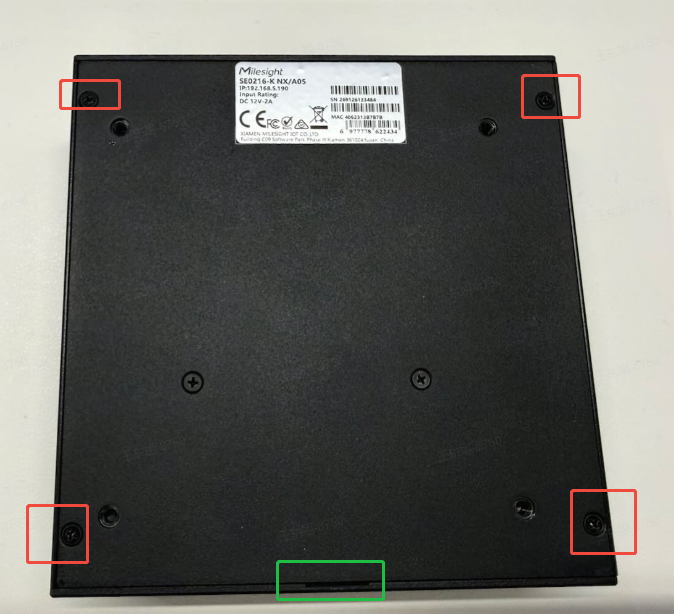
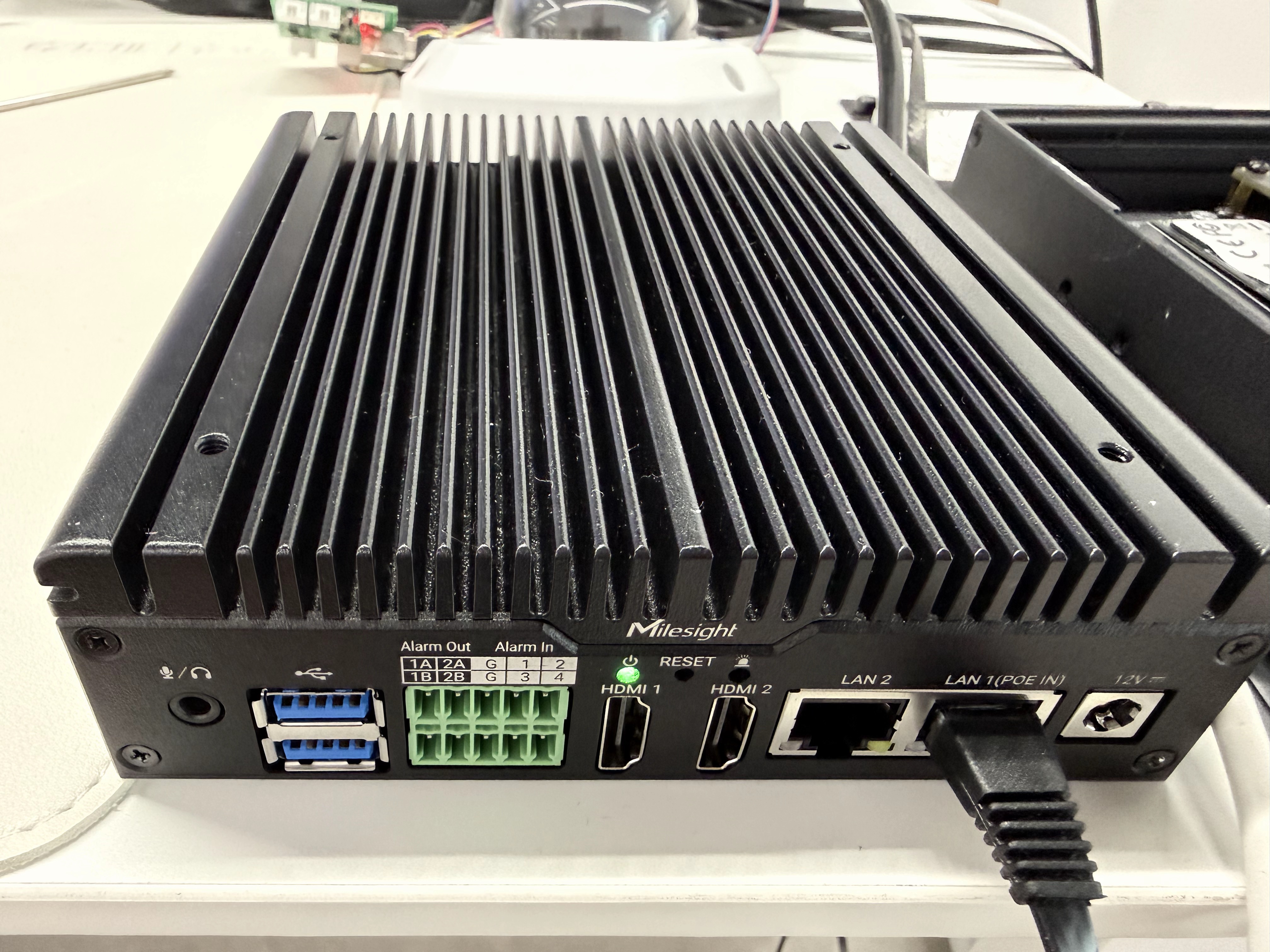
2. Using the screwdriver included in the package, remove the four screws on the back of the device and open the back panel via the notch at the bottom.
3. The device features two M.2 M-key PCIe slots supporting 2280-length drives (some units also support 2230 and 2242 sizes, supports up to 4TB per drive. the image on the left shows the SE0208-K/NX/1, and the image on the right shows the SE0216-K/NX/A05).
|
|
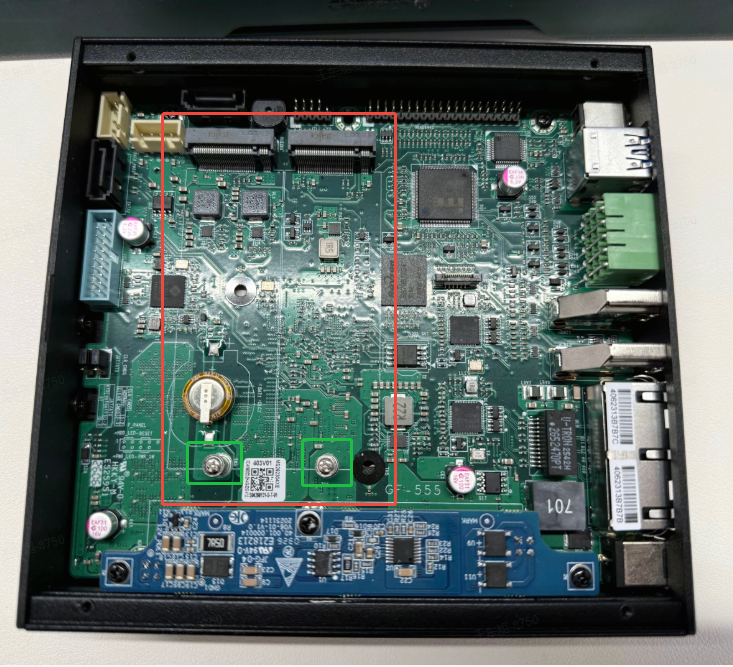
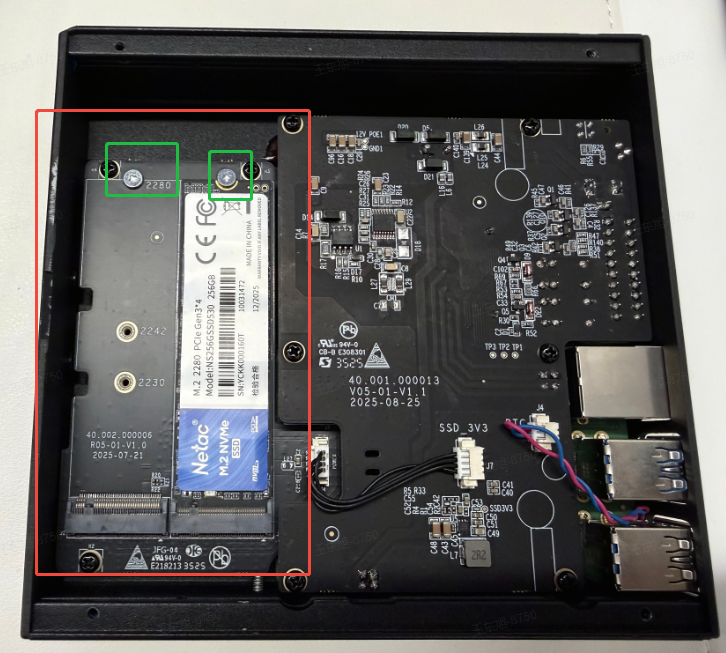
4. Remove the screws inside the green frame. Align the gold contacts of the SSD (the one being installed for capacity expansion) with the slot on the base and insert it; ensure you align it with the keying notch to avoid installing it the wrong way around. After installation, it looks as shown in the image on the right.
|
|
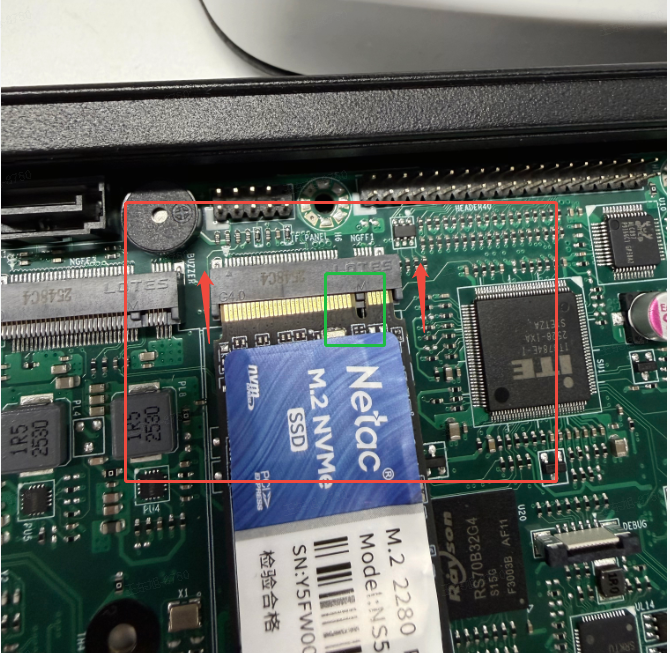
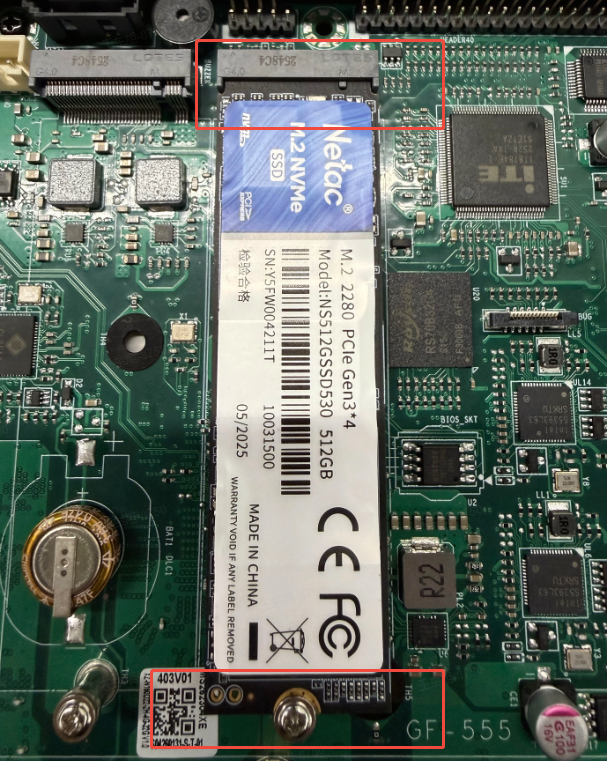
5. The procedure for expanding the second drive bay is the same; once installation is complete, reinstall the backplane and screws to finish the hardware setup.
2.Software Configuration
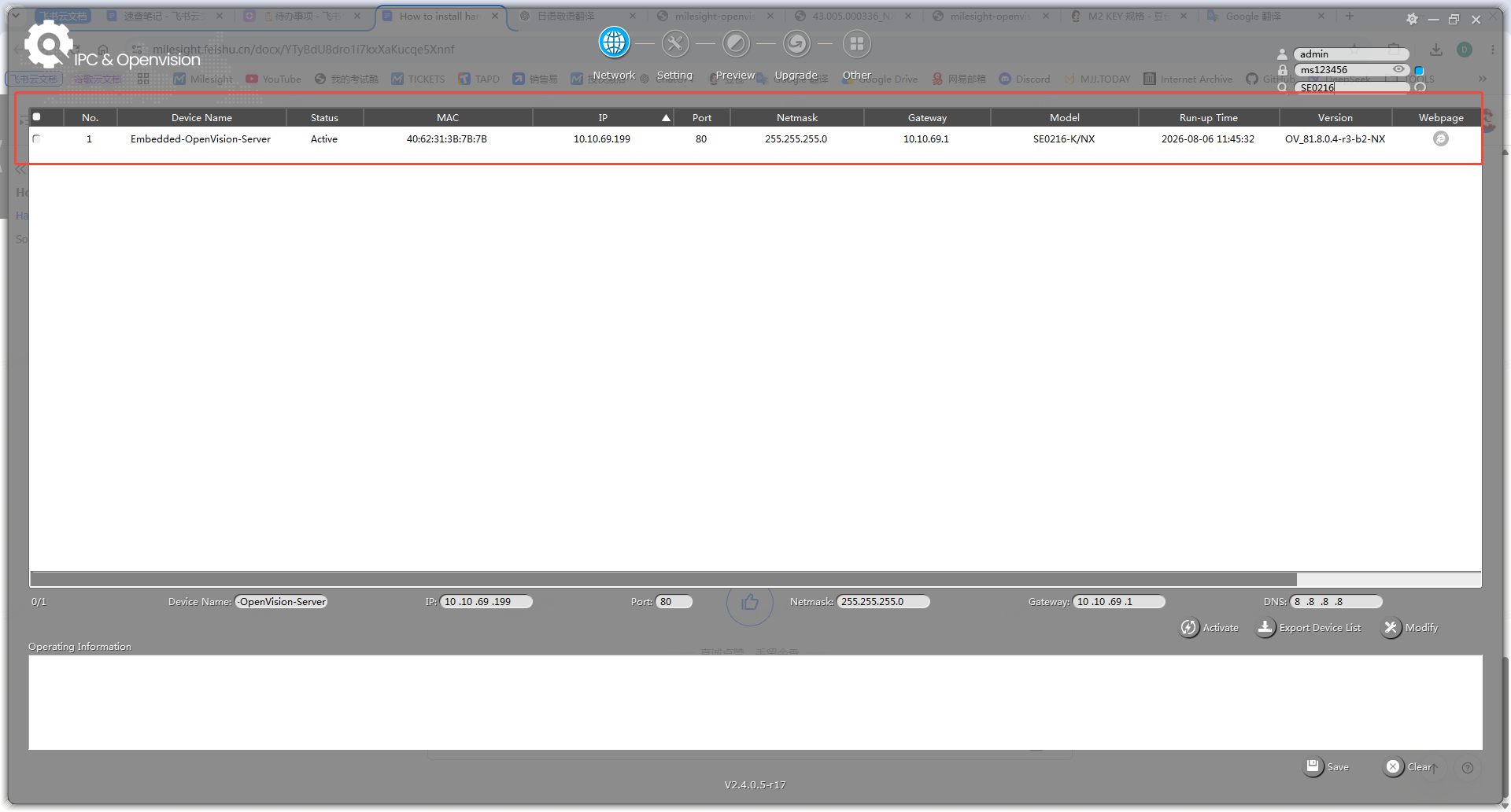
1. After completing the installation, locate the OpenVision device's address using Smart Tools.(If the device is not yet activated, please refer to the Quick Start Guide to activate it.)
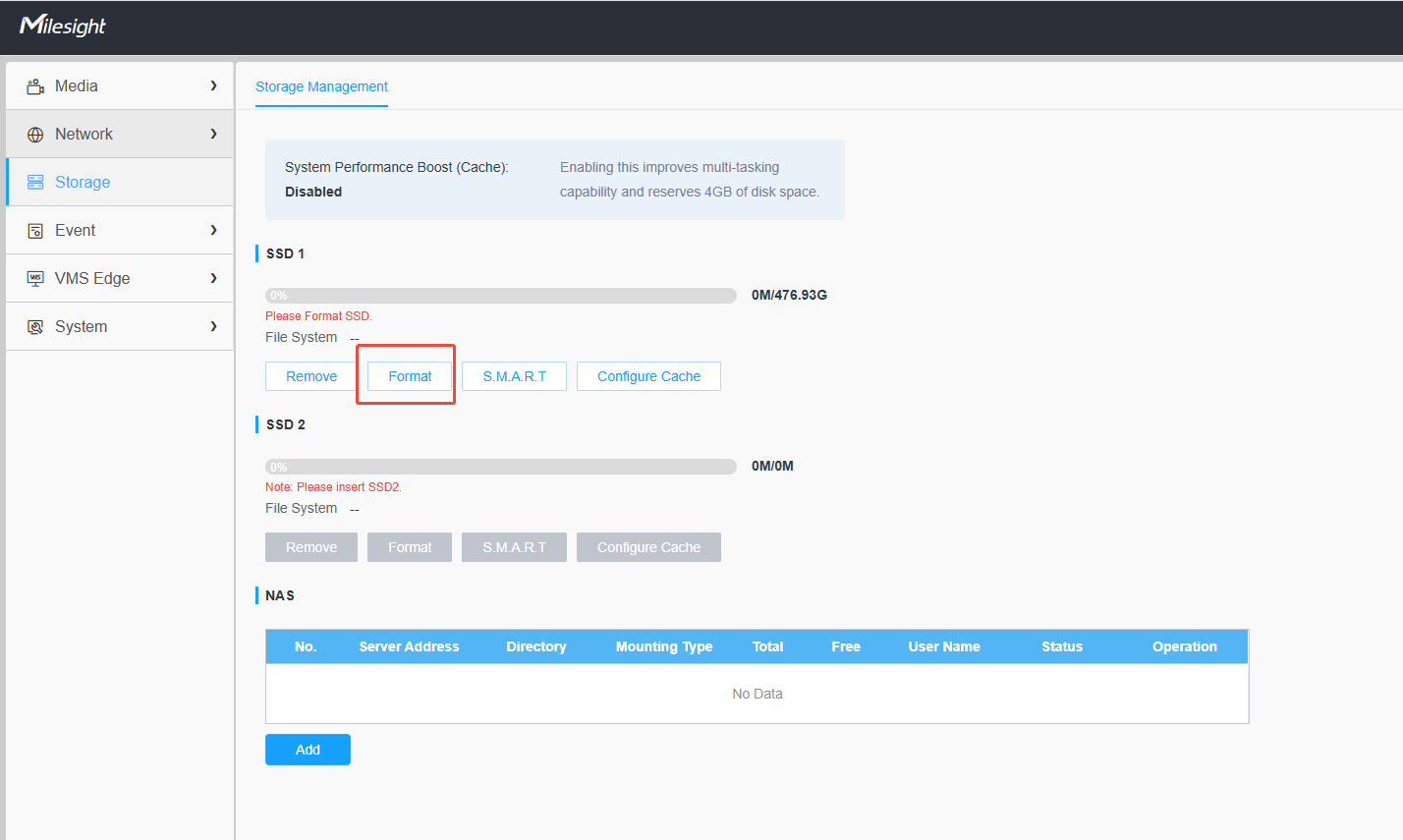
2. Initialize the SSD under Storage.
⚠️The first SSD installed and initialized will serve as the initialization drive for the NX Witness database, and analysis data will be stored on it; at least one SSD is required for the Nx Witness service to operate correctly.
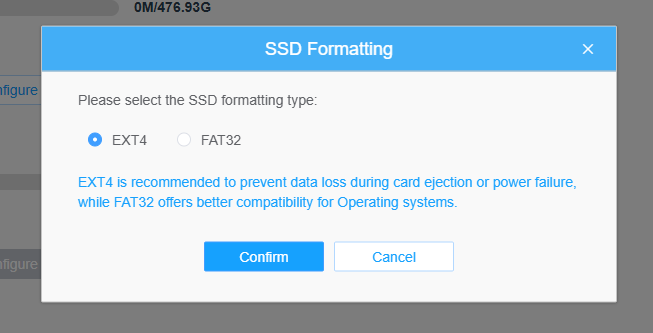
3. It is recommended to use the EXT4 format.
4. Ensure the VMS Edge service is running correctly
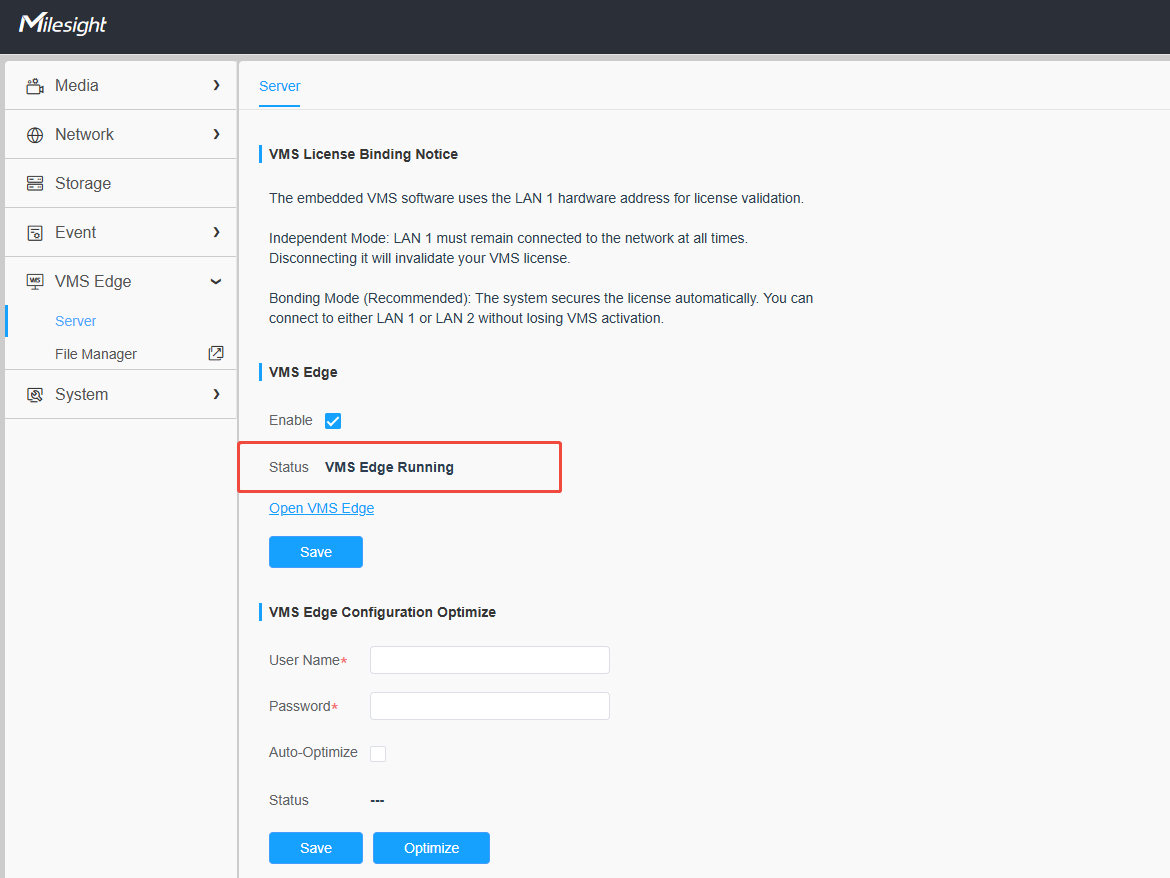
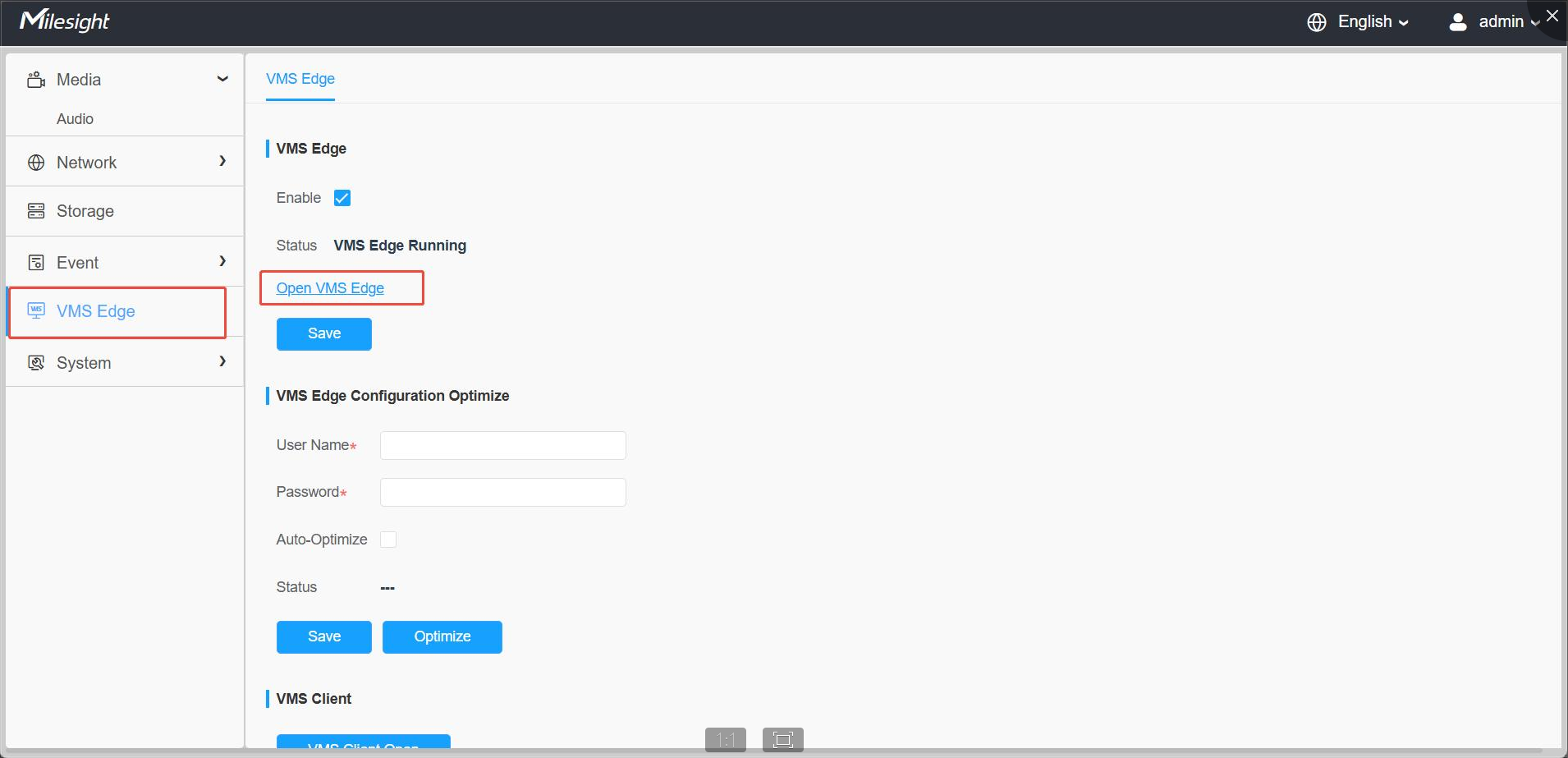
5. Click “Open VMS Edge” on the VMS Edge section to access the NX Server’s Web
browser.
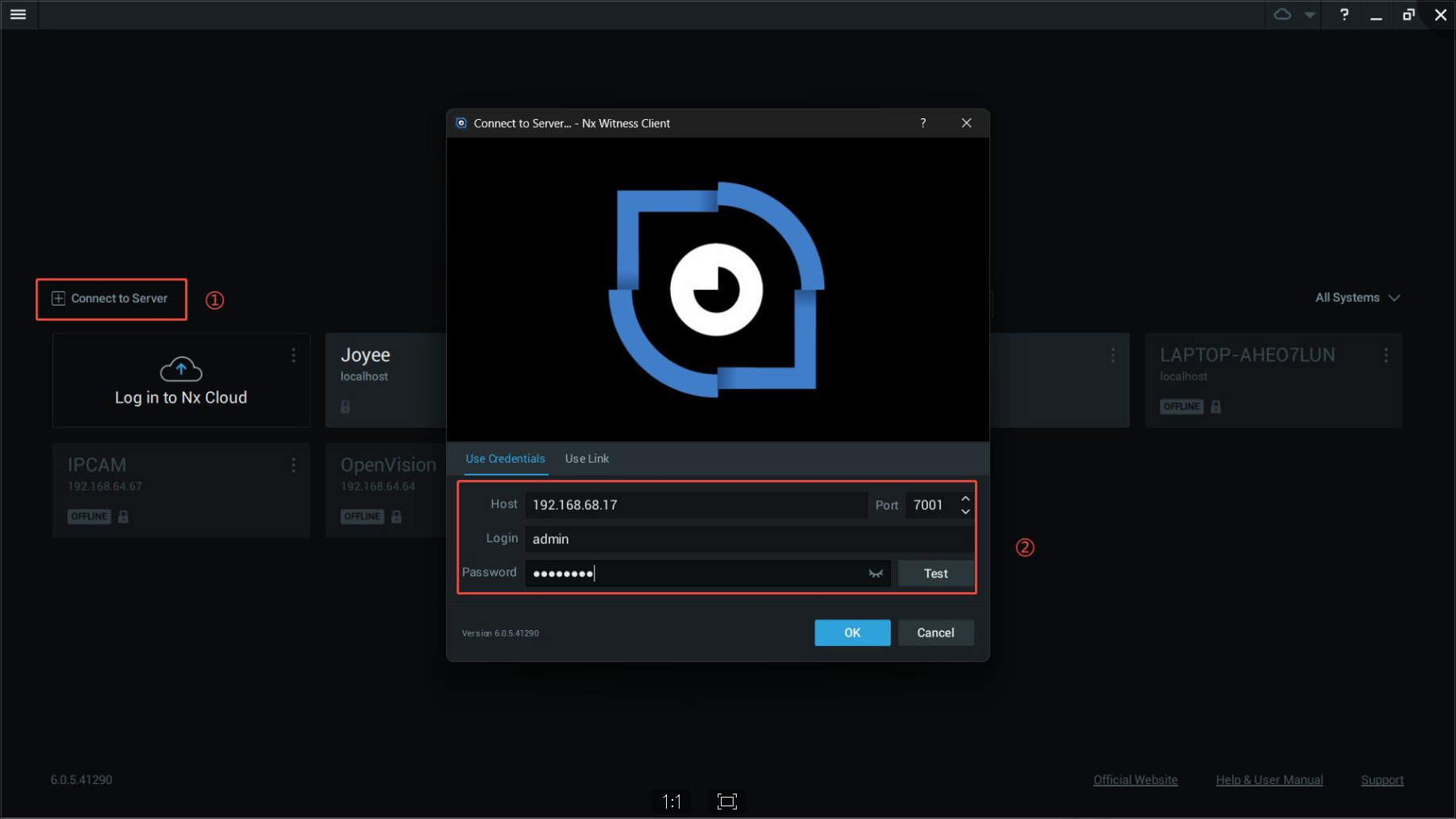
6. Open the NX Witness Client on your computer and log in using the device’s
current IP address to connect to the server
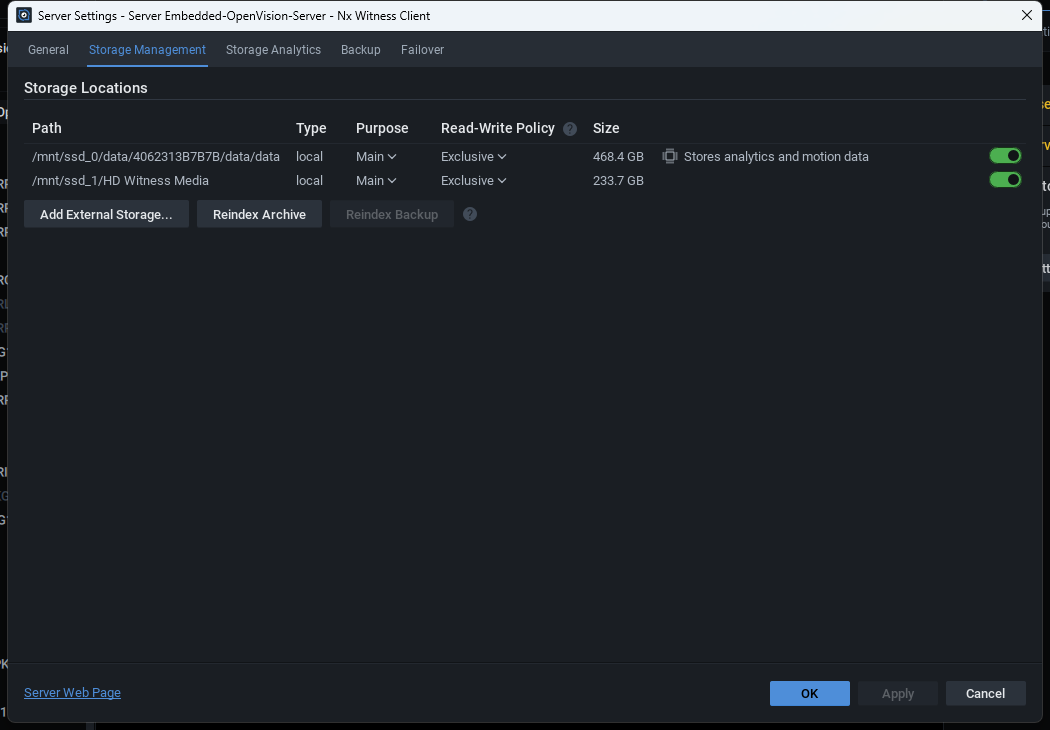
7. Verify via the NX client that the device capacity has been successfully recognized.