1.Description
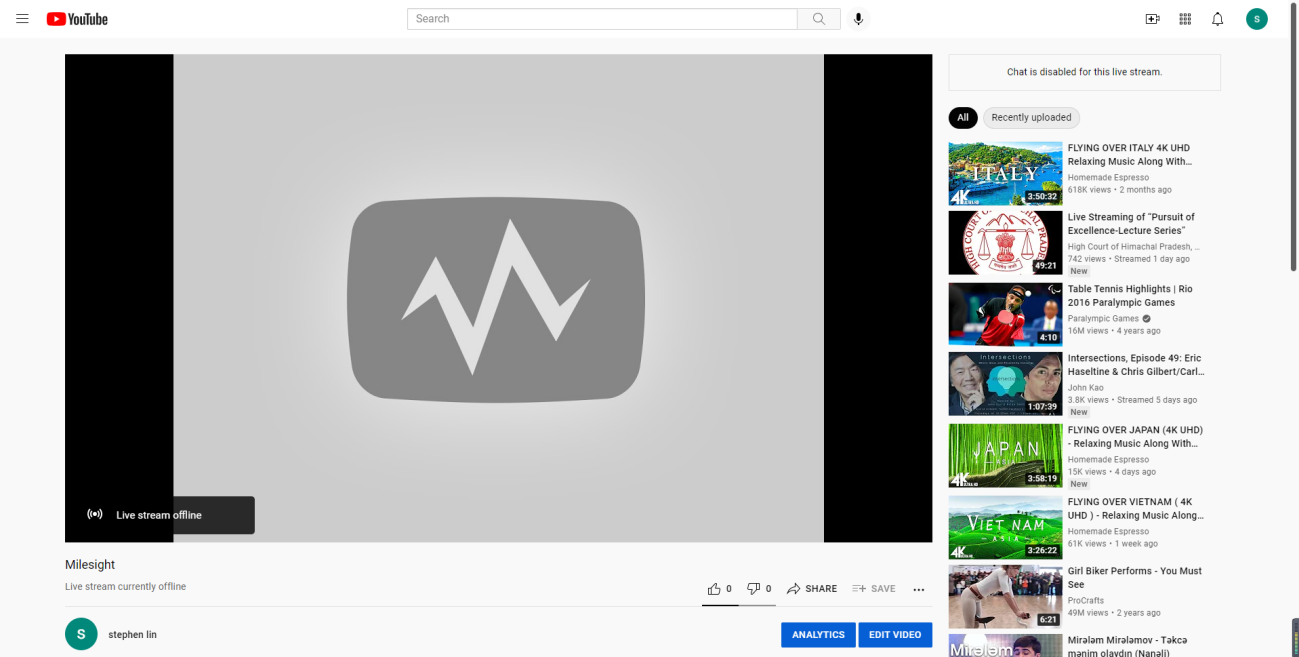
RTMP stream cannot be played normally on third-party platforms such as Youtube, Facebook and so on.
2.Cause
2.1Camera Settings
2.2Platform Requirements
3.Resolution
3.1Camera Settings
3.1.1 Server Address
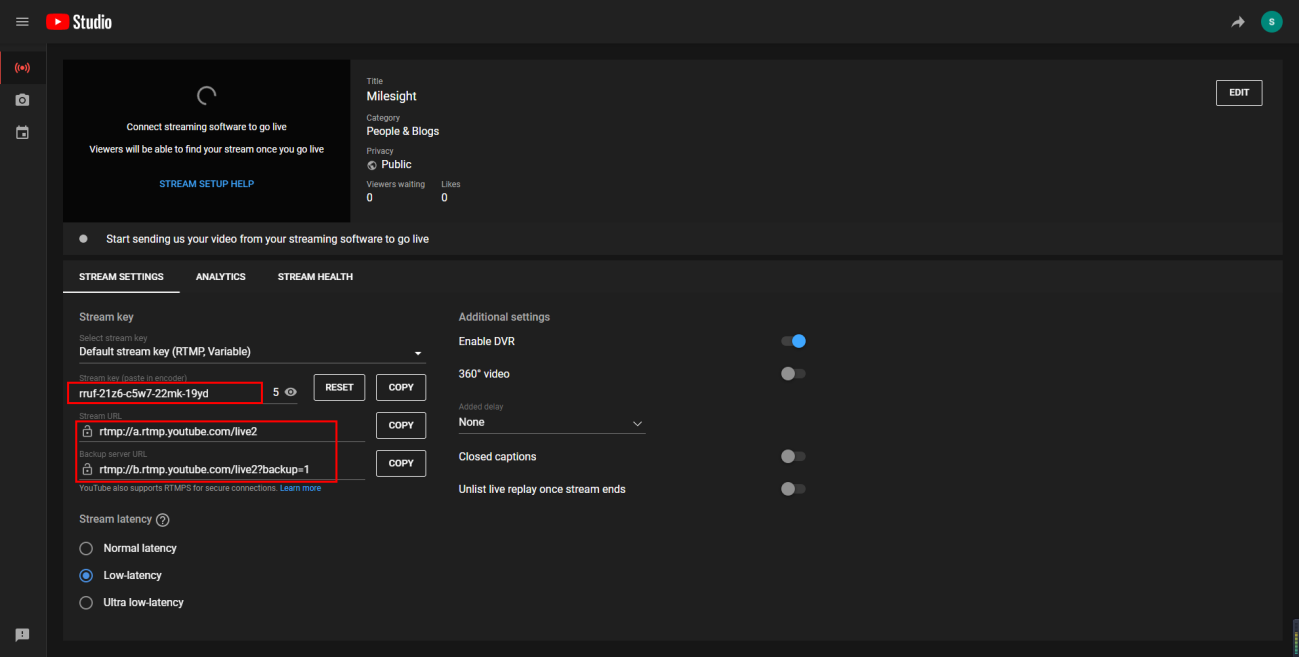
Ensure that the server address is correct on the camera side.
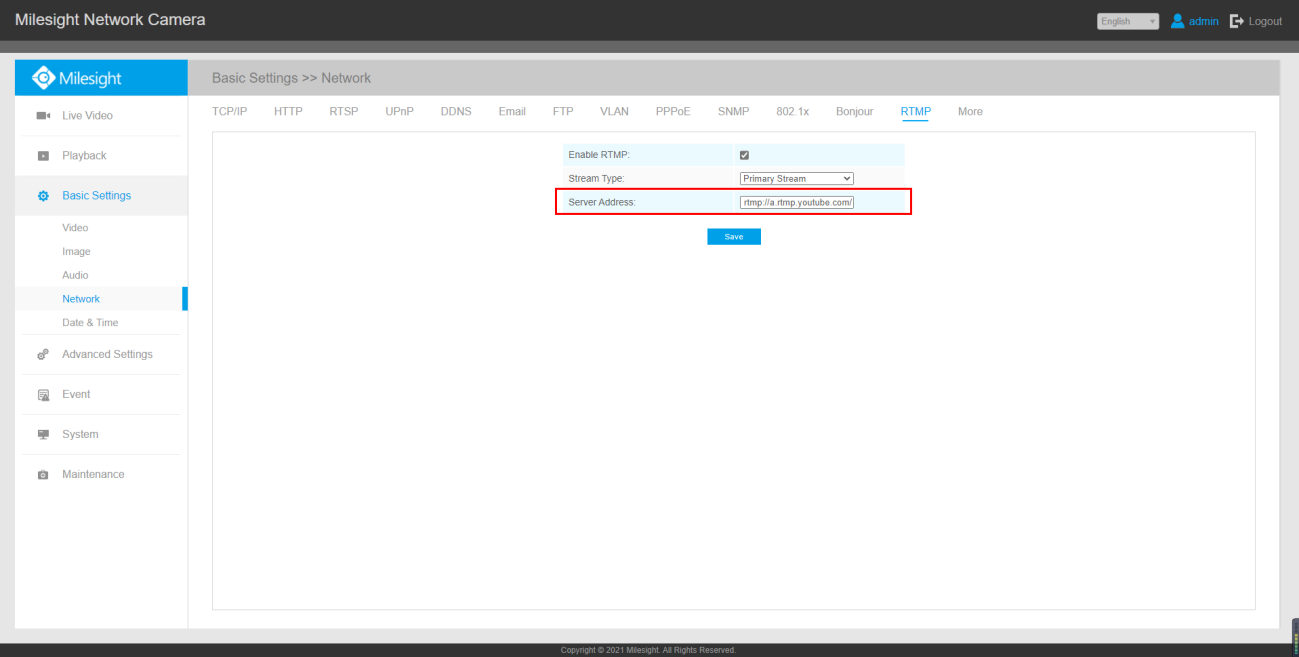
For example, the Stream key is “rruf-21z6-c5w7-22mk-19yd”,
the Stream URL is: “rtmp://a.rtmp.youtube.com/live2”,
so the total server address would be: “rtmp://a.rtmp.youtube.com/live2/rruf-21z6-c5w7-22mk-19yd”
Please pay attention to “/”between the Stream key and URL.
3.1.2 Video Codec
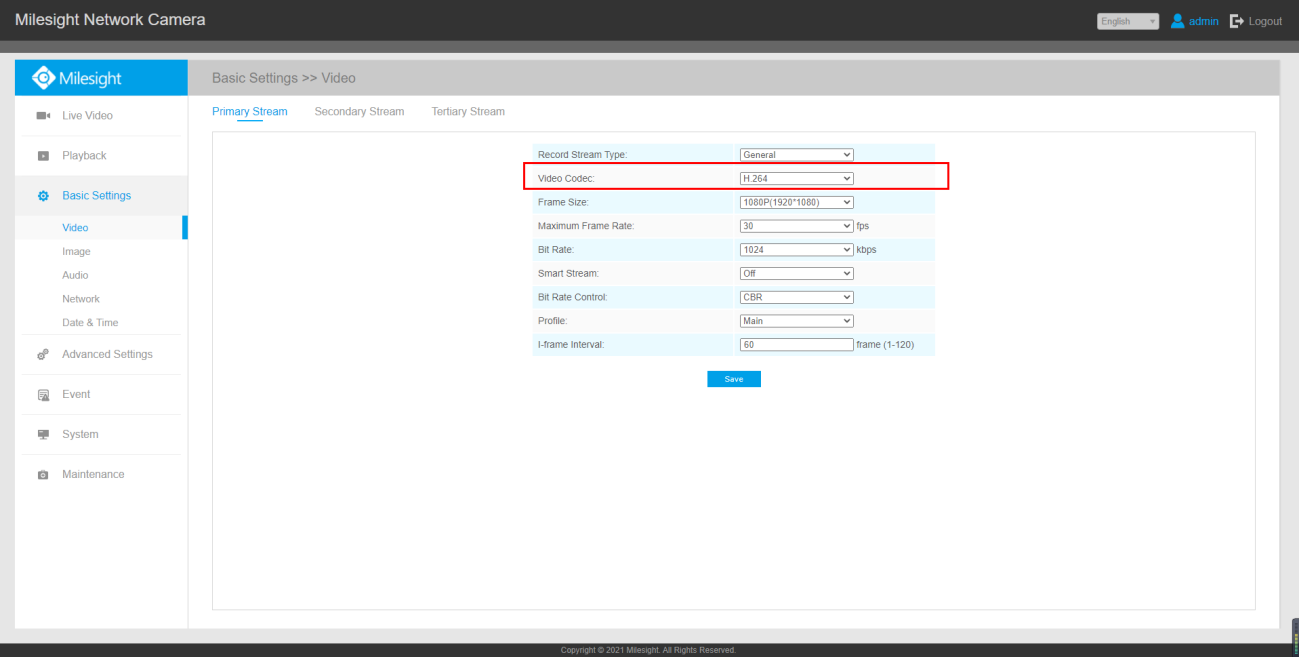
Most platforms only support playing RTMP streams with H.264 video codec.
3.1.3 TCP/IP Settings
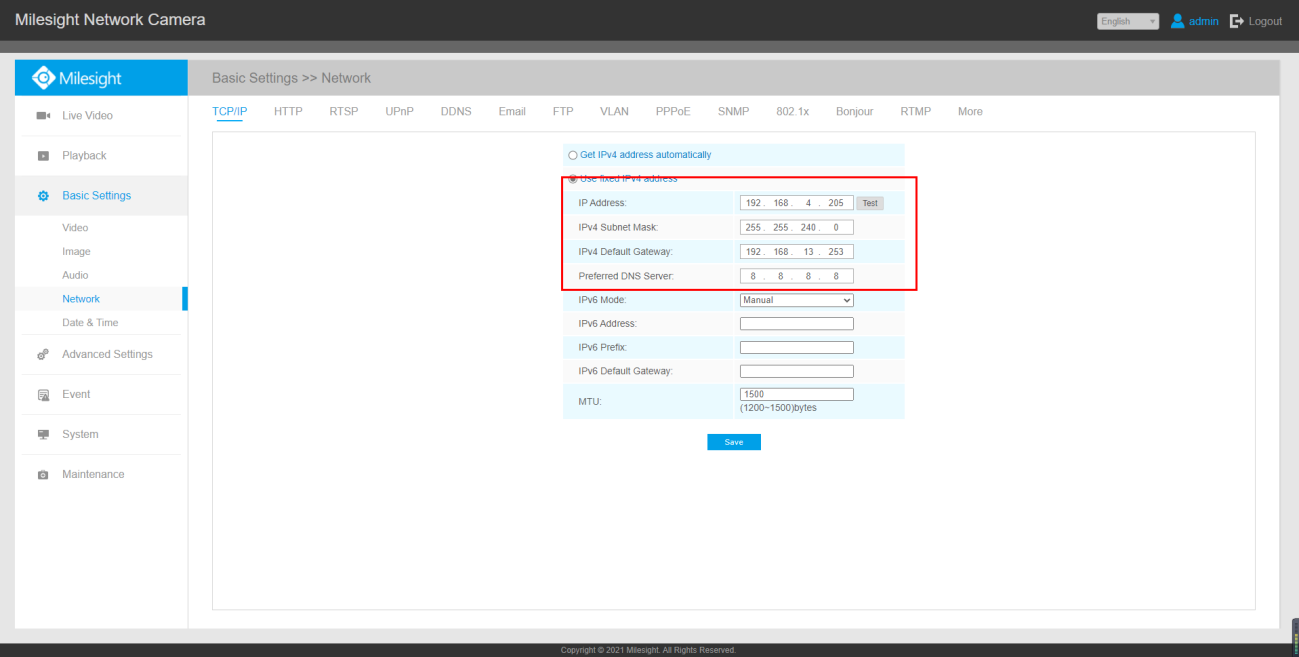
Ensure that the camera can access the Internet.
We recommend using 8.8.8.8 as the Preferred DNS Server.
3.2Platform Requirements
3.2.1 Audio Coding Limitation on Youtube
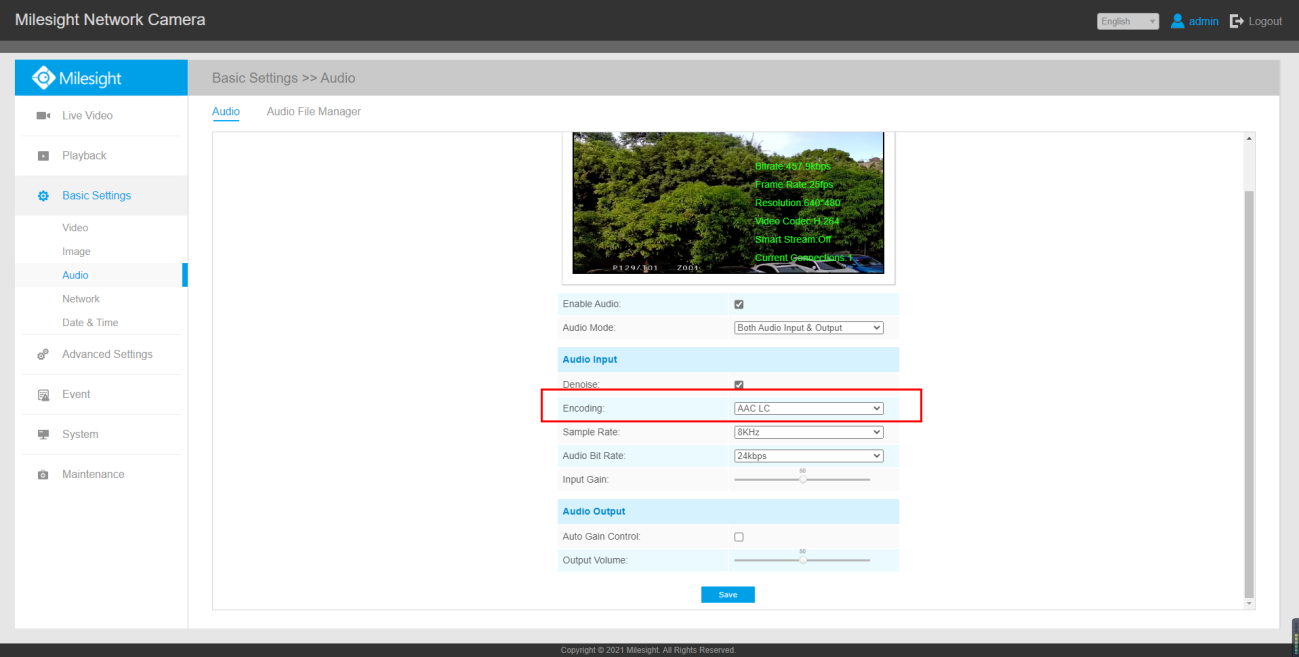
Since G.711, G.722, G.726 are not available for YouTube, you can only play video of Milesight IP camera with AAC audio coding on YouTube.
Note:
For camera models without Audio interface, we recommend using OBS as RTMP client to convert RTSP stream to RTMP stream for Live Broadcast. Moreover, there are no restrictions on Camera Settings, which means that RTMP function does not need to be enabled on the camera. The video codec can be H.265 or MJPEG. All you need is to ensure that the RTSP stream can be played on VLC.
How to play RTMP stream on platforms over OBS
Step1: Install the OBS Studio, which can be downloaded from:
Download | OBS (obsproject.com)
Step2: Install the VLC, which can be downloaded from (If you cannot find the VLC Video Source on OBS, please try again from Step1.):
Download official VLC media player for Windows - VideoLAN
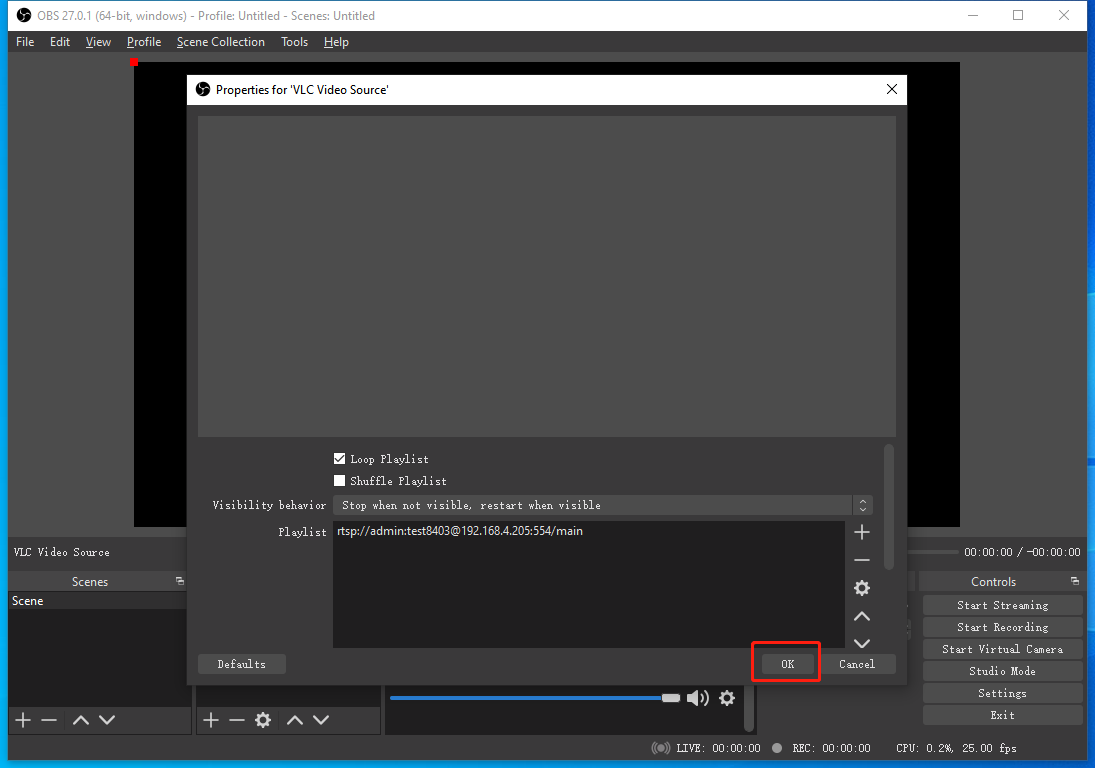
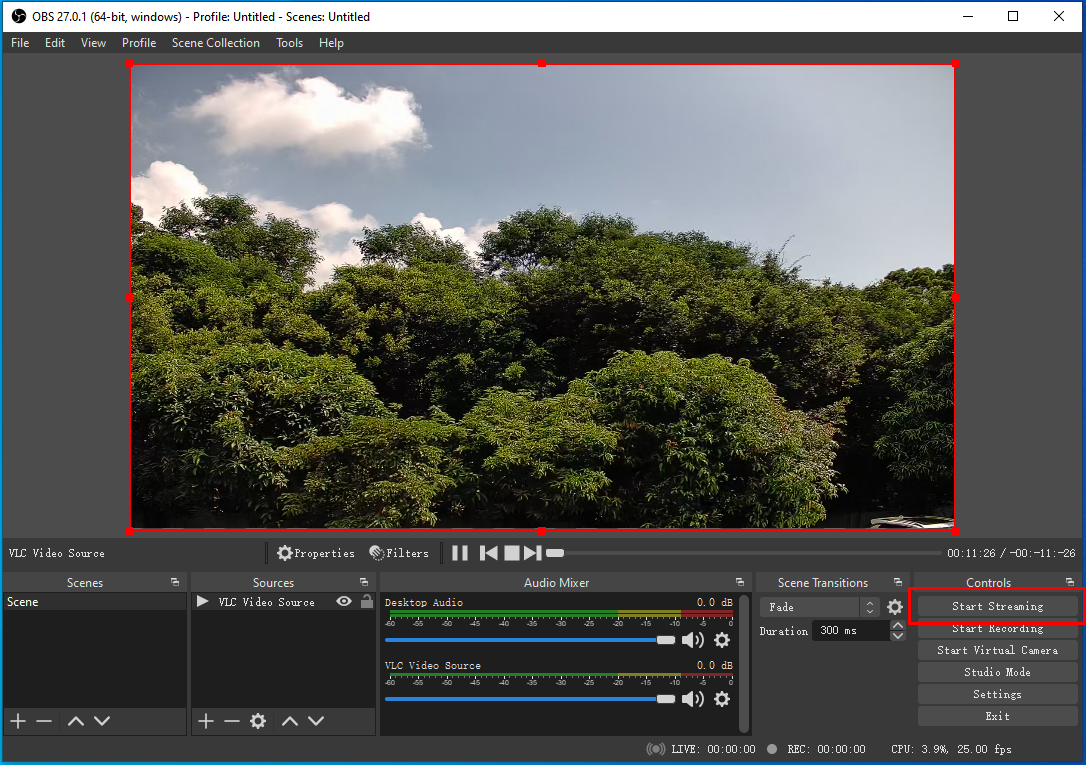
Step3: Add RTSP stream of IP Camera on OBS.
RTSP URL (Contains Authentication Information):
rtsp://admin:password@camera IP: rtsp port/main
rtsp://admin:password@camera IP:rtsp port/sub
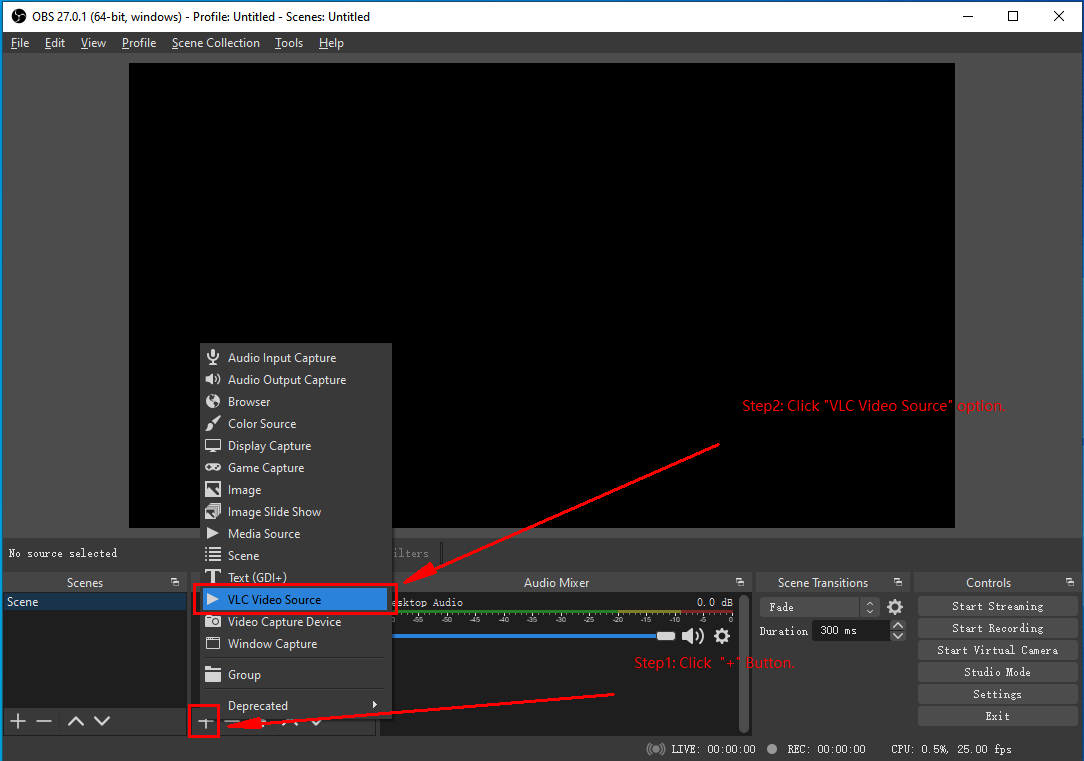
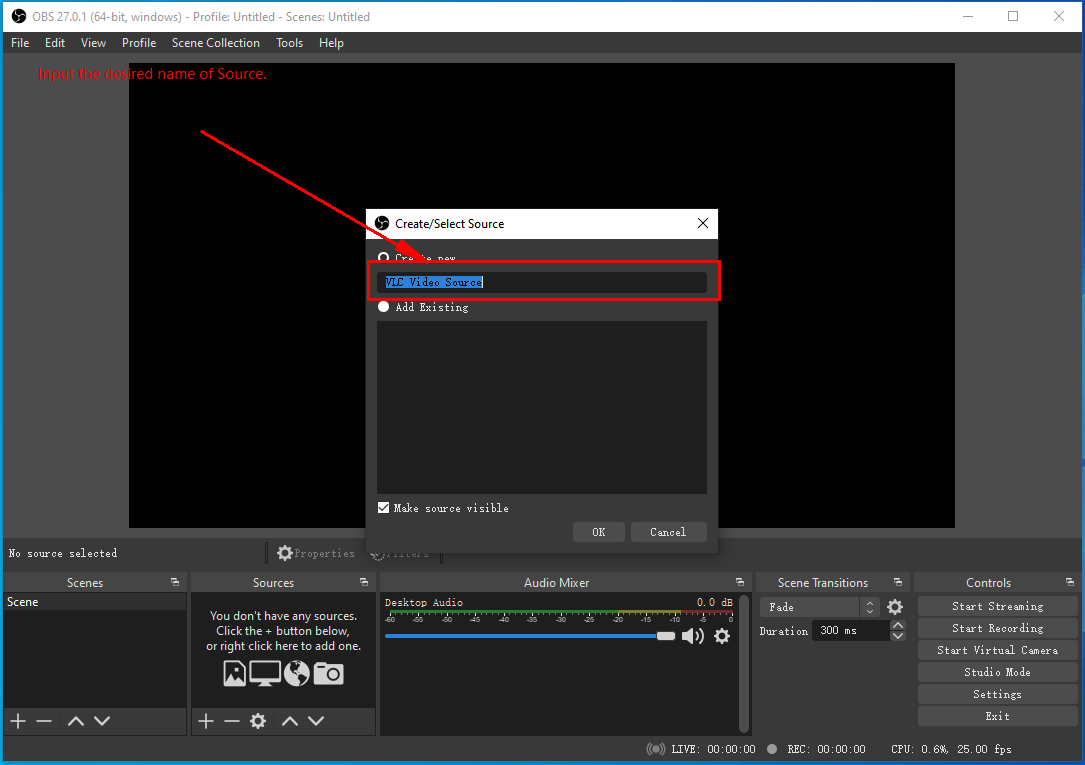
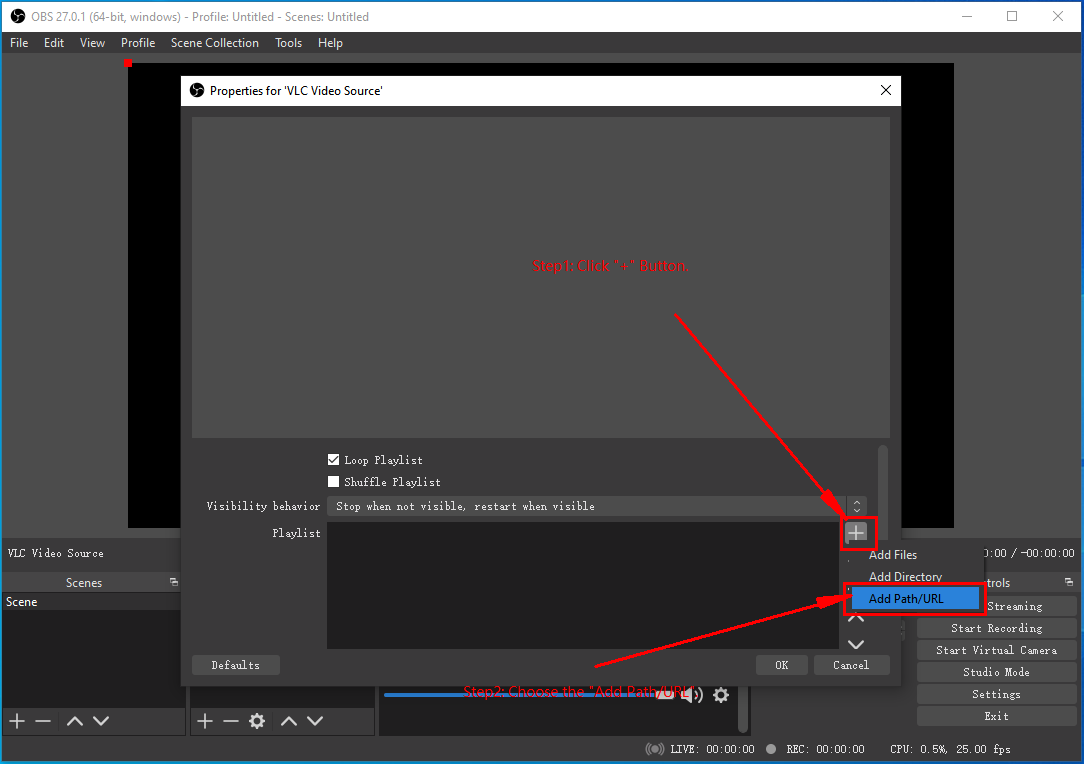
For example, we input the URL: “rtsp://admin:test8403@192.168.4.205:554/main” as follows.
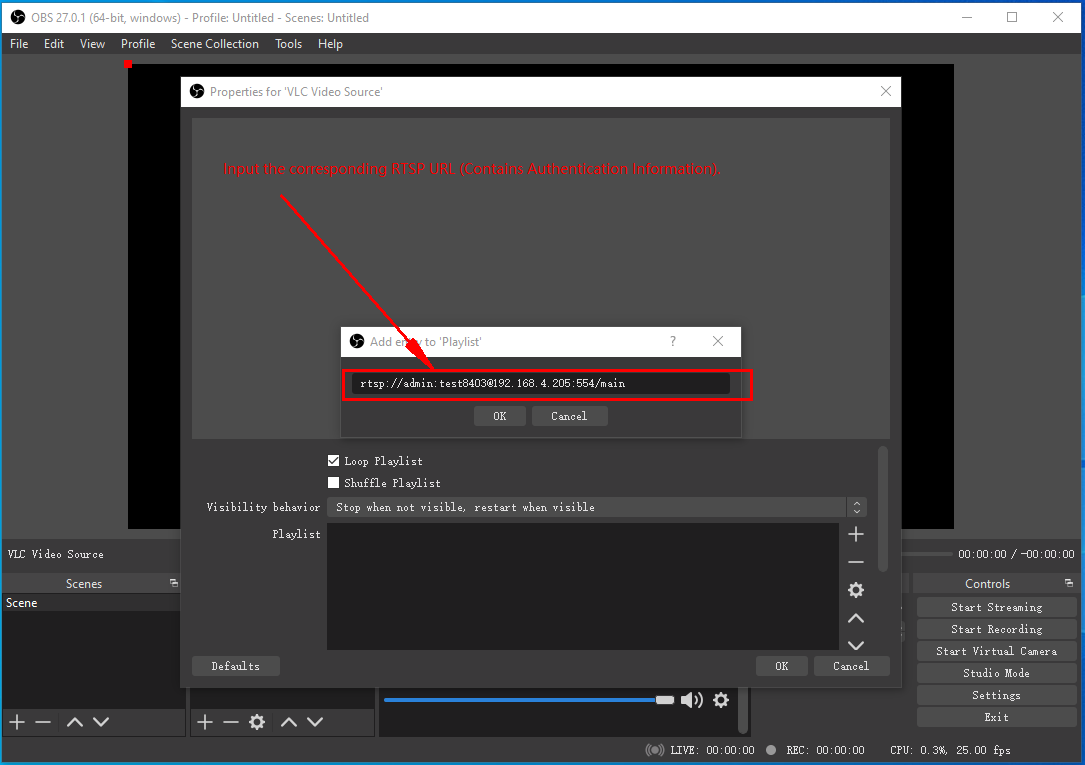
Click OK to add the RTSP stream successfully.
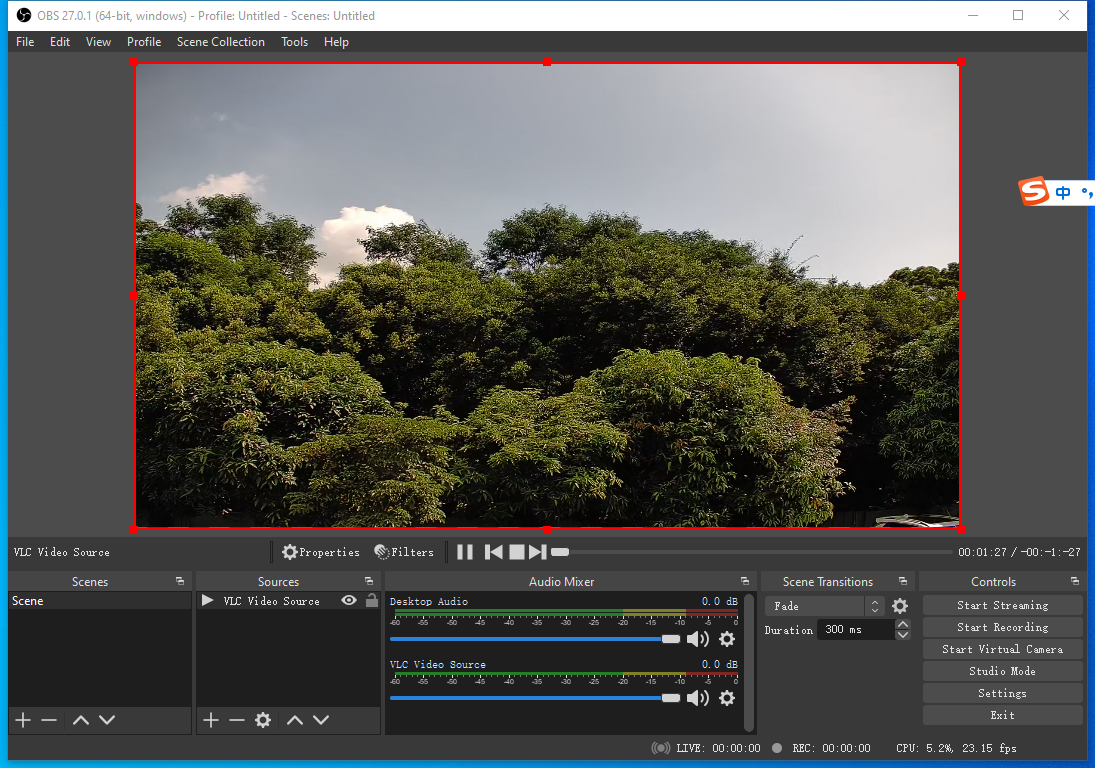
Then you will see the RTSP stream you just entered.
Step4: Add RTMP Server Information on OBS.
Take the Youtube platform as an example:
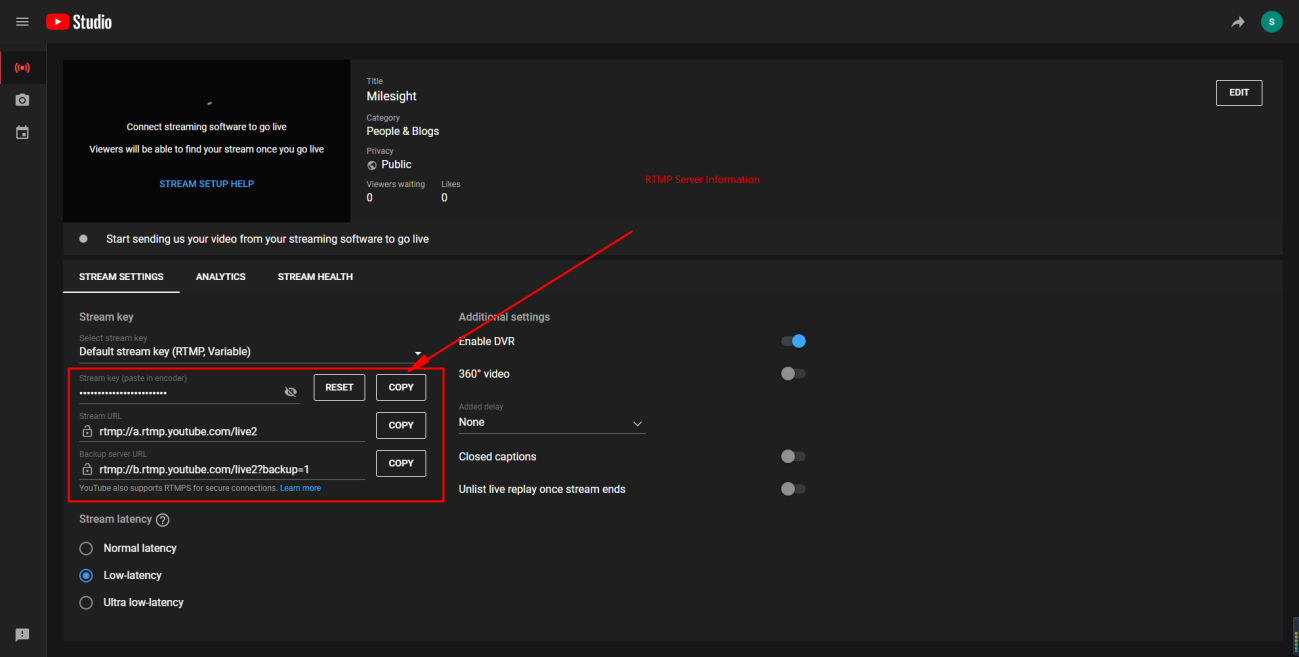
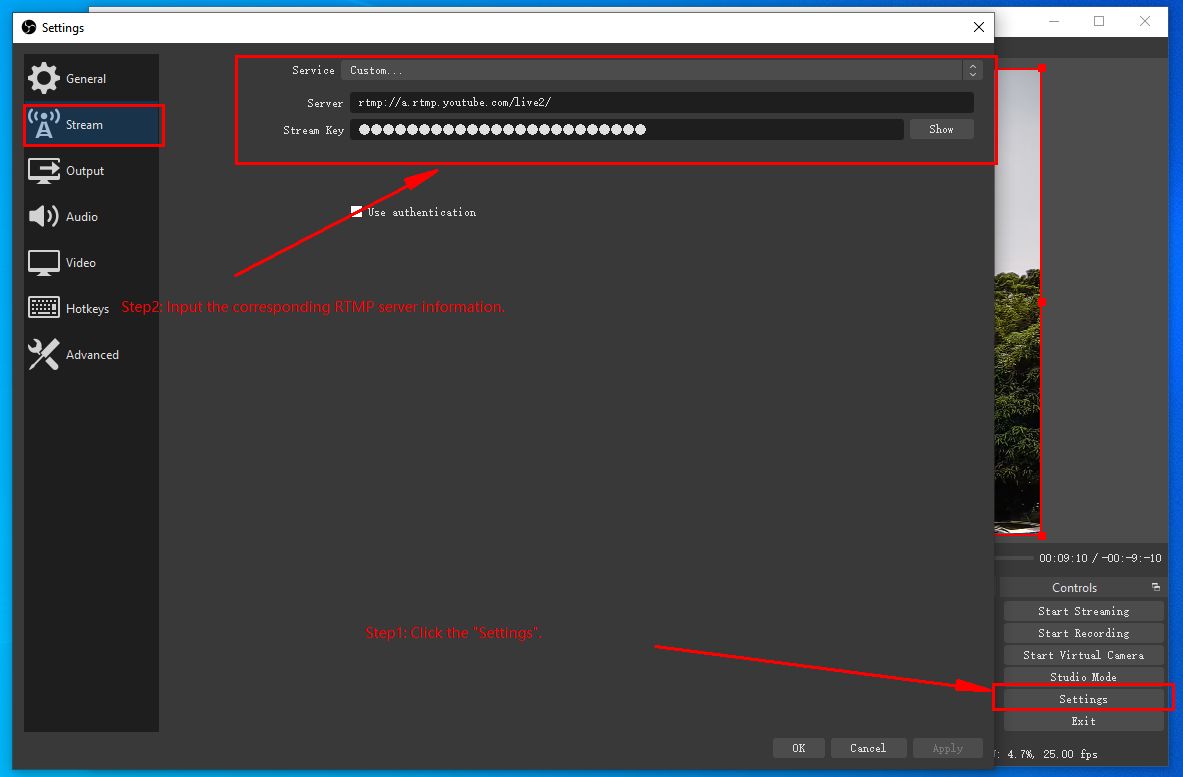
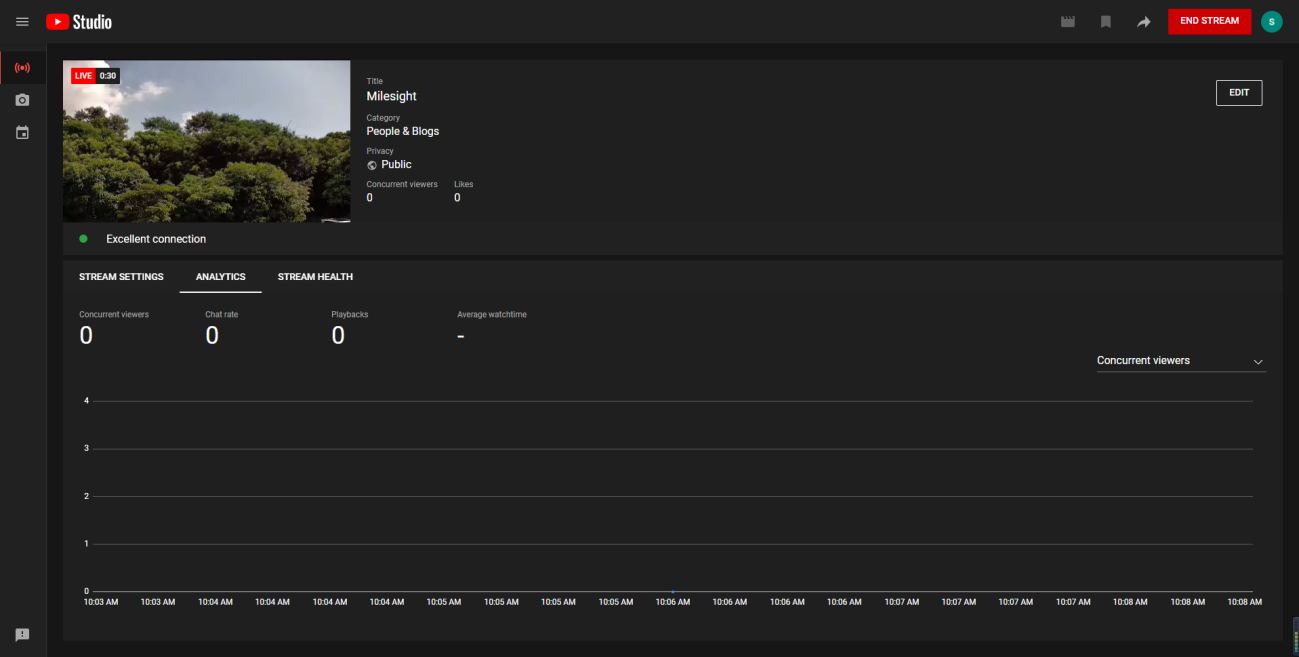
Step5: Click “Start Streaming” and then the RTMP stream will be pushed to Youtube.
3.2.2 Resolution Limitation on Youtube
Youtube Studio prompts “Error You need to change the video resolution. The current resolution is (2592x1944), which is not supported for this configuration. The expected video resolution is (1920x1080).” as shown below.
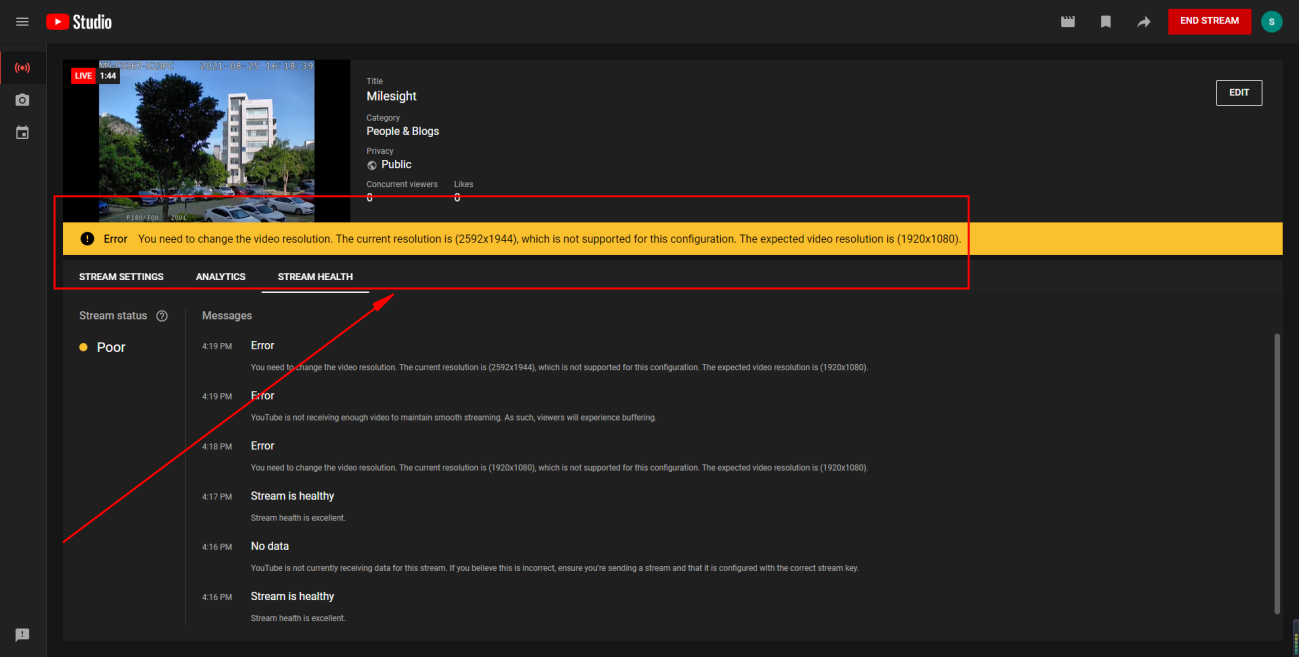
If you encounter such problems, you need to modify the Resolution and Bit Rate of the IP Camera to the recommended parameters.
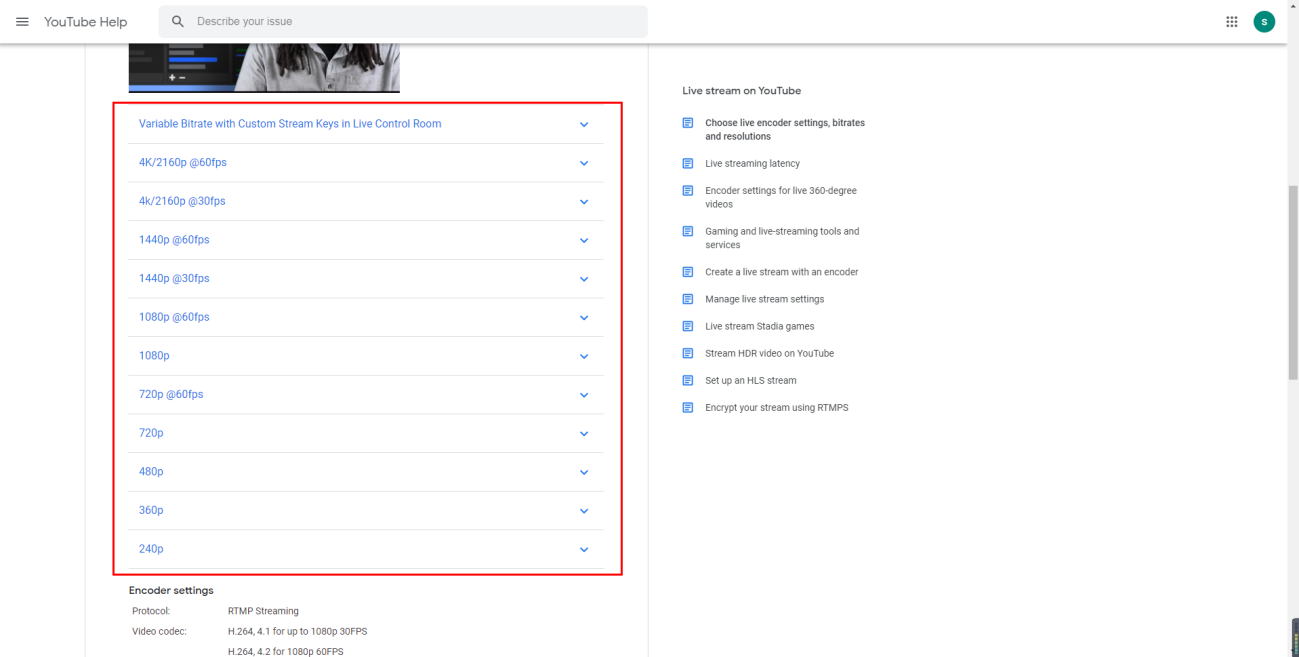
For more details, please refer to Choose live encoder settings, bitrates and resolutions - YouTube Help (google.com) .
3.2.3 Authentication Requirement on Wowza
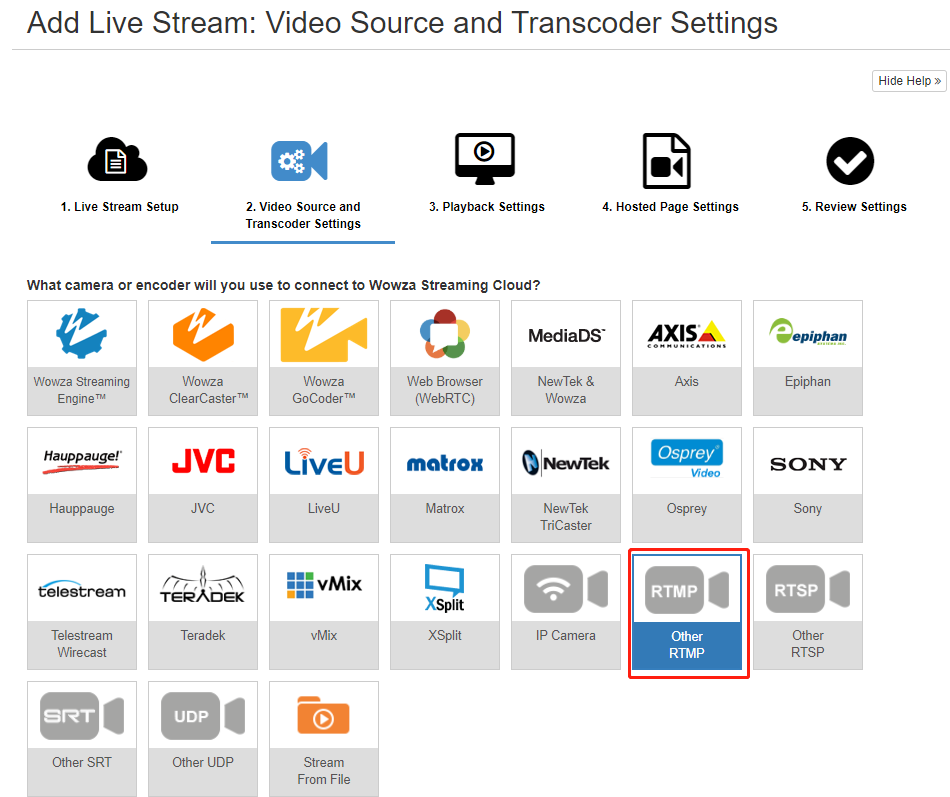
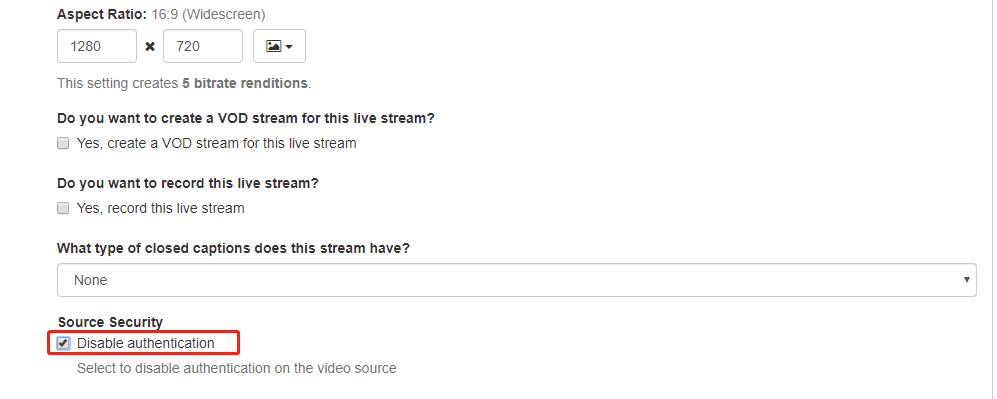
Check the “Other RTMP” Settings and make sure the “Disable authentication” is ticked.
4.Others
4.1RTMP stream is disconnected unexpectedly after live broadcast on Youtube for 4-5 hours.
Cause: Older versions of RTMP re-connection timeout problem.
Resolution: Upgrade IP camera version to 4X.7.0.78 (2021/6) or above
4.2Failed to access the previous Youtube live broadcast URL address.
Cause: The Youtube live broadcast URL address is different every time. If the live broadcast is disconnected for a long time, it will cause the address of the live broadcast room on Youtube to change.
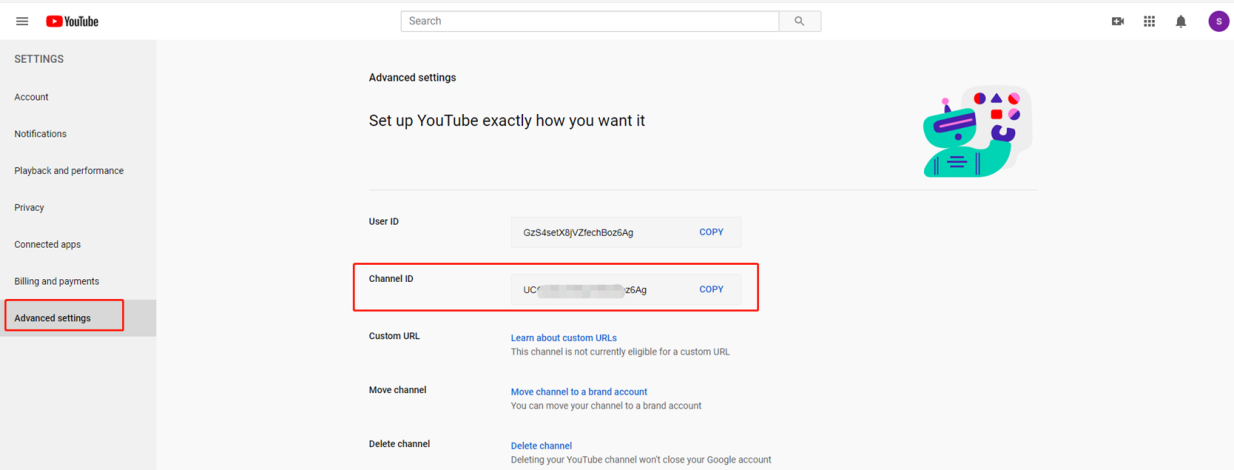
Resolution: Fixed URL: https://www.youtube.com/embed/live_stream?channel=CHANNEL_ID
How to use a fixed url to see the Live Broadcast on YouTube
Step1: Resolution: You can check the CHANNEL_ID in the advanced settings of your Youtube.
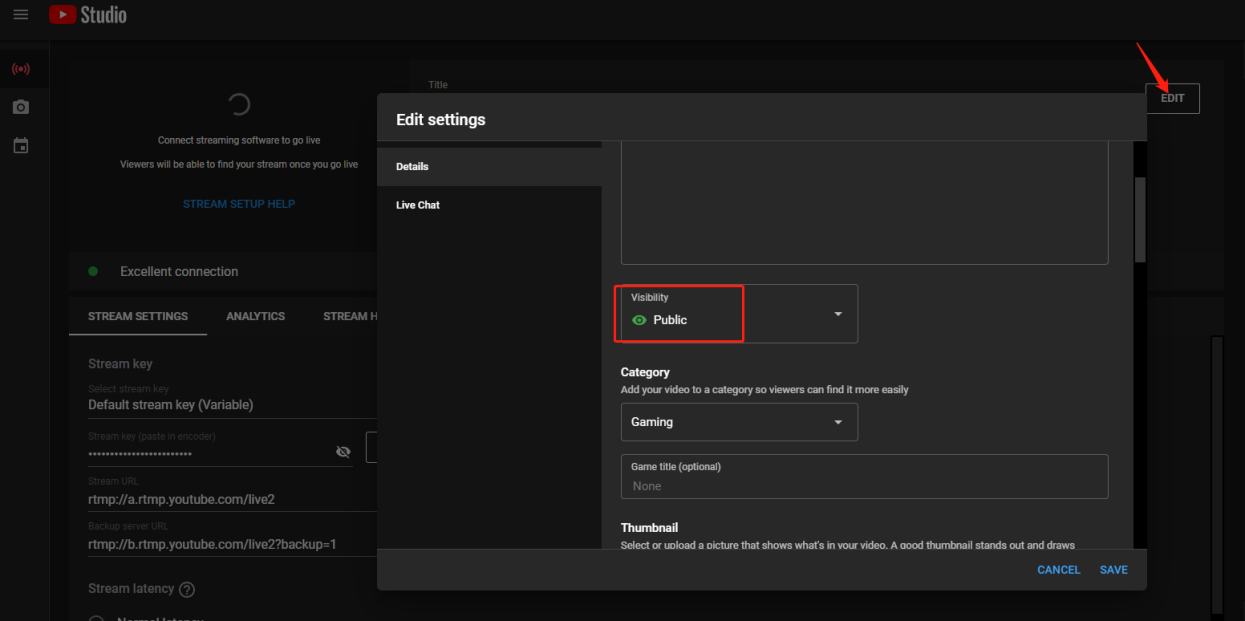
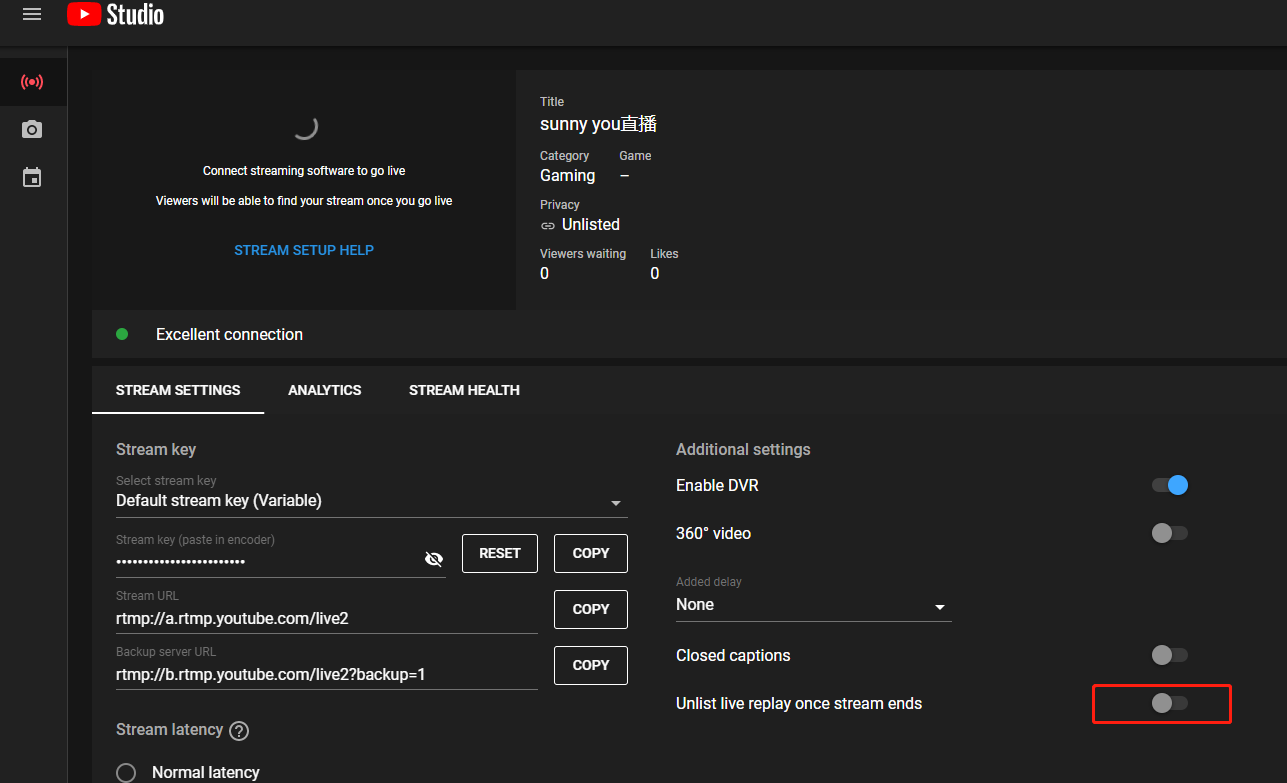
Step2: Please edit the visibility to “Public“, and disable the “Unlist live replay once stream ends”.