
1. Introduction
Network Camera fogging manifests as water vapor condensation on the dome cover or mist accumulation on the lens, typically concentrating at the center of the lens or the upper portion of the dome cover.
This phenomenon is generally triggered by environmental factors such as temperature fluctuations, excessive humidity, and air pressure changes. The extent to which these factors contribute to fogging varies depending on the shipping method, storage conditions, and installation environment.
To help you resolve and prevent fogging issues, this document provides step-by-step troubleshooting guidance along with practical preventive measures.
2. Solutions
Overview:
The mind map below provides an overview of the overall troubleshooting approach for fogging issues.
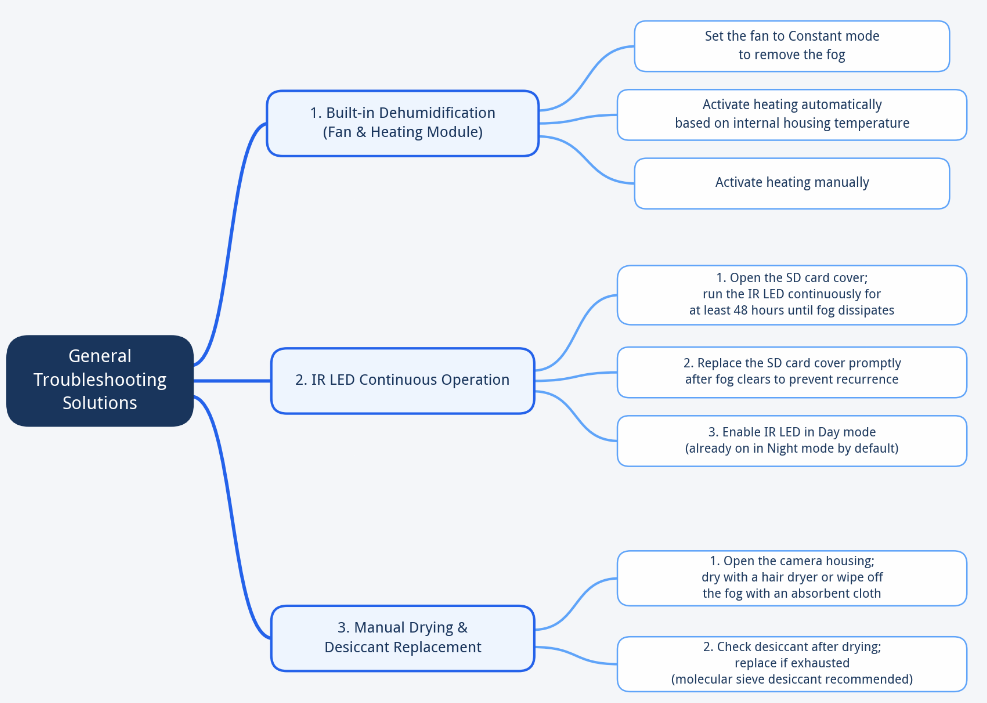
Solution 1: Use Built-in Dehumidification Features (Fan & Heating Module)
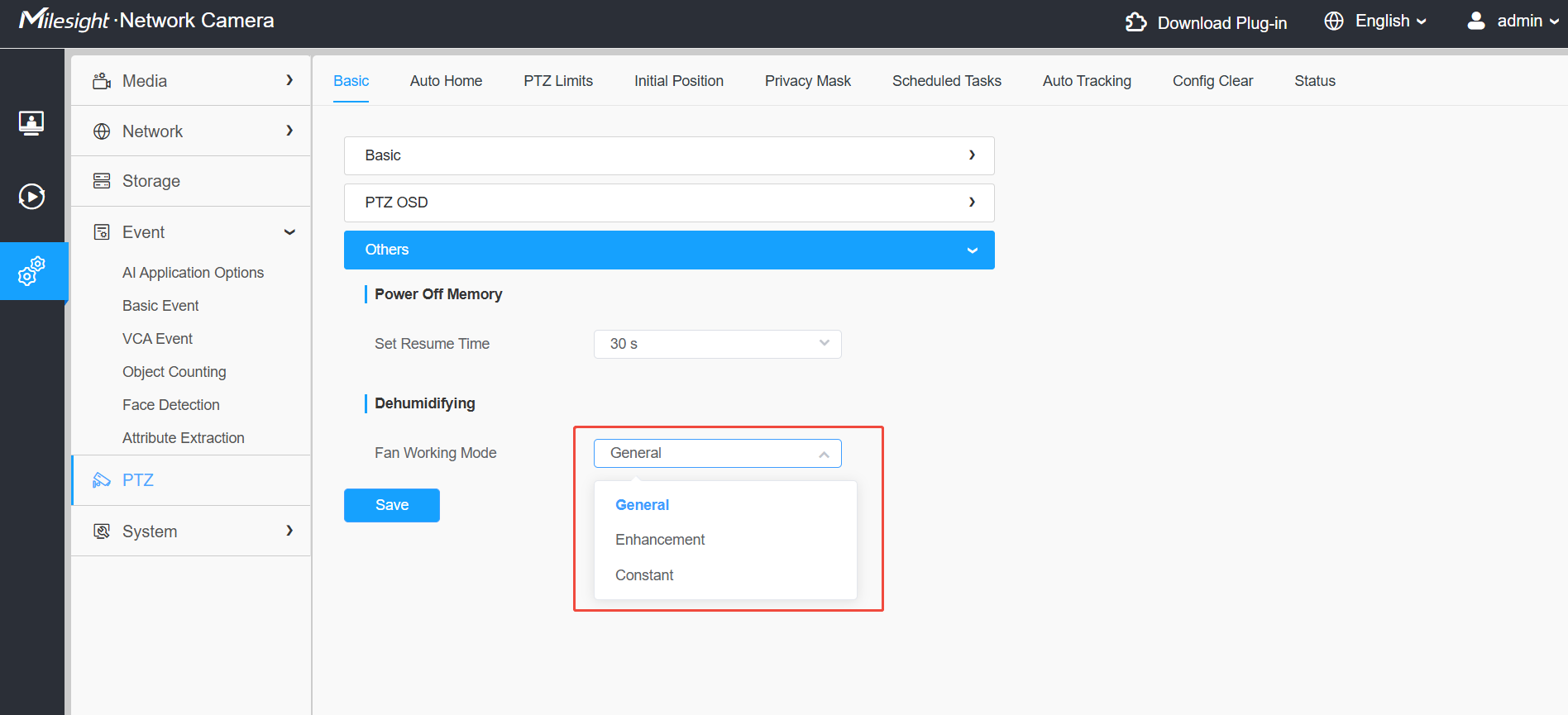
①If the Network Camera is equipped with a fan, please set the fan to Constant mode to remove the fog. The fog typically dissipates within a few hours.
To enable the fan, go to Settings → PTZ → Basic → Others → Dehumidifying.
The following models are equipped with a fan module:
• MS-CXX61-XXXX
• MS-CXX67-XXXXX
• MS-CXX71-XXXXX
• MS-CXX41-XXXXX
• MS-C5321-FPE
• TS5510-GH/TS5511-GH
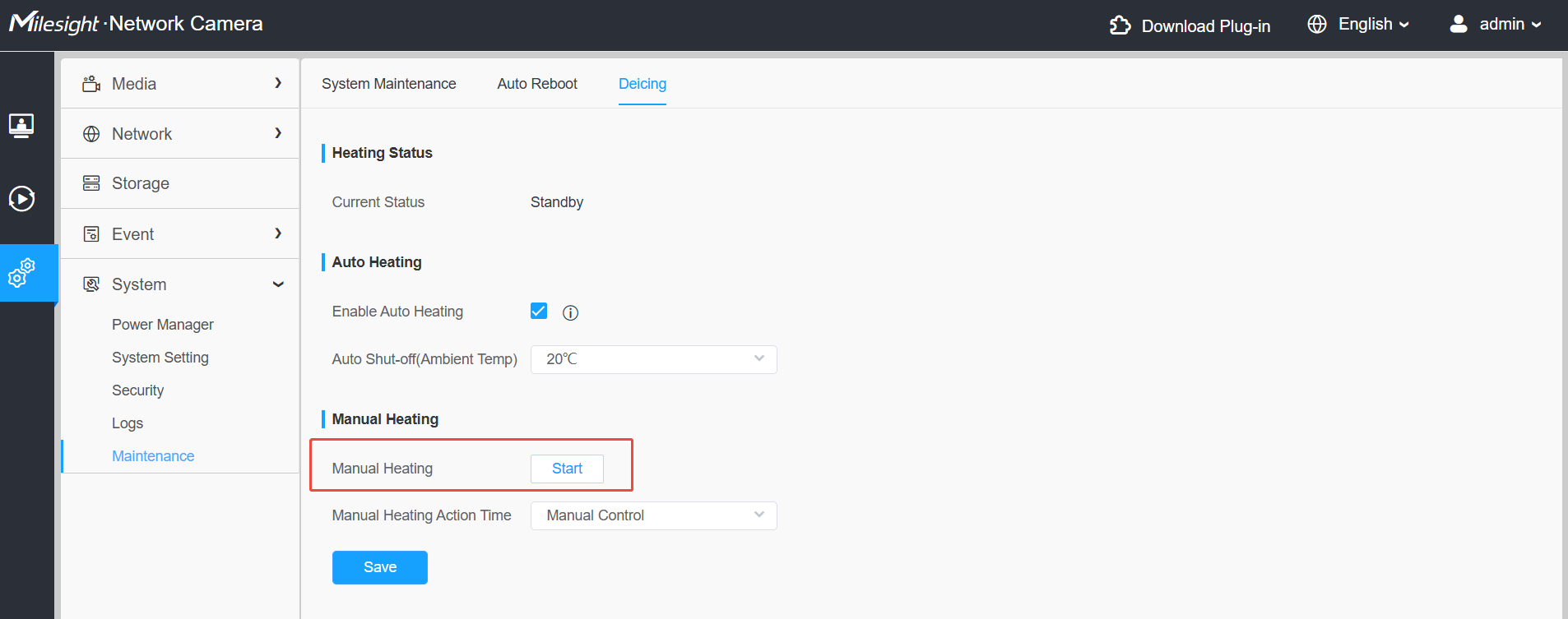
②If the Network Camera is equipped with a heating module, please enable it to remove the fog.
• For camera MS-CXX41-XXPE/MS-CX66-XXPE, the heating module activates automatically according to the internal temperature of the camera housing.
• For camera MS-CXX66-XXPG1, you can also go to Settings-System-Maintenance-Deicing-Manual Heating to enable heating manually . The fog typically dissipates within 30 minutes to 1 hour.
Solution 2: Run the IR LED Continuously
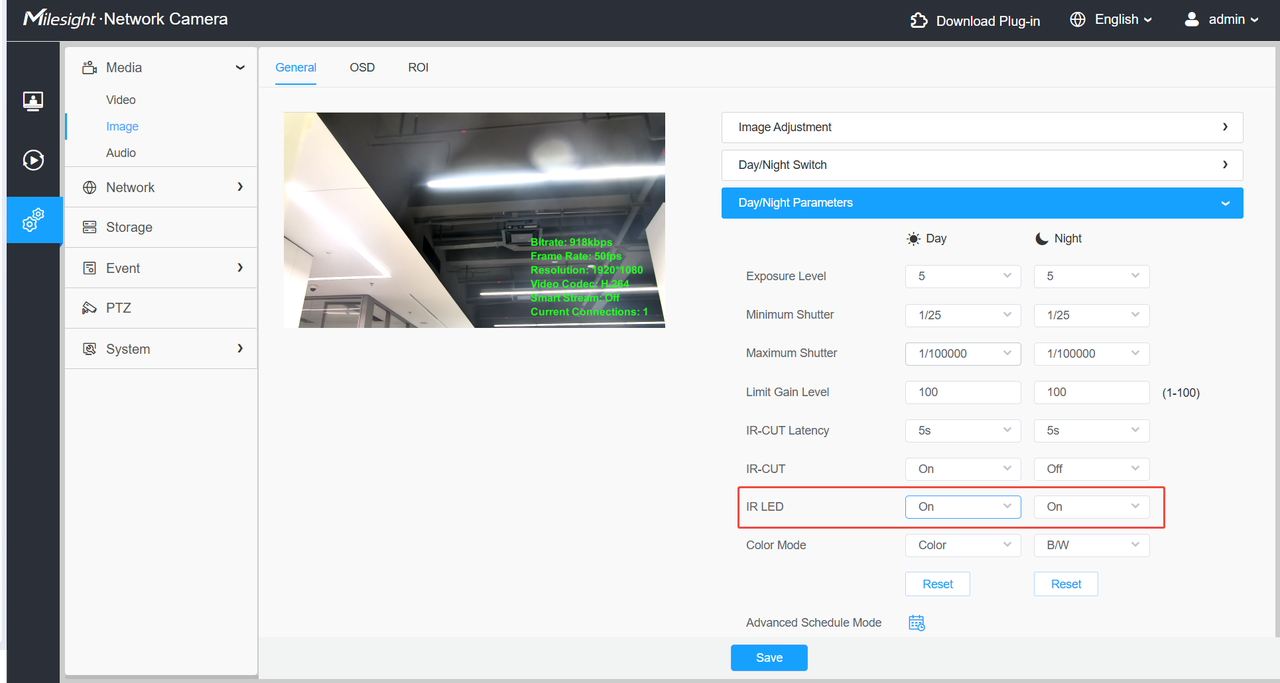
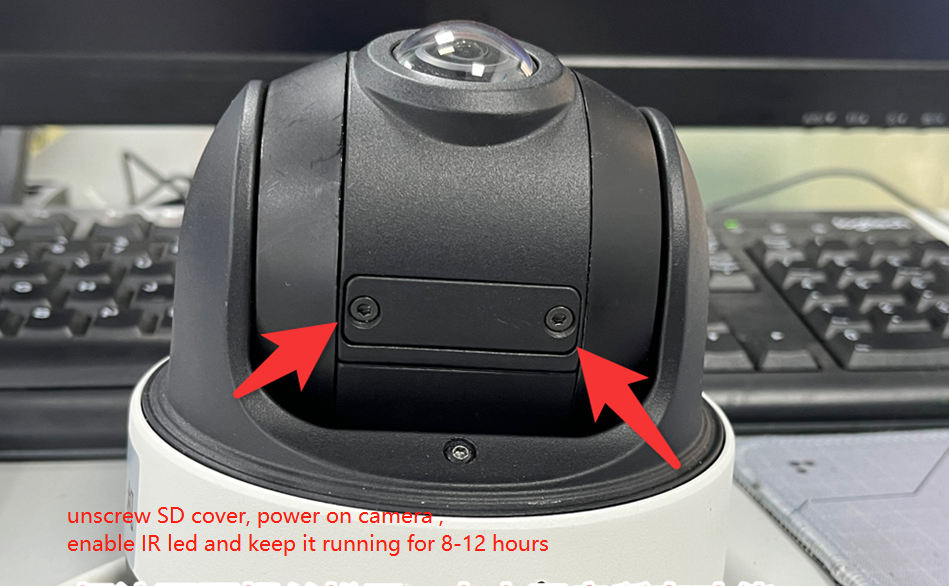
Open the SD card cover and keep the IR LED on continuously for at least 48 hours until the fog dissipates. Note: Replace the SD card cover promptly after the fog clears to prevent the fog from re-forming.
To enable the IR LED, go to Settings → Media → Image → General → Day/Night Parameters.
By default, the IR LED is already enabled in Night mode. Therefore, you only need to enable the IR LED in Day mode as well.
Solution 3: Disassemble the Camera and Dry / Wipe Manually
① Disassemble the camera and use a hair dryer to dry the inside (approximately two minutes is usually sufficient to remove the fog), or wipe off the fog directly with an absorbent cloth.
Note: When wiping off moisture with an absorbent cloth or similar item, pay special attention to the coated dome cover of the Panorama series. The coating is soft and easily damaged — do not apply excessive force, as this may cause the coating to thin or peel off and compromise the protective performance.
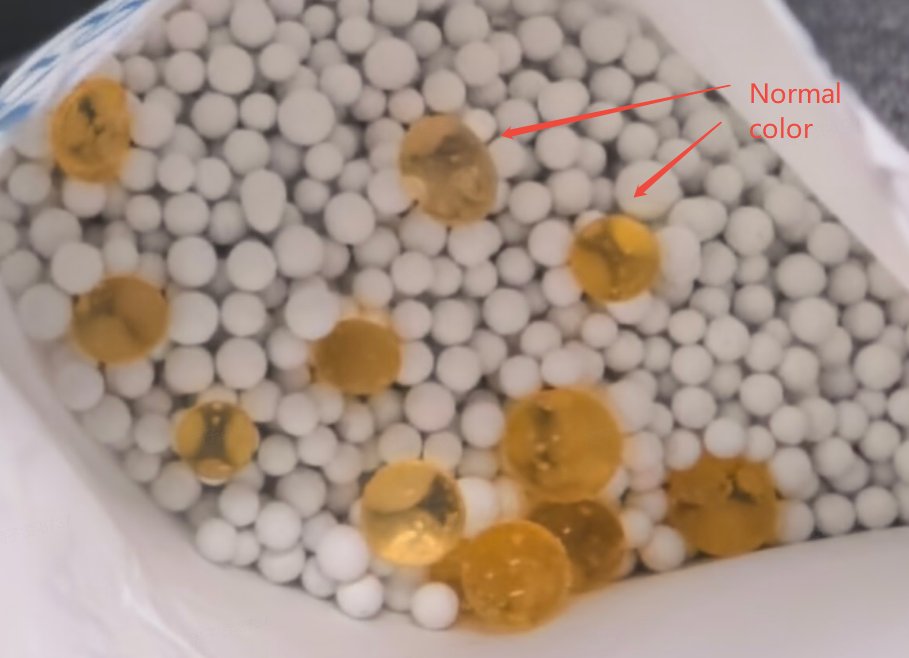
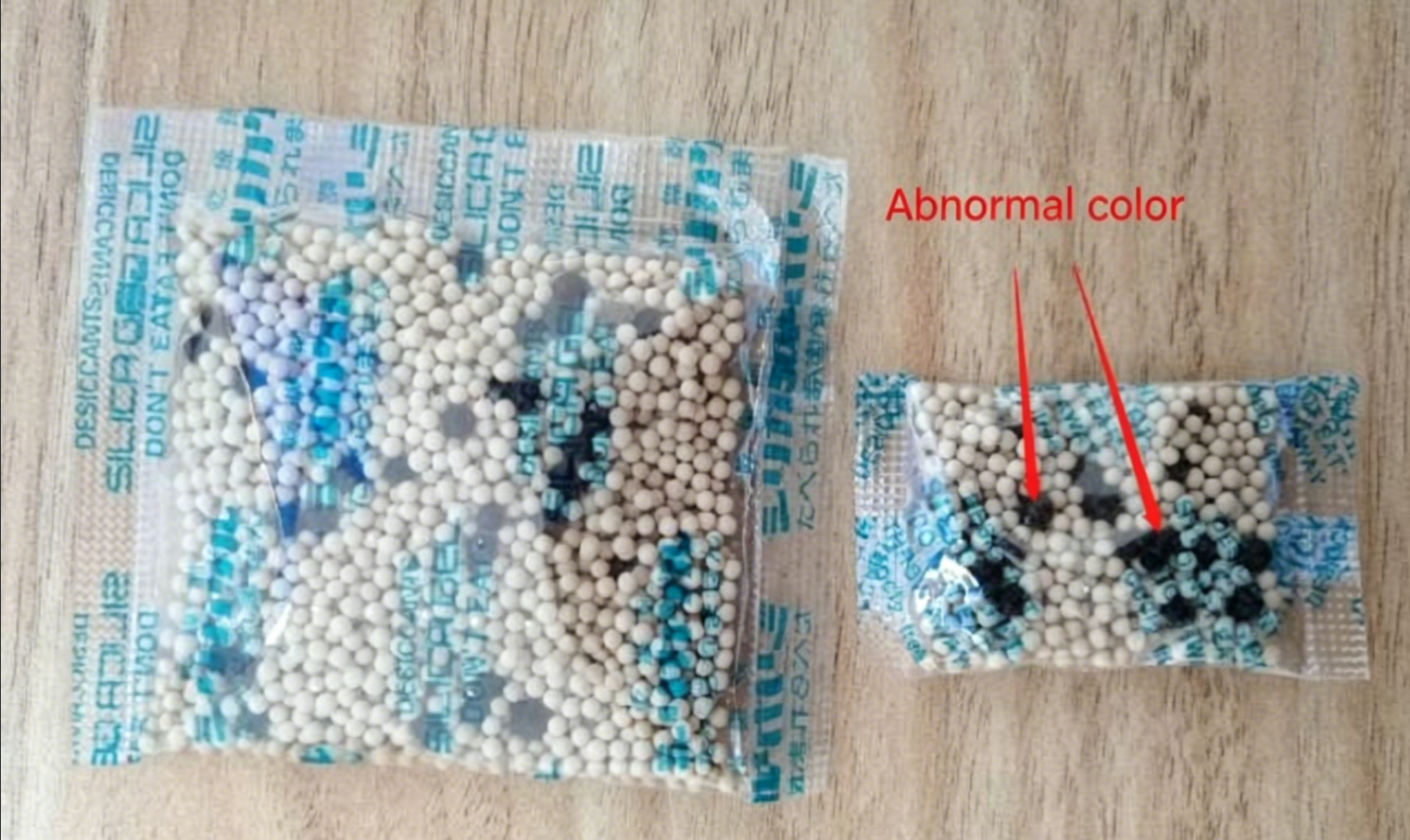
② For Network Camera models equipped with a desiccant, after drying the fog, check whether the desiccant has been exhausted. If it has, replace it. We recommend using molecular sieve desiccant.
Molecular sieve desiccant is orange when in normal condition, as shown below:
After the molecular sieve absorbs moisture and becomes exhausted, it turns black, as shown below:
Note:
1) If the Network Camera is already deployed at a project site and will be powered on immediately after the fog is wiped off, adding new desiccant is optional. however, it is recommended to add new desiccant if conditions permit.
2) If the Network Camera fogged during storage and will be returned to storage after the issue is resolved, new desiccant must be added to prevent the fog from re-forming.
3) Ensure the desiccant fits inside the camera without pressing against or interfering with any internal cables.
If you have any questions about replacing the desiccant, please contact Milesight Technical Support using the contact information provided at the end of this document.
3. How to Prevent Fogging Issues
① Keep the storage environment dry.
② For devices that have been in storage for an extended period, it is recommended to remove the SD card cover and run the IR LED continuously for 8–12 hours as a burn-in process. Once the burn-in is complete, replace the SD card cover and install the device immediately. This effectively removes moisture from the camera chamber and prevents fogging after installation.
If you have any further questions or require additional clarification about this issue, please feel free to contact us at our support email (support@milesight.com).