
1. Introduction
This document describes how to reset the camera password using configured security questions or a security email. If neither security questions nor a security email has been configured, the password can also be reset through a hardware reset when the camera password is forgotten.
2. Reset Password via Security Questions
2.1 How to Set Up Security Questions
Milesight cameras support password reset through security questions. To enable password reset, security questions must be configured in advance. Three methods are available for setting up security questions.
Method 1: Use Smart Tools for batch activation. When activating the camera, you will be prompted to enter the answers to three security questions.
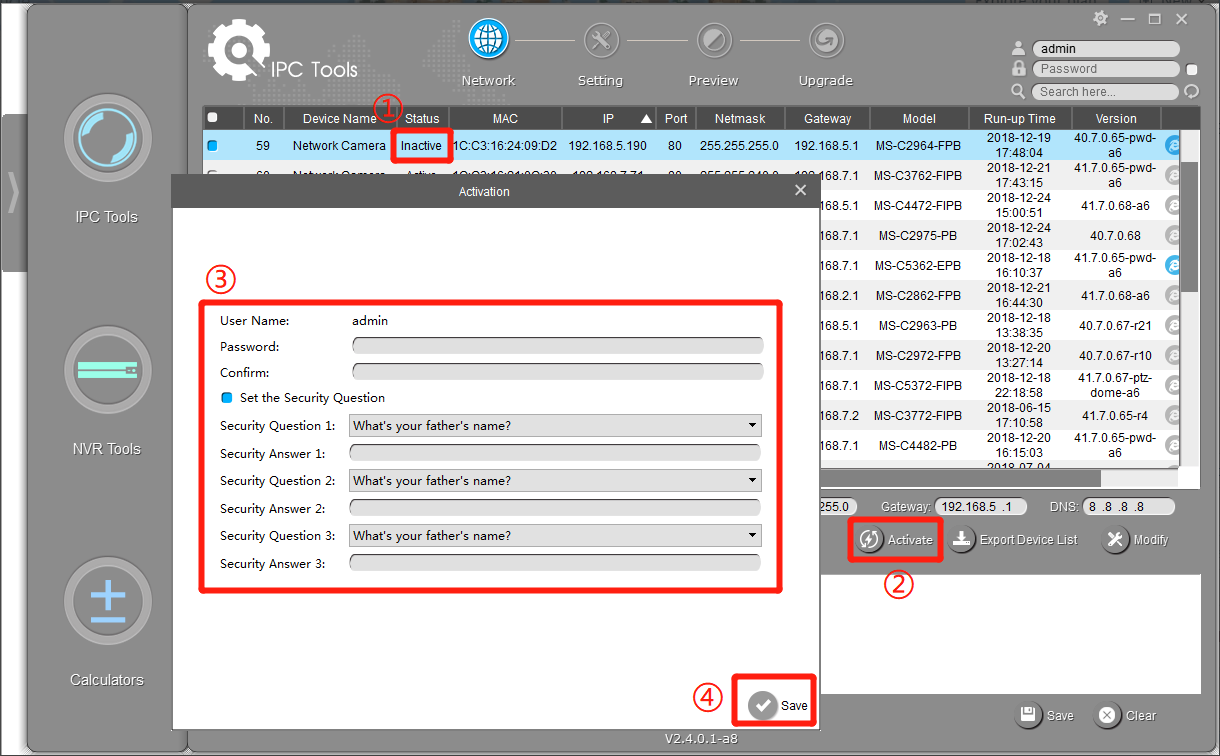
Note: Milesight Smart Tools is a network utility designed to help users discover and manage Milesight devices on a LAN. You can download Milesight Smart Tools from the following link: Milesight Software & Platform
Method 2: When activating the camera through its web interface, you will be prompted to set up security questions.
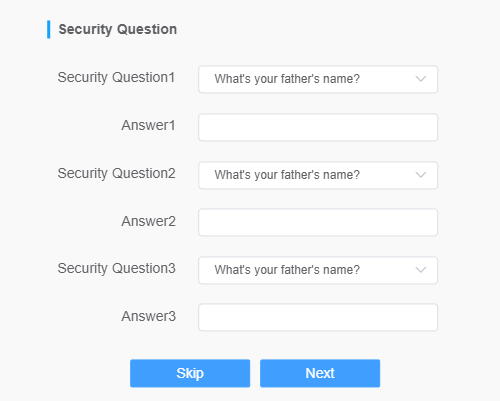
Method 3: For cameras that have already been activated, you can set the answers to security questions on the web interface. Click Settings → System → Security → Security Questions → Edit to configure the security questions.
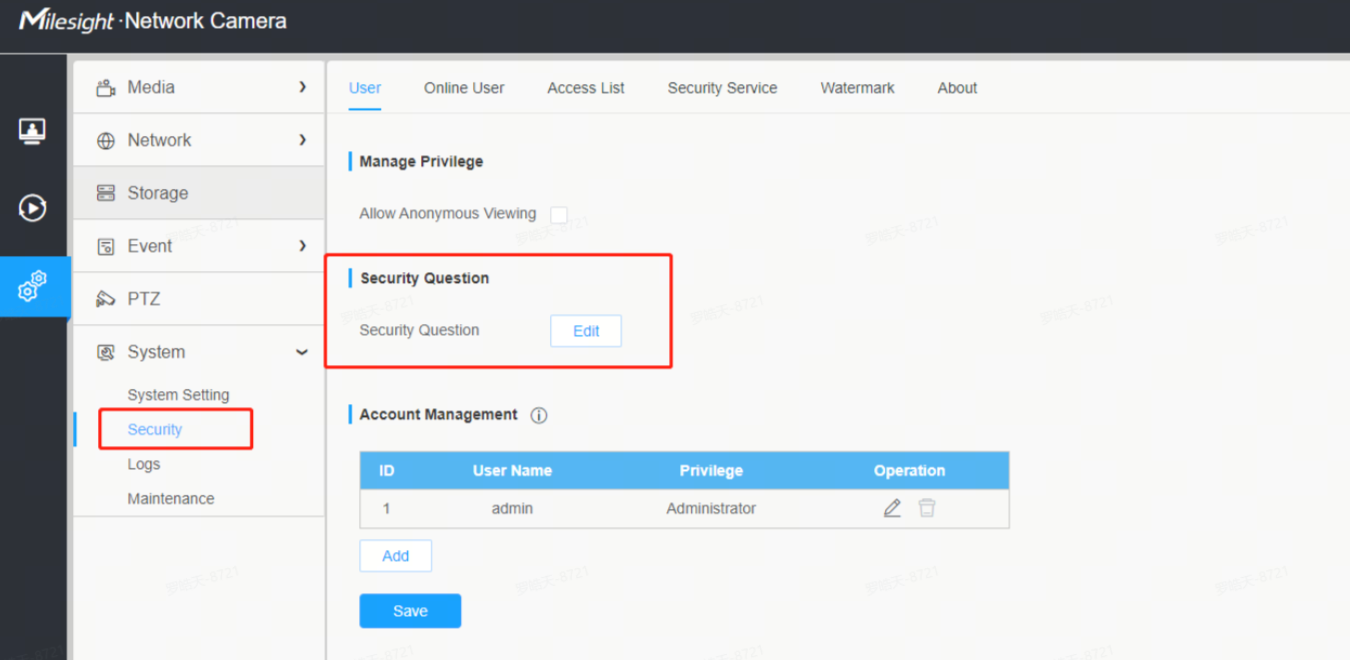
2.2 Resetting the Password Using Security Questions
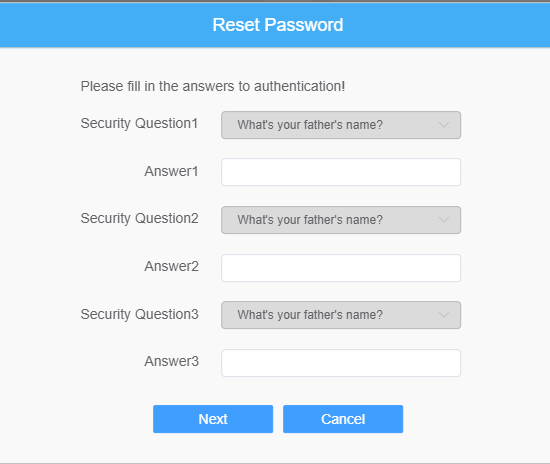
If security questions have already been configured, log in to the camera’s web interface and click “Forget Password” to access the password reset page.
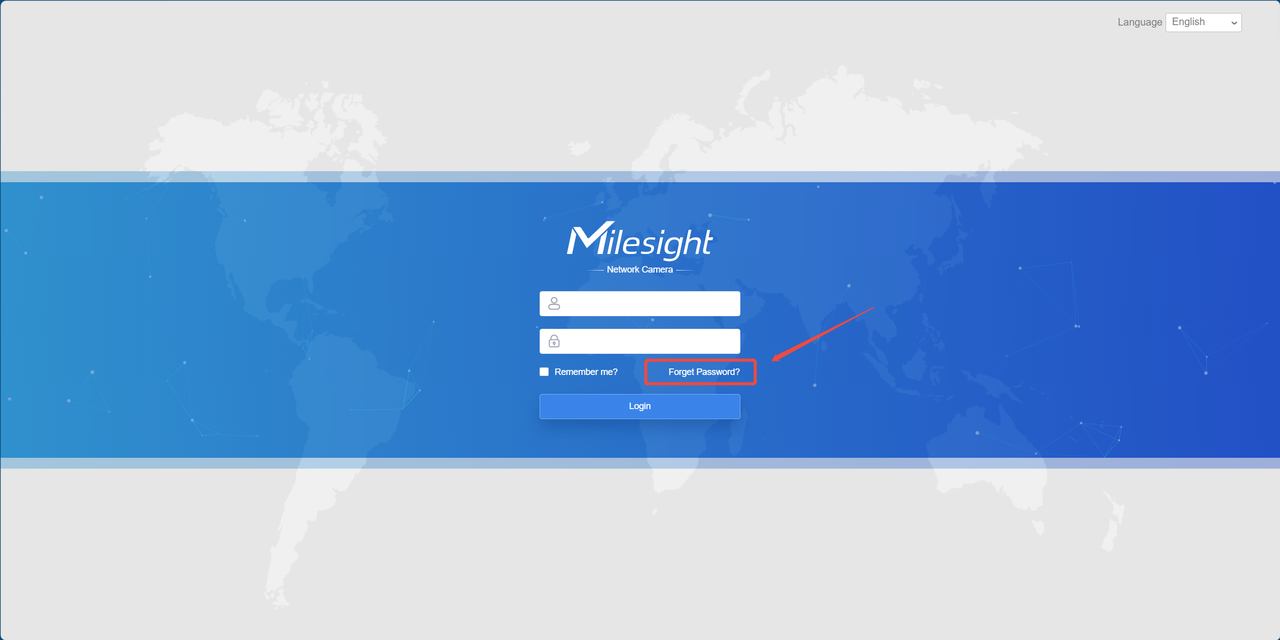
Enter the correct answers to the security questions, then click “Next” to reset the password.
3. Reset Password via Security Email
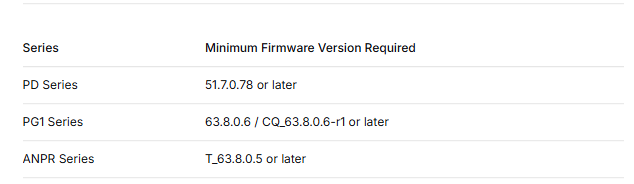
The email recovery feature is currently only supported on the following device series: PD, PG1, Q series(MS-CXXXX-XXPD/XXPG1/MS-CQXXXX-XXPG1).
3.1 How to Set Up Security Email
Milesight cameras support password reset through security email. To enable password reset, security email must be configured in advance. Two methods are available for setting up security email.
Method 1: Set up your email address during web-based activation
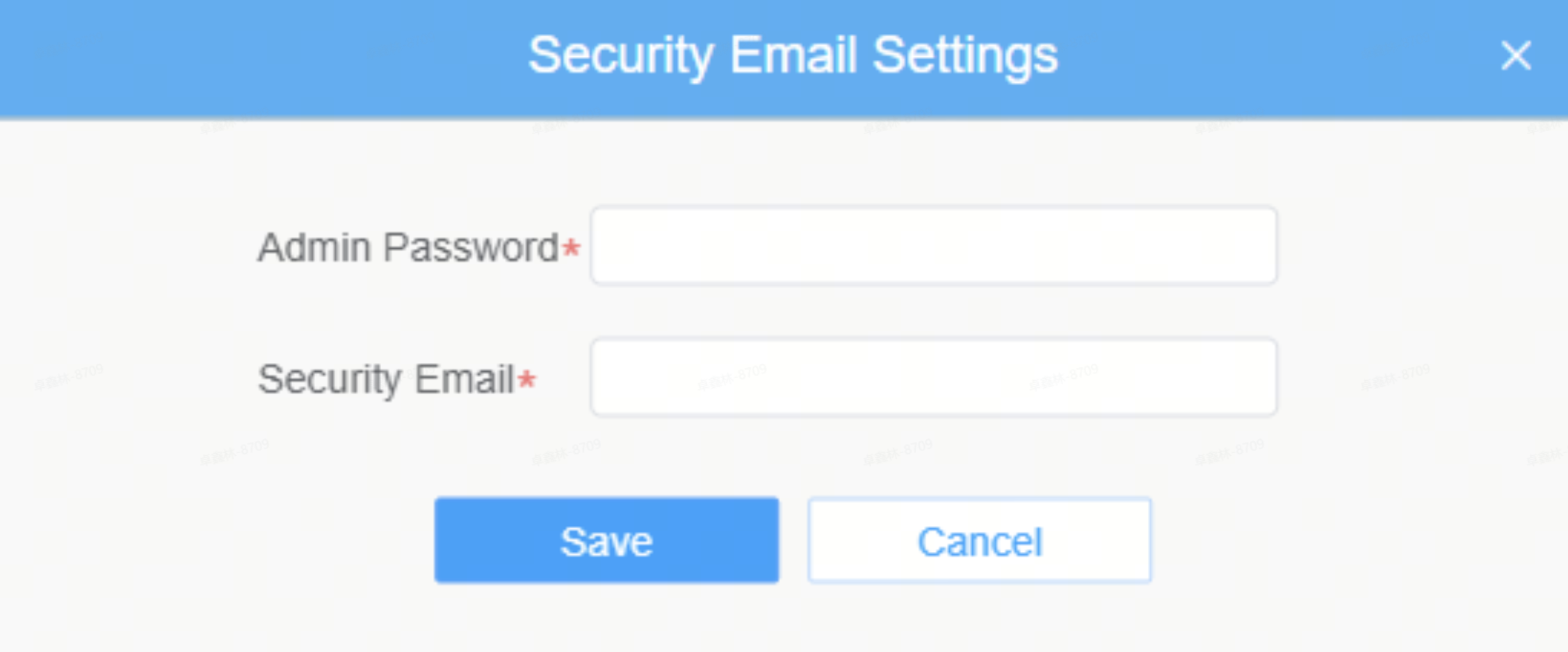
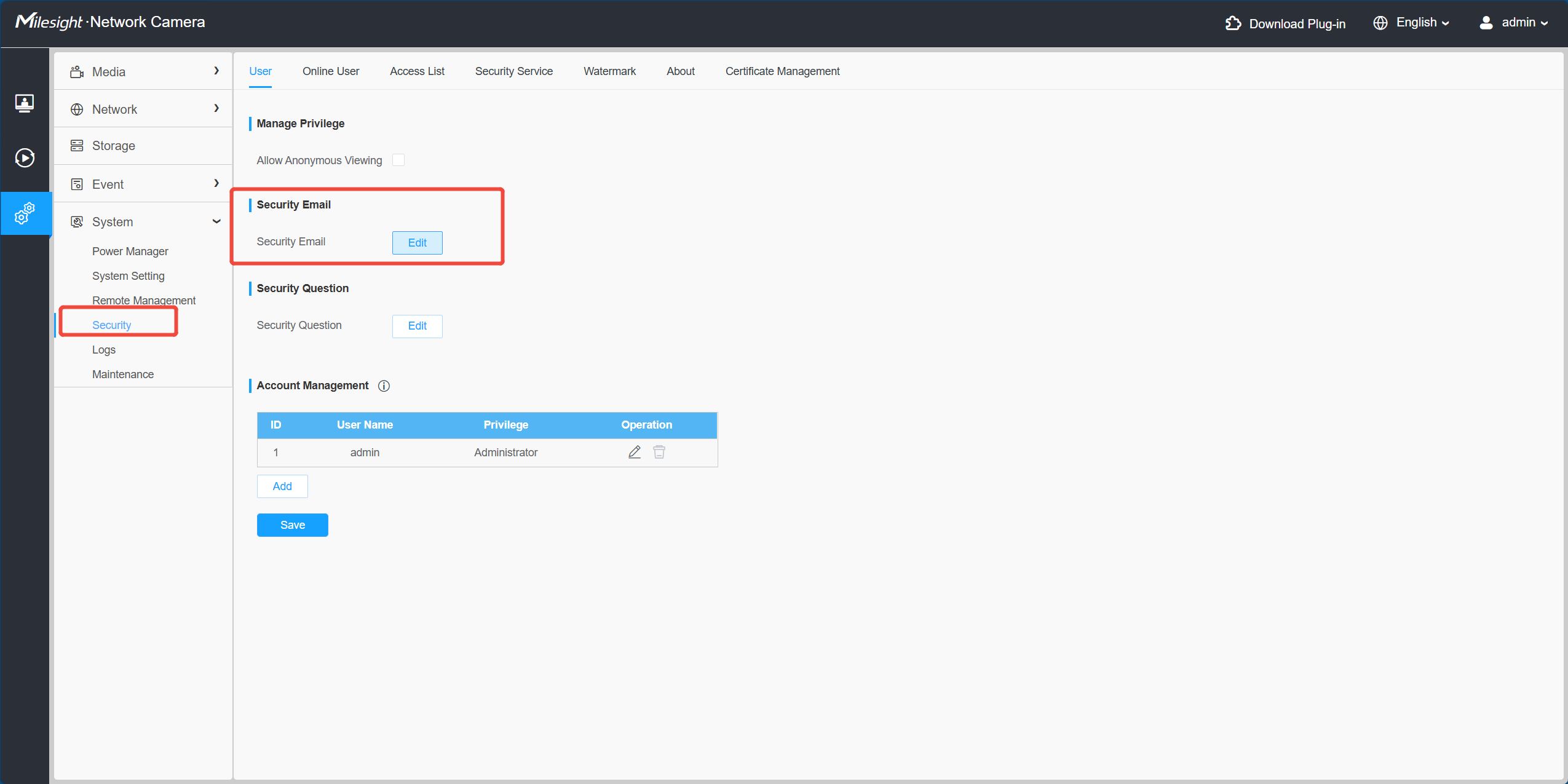
Method 2: If you have an activated camera, you can also log in to the web version to set up your secure email. Click Settings → System → Security → Security Email → Edit to configure the security email.
3.2 Resetting the Password Using Security Email
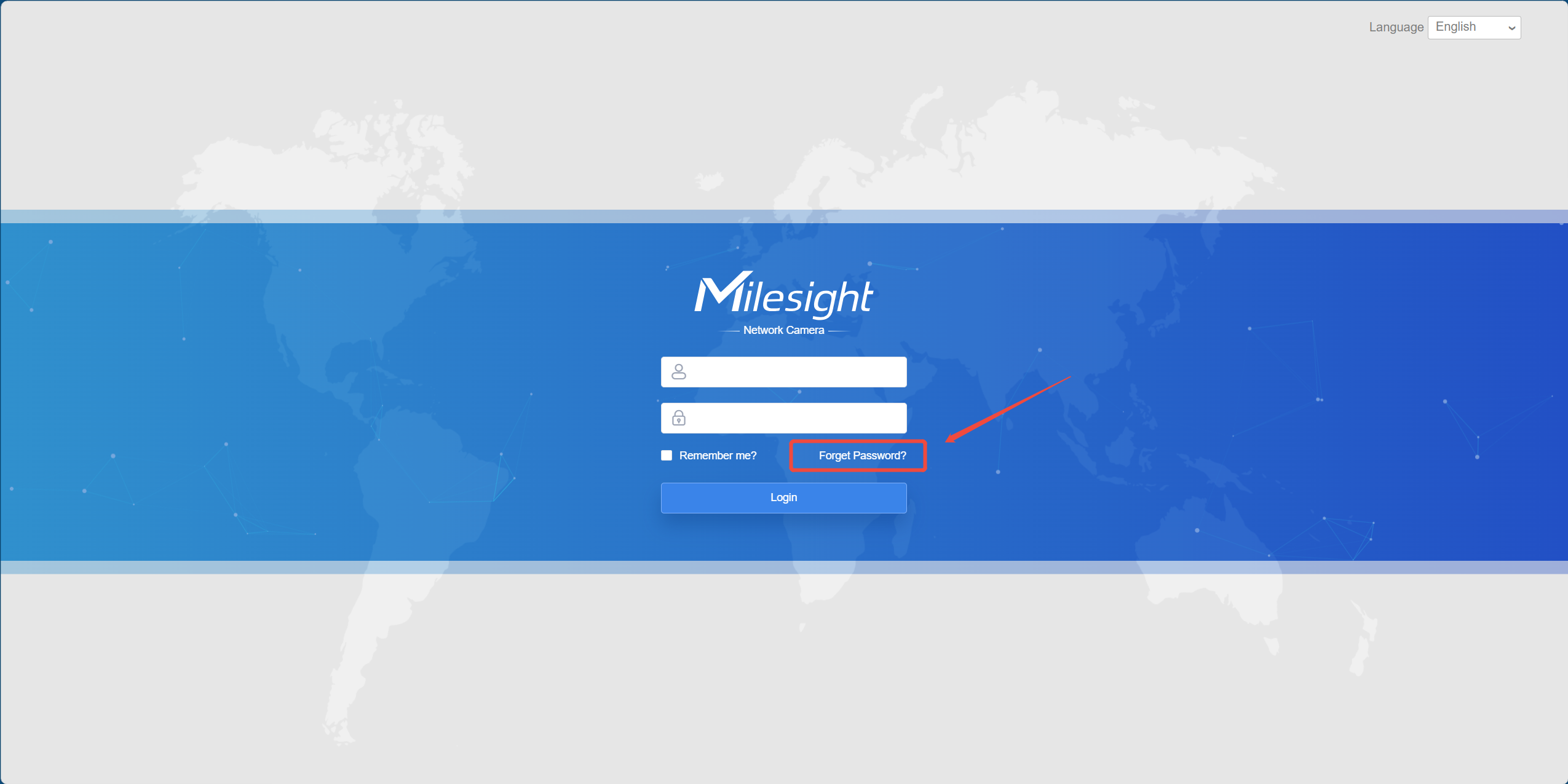
If security email has already been configured, log in to the camera’s web interface and click “Forget Password” to access the password reset page.
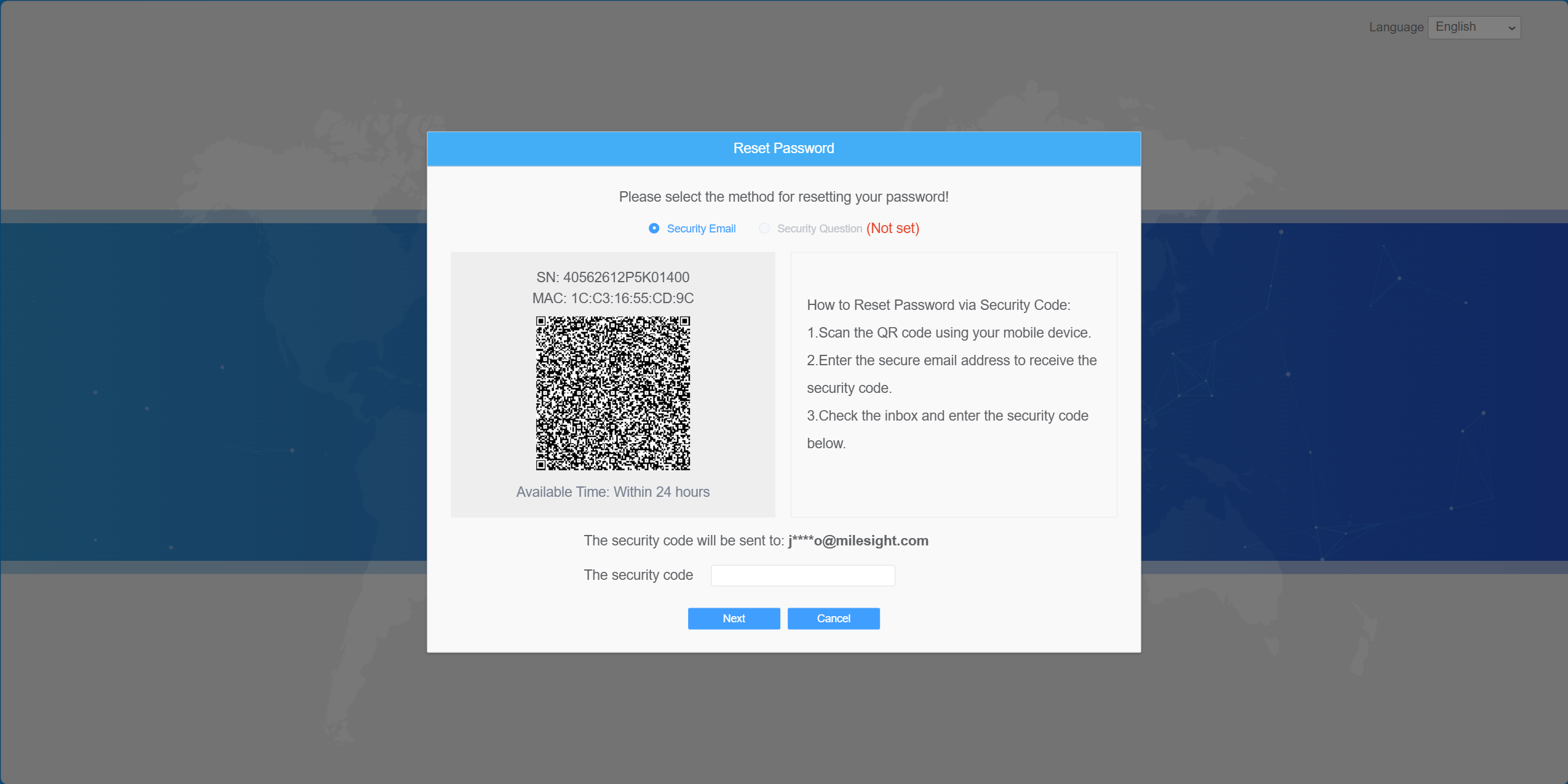
On the password reset page, use your mobile phone to scan the QR code shown in the image.
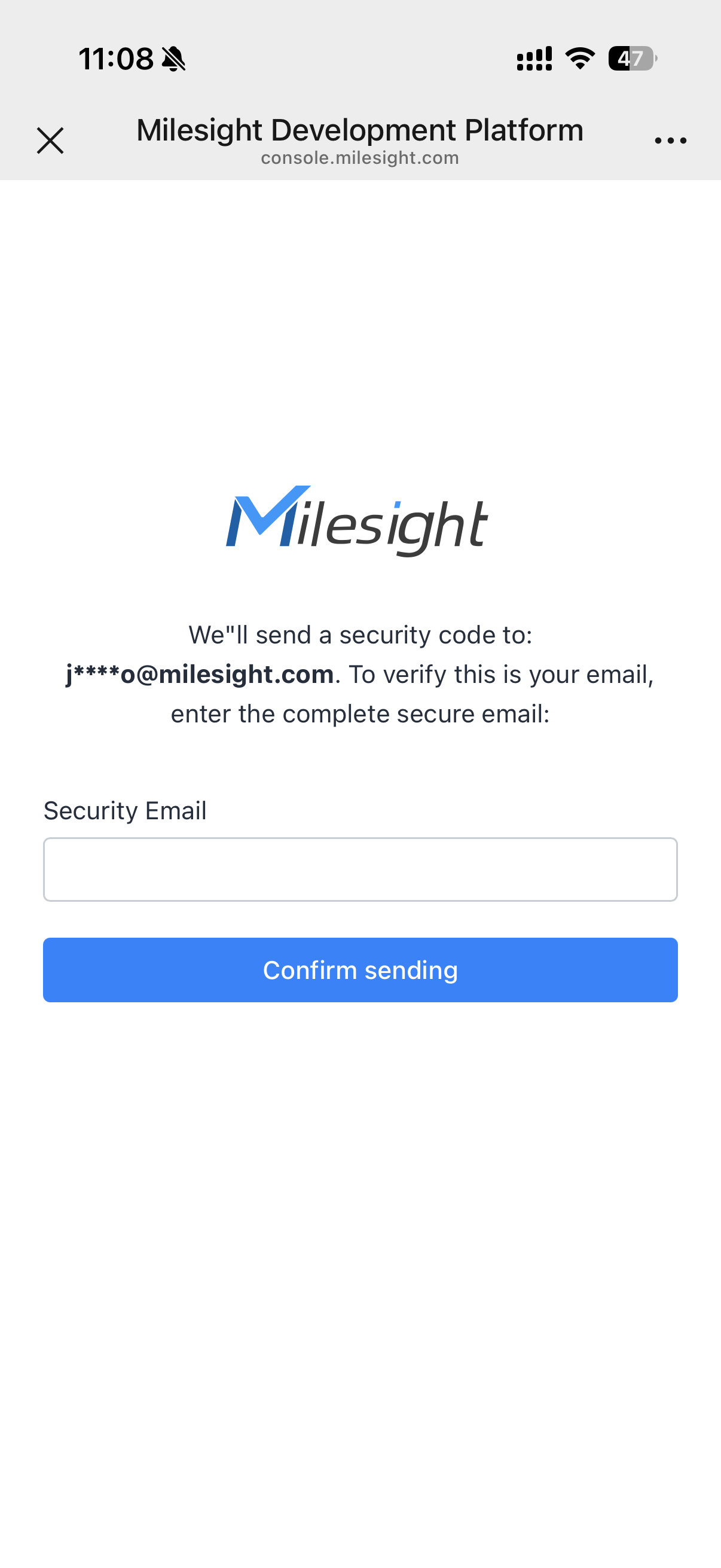
After scanning the QR code with your mobile phone, the following page will be displayed. Enter the configured security email address to receive the security code.
Log in to the configured security email account to retrieve the security code.
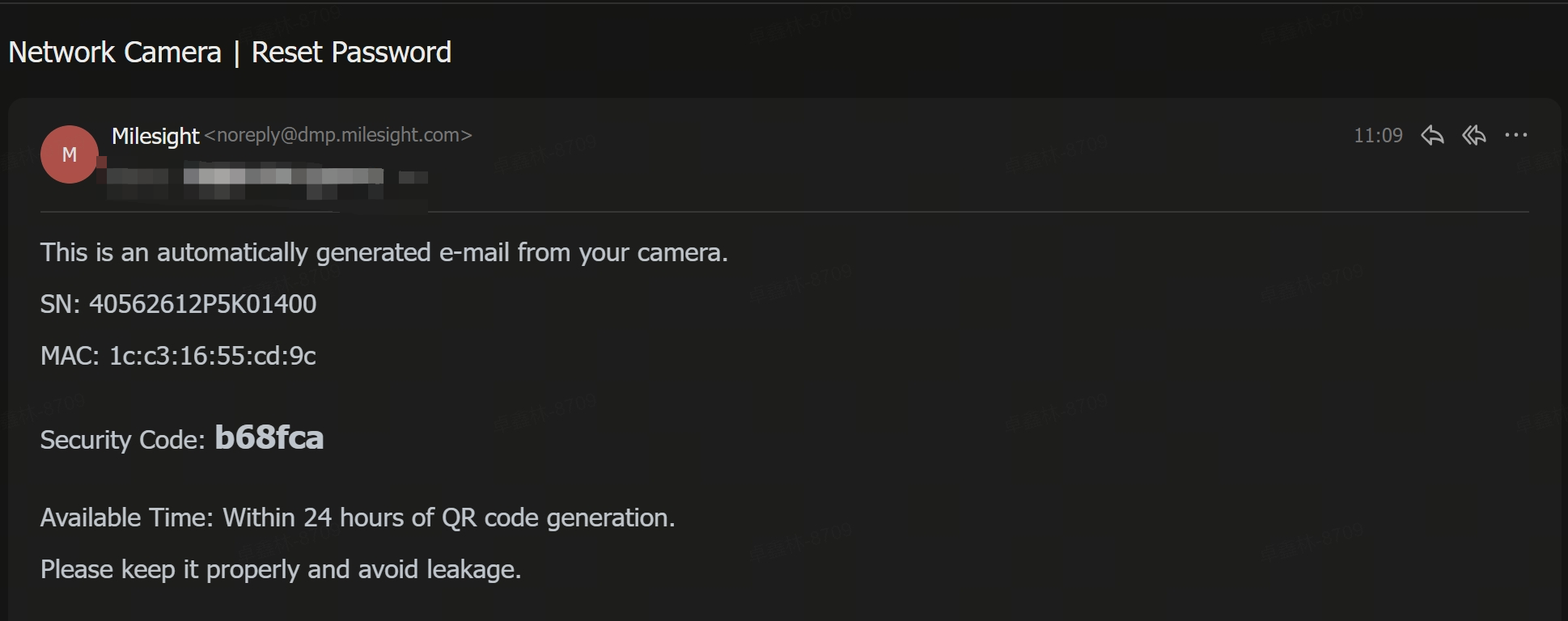
Enter the security code on the password reset page to reset the password.
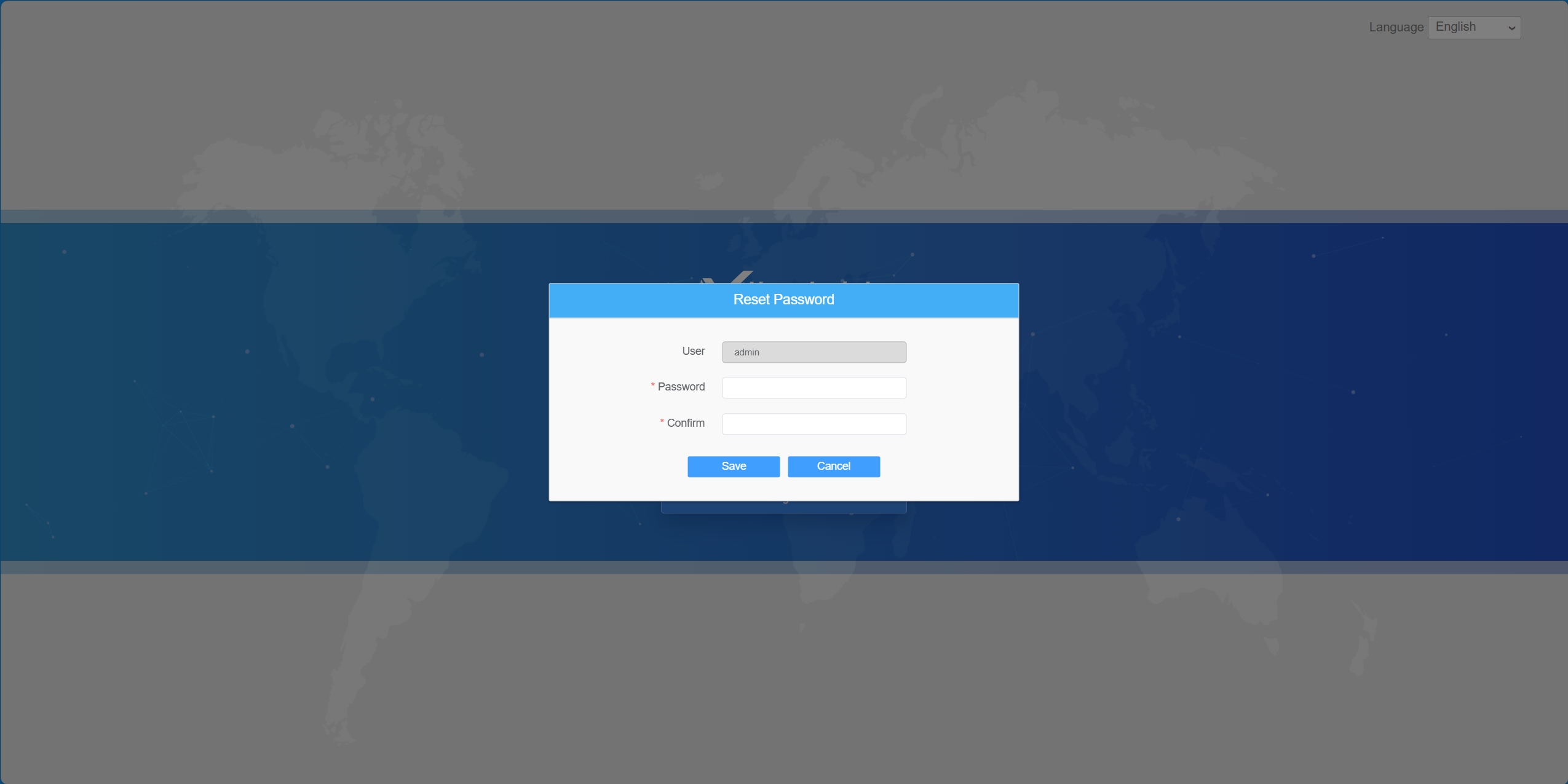
4. Hard Reset to Reset Password
Note:If you have not set up a security question or a security email address, the "Forgot Password" option will no longer appear on the web login page. You will need to reset the camera using a hardware reset to reactivate it and set a new password.
If the above steps do not work, please email support@milesight.com with the MAC address of the camera, or you could create a ticket to get help from the Milesight Support Team.
https://support.milesight.com/support/tickets
-END-