
Email function can be configured to send an email notification to all designated receivers if an Event is detected, e.g., Motion Detection, Smart Events, etc.
2.How to set up Email ?
There are three steps to complete the setting.
Step1: Log in webpage, and go to “Network”→“Basic”→“Email”.Then input some information about Email.
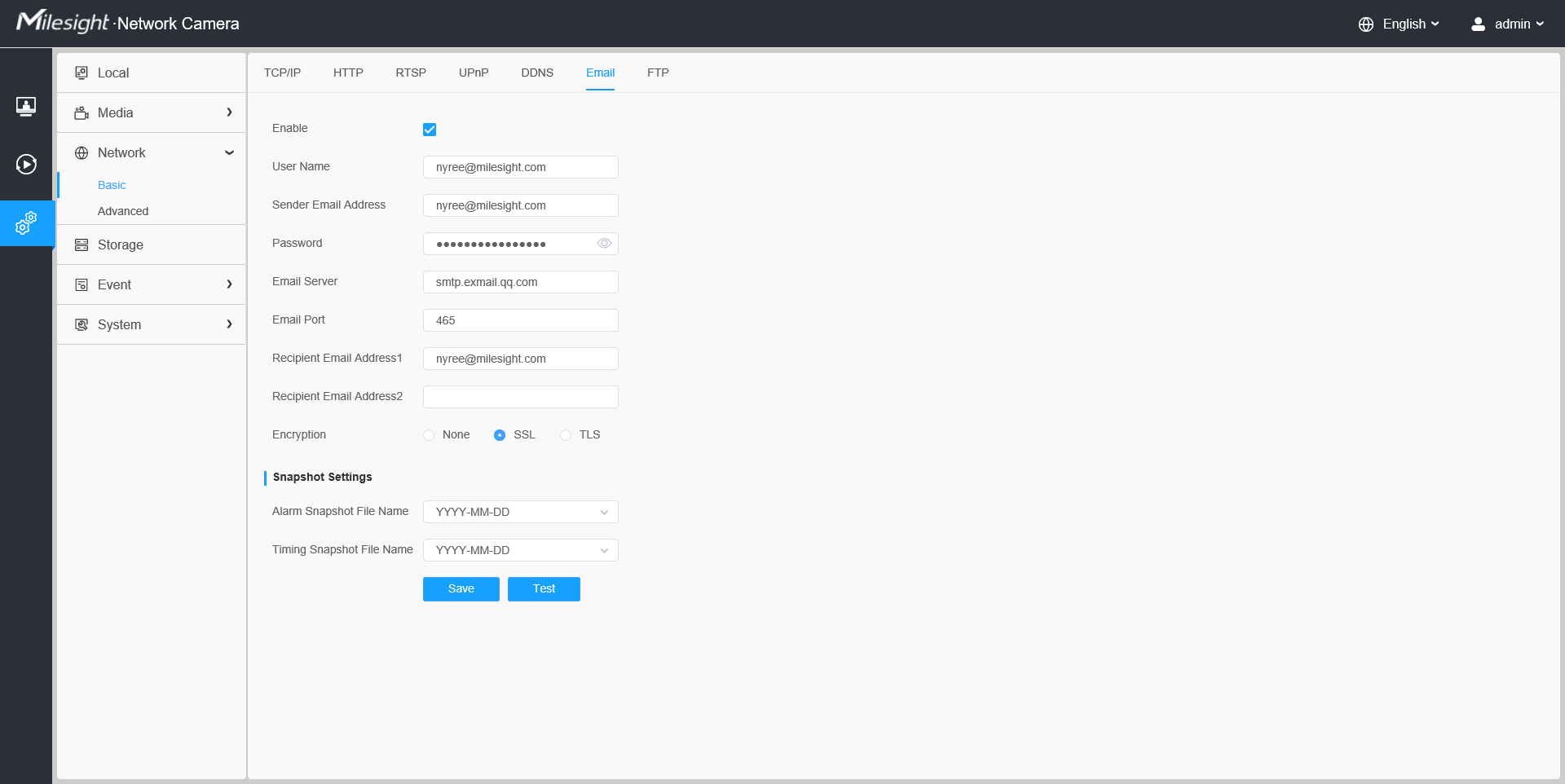
Description of the buttons:
Parameters | Function Introduction |
User Name | The sender's name. It is usually the same as the account name |
Sender Email Address | Email address to send video files attached emails |
Password | The password of the sender |
SMTP Server | The SMTP server IP address or host name(e.g. smtp.gmail.com) |
SMTP Port | The default TCP/IP port for SMTP is 25(not secured). For SSL/TLS port, it depends on the mail you use |
Recipient Email Address1 | Email address to receive video files |
Recipient Email Address2 | Email address to receive video files |
Encryption | Check the checkbox to enable SSL or TLS if it is required by the SMTP server. |
Note: The SMTP server address, port and other information of common mail:
Mail? | User name | Server Address | Server Port | SSL | TLS |
Gmail | ABC (@gmail.com) | smtp.gmail.com | 25/587 | 465 | 25/587 |
Yahoo | ABC (@yahoo.com) | smtp.mail.yahoo.com | 587 | 465 | 587 |
Hotmail | ABC@live.com | smtp.live.com | 25/587 | × | 25/587 |
163 | ABC (@163.com) | smtp.163.com | 25 | 465/587 | 25 |
126 | ABC (@126.com) | smtp.126.com | 25 | 465/587 | 25 |
yeah | ABC (@yeah.com) | smtp.yeah.net | 25 | 465/587 | 25 |
sohu | ABC (@sohu.com) | smtp.sohu.com | 25 | 465 | 25 |
sina | ABC (@sina.com) | smtp.sina.com smtp.sina.com.cn | 25/587 | 465 | 25/587 |
ABC (@qq.com) | smtp.qq.com | 25/587 | 465 | 25/587 |
Step2:Click the “TEST”button to test if the Email setting is successful.
If there is a “Successful!” prompt and receiving a TEST Mail, it shows that Email has been set successfully and you can take the next step .
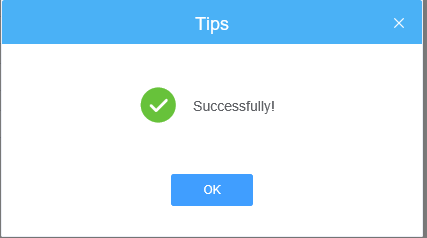
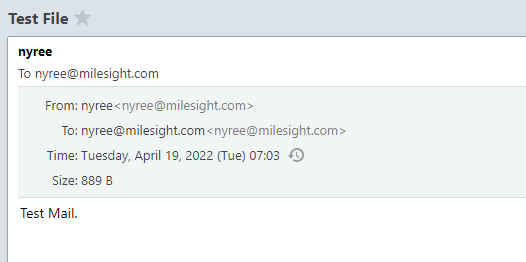
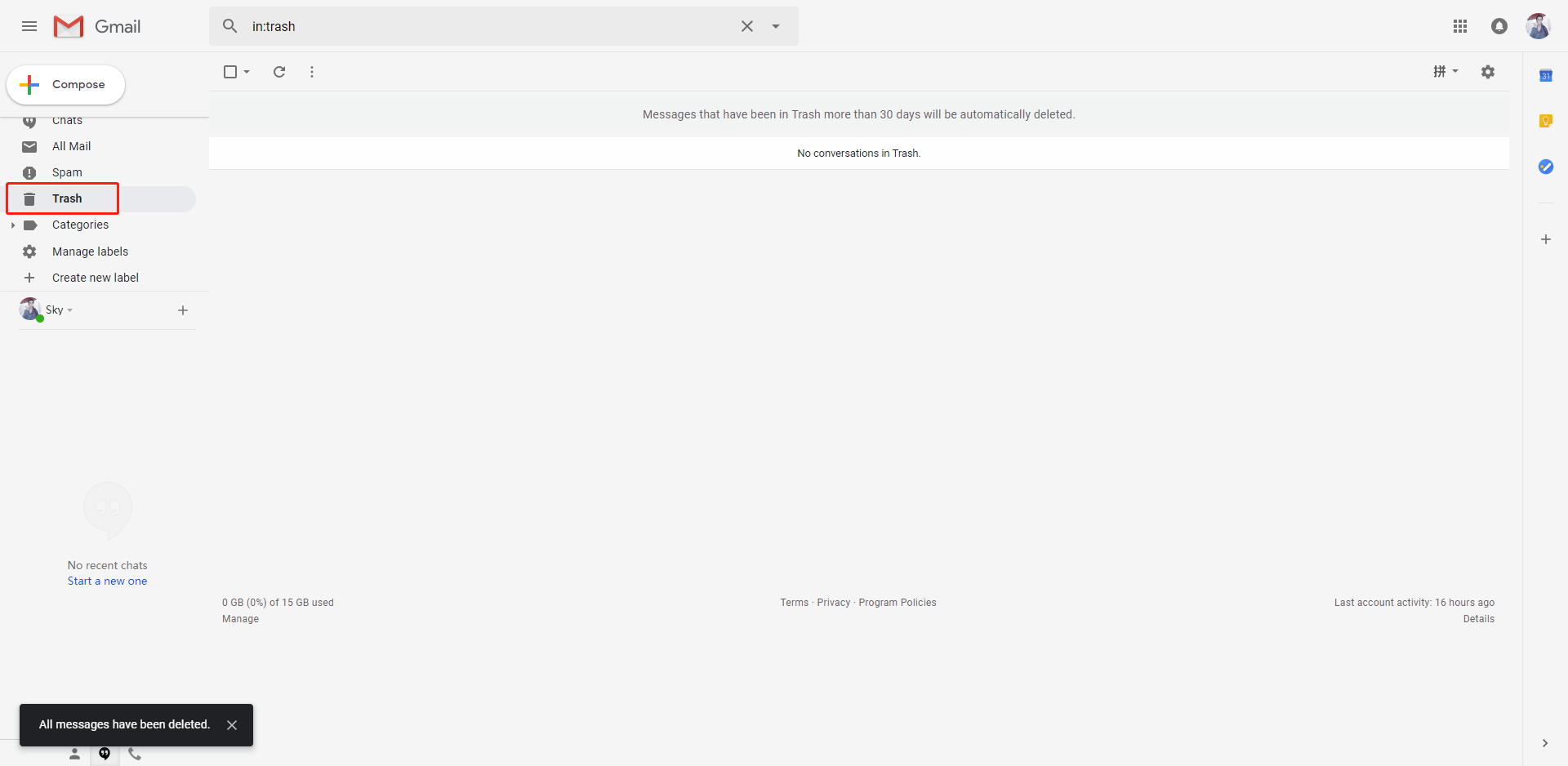
Note: If there is a “Successful!” prompt but do not receive a TEST Mail, please check the Trash to see if it is recognized as spam mail.
If there is “Fail!”or other prompts, you need to do the following steps to troubleshoot.
Check if all the information you filled in is correct.
Check if the Email enables IMAP
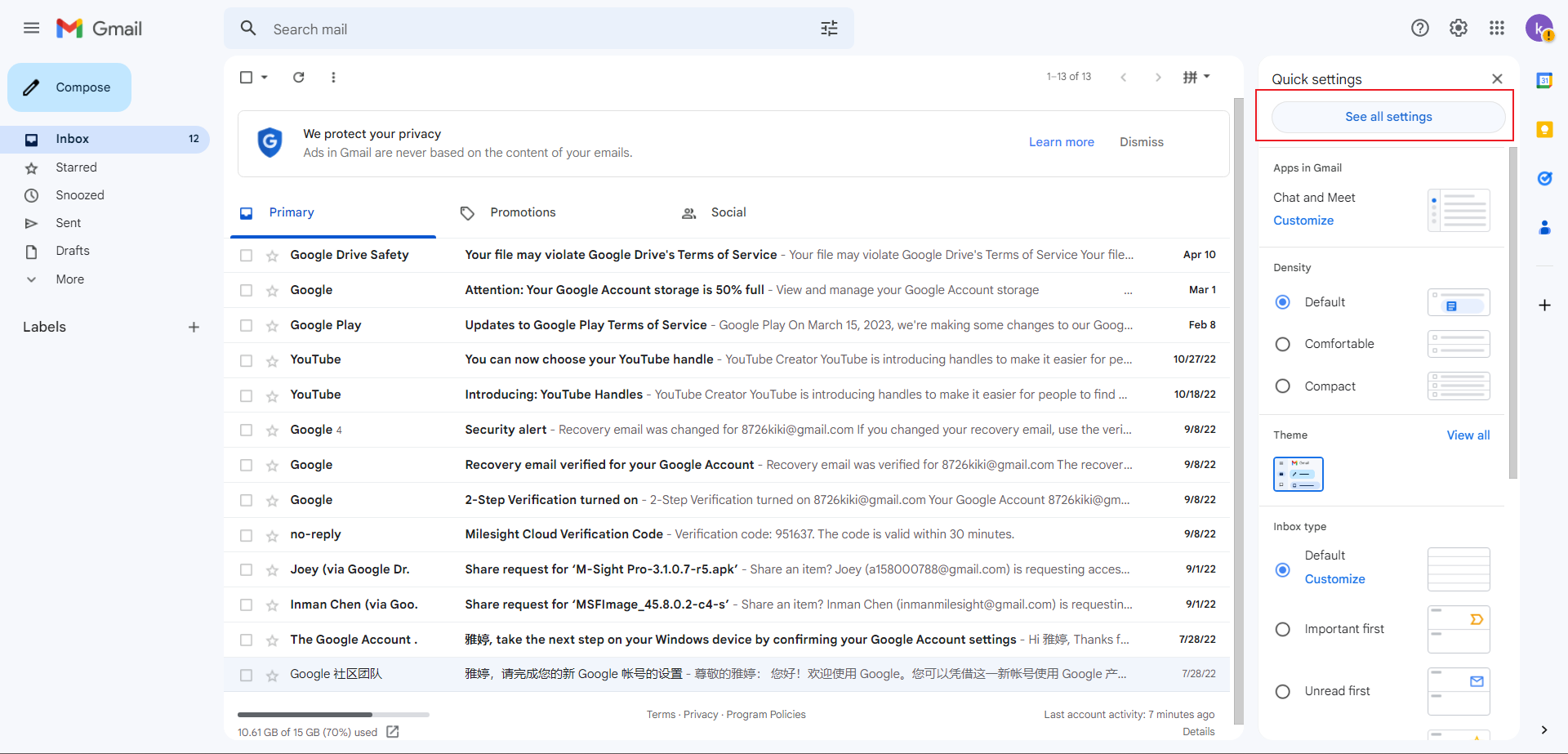
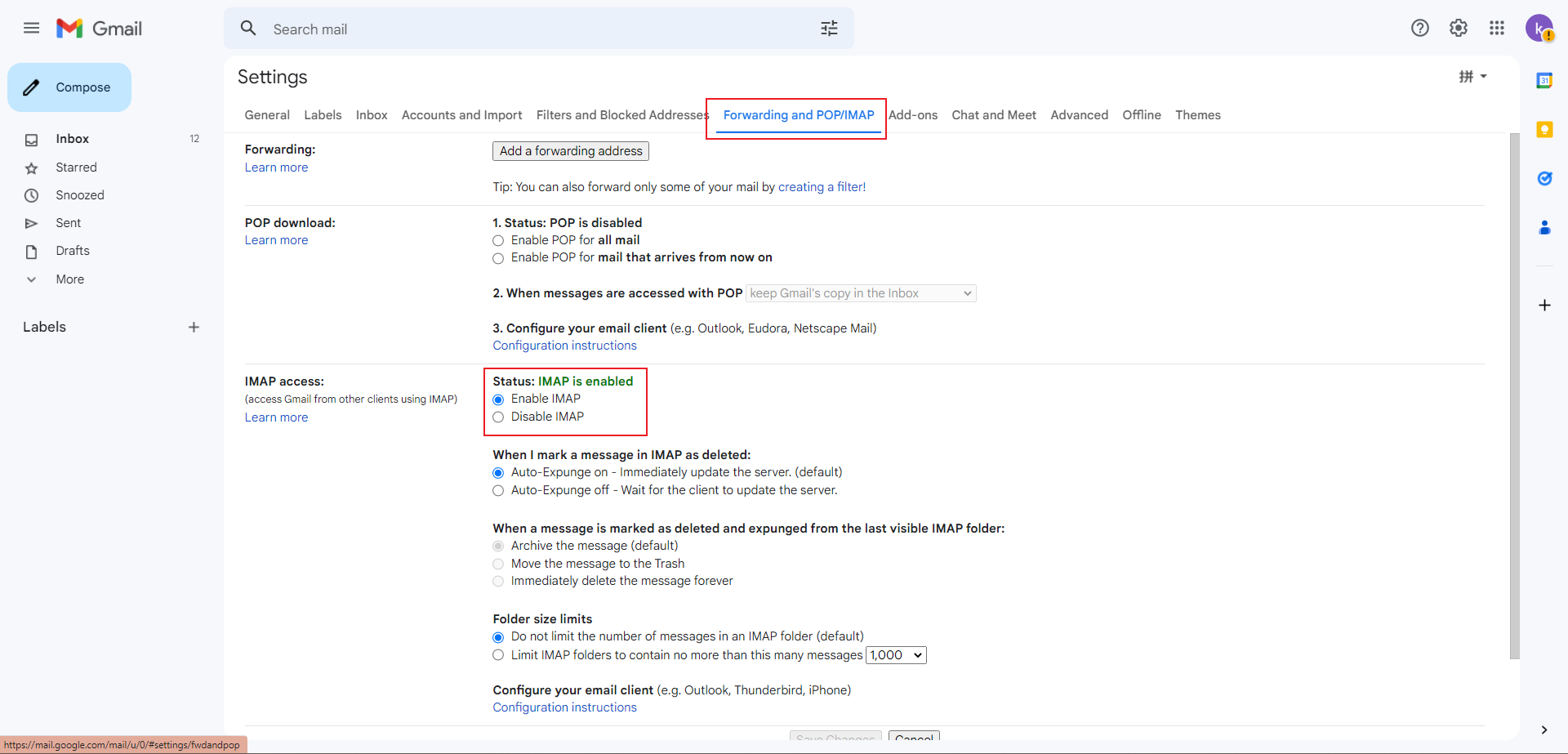
Check whether SMTP is set successfully.
Please refer to this document to enable a separate password.
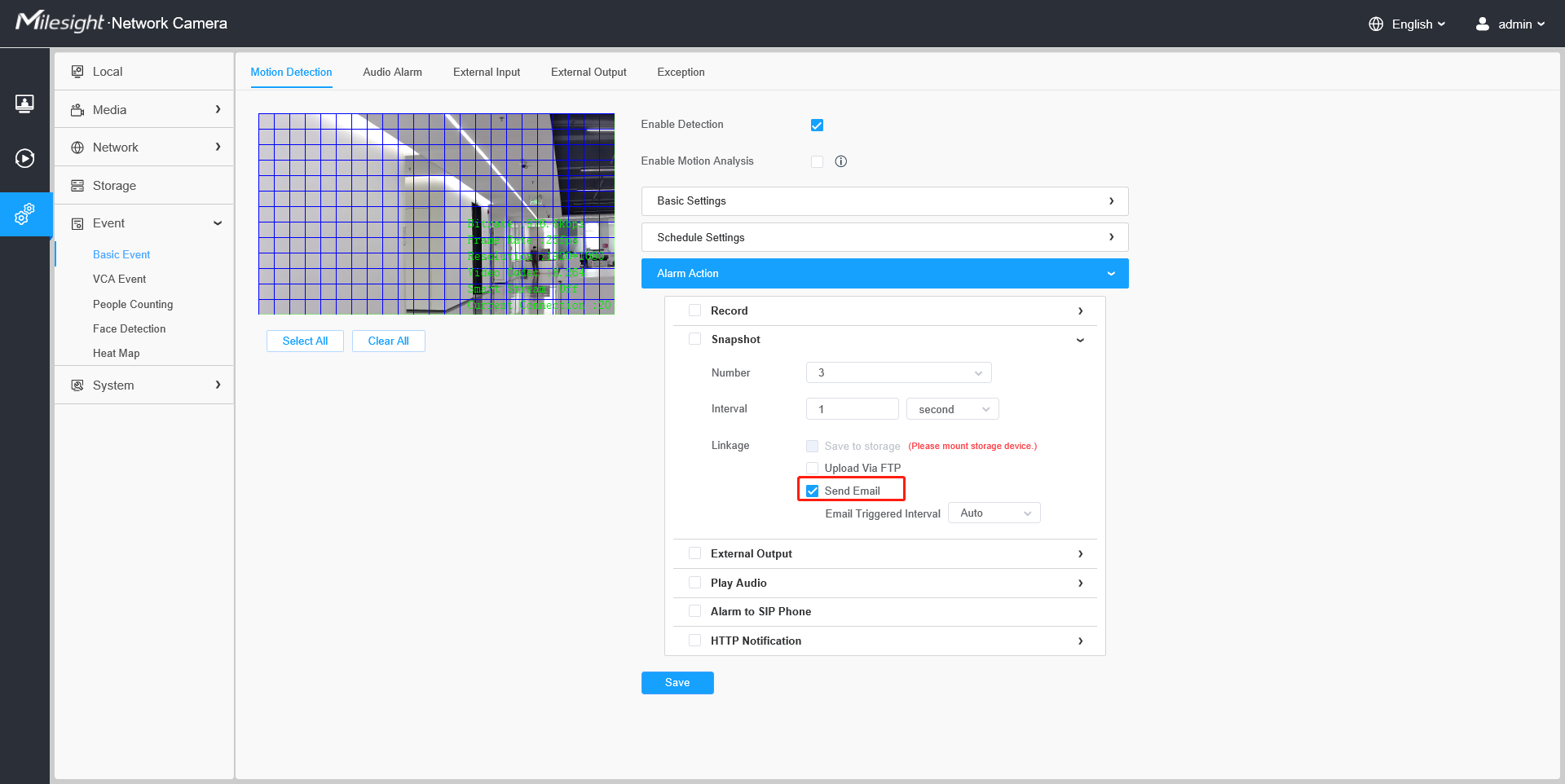
Step3: After Email setting, you can use it in Events. Take Motion Detection as an example.
Setting the Motion region and schedule first, then enable “Send Email” and save the setting.
After setting motion detection and alarm action successfully, when the motion detection is triggered, you will receive an Email and the detail as follows.
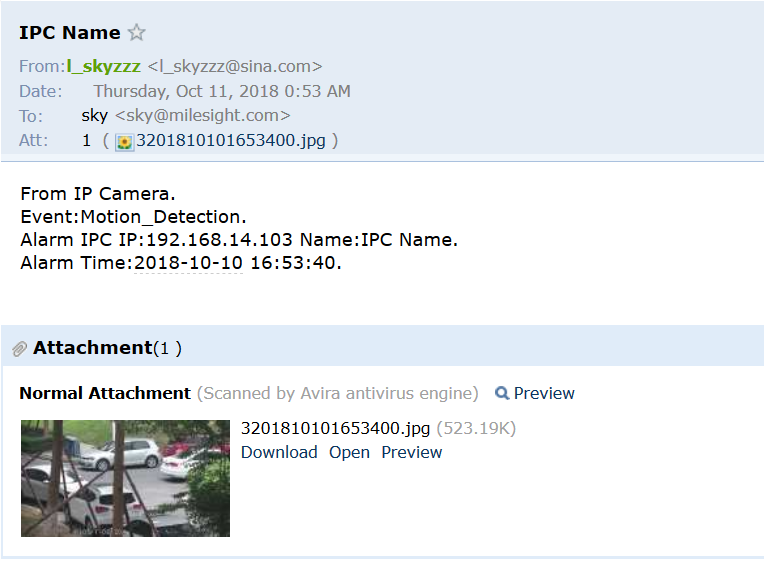
Note: The Email setting of other Events is the same as above.
——————END——————