
The rapid development of the security industry necessitates more intelligent video monitoring solutions. With a large volume of video recorded but rarely reviewed, it is common to overlook suspicious behaviors. To address this, Milesight introduces AI Video Content Analysis (VCA), an embedded application designed for the entire range of Milesight network cameras, ensuring that no critical events are missed.
1. Introduction
Milesight AI VCA technology revolutionizes video surveillance by equipping Milesight cameras with advanced deep-learning algorithms. Through intelligent filtering for human and vehicle detection, it not only ensures stronger physical security but also provides valuable trend insights. With real-time alerts and actionable data, this cutting-edge technology enhances video security management and streamlines intelligent investigations, delivering superior security capabilities for users.
Milesight’s VCA features deliver optimal performance when cameras are installed and operated in accordance with this guide. For best results, please follow the instructions carefully, as AI video analysis may be affected by lighting conditions and the camera’s field of view.
This installation guide provides the minimum requirements and recommendations for using the various VCA features. To ensure improved detection accuracy, always use the latest VCA algorithm. For detailed information about the algorithm, please refer to the Milesight Event List.
The performance of each feature cannot be guaranteed if the instructions are not properly followed. If you have any questions, please contact our Support Team at support@milesight.com.
Several factors may influence detection performance, including poor image quality, improper installation, and incorrect web settings.
Factors Affecting Maximum Detection Distance
• Camera series and model
• Camera lens: a longer focal length allows for a longer detection range
• Environmental conditions: for example, heavy rain or poor lighting can impact detection distance and accuracy.
Possible Causes of Missed Detections or Delays
• Excessive image noise
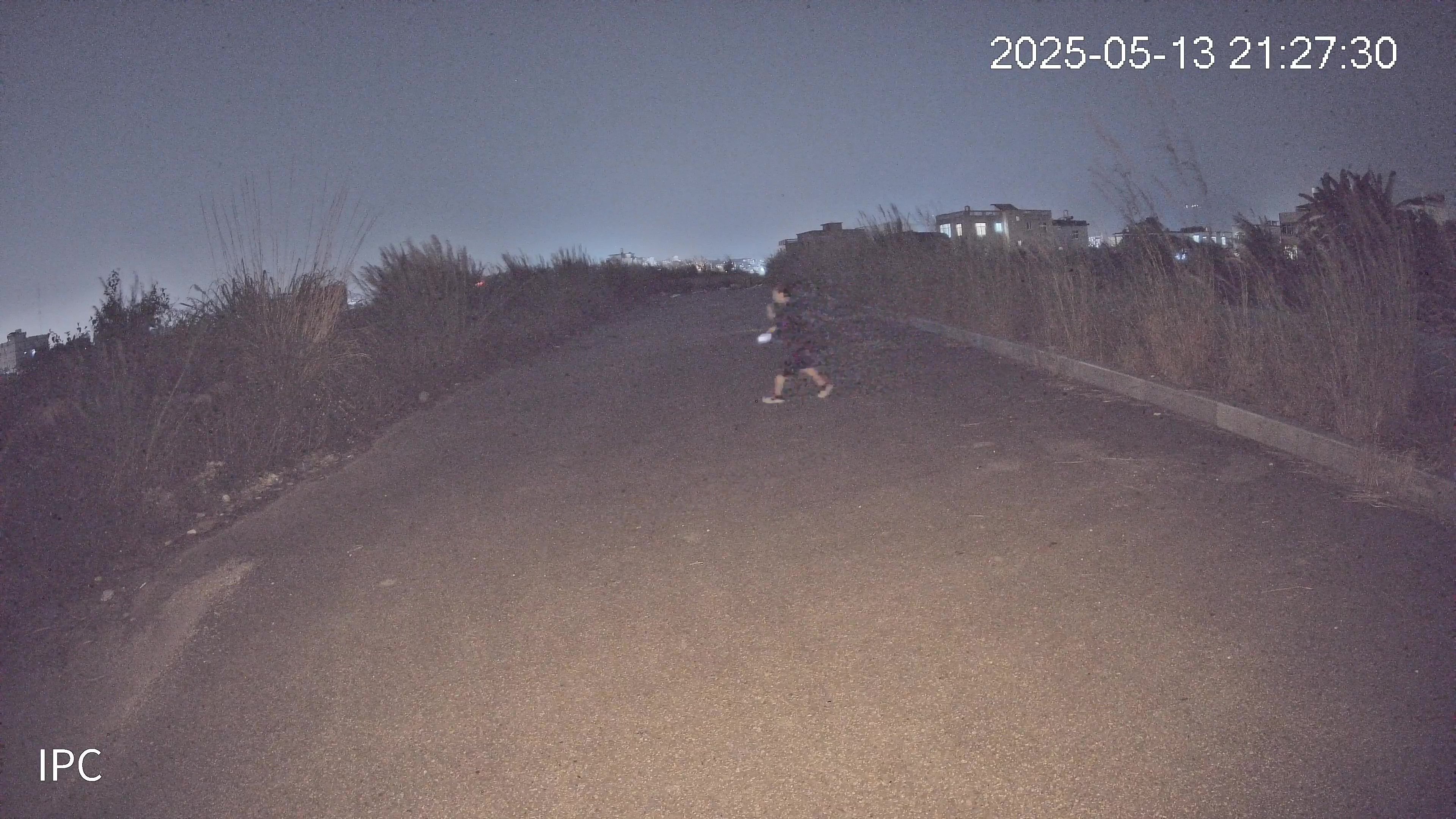
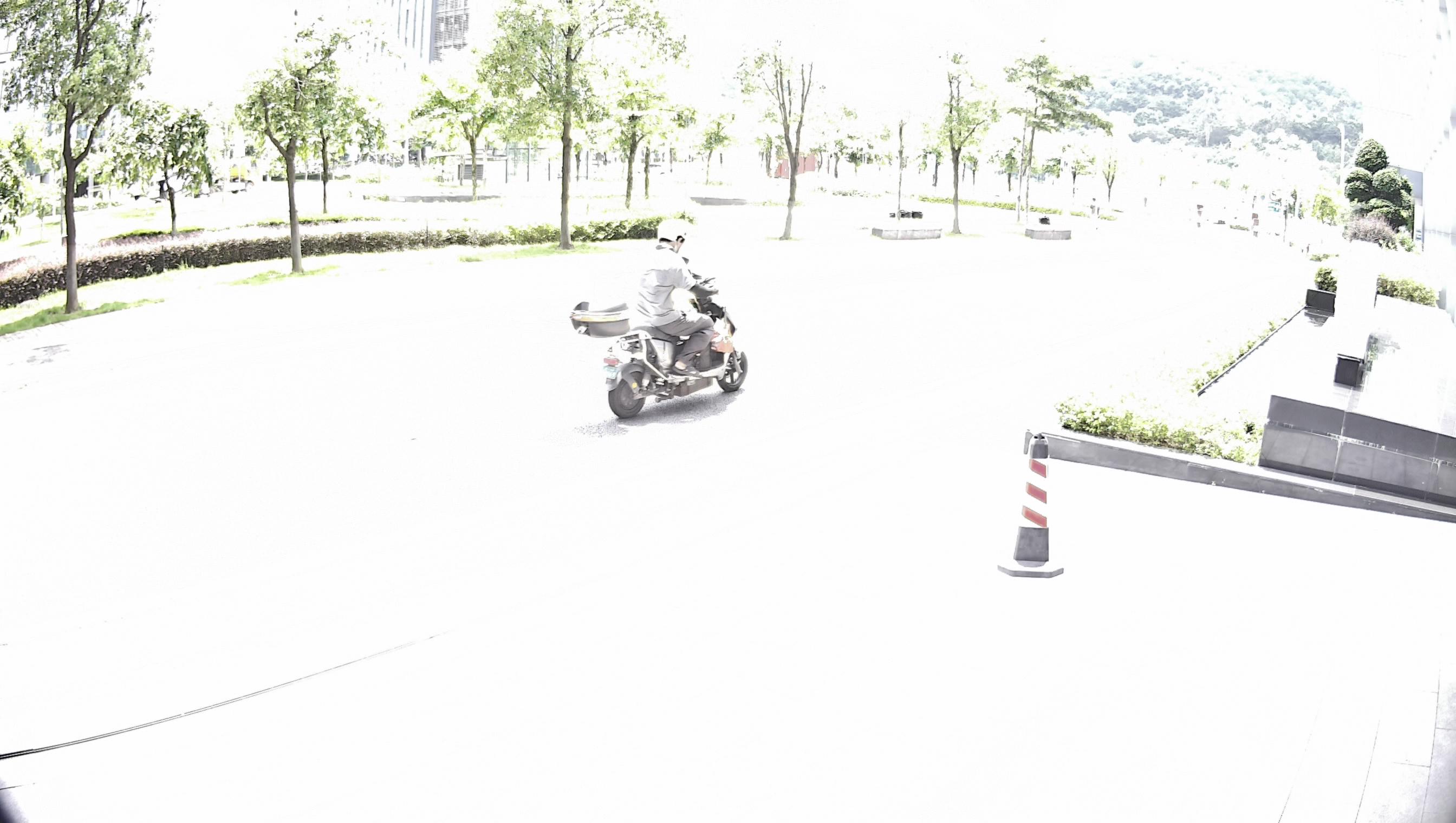
• Insufficient lighting or direct strong light shining into the camera.
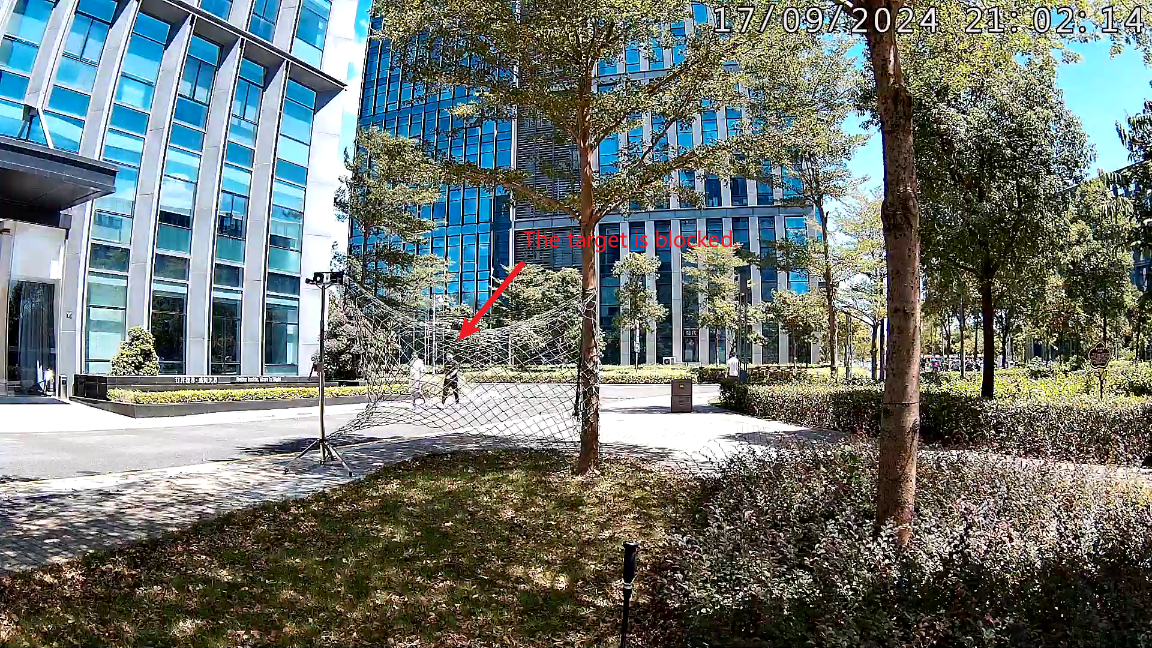
• Targets being partially or fully obstructed.
• Animals of a similar size to humans.
• Adverse weather conditions such as fog, rain, or snow.
• In some scenarios: flying insects, heavy rain, or moving shadows.
Ensuring proper installation, a clear and well-adjusted image, and accurate web configuration is crucial for achieving optimal detection performance.
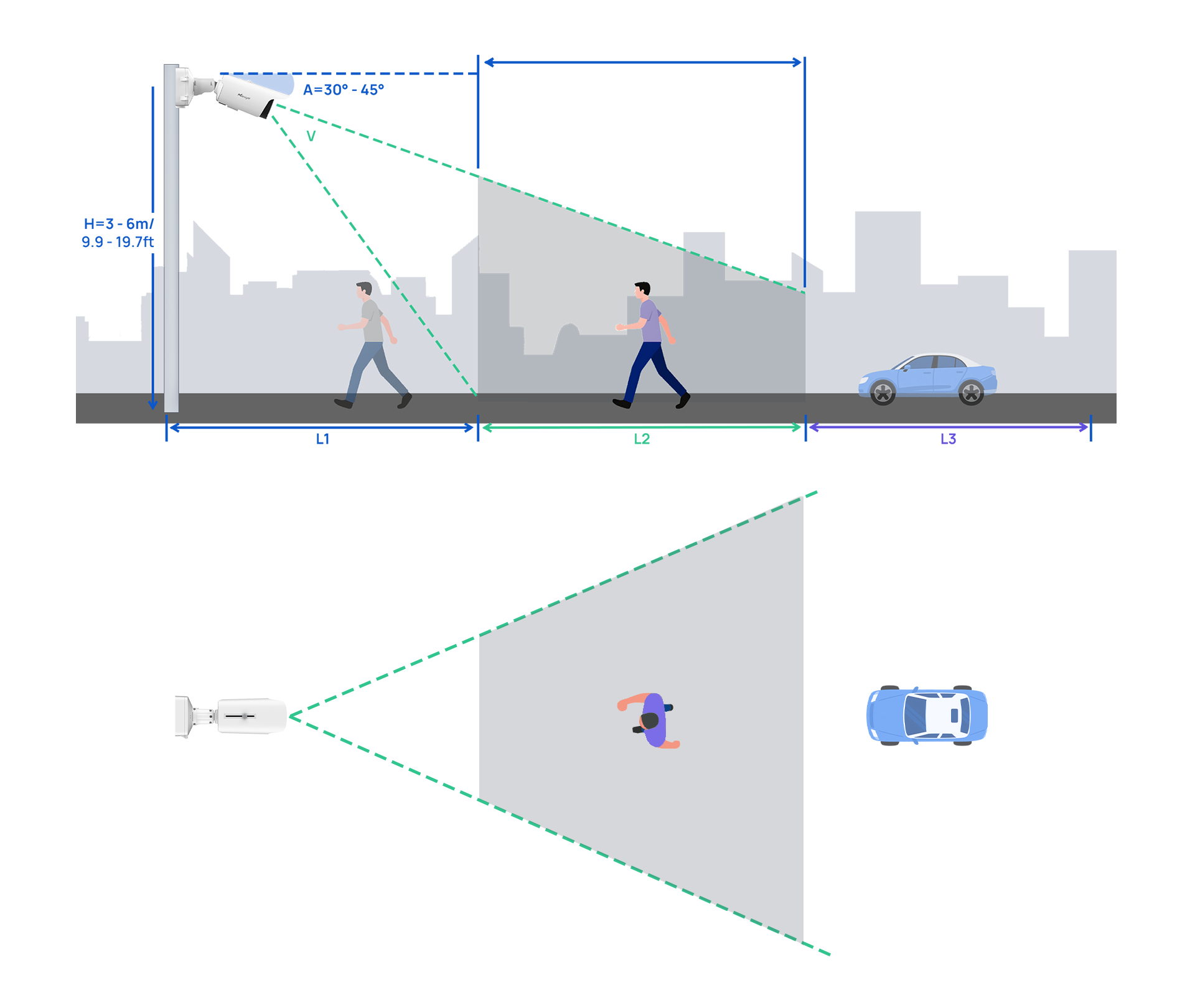
2. Tilt Installation Guidance
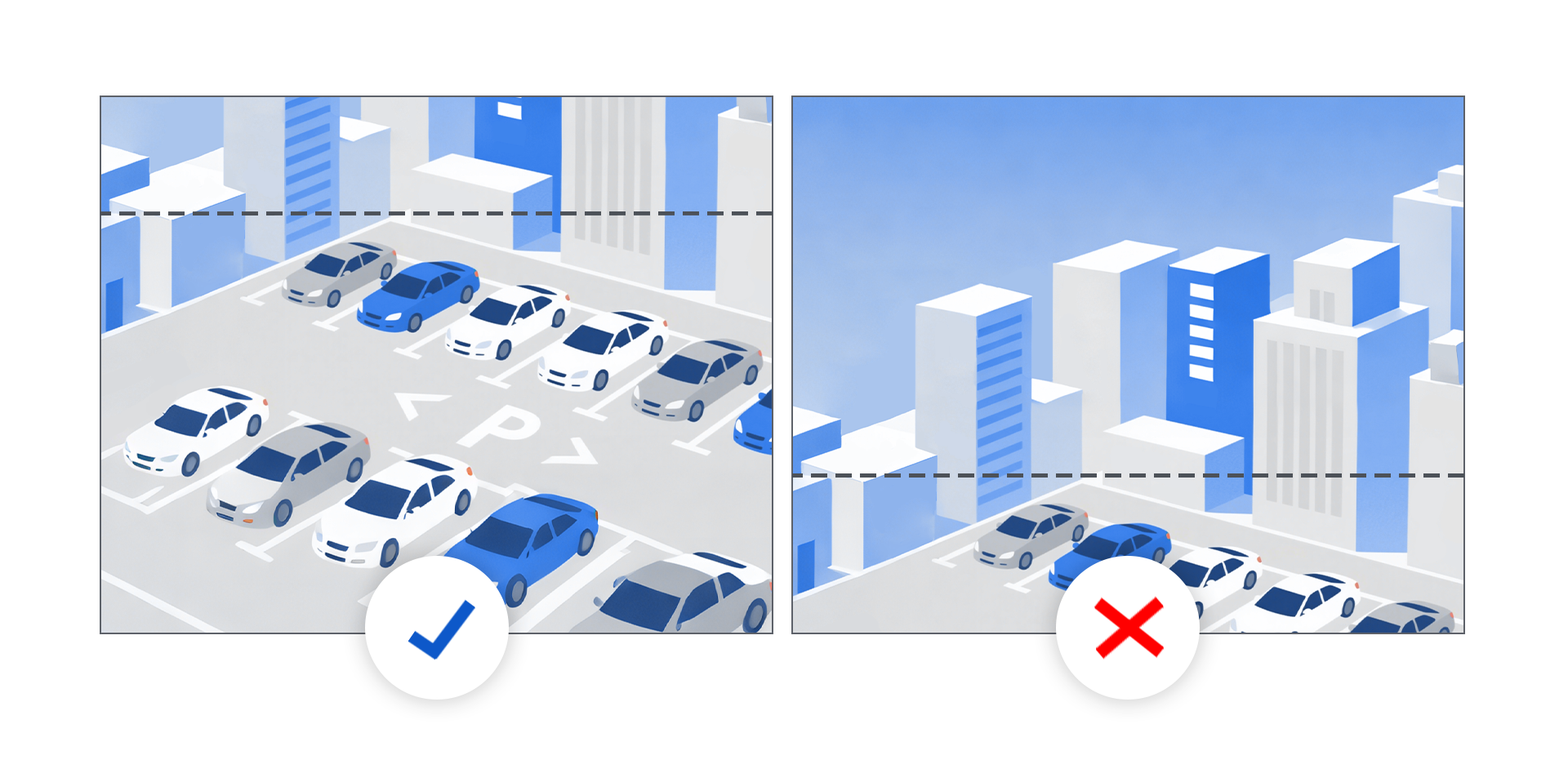
1. Maintain a proper tilt angle
Keep the tilt angle between 30° and 45° (depending on the specific camera model and lens used). The camera should be tilted downward so that the center of the image is below the horizon, which improves detection accuracy (see example image 1).
2. Avoid steep overhead mounting
Do not install the camera in a way that it looks directly downward from above, as this reduces the camera’s ability to detect and classify objects (see example image 2).
3. Expected Movement of Objects
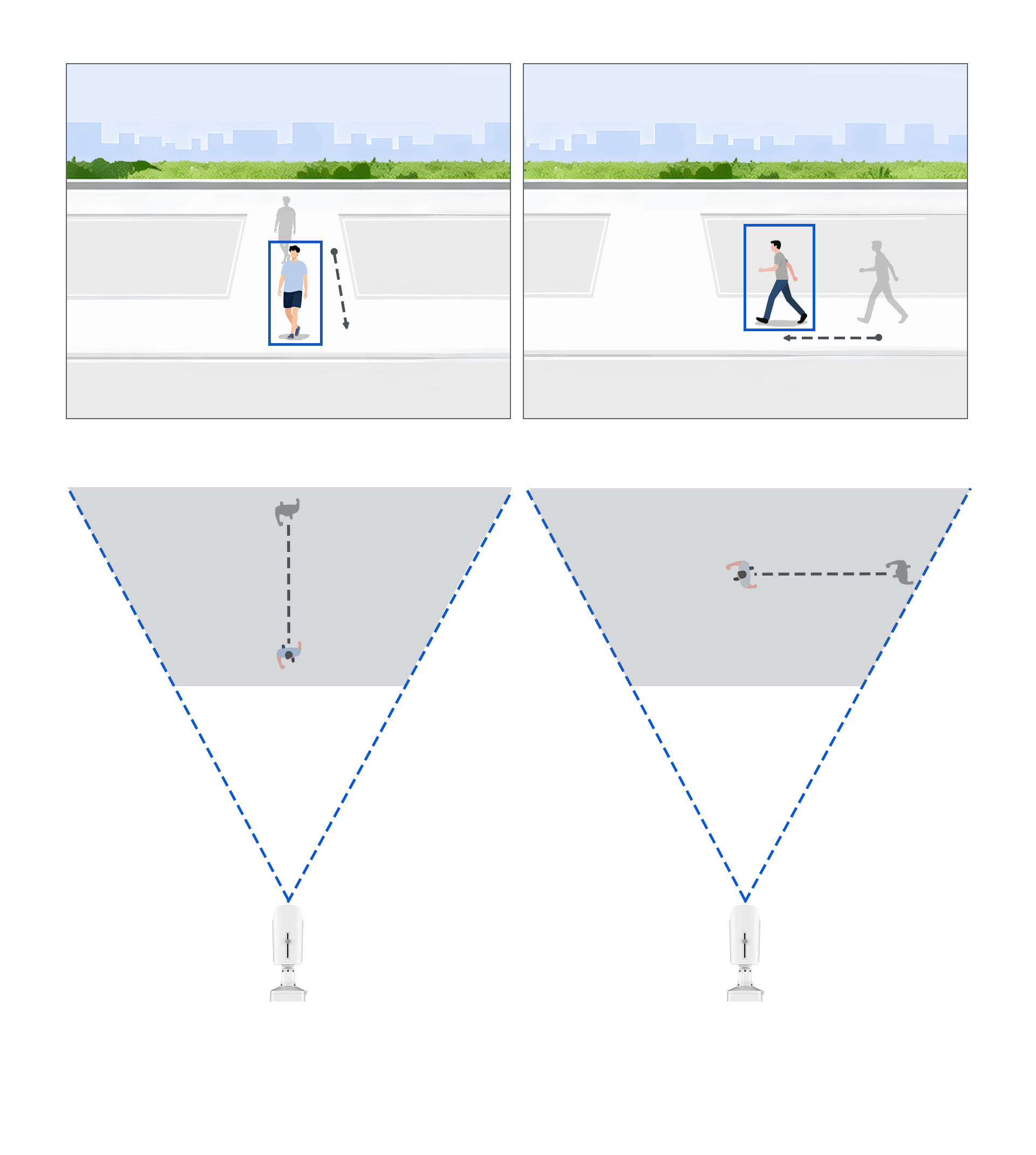
Objects that approach the camera in a straight line typically require a longer movement distance before being detected. In contrast, objects moving perpendicular to the camera’s field of view are detected more quickly and reliably.
For example, in Line Crossing Detection, it is recommended to place the detection line horizontally aligned with the camera’s field of view to ensure optimal performance.
4. Target Object Visibility Requirements
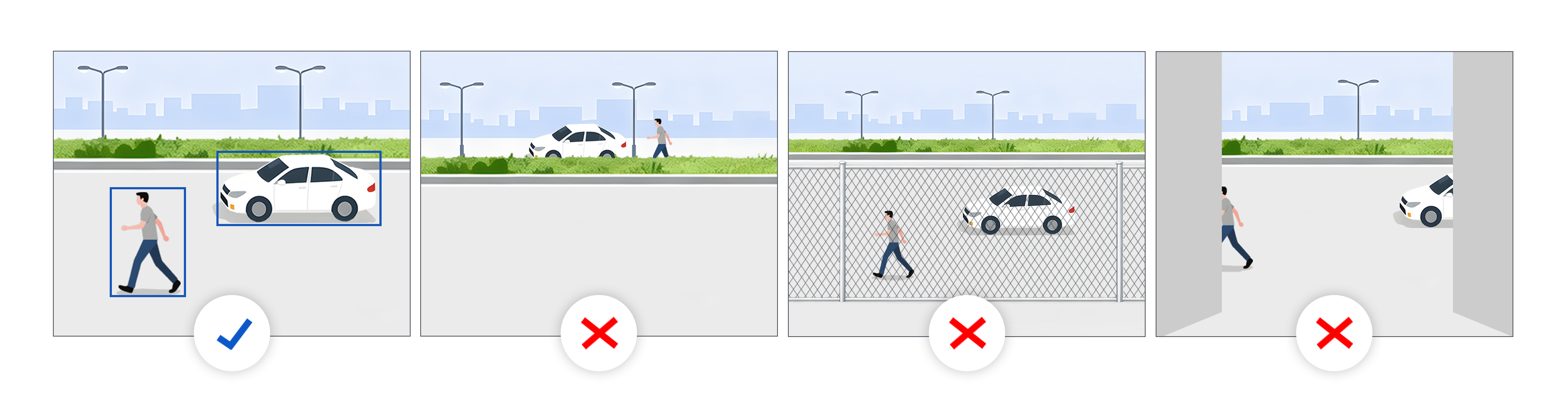
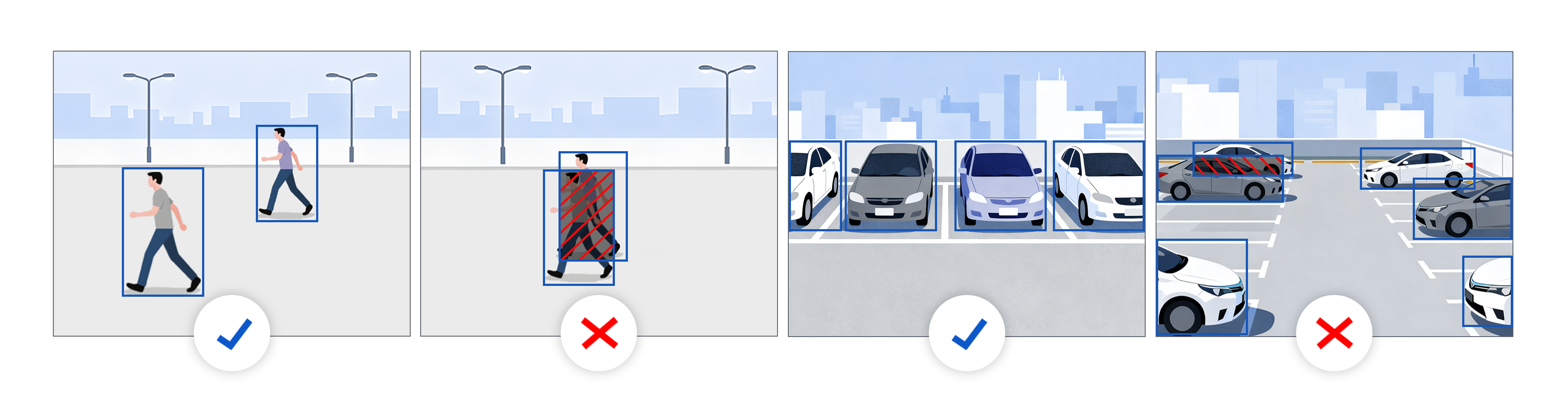
All parts of the person or vehicle target must be clearly visible in the field of view; otherwise, detection accuracy will be affected. For example, when multiple objects overlap or are partially obscured, detection performance may be significantly reduced.
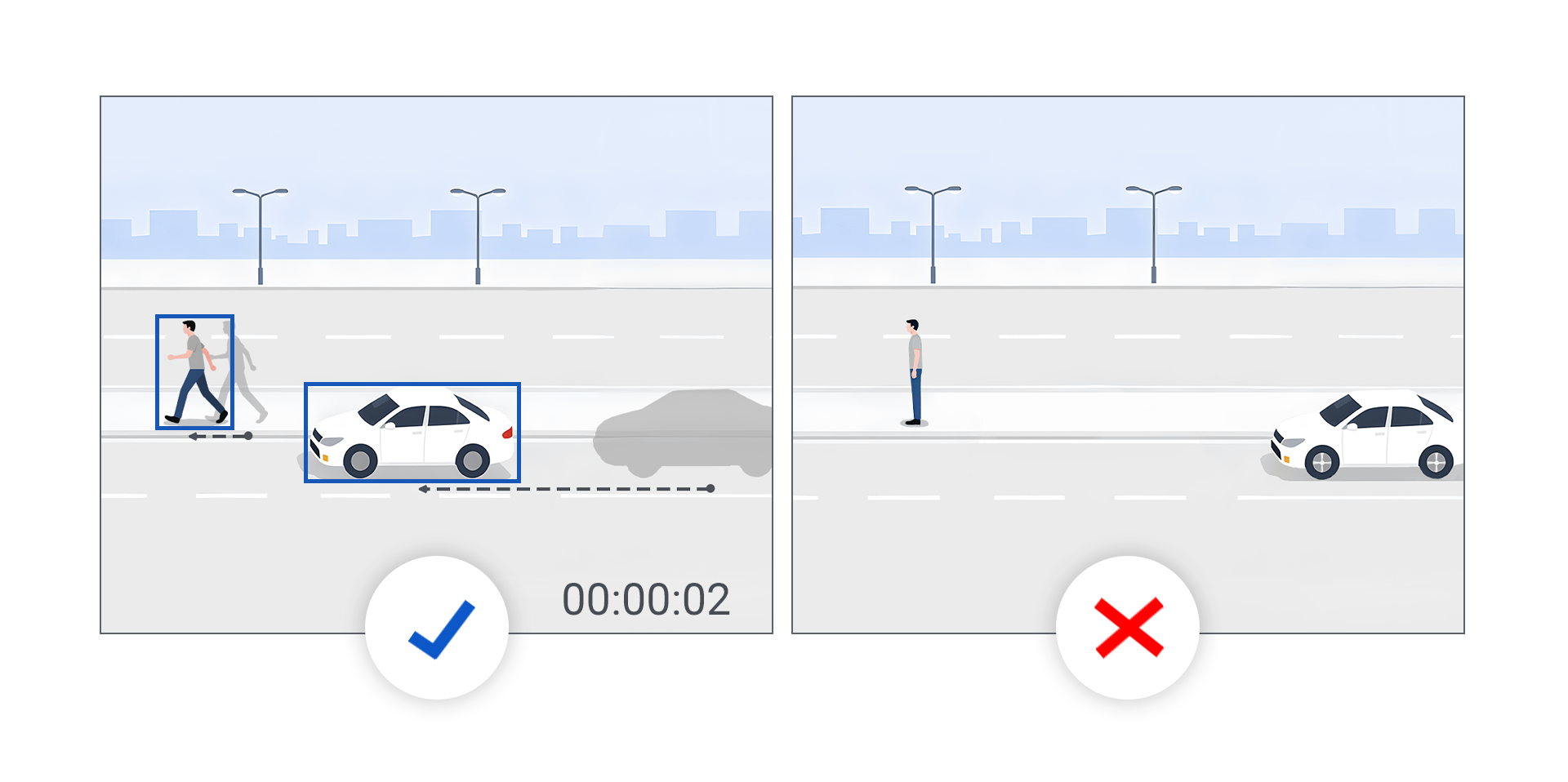
5. Object Motion Requirements
Objects must move within the scene to be detected. Static objects are filtered out and cannot be detected (including actions such as marching in place). Only moving objects are recognized by the system.
6. Target Sizing and Detection Optimization
To achieve optimal detection performance, make sure the target object is within the recommended pixel range. We provide the following two sets of reference data for your convenience:
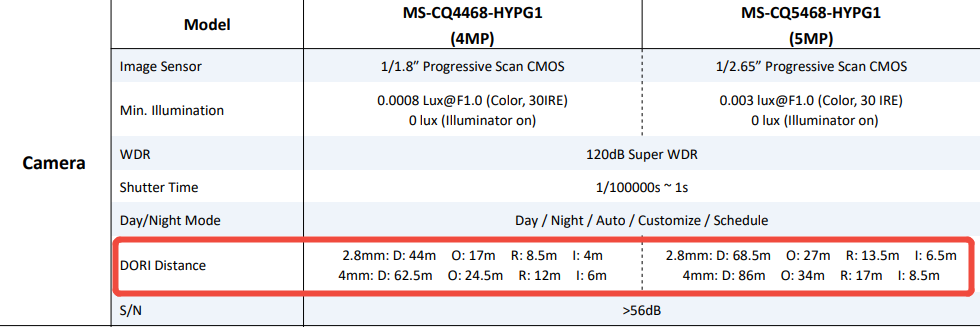
6.1 DORI Distance (Theoretical Reference)
The DORI distances are reference values derived from theoretical calculations.
D - Detection: You can tell that there is a person or a vehicle moving in the scene, but no details are distinguishable.
O - Observation: You can see the target's clothing color and general body shape, and judge what action the person is performing.
R - Recognition: Enough detail is visible to recognize a familiar person, or to roughly read a license plate.
I - Identification: The image is extremely clear; even facial features and scars are visible, sufficient for the police to confirm the identity of an unknown person.
The DORI values of each camera are listed in its datasheet. If needed, you can visit the Milesight official website to download the datasheet of the corresponding camera.
6.2 Measured Data (Pixel Range)
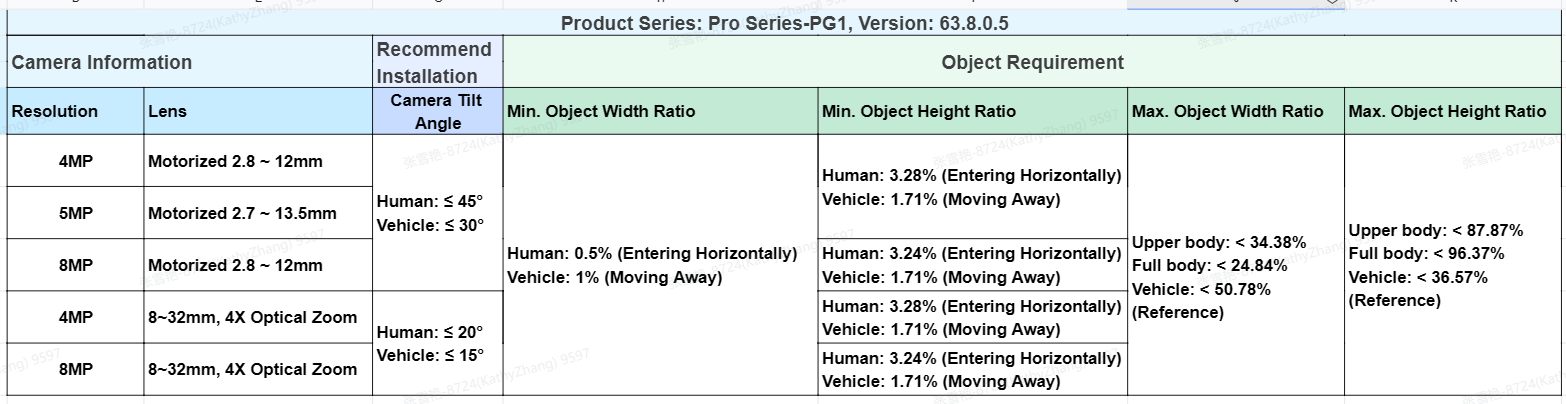
Please consult the recommended percentage sheet and calculate the corresponding object pixels for the specific camera model.
Example:
For an MS-C81XX-XXXPG1 camera with
• 8MP resolution
• 8 ~ 32mm, 4× optical zoom lens
• Firmware version 63.8.0.5
The recommended installation tilt angle is less than 20° for reliable human detection.
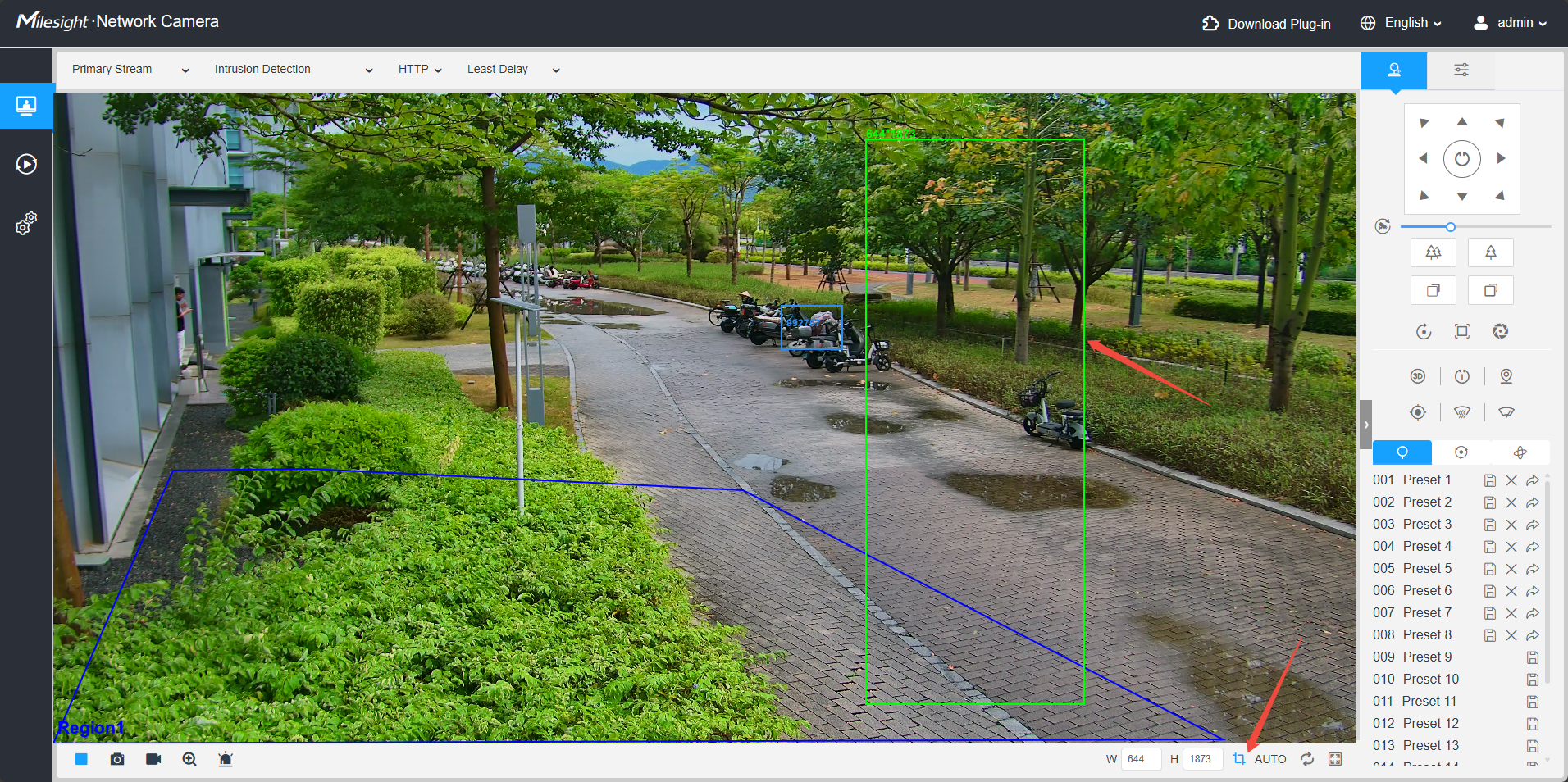
• When the resolution is set to 2592 × 1944
• Min. human object width = 2592 × 0.5%≈13pixels
• Min. human object height = 1944 × 3.24%≈63pixels
• Max. human object width = 2592 × 24.84%≈644pixels
• Max. human object height = 1944 × 96.37%≈1873pixels
Note:
The tilt angle, object ratio, and recognition distance vary depending on the camera's resolution, lens, and firmware version. For detailed specifications of your device, please refer to the Milesight VCA Event Installation Recommendations and Detection Distance List.
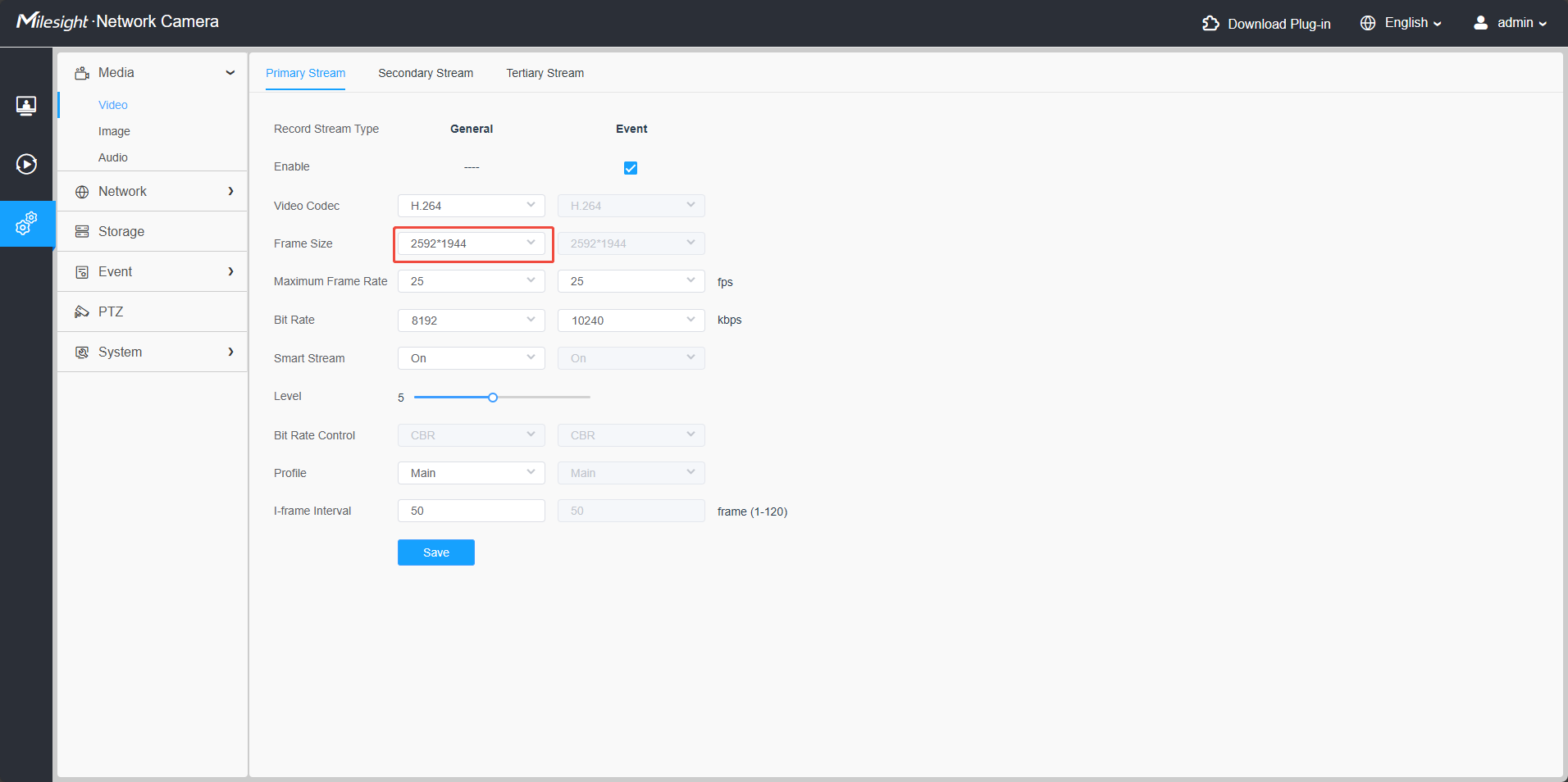
After calculating the pixel values, you can use the Pixel Counter tool to verify the actual object size within the image. Based on the measured object size, adjust the camera installation and set the focus distance accordingly to ensure optimal detection performance.
6.3 Configure Trigger Mode
Configure the trigger logic mode according to your application requirements. Two options are available.
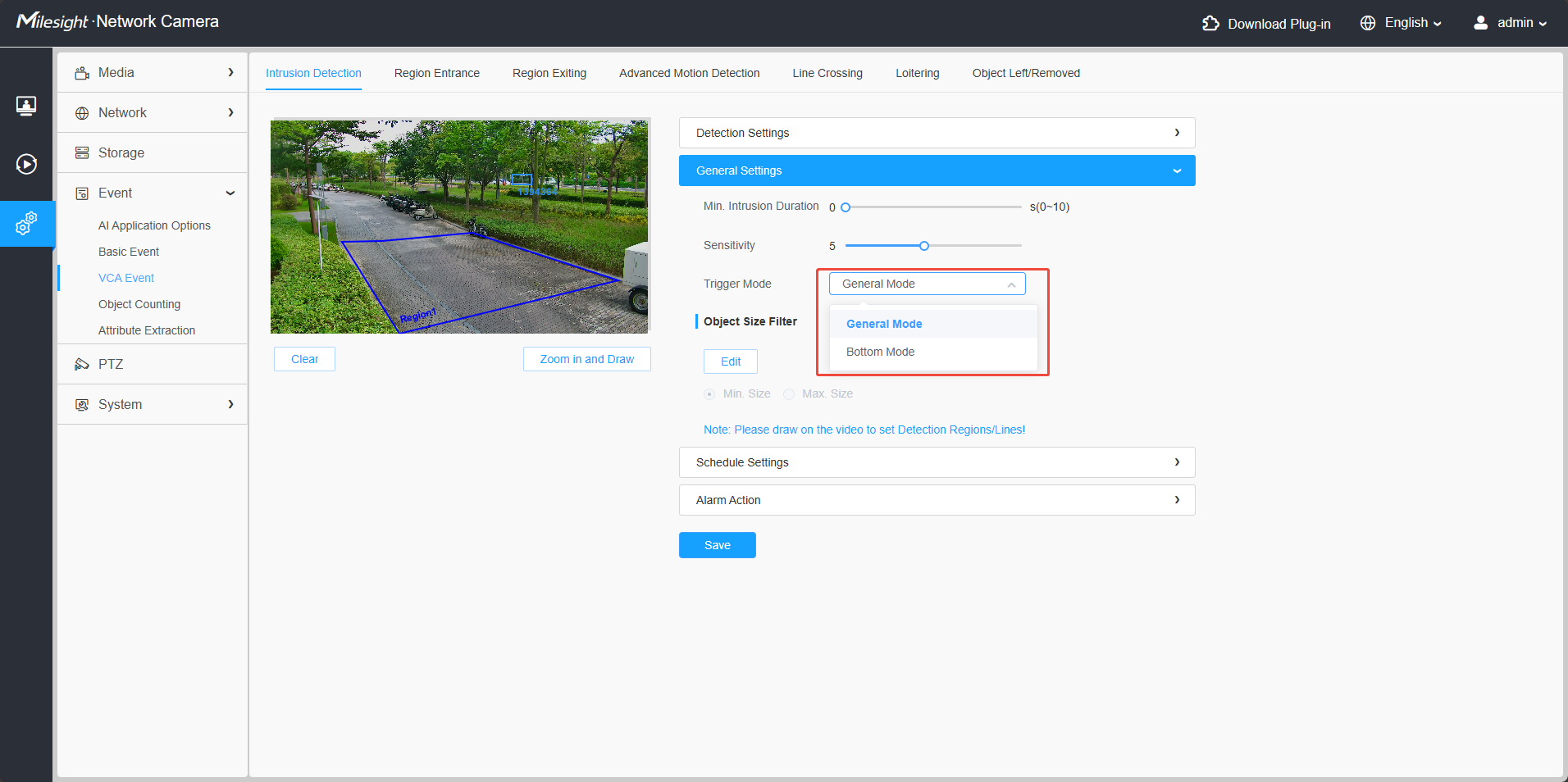
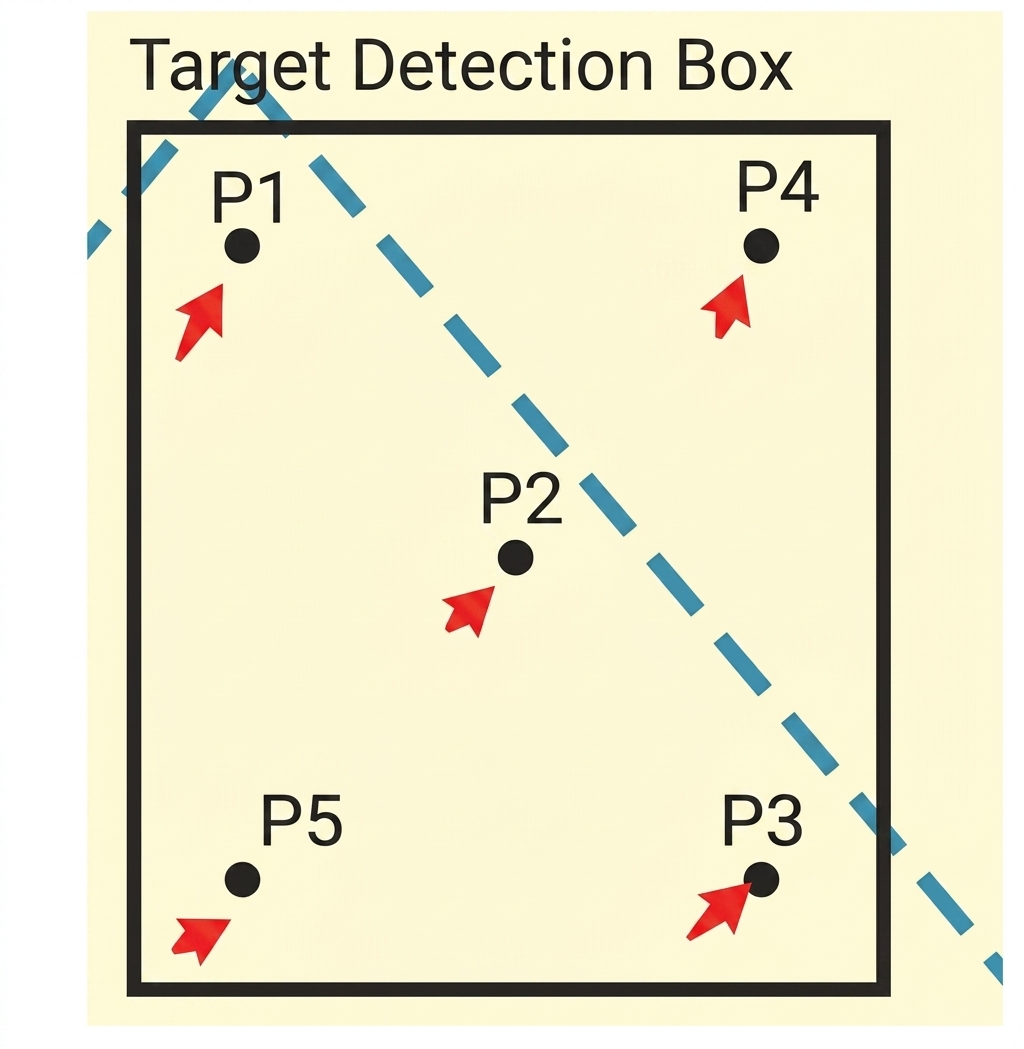
General Mode: An alarm is triggered when the object’s body roughly enters the detection area. This mode uses five key points: four points positioned one-sixth of the frame width and height from the respective corners, plus the center point. The alarm is triggered when any three points along either diagonal enter the detection area or cross the detection line.
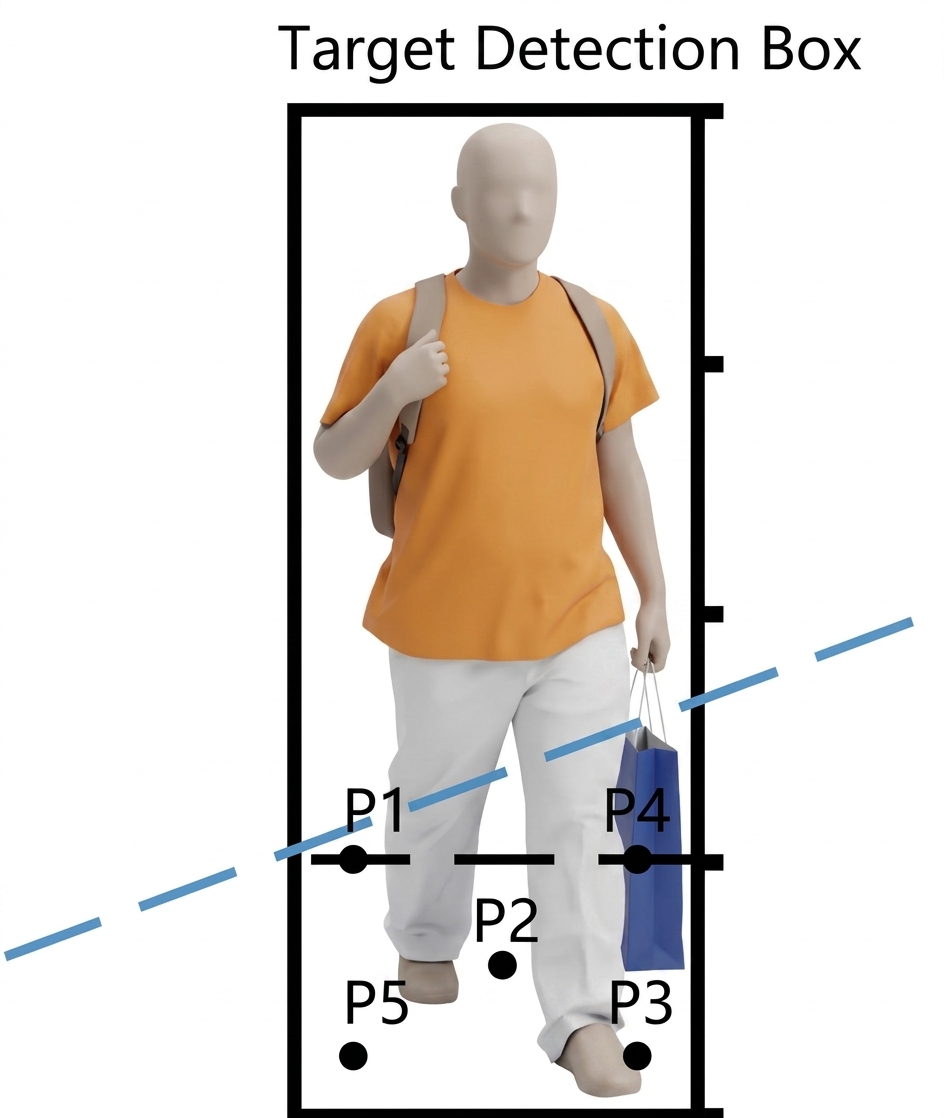
Bottom Mode: An alarm is triggered when approximately one-quarter of the object’s body enters the detection area. This mode uses five key points selected from the bottom quarter of the object’s bounding box, as illustrated below. The alarm is triggered when any three points along either diagonal enter the detection area or cross the detection line. It is recommended for scenarios requiring higher sensitivity to intrusion status, particularly when detection based on the lower part of the object is preferred.
6.4 Optimize Detection Parameters
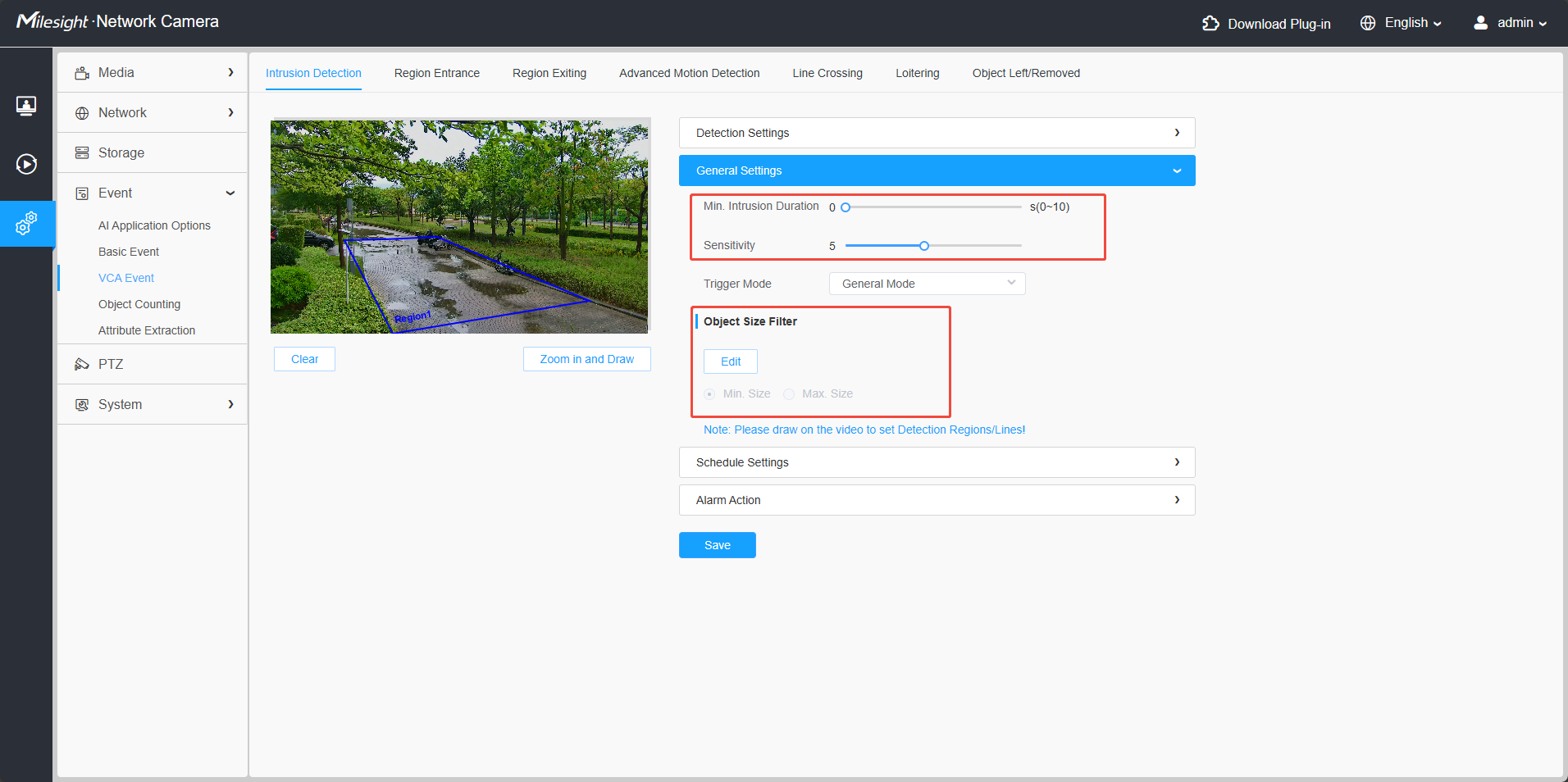
• Configure the maximum and minimum object size parameters to filter out irrelevant objects.
• Set an appropriate minimum duration for functions such as intrusion or loitering detection.
• Adjust the sensitivity settings to match the characteristics of the monitored scene.
For more detailed operation instructions, please visit the Milesight Document Center on our official website and refer to the corresponding product User Manual.
7. Co-activation and Mutual Exclusion Rules of Smart Features
This document describes the event co-activation and mutual exclusion rules currently supported by the latest VCA 3.0. If the event co-activation or mutual exclusion behavior of a specific camera differs from the rules defined in VCA 3.0, please refer to the actual event co-activation and mutual exclusion rules displayed in the camera’s web interface, which shall take precedence.
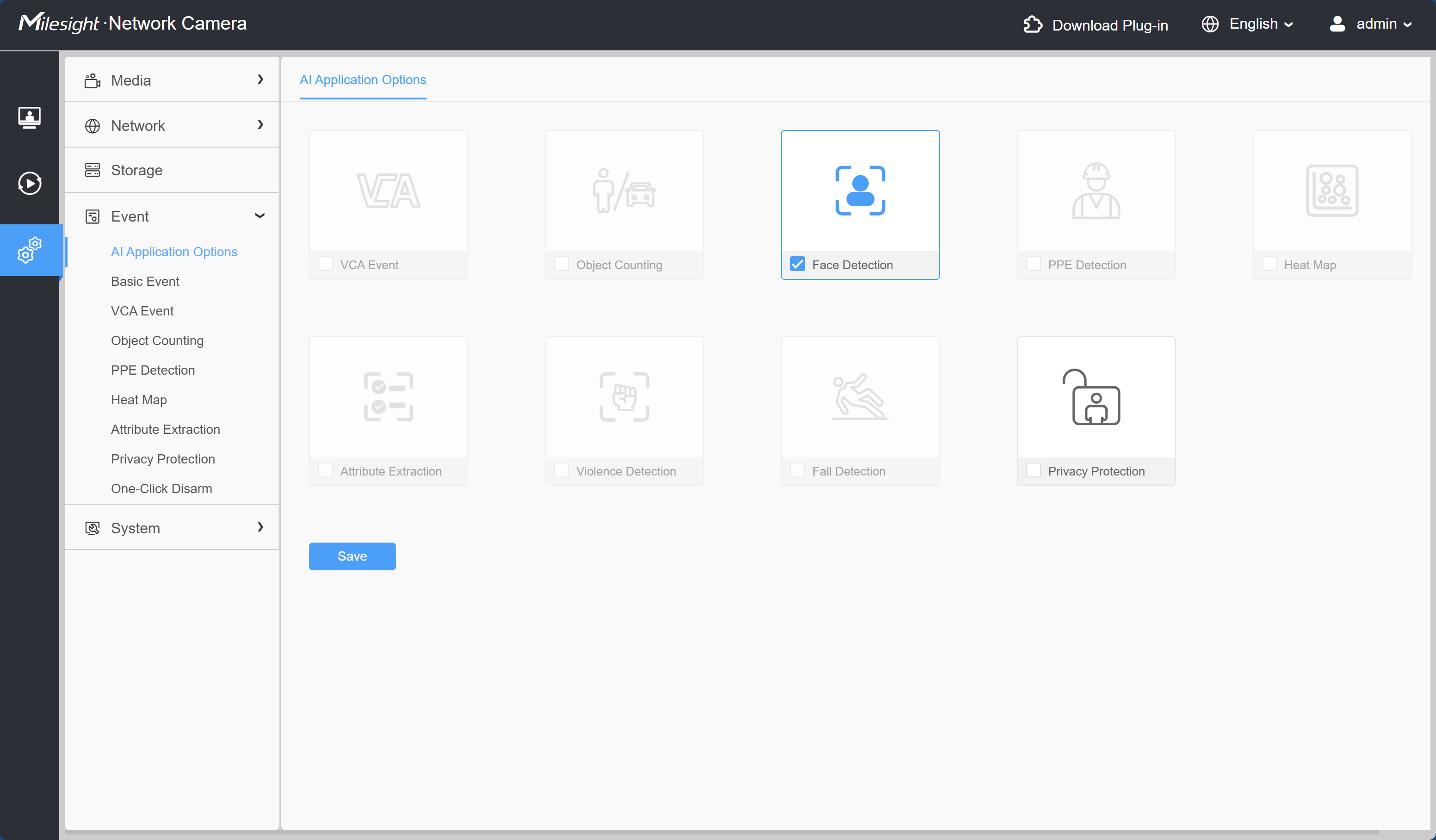
Example: when Face Detection is enabled under AI Application Options in the camera’s web interface, all events that are mutually exclusive with Face Detection are grayed out and cannot be selected.
7.1 How to Read the Matrices
How to read the matrices: rows = features already enabled; columns = features you want to enable in addition. The intersecting cell shows whether the two features can be enabled together. |
Symbol | Meaning |
✅ | Co-activatable: the two features can be enabled at the same time |
❌ | Mutually exclusive: the two features cannot be enabled at the same time |
& | Prerequisite: the column feature (Face Attributes) can be enabled only after the row feature (Face Detection) is enabled |
— | The feature itself (already enabled) |
7.2 VCA 3.0
Enabled Feature ↓ \ Other Features → | VCA | Object Counting | Heat Map | Object Attributes | Face Detection | Face Attributes | PPE | Sound | Violence | Fall | Privacy - Face | Privacy - Body |
VCA 3.0 | — | ✅ | ✅ | ✅ | ✅ | ❌ | ✅ | ✅ | ✅ | ✅ | ✅ | ✅ |
Object Counting | ✅ | — | ✅ | ✅ | ✅ | ❌ | ✅ | ✅ | ✅ | ✅ | ✅ | ✅ |
Heat Map | ✅ | ✅ | — | ✅ | ✅ | ❌ | ✅ | ✅ | ✅ | ✅ | ✅ | ✅ |
Object Attributes | ✅ | ✅ | ✅ | — | ✅ | ❌ | ✅ | ✅ | ✅ | ✅ | ✅ | ✅ |
Face Detection | ✅ | ✅ | ✅ | ✅ | — | & | ✅ | ✅ | ✅ | ✅ | ✅ | ✅ |
Face Attributes | ❌ | ❌ | ❌ | ❌ | ✅ | — | ❌ | ✅ | ❌ | ❌ | ✅ | ❌ |
PPE | ✅ | ✅ | ✅ | ✅ | ✅ | ❌ | — | ✅ | ✅ | ✅ | ✅ | ✅ |
Sound | ✅ | ✅ | ✅ | ✅ | ✅ | ✅ | ✅ | — | ✅ | ✅ | ✅ | ✅ |
Violence | ✅ | ✅ | ✅ | ✅ | ✅ | ❌ | ✅ | ✅ | — | ✅ | ✅ | ✅ |
Fall | ✅ | ✅ | ✅ | ✅ | ✅ | ❌ | ✅ | ✅ | ✅ | — | ✅ | ✅ |
Privacy - Face | ✅ | ✅ | ✅ | ✅ | ✅ | ✅ | ✅ | ✅ | ✅ | ✅ | — | ✅ |
Privacy - Body | ✅ | ✅ | ✅ | ✅ | ✅ | ❌ | ✅ | ✅ | ✅ | ✅ | ✅ | — |
7.3 Recommended Feature Combinations by Scenario
The table below recommends which features to display or enable for five typical application scenarios (✔ means the feature is recommended for that scenario):
Feature | Perimeter Security | Construction Site | Public Safety | Supermarket & Retail | Custom |
VCA | ✔ | ✔ | ✔ | ✔ | |
Sound Detection | ✔ | ✔ | ✔ | ✔ | ✔ |
Object Counting | ✔ | ✔ | |||
Heat Map | ✔ | ✔ | |||
Face Detection | ✔ | ✔ | ✔ | ||
Object Attribute Recognition | ✔ | ✔ | |||
PPE | ✔ | ✔ | |||
Violence Detection | ✔ | ✔ | ✔ | ✔ | |
Fall Detection | ✔ | ✔ | ✔ | ✔ | |
Privacy Protection | ✔ | ✔ (the Face option is grayed out and cannot be selected) | ✔ (the Face option is grayed out and cannot be selected) | ✔ | ✔ |
——END——