
Introduction
This article focuses on the initial settings on MS-C5321-FPE, and the out-of-box experience.
Power On
Milesight MS-C5321-FPE supports both DC 12V and PoE (802.3at) as power supply. Connect the camera to appropriate power supply to power it up.
Information
The power consumption of the camera is above 20 watts. Please make sure that the DC power adapter or the PoE switch can output required power.
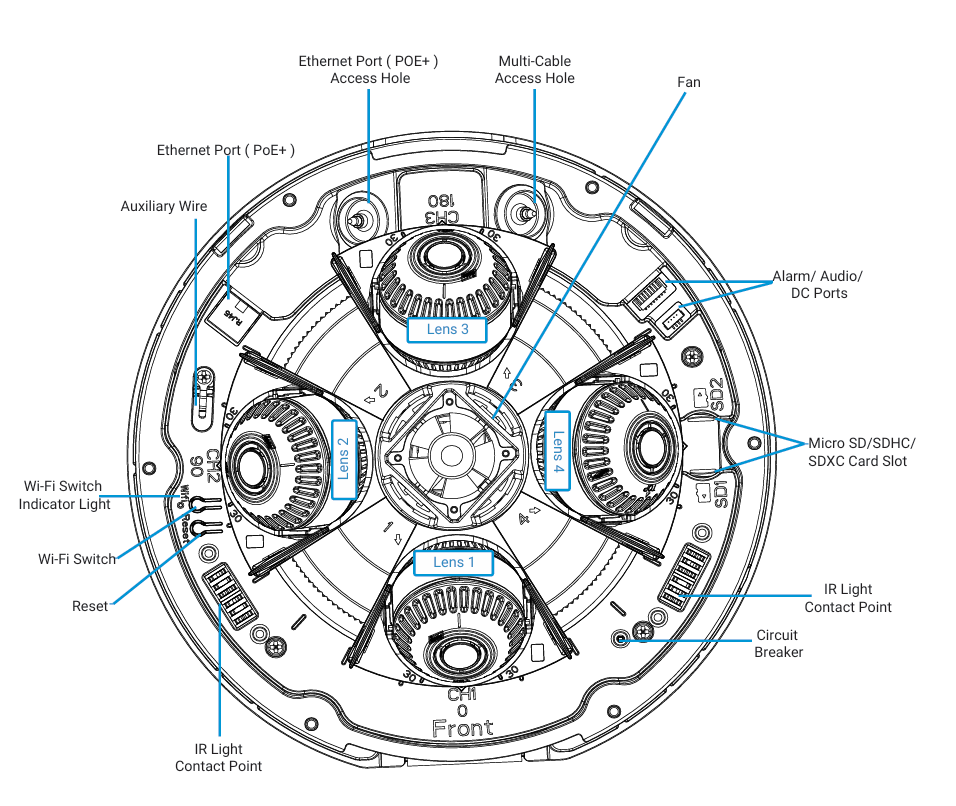
Figure 1 Power Ports
Connect & Activate
Wired
If you have connected the camera to a network using an ethernet cable, you can simply connect a PC to the same subnet as the camera. After that, you should be able to discover the camera with Smart Tools. The default wired IP address of the camera is 192.168.5.190.
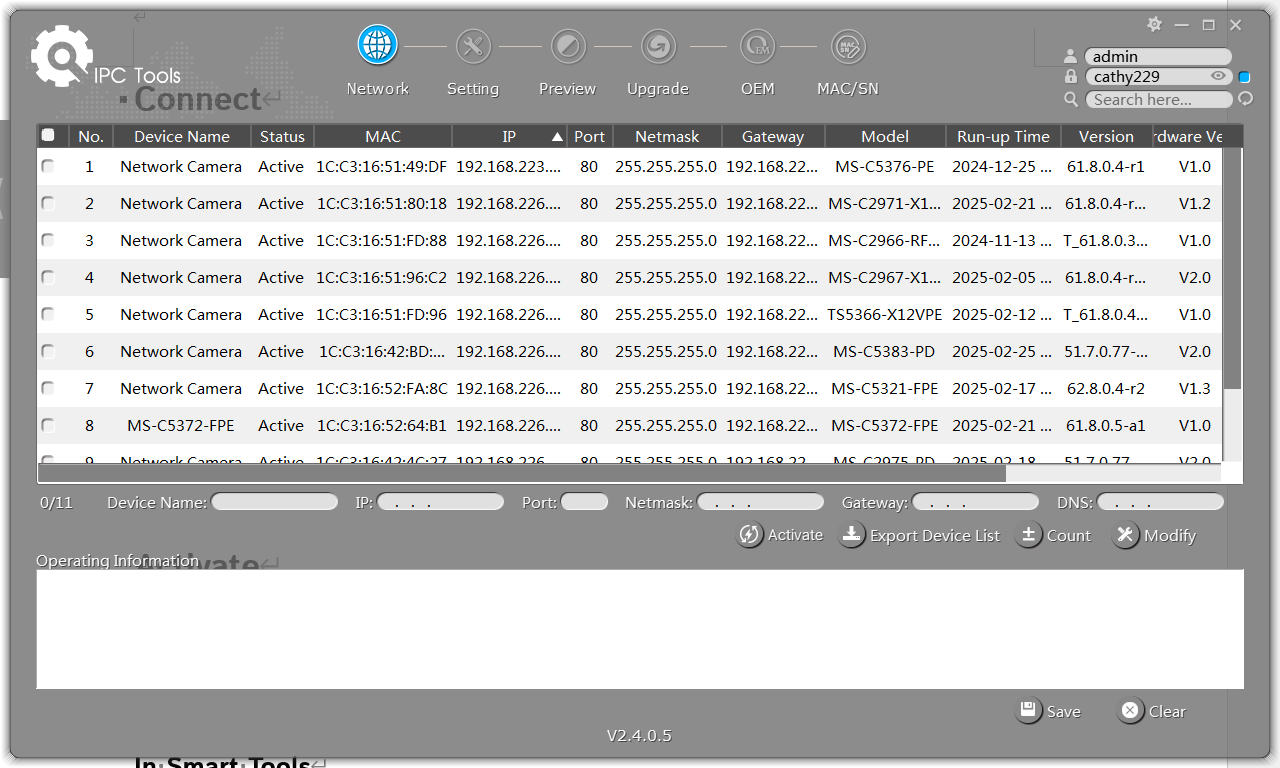
Figure 2 Smart Tools
Information
You can get Smart Tools from the resource page on Milesight official site.
After the camera is discovered in Smart Tools, you can activate the camera in Smart Tools or on its webpage.
Smart Tools
You can activate the camera in Smart Tool by following instructions below:
- i. Select the camera you wish to activate and click the Activate icon.
- ii. A window will pop up to ask for the password of the camera you wish to set. You can also set Security Questions for future password recovery.
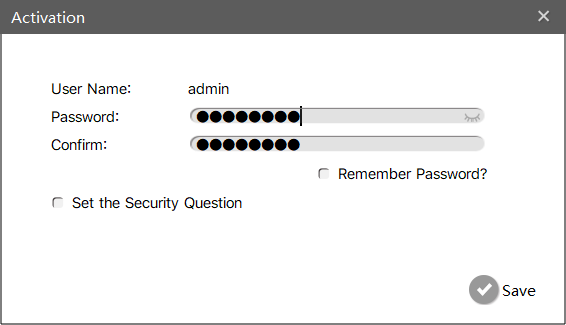
Figure 3 Activation Window
- iii. Click the Save button to start the activation.
- iv. An Information window will pop up to inform you of the activation result.
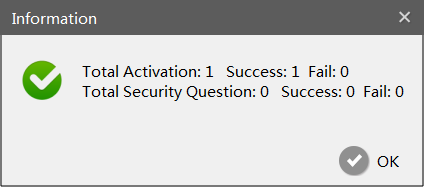
Figure 4 Success
Webpage
You can activate the camera on the camera’s webpage by following instructions below:
- i. Modify the IP address of the PC you are using to one in 192.168.5.0\24 network (except 192.168.5.190).
- ii. Open up http://192.168.5.190 in a browser after you have successfully connected to the access point.
- iii. A dialogue box will pop up to guide you through the activation.
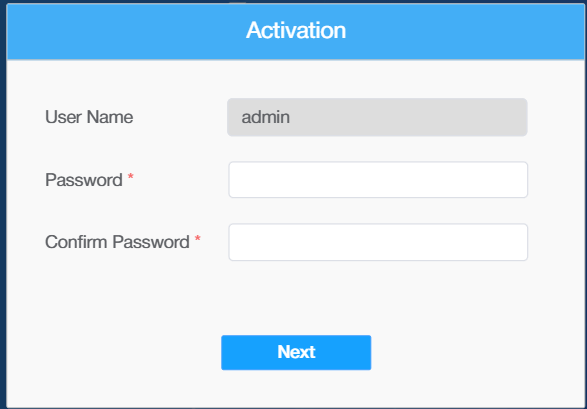
Figure 5 Activation Dialogue Box
Wireless
MS-C5321-FPE supports configuration over wireless connection (Wi-Fi). You can connect to the Wi-Fi access point of the camera by following the instructions below:
- i. Press the Wi-Fi button on the camera (You can find it in Figure 1) and you’ll see the Wi-Fi indicator light up.
- ii. After that you should be able to discover an access point with SSID like “MS-C5321-FPE_Last 6 digits of the MAC address”. Connect to the access point using a laptop or a cellphone.
- iii. Open up http://192.168.1.1 in a browser after you have successfully connected to the access point.
- iv. A dialogue box will pop up to guide you through the activation.
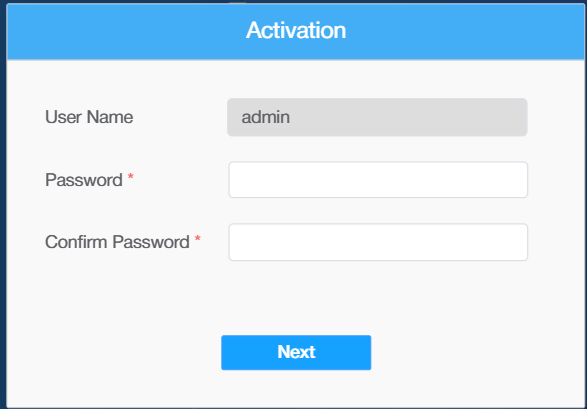
Figure 6 Activation Dialogue Box
Assign IP Address
You can assign an IP address for the camera in Smart Tools or on the webpage.
Smart Tools
After the activation of the camera, you can assign its IP address in Smart Tools as instructions below:
- i. Launch Smart Tools and select the camera.
- ii. In the upper right corner, input admin as username and the password you set during the activation.
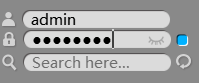
Figure 7 Input Credentials
- iii. Enter the Device Name, IP address, HTTP port, Subnet Mask, Gateway IP and DNS in Smart Tools per your actual need.
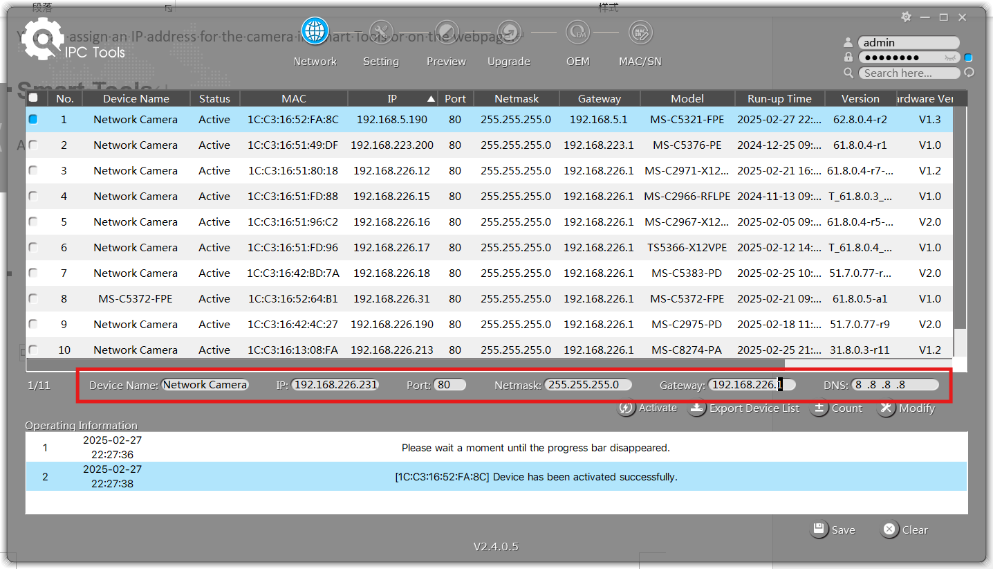
Figure 8 Modify Information
- iv. Click the Modify icon and a prompt will show up in the Operation Information section to inform that the IP address has been assigned successfully.

Figure 9 IP Assigned Successfully
Webpage
After the activation of the camera, you can assign its IP address on its webpage following instructions below:
- i. Open up the webpage of the camera by its default IP address.
Information
The default wired IP address of the camera is 192.168.5.190 while the wireless IP is 192.168.1.1. You can access its webpage according to your connection method.
- ii. Sign in to the camera as admin user.
- iii. Navigate to Settings – Settings – TCP/IP.
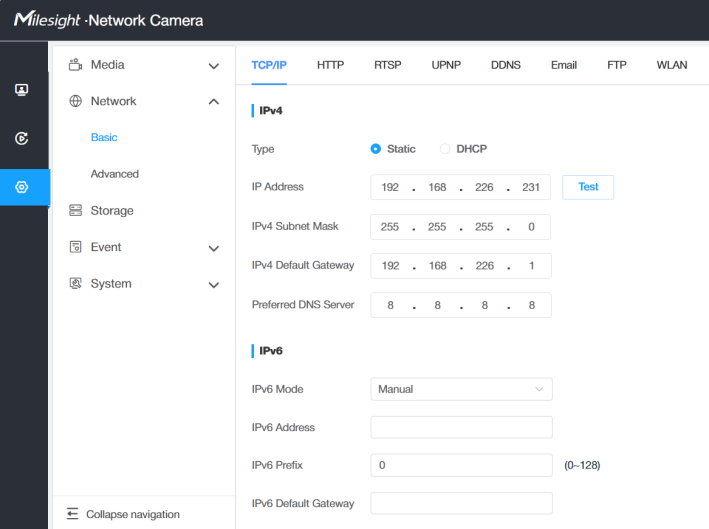
Figure 10 TCP/IP Settings
- iv. You can set a static IP address for the camera here. If there’s a DHCP server in the network, you can enable DHCP for the camera to obtain IP address and other necessary network configurations automatically.
- v. Click the Save button at the bottom of the page to save changes.
By now, the initial configurations of the MS-C5321-FPE have been finished. The camera should be able to be accessed with the IP address assigned and the credentials configured.
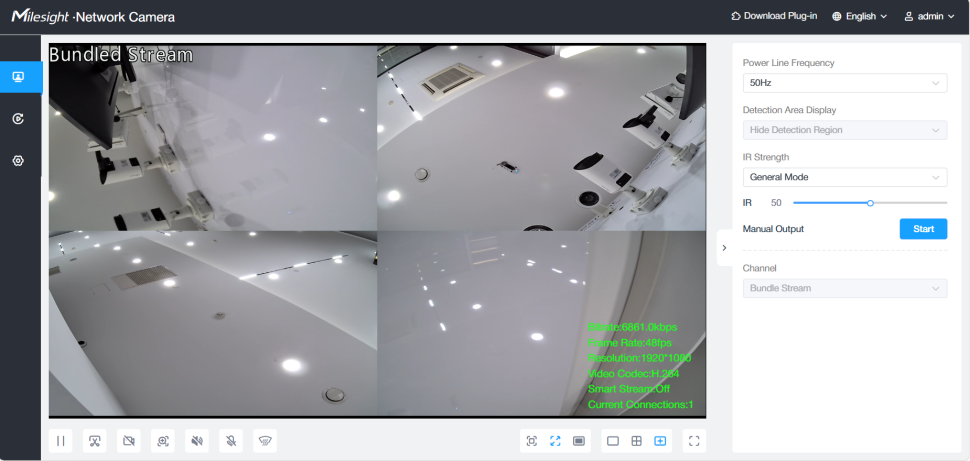
Figure 11 Web Live View
If you still encounter issues/questions regarding initial configurations of the MS-C5321-FPE, please contact Milesight technical support team for assistance.
—— END ——