
Introduction
This document focuses possible causes of the malfunctions of the LPR feature on Milesight Intelligent Traffic Cameras and common troubleshooting. Please make sure that LPR is properly configured prior to proceeding with troubleshooting.
Note
This document is written based on firmware T_8.0.4. Features and user interfaces may vary between different firmware and models. Please advise accordingly to the actual user interface.
Possible Causes
- 1. Incompatible LPR license
- 2. Inappropriate detection mode configuration
- 3. Incorrect plate format filters
- 4. Incorrect regional configuration
- 5. Inappropriate Installation
Troubleshooting
1. Incompatible LPR license
If the LPR is not functioning at all, it is possible that the license of the camera is incompatible or invalid on your camera. This situation might be induced by installing incorrect firmware on the camera, or some mis-operations that modify or delete the license.
Note
To choose the correct firmware for your camera, please refer to How to Upgrade Firmware for IP Camera.
You can check out the status of LPR license as follows:
- i. Navigate to Settings – System – System Settings – System Info.
- ii. On the System Info page, you can find LPR License and License Status.
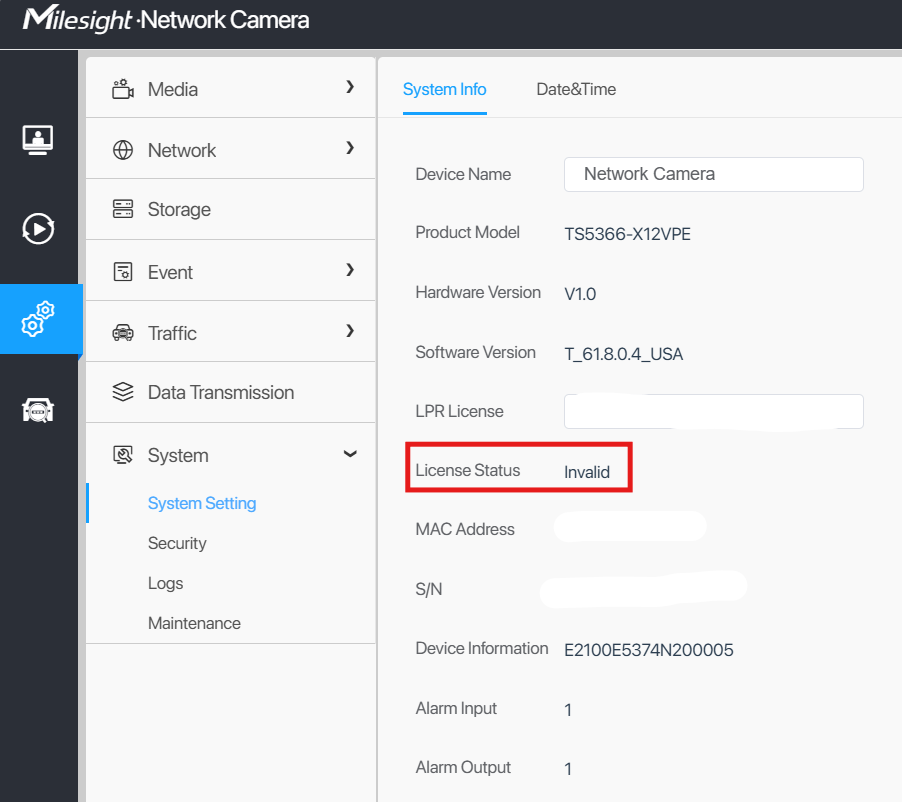
Figure 1 License Status
If the License Status is Invalid, please check if there’s any space before or after the license key. If the issue persists, please collect the MAC address of the problematic camera and contact our support team for technical assistance.
2. Inappropriate detection mode configuration
We implemented two different detection methodologies in our traffic cameras, which are Plate Priority mode and Vehicle Priority mode, to adapt to various scenes and to fulfill different requirements for the users.
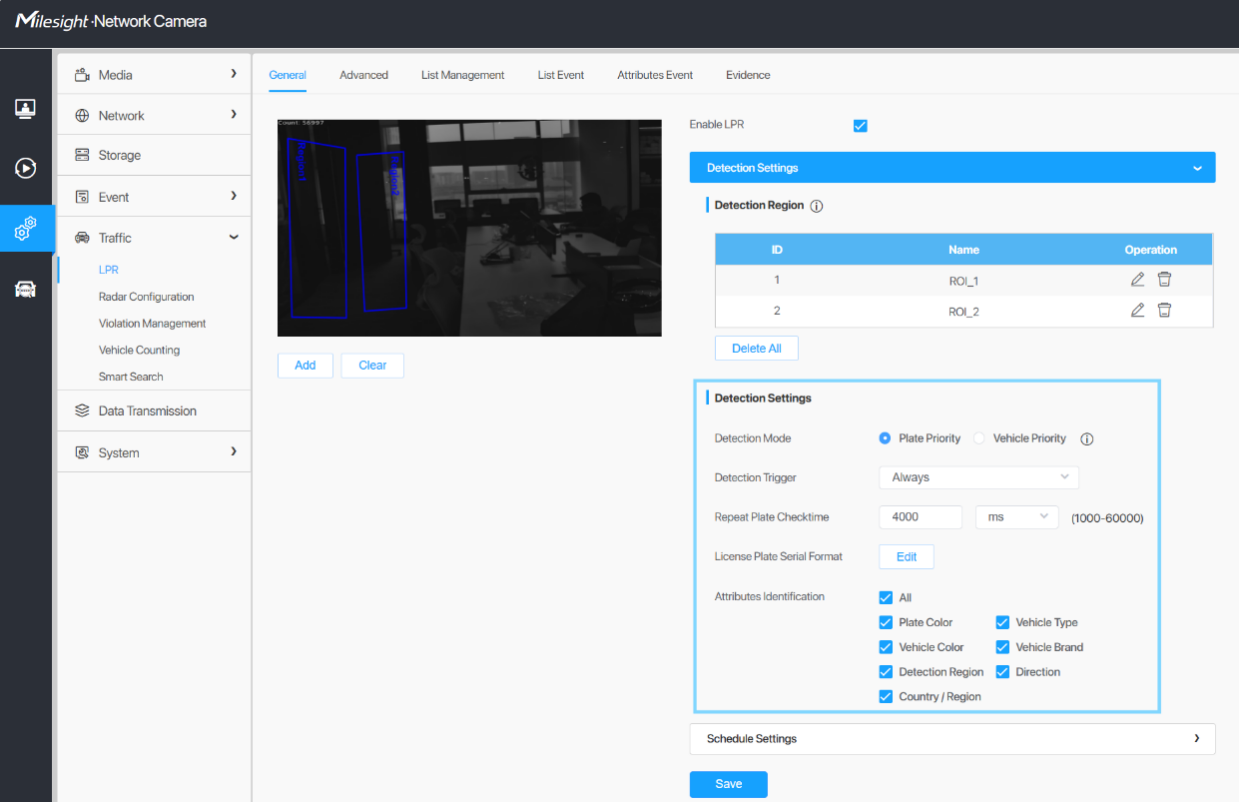
Figure 2 Detection Settings in LPR Configurations
Plate Priority mode takes plates as the main detected targets and match the plates to the vehicles if possible. The plate will still be detected and recognized even if there’s not a vehicle detected.
Vehicle Priority mode takes vehicles as the main detected targets and will try to detect and recognize the license plates after the vehicles are detected.
By their nature, License Priority mode is less likely to omit license plates, since it will start to recognize the plates once they are detected by the algorithm; while Vehicle Priority mode can support detection of vehicles without license plates.
When the camera is missing detection of a lot of license plates, we recommend you to switch to Plate Priority mode and see if the camera will perform better. You can perform this by following these steps:
- i. Navigate to Settings – Traffic – LPR – General.
- ii. Under Detection Settings, Plate Priority mode and Vehicle Priority mode can be found. Select Plate Priority mode.
- iii. Click the Save button on the bottom of the page to save changes.
3. Incorrect plate format filters
Milesight Intelligent Traffic Cameras support license format filters. This feature is designed for our users to filter out results that are not compliant to a certain format. However, when the filters are not correctly configured, they might filter out the results that are needed. You can check the filters you have set up by following these steps:
- i. Navigate to Settings – Traffic – LPR – General.
- ii. Under Detection Settings section, License Plate Serial Format can be found. Click the Edit button beside it and a dialog box will pop up.
All filters configured will be displayed in a list. The camera will filter out all results that are not compliant to any of the filters, so all possible situations should be added to the list.
Example: only license plates with 8 characters that starts with 3 letters followed by 4 numbers and the last character could be anything, you should configure a serial format as: AAA1111*.
Note
The LPR algorithm is enhanced particularly for Germany in some versions to recognize the spaces. In these versions, each space is also counted as one character.
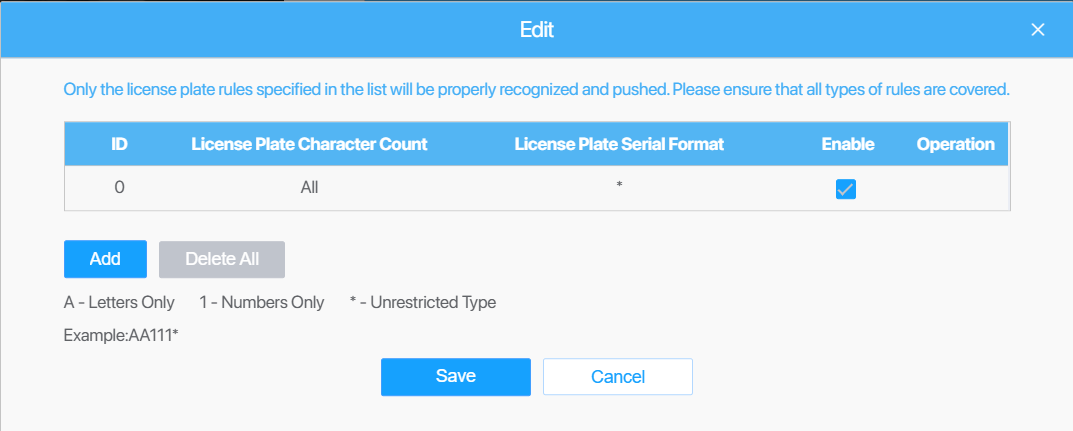
Figure 3 License Plate Serial Format
- iii. If you noticed that some license plates are missing in the recognition results, it is possible that they are filtered out by this feature. Click Delete All to delete all filters and let all recognized results be displayed.
4. Incorrect regional configuration
We continue to optimize our LPR algorithms based on regions, since the form factors and the formats of the plates can vary vastly in different regions. Therefore, it is crucial to select the appropriate algorithm to ensure that the camera operates at peak performance.
You can select algorithm region by following these steps:
- i. Navigate to Settings – Traffic – General.
- ii. Click on the Country/Region selection box and select the Country/Region that the camera is installed in from the dropdown list.
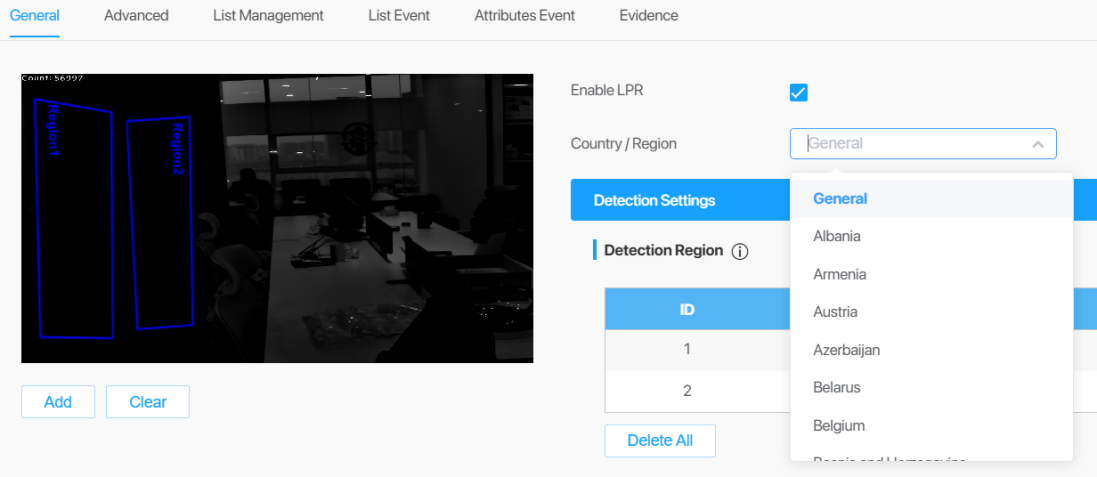
Figure 4 Country/Region Configuration
Note
The countries/regions displayed in the dropdown list may vary based on different firmware variants. E.g., in EU versions, only European countries/regions are selectable. It’s notable that country/region selection is not available in USA versions.
- iii. Click the Save button to save changes.
5. Inappropriate Installation
Information
You can also follow the guidance on installation in this video: https://youtu.be/u88gNAdrJnM?si=Kk1A_7LbgCnpHFD9 .
To increase the accuracy of license plate recognition, be sure to install the LPR cameras properly to capture the license plates with the correct image size, lighting conditions and camera angle. The following highlights is the precautions of installation angle:
- i. (Recommended) Install the camera in front of the vehicle: The captured image should be filled with a full width of the vehicle.
- ii. Install the camera slightly to the side: To avoid capturing unnecessary contents in the image, the camera should be installed in a higher position (Vertical angle is less than 30°; Horizontal angle is no more than 30°; Tile angle is less than 5°) to capture the front part of the vehicle.
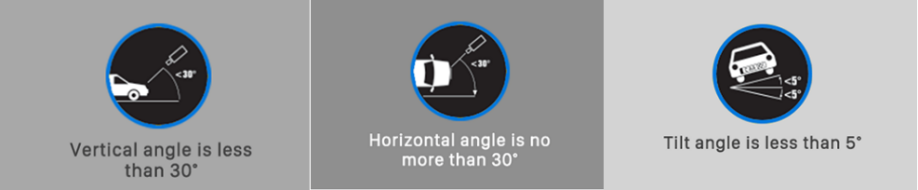
Figure 5 Installation Recommendations
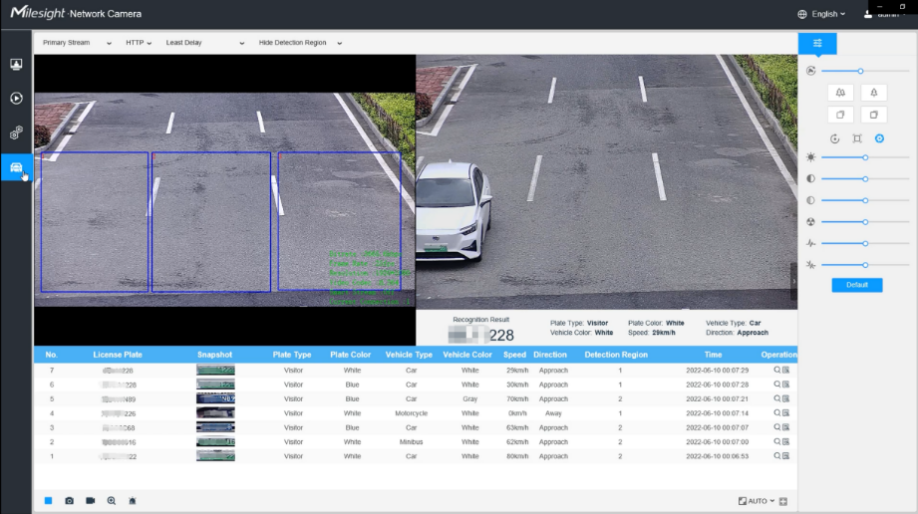
Figure 6 Installation Instance
Due to the pixel size requirements for License Plate Recognition (LPR), it is important to consider not only the installation angle but also the distance between the IPC (camera) and the vehicle. This ensures that the pixel count of the license plate is neither too low nor too high, which could prevent proper recognition.
Fixed-Focus IPCs:
- l Fixed-focus IPCs cannot adjust focal length via software.
- l Pre-assess the installation distance to avoid issues with pixel size.
Zoom IPCs:
- l Zoom models can adjust focal length to avoid pixel size issues.
- l Ensure the camera is not positioned too far from the vehicle.
If you still encounter issues in LPR message transmission, please contact support@milesight.com for technical assistance.
———— END ————