
1. Introduction: Understanding Milesight P2P Tunnel
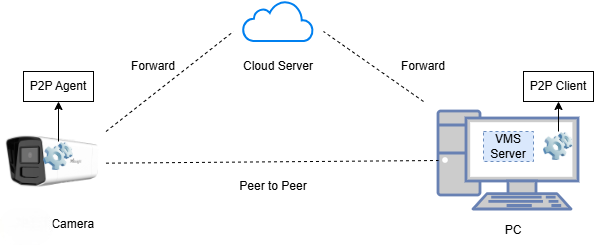
The Milesight P2P Tunnel solution allows you to connect your Solar-powered (SP111/SP112) cameras to your Video Management Software (VMS) through a secure, peer-to-peer (P2P) connection, even if the camera is on a private network or behind a firewall.
Note:
Data transmission is prioritized through peer-to-peer communication. If this link fails, data will be forwarded via the cloud server. (Depending on network conditions)
Component | Location | Role |
P2P Tunnel Agent | Camera | A client pre-installed on the camera by default. |
P2P Tunnel Client | VMS Server/PC | A client that needs to be manually installed on the same server or PC as the VMS. |
UID & Key | Both | Unique identifier (UID) and optional security passphrase (Key) for device pairing. |
2. SP111 Camera Configuration
2.1. Enabling the P2P Tunnel Feature
The feature is disabled by default.
-Navigate to the SP111 web interface.
-Locate the P2P Tunnel settings.
-Set the Enable to ON.
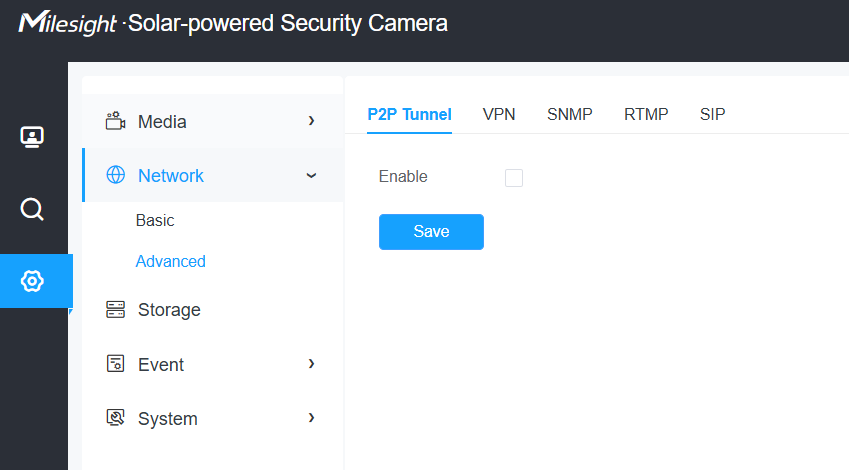
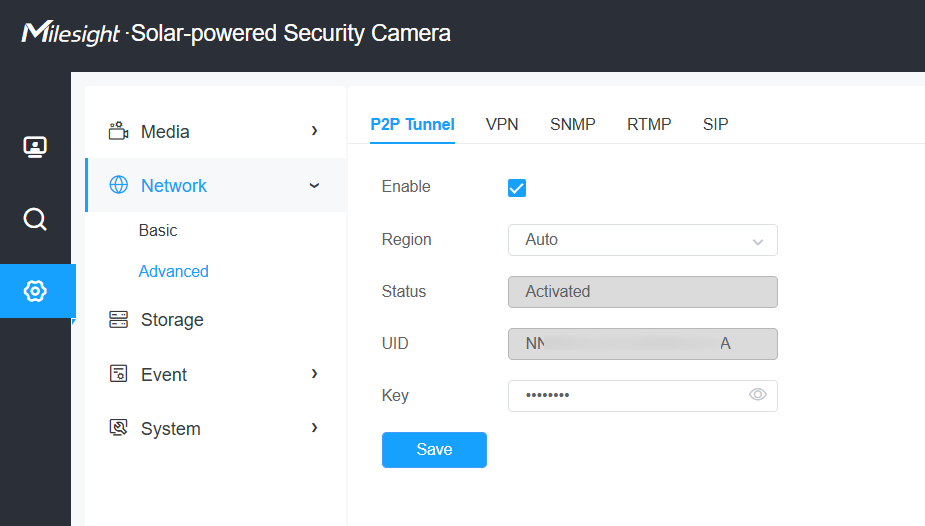
The camera will automatically contact the cloud server (using its MAC address) to check the license status and perform activation if necessary.
A unique UID will be automatically generated.
2.2. Setting the Security Key (Optional)
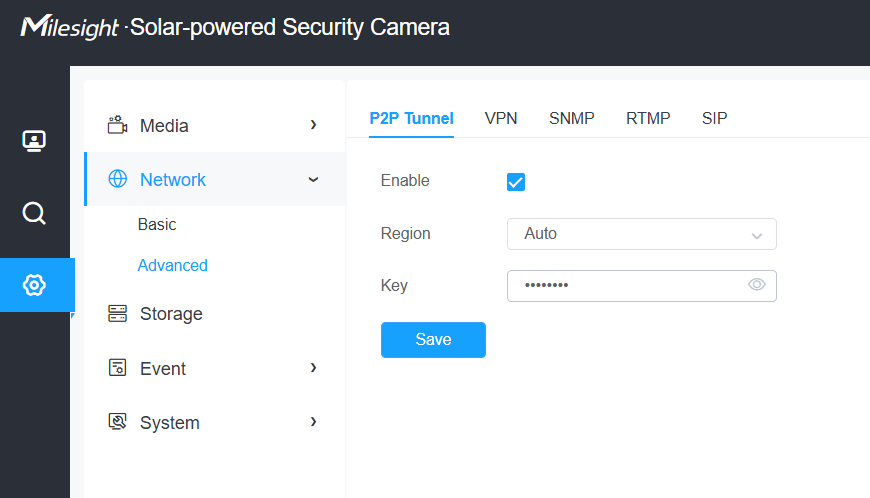
Purpose: The Key acts as a security passphrase. It must be entered when adding the device on the P2P Tunnel Client for verification.
Note:
If you leave the Key field blank on the camera, you must also leave the Key field blank on the client software.
2.3. Automatic Retry Mechanism (Troubleshooting)
If the camera fails to connect or activate the P2P service after enabling it (due to timeouts, network errors, or unactivated status), it will automatically attempt to retry the connection up to 9 times in stages:
Stage | Attempts | Frequency | Interval |
Initial Retries | 3 times | Fast | 30 seconds apart |
Intermediate Retries | 3 times | Slower | 1 minute apart (after a 5-minute wait) |
Final Retries | 3 times | Slowest | 5 minutes apart (after a 1-hour wait) |
If all 9 attempts fail: Automatic retries stop. To restart the process, you must manually disable the P2P Tunnel feature and then re-enable it.
3. Milesight P2P Tunnel Client Setup (on VMS Server)
The P2P Tunnel Client software must be installed on the server where your VMS is running.
Supported Operating Systems
OS | Supported Versions |
Windows | Windows 10, Windows 10 Enterprise, Windows 11, Windows Server 2016 (v1607), Windows Server 2019, Windows Server 2022 |
Linux | Ubuntu LTS 18.04, 20.04, 22.04, 24.04 (64-bit / amd64 only) |
3.1. Installation and Access
Windows
After installation, use the Milesight P2P Tunnel Service shortcut to ensure the service is running.
Access the management interface via the Milesight P2P Tunnel Web Client shortcut.
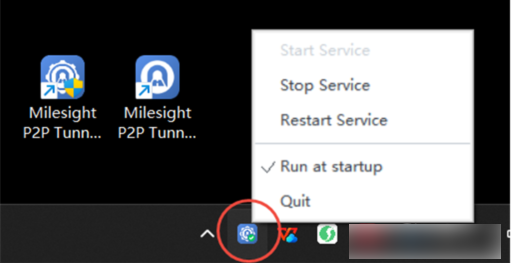
Linux
Install the client using the following command:
dpkg -i p2pTunnel_amd64_V1.0.1.deb
Once installed, the service starts automatically on boot. Use the following commands to manage the service:
Action | Command |
Check service status | systemctl status p2pTunnel.service |
Start service | systemctl start p2pTunnel.service |
Stop service | systemctl stop p2pTunnel.service |
Restart service | systemctl restart p2pTunnel.service |
Uninstall | dpkg -P p2ptunnel |
Access Address: The default access is http://127.0.0.1:18080/.
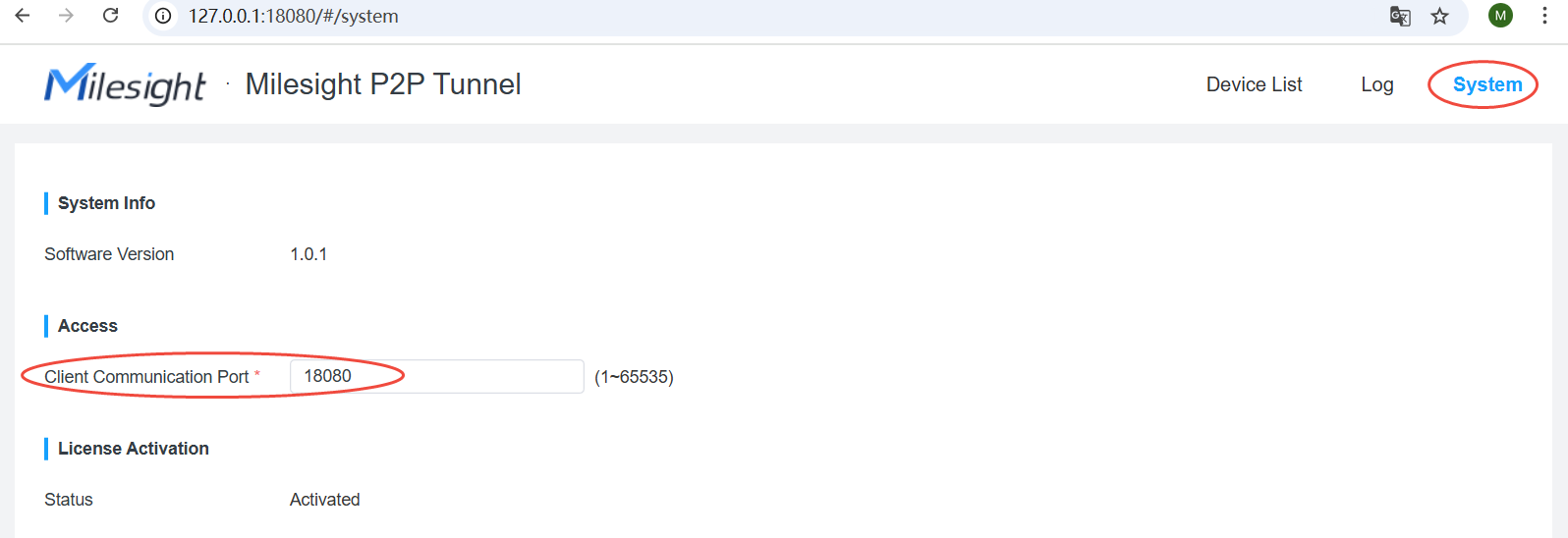
Security Note:
The web interface is accessible from the local machine only. The interface and operations are identical on both Windows and Linux.
3.2. License Management
The client supports a 30-day Free Trial or Purchased Licenses (provided by the After-Sales team).
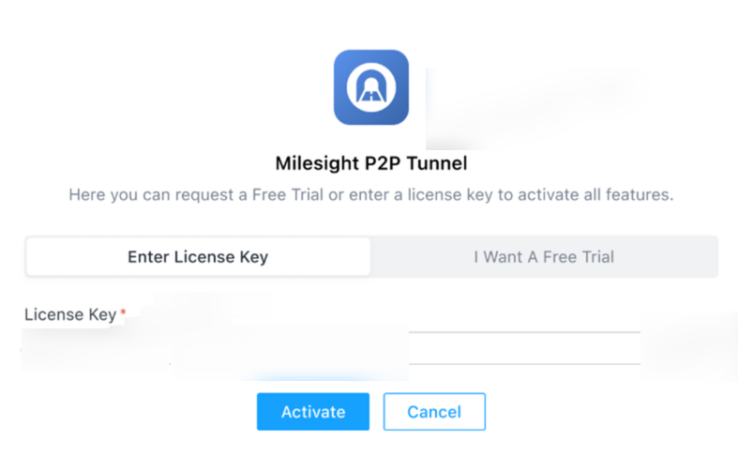
Trial Expiry: If the trial expires or the license is invalid, the P2P Tunnel functionality (like video forwarding) will stop. Re-enter the valid license in the System menu to restore service.
3.3. Adding the Device
You can add devices one-by-one or in bulk:
Method | Description |
Single Add | Click Add and enter the device details. |
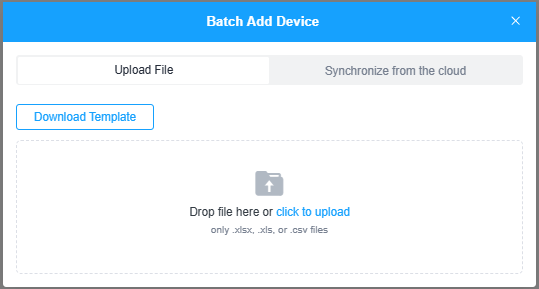
Batch Add (File) | Select Batch Add Device → Upload File. |
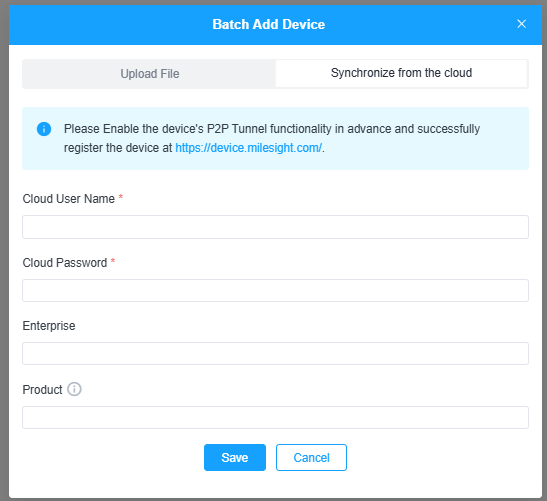
Batch Add (Sync) | Select Batch Add Device → Synchronize from CCTV Management Platform. (Requires Cloud Platform v11.15) |
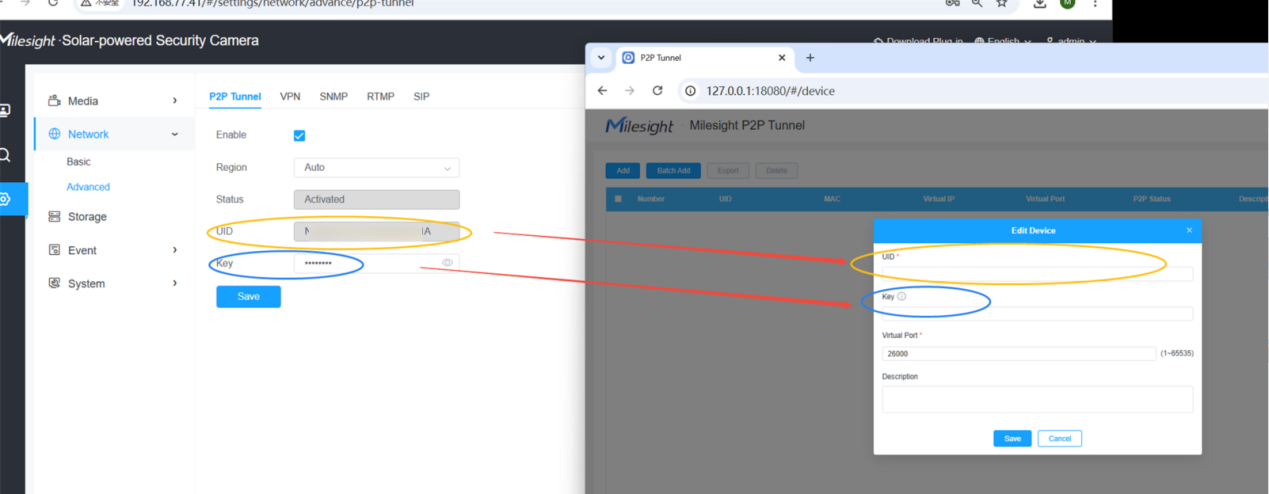
Device Input
①Enter the camera's unique UID.
②Enter the Key (if you set one on the camera).
③The client will assign a unique Virtual Port Number to this device.
4. Connecting the Camera to Your VMS
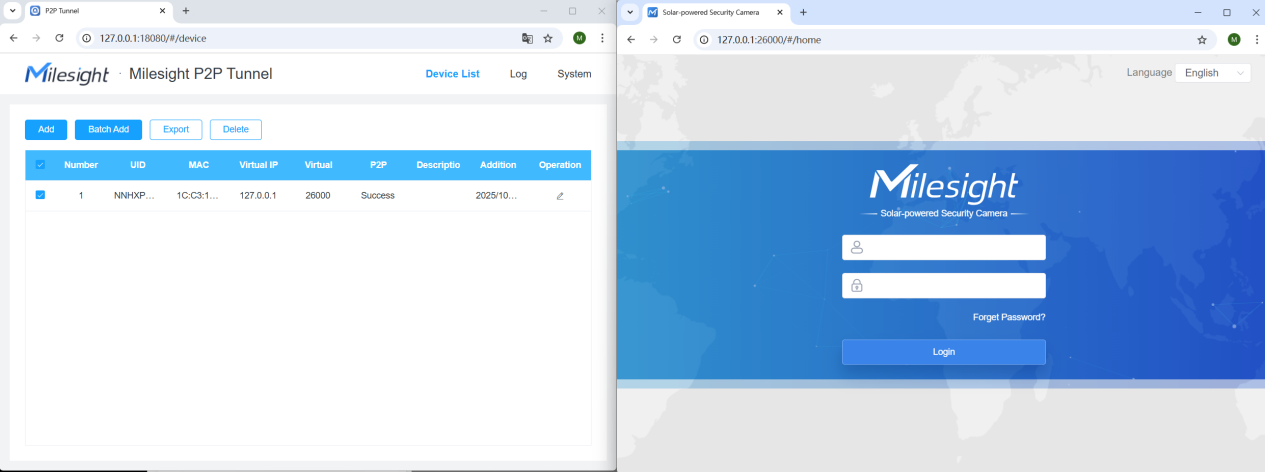
Once the device is added successfully to the Milesight P2P Tunnel Client, the camera is now accessible locally via the generated Virtual Port.
4.1. VMS Connection Format
When adding the camera to your VMS, use the following details:
IP Address: 127.0.0.1 (The local host IP address)
Port Number: [The Unique Virtual Port Number assigned by the Client]
Example: If the client assigns Virtual Port 55001, you add the camera to the VMS as 127.0.0.1:55001.
ONVIF: This local virtual port acts as the ONVIF port. The VMS will use the ONVIF protocol via this virtual port to automatically discover other stream ports (like the RTSP port).
4.2. Final Result
By connecting to 127.0.0.1:[Virtual Port], the camera can be managed and viewed in your VMS just like a standard, locally-wired camera.
—END—