
1. What is MilesightVPN?
MilesightVPN, based on WEB service design, addresses the increasing demand for bandwidth and wireless remote data access and establishes a secure and reliable VPN tunnel for users and remote devices to ensure the security of data transmission. It also solves the problem of the lack of public network IP for routers in mobile cellular network, and implements local direct access to remote devices.Milesight VPN Platform Provides an Intuitive and Convenient Web Interface for Configuring IPC Device Connections.
- 1) There is no need to configure OpenVPN information for the IPC. Simply configure the server's IP and authorization code through the web interface to achieve VPN connection.
- 2) Devices can be viewed in a list format, allowing clear visibility of each client's status and operation, which facilitates management.
- 3) The web interface allows for quick modification of VPN configuration parameters, with one-click generation of authorization and authentication files.
2. In what situations is it necessary to use MilesightVPN to connect to the VMS network?
- 1) If the SIM card has a fixed IP:
The camera has a fixed IP, which is no different from a conventional wired IPC. The VMS/Milesight cloud platform privately deployed in the intranet can directly communicate with the camera through the fixed IP.
- 2) If the SIM card does not have a fixed IP and needs to connect to the VMS privately deployed in the intranet, VPN port mapping is required.
We recommend using the MilesightVPN solution. You need to set up the MilesightVPN server in advance, map the server IP and port to the external network, and run the OpenVPN client service in the camera system. The intranet environment where the VMS server is located also needs to run the OpenVPN client software so that the PC/VMS can directly access the IPC's Virtual IP for remote control.
3. How to use VPN to connect a 4G Solar-powered Camera and VMS?
There are two VPN modes on Milesight camera: General VPN and Milesight VPN. General VPN mode allows us to upload OpenVPN configuration file directly. For Milesight VPN mode you need to configure parameters manually. Please note that both of the modes are working under OpenVPN protocol. You can take the camera as an OpenVPN client.
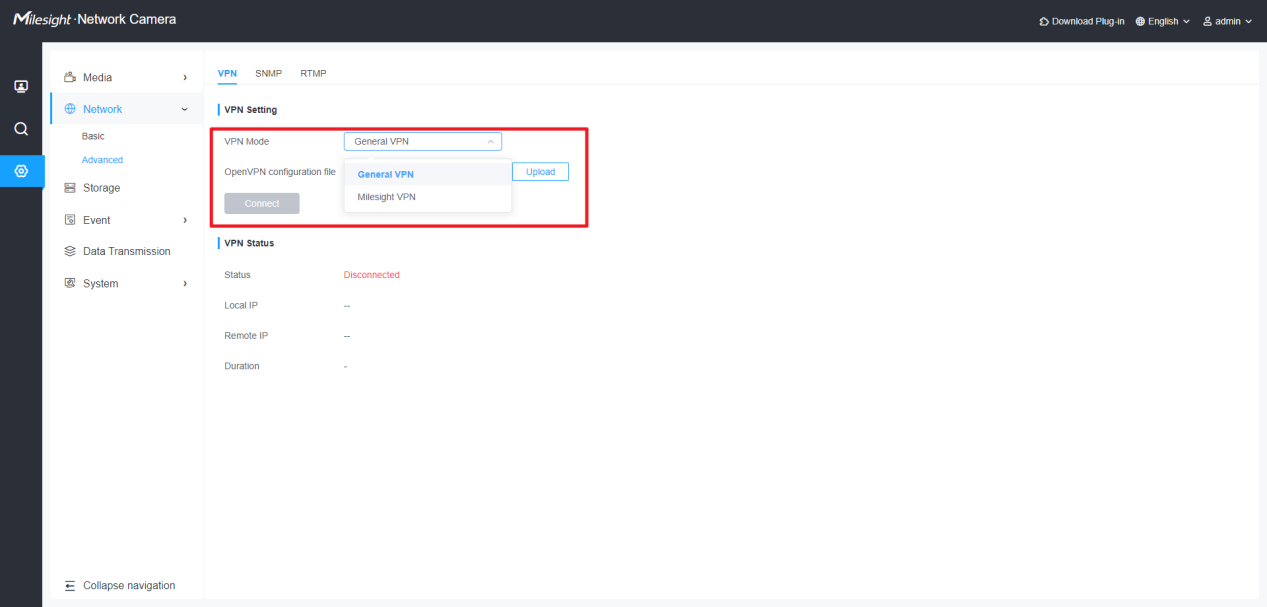
Different VPN mode
General VPN
First we need to prepare an OpenVPN configuration file. Configuration file (also known as connection profile) is a .ovpn text file that contains the directives, parameters, and certificates required to establish the server-client connection. You can export configuration file from certificate page of MIlesightVPN server:
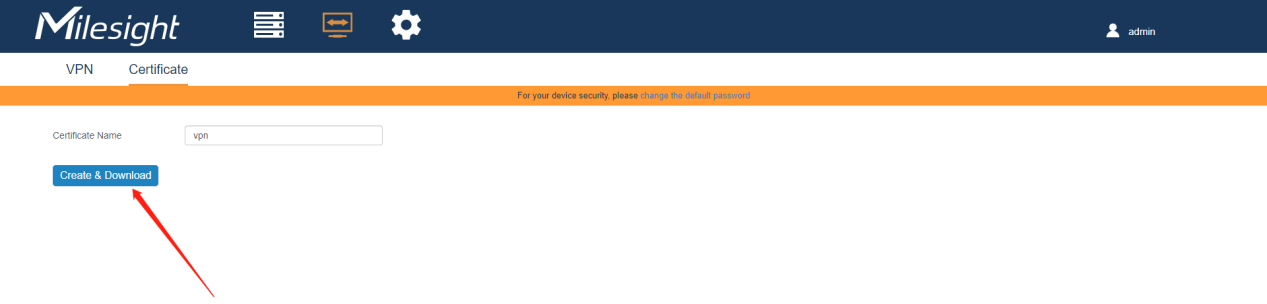
Create OpenVPN profile
Then you will get an OpenVPN connection profile:
Note: If you are using OpenVPN server, please refer to official instruction regarding the configuration file exporting:
https://openvpn.net/vpn-server-resources/create-connection-profiles-and-connect-client-installers/
Next we need to upload the configuration file. The connection will start automatically once the uploading is done:
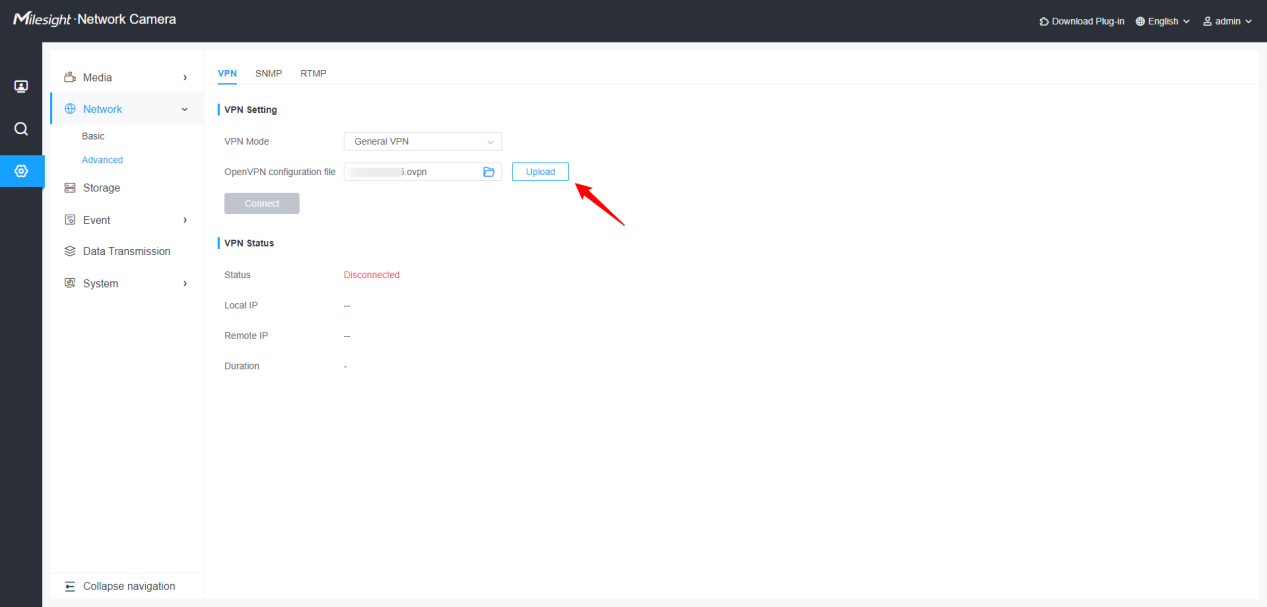
Note: If you disconnect the VPN manually or the connection is broken due to network error, to restore connection you need to upload the configuration file on this page again.
Check the connection status. The picture below shows a normal connection status:
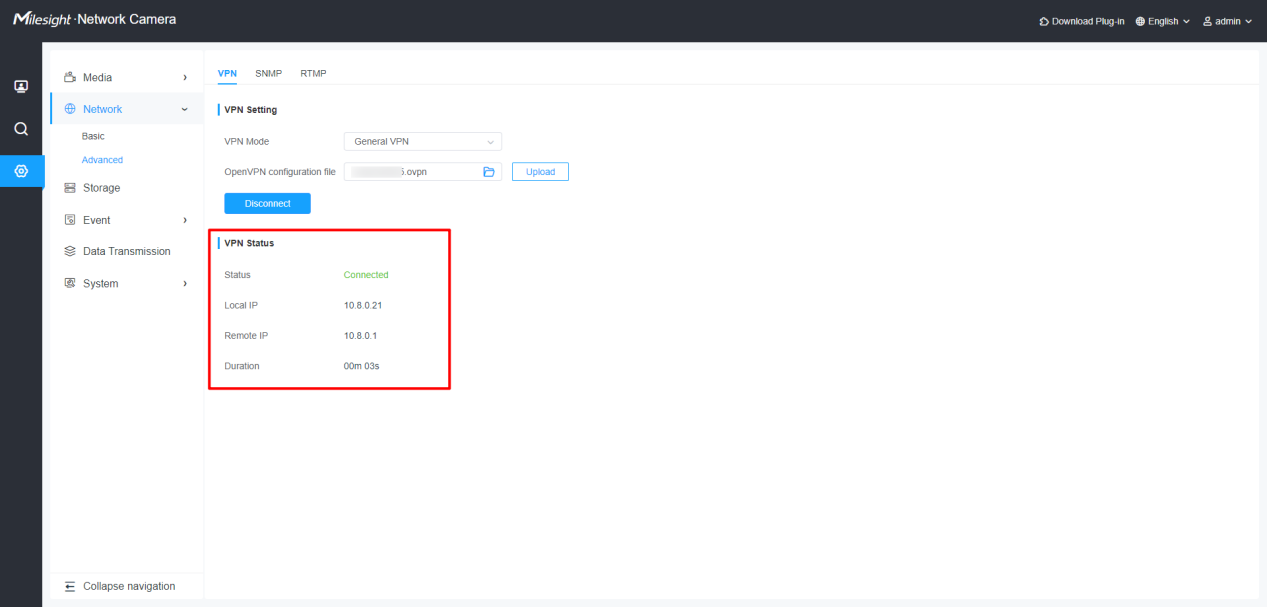
Connection Status
Milesight VPN
Milesight provides Milesight VPN service. If you have signed up for Milesight VPN service, you can enter the server information on camera to enable VPN feature.
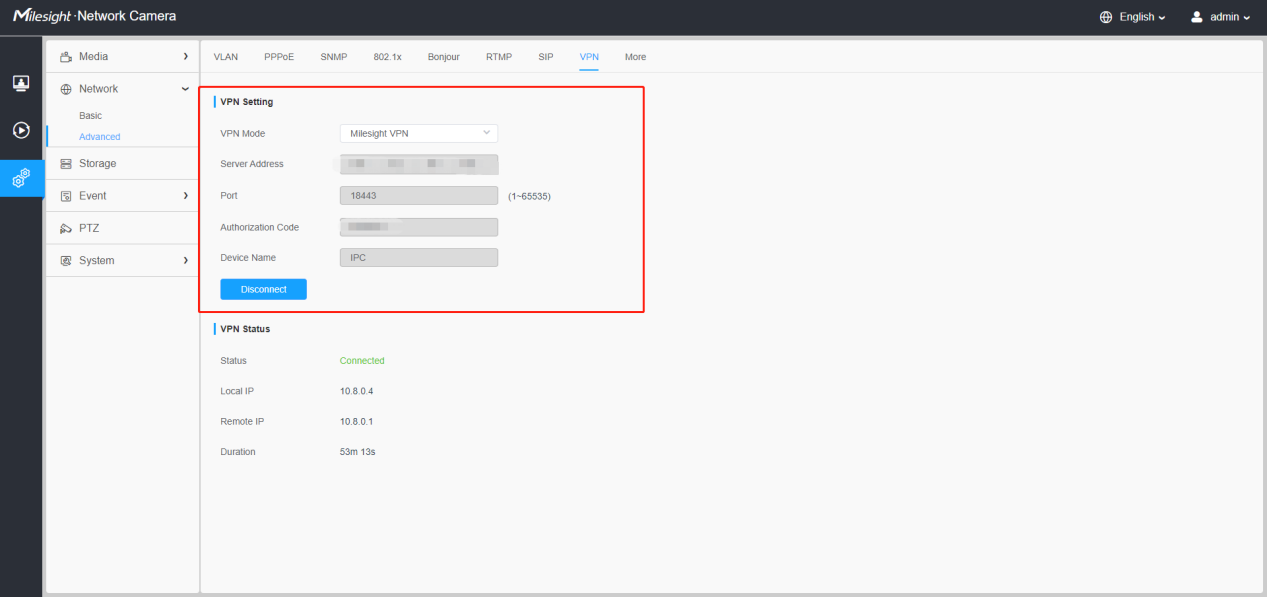
Parameters | Definition |
Server Address | Milesight VPN server IP address |
Port | Milesight VPN server port |
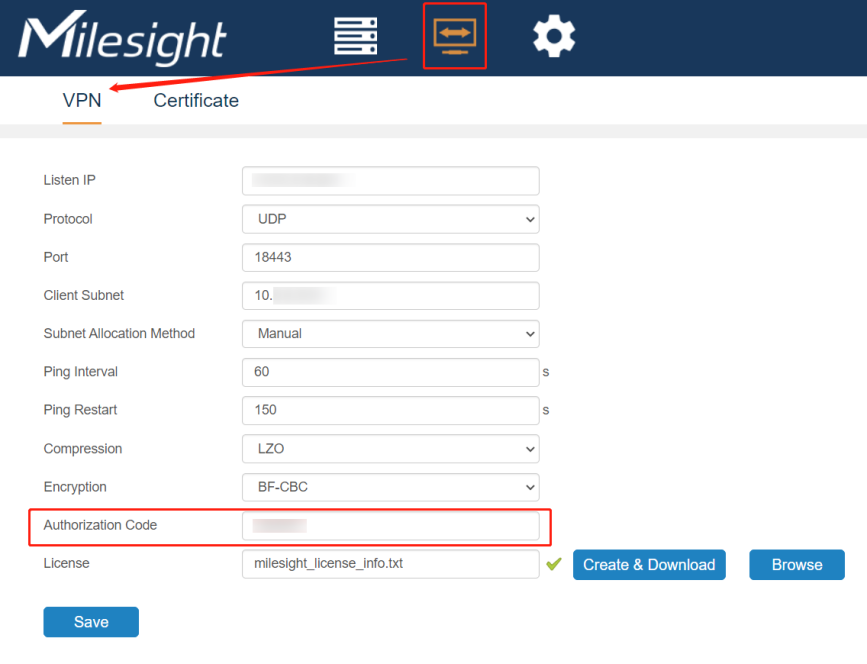
Authorization Code | Code for authentication |
Device Name | Define camera device name on server |
Note!: Log in to the Milesight VPN web page to view the Authorization Code.
After the VPN connection is established, we can log in the camera via virtual IP address.
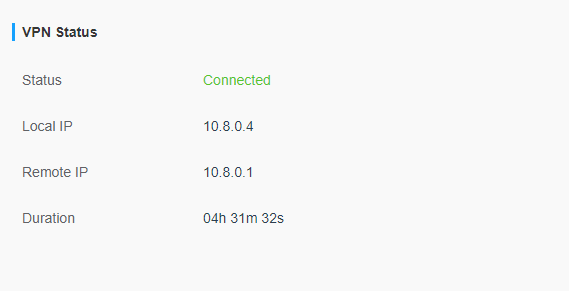
Parameters | Definition |
Status | Status of VPN connection |
Local IP | Camera virtual IP |
Remote IP | VPN virtual IP |
Duration | Connection duration |
Preparation
First log in to the Certificate page of Milesight VPN Web to download the unique Certificate File.
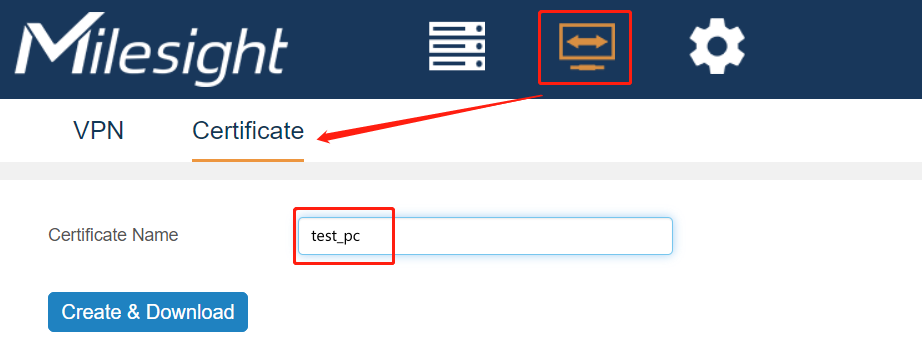
And please make sure your computer (VMS) is also connected to VPN. For example, you can download OpenVPN client for Windows from:
https://openvpn.net/client-connect-vpn-for-windows/
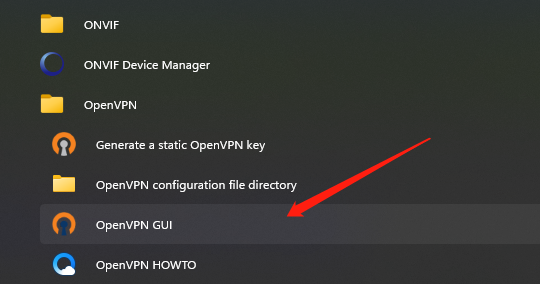
After installation you can see the application in Start menu, open the app:
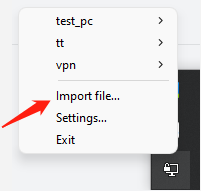
Right click at the VPN connection icon on tool bar and select Import file.
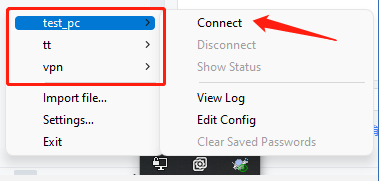
In this area you can see all the configuration file you’ve uploaded. Select corresponding file to connect:
When the connection is done, computer will show this icon:
Login via web
Then open browser and enter camera virtual IP address:
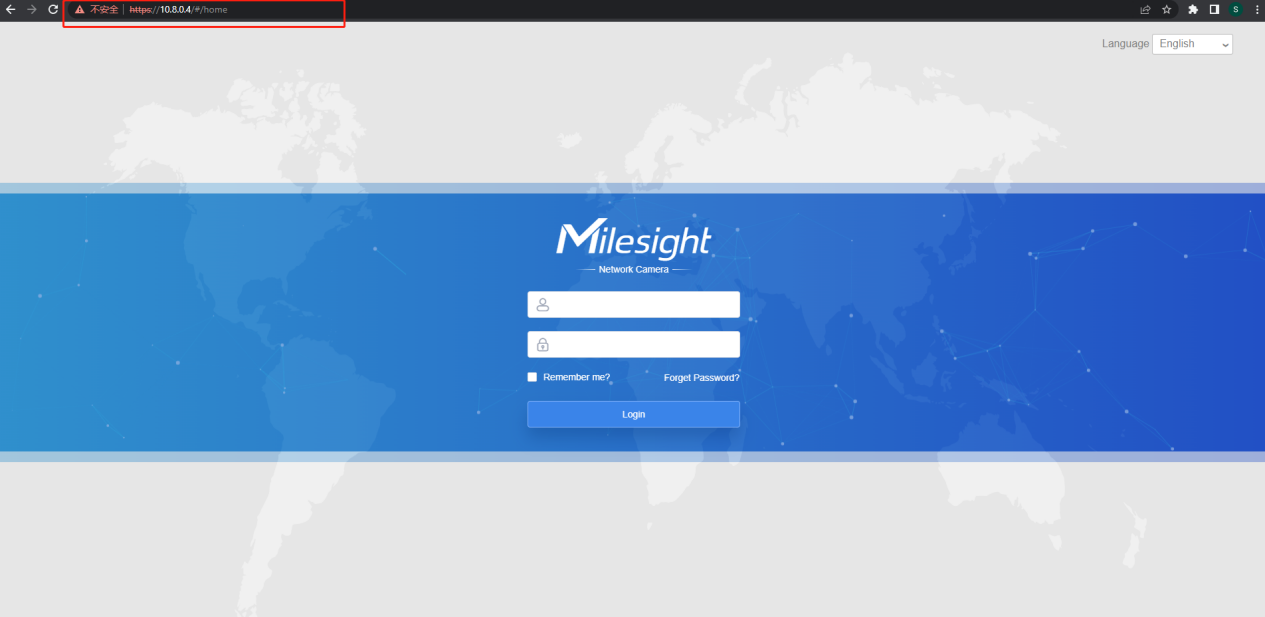
Login via VMS enterprise:
Go to VMS camera management page and add a new camera via VPN:
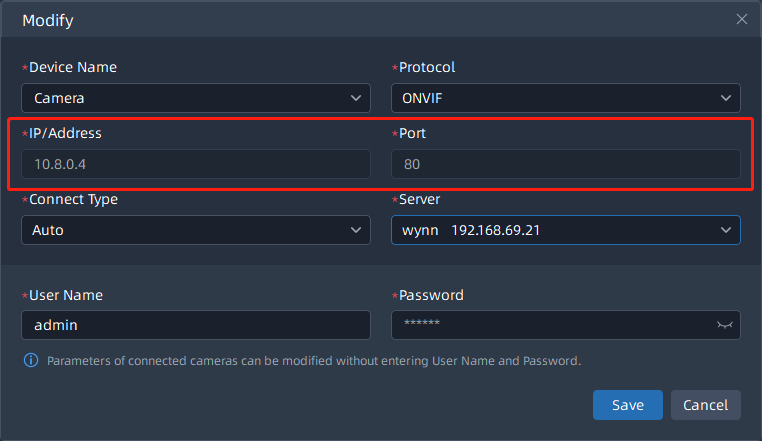
Note: The default HTTP port in this configuration is 80.
View the live image:
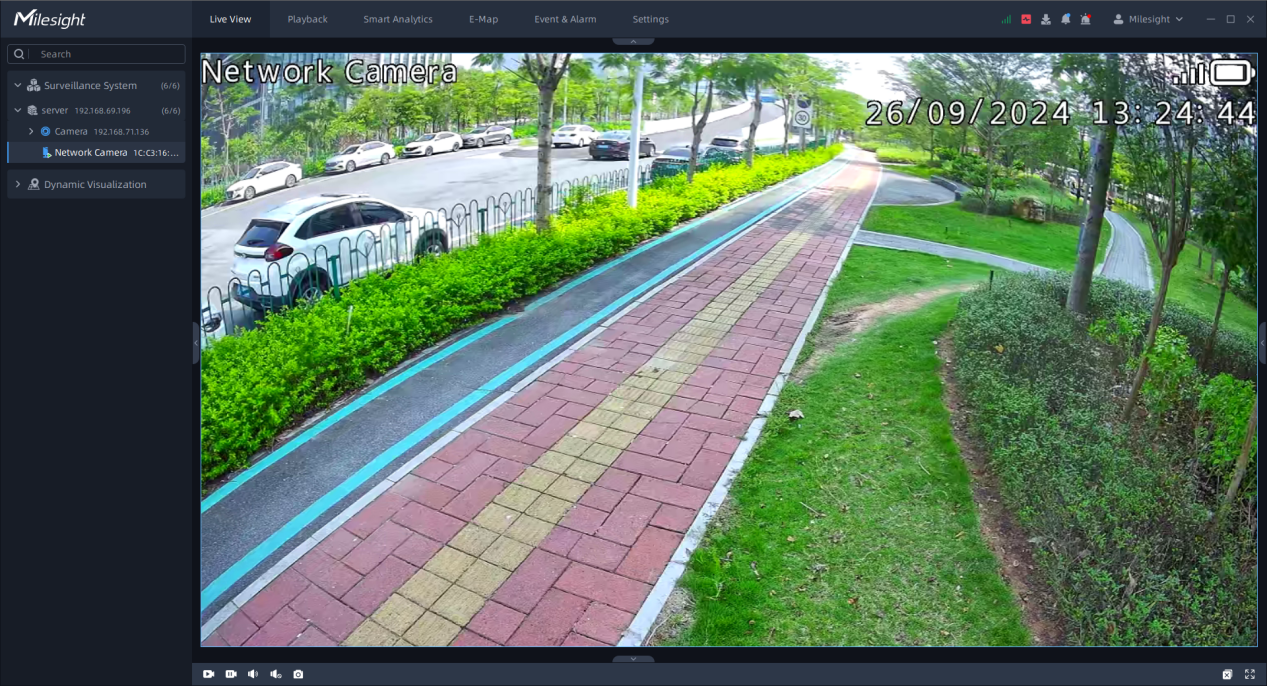
If you have question about how to configure MilesightVPN, please kindly refer to:
If you meet other problem when using VPN feature, please contact Milesight support team for help:
https://support.milesight.com/support/tickets/new
——————END——————