
This guide provides a standardized procedure for configuring radar parameters to ensure accurate vehicle tracking and speed measurement for models: TSxxxx-VPC, TSxxxx-VPE, TSxxxx-VPG1, and TS5510-GVH.
Step 1: Initialize Lane Detection Range
To ensure full coverage of the monitoring area, start by maximizing the detection field.
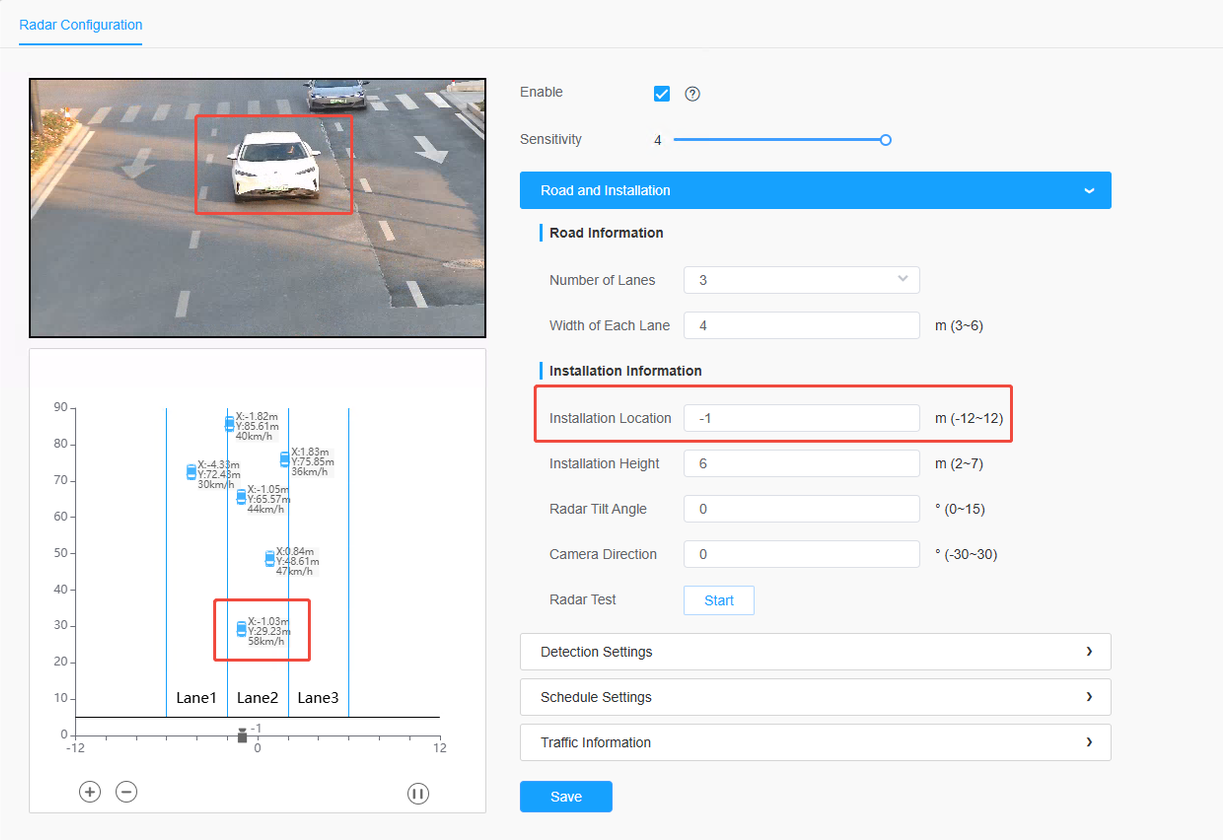
- 1. Navigate to the Radar Configuration interface and open the Road Information tab.
- 2. Set the Number of Lanes to 4 (Maximum) to cover all potential traffic areas.
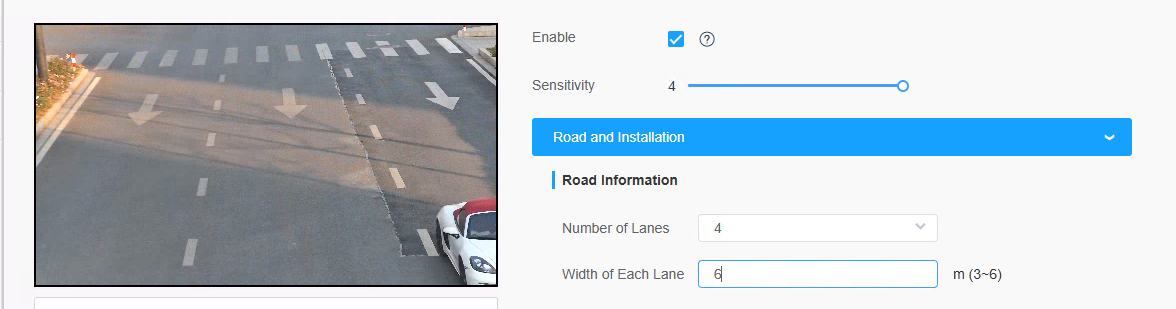
- 3. Set the Lane Width to its maximum value. This provides the widest possible field of view for initial calibration.
- 4. Monitor the Radar Trajectory Plot (bottom-left corner).
- (1) Success: Real-time target tracks appear as vehicles pass.
- (2) Failure: If no data appears, physically adjust the radar board orientation or the device tilt until the plot displays active tracking data.
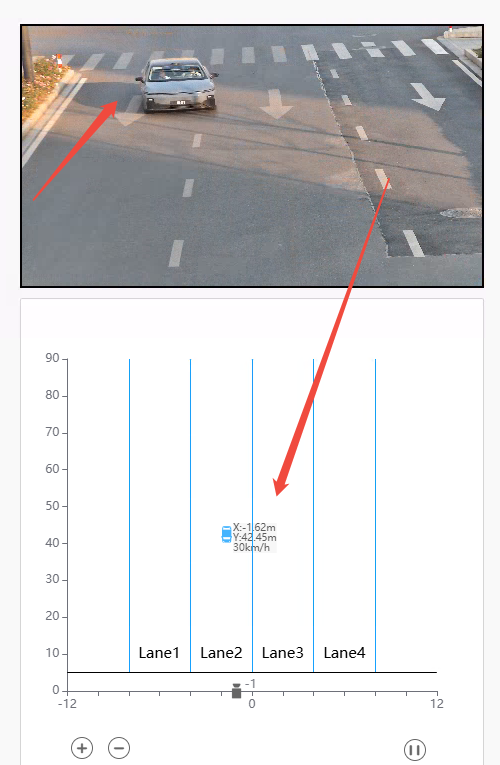
Step 2: Align Trajectory Perpendicular to X-Axis
For accurate speed calculation, vehicle trajectories must be orthogonal (at a 90° angle) to the radar's horizontal baseline.
- 1. Observe the movement of targets (vehicles) on the Radar Trajectory Plot.
- 2. If the tracks are slanted (not vertical), go to the Camera Direction settings.
- 3. Fine-tune the Camera Direction parameter based on the slant:
- · Trajectory tilts Left: Increase the parameter value.
- · Trajectory tilts Right: Decrease the parameter value.
- 4. Continue adjusting until the trajectory lines are strictly perpendicular to the X-axis.
Note: Proper vertical alignment is the foundation for accurate lane assignment and velocity calculation.
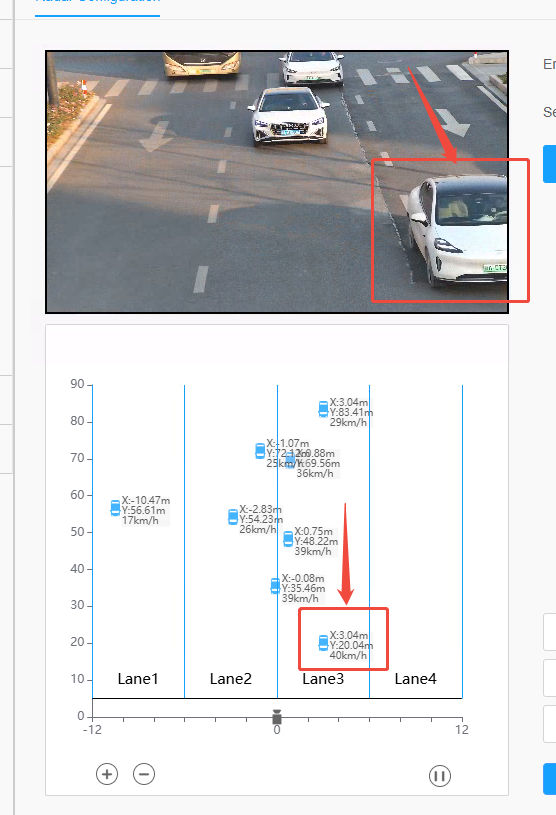
Step 3: Match Virtual Lanes to Physical Road
Once the data flow is straight, map the virtual configuration to the actual road layout.
- 1. Set Lane Count
Adjust the Lane Number to match the actual number of lanes on the road.
- 2. Set Lane Width
Enter the actual Lane Width (e.g., 3.5m or 3.75m) for each lane.
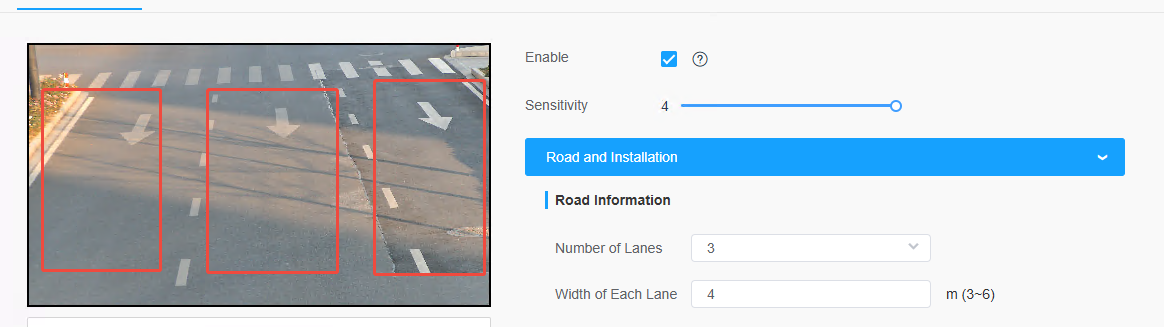
- 3. Calibrate Position
Use the Install Location setting to shift the entire trajectory group along the X-axis:
- Tracks are too far Left: Increase the parameter value.
- Tracks are too far Right: Decrease the parameter value.
- 4. Verify
Verify that the Radar Trajectory Plot perfectly overlaps with the actual vehicle paths in the live video feed.
Summary & Precautions
Real-time Validation
Always watch the live trajectory plot while making changes to see immediate feedback.
Save Settings
You must click Save after finishing all steps, or the calibration will be lost after a reboot.
Field Test
After configuration, perform a "Drive-by Test" with a vehicle at a known speed to verify accuracy.
Reset
If the configuration becomes confused, refer to the user manual to perform a Parameter Reset.
——————END——————