OpenVision Product Frequently FAQ Summary
Print
Modified on: Tue, 30 Dec, 2025 at 3:33 PM
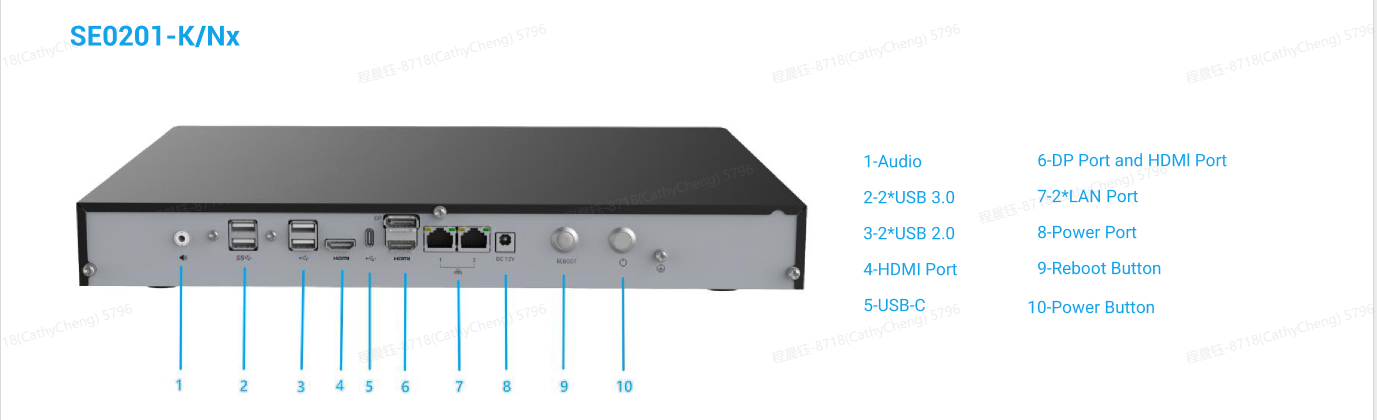
SE0201-K/Nx
Q:Operation Methods for Rear Reboot and Power Buttons
A:Reboot Button
Pressing the Reboot button once will reboot the device. There is no difference between short press and long press; both will trigger a reboot.
Power Button
When the device is powered off (but still connected to power), a short press on the Power button will turn on the device.
When the device is powered on, a short press on the Power button will bring up the shutdown menu on the screen, where you can select the desired action with a mouse.
When the device is powered on, a long press on the Power button will force the device to shut down.
Q:The hard disk is not mounted properly after being connected to SE0201.
A:Newly added hard disks will not be automatically mounted at startup. You need to configure the mount point in the fstab file or use Ubuntu's built-in disk management tool to set the disk to mount at boot.
Q:Is RAID supported?
A:Hardware RAID is not supported, but it can use the built-in backup function of Nx.
Q:Does it support long-term HDMI output and client preview?
A:SE0201 is a server product and does not come with the Nx Client pre-installed by default.
Although HDMI output is supported, it is not recommended for long-term decoding and display. We suggest users run the Nx Client on another computer for video preview.
Q:Will using different SATA ports affect the hard drive detection order?
A:When hard drives are connected to different SATA ports, Ubuntu will recognize them as different devices. For example, port 0 corresponds to /dev/sda, port 1 to /dev/sdb, and port 2 to /dev/sdc. The mount paths in Ubuntu will also change accordingly.
This does not affect drive detection or performance.
If you later change the SATA port for a drive, the device name will update to match the new port assignment.
SE0208-K/Nx
Q:Server Cannot Run After Power-On
A:The device does not include an SSD by default.
However, an SSD is required for the server to operate. Customers are required to install an SSD themselves before use.
Q:Indicator light status
A: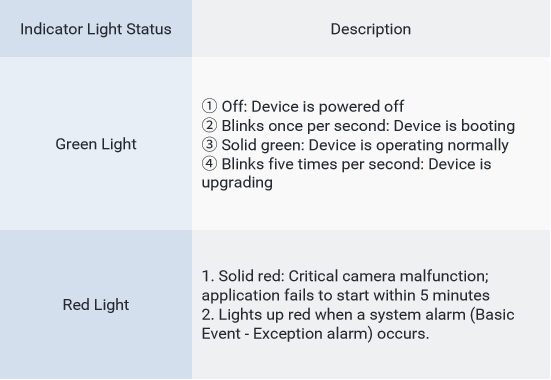
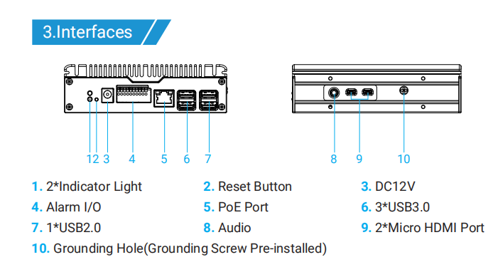
Q:Hardware Reset Instructions
A:Hard Reset
Press and hold the physical Reset button on the device for more than 10 seconds while powering on. This will restore the device to factory settings, clearing IP address, user information, and all web configurations.
Soft Reset
Press and hold the physical Reset button on the device for more than 10 seconds during normal operation. This will restore the device to factory settings without clearing the IP address and user information; only the factory settings are restored.
Q:Brand new SSD is not detected and cannot be formatted.
A:Power off the device. Ensure the SSD is properly inserted and securely fastened with screws.
Upgrade the device firmware to the latest version (e.g., version B3).
After rebooting, go to the Storage interface to check if the SSD can be formatted.
If the issue persists, access the backend (terminal) and execute the following commands to check SSD recognition:
lsblk -f
lsblk -b
ll /dev | grep "ssd"
Check whether the SSD is properly detected by the system.
Q:Network error, unable to access the web interface.
A:Connect a monitor to the device and enter the Ubuntu settings interface to check if there are any anomalies in the Network configuration.
Verify the .nmconnection files under the /run/NetworkManager/system-connections directory.
Check the .yaml files under the /etc/netplan directory (note: original text had a typo /dec/netplan).
Inspect the NetworkInfo table in the /mnt/cfg/app.db database to ensure the data matches the current system network configuration.
Q:Ubuntu Login Usernames and Passwords
A:Two user accounts are pre-configured:
root user
system user
This user is intended for logging into the Ubuntu desktop and running the NX Client (without root privileges).The default password is admin.
The password can be configured and modified via the web interface.
Did you find it helpful?
Yes
No
Send feedback Sorry we couldn't be helpful. Help us improve this article with your feedback.
