
Introduction
This article mainly introduces the process and key considerations for reinstalling the Milesight OpenVision Server system and the Nx Witness Server.
Precautions
Reinstalling the system or Nx Witness Server may erase settings and data. Back up important files beforehand.
Prerequisites
· Ubuntu Desktop installation image
You can download it from the official Canonical Ubuntu website: Download Ubuntu Desktop | Ubuntu. Alternatively, you may use mirror sites closer to your location. Using the LTS (Long-Term Support) version is recommended.
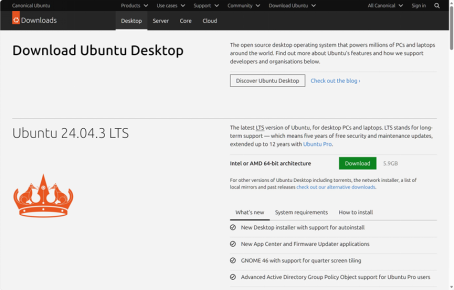
Figure 1 Ubuntu OS
· USB flash drive
Preferably at least 8GB in size and supporting USB 3.0.

Figure 2 USB Flash Drive
· Installation media creation tool
Tools such as Rufus, balenaEtcher, or UltraISO will work.
- o Rufus GitHub release page: Release Rufus 4.11 · pbatard/rufus · GitHub
- o balenaEtcher official page: balenaEtcher - Flash OS images to SD cards & USB drives
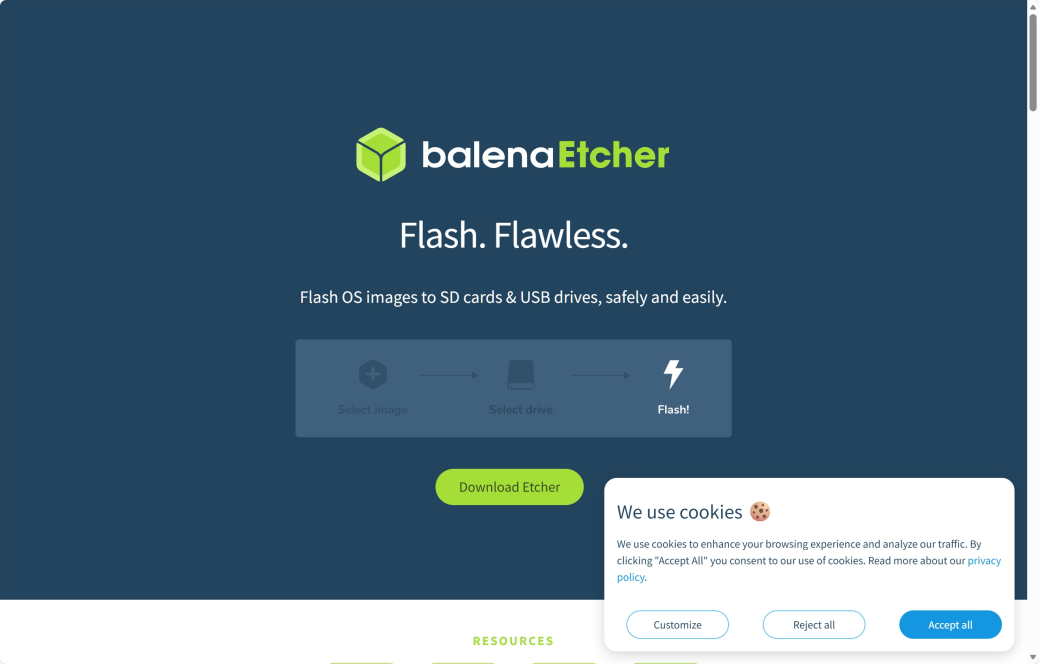
Figure 3 Balena Etcher
· Nx Witness for Ubuntu Linux
Download from: Download Nx Witness for Ubuntu Linux.
Please ensure you download the server installer, not the client. The OpenVision Server is designed to merely run as server. Running the client on the same server would potentially cause performance problems.
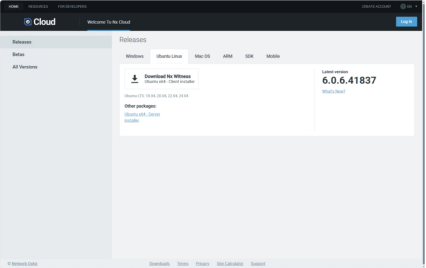
Figure 4 Nx Witness Server
· Milesight Plugin for Nx Witness on Ubuntu
Milesight Plugin Download Link
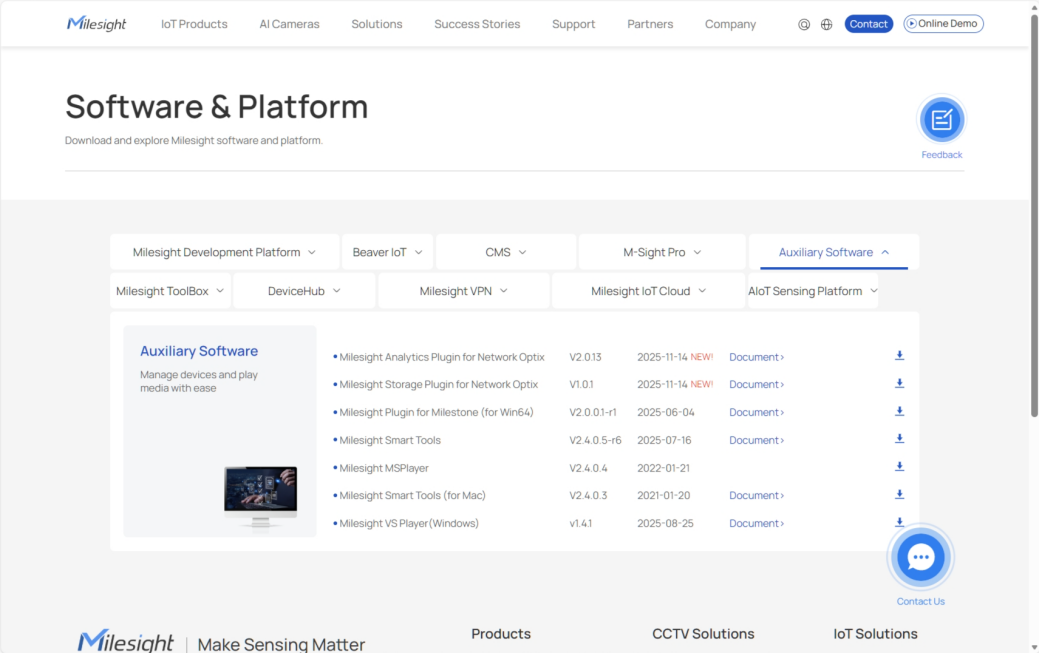 Figure 5 Milesight Plugin for Nx Witness
Installation Steps
1. Create installation media
Use your chosen tool to create a bootable Ubuntu Desktop installation USB. Insert the USB flash drive into a USB 3.0 port (usually colored blue).
2. Configure BIOS
o Reboot the server.
o Press the Delete key during POST to enter BIOS Setup.
o Navigate to the Boot tab.
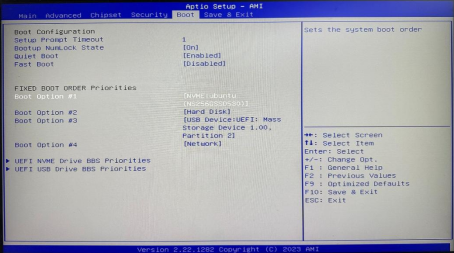
Figure 6 Boot Setup
o Set the USB flash drive as Boot Option #1 in the Fixed Boot Order Priorities section.
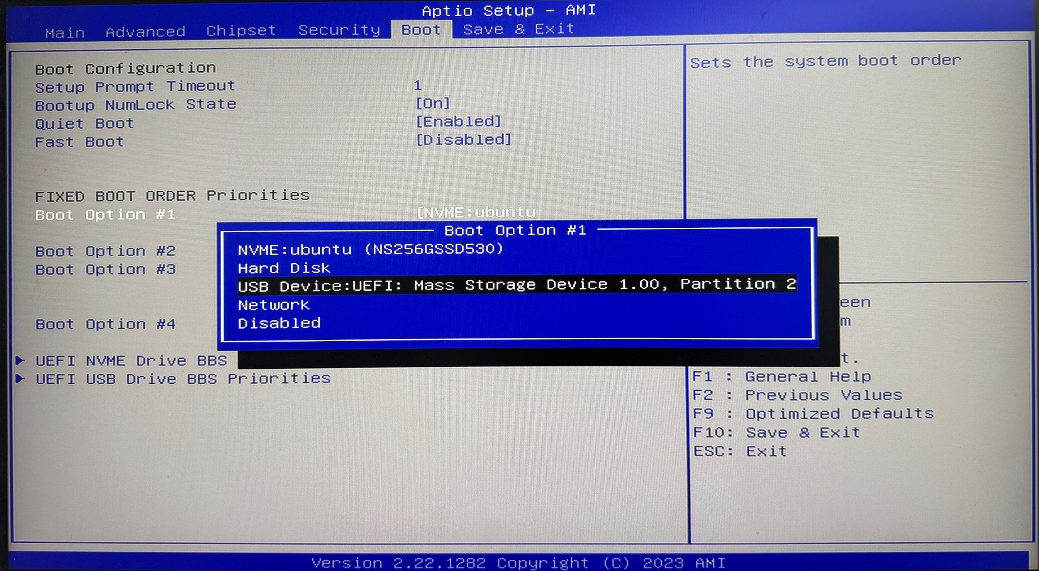
Figure 7 Boot Priority Selection
o Press F10 to save and exit.
3. Install Ubuntu Desktop
The server should now boot from the USB flash drive. Follow the official Canonical guide: Install Ubuntu Desktop | Ubuntu.
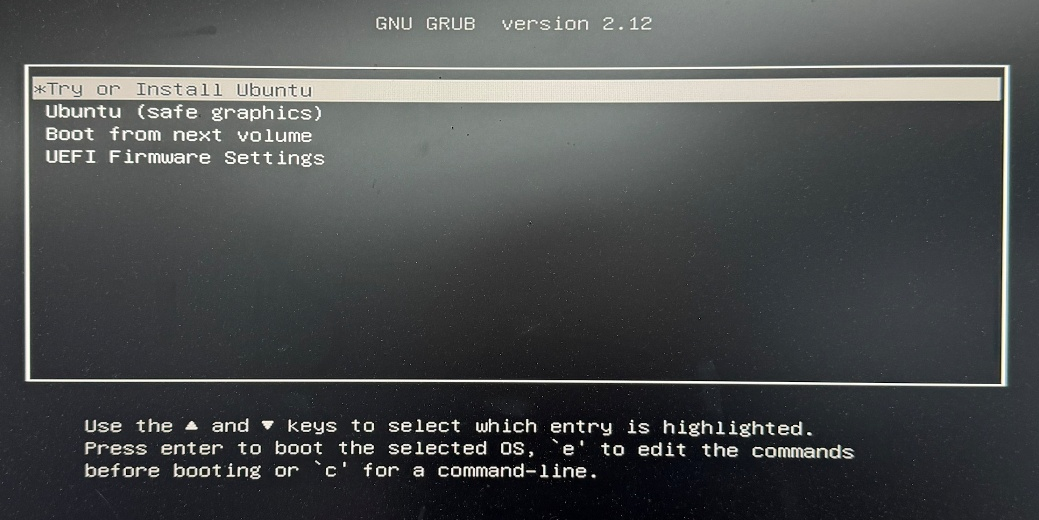
Figure 8 Booting from the Installation Media
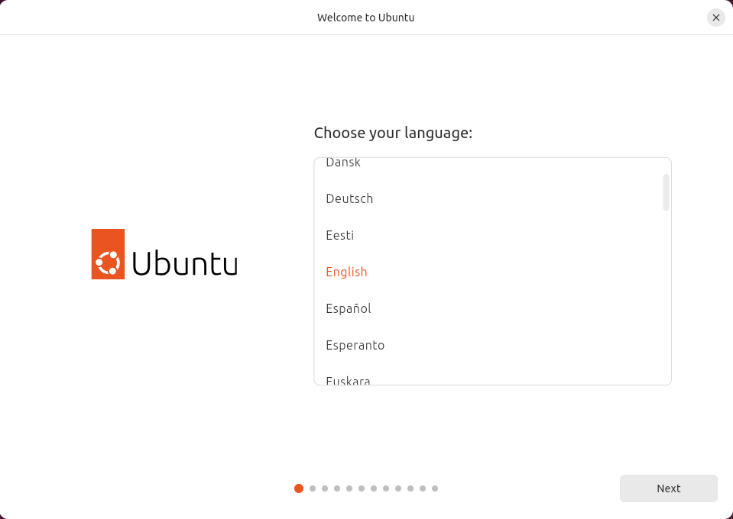
Figure 9 Ubuntu Installer Welcome Screen
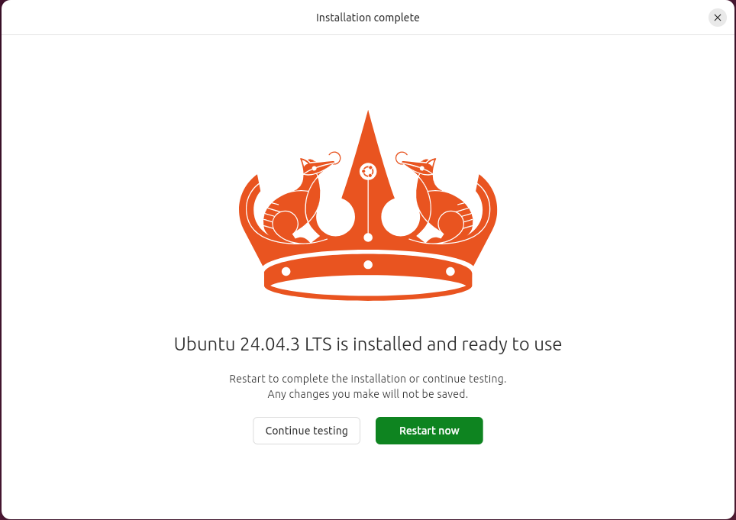
Figure 10 Ubuntu Installation Complete
4. Configure network
Set up Internet connectivity in Ubuntu Settings. This is required for the Nx Witness server installation.
5. Install Nx Witness Server
Copy the Nx Witness server installation package to the server, then run the following commands in Terminal:
sudo su #password is required after this command
apt update
dpkg -i #drag the Nx Witness server .deb package into the Terminal window
sudo apt-get -f install
#It’s normal if you are prompted about missing dependencies; the last command resolves them.
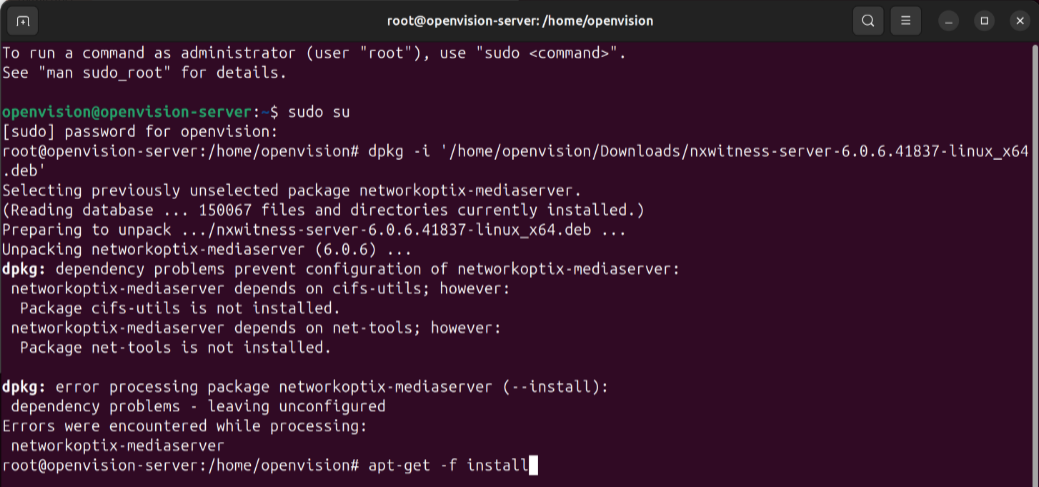
Figure 11 Installing Nx Witness Server
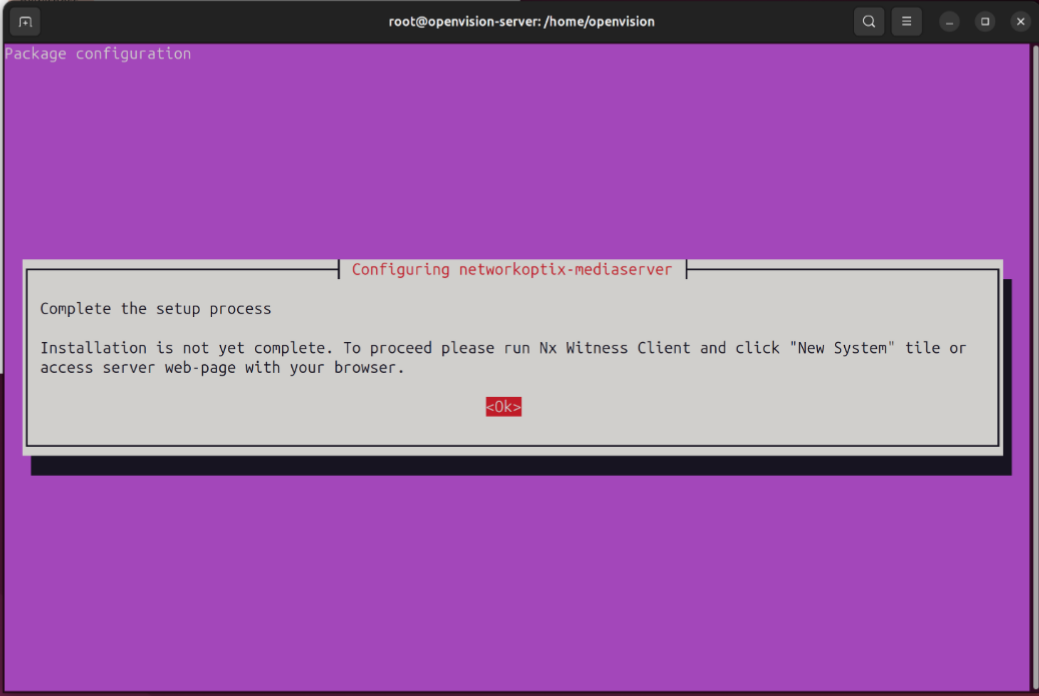
Figure 12 Installation Finished
6. Install Milesight Plugin
Decompress the Milesight Plugin zip archive and follow Section 2.2 Linux Installation in the included document Installation and Operating Guide – Milesight Plugin for Nx Witness.
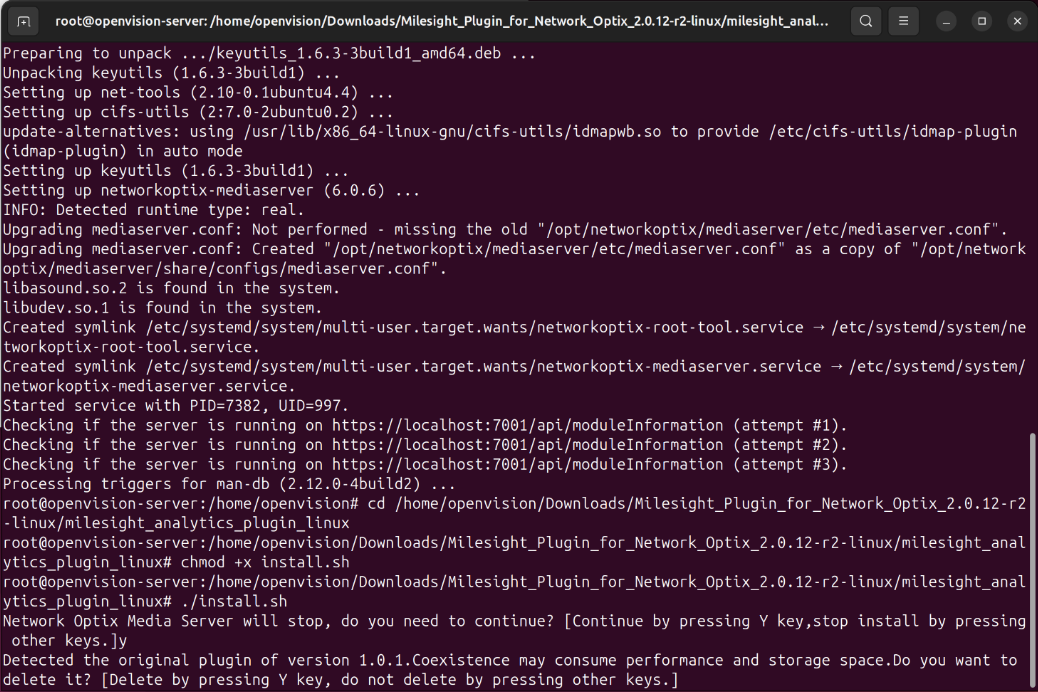
Figure 13 Installing Milesight Plugin
After completing these steps, the Nx Witness Server and Milesight Plugin will be installed. You can create a new Nx Witness system via the client or web interface. The default server port is 7001.
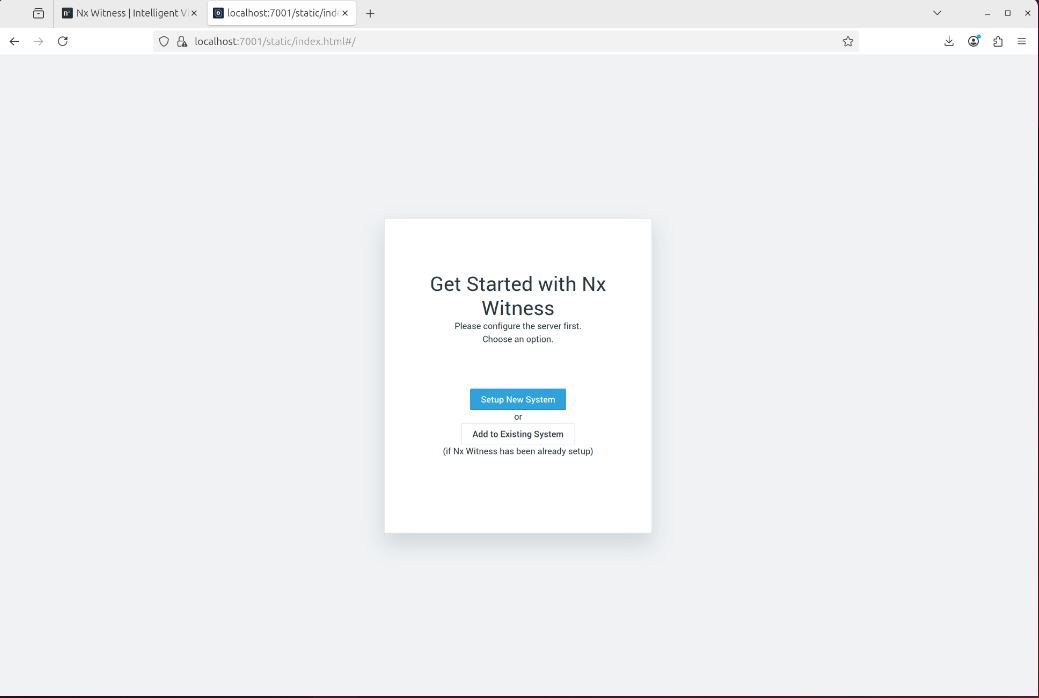
Figure 14 Nx Witness Server Initialization
If you still encounter issues in the reinstallation of the Milesight OpenVision Server please contact support@milesight.com for technical assistance.
——— END ———